
Workflow Trigger - Inbound Email
The Inbound Email workflow trigger allows you to automate actions whenever a new email is received on your mailboxes. Whether the sender is an existing contact or someone entirely new, this trigger gives you granular control over how inbound emails enter your workflows – so you can capture leads, route conversations, and respond faster than ever.
What is the Inbound Email Workflow Trigger?
The Inbound Email trigger fires when an inbound email is received on your mailboxes. Unlike the existing Customer Replied trigger (which activates when a contact replies to a message you sent), the Inbound Email trigger is designed to capture all inbound emails – including cold emails from brand-new senders who are not yet in your CRM. This trigger handles three types of inbound emails:
- Cold Emails – New emails from unknown senders (not in your contacts).
- Warm Emails – New emails from known senders (existing contacts in your CRM).
- Customer Replies – Replies from known senders to an existing email thread (optional, controlled via a setting). > ⚠️ Important: Only email domains configured with Email System or Mailgun dedicated domains can track cold inbound emails with this trigger. Two-way sync (Gmail/Outlook), shared domains and other SMTP setups do not support cold inbound email capture and will only capture emails from existing contacts. Details on email behavior are shared further down.
Prerequisites: Supported Email Configurations
Before configuring this trigger, ensure your sub-account has a supported email setup. The Inbound Email trigger works best for locations configured with:
- Email System dedicated domain - Mailgun dedicated domain If your sub-account does not have a supported dedicated domain configured, it will not capture all types of inbound emails. You will see a banner that will appear in the trigger UI based on your configuration
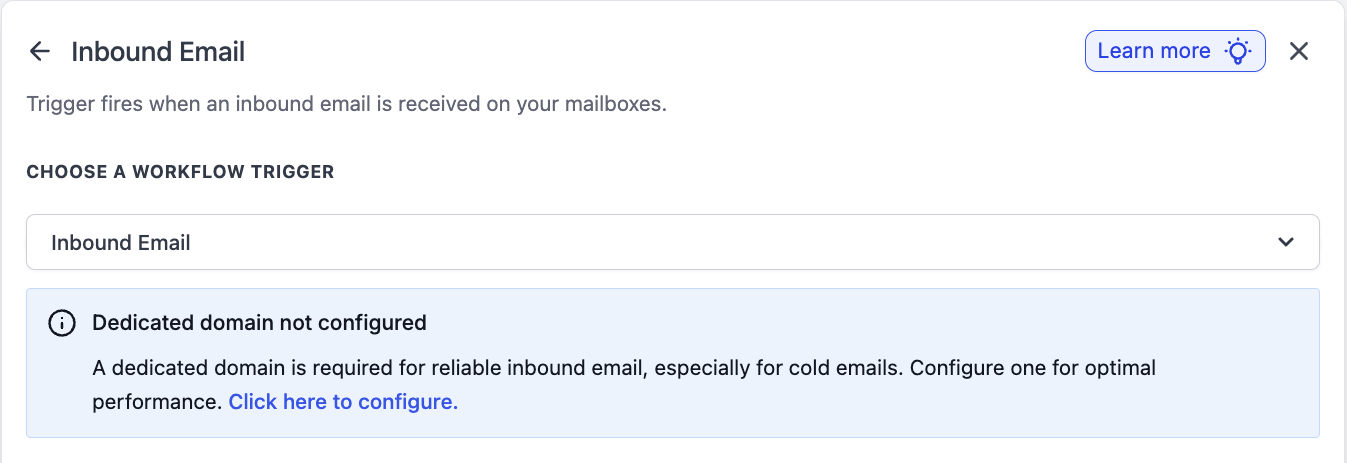
Key points about dedicated domains and inbound email:
- Any email sent to your dedicated domain will be captured, regardless of the name before the @ symbol. For example, if your domain is acme.com, emails sent to [email protected], [email protected], or [email protected] will all be captured.
- Each sub-account should have a unique dedicated email subdomain. If the same domain is configured across multiple sub-accounts, incoming emails may be routed unpredictably.
- If a non-dedicated domain email setup is configured (e.g., Gmail / Outlook only), the user will be redirected toward email configuration or shown clear guidance that the trigger will not reliably capture cold inbound emails.
Email Behavior Across Different Email Setups
The table below summarizes how inbound email behaves across different email configurations. This will help you understand which setups support the Inbound Email trigger.
Email Setup Type | Cold Inbound Email Captured | Inbound Email from Existing Contact Captured |
Email System – Shared Domain | No | Yes (for replies to emails sent from Patient Copilot) |
Dedicated Domain – Mailgun or Email System | Yes | Yes |
Two-Way Sync (Gmail / Outlook) | No | Yes |
Other SMTP (SendGrid, Custom) | No | Yes |
Key Benefits of Using the Inbound Email Trigger
- Capture cold inbound emails: Automate workflows for first-time emails from unknown senders – a gap that the Customer Replied trigger does not address.
- Inbox-based routing: Use the To / Mailbox filter to route emails by inbox (e.g., sales@ vs. support@).
- Subject-driven automations: Trigger specific workflows based on email subject lines (e.g., refund requests, resumes, warmup emails).
- Granular filtering: Filter by From, CC, Body, and Attachments to narrow down exactly which emails should enter a workflow.
- Reply tracking control: Choose whether replies in existing threads should also fire this trigger, preventing unwanted re-triggering.
How to Set Up the Inbound Email Trigger in Workflows
A clean trigger setup prevents misfires and keeps your automation predictable. Follow these steps to add and configure the Inbound Email trigger. 1. Log in to your sub-account. 2. Navigate to Automations > Workflows. 3. Create a new workflow or open an existing one. 4. Click on the + Add New Trigger button -> Select Inbound Email from the trigger list.
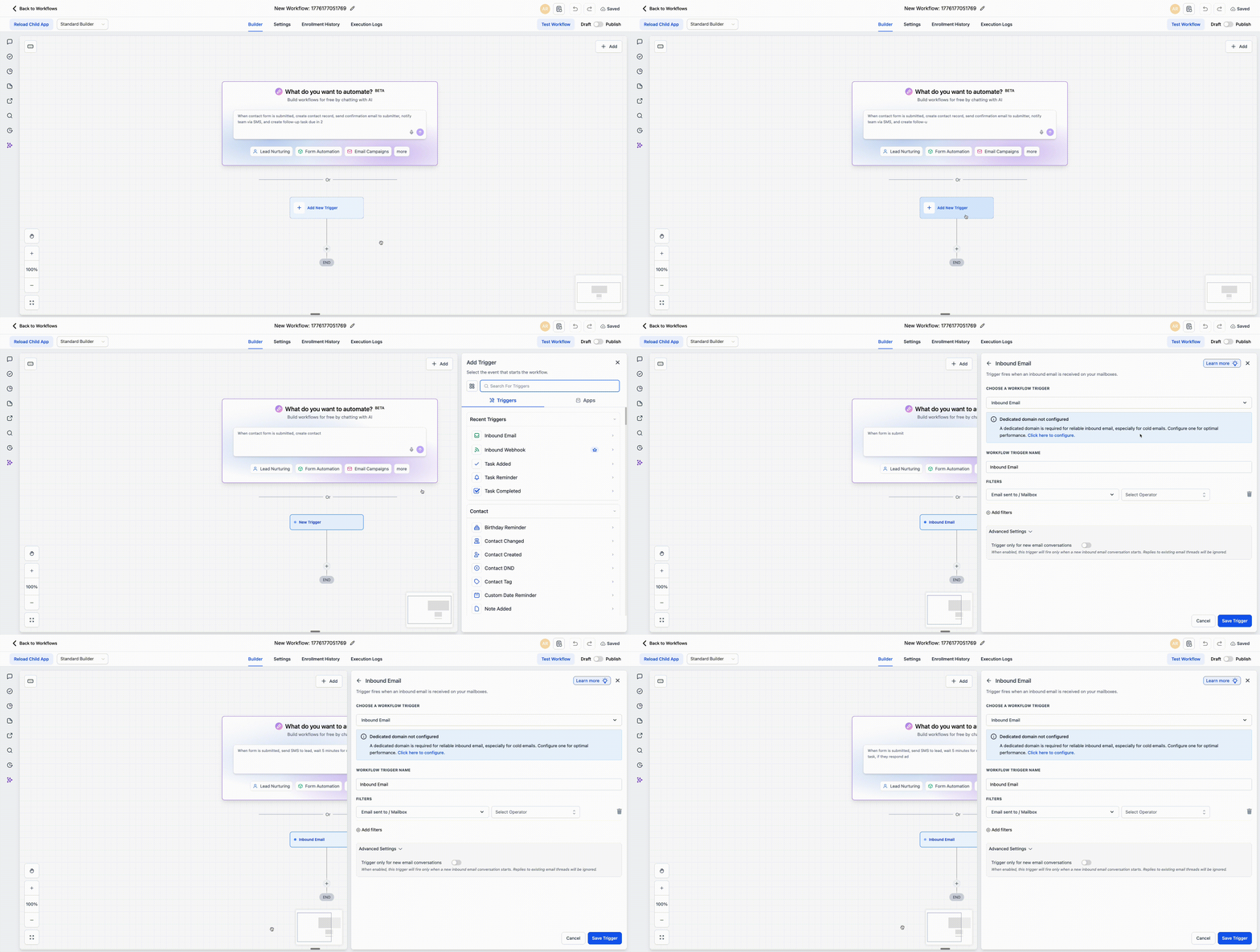
- Enter a clear Trigger Name so it is easy to identify later (e.g., “New Lead from Sales Inbox”). 7. Click + Add Filters to narrow when the workflow should run (see the Trigger Filters section below for all available options). 8. Configure the Trigger Settings checkboxes (Track replies in existing threads, Automatically create a contact). See the Trigger Settings section below. 9. Click Save Trigger. 10. Add your relevant workflow actions (e.g., Send Email, Create Contact, Add Tag, Assign to User), then Publish the workflow.
Trigger Filters Filters let you control exactly which inbound emails should activate the workflow. You can combine multiple filters to create precise conditions. Multiple entries can be added using comma separation where supported.
Filter Name | Operators | Example(s) | Notes / Behavior |
Email Sent To / Mailbox | Equals, Is any of, Contains, Does not contain | [email protected] (equals) @acme.com (contains) | Equals: passes only if the specified email is present in the To / Mailbox field. Is any of: passes if ANY address in the To header matches (supports comma-separated values). Contains / Does Not Contain: substring match on each address. |
From | Equals, Contains, Does not contain | @lead.com | Always a single value. Matches the extracted email address, not the display name. Case-insensitive. |
CC | Equals, Is any of, Contains, Does not contain |
| Equals: passes only if the specified email is present in the CC field. Is any of: passes if ANY address in the To header matches (supports comma-separated values). Contains / Does Not Contain: substring match on each address. |
Subject | Equals, Contains, Does not contain | Contains: refund Equals: Request for Quote | Case-insensitive match. Whitespace is trimmed before comparison. |
Body (plain text) | Contains, Does not contain | Contains: Order ID: | Matching is run on the plain-text body by default. |
Has Attachments | Is true / Is false | TRUE | When set to true, enables attachment-specific downstream actions. |
| Replied to Workflow | Is, Is not | Select a specific workflow | Filters based on whether the message sent from a specific workflow. Useful for isolating replies to a particular automation. Case-insensitive match. Whitespace is trimmed before |
| Contact Tag | Has tag, Does not have tag | 16_aug_2022 | Filters contacts by tag. Has tag: fires only if the contact has the selected tag. Does not have tag: fires only if the contact does not have the selected tag. Useful for segmenting automations by audience. |
Advanced Settings The Inbound Email trigger includes an Advanced Settings section (collapsible) that gives you more control over its behavior. Click the Advanced Settings chevron to expand the section.

Trigger Only for New Email Conversations Type: Toggle | Default: Off
- When OFF (default), the trigger fires for all inbound emails, including replies within existing email threads.
- When ON, the trigger fires only when a new inbound email conversation starts (i.e., a first message, not a reply to an existing thread). This setting is useful if you want to avoid the trigger firing repeatedly for every back-and-forth reply in an ongoing conversation. Enable this toggle if your workflow should only capture the first inbound email in a thread (e.g., new lead capture, first-touch autoresponder scenarios).
Custom Value Picker Fields The Inbound Email trigger makes the following custom values available for use in your workflow actions and If/Else conditions. You can use these to personalize follow-up emails, route conversations, parse email content, and more.
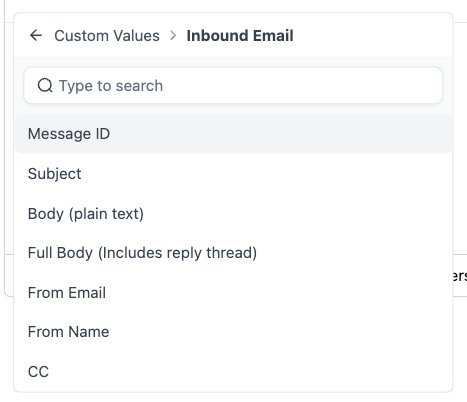
Custom Value | Description |
{{inboundEmail.messageId}} | Unique message ID of the inbound email |
{{inboundEmail.subject}} | Subject line of the inbound email |
{{inboundEmail.bodyPlain}} | Plain-text body content of the email |
{{inboundEmail.bodyFullPlain}} | Full plain-text body including the entire reply thread |
{{inboundEmail.fromEmail}} | Sender’s email address |
{{inboundEmail.fromName}} | Sender’s display name |
{{inboundEmail.cc}} | CC recipients of the inbound email |
Use Cases of the Inbound Email Trigger Use these examples as templates to build automations that match real inbound email scenarios.
Lead Capture from Cold Inbound Emails - Trigger: Inbound Email
- Filters: To / Mailbox = [email protected]
- Actions: Create contact (auto), assign to pipeline stage “New Lead,” send acknowledgement email, start lead nurturing sequence.
Team Routing by Inbox - Trigger: Inbound Email
- Filters: To / Mailbox contains @yourdomain.com
- Actions: Use an If/Else action to check the To / Mailbox value. Route sales@ emails to the SDR queue, support@ emails to the ticket workflow, and billing@ emails to the finance team.
First-Touch Autoresponder with AI - Trigger: Inbound Email
- Settings: Track replies in existing threads = Off (fire only for new threads)
- Actions: Use the AI Prompt (ChatGPT) action to generate a personalized response based on the email body, then send it as an auto-reply.
Subject-Driven Automations - Trigger: Inbound Email
- Filters: Subject contains “refund”
- Actions: Escalate to a manager, create a support ticket, apply a “Refund Request” tag.
Ops & Compliance: Attachment-Based Workflows - Trigger: Inbound Email
- Filters: Has Attachments = True
- Actions: Notify the ops team, tag the contact, move the opportunity to the next pipeline stage (e.g., “Signed Docs Received”).
Frequently Asked Questions
Q: How is the Inbound Email trigger different from Customer Replied? The Customer Replied trigger fires when a contact replies to a message you have already sent. The Inbound Email trigger fires on any inbound email – including cold emails from unknown senders. If you need to capture first-contact emails or emails from people not yet in your CRM, use the Inbound Email trigger. Q: Which email setups support this trigger? Only Email System and Mailgun dedicated domains support full inbound email capture. Two-way sync (Gmail/Outlook) and other SMTP providers will only work for emails from existing contacts in the CRM. Q: Will my existing Customer Replied workflows break? No. The Customer Replied trigger continues to work exactly as before. The Inbound Email trigger is a separate, new trigger. Your existing configurations are not affected. Q: Can emails fire both the Inbound Email trigger and the Customer Replied trigger? It is possible for an email to match both triggers if both are configured in separate workflows. To avoid conflicting scenarios, review your trigger filters and use the “Track replies in existing threads” setting to control overlap. Q: What happens if the same domain is configured in multiple sub-accounts? If the same dedicated domain is used across multiple sub-accounts, incoming emails may be routed unpredictably. Each sub-account should have a unique dedicated email subdomain to ensure reliable routing. Q: Can I prevent the trigger from firing on every reply in a thread? Yes. Uncheck the “Track replies in existing threads” setting. When disabled, the trigger fires only for new inbound emails / new threads. Q: Can I filter emails based on multiple criteria? Yes. You can combine multiple filters (e.g., To / Mailbox + Subject + Has Attachments) to create precise conditions for when the workflow should run.