Hide and Show Elements on Button Click (Funnels & Websites)
Introducing a powerful enhancement to our platform with the addition of the “Show/Hide Elements on Click” feature. This new button action empowers users to dynamically hide or reveal hidden elements on both mobile and desktop views, providing greater flexibility and interactivity in designing and presenting content.
How to Hide Elements on a Button Click
Add an interactive layer to designs by hiding elements when a button is clicked. Important: In order to show an element, that element must first be hidden. If no elements are shown in the Show Elements dropdown, you must first hide an element.
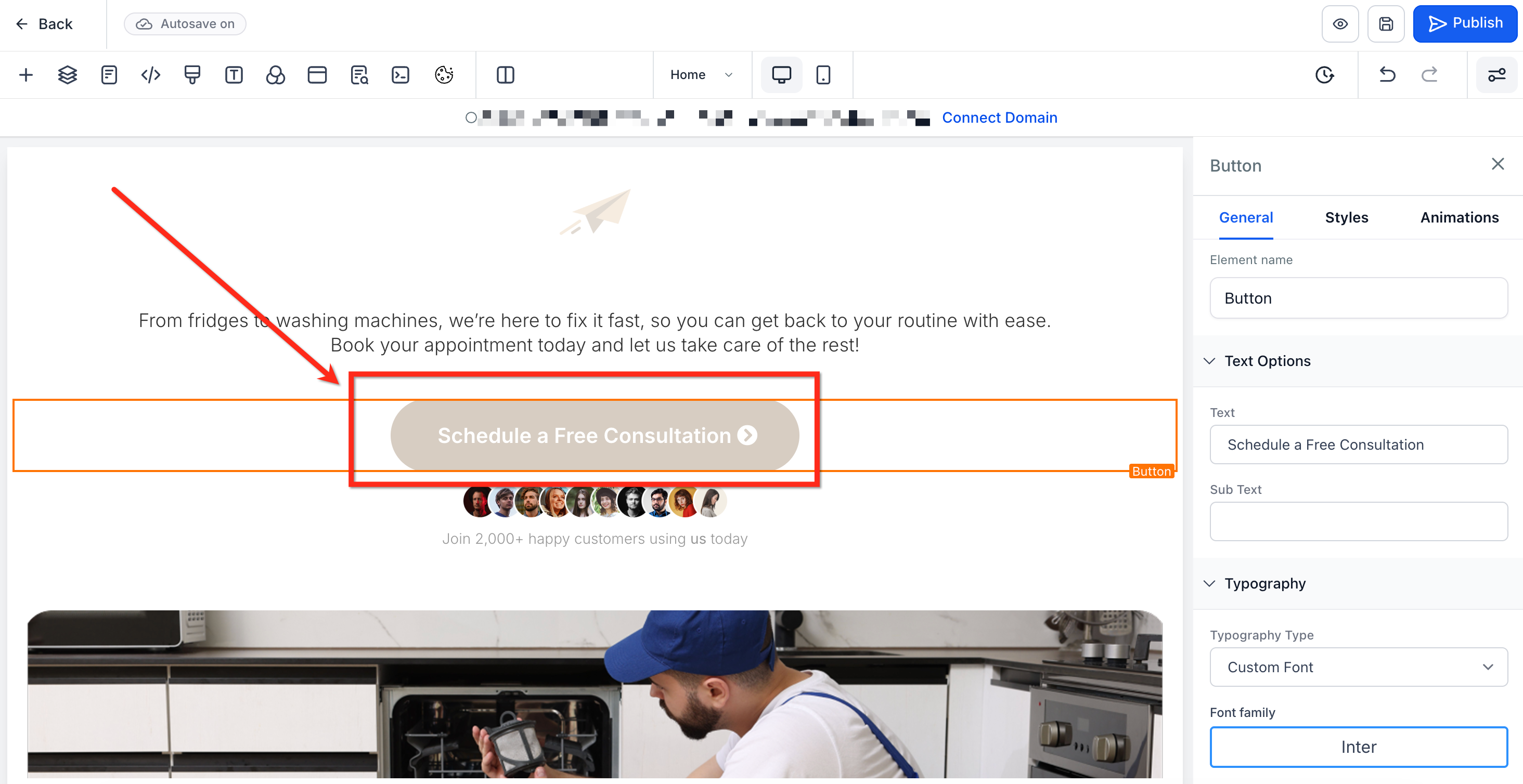
Step 1: Choose the Button In the funnel or website builder, choose the Button element that you want to use.
Step 2: Navigate to Button Actions
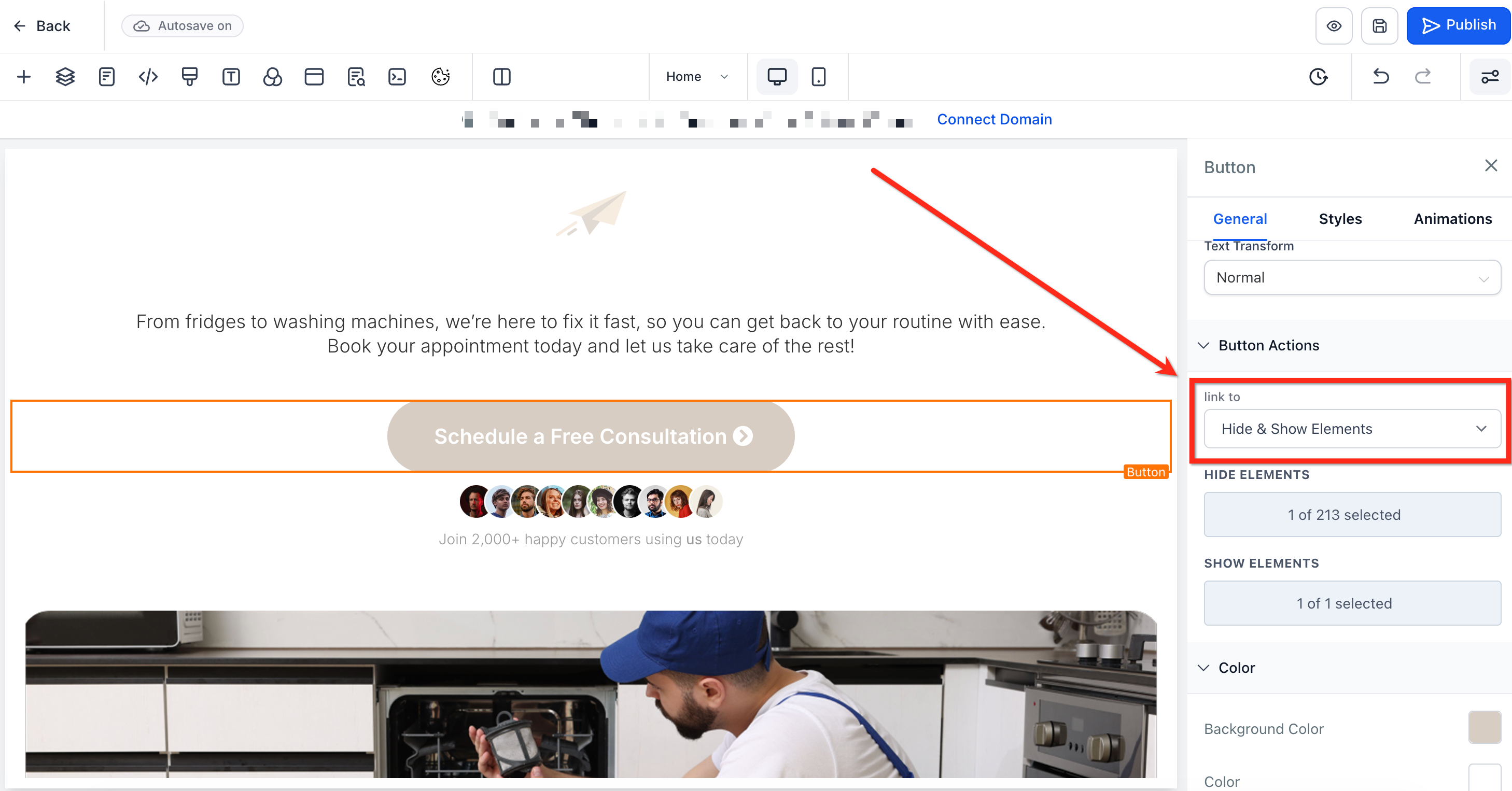
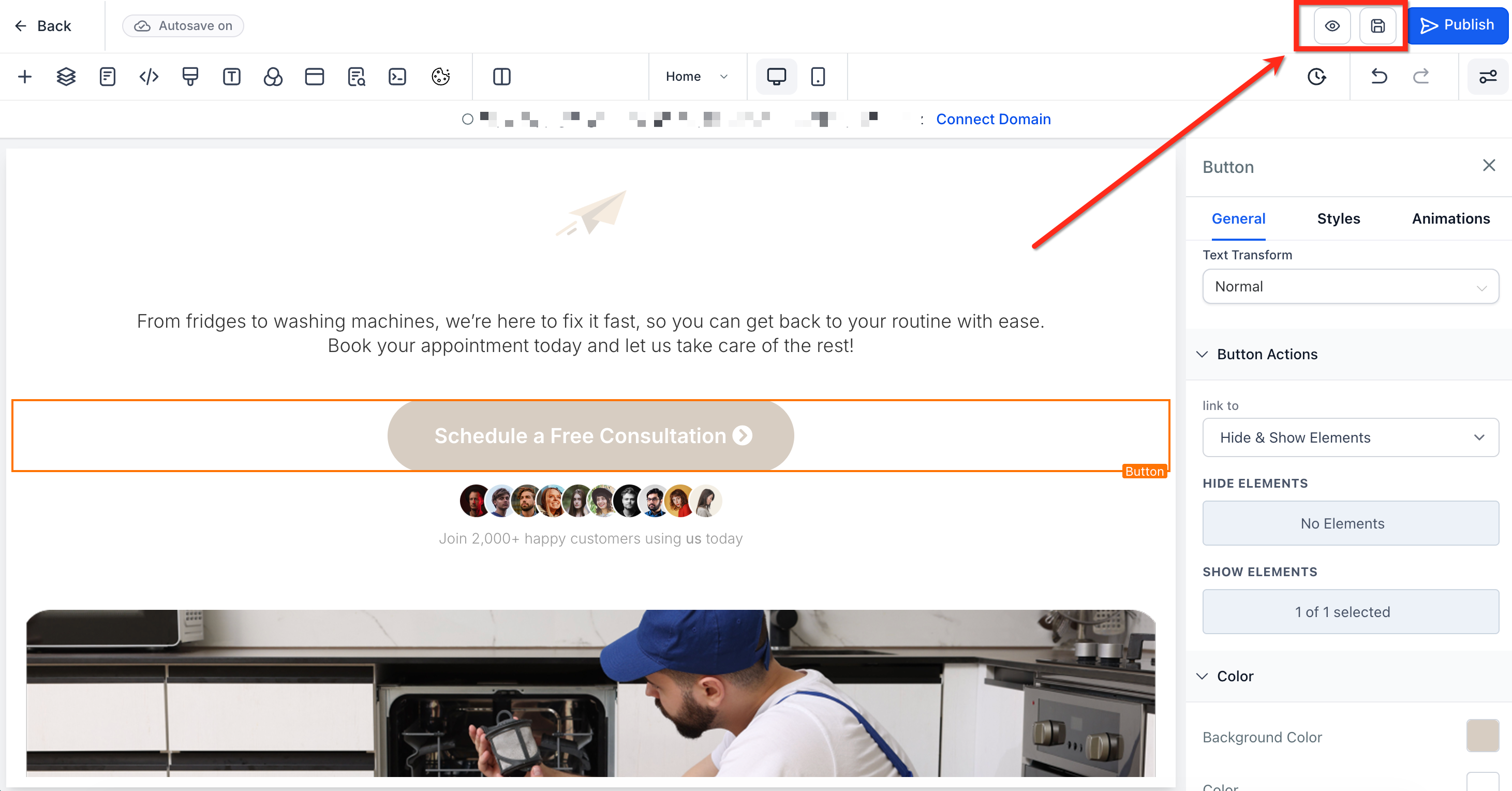
On the right side of the screen, you’ll find the element settings. Under General, scroll all the way down to Button Actions. In the Link To dropdown, select Hide & Show Elements
Step 3: Select Element to Hide
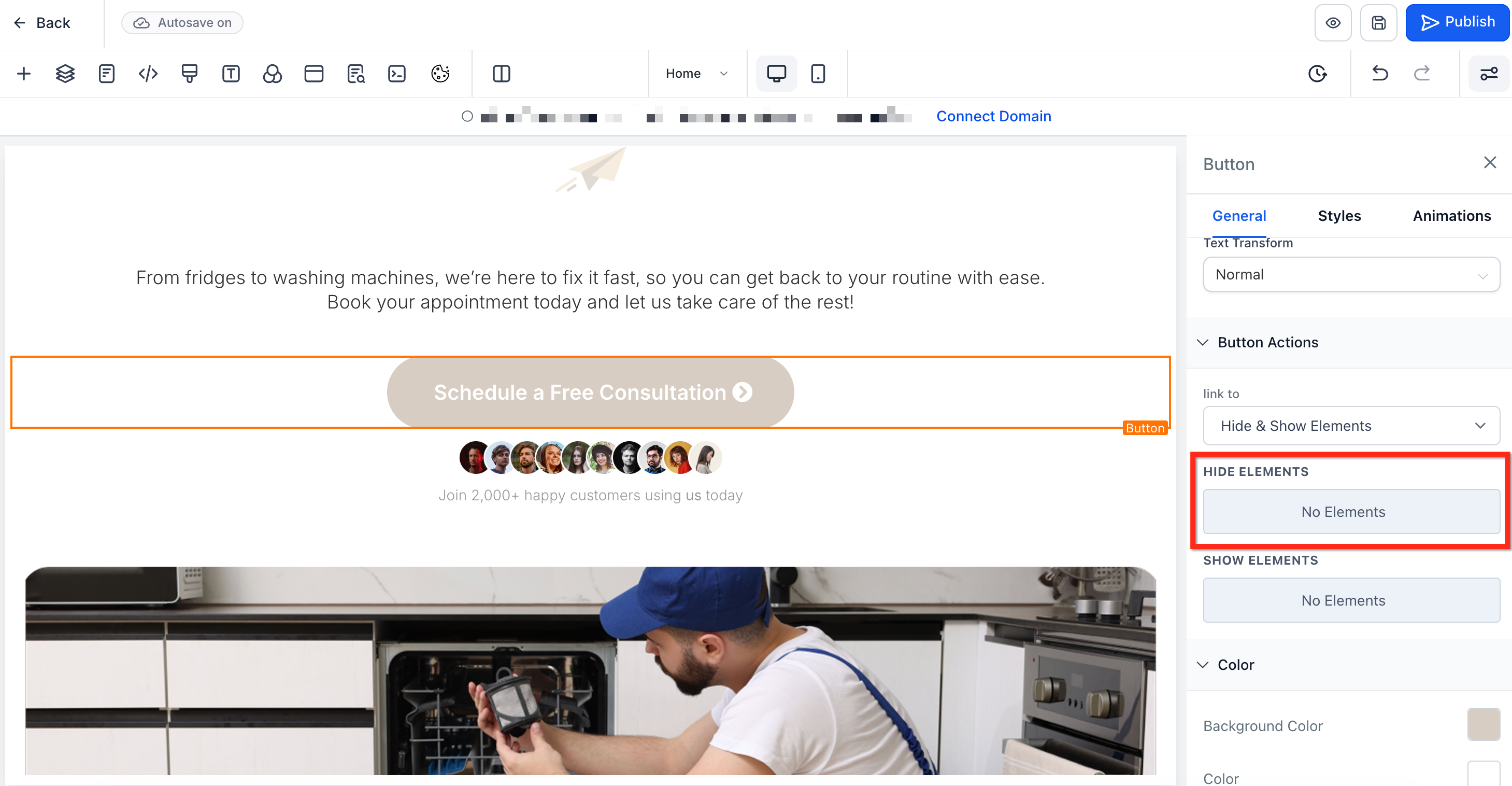
Click Hide Elements to open a dropdown listing all elements in the site page. Choose the element or elements that you’d like to hide when the button is clicked. You can choose an element, a section, a column, or column rows.
Step 4: Save Changes
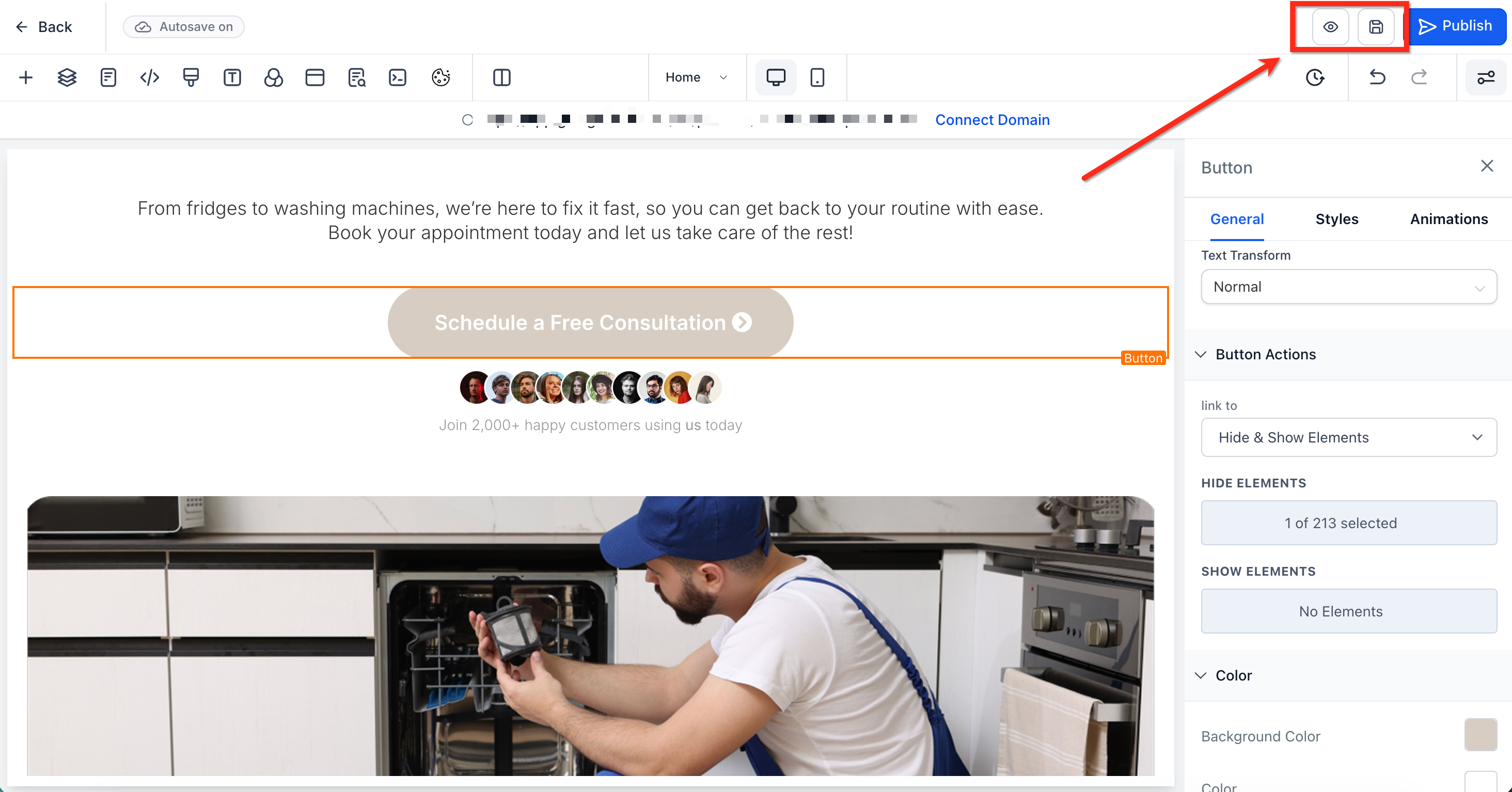
Once done choosing which ones to hide, click the Save button to save your changes or the Preview button to preview and test your funnel or website.
How to Show Elements on a Button Click
Similarly, you can reveal hidden elements when a button is clicked.
Step 1: Select Element to be Hidden
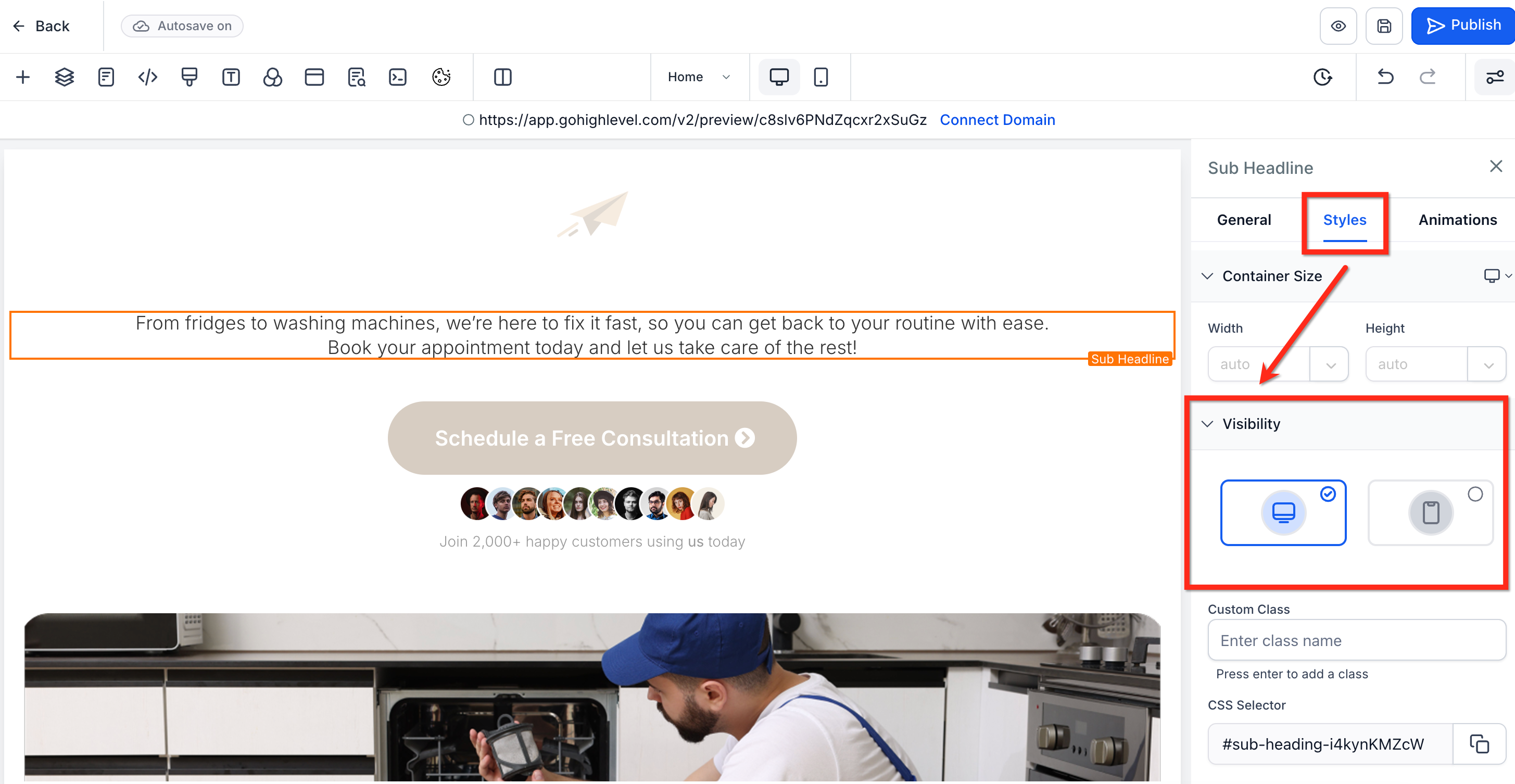
Select an element you want to “Show” from a “Hidden” state. In the left-side settings, navigate to the Styles tab then scroll down to Visibility.
Step 2: Hide Element
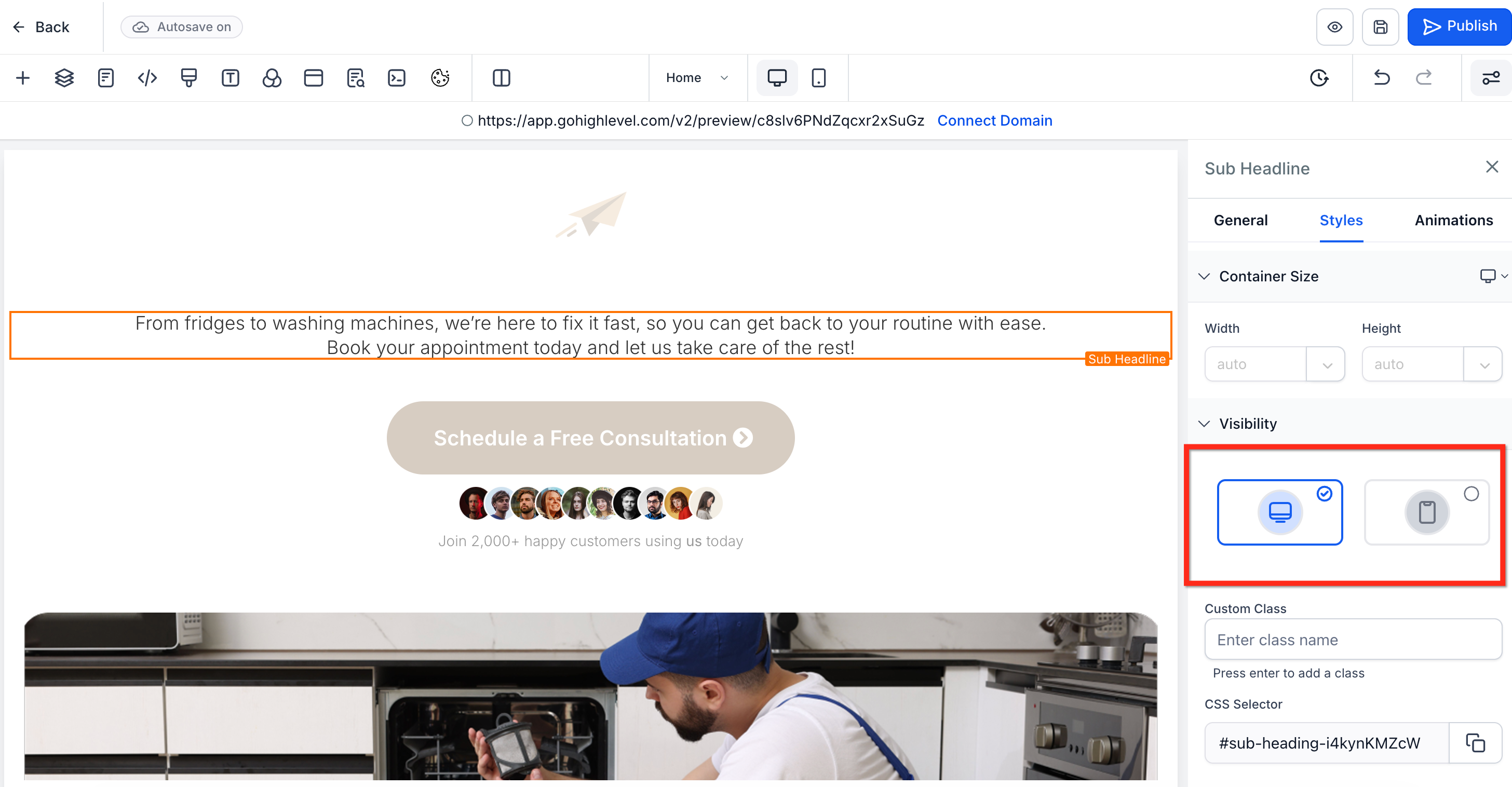
Click on each mobile and desktop visibility buttons to “hide” the elements in both views. When hidden, the icons will show as gray.
Step 3: Choose the Button In the funnel or website builder, choose the Button element that you want to use.
Step 4: Navigate to Button Actions
On the right side of the screen, you’ll find the element settings. Under General, scroll all the way down to Button Actions. In the Link To dropdown, select Hide & Show Elements.
Step 5: Select Element to Show
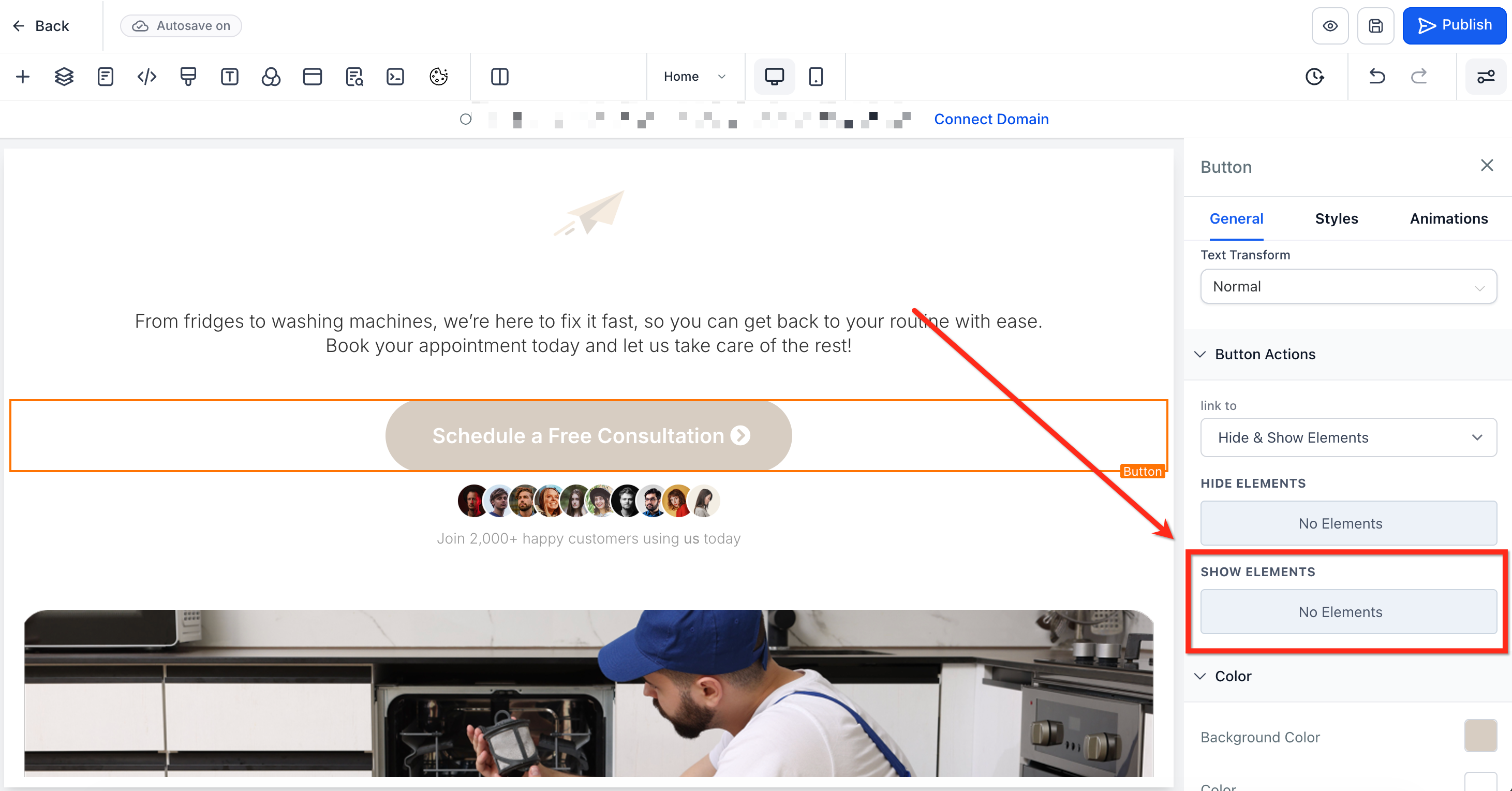
Click Show Elements to open a dropdown listing all hidden elements in the site page. Choose the element or elements that you’d like to show when the button is clicked. You can choose an element, a section, a column, or column rows. Note: If no elements are shown in the Show Elements dropdown, you must first hide an element.
Step 6: Save Changes
Once done choosing which ones to hide, click the Save button to save your changes or the Preview button to preview and test your funnel or website.
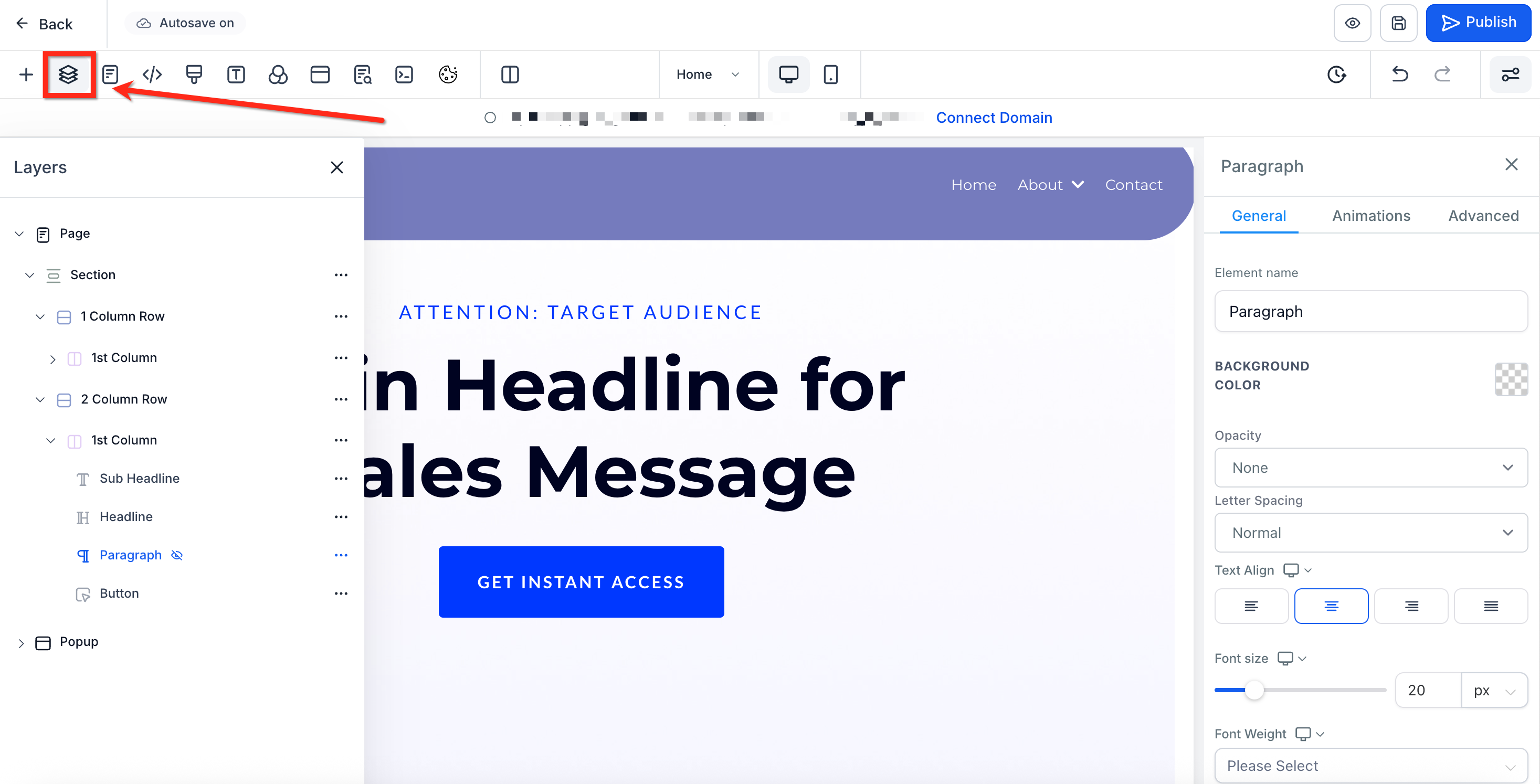
If you’ve accidentally hidden an element from both desktop and mobile views, you won’t be able to see or click it on the canvas—but you can still access and edit it using the Layers panel in the builder.
- Open the Layers Panel In the top left of the Funnel or Website Builder, click the Layers icon (stacked layers). This will open a list of all the elements in your section/page, including hidden ones.
- Find the Hidden Element Scroll through the list to locate the element you hid. It may appear dimmed or with an “eye” icon indicating it’s not visible on either view.
- Select the Element Click the element’s name in the list to select it. The element will now be highlighted in the builder, and its settings panel will appear.
- Restore Visibility With the element selected, click the visibility toggle (eye icon) in the top bar to turn it back on for desktop and/or mobile.