
How to Use Pricing Table Element
Discover the new Pricing Table element in Patient Copilot—a versatile way to showcase pricing plans, packages, and service tiers. Choose from multiple layouts, apply flexible pricing models, and add conversion-focused details like badges and previous-price strikethroughs. With clear CTAs and mobile-ready behavior, this element helps visitors compare options and take action quickly.
What is the Pricing Table element?
The Pricing Table element lets you present one or more plans in a clean, comparable layout. It supports multiple display modes (grid, carousel, classic table, comparison table), several pricing models, and configurable actions so you can tailor the experience to your offer, page design, and audience.
- Where it’s available: Funnels, Websites, Blogs, and the E‑Commerce Store builders in Patient Copilot.
Key Benefits of Pricing Table element
Understanding core benefits makes it easier to decide when and how to use the element for maximum impact on conversions and clarity.
- Layout flexibility: Choose Grid, Carousel, Classic Table, or Comparison Table to match your content and page goal.
- Clear plan comparison: Use horizontal scrolling, arrows, and sticky head column (Comparison mode) to keep features readable.
- Multiple pricing models: Communicate one‑time, recurring, tiered, or variable pricing without workarounds.
- Conversion cues: Add previous price (strikethrough), discount badges, and captions that highlight offers.
- Action control: Point buttons to URLs, open popups, jump to sections, download files, or have no action.
- Brand consistency: Customize colors, spacing, and column gaps to blend with your site design.
- Mobile readiness: Columns adapt for smaller screens while preserving comparison clarity.
How to set up the Pricing Table element
A quick, repeatable setup flow reduces build time and keeps pricing consistent across pages.
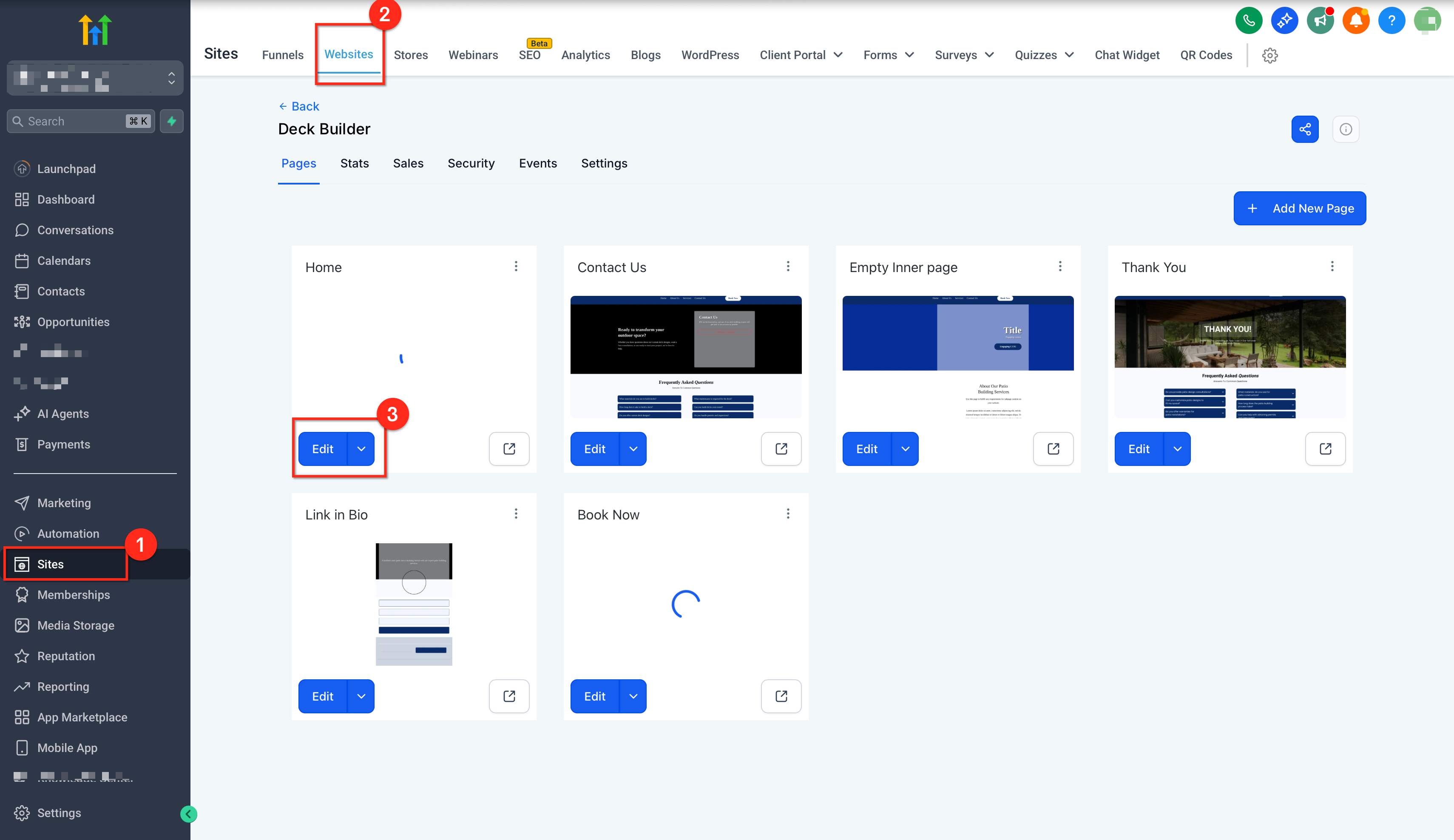
- Navigate to the Page Builder: In the left-hand menu of your sub-account dashboard, click on Sites and Open your chosen funnel or website. Click the blue Edit button of the page to launch the page builder
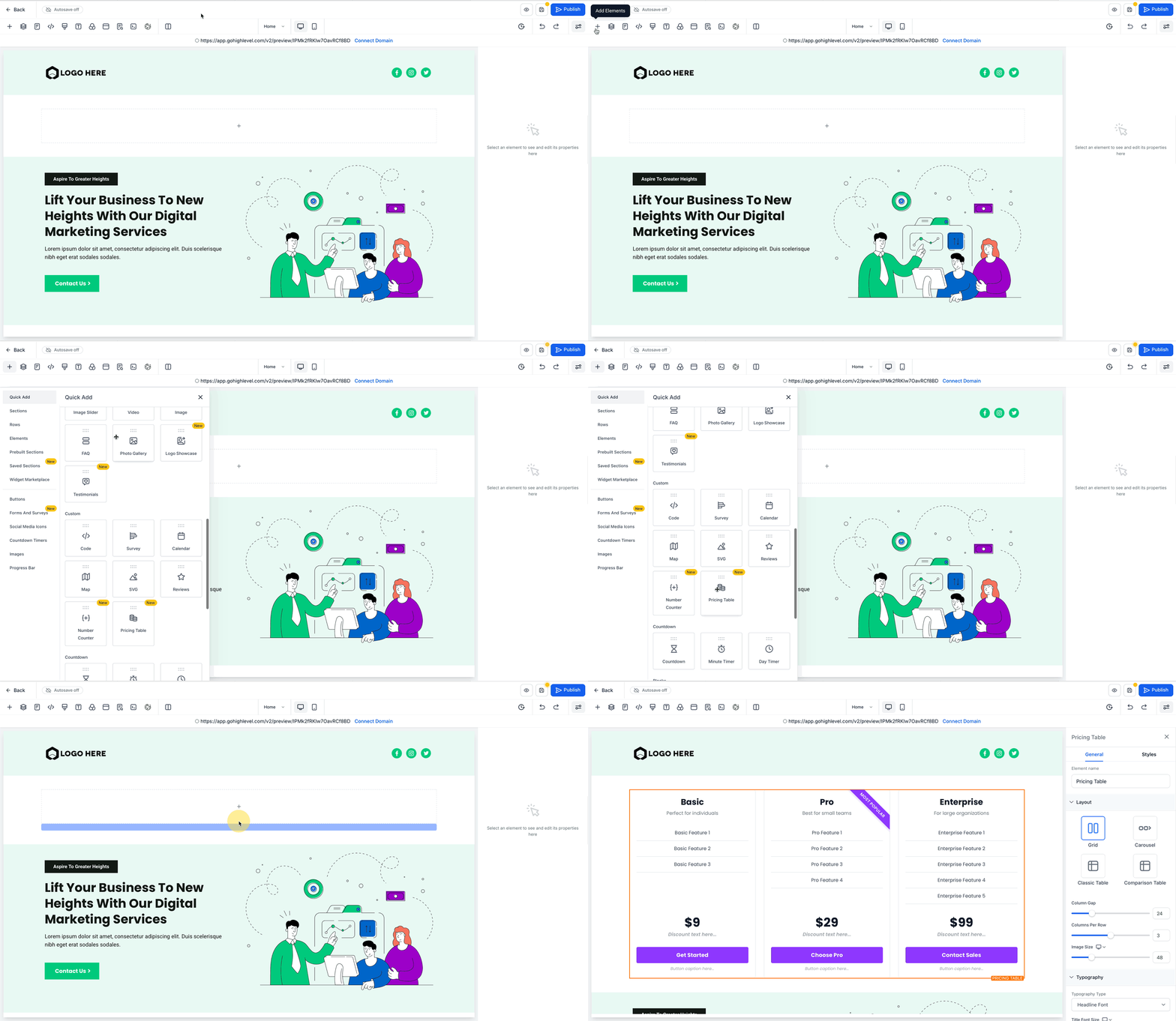
- Add the element: Drag the Pricing Table from the Elements panel onto the canvas.
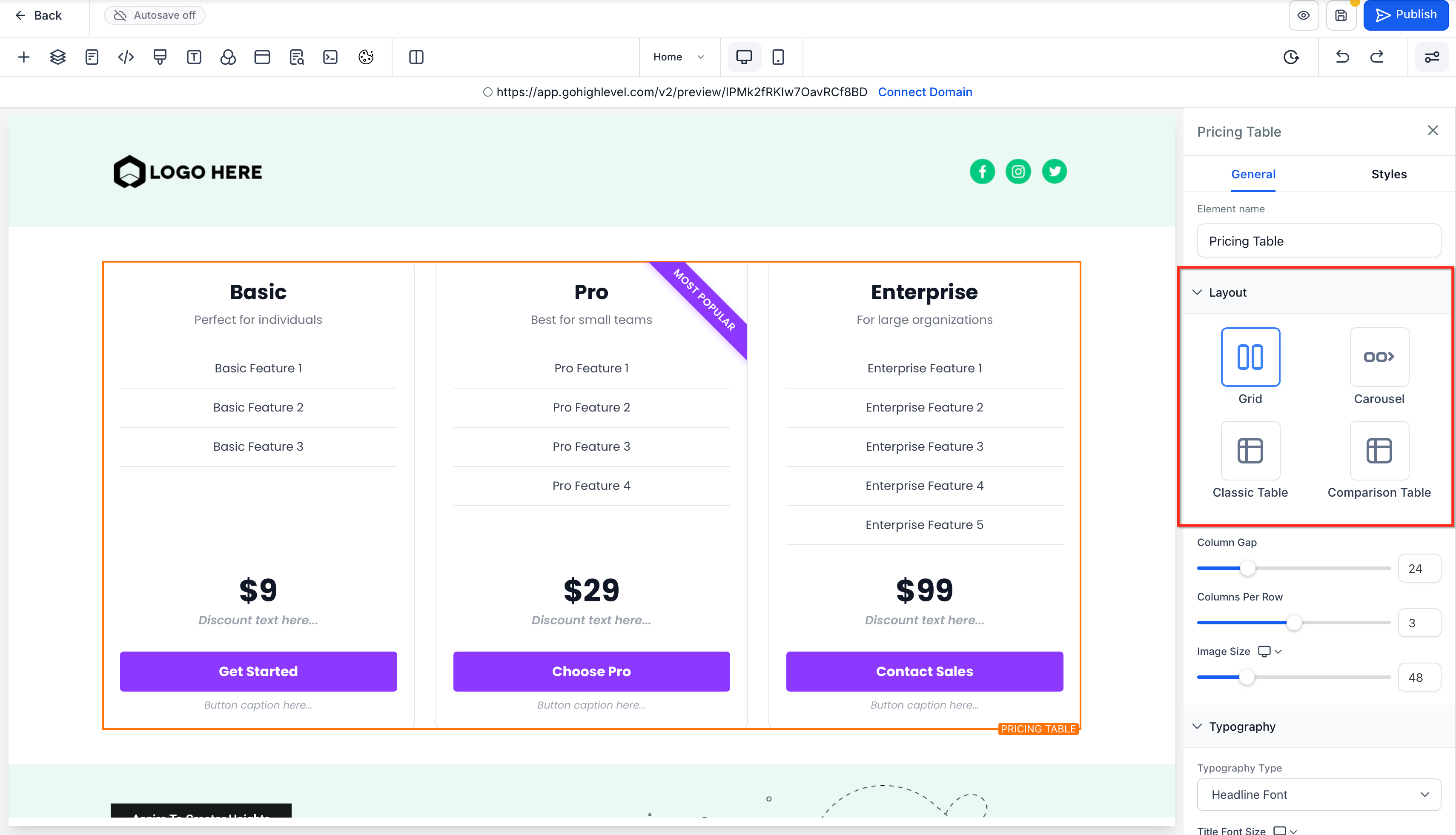
- Choose a layout: Select Grid, Carousel, Classic, or Comparison from the right settings bar.
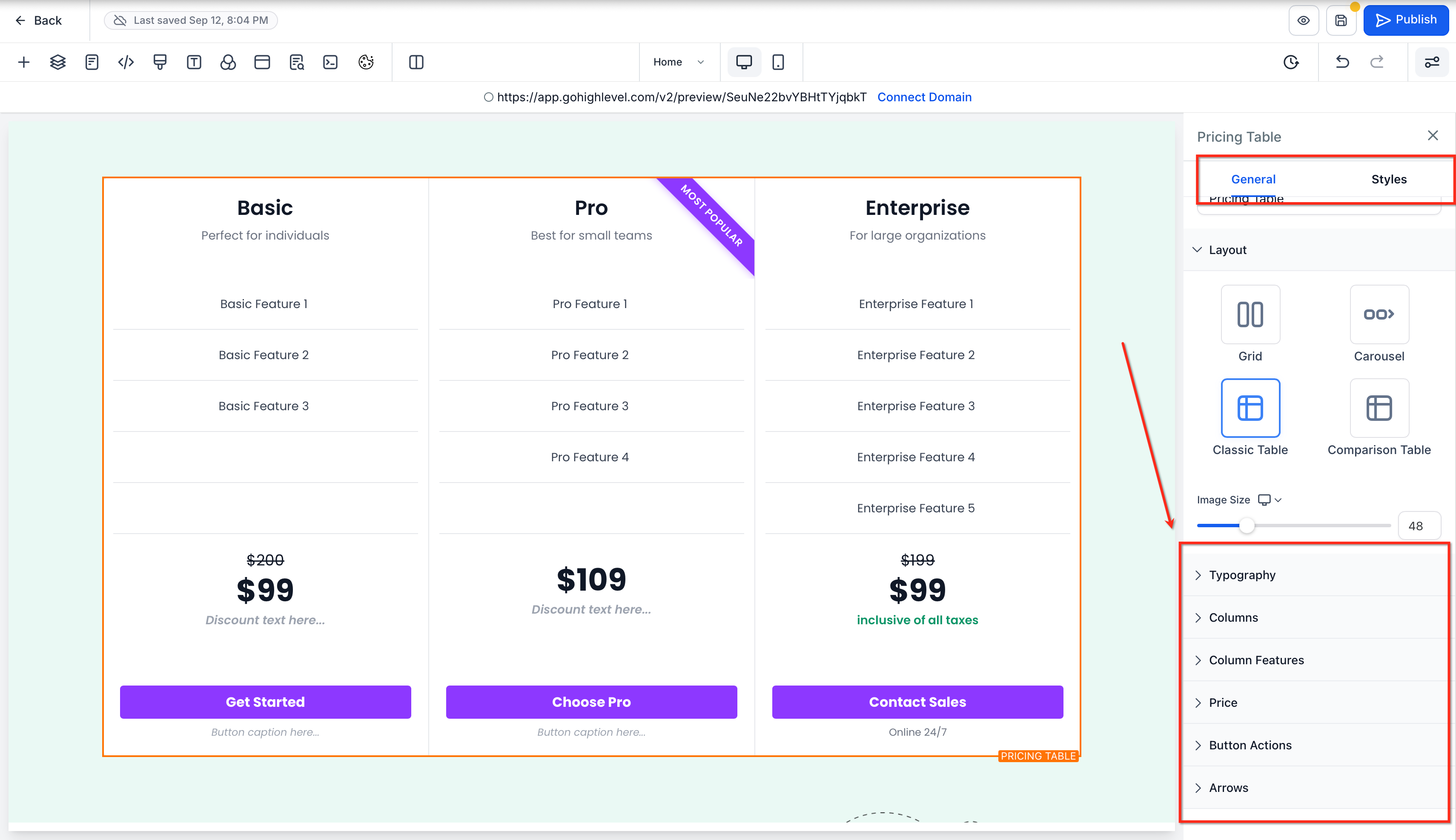
- Configure the Layout (Pricing, features, buttons etc) and Styling of the pricing table.
- Preview & publish: Use Desktop/Mobile preview to confirm responsiveness, then Save and Publish.
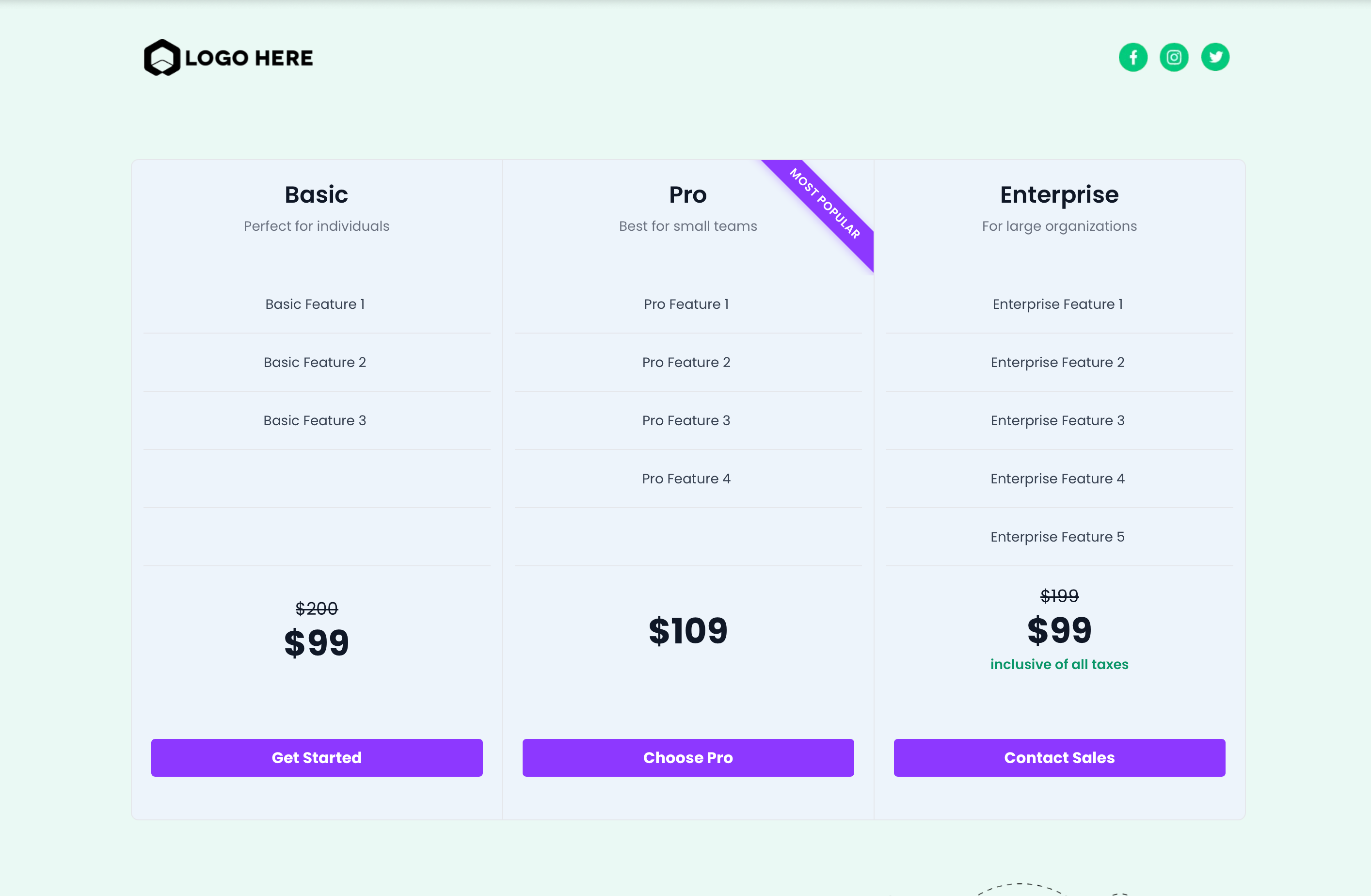
Dynamic Layout Modes
Selecting the right layout helps visitors understand differences between plans and speeds up decision‑making.
| Mode | Description / Best For | Columns & Spacing | Navigation / Controls | Animation & Options |
|---|---|---|---|---|
| Grid Mode | Clean, card-based layout for side-by-side comparison. | Column gap: 0–100 px; Columns per row: up to 5. | — | — |
| Carousel Mode | Slide-based presentation with optional auto-advance. | Columns per slide: 1–5. | Auto-advance interval; pause on hover; infinite loop. | Fade or Slide animation. |
| Classic Table Mode | Traditional table for wide, detailed comparisons. | Uses horizontal width; ideal for long feature lists. | Horizontal scroll with arrow controls. | — |
| Comparison Table Mode | Deep, column-heavy comparisons where context matters. | Wide tables; sticky head column remains visible. | Horizontal scroll with arrow controls; sticky head column for context. | — |
Pricing Models & Formatting
Choosing the right pricing model clarifies cost expectations and avoids surprises, which increases trust and conversions.
| Pricing Model | Description |
|---|---|
| Fixed Price | One-time payment. |
| Subscription | Recurring billing with periods: daily, weekly, monthly, yearly. |
| Price From | Display “Starting at” pricing for variable services. |
| Price Range | Show min–max for customizable services. |
| Per Unit | Price by item, hour, day, seat, person, etc. |
| Free | Highlight complimentary offerings (optionally show previous price). |
| Custom | Enter custom pricing text for niche cases. |
Feature Lists
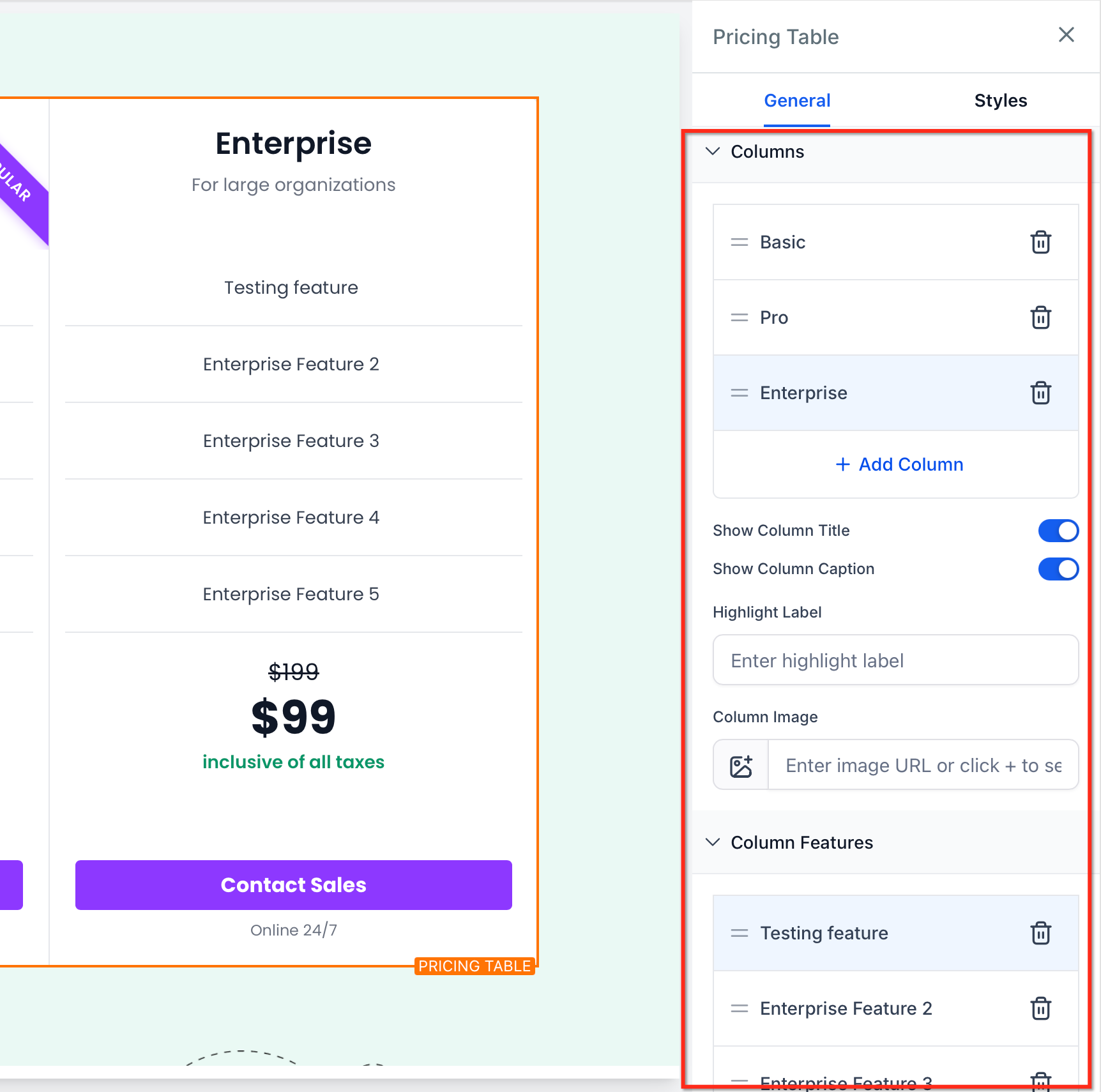
Clear, scannable feature lists help buyers recognize what’s included and compare tiers quickly.
- Add, reorder, or remove features for each plan (Columns) - Group related items and keep phrasing consistent across plans (Columns) - For long lists, prefer Classic or Comparison layouts to leverage horizontal navigation.
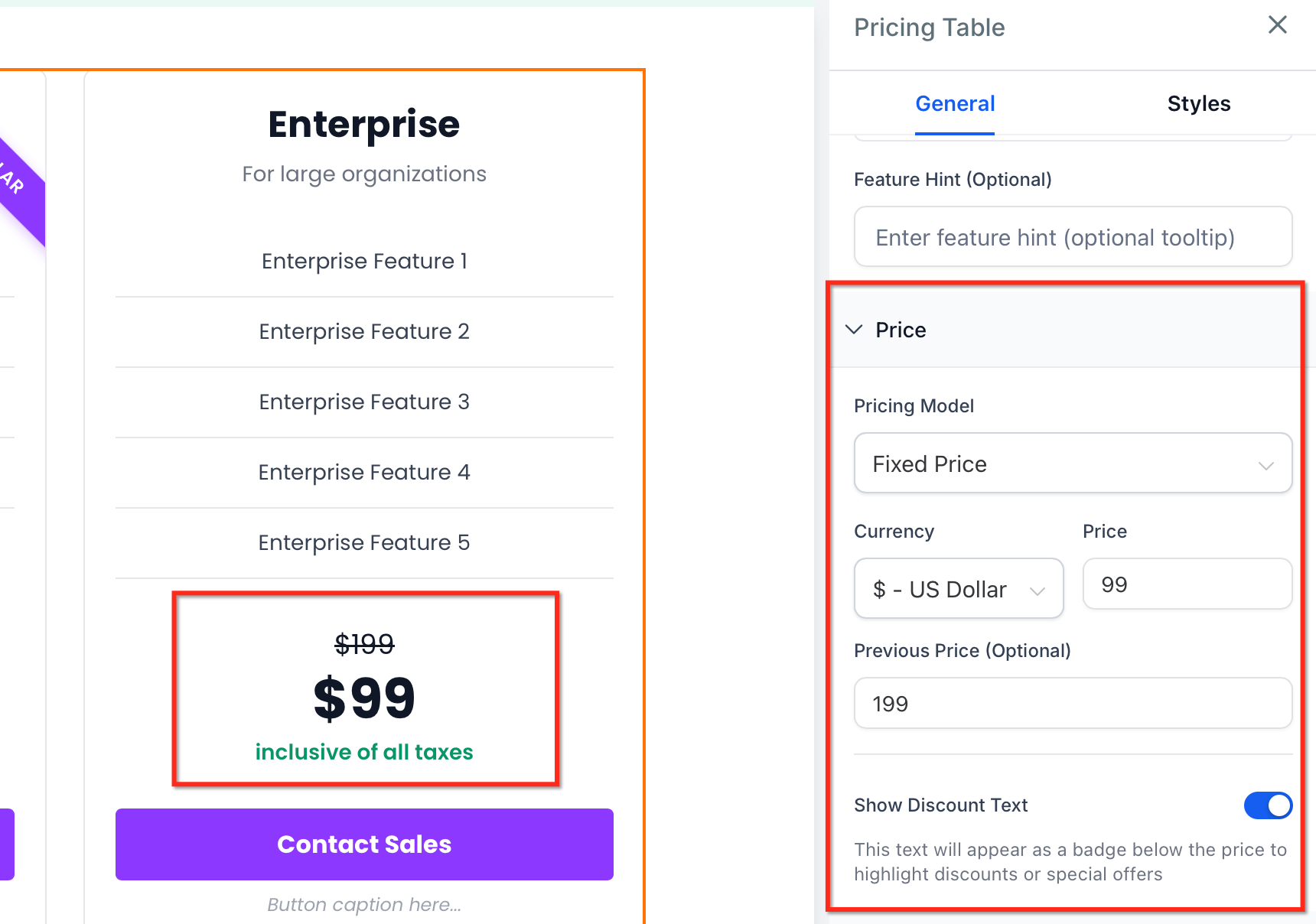
Smart Pricing Features
Visual pricing cues guide attention and make offers feel time‑sensitive or valuable without adding confusion.
- Previous Price Display (strikethrough) to highlight a discount.
- Discount Text Badges to emphasize promotions.
- Optional Pricing Captions for billing notes, taxes, or disclaimers.
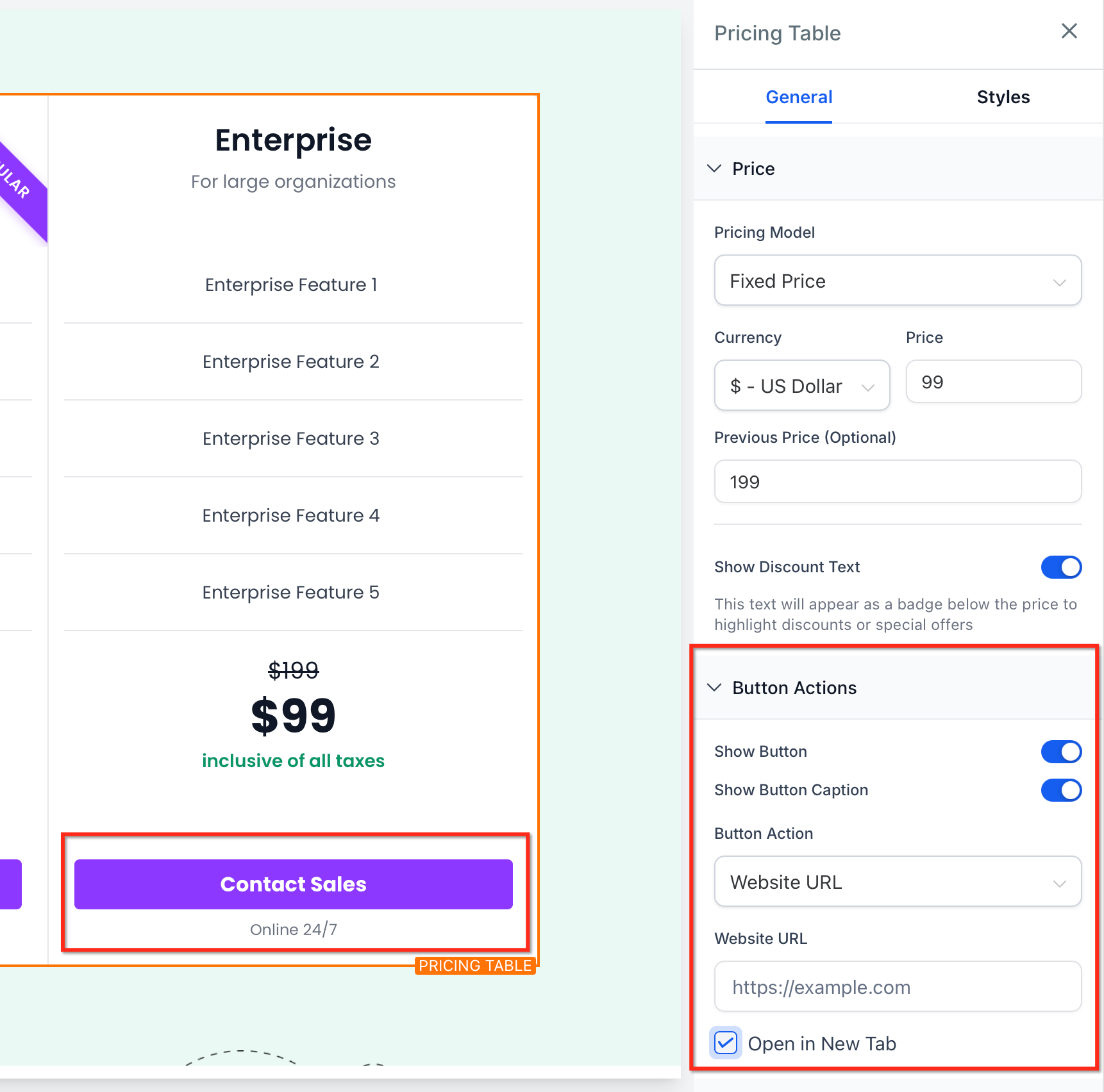
Buttons & Actions
The call‑to‑action is where comparisons turn into conversions. Configure actions that match your funnel strategy. Action types
- Open URL (external or internal).
- Open Popup (launch a specific on‑page popup).
- Step/Anchor Navigation (jump to a section on the page).
- No action (useful for teaser plans or disabled states).
Button content
- Custom text: Clear, action‑oriented labels (e.g., “Start Free Trial”) for Personalized call-to-action buttons
- Optional caption: Add supporting text below the button.
- Show/Hide controls for button and caption visibility.
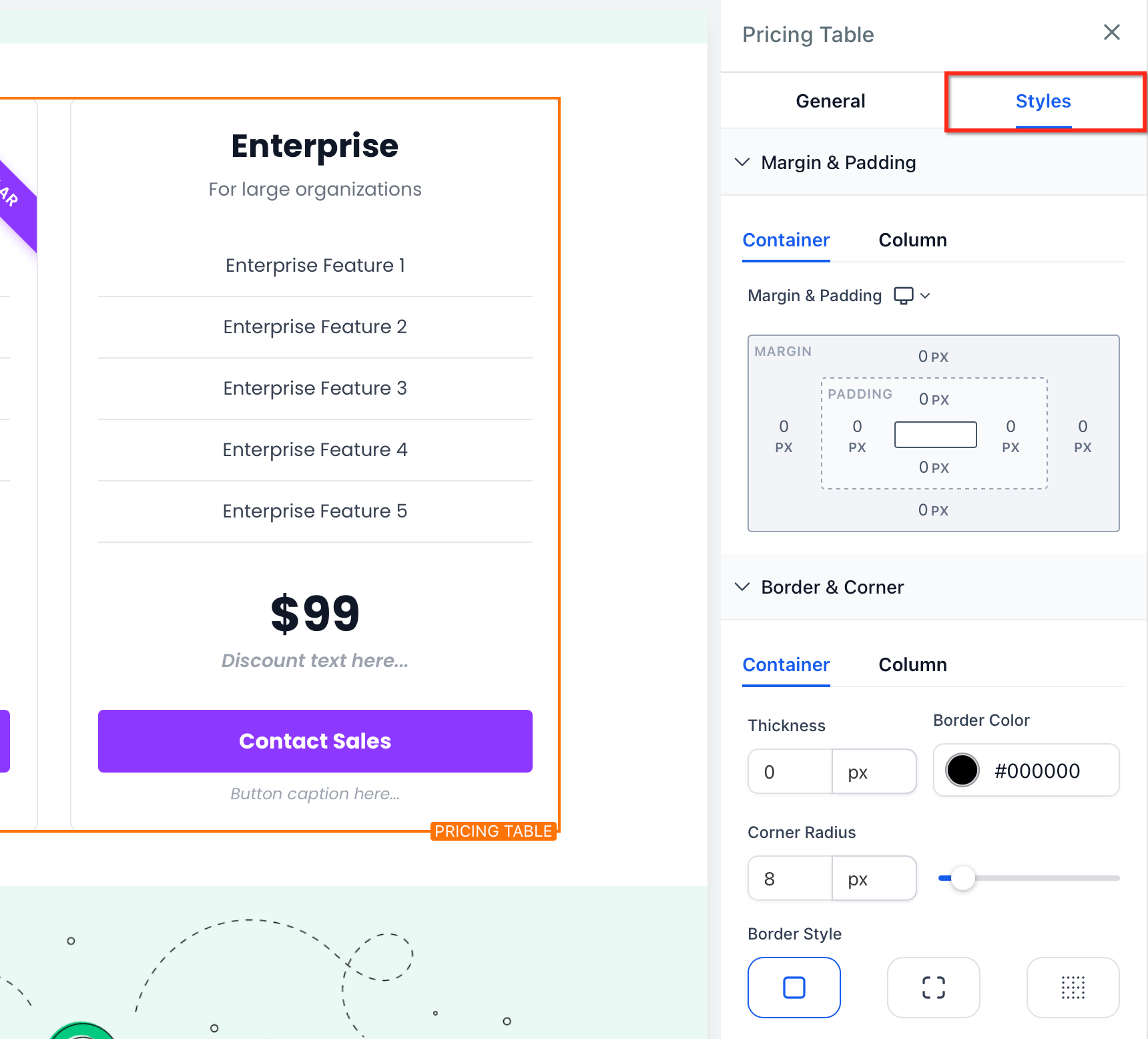
Appearance & Styling
Styling ensures the Pricing Table blends with your brand while remaining readable and accessible.
- Adjust colors, typography, spacing, borders, and column gaps (0–100 px).
- Maintain adequate contrast for text, badges, and buttons.
- Keep card padding consistent to prevent visual jumpiness between plans.
Mobile & Responsiveness
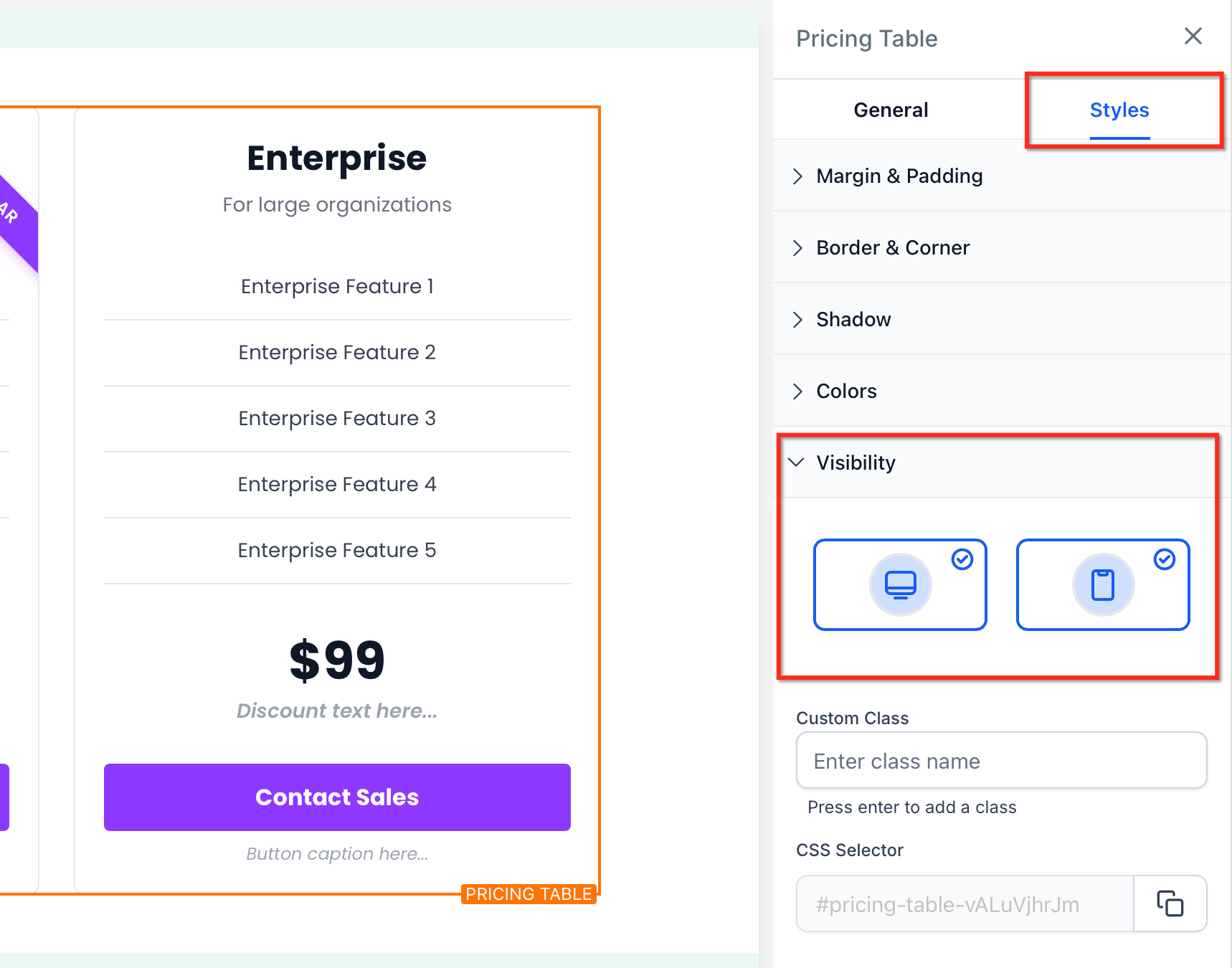
Optimizing for small screens preserves readability and ensures users can still compare plans and take action without friction.
- Multi‑column layouts may collapse to fewer columns on mobile for legibility.
- Classic/Comparison layouts retain horizontal scroll with arrows when content exceeds viewport width.
- Sticky head column remains visible in Comparison mode to keep plan names in context.
- Preview both Desktop and Mobile views and adjust spacing/typography as needed.
Frequently Asked Questions
Q: Where can I use the Pricing Table?
In the Funnels, Websites, Blogs, and E‑Commerce Store builders. Q: How many columns can I show at once? Grid supports up to 5 columns per row; Carousel supports 1–5 columns per slide. Q: Can I show old vs. new pricing? Yes. Enable Previous price (strikethrough) and optionally add a Discount badge. Q: Can a plan button open a popup checkout or form? Yes. Set the action to Open Popup and choose the popup you created for that page. Q: What happens on mobile? Columns may collapse, and table layouts allow horizontal scroll with arrows. In Comparison mode, the sticky head column remains visible. Q: Which pricing models are included? Fixed, Subscription (daily, weekly, monthly, yearly), Price From, Price Range, Per Unit, Free, and Custom. Q: Can I hide buttons or captions? Yes. Use Show/Hide controls in the Button settings.
Related Articles
- Scroll to Elements or Sections Was this article helpful? That’s Great! Thank you for your feedback Sorry! We couldn’t be helpful Thank you for your feedback Feedback sent We appreciate your effort and will try to fix the article