
Facebook and Instagram Chat Widgets
Bring real-time Messenger and DM conversations right to your website. The new Facebook Chat and Instagram Chat widget types let you greet visitors on the Meta channel they already use, boosting response rates and streamlining follow-ups.
Key Benefits of Facebook & Instagram Chat
- Frictionless Engagement: Visitors continue the conversation in Messenger or IG DM without creating a separate on-site chat thread.
- Channel Preference: Meet customers on the social platform they already use for daily messaging.
- Better Adoption: Leverages users’ existing Facebook/Instagram logins and apps.
- Unified Inbox: Keep every Meta conversation inside Patient Copilot’s Conversations inbox alongside SMS, email, and WhatsApp.
- Cross-Device Continuity: Conversations persist in the user’s Messenger/IG app, so threads follow them across devices without losing history.
Follow these steps to quickly and easily create a Facebook or Instagram chat widget that you can install on your website!
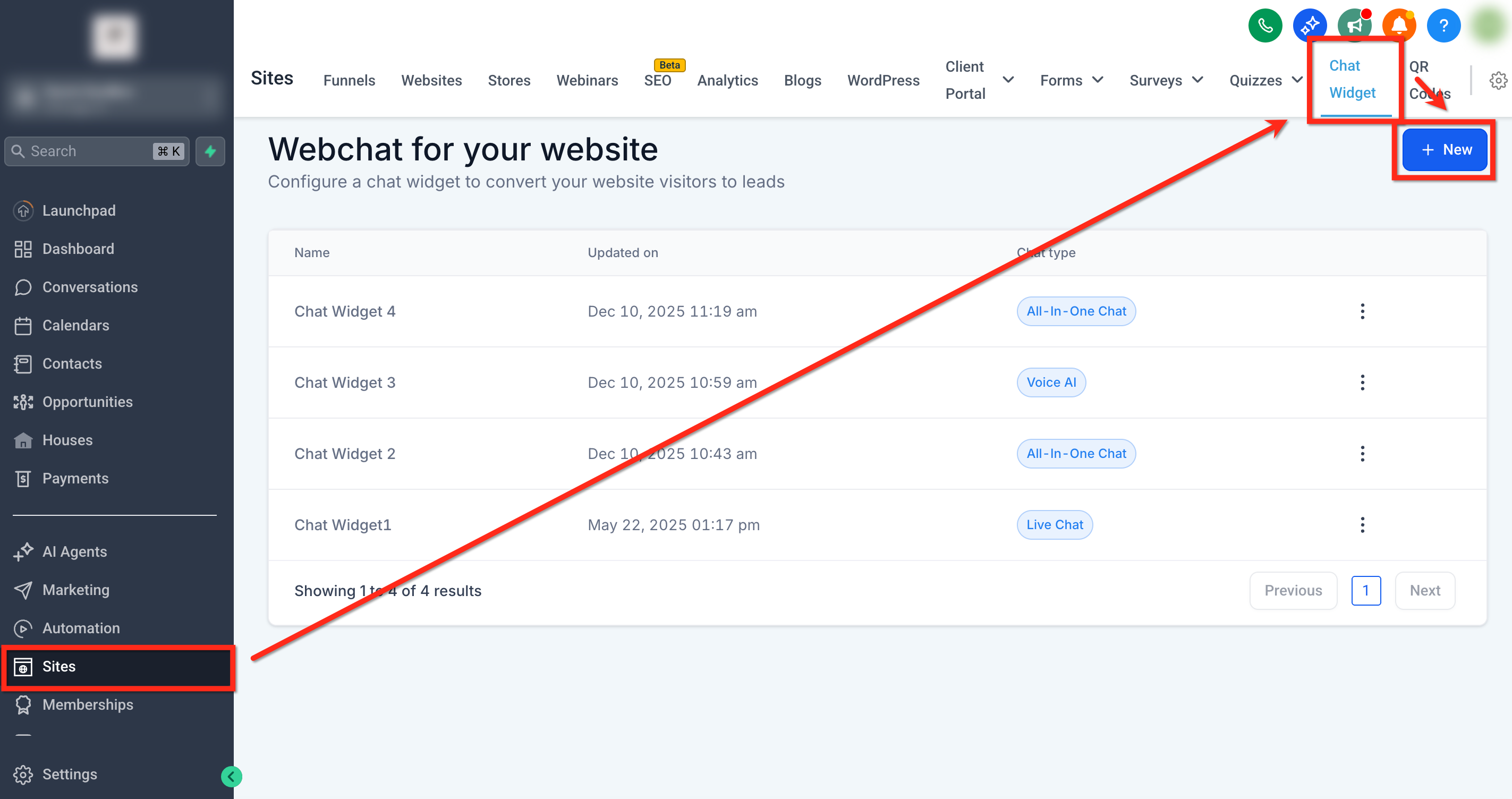
Step 1: Create a New Widget Navigate to Sites → Chat Widgets then select the blue + New button.
Step 2: Select Chat Type
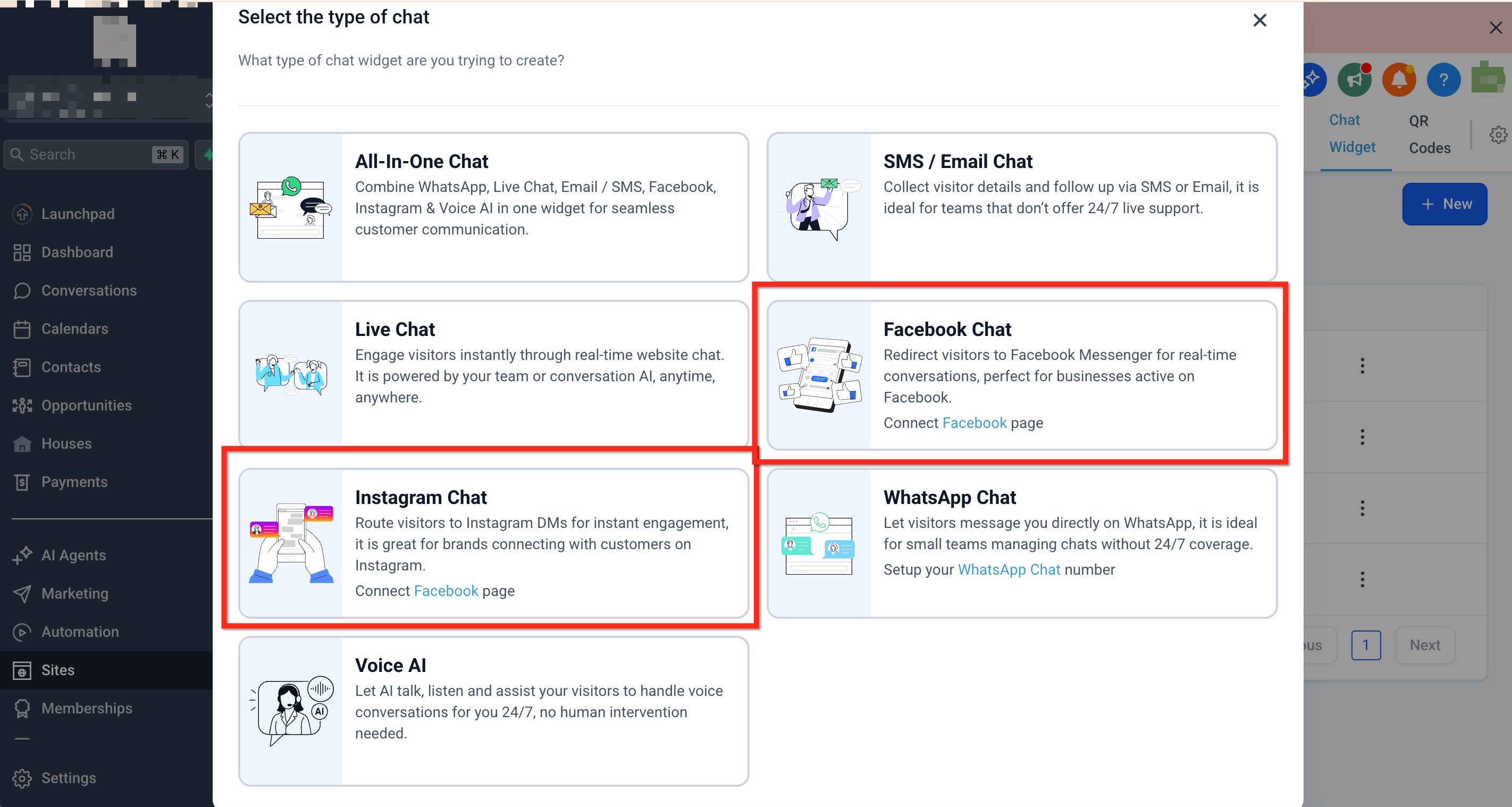
In the “Select the type of chat” pop-up, choose Facebook Chat or Instagram Chat. If a Facebook/Instagram account is connected but no pages are selected, a page selection modal opens up to select the page to be used in the widget.
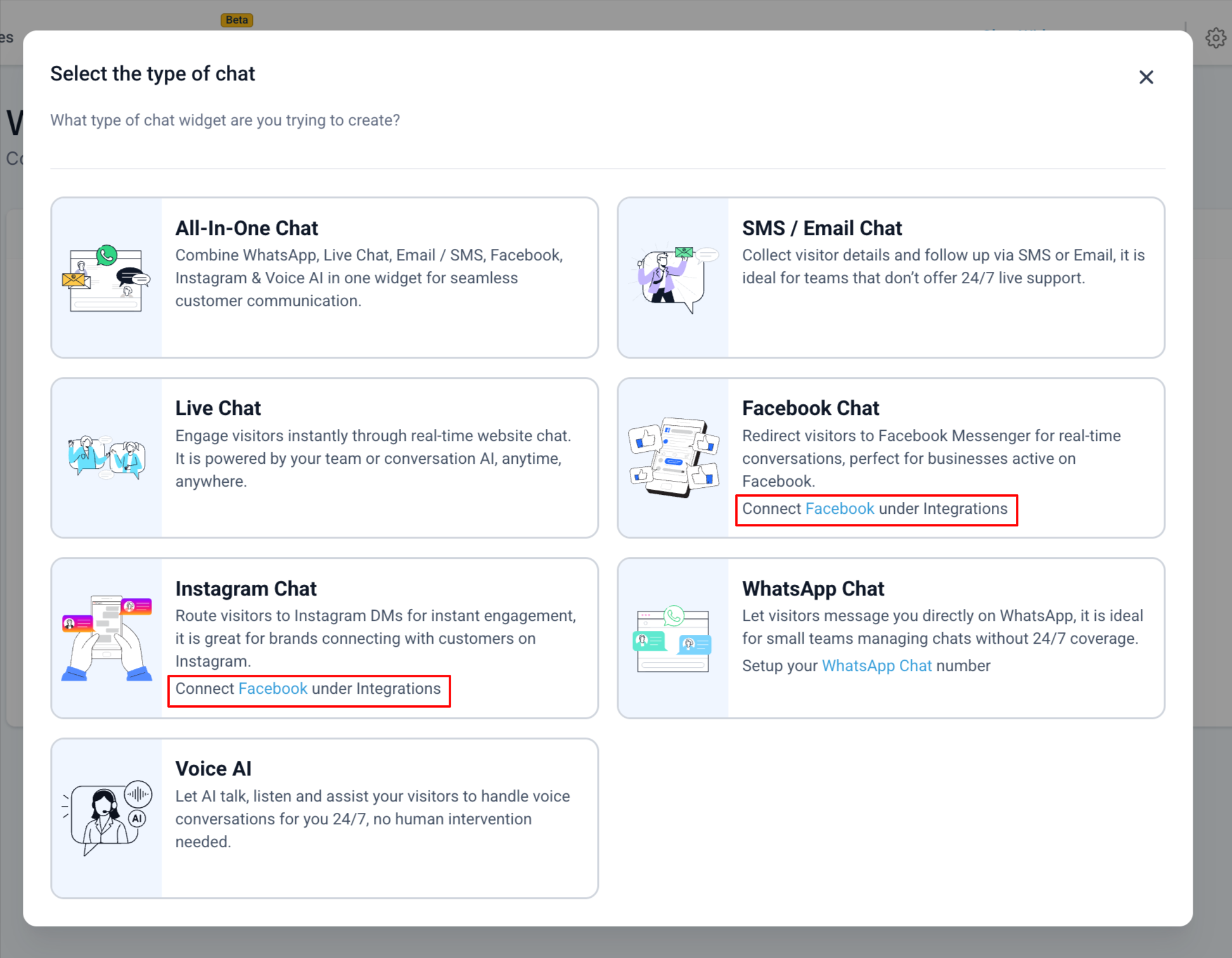
Important: You cannot select Facebook Chat or Instagram Chat here unless a corresponding account is already connected to the sub-account. If you don’t have a connected account yet, the in-modal link will instead prompt you to connect an account (e.g., Connect Facebook/Instagram under integrations). Open this link, connect your account, then return to this selector to choose the chat type.
Step 3:
Customize the Widget Customize the Style, Chat Window and Messaging tabs as needed (colors, greeting text, launcher icon) to build a widget that matches your brand. For additional design options, see Overview of Chat Widget Customizations. Within the Chat Window tab, you can change what Facebook/Instagram account is linked to the widget. If needed, click Connect a linked Facebook/Instagram account button to open the new connection modal and add more pages/accounts. After making all required edits, save your widget.
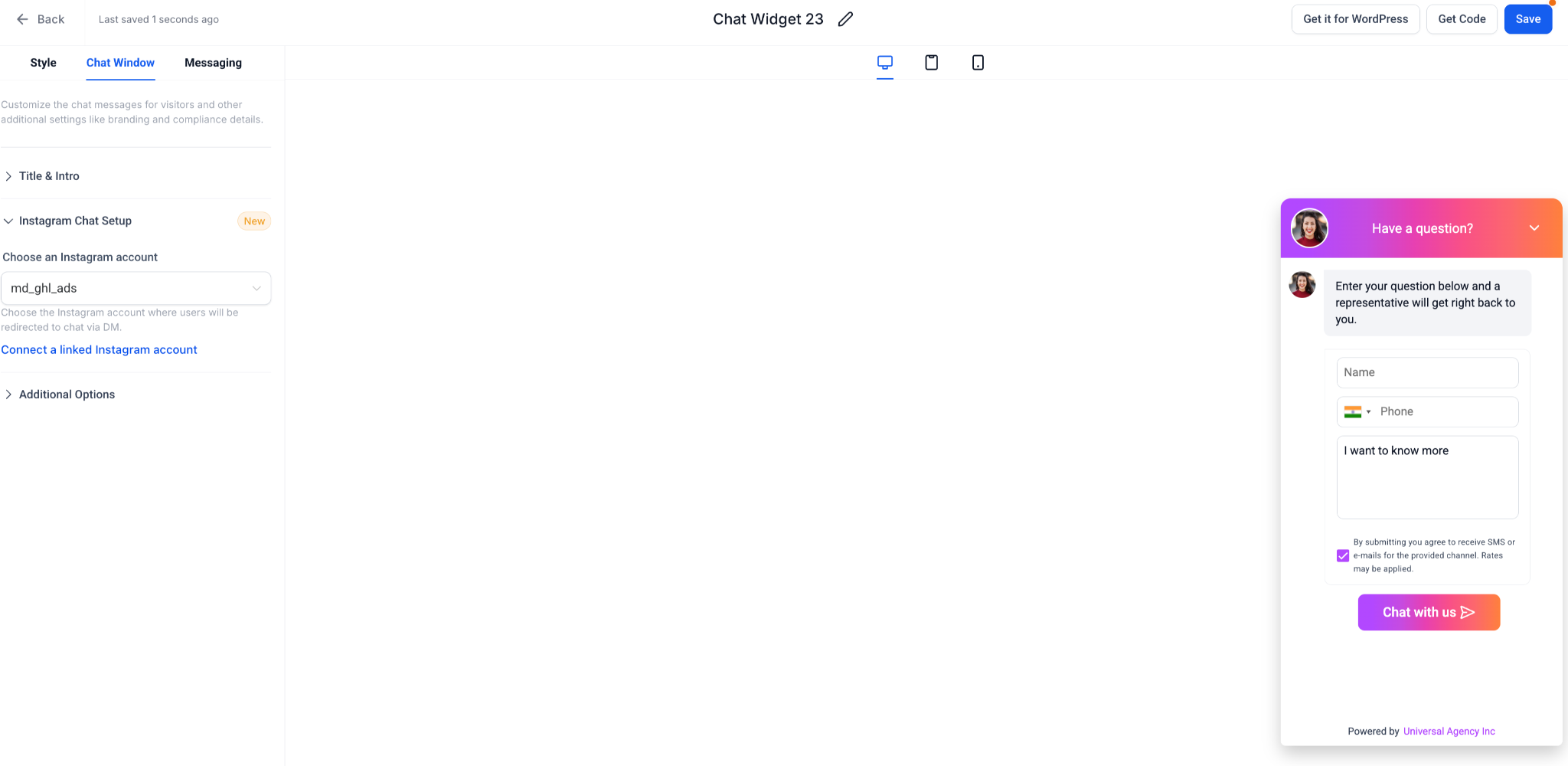
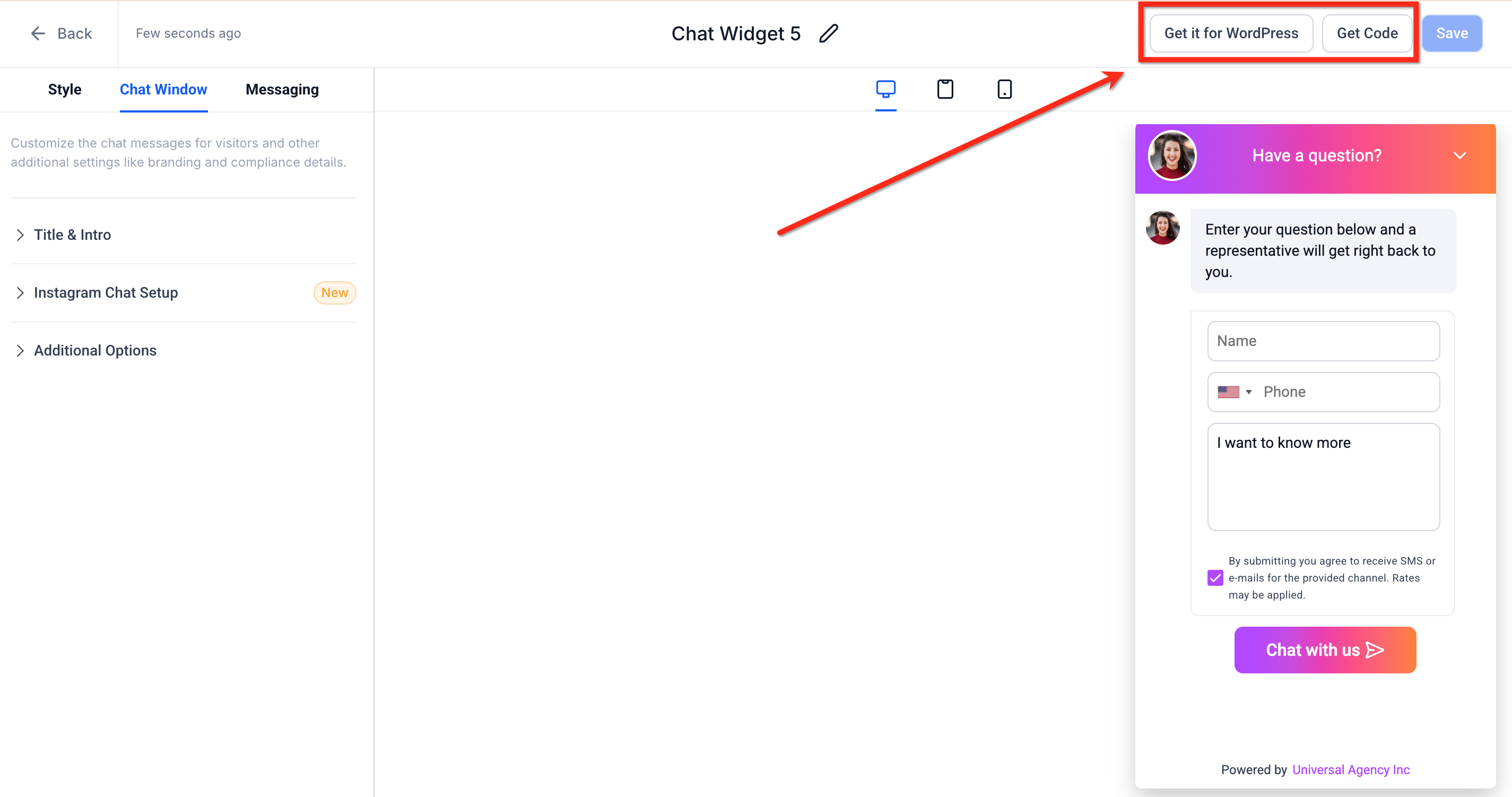
To install this widget on a 3rd party site, click Get Code then embed the code snippet on your website/funnel where you want the widget to appear. If you are installing it onto a Wordpress site, click Get it for Wordpress. This widget can also be installed directly within the Patient Copilot Funnel and Website builders To learn more, check out How to Install Patient Copilot’s Chat Widget
Frequently Asked Questions
Q: Can I enable both Facebook and Instagram in one widget?
No. Each widget is tied to a single channel. For multi-channel bubbles, use the All-in-One Chat widget. Q: Will conversations show up inside Patient Copilot’s Conversations tab? Yes, provided your Facebook/Instagram integrations and permissions are correctly connected and messaging access is enabled. Q: Can I run automations on incoming messages? Absolutely! Use the Facebook Message or Instagram Message workflow triggers to tag, assign, or route the chat. Q: Does the visitor have to be logged in to Facebook or Instagram? Yes. If they are not logged in, the Meta login screen opens first. Q: Do Style and Messaging settings work differently for FB/IG widgets? No. Styling and placement behave the same as other chat types. The main difference is where the conversation occurs (Meta vs on-site).