

Client Portal SSO Magic Links: Enable One-Click Access to Client Apps
This article will guide you through how to create and use SSO (Single Sign-On) Magic Links to give clients instant, secure access to individual client portal apps—such as Courses, Communities, or Affiliates—without requiring login credentials. You’ll also learn how to embed these links as custom menu items in the client portal, control access visibility, and streamline navigation for a more professional client experience.
What Are SSO Magic Links?
SSO Magic Links are unique, authenticated URLs that allow users to directly access a client portal app without entering login credentials. When a client clicks their personalized link, they’re instantly logged in and taken to the correct destination—whether it’s a course dashboard, community area, or affiliate portal. These links are app-specific and contact-specific, meaning each user receives secure access to the exact portal experience they’ve been granted.
Key Benefits of SSO Magic Links
SSO Magic Links are designed to reduce friction, save time, and increase client satisfaction. Key advantages include:
- One-Click Login: Instant access without entering a username or password.
- Faster Onboarding: Clients can get started with their app experience right away.
- Fewer Support Tickets: Eliminates login-related issues such as forgotten passwords.
- Improved Navigation: Offers a smoother, more direct login experience.
- Multi-App Convenience: Ideal for setups that include multiple apps like Courses + Communities + Affiliates.
- Higher Engagement: Easier access encourages repeat visits and ongoing interaction.
How to Generate and Use Magic Links
Magic Links can be created from the Client Portal Dashboard and shared with contacts to provide direct access to specific apps.
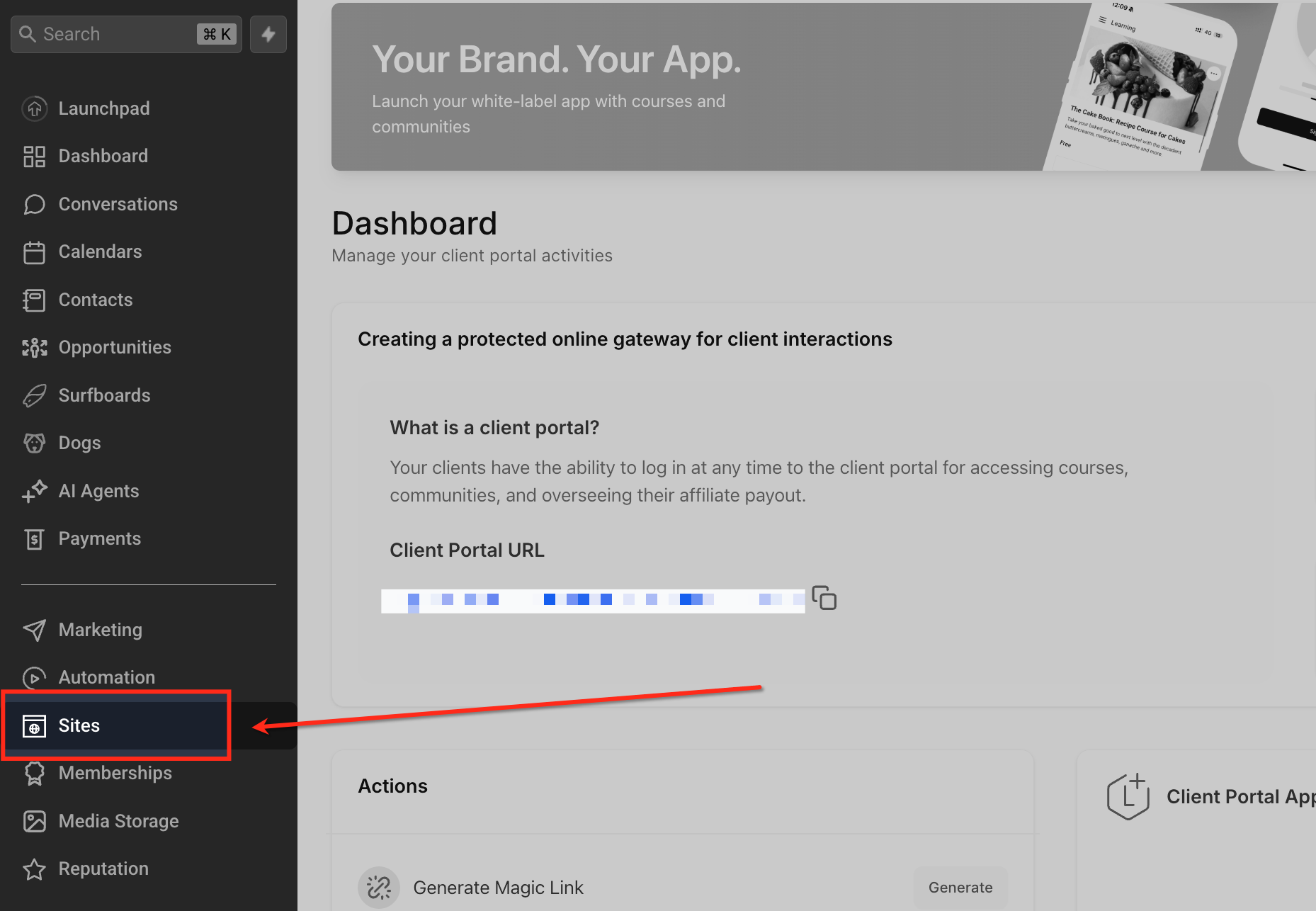
Access the Sites Dashboard
Navigate to the Sites tab from the left-hand menu to access your Client Portal Dashboard. This area allows you to manage your client-facing apps and create secure login experiences.
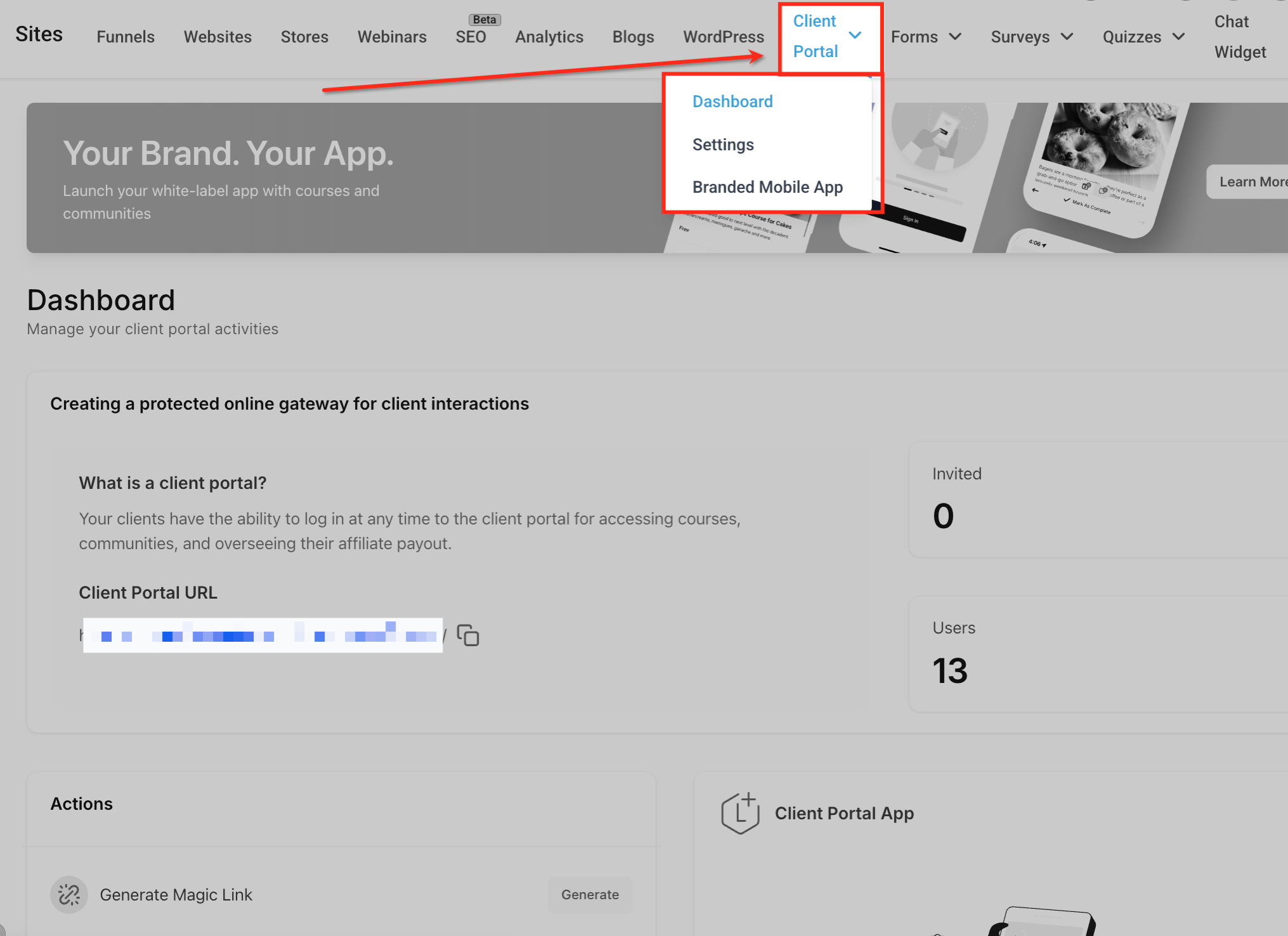
Open the Client Portal Section
Within the Sites menu, click the Client Portal dropdown at the top and select Dashboard. This gives you access to client portal management tools like Magic Link generation and app settings.
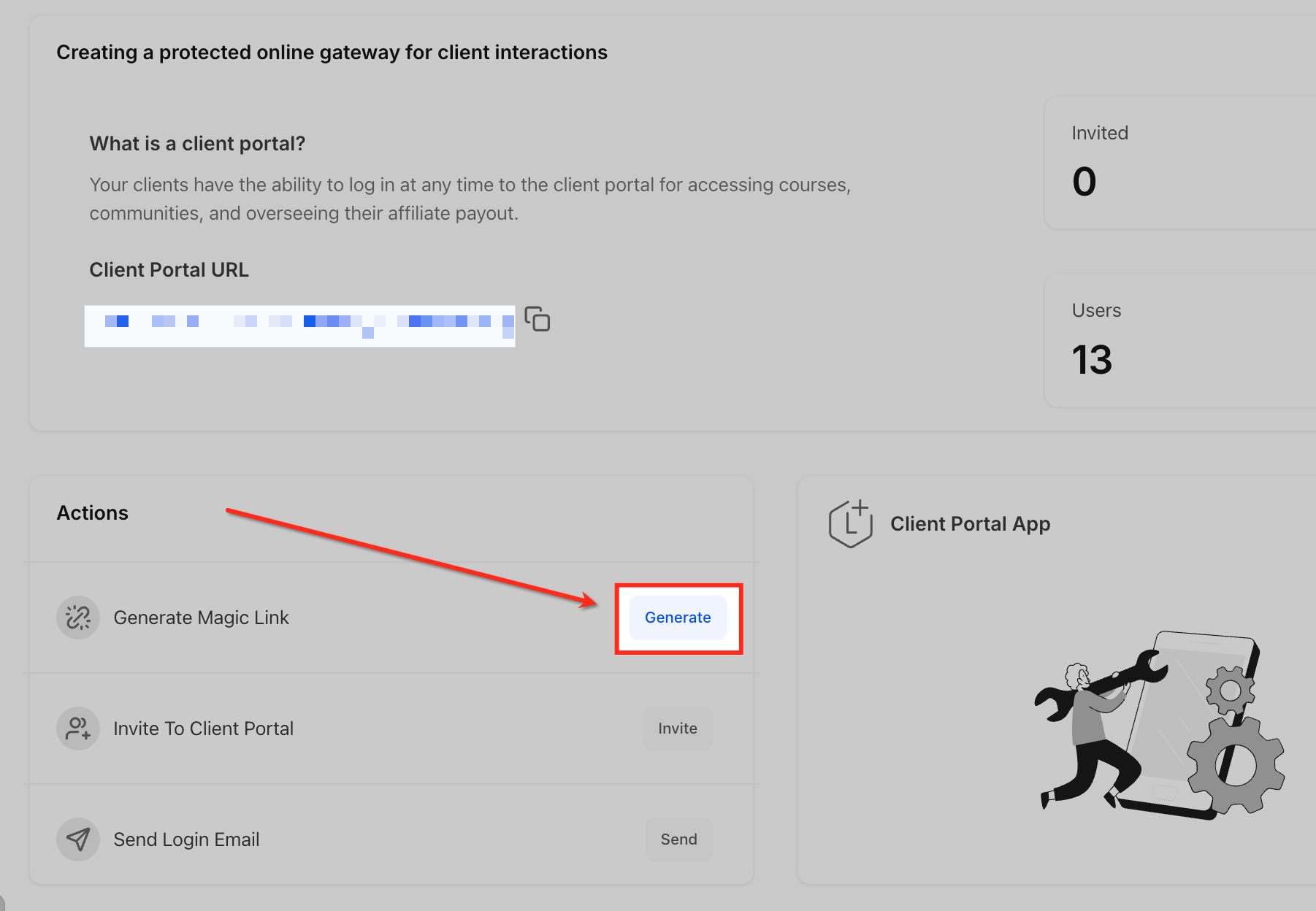
Click “Generate” for Magic Link
In the Actions panel, click the Generate button next to “Generate Magic Link.” This begins the process of creating a secure, one-click login for a specific contact and app.
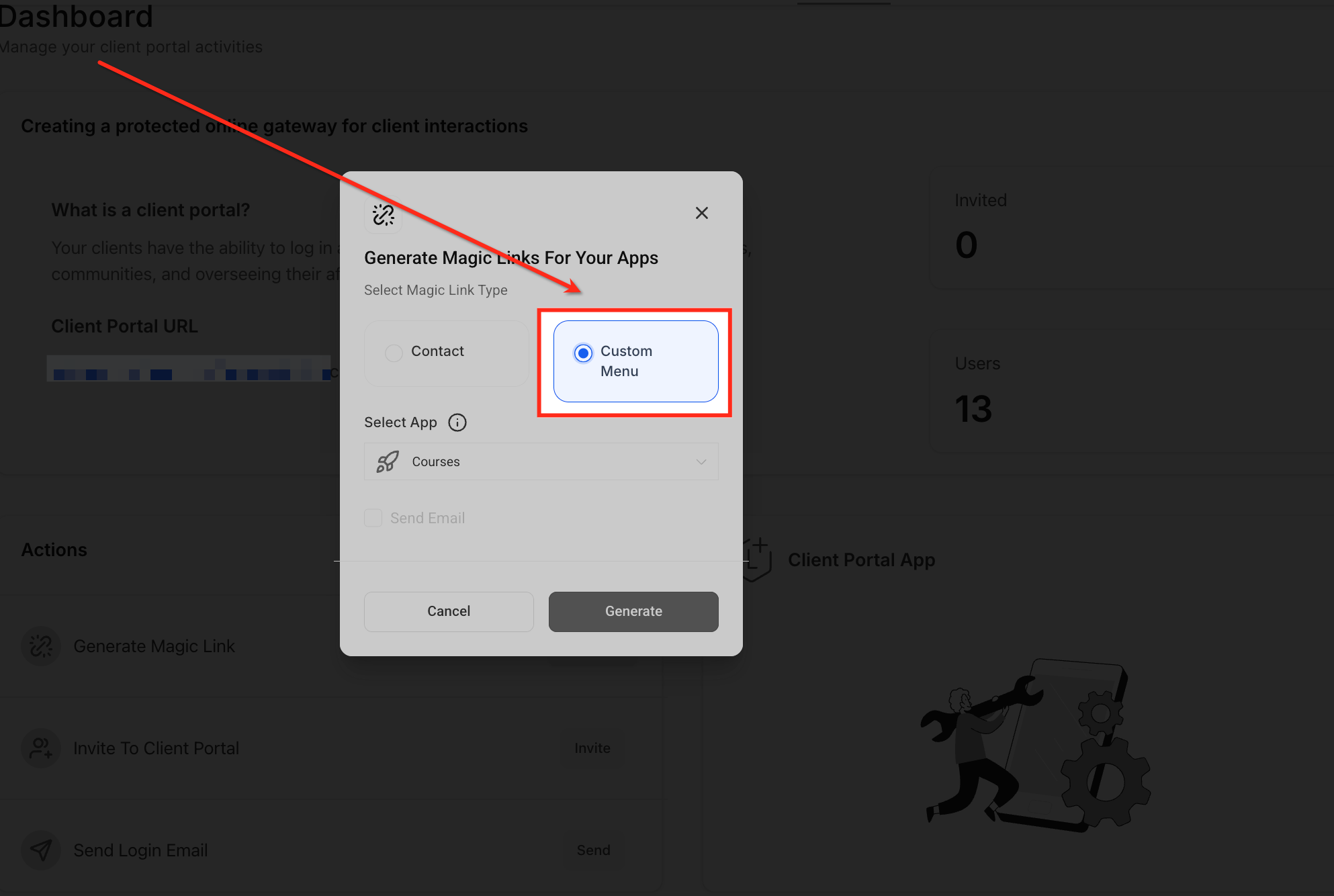
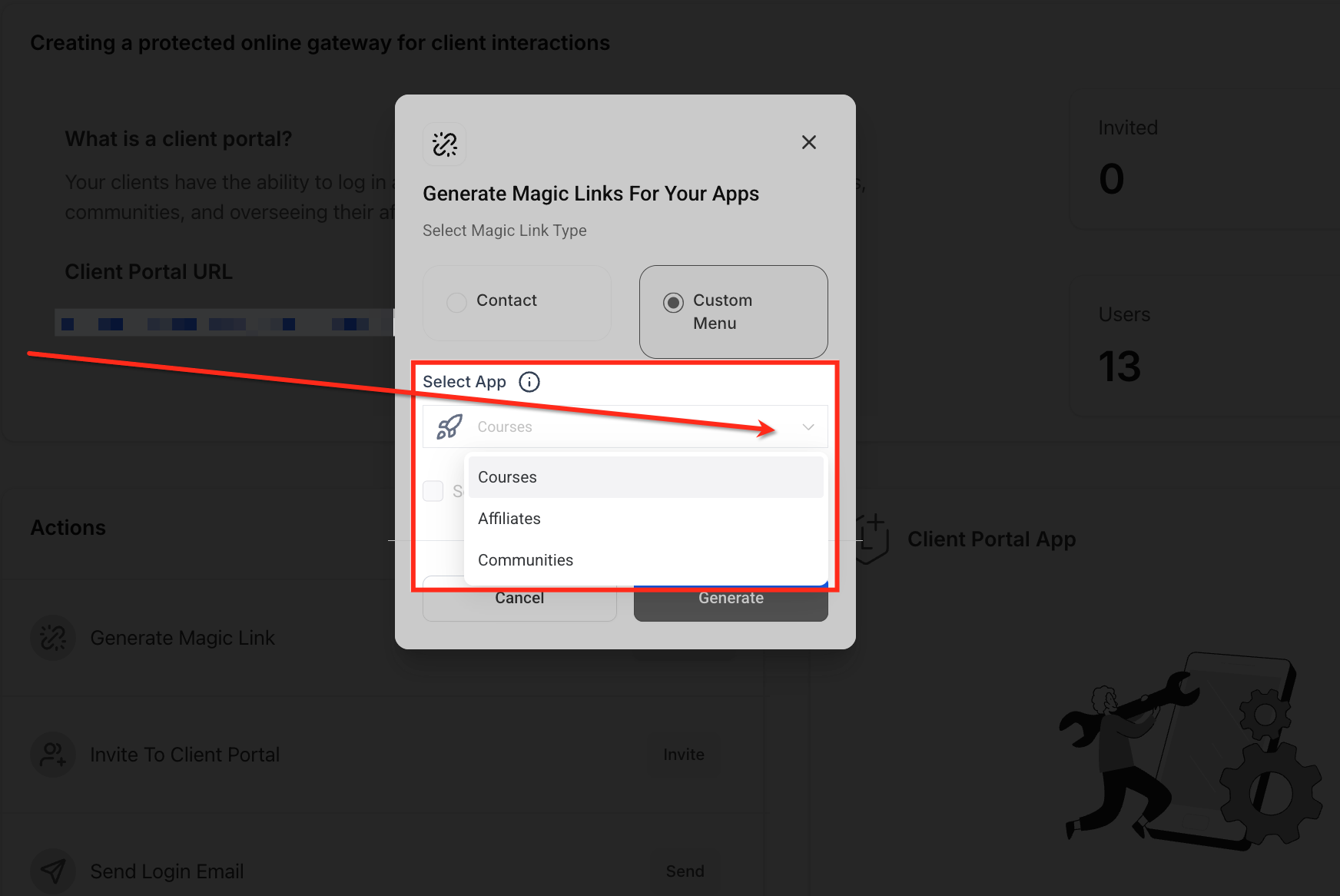
Select Magic Link Type
Choose Custom Menu to generate a reusable magic link intended for client portal navigation. This type of link is ideal for embedding directly in your portal’s sidebar.
Select the App
Use the dropdown under Select App to choose which client portal app the magic link should open—Courses, Affiliates, or Communities. This determines the destination when the link is used.
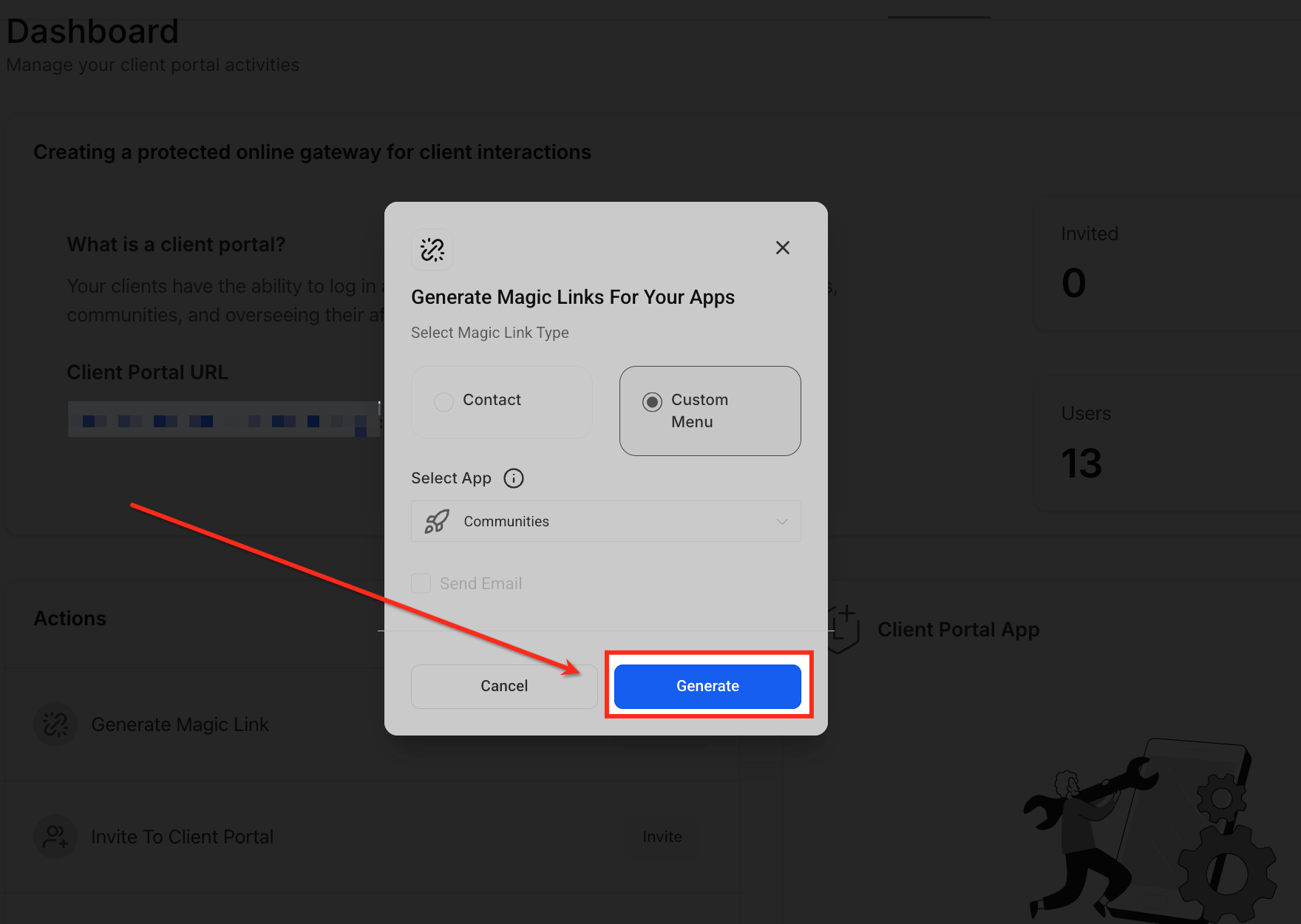
Generate the Magic Link
Once you’ve selected the app, click the Generate button. This will instantly create a secure, one-click login URL that you can embed or share.
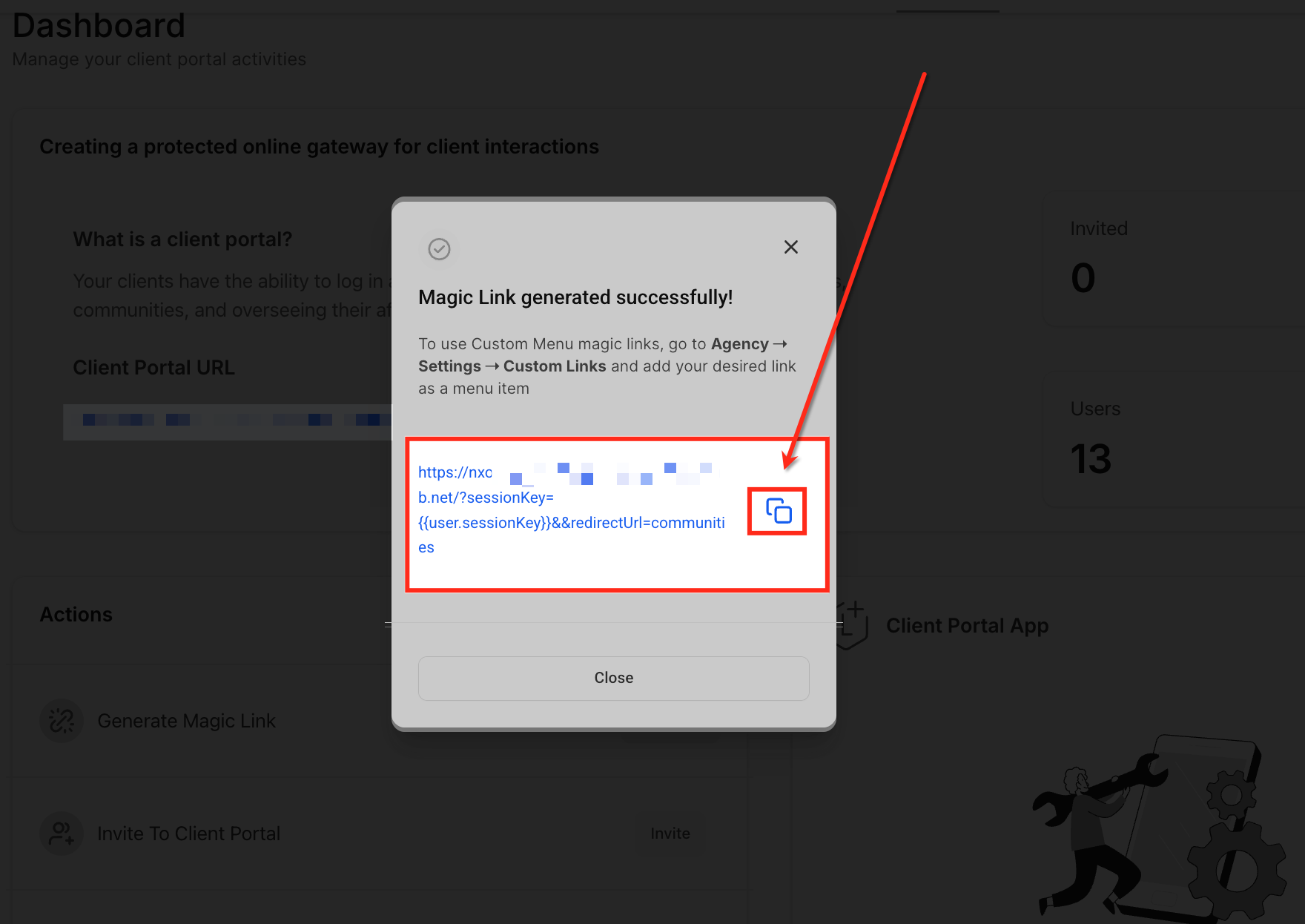
Copy the Magic Link
Once the link is generated, click the copy icon to save it to your clipboard. You can now paste this secure SSO link wherever needed—such as in emails or custom menu items—for seamless client access.
Frequently Asked Questions
Q: Do Magic Links work for all client portal apps?
They work with Courses, Communities, and Affiliates. Q: Are Magic Links secure? Yes. Each link is unique to the contact and app, providing only the necessary access. Q: Can I use Magic Links in automations or emails? Yes. You can insert the link in automated messages, onboarding emails, or custom buttons. Q: Do users need to be logged into the portal first? No. Clicking the Magic Link logs them in and redirects them automatically. Q: Can I regenerate a Magic Link? Yes. Simply repeat the generation process to create a new link.