
Using Notes in Custom Objects
Overview Notes help teams capture important context (updates, follow-ups, internal details) directly on CRM records. With this release, the same Notes experience you already use on Contacts is now available on Custom Object records—including Search and Filters/Sorting for faster retrieval. In addition, you can now associate existing or new notes from Contacts or Opportunities to a related Custom Object record, so the same note context is visible wherever it’s needed.
Feature Name Notes for Custom Objects
Feature Description Use Notes for Custom Objects to:
- Add notes directly on a Custom Object record (e.g., Property, Car, Policy, Subscription).
- Search notes by keyword to find the right context quickly.
- Use filters and sorting to manage long note histories efficiently.
- Associate any existing or new note from a Contact or Opportunity to a related Custom Object record (when the Custom Object record is associated with that Contact or Opportunity).
How to Use
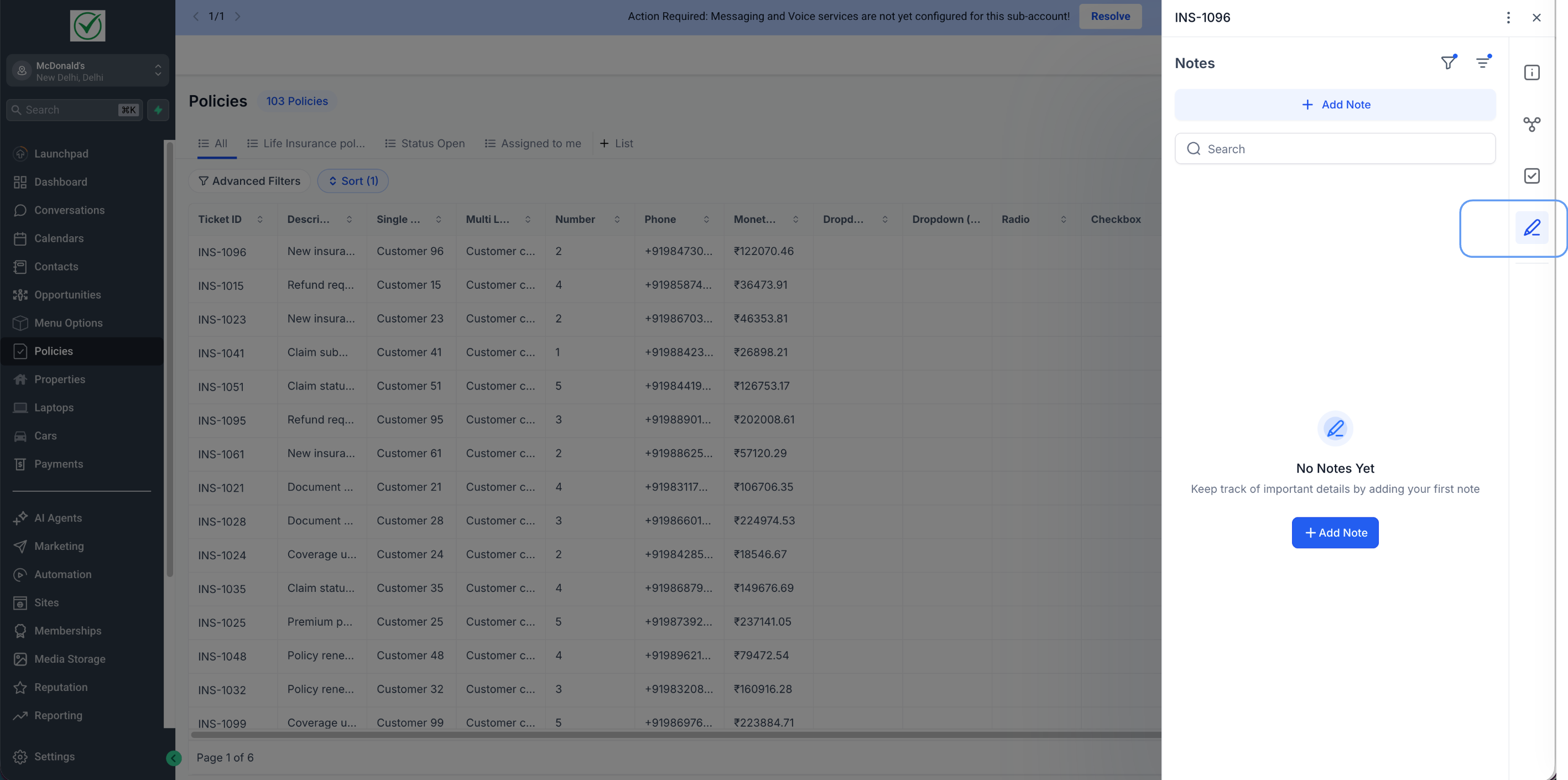
A) Add Notes on a Custom Object record 1.
Go to Custom Objects and open any object (e.g., Properties). 2. Open a record to view its record details. 3. Open Notes from the right panel. 4. Click Add Note, enter your note, and Save. 5. Use Search to find notes by keyword. 6. Use Filters/Sorting to narrow down notes as the list grows. 7. Associate the note to a linked contact or opportunity
- Open a Contact or Opportunity record. 2. Go to Notes and either create a new note or open an existing note. 3. In the note’s Associations, select the related Custom Object record you want to link. 4. Save — the note will now appear under the Custom Object record’s Notes as well, while remaining on the original Contact/Opportunity
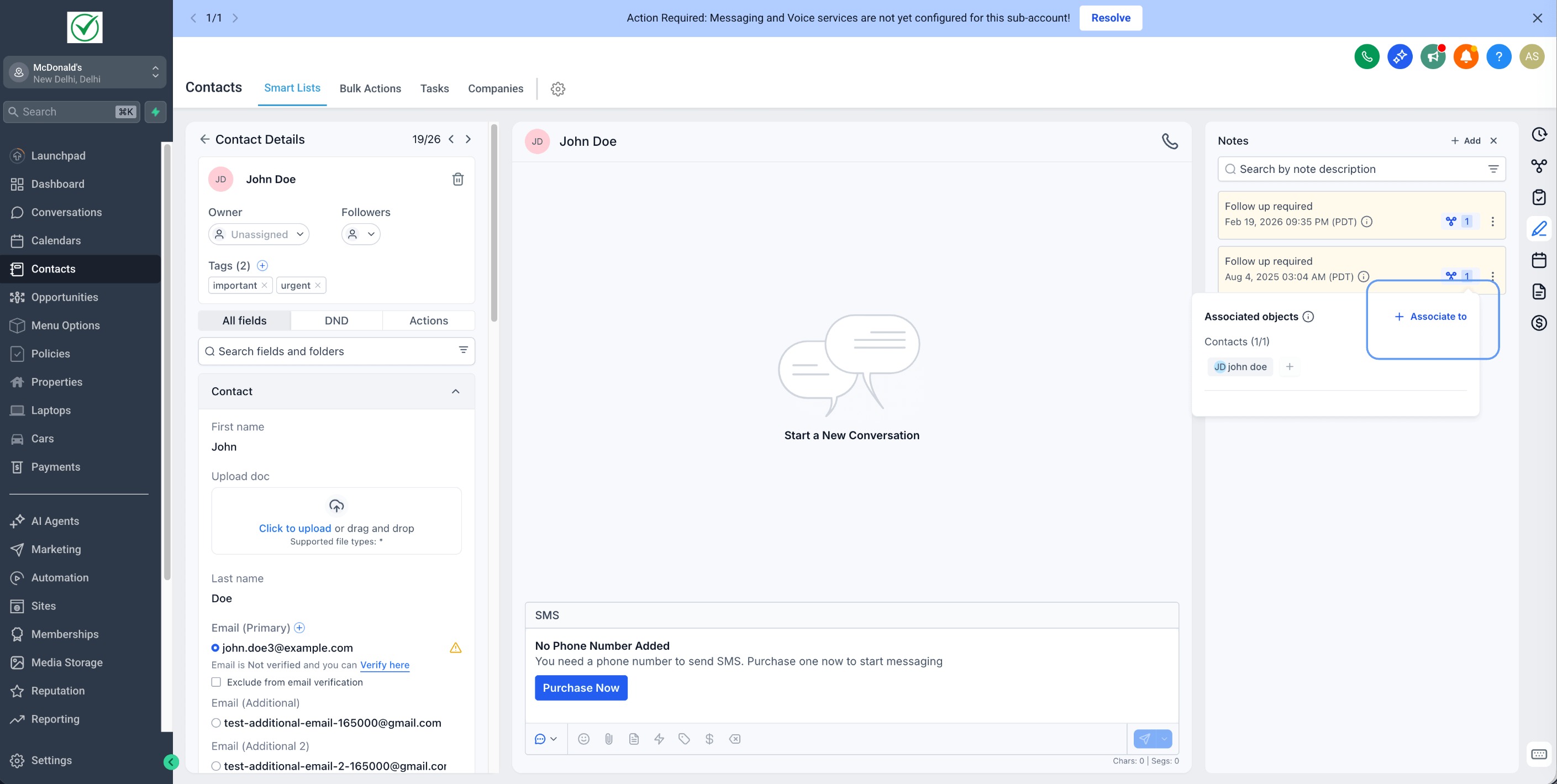
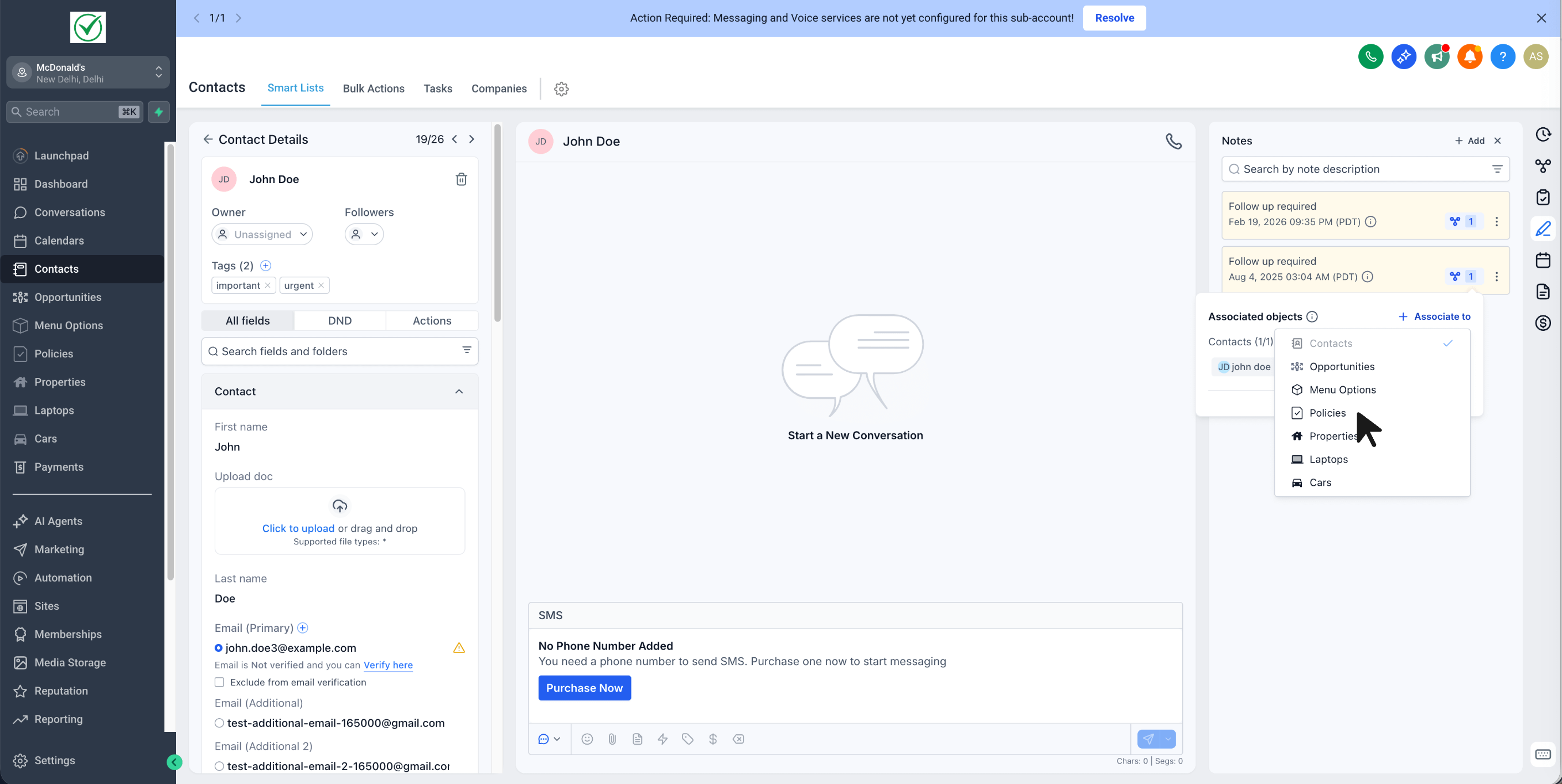
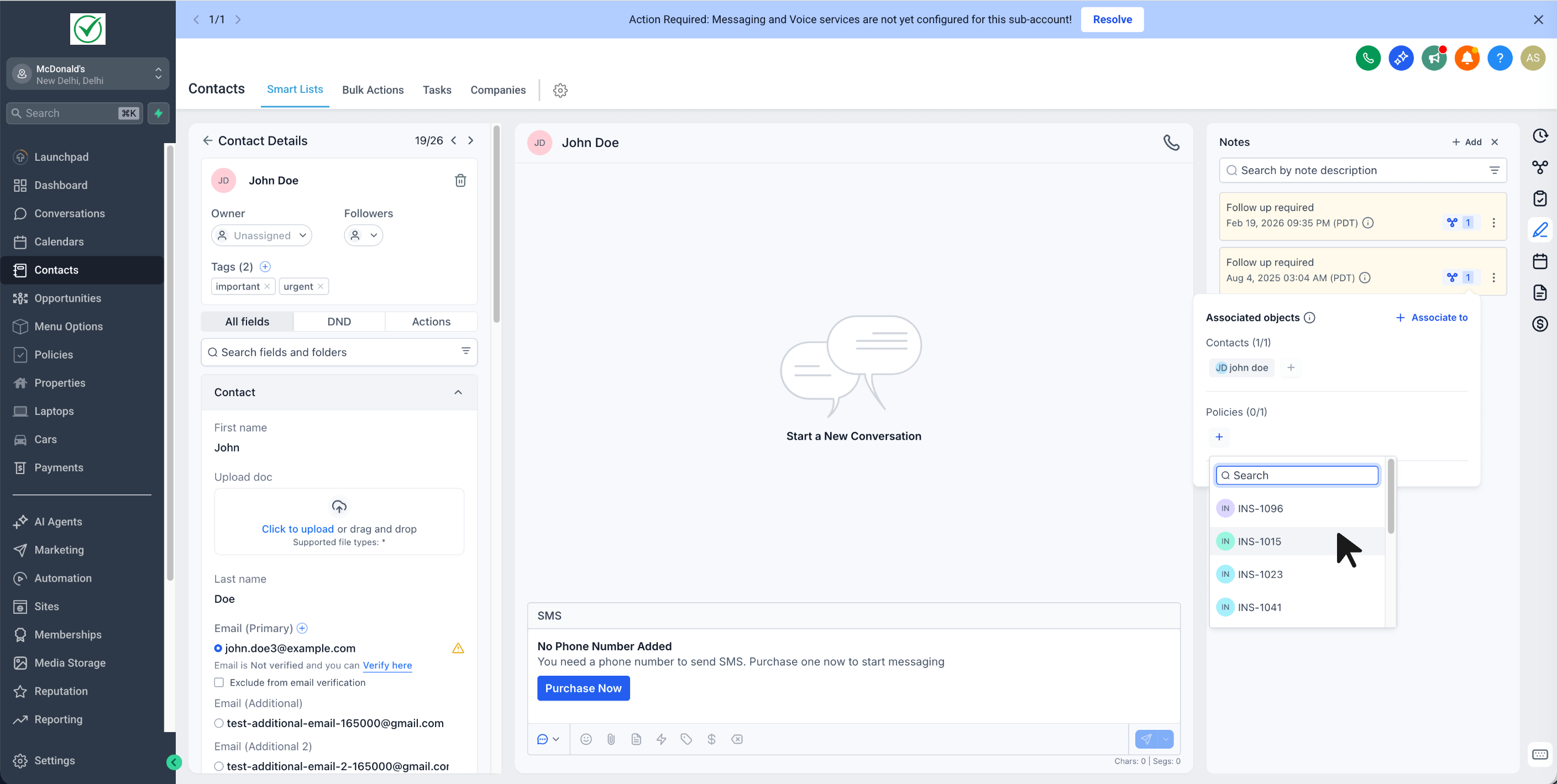
Note: You can only associate the note to a Custom Object record that is already related to the same Contact or Opportunity.