
Communities - Customizeable Navigation Tabs In Groups
Take full control of your Community Groups in Patient Copilot by choosing which navigation tabs appear to members. This guide explains how admins can enable or disable tabs per group to create discussion‑only spaces, learning‑first hubs, or event‑driven communities—so engagement stays focused and relevant.
What is Customizable Navigation Tabs in Groups?
Customizable Navigation Tabs let group administrators decide which tabs display in a Community Group’s navigation bar. Two core tabs, Discussion and About are always on to keep communities functional and discoverable. All other supported tabs can be shown or hidden on a per‑group basis, giving you granular control over the member experience.
- Supported tabs: Discussion (mandatory), Learning, Events, Leaderboard, Members, About (mandatory)
- Scope: Settings apply per Group (not global across all groups)
- Effect: Changes take effect for all members of that group
Key Benefits of Customizable Navigation Tabs in Groups
- Purpose‑built communities: create discussion‑only spaces, learning‑focused hubs, or event‑driven groups without distractions.
- Better engagement: show only what’s relevant so members find key areas faster and interact more often.
- Simple admin control: toggle tabs on/off from Group Settings with changes applying immediately to all members.
- Clear onboarding: new members see a clean, intentional nav that reflects how you want them to participate.
- Consistency: standardize navigation across similar groups while keeping flexibility where needed.
Tabs You Can Show or Hide
Understand which tabs are available and which ones are required to ensure core community functionality remains intact.
- Discussion: Start or join conversations to share updates, ideas, and insights with your community. Cannot be Disabled
- Learning: Create and manage courses that help members gain new skills or knowledge. Can be shown/hidden per group.
- Events: Plan, organize, and view upcoming sessions, workshops, or community events. **Can be shown/hidden per group. **
- Leaderboard: Recognize top-performing members and encourage healthy engagement through rankings. Can be shown/hidden per group.
- Members: Manage all members and roles. This tab will remain visible to admins even when disabled, so member management is always accessible. Can be shown/hidden per group.
- About: Introduce your community’s purpose, values, and background to help members connect. Cannot be Disabled
How To Setup Customizable Navigation Tabs
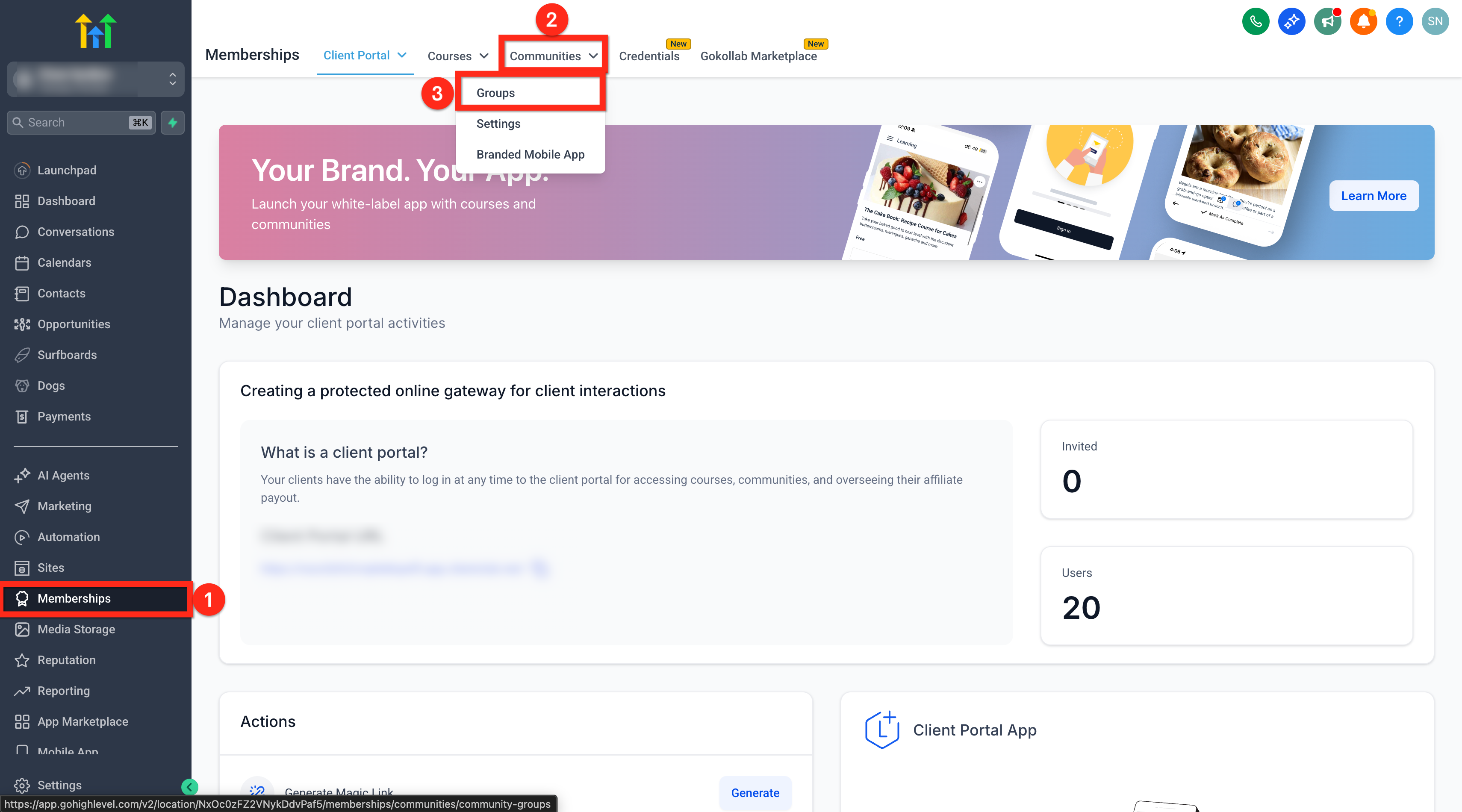
Follow these steps to tailor the Group navigation so members see the areas that matter most. Proper setup ensures a consistent experience across devices and roles. 1. Click on Memberships from your sub-account. 2. Go to Communities. 3. Click on Groups from the dropdown.
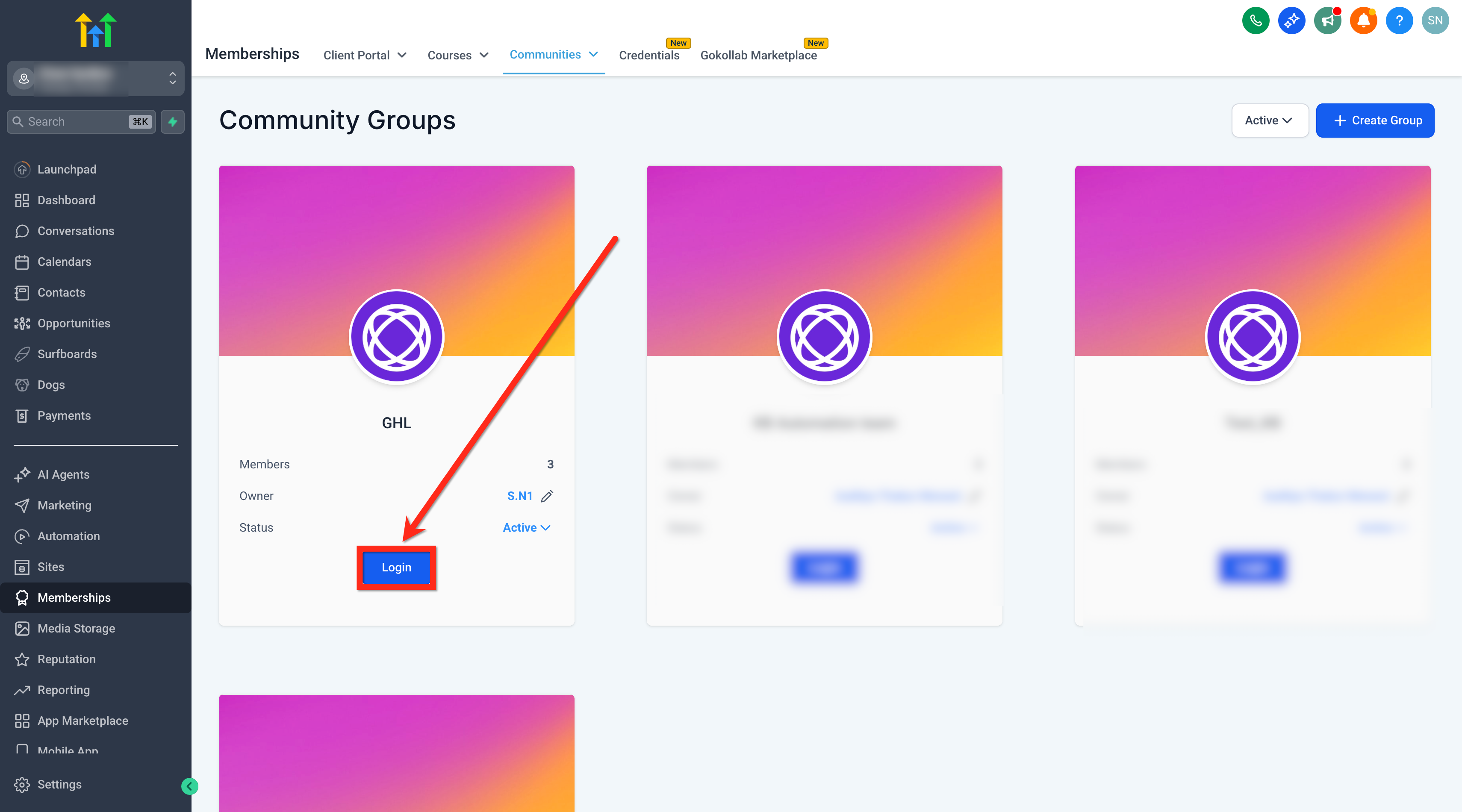
- Open/Login to your Group**.** **
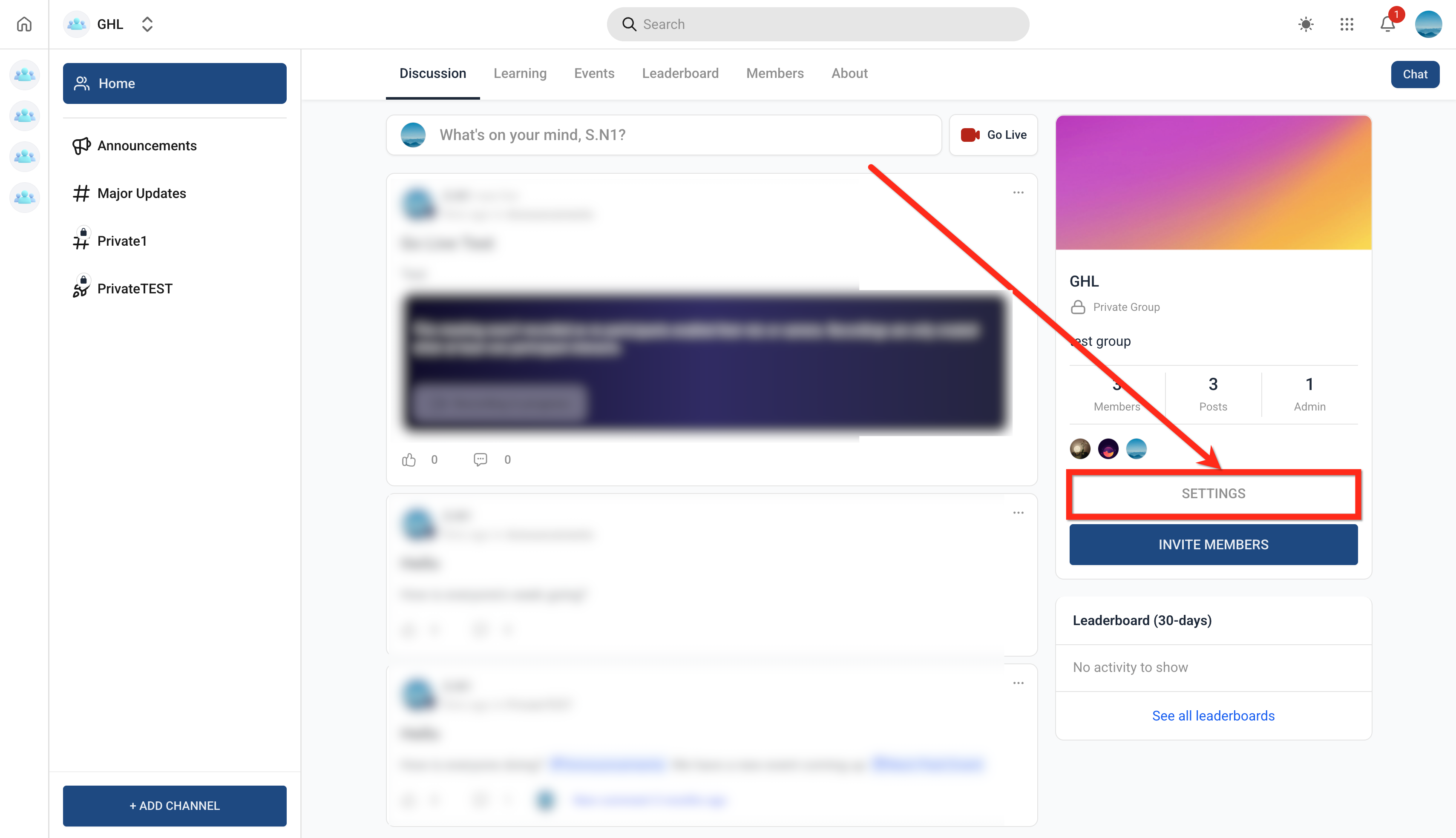
** 5. Open Settings.
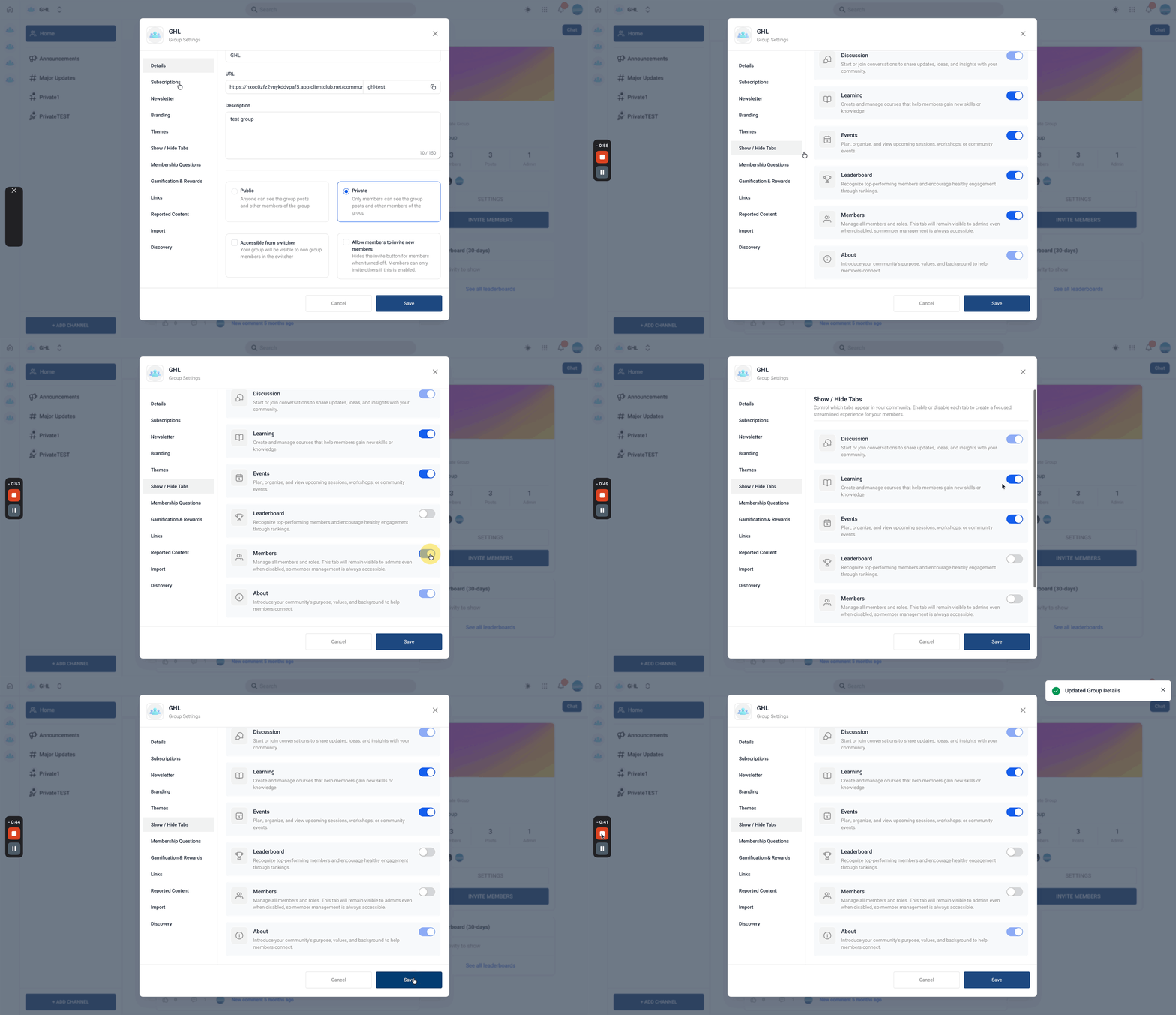
- Select Navigation Tabs (Show/Hide). 7. Toggle Learning, Events, Leaderboard, and Members On/Off as needed. 8. Discussion and About are mandatory to stay on. 9. Click on Save for the changes to take effect.
Frequently Asked Questions
Q: Why can’t I disable the Discussion or About tabs?
These are core to community functionality and discoverability, so they remain permanently enabled. Q: Do tab changes affect all members immediately? Yes. As soon as you toggle visibility in Group Settings, the navigation updates for everyone in that Group. Q: Are tab settings global across all Groups? No. Tab visibility is configured per Group, giving you granular control for each community. Q: Which roles can manage tab visibility? Group administrators with access to Group Settings can manage tab toggles. Follow your organization’s permission model for who can log into Groups and access Settings. Q: Will members on mobile see the same navigation as desktop? Yes. The visible tabs mirror your settings across desktop and mobile/responsive views.