
Step-by-Step Guide to Facebook Integration in Patient Copilot
Facebook Integration in Patient Copilot allows you to directly sync lead data from Facebook Lead Ads into your CRM. Once connected, new leads can automatically trigger workflows, populate pipelines, and initiate nurture campaigns without manual imports.
Overview of Facebook Integration
Facebook integration allows you to connect your Facebook Business Page and sync leads directly into a Patient Copilot sub-account. This connection supports Lead Ads created via Facebook’s Instant Forms and enables powerful automation using Patient Copilot Workflows. Once connected, you can also enable access to your Instagram Business account if it’s linked to your Facebook page.
Key Benefits of Facebook Integration
Facebook integration allows Patient Copilot users to automate lead capture from Facebook.
- Lead Automation: Automatically syncs new Facebook leads to your CRM
- Form Field Mapping: Aligns Facebook form responses with CRM fields
- Sync Options: Choose to pull in past leads or only new ones going forward
- Trigger Workflows: Use lead form submissions to launch automated sequences
How to Connect Facebook to a Sub-account
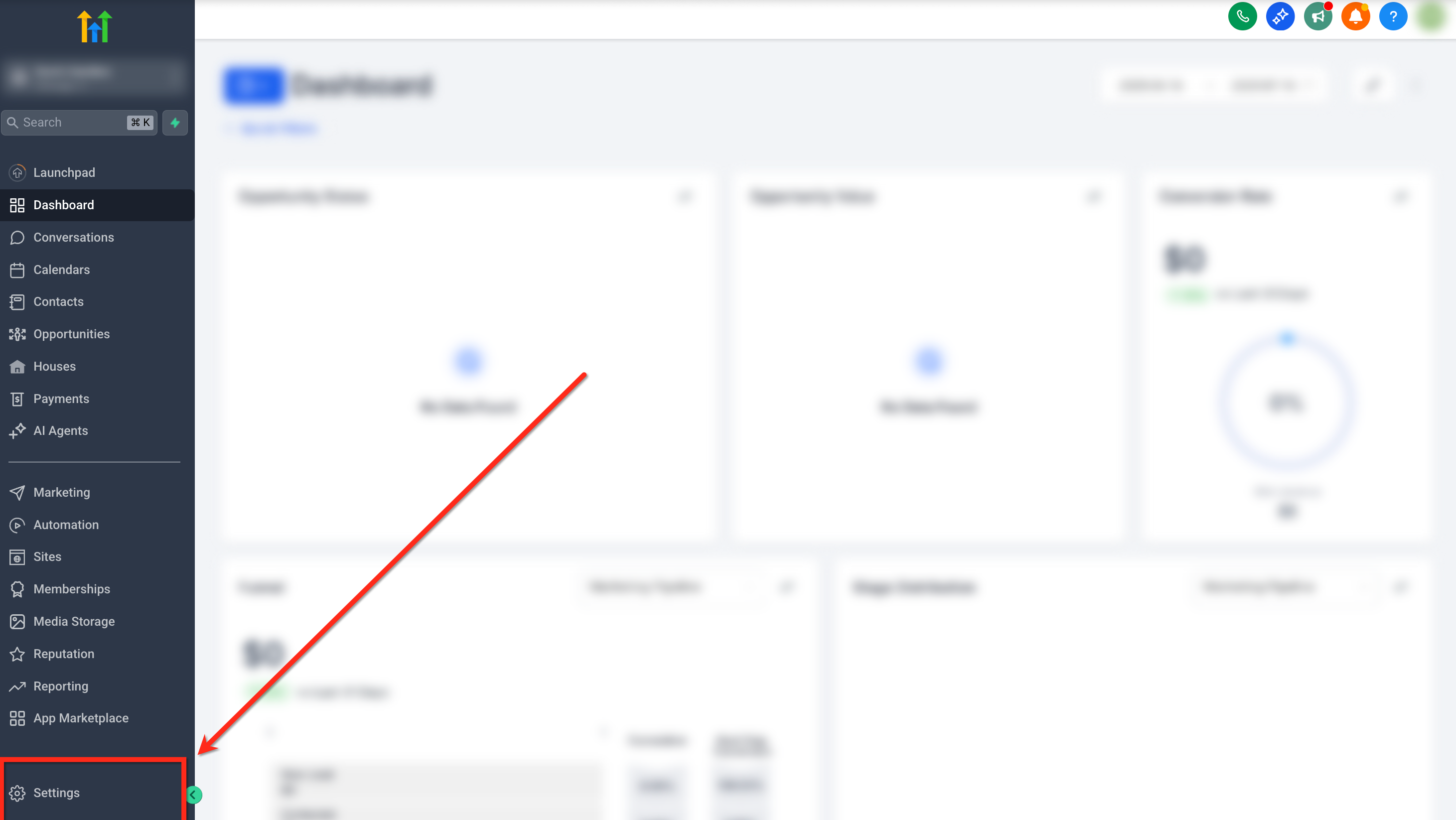
Step 1: Go to Sub-Account Settings Navigate to Settings in the bottom-left corner of the screen
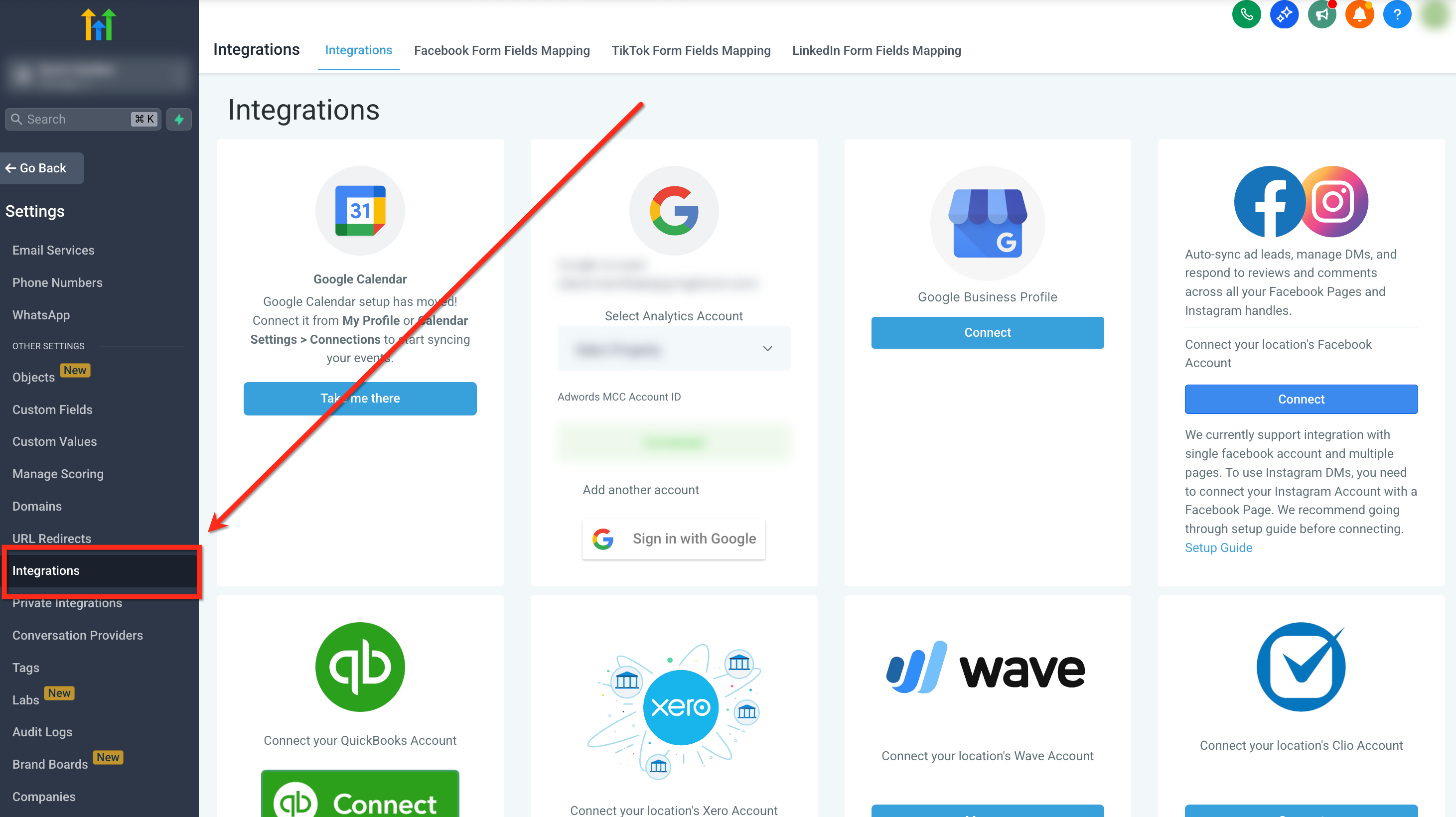
Step 2: Open Integrations In the left-hand navigation within Settings, scroll down and click Integrations
Step 3:
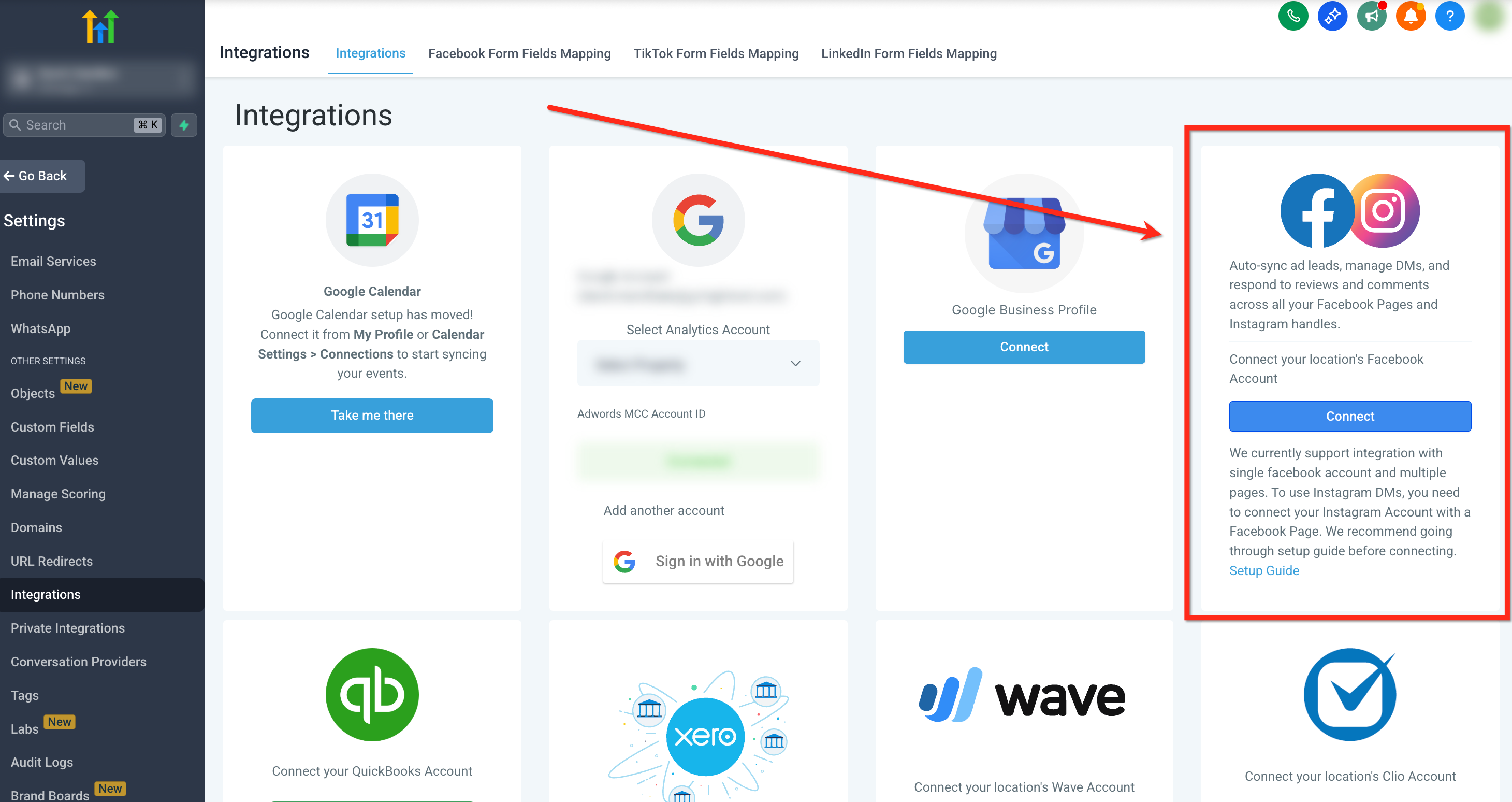
Click the Facebook–Instagram Card Find the Facebook–Instagram card in the top-right section of the Integrations screen and click Connect
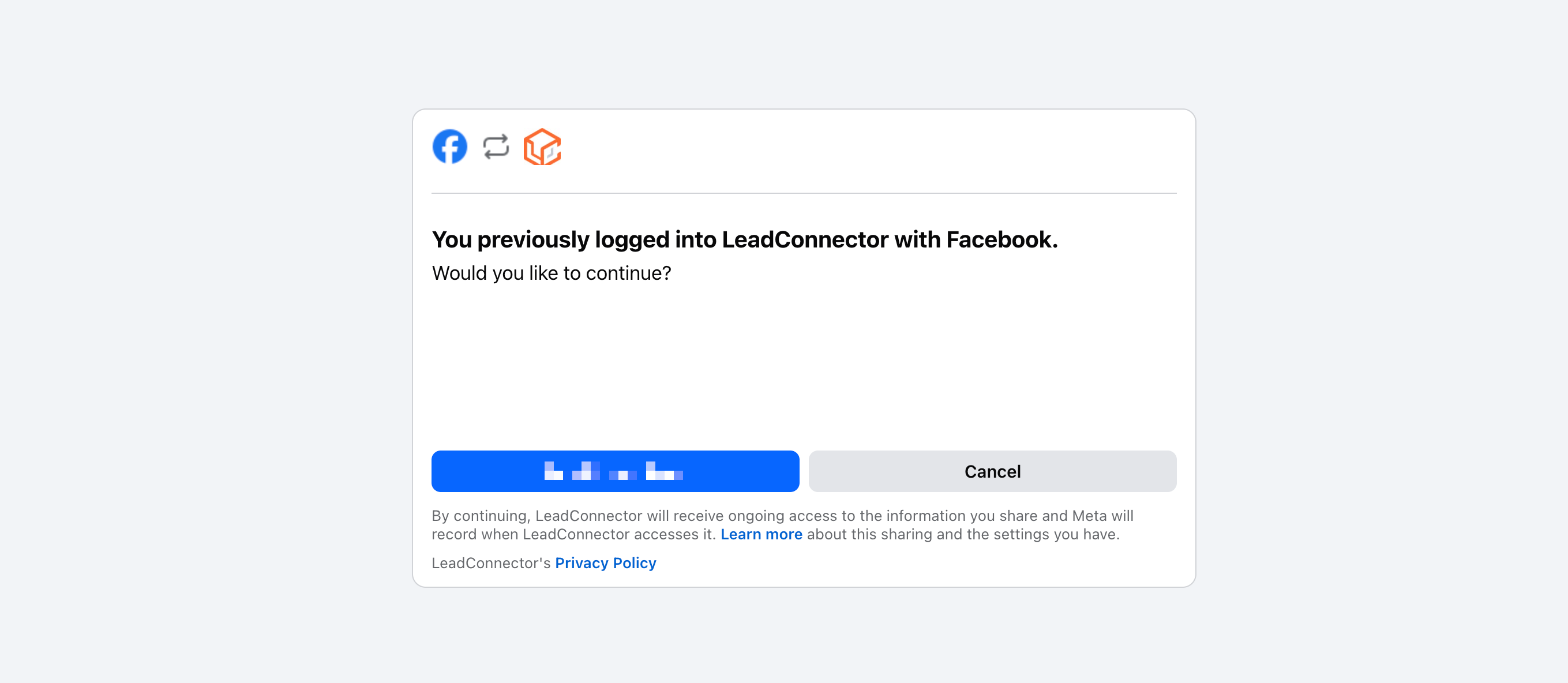
Step 4: Complete Facebook Login and Permissions A pop-up window will ask you to log into your Facebook account. Make sure to:
- Log into the correct Facebook account - Approve all required permissions (especially access to leads and page data) - Select the correct Facebook Page to sync Note: You must have Admin access to both the Facebook Page and the Business Manager it’s connected to.
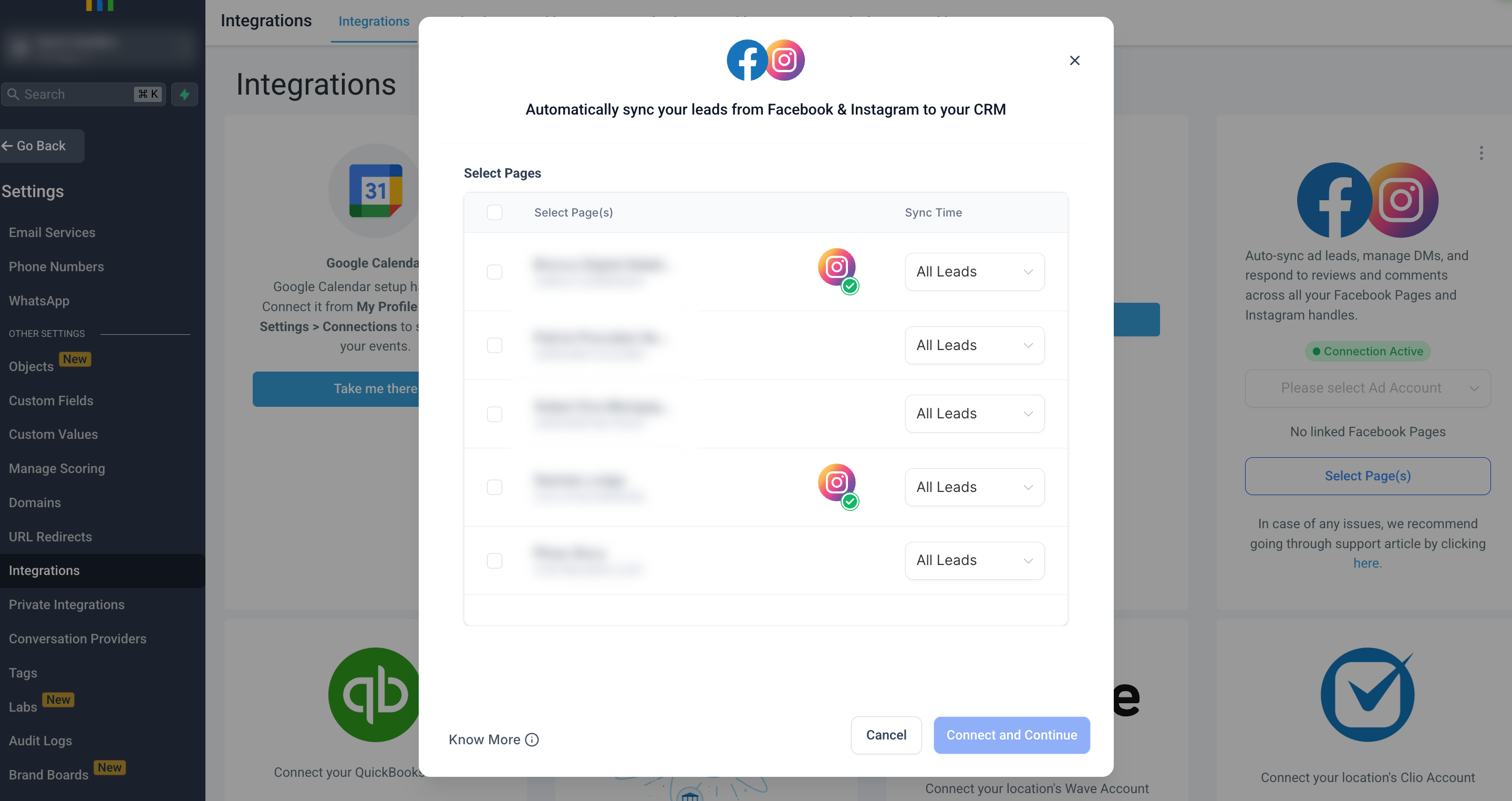
Step 5: Choose Page and Sync Options - The Facebook Page you want to integrate -
- All Leads: Pull in historical leads and all new leads going forward
- New Leads Only: Only sync leads submitted after this integration _
_
Step 6: Confirm Integration
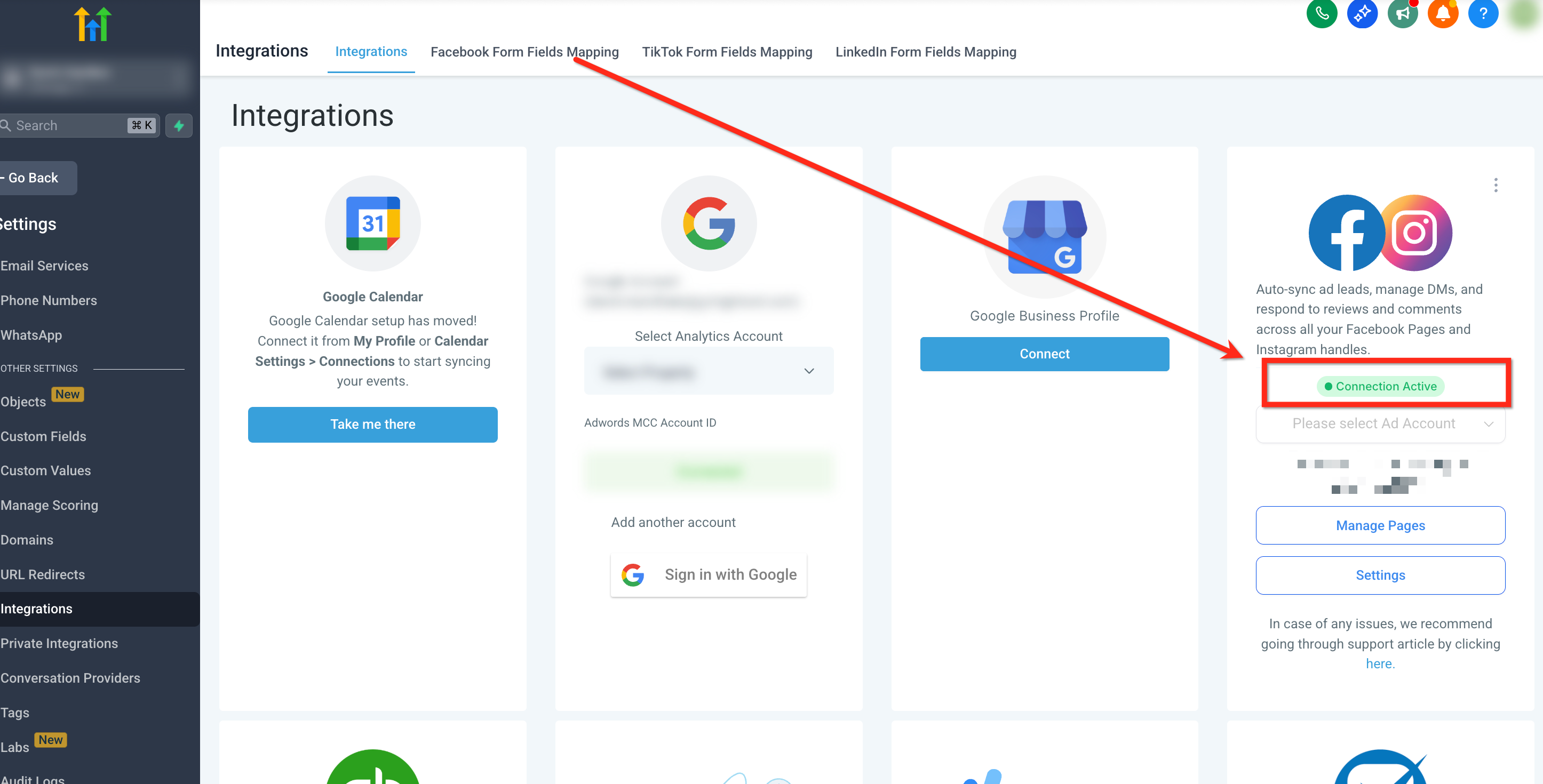
- Click Connect and Continue to finalize the integration. You’ll see a green banner in the upper-right that says Integration successful _
_
Step 7:
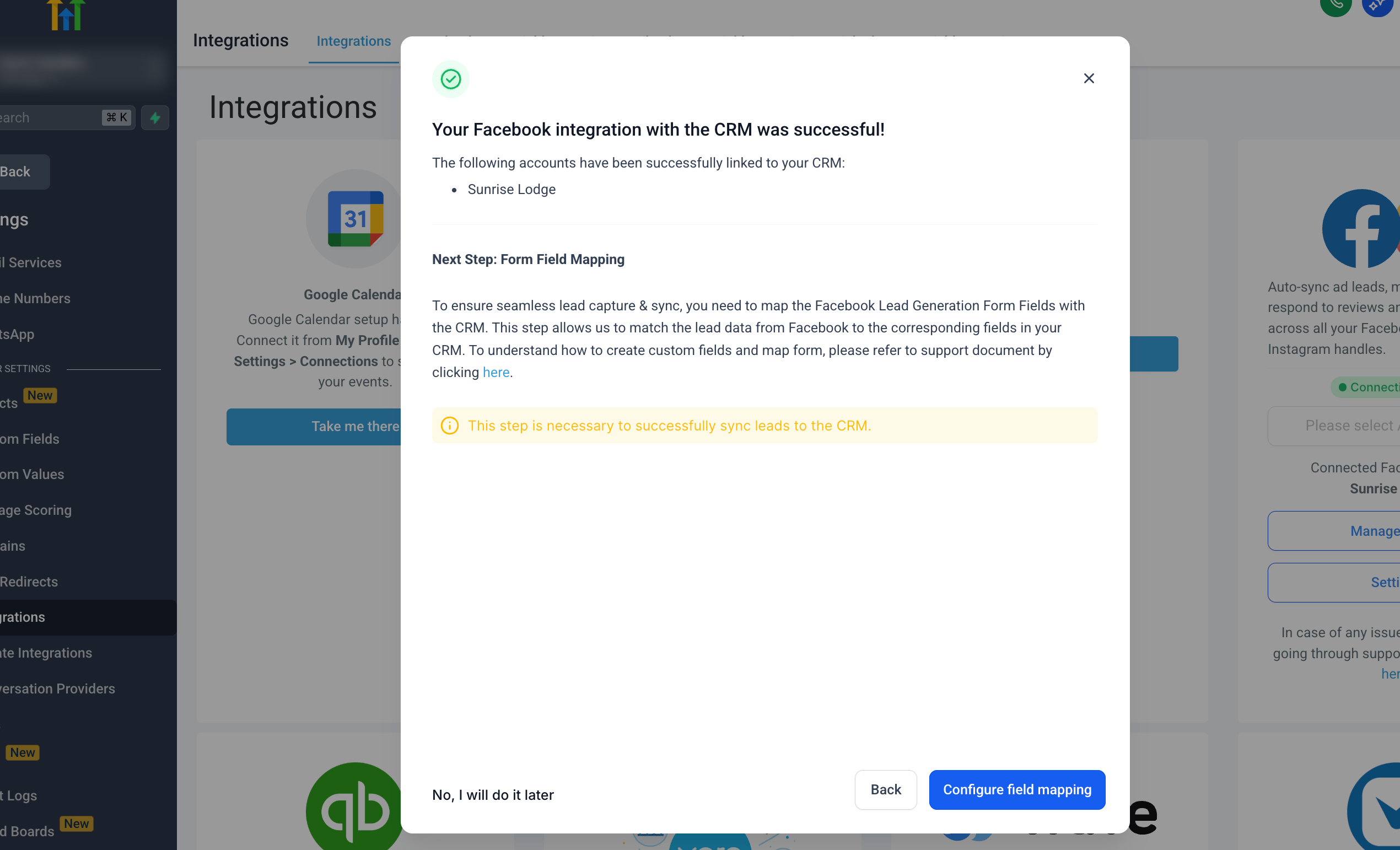
Map Facebook Form Fields to CRM Fields Map your Facebook form fields to the appropriate CRM fields inside Patient Copilot. This ensures every lead’s data, like email, phone, and name, lands in the right place.
Frequently Asked Questions
Q: What permissions are required to connect a Facebook page?
You must be an Admin of the Facebook Page and the associated Business Manager. If you see “page not visible,” check these permissions and try again. Q: Can I connect more than one Facebook page? Yes. You can connect multiple pages to a sub-account. For more information, see Connect Multiple Facebook Pages to Patient Copilot Sub-account. Q: What happens if my token expires? You will see a reconnection prompt. To fix this, follow the steps in A Facebook Token Has Expired In Your Patient Copilot Account. Q: Can I trigger a workflow when a Facebook form is submitted? Absolutely! Use the Facebook Lead Form Submitted workflow trigger to launch automations when new leads come in. Q: How do I test if the integration is working? You can use Facebook’s Lead Ads Testing Tool or submit a test form manually to verify that the lead appears in your CRM. Q: Does this also integrate Instagram leads? Yes, if your Instagram Business account is connected to your Facebook Page. For setup instructions, see How to connect your Instagram business account.