
Notion Integration with Patient Copilot
Effortlessly push and pull data between Patient Copilot and Notion—no Zapier or webhooks required. This guide shows you how the new native Notion Integration unlocks automated page creation, database updates, comments, and more, all from inside Workflows.
What is Notion Integration with Patient Copilot?
The Notion integration in Patient Copilot enables seamless automation between your CRM workflows and Notion’s powerful workspace platform. Whether you’re managing internal documentation, client portals, or dynamic project wikis, this integration allows you to trigger workflows or automate Notion actions — reducing manual effort and enhancing visibility across your tools. Why It Matters: With this integration, agencies, marketers, and small businesses can:
- Automatically sync customer data into Notion databases - Create tasks, notes, or updates based on CRM events - Build live, CRM-powered knowledge bases and content repositories
Key Benefits of Notion Integration
- Replace Zapier/n8n stacks with one native connection, cutting subscription costs.
- Sync onboarding forms, appointment results, or pipeline changes directly into structured Notion databases.
- Auto-generate project wikis, proposals, or SOP pages the moment deals advance.
- Two-way communication: trigger workflows from Notion edits or drive Notion updates from Patient Copilot actions.
- Five-minute polling keeps Notion-originated triggers responsive without overloading your workspace.
Triggers: Triggers (Notion → Patient Copilot)
These are events in Notion that can initiate workflows in Patient Copilot:
| Trigger Name | Description |
|---|---|
| New Database Item | Fires when a new item is added to a Notion database |
| Updated Database Item | Fires when an existing item is modified |
| Updated Page | Fires when a Notion page is updated |
Actions (Patient Copilot → Notion)
These are actions Patient Copilot can execute in Notion through workflows:
| Action Name | Description |
|---|---|
| Archive Database Item | Archives a selected database item in Notion |
| Create Database Item | Adds a new item to a chosen database |
| Add Content to Page | Appends content to an existing Notion page |
| Update Database Item | Updates the fields of an existing database item |
| Retrieve a Page | Fetches a Notion page and its metadata |
| Retrieve Block Children | Retrieves child blocks under a Notion block (e.g., text, to-do, toggle) |
| Find Database Item | Locates a specific database item using filters |
| Get Page and Children | Retrieves a page along with all nested blocks |
| Find or Create Database Item | Finds an item or creates it if it doesn’t exist |
| Add Comment | Posts a comment on a Notion page |
| Create Page | Creates a new Notion page |
| Restore Database Item | Reactivates a previously archived item |
| Retrieve Database | Fetches metadata and schema for a database |
| Get Page Comments | Retrieves all comments from a Notion page |
| Find Page (By Title) | Searches for a page using its title |
| Find or Create Comment | Finds or creates a comment based on the uniqueness criteria |
Getting Started with Notion
1. Search in Workflows: Open your Patient Copilot workflow builder and search for any Notion actions or triggers you’d like to add.
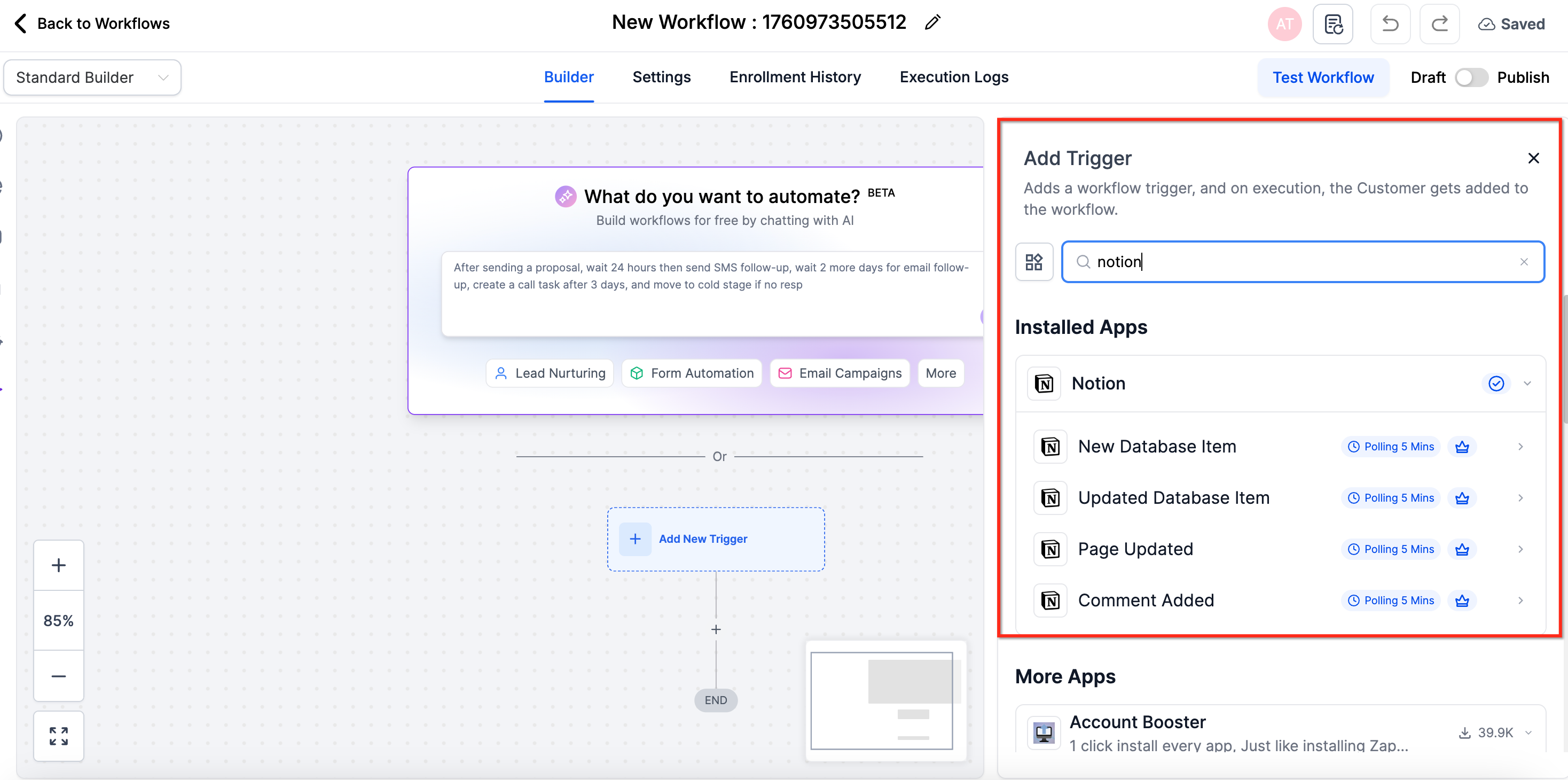
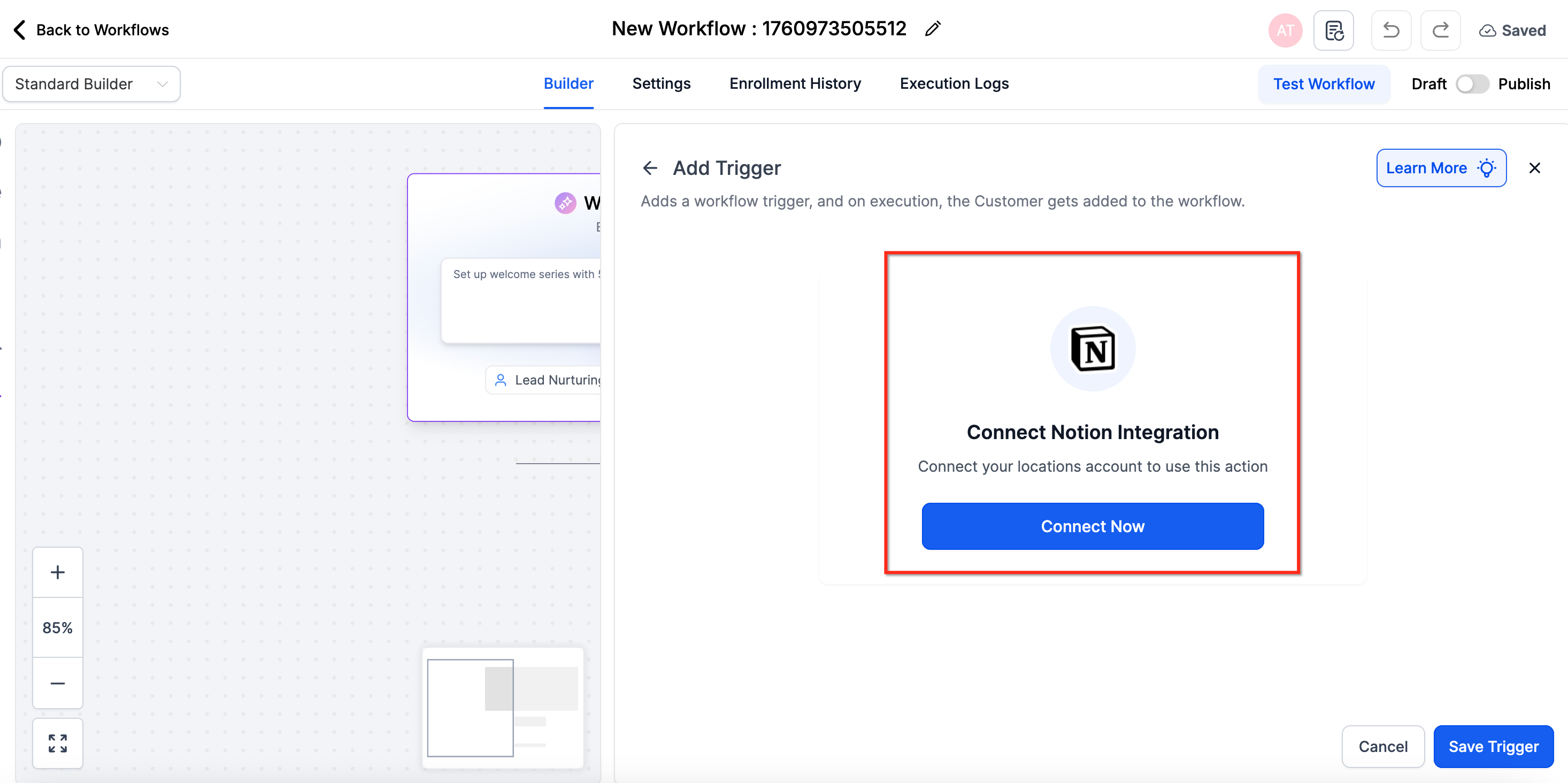
2. Connect Your Account: If your Notion account is already connected, you’ll see configuration options immediately. If not, click Connect Now and complete the Notion authorization flow (via OAuth).
3. Alternative Method: Navigate to Settings → Integrations. Find Notion and connect your workspace.
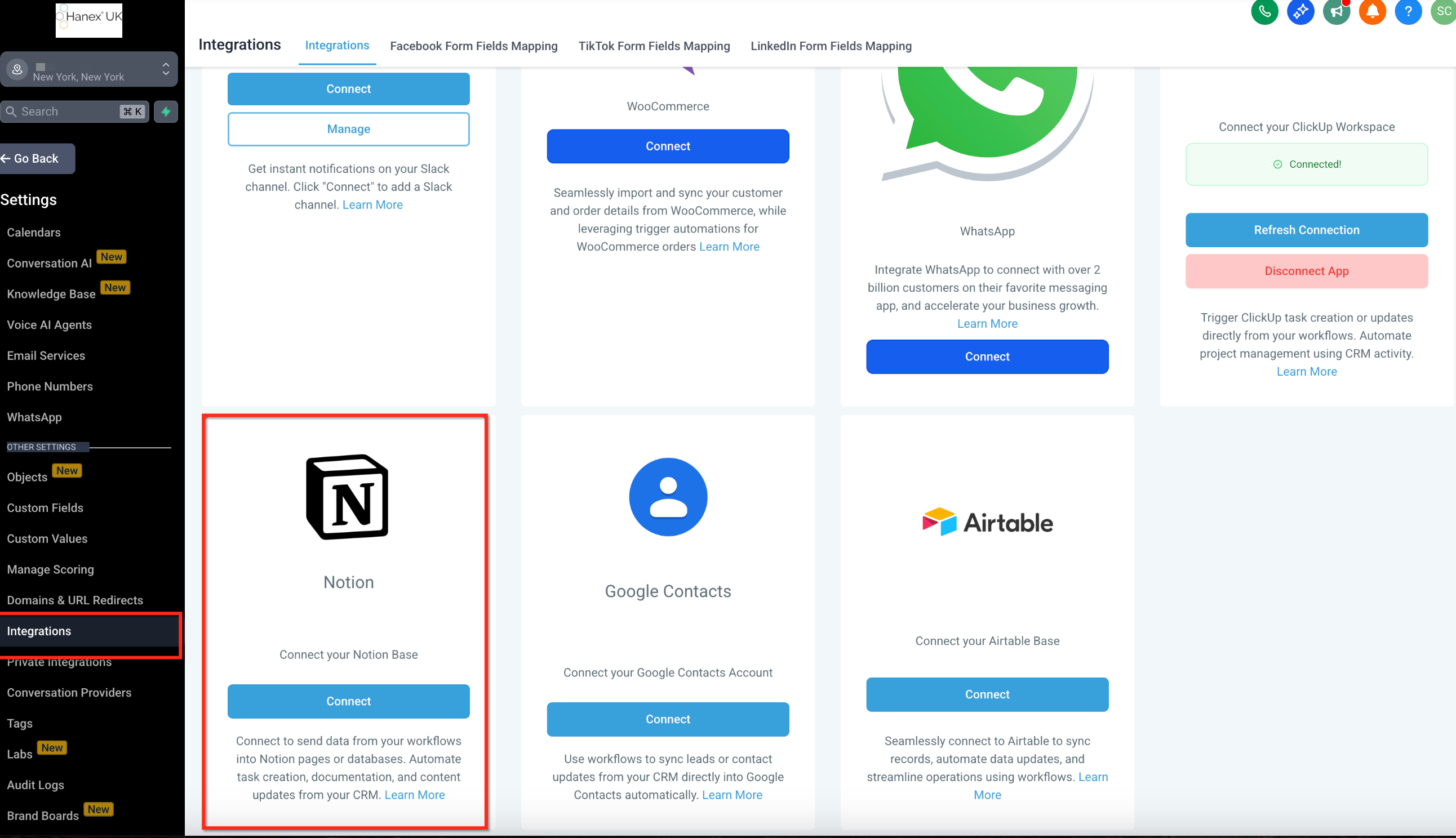
Once connected, you can create, update, and sync pages or database items directly from your workflows.
How Notion Triggers Work
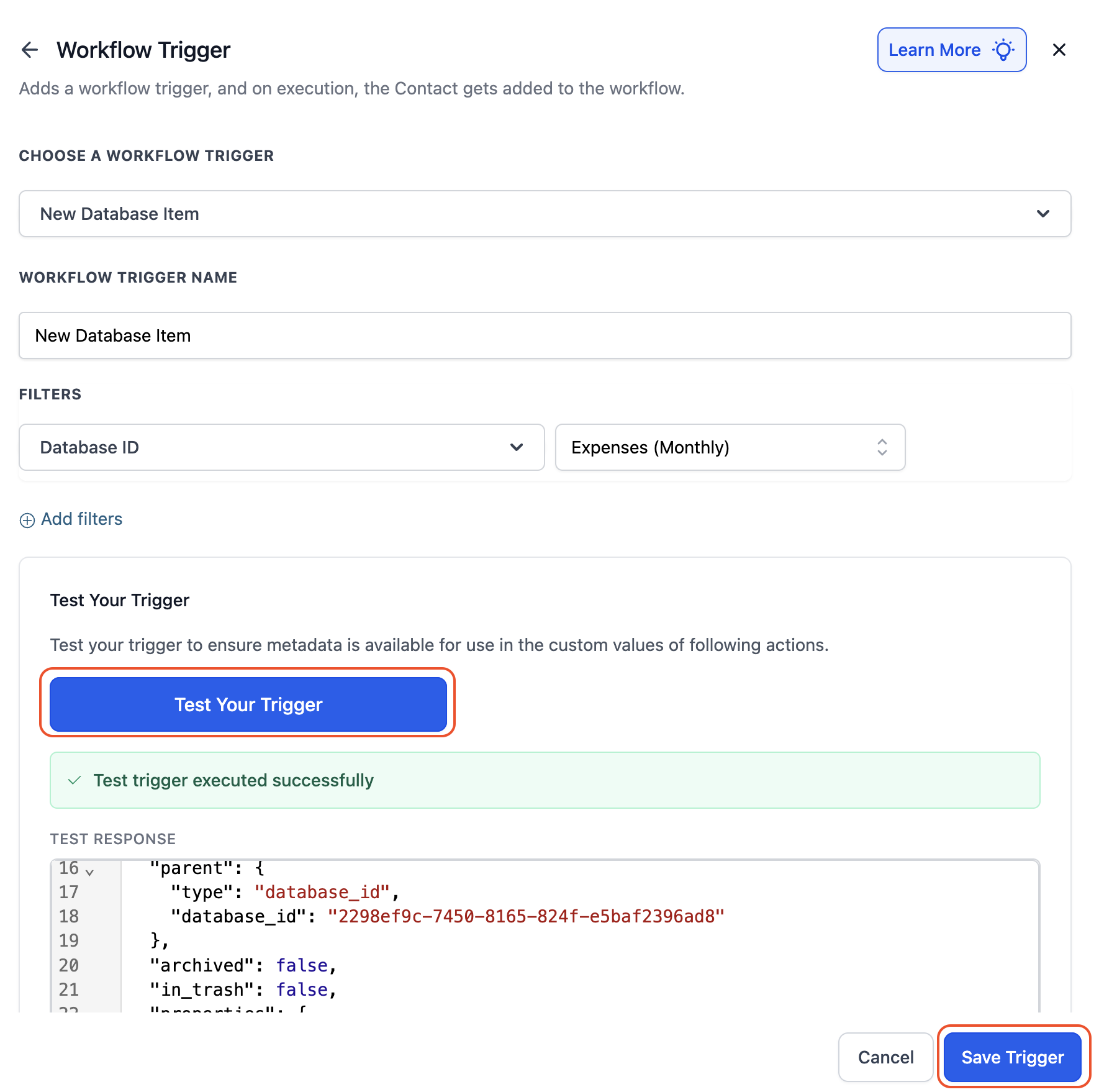
Notion triggers are powered by polling. Every 5 minutes, Patient Copilot sends a request to Notion to check for any changes. If it detects a qualifying event (e.g., new database item or an updated page), it triggers your workflow. Setup Instructions: 1. Choose a trigger (e.g., New Database Item). 2. Name your trigger and click Test Trigger. 3. Patient Copilot will retrieve metadata from Notion to enable dynamic field mapping in downstream actions.
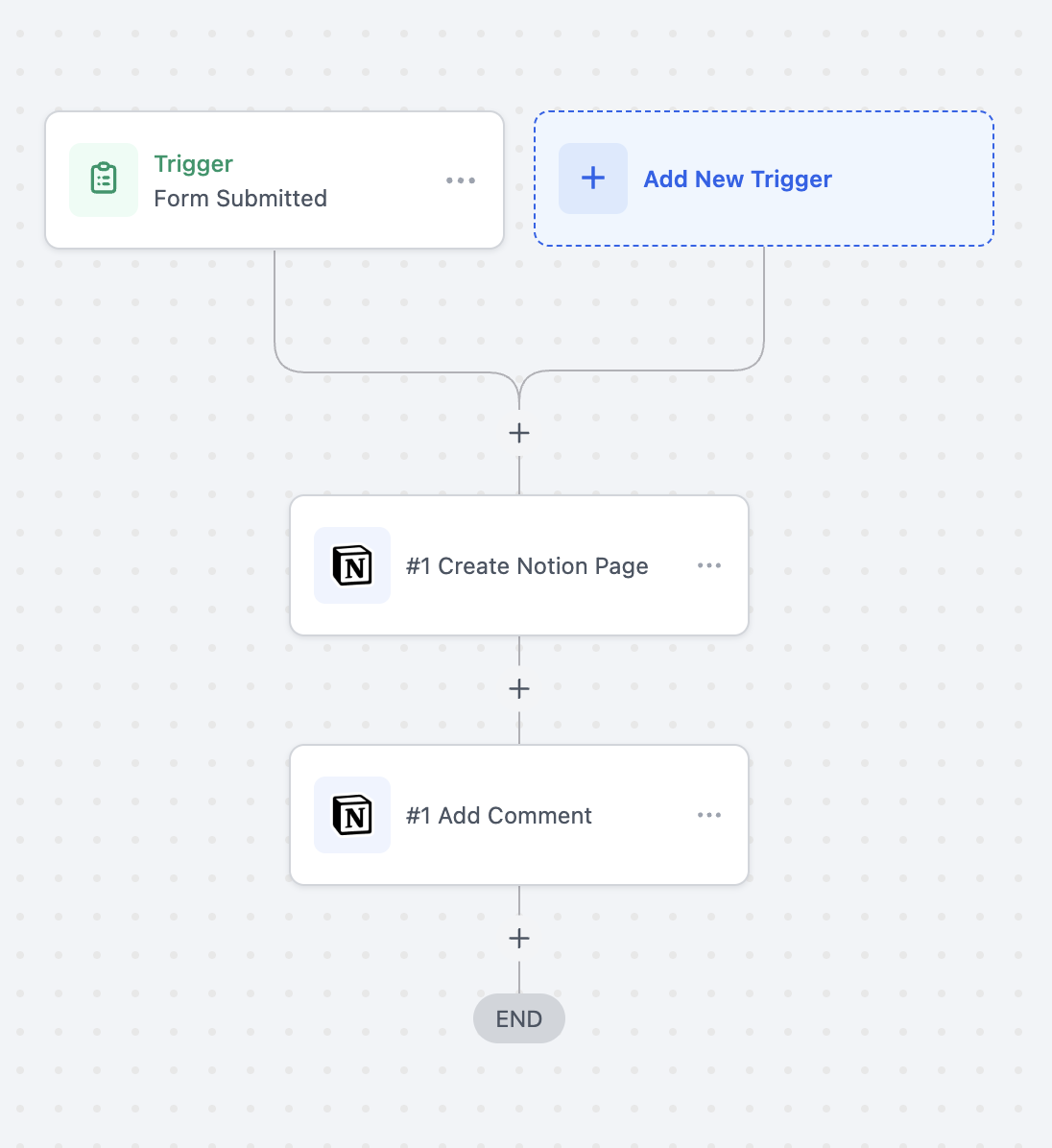
Use Case 1: Create Notion Docs from Form Submissions
Goal: Capture form submissions in Notion for project tracking or onboarding. Workflow Setup:
- Filter: Form Name = “Onboarding Form”
- Actions: - Create Database Item (Notion) - Add Comment (Notion) Example: A client submits the onboarding form → A new entry is created in the “Client Onboarding DB” in Notion → A welcome message is added as a comment.
Use Case 2: Sync Appointment Outcomes to Notion Logs
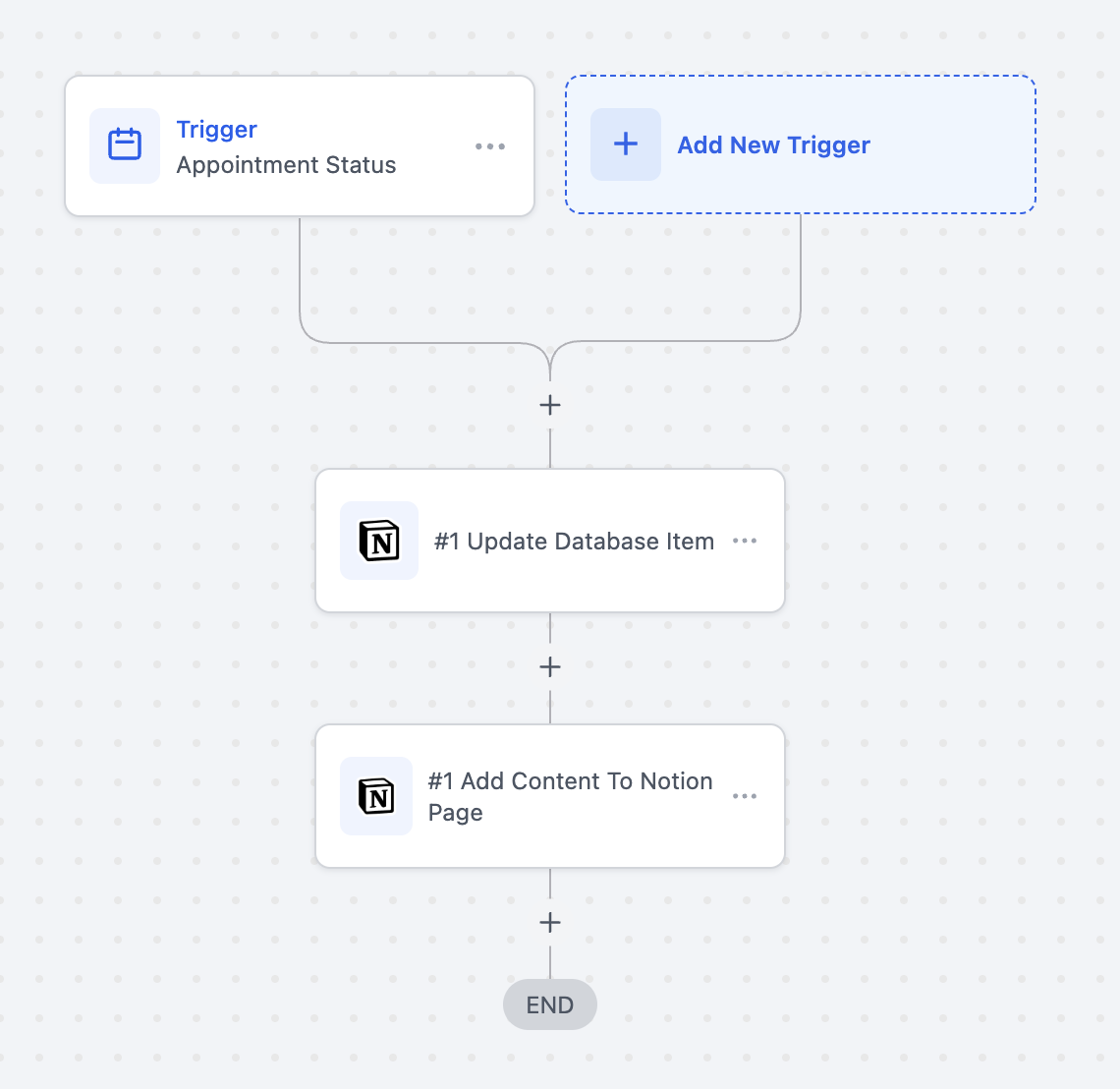
Goal: Maintain an auditable meeting log in Notion. Workflow Setup:
- Trigger: Appointment Status Changed
- Filter: Calendar = “Consultations”
- Actions: - Update Database Item (Notion) - Add Content to Page (Notion) Example: A lead misses their consultation → The relevant database item is updated → Follow-up notes are appended to the page.
Use Case 3: Auto-Generate Proposal Pages
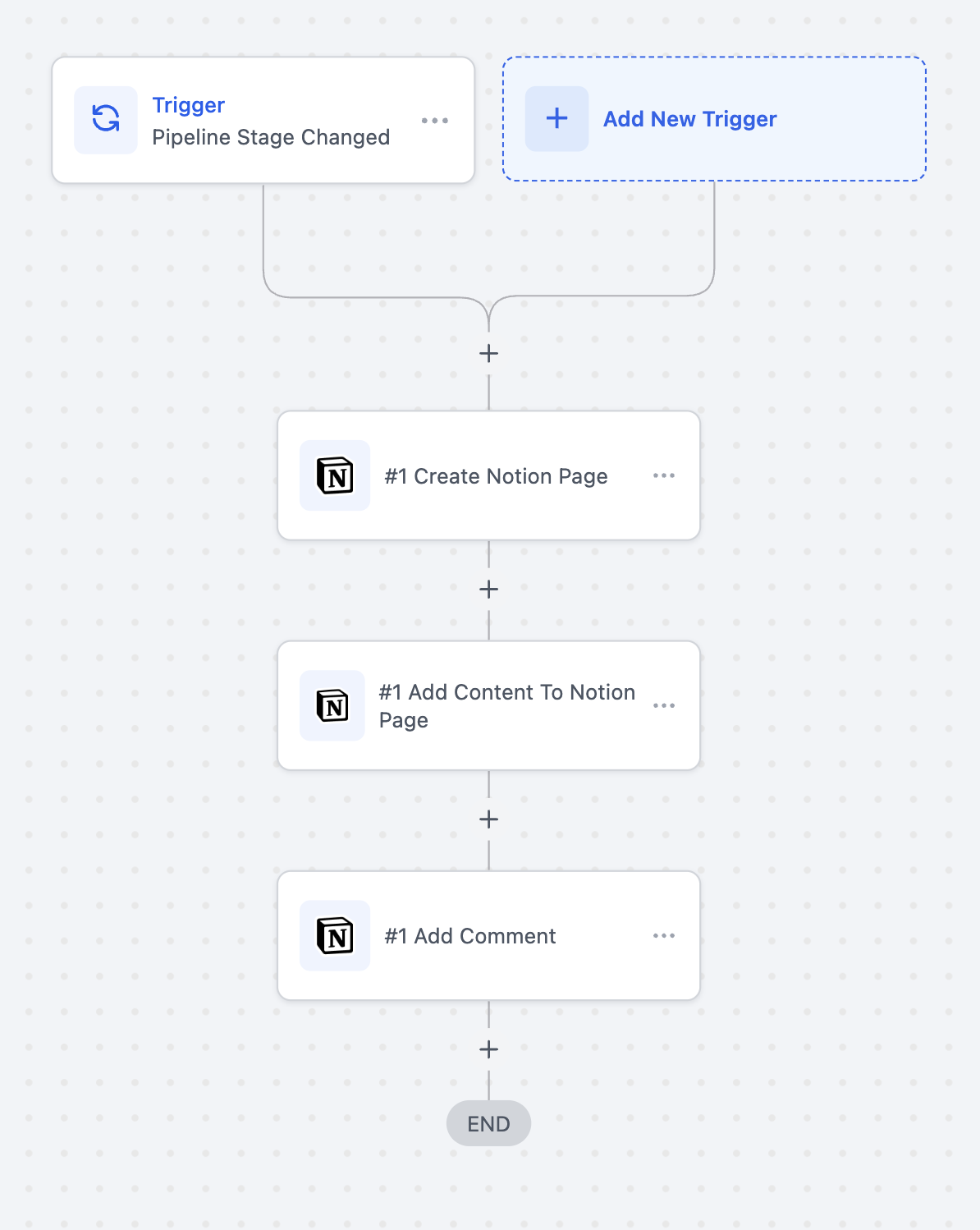
Goal: Create personalized proposal pages when an opportunity advances. Workflow Setup:
- Trigger: Pipeline Stage Changed
- Actions: - Create Page (Notion) - Add Content to Page - Add Comment Example: A deal moves to the “Proposal” stage → A Notion page titled “Proposal for {{contact.name}}” is created with summary content and team mentions.
Frequently Asked Questions
Q: Do I need a paid Notion plan to use this integration?
No, the integration works with Notion’s free plans. However, some features like teamspaces or analytics may require a paid subscription. Q: Are there limits on the number of workflows with Notion? Workflow limits are based on your Patient Copilot plan. The integration also respects Notion’s official API rate limits. Q: How often does Patient Copilot check Notion for trigger updates? Every five minutes. Q: Will existing webhooks break after switching to the native integration? No. You can run webhooks and the native integration side by side while you migrate.