
How to create a LinkedIn ad campaign in Ad Manager
Ad Manager organizes LinkedIn advertising into a three-level hierarchy:
- Campaign Group: The top-level container.
- Campaign: Defines budget, audience, and scheduling.
- Ad: Defines creatives (media, text, CTA, forms). This guide walks you through creating a Campaign Group and then building campaigns and ads inside it.
Step 1: Create a Campaign Group **
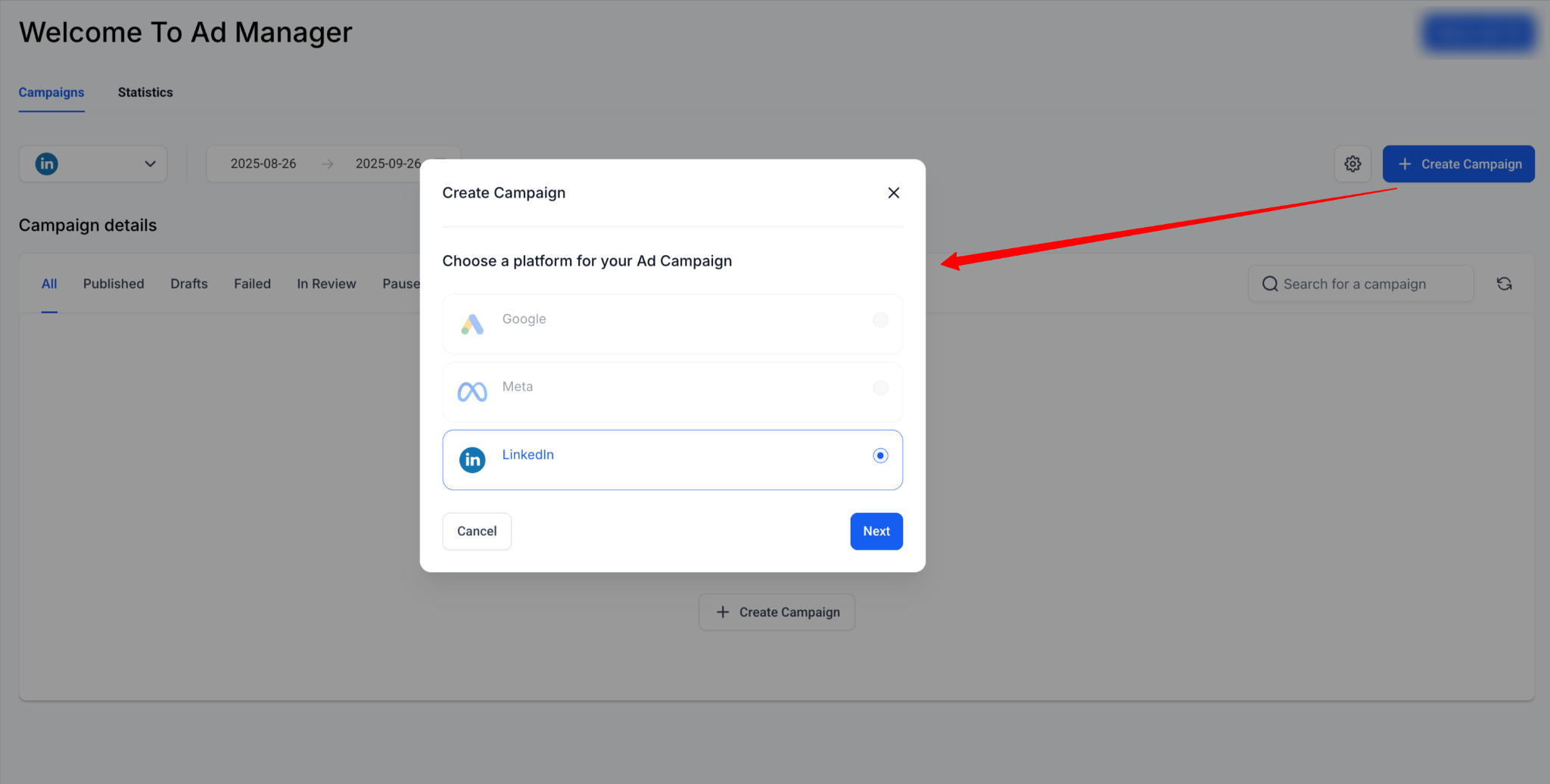
** A Campaign Group is the top-level container for your LinkedIn campaigns.
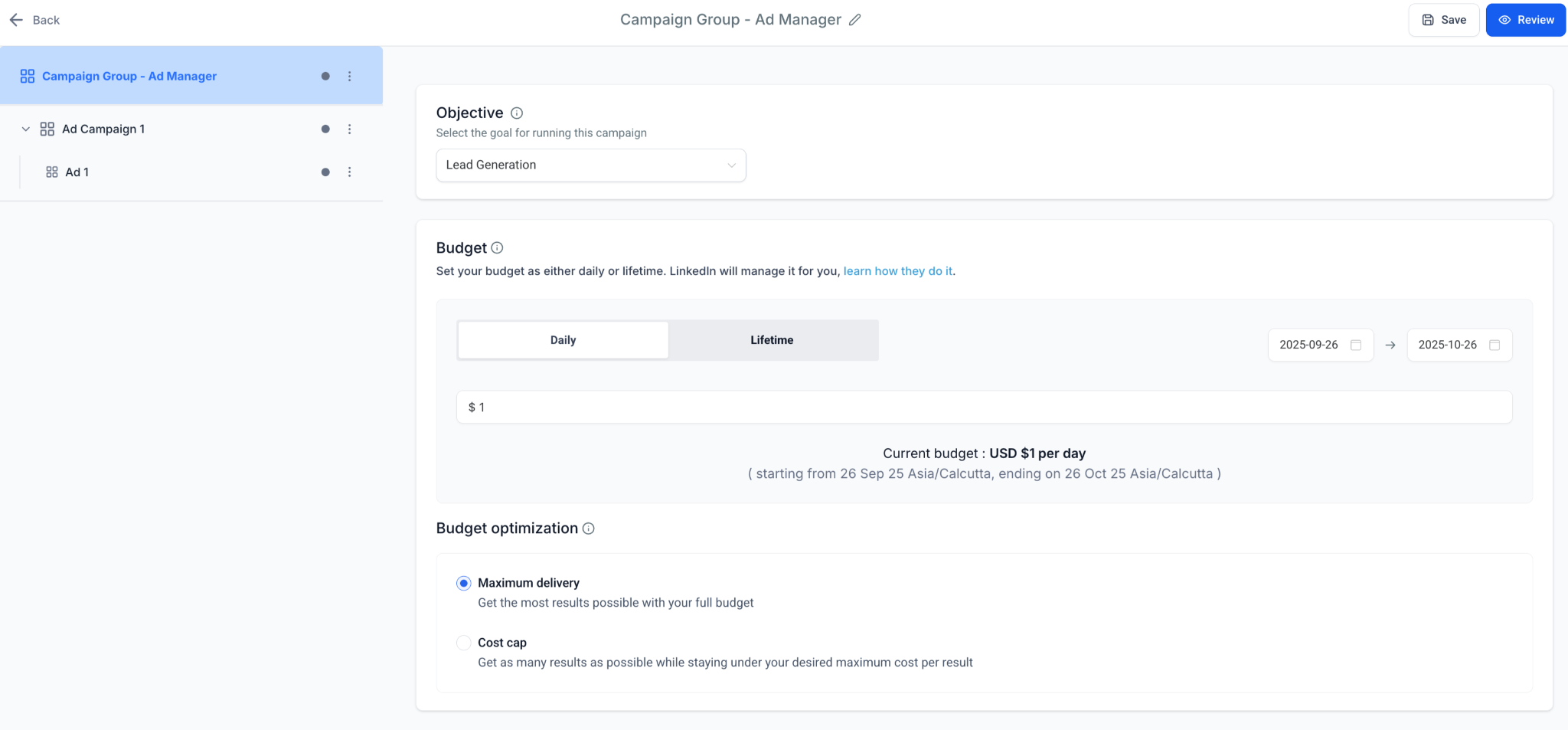
- Campaign Group Name: Choose a descriptive name (e.g., “Q4 SaaS Leads”).
- Objective Selection: Select between:
- Lead Generation - capture leads with LinkedIn forms
- Website Traffic drive clicks to external landing pages -
Budget & Schedule
- Define the daily or lifetime budget for the campaign group.
- Schedule: Set start and end dates for the campaign group. **
** -
Bidding
- Manual bid input for Cost Per Lead (Lead Gen) or CPC (Traffic). Tip: Campaign Groups help you organize campaigns by business goals.
Step 2: Create a Campaign Inside the Group
Once your group is created, you can add Campaigns.
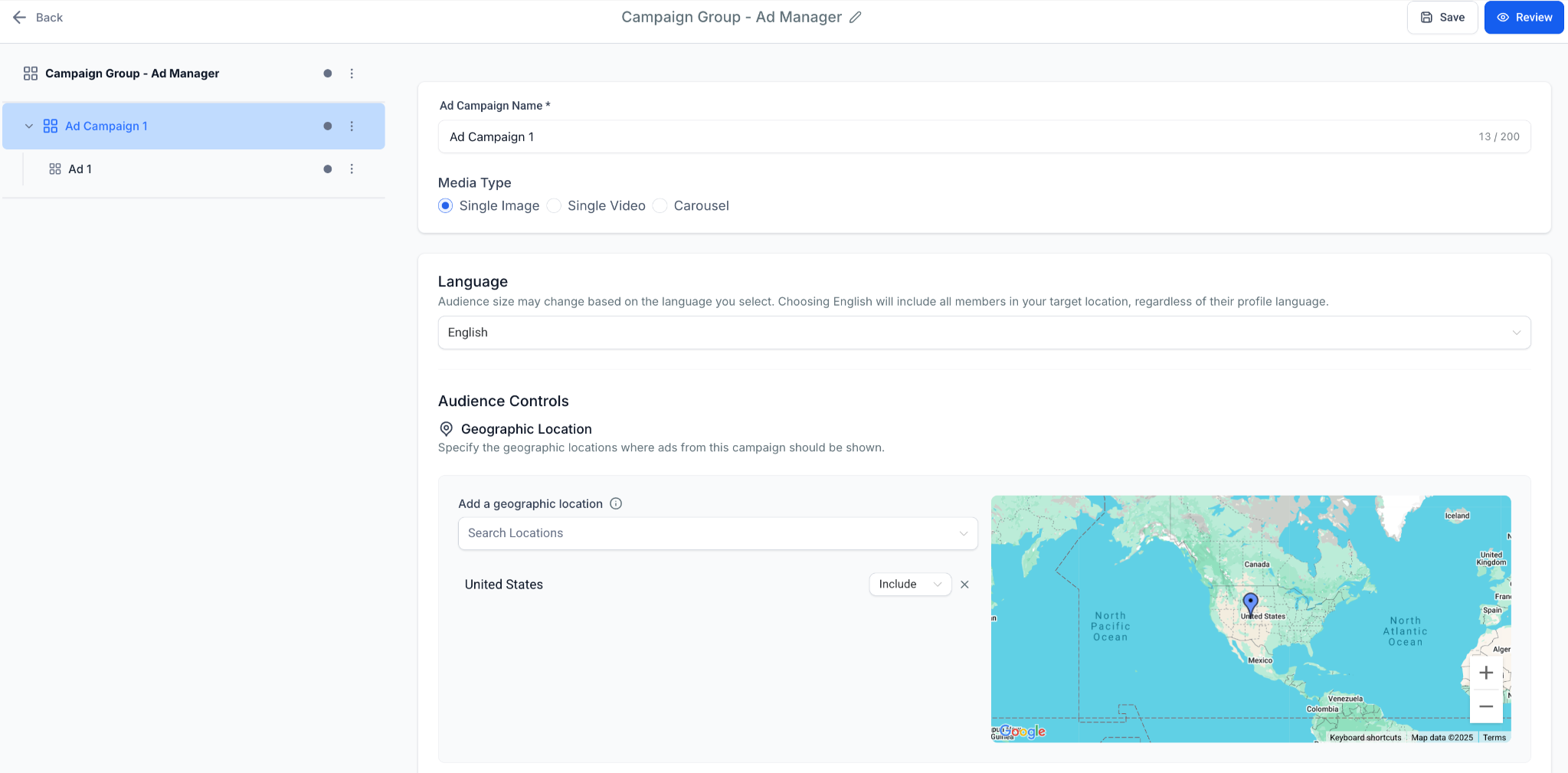
Fields Defined at Campaign Level
- Campaign Name: This will have a unique identifier.
- Media Type: Single image, video or carousel type of media.
- Language
- Geographic location and - Optional: Intended Audience
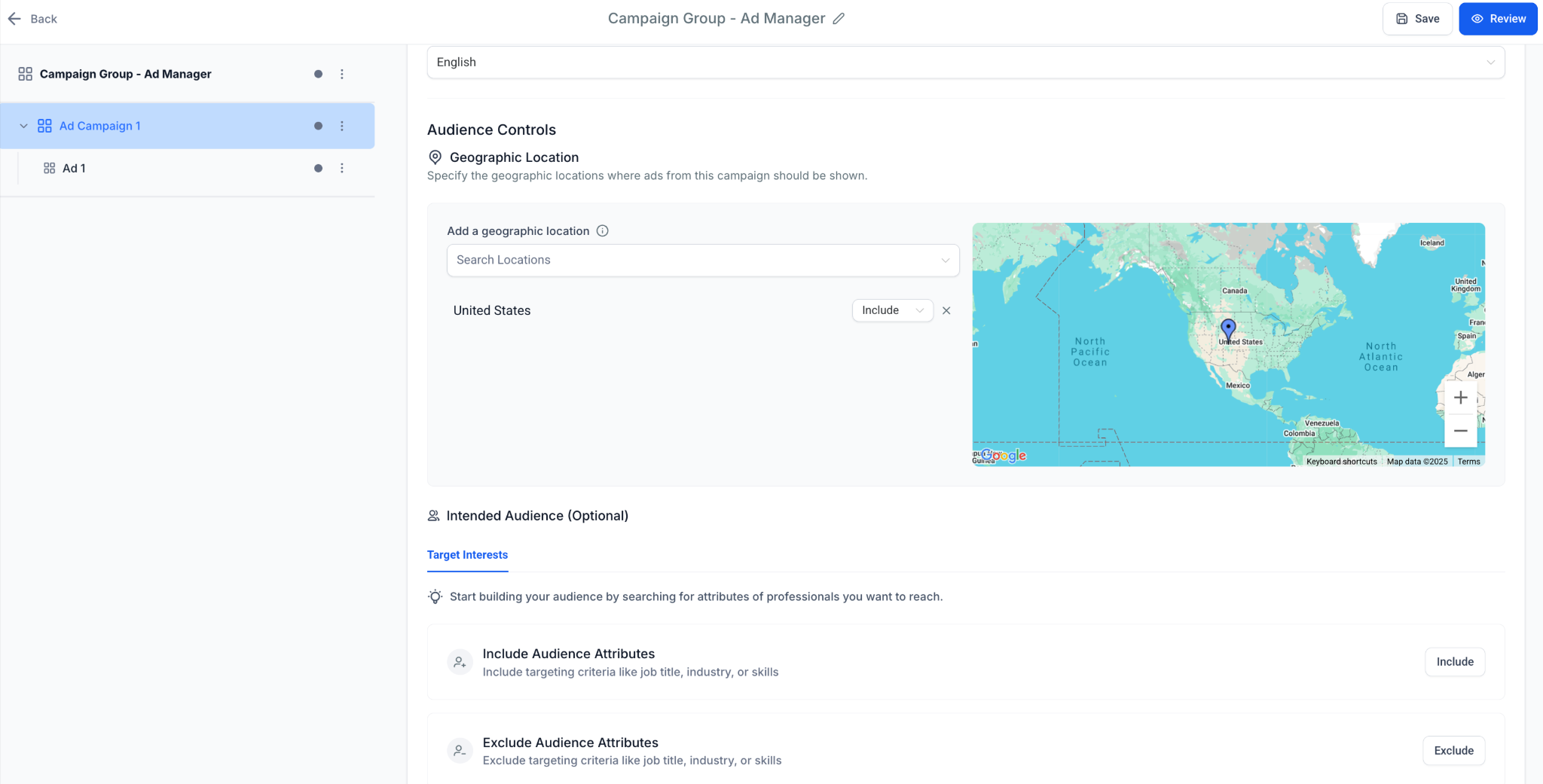
Audience Targeting(learn more: here)
- Mandatory: Location (include/exclude).
- Optional Filters: Job Title, Industry, Company Size, Seniority, Skills, Education, Interests & Traits.
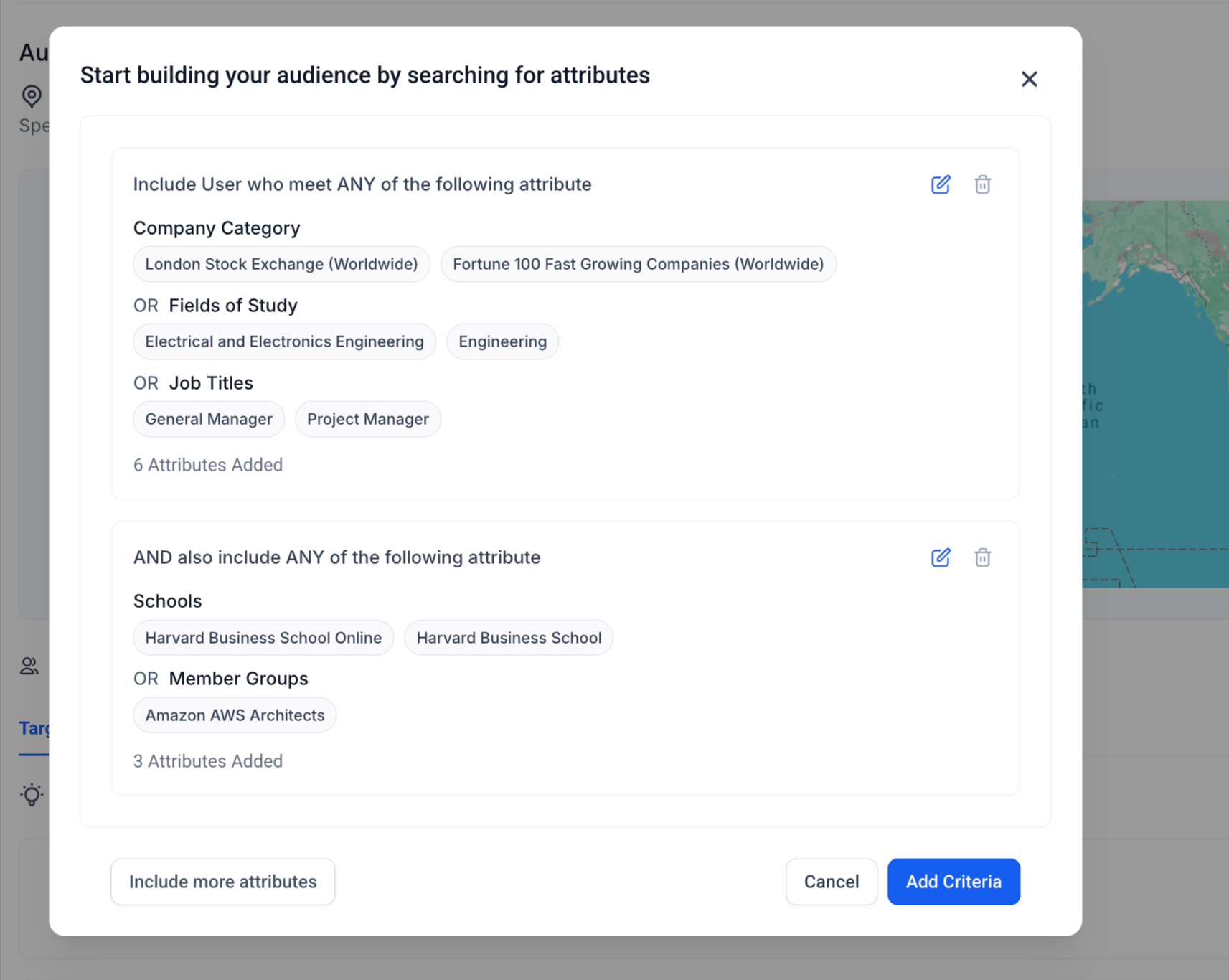
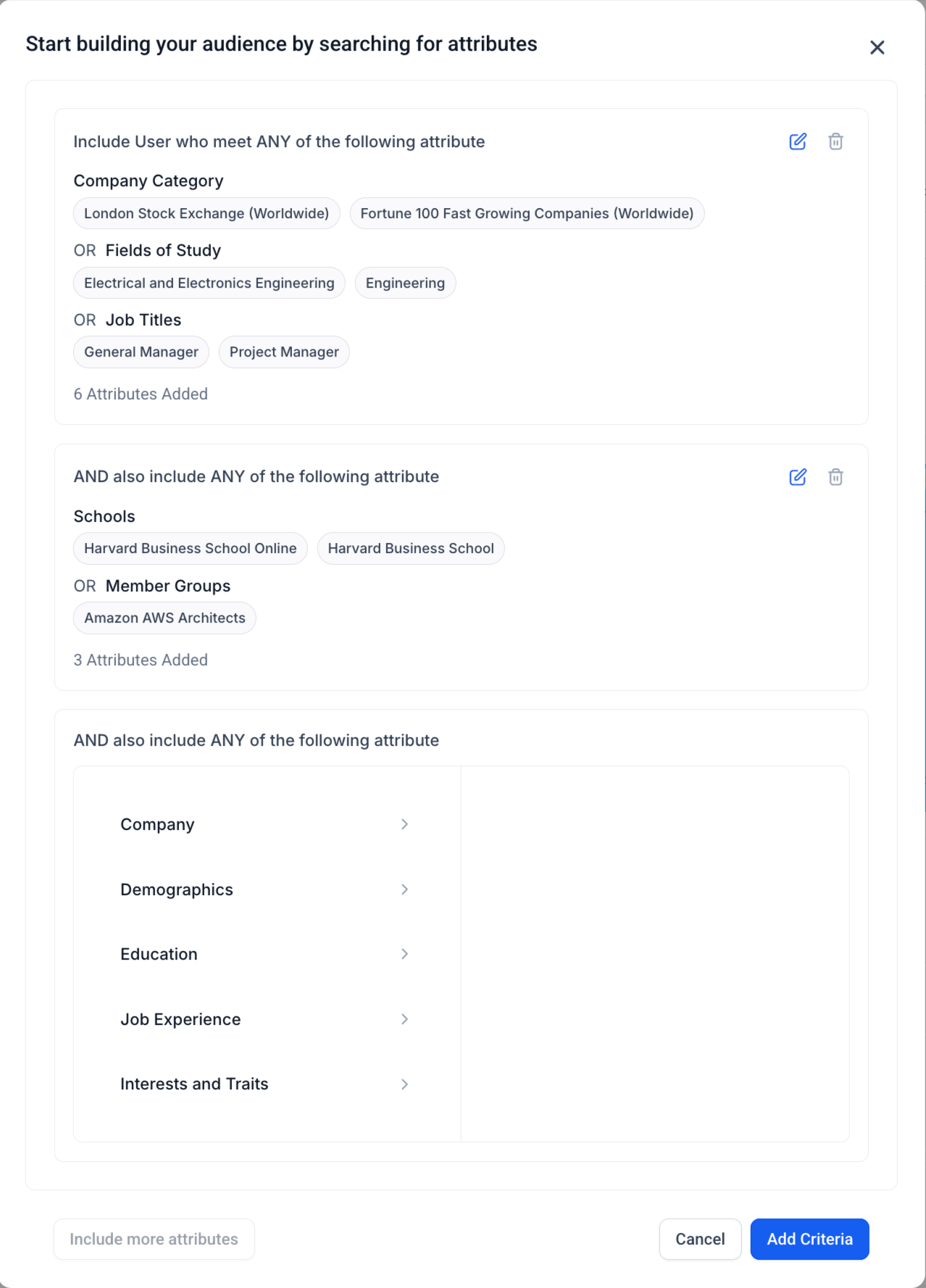
- Logic Builder:
- Add up to 3 attribute groups.
- OR logic inside groups.
- AND logic between groups.
- Include and Exclude supported. Example:
- Group 1 - Job Title = Marketing Manager OR Director - Group 2 - Industry = Healthcare - Exclude - Interns
Step 3: Create Ads Inside the Campaign
Each campaign can contain multiple ads.
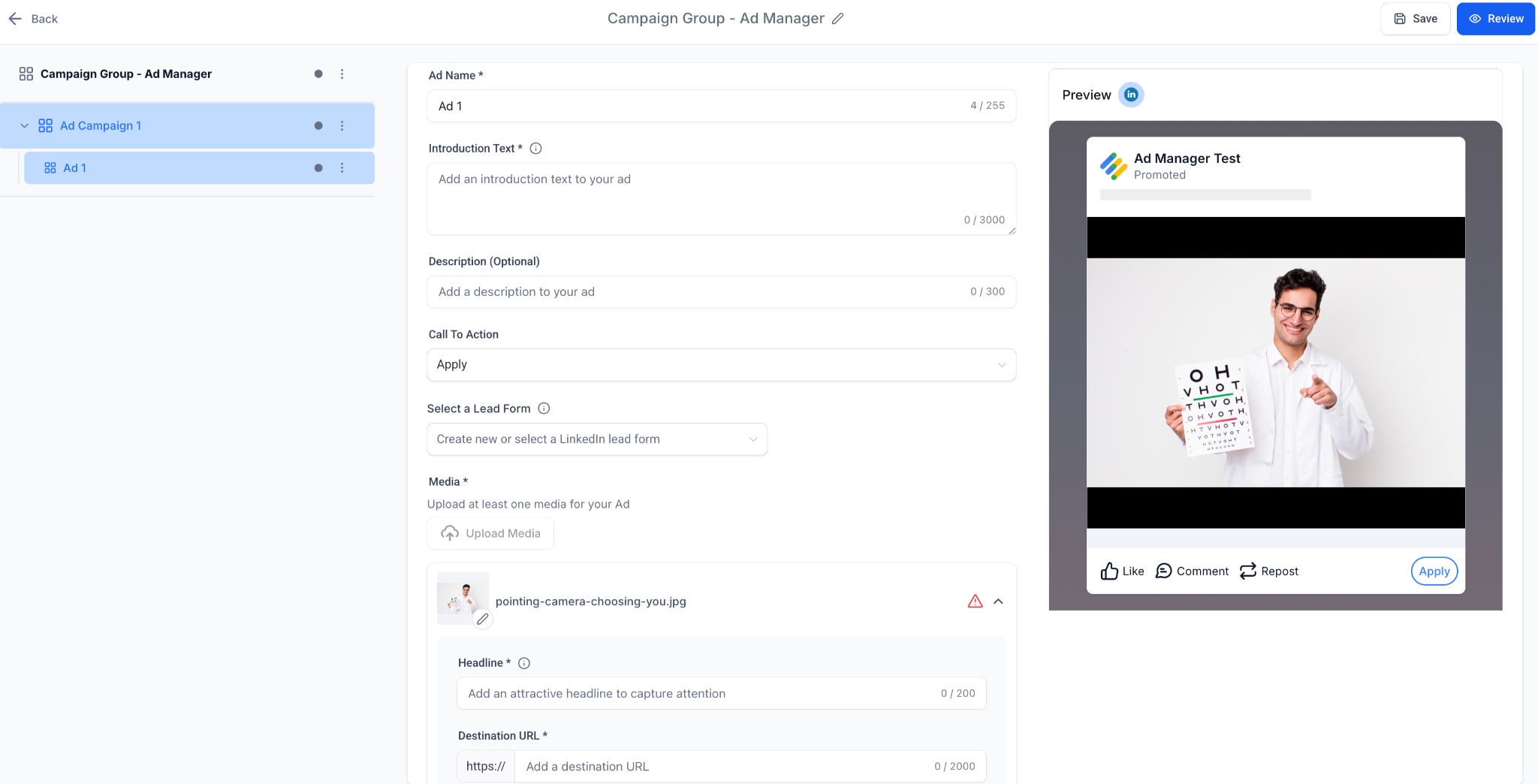
- Ad Name: Internal identifier.
- Media Type (chosen at campaign level):
- Single Image Ad - Upload one image.
- Single Video Ad - Upload a video.
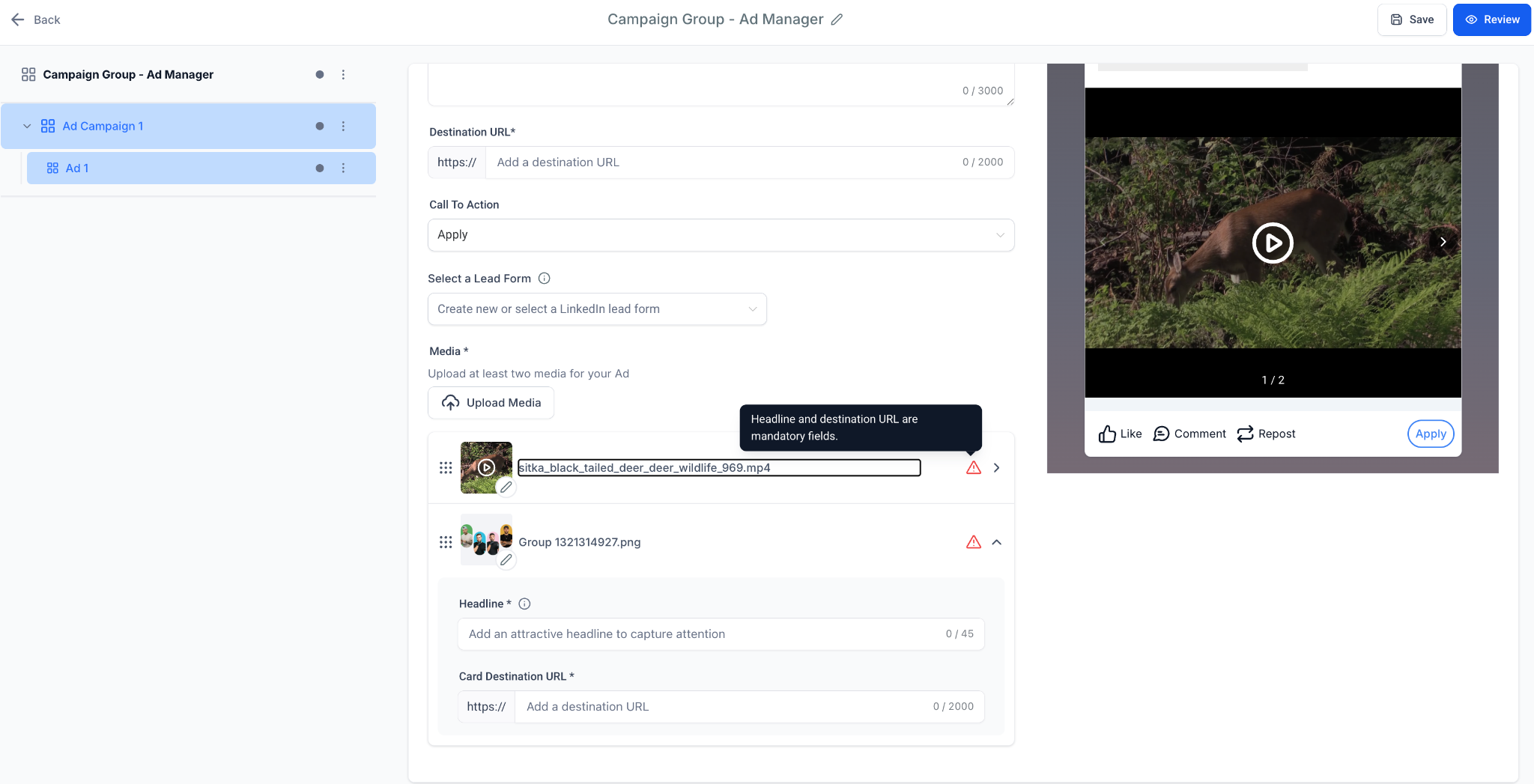
- Carousel Ad - Multiple cards, each with its own:
- Headline - Image/video - Destination URL
Creative Fields
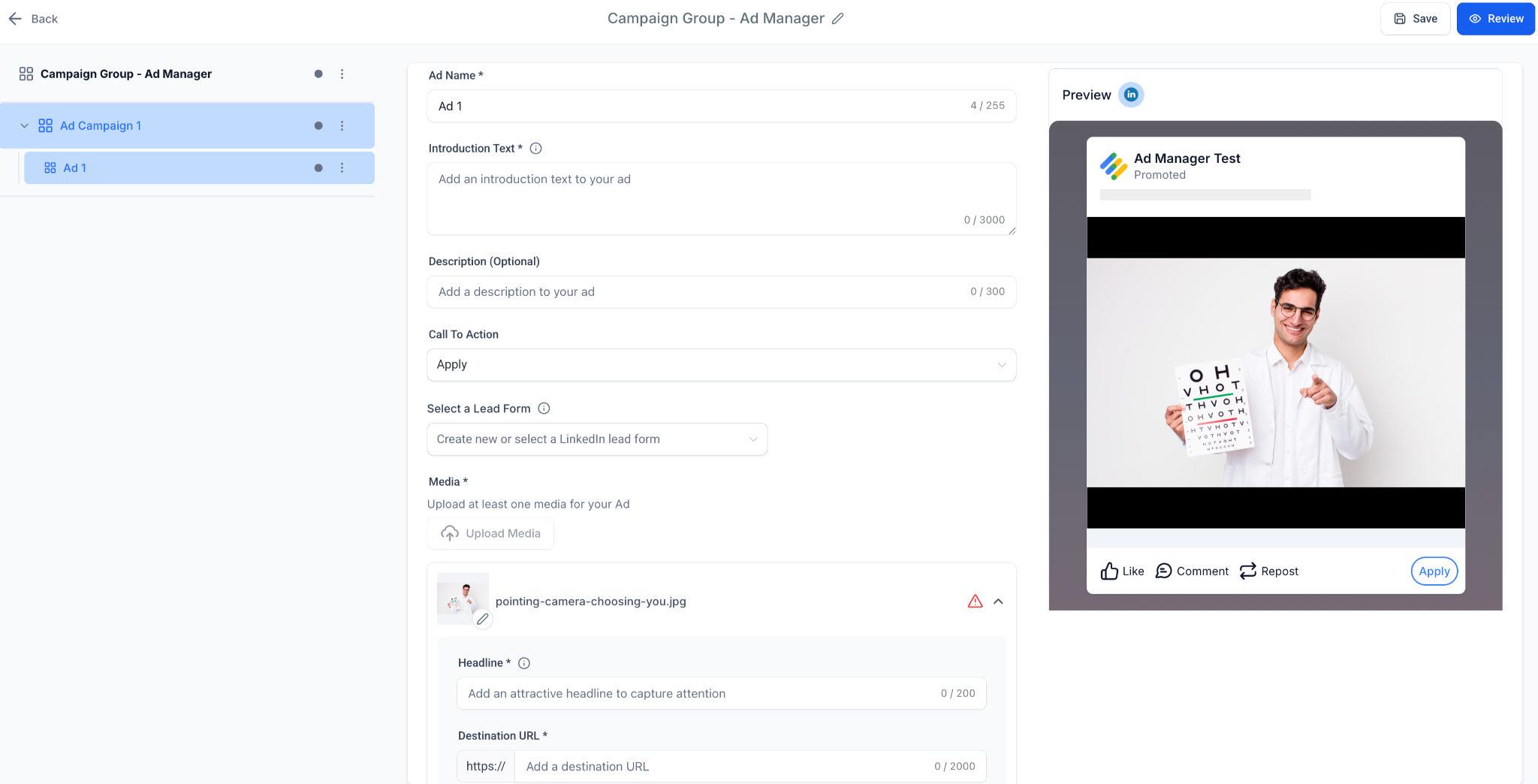
- Introduction Text: Up to 3000 characters.
- Headline: Up to 70 characters (mandatory).
- Description: Up to 300 characters (optional).
- Call-to-Action: Choose from LinkedIn CTA list (Learn More, Download, Apply, etc.).
- Destination URL: Required for all ads. Patient Copilot auto-prepends
https://if missing.
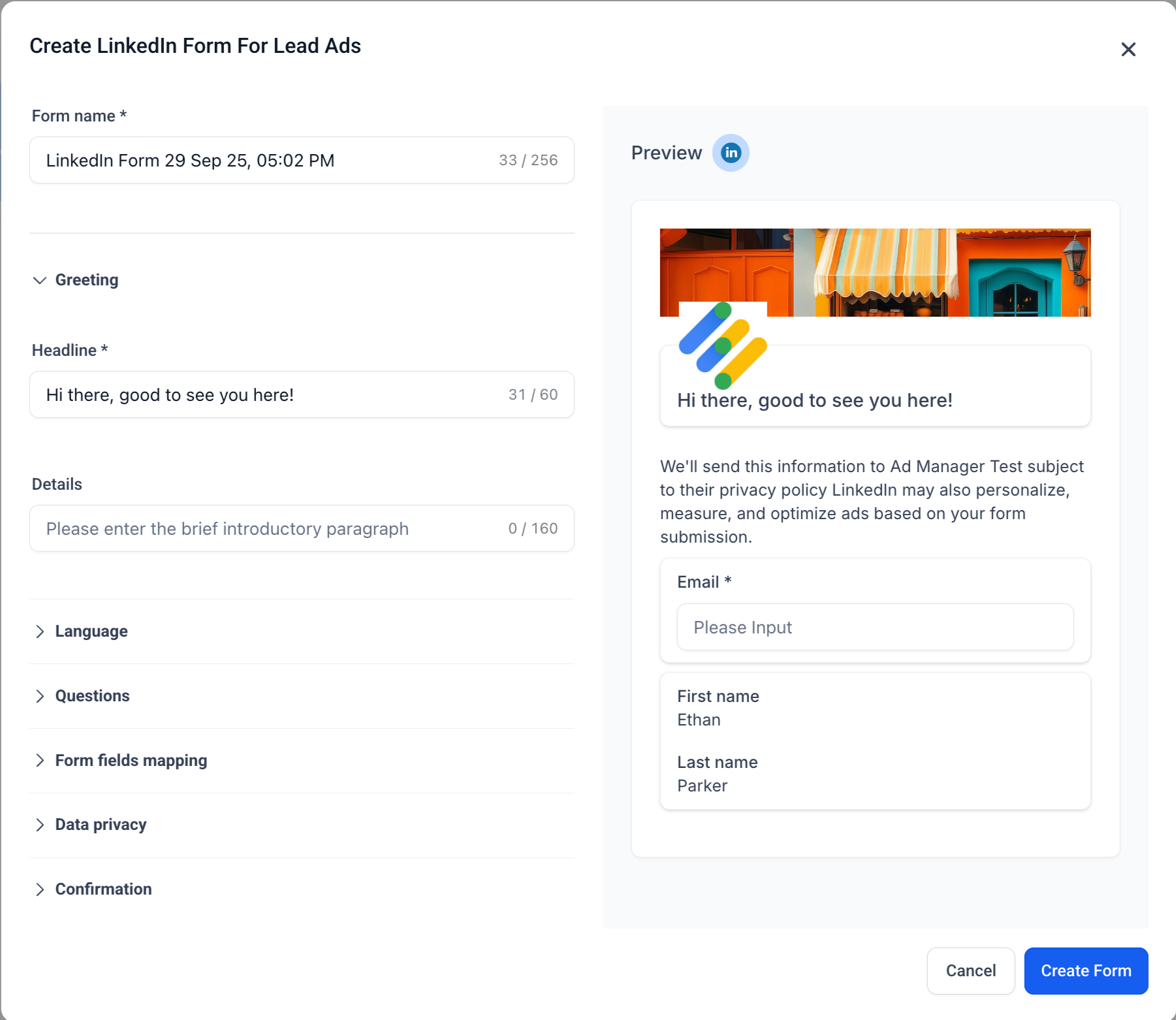
Lead Gen Forms (if Objective = Lead Generation)
- Form Name: Auto-generated, editable.
- Headline & Description: Shown prominently in the form.
- Pre-filled Fields: Up to 12 (Name, Email, Job Title, etc.).
- Custom Questions: Up to 3 (short answer or multiple choice).
- Hidden Fields: Up to 20 (UTM tags, campaign IDs).
- Privacy Section: Mandatory privacy URL + optional disclosure text.
- Consent Checkboxes: Up to 5.
- Confirmation Page: Thank-you message + optional CTA (Visit Website, Download, Call).
- Learn more about LinkedIn lead forms and how to create it: here
Step 4: Review & Publish
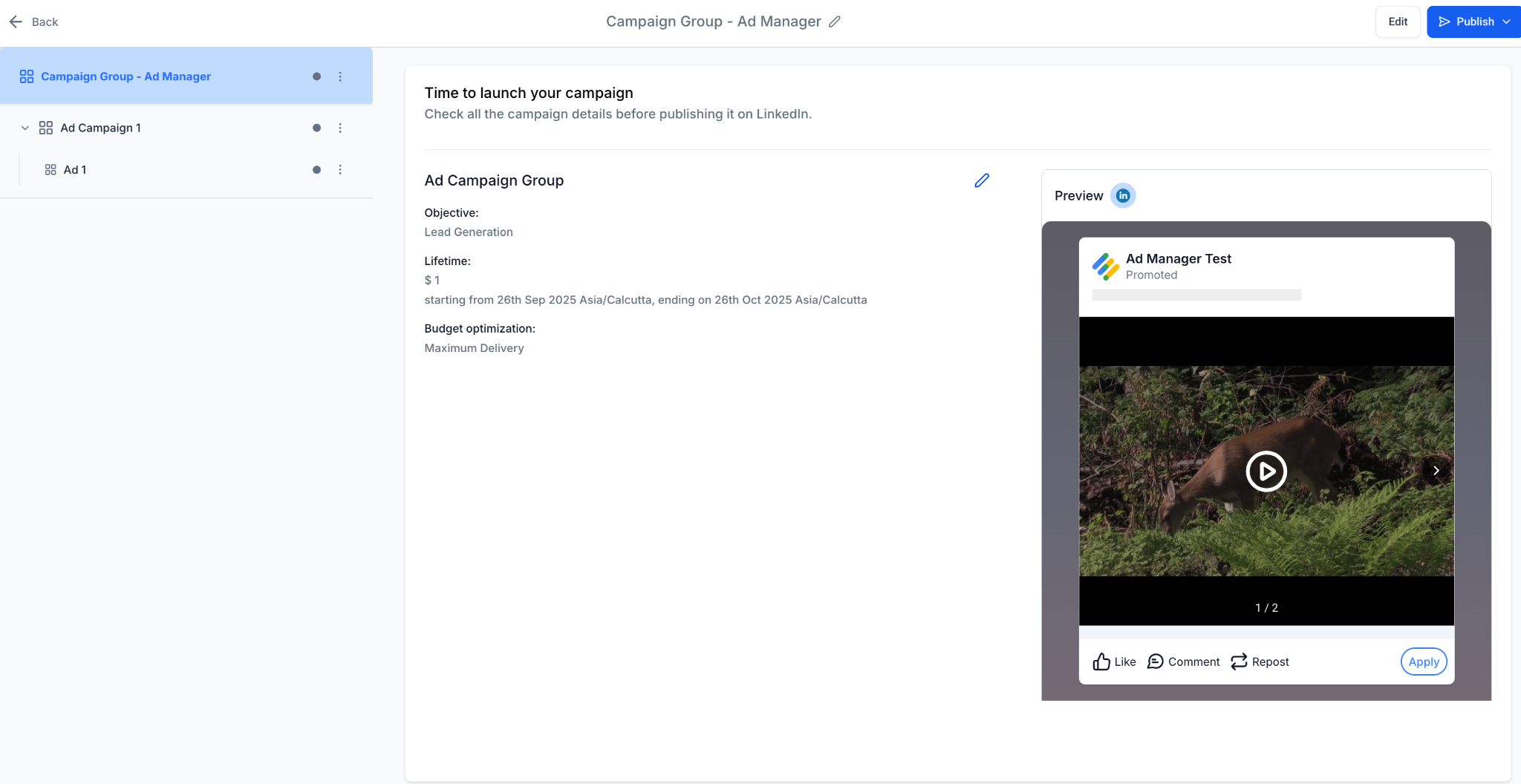
Before launching, you’ll land on the Review & Publish screen:
- Campaign objective, budget, schedule and optimization mode.
- Full creative preview (desktop & mobile).
- Validation: ensures URLs are valid, budgets meet LinkedIn’s minimums, and required fields are filled.
Step 5: Viewing Campaign Group Performance
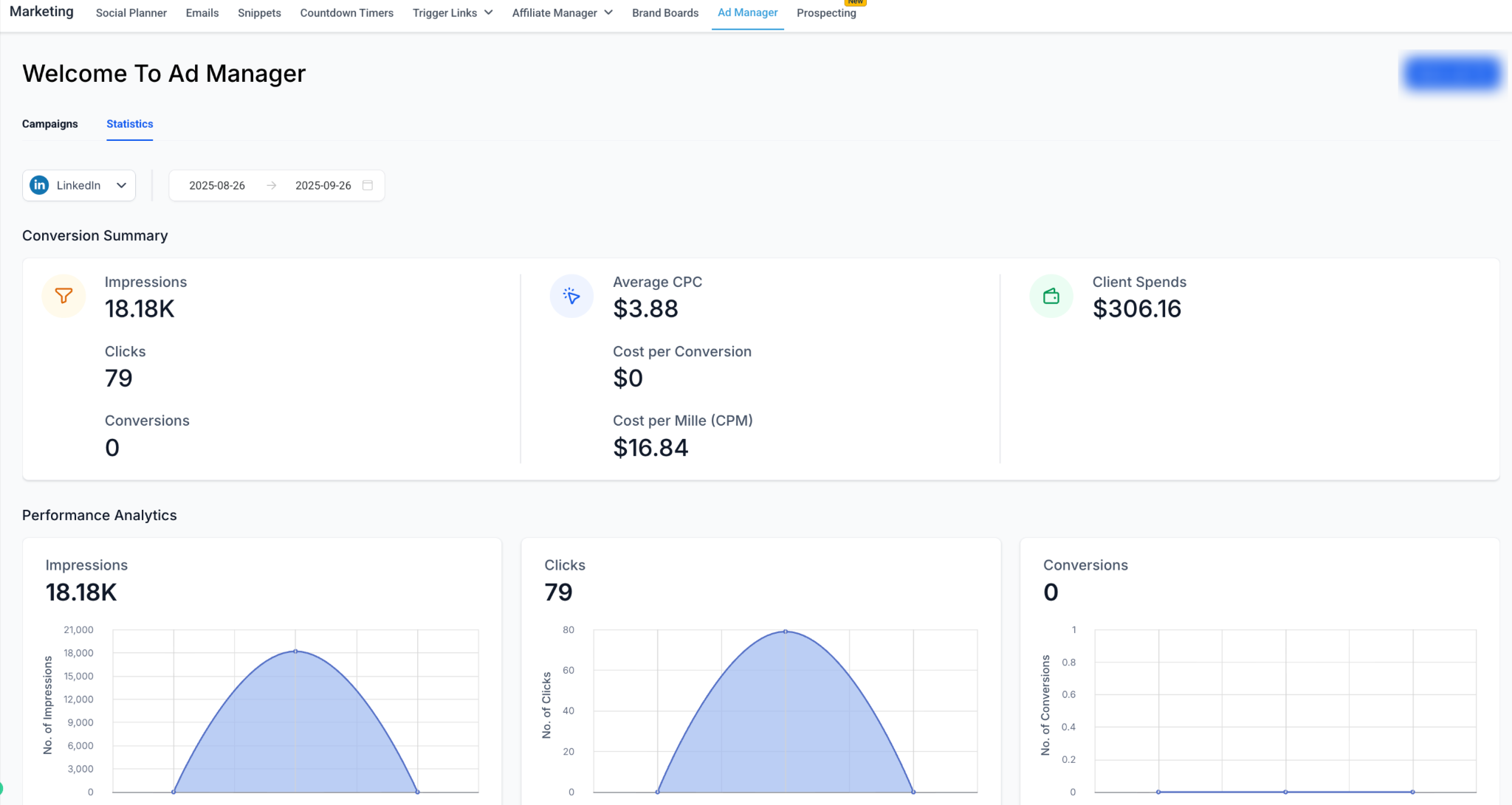
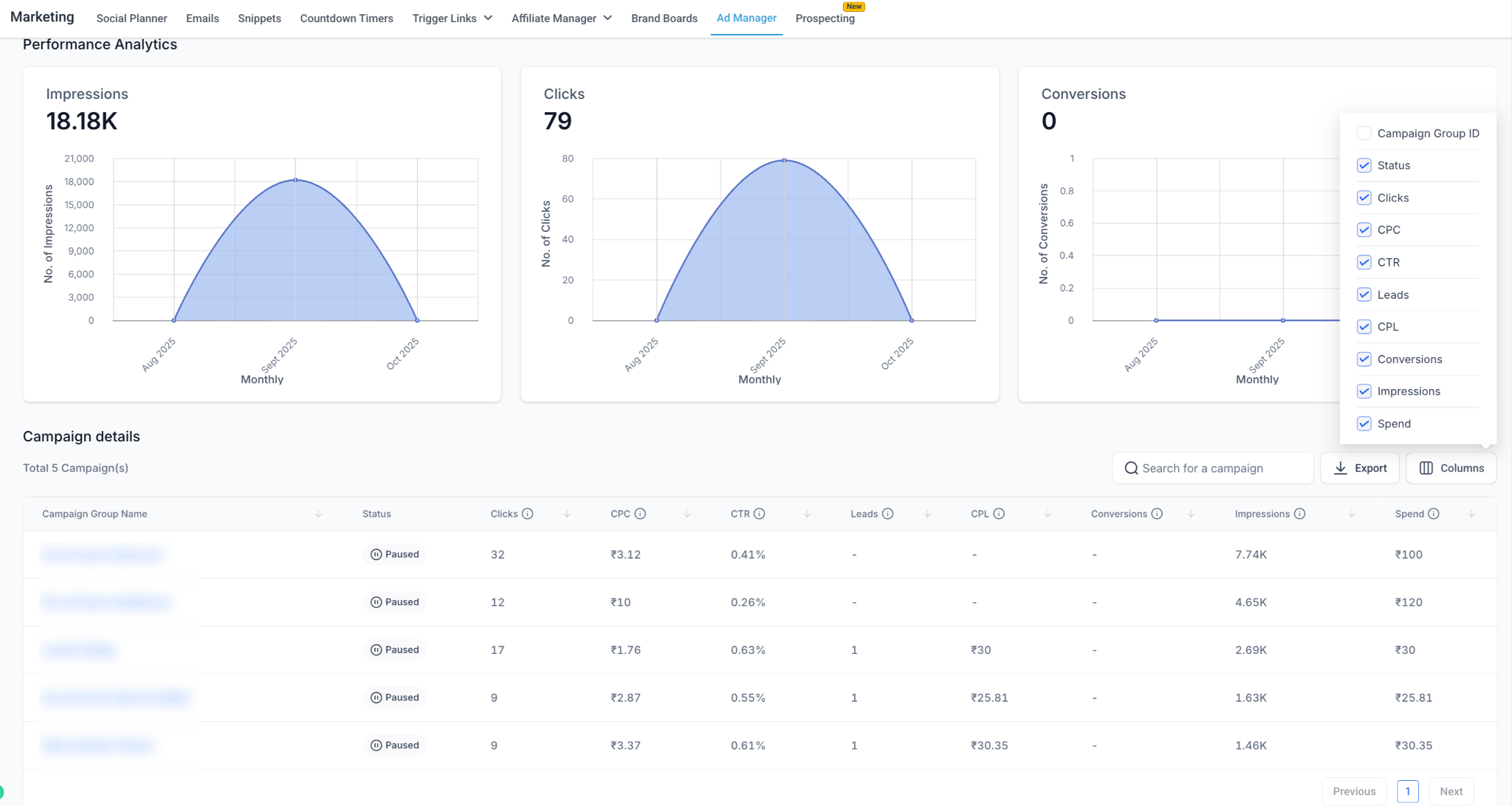
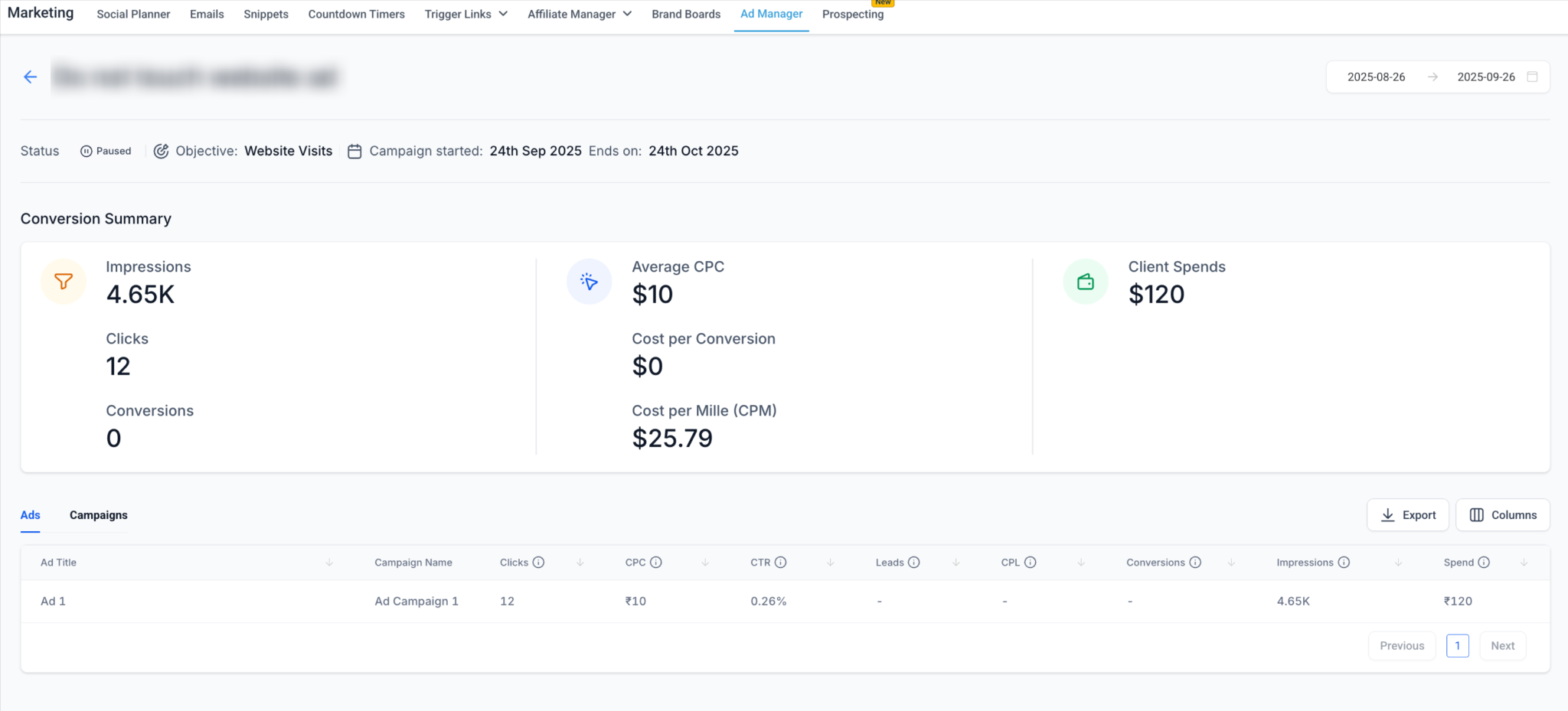
After publishing, performance can be tracked in Statistics > LinkedIn. Learn more about LinkedIn statistics in detail in this help document: LinkedIn ad statistics
- Campaign Group Level: Spend, Impressions, Clicks, CTR.
- Campaign Level: Conversions, audience effectiveness, CPL.
- Ad Level: Creative performance (CTR, CPC, CPL, Conversions).
Best Practices - Organize by business objective (e.g., Awareness, Lead Gen).
- Keep Campaigns focused (1 audience definition each).
- Run multiple ads per campaign to compare creatives.
- Start broad and then refine with filters.
- Lead Gen: shorter forms convert better.
- Traffic: always enable UTM tagging for analytics. Was this article helpful? That’s Great! Thank you for your feedback Sorry! We couldn’t be helpful Thank you for your feedback Feedback sent We appreciate your effort and will try to fix the article