
Email Services Configuration - Reply & Forward Settings
Email Services
Reply & Forwarding Addresses Configure forwarding, reply-to, BCC, and reply tracking settings for your Patient Copilot email service. Table of Contents 1. 1. Forwarding Address
- 2. Reply Address
- 3. BCC Emails
- 4. Forward to Assigned User
- 5. Billing for Forwarded Emails
- 6. Enable Reply Tracking – Other SMTP Providers - ·Example With Reply Tracking - ·Example Without Reply Tracking
- 7. Frequently Asked Questions
Where to Find Reply & Forward Settings
These settings let you receive copies of emails, configure reply-to addresses, and control how replies are tracked. To get started, navigate to: Settings → Email Services → Reply & Forward Settings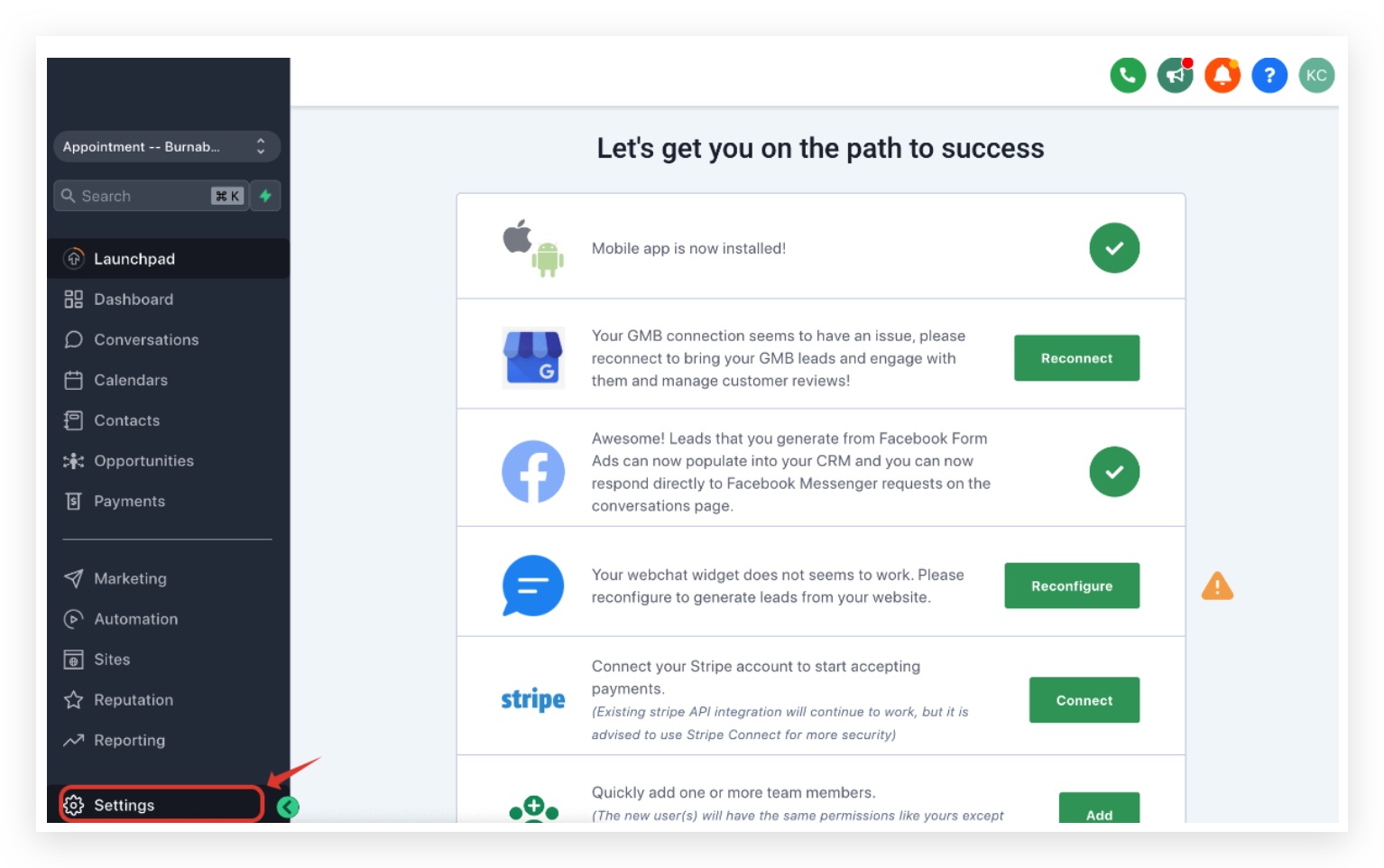
Forwarding Address
When a lead responds to an email, that response always appears in the Conversations tab. If you also want a copy of the lead’s reply delivered to someone’s inbox, enter that email address here. You can enter multiple forwarding addresses separated by commas, for example: [email protected], [email protected], [email protected] ⚠️ Important Forwarding address and BCC Emails only work with Mailgun and Email System. Other SMTP providers are not supported. All incoming and outgoing emails (To, CC, and BCC) will be charged.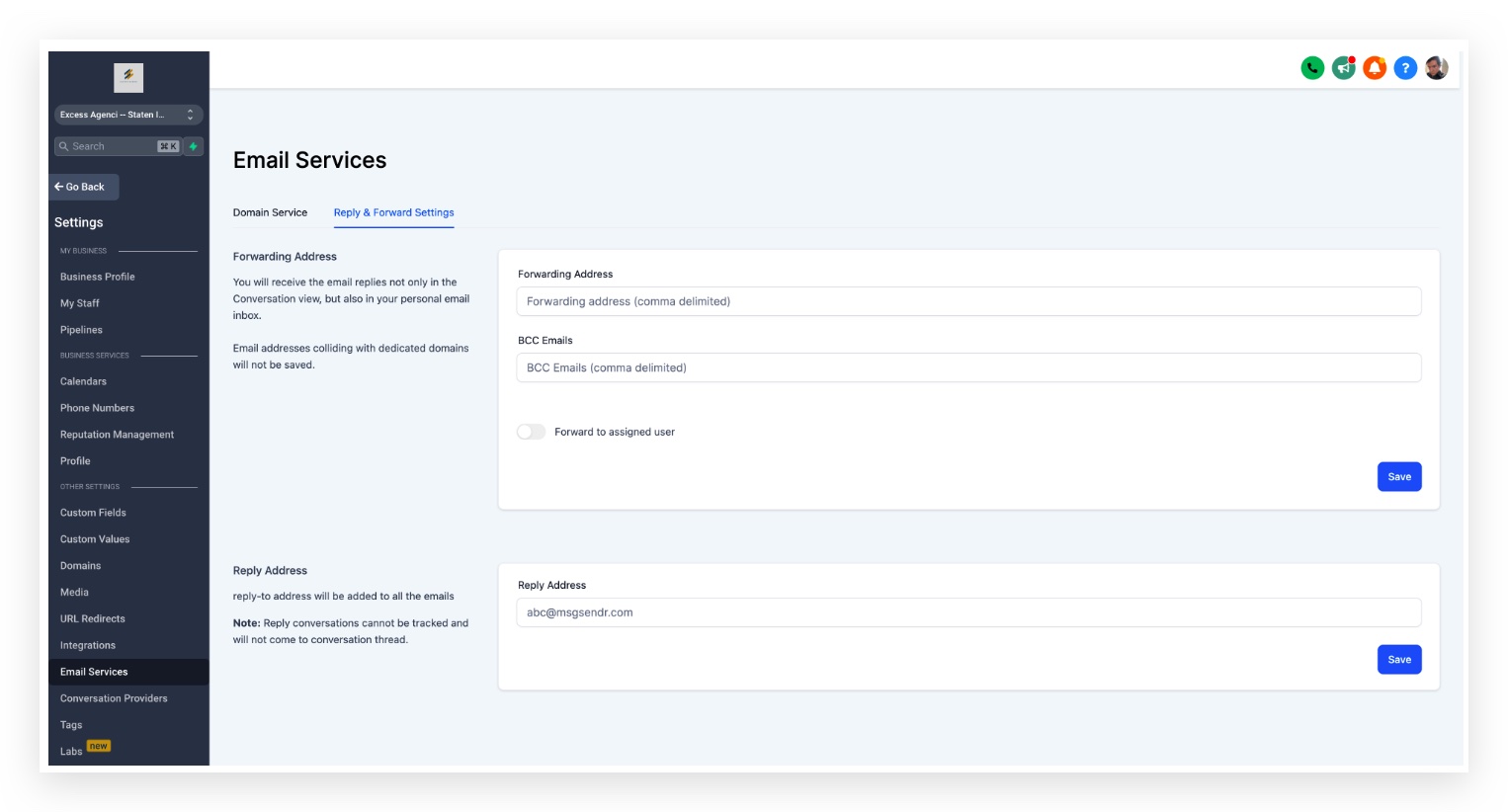
Reply Address Adding a reply-to address routes all incoming email replies to that address instead of the Conversation tab. When you reply to a lead’s email from your external inbox (outside the CRM), that reply will not sync back to the CRM. You can add up to 5 email addresses. Navigate to Settings → Email Services → Reply & Forward Settings → Reply Address and click Save after adding your addresses.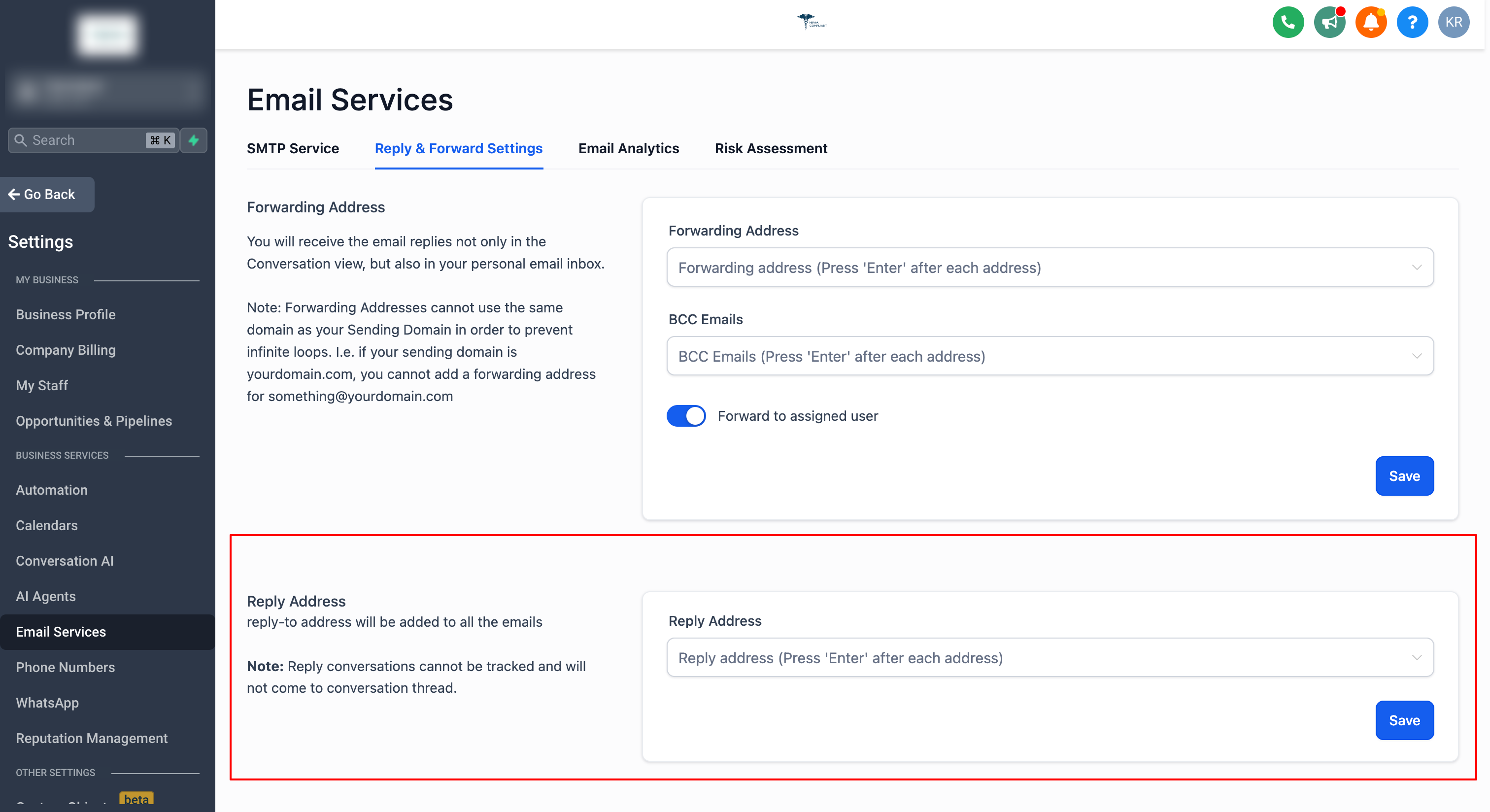
BCC Emails Receive a Blind Carbon Copy of every 1-on-1 email, workflow email, and billing email sent from this location. Configure this from Settings → Email Services → Reply & Forward Settings → BCC Emails. ℹ️ BCC Scope BCC is supported only for 1-on-1 emails, workflow emails, and billing emails. It does not apply to bulk or campaign emails.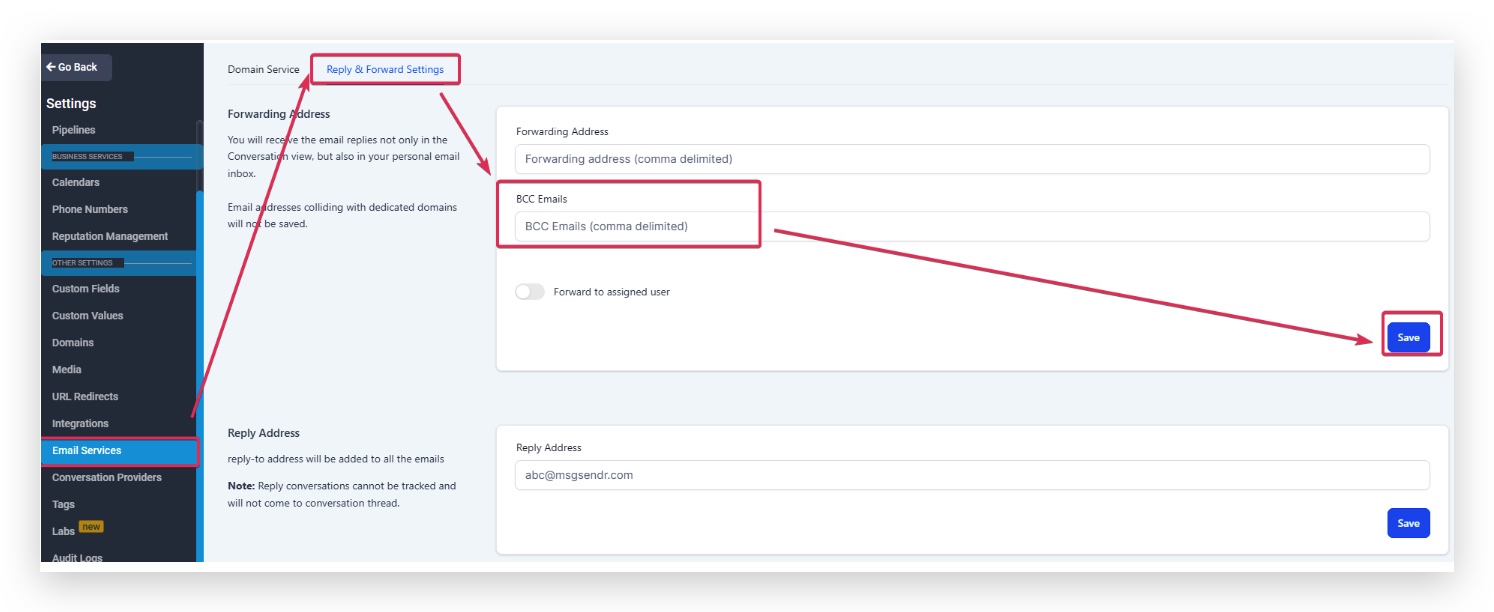
Forward to Assigned User
The lead’s assigned user receives email replies directly in their email inbox. The email is sent to the address configured under Settings → My Staff → Edit User → User Info.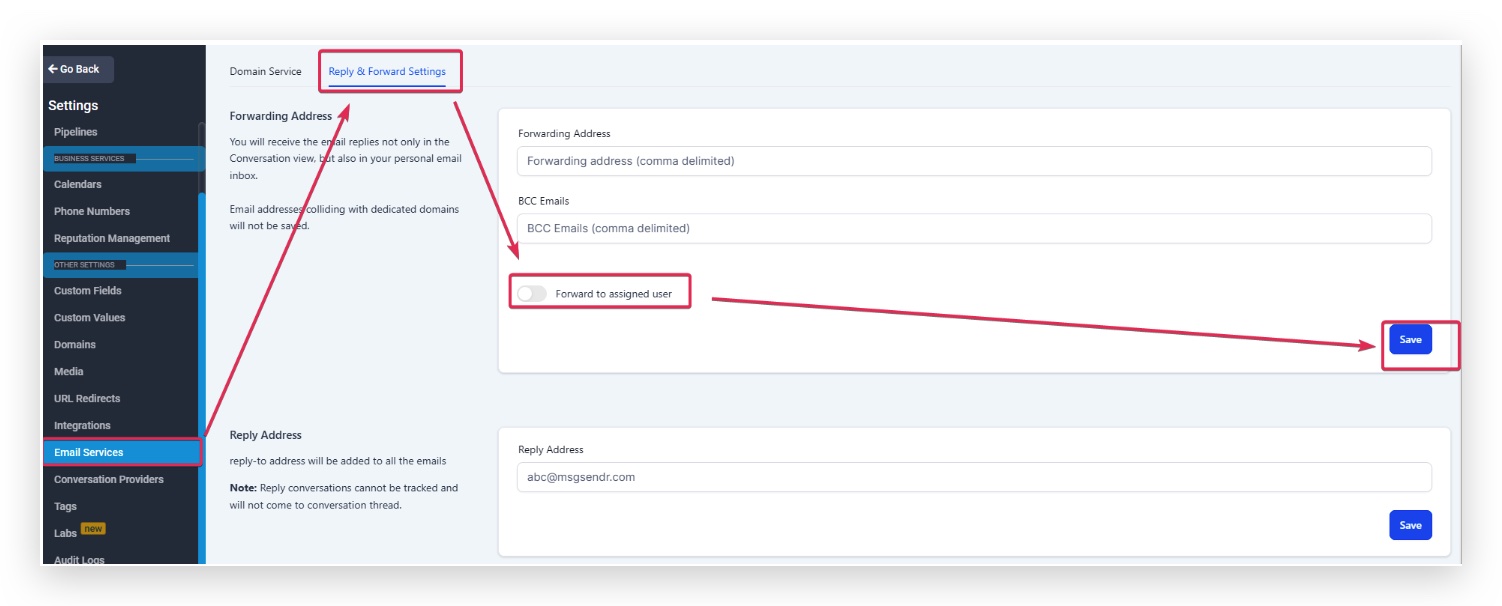
Billing for Forwarded Emails Forwarded messages are billed the same way as normal outgoing emails when rebilling is enabled, improving usage accuracy and transparency.
| Service | Applies To |
|---|---|
| Email System | Agency and sub-account (when rebilling is enabled) |
| Mailgun (Location-owned) | Sub-account only |
Enable Reply Tracking – Other SMTP Providers
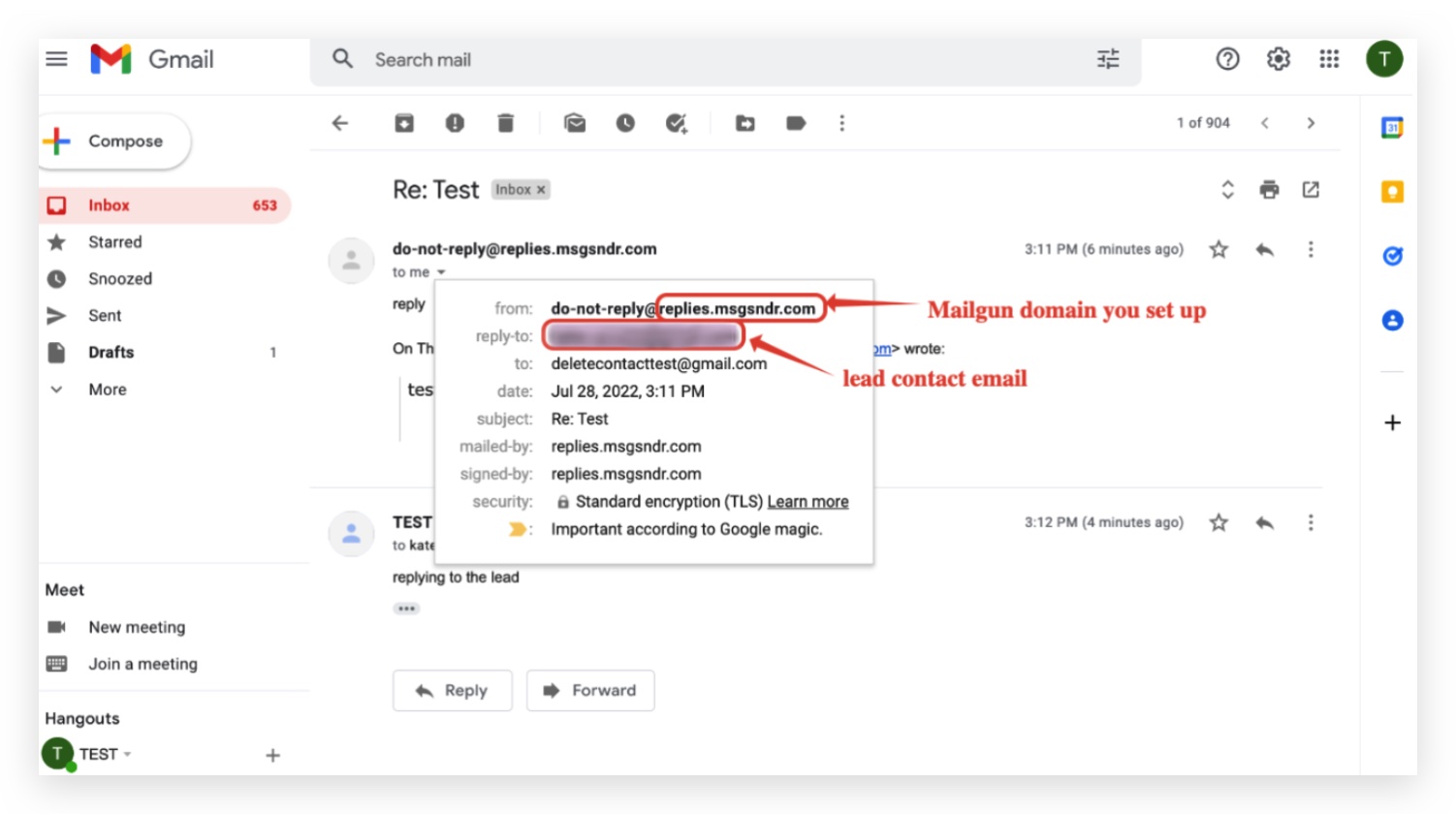
There is no option to enable reply tracking for Mailgun since it is directly integrated with the Receiving Route set up in Mailgun. Learn how to set up replies in Mailgun → If you mask the sender email (e.g. [email protected]), the reply-to address will show as [email protected] — the Mailgun subdomain configured for the location in Agency Settings → Mailgun. Replies will still appear correctly in the sub-account’s Conversation tab.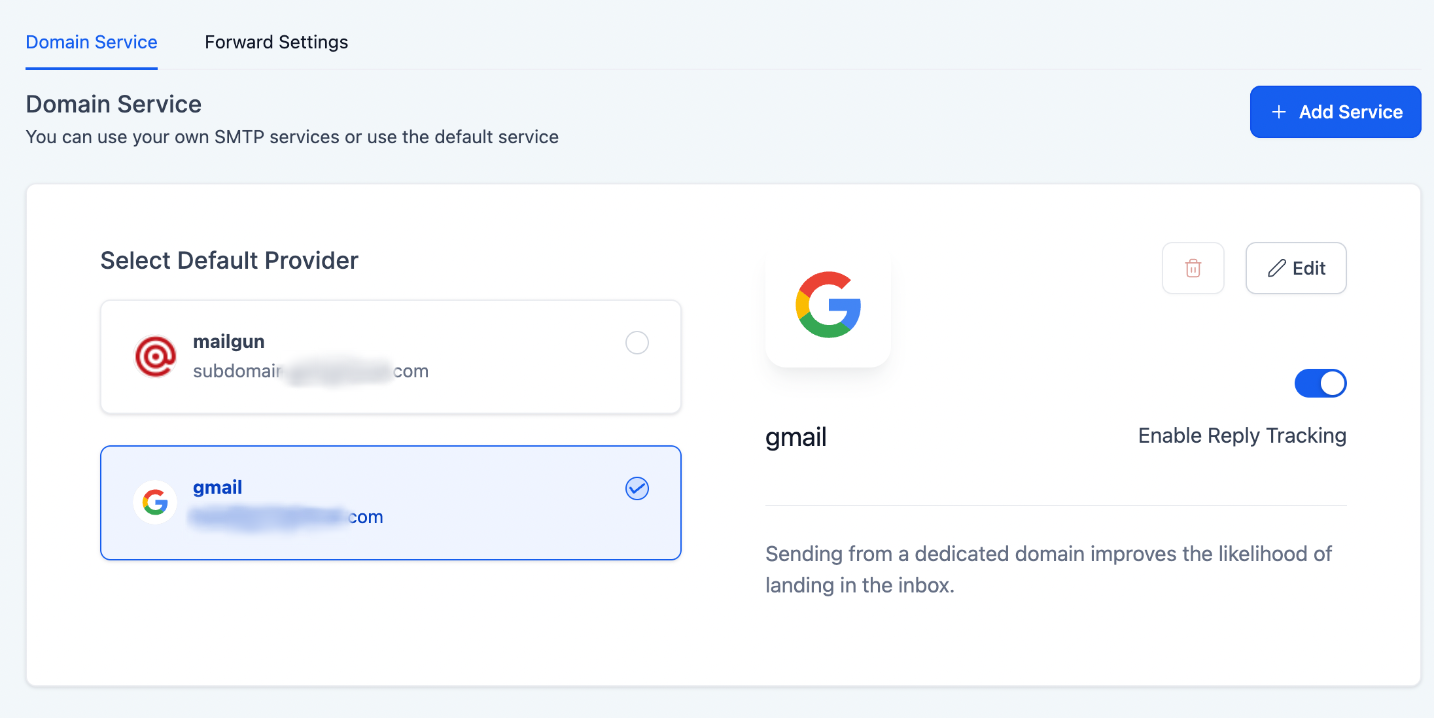
✅ Example With Reply Tracking
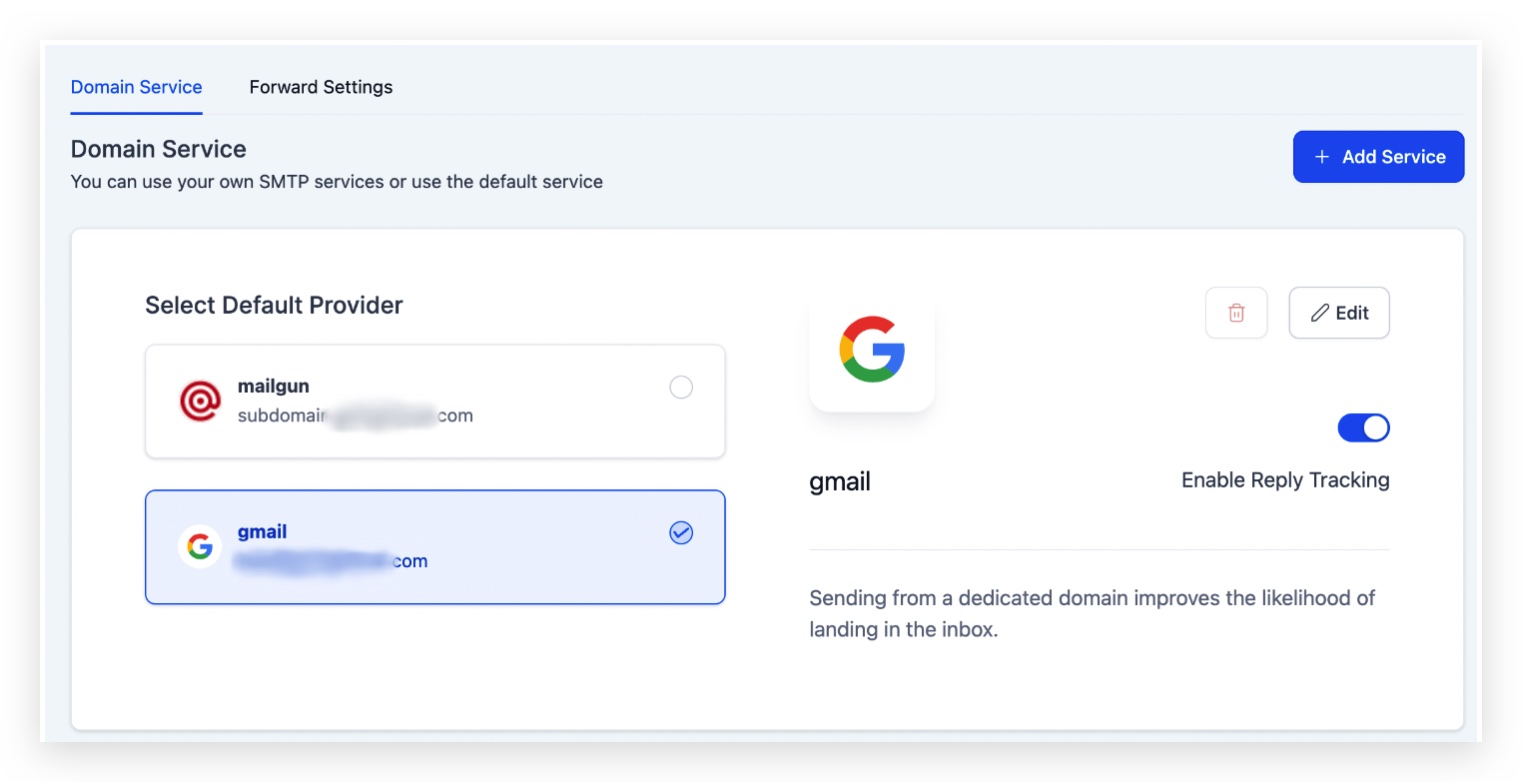
The reply-to address shown in the email header is the Mailgun subdomain address. This allows the system to capture replies and route them back into the Conversation tab, where you can read, respond, or trigger automated workflows using tags.? Important Copying the reply-to address and sending a brand-new email to it will not route back to the Conversation tab. You must reply to the original email sent from the system.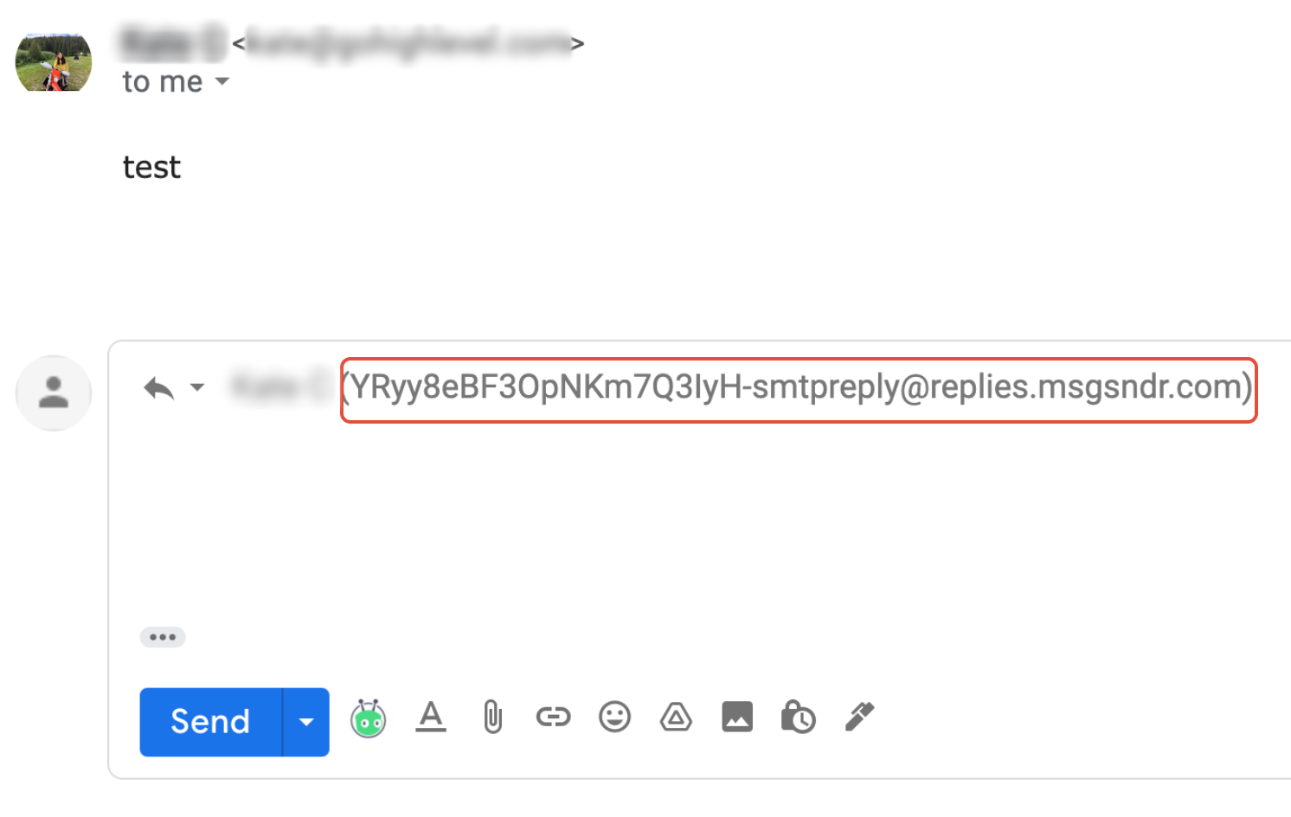
❌ Example Without Reply Tracking
Without reply tracking, the reply-to address points to the configured sender email. Responses go directly to that inbox and are not captured in the Conversation tab.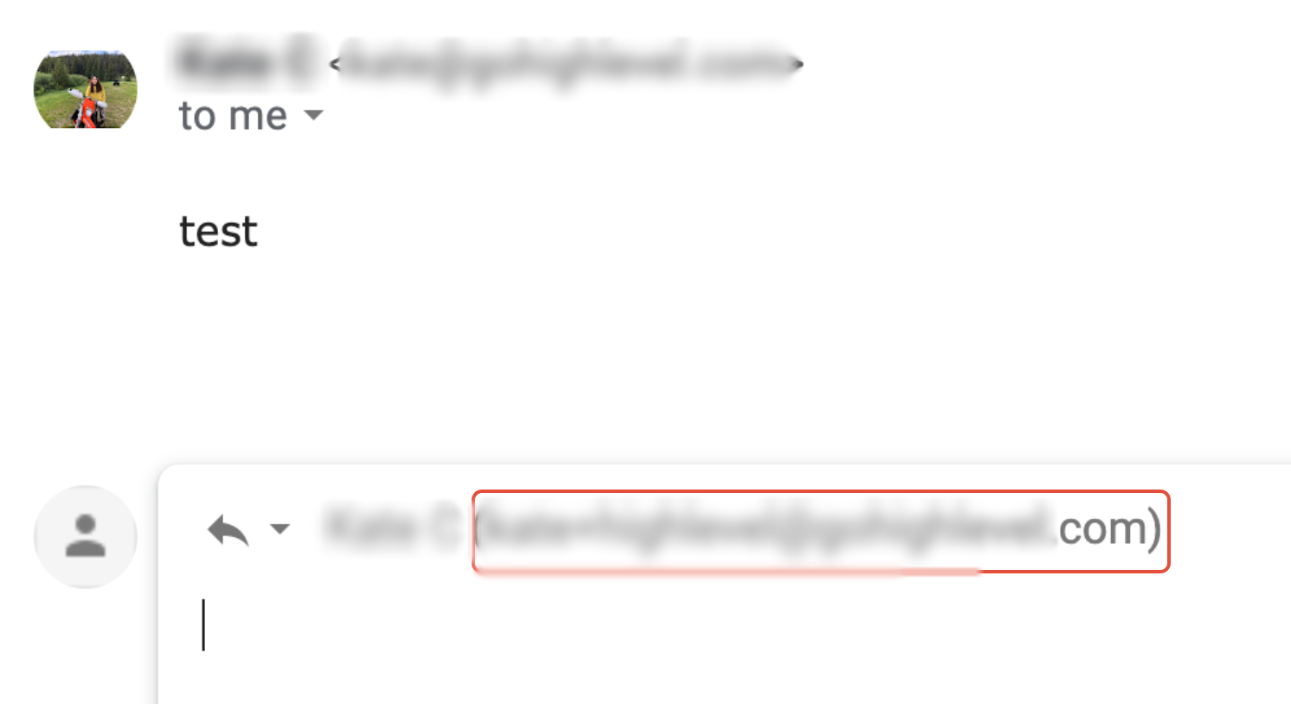
Frequently Asked Questions Q Why are attached files not forwarded along with email replies?
The forwarding settings in the Email Services tab do not support forwarding attachments. If a contact replies with an attachment, you must log in to the Patient Copilot conversation view to access it. Q Why do the forwarding emails I’ve added disappear after saving? If email addresses are invalid, or they conflict with a dedicated domain added to your sub-account, they cannot be used as a forwarding address and will not be saved. Q Are forwarded emails free? No. When rebilling is enabled, each forwarded email is billed like a normal outgoing email. Q Which services does forwarding billing apply to? Email System (Agency and sub-account when rebilling is enabled) and Mailgun (Location-owned) at the sub-account level. Q Do forwarded emails use the same per-email rate as regular sends? Yes — charges are aligned with standard email send rates. (Confirm with your account manager for any plan-specific markup or fees.) Q Where can I verify which forwarded emails were billed? Check your billing views for Billing Source Type (the service that generated the charge) and Billing Trigger ID (the unique event ID) to trace each charge. (Confirm the exact page and CSV columns with your account team.) Q Do these charges apply if rebilling is turned off? No. Forwarded-email charges require rebilling to be enabled for the sub-account. Q Is this change retroactive? Charges typically apply from the effective date forward. (Confirm the exact effective date and retroactivity details with your account manager.) Q Does agency-level Mailgun forwarding get billed? This update references Mailgun (Location-owned) at the sub-account level only. Agency-level Mailgun forwarding is not covered under this billing update.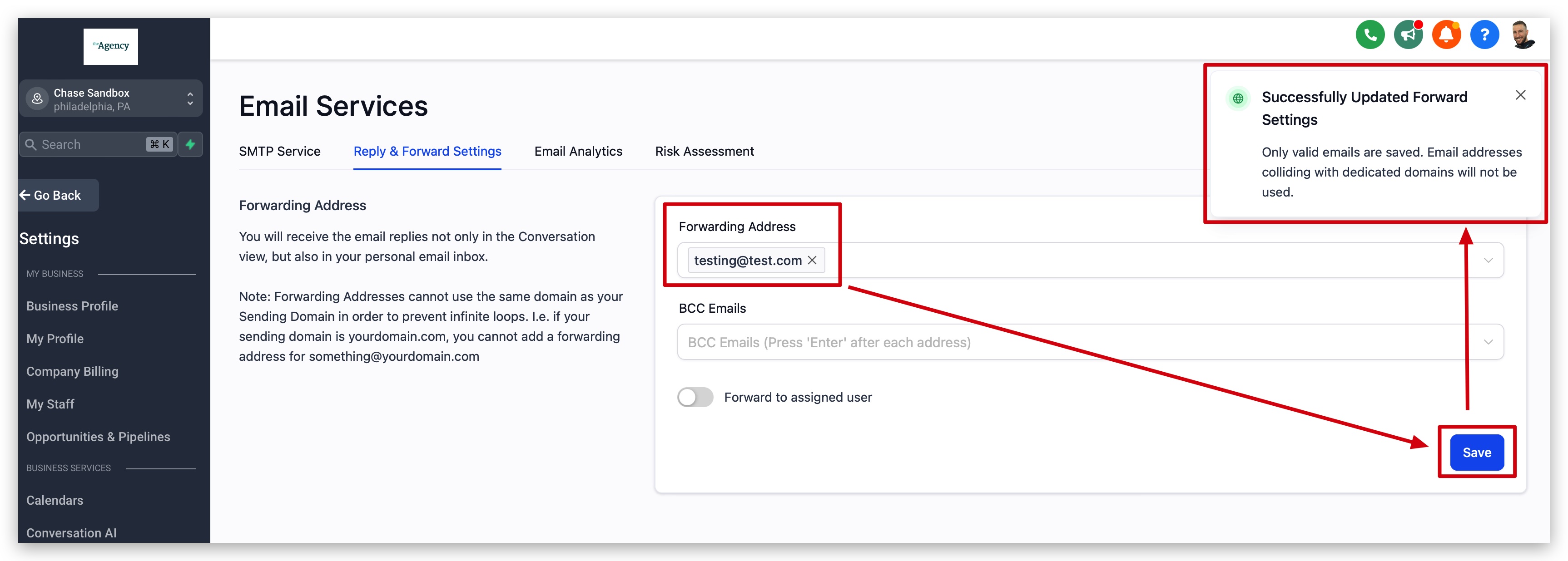 Was this article helpful? That’s Great! Thank you for your feedback Sorry! We couldn’t be helpful Thank you for your feedback Feedback sent We appreciate your effort and will try to fix the article