
Mistral AI: Workflow Actions
Mistral AI actions in Workflows let you connect Mistral language, embedding, and vision models directly to Patient Copilot automations. Use these actions to generate text, create semantic-search vectors, and analyze images using your own Mistral API key. This helps teams automate multilingual replies, data extraction, and AI-powered workflow logic without building a custom integration.
What is Mistral AI in Workflows?
Mistral AI in Workflows is a native workflow integration that allows Patient Copilot to call Mistral models from inside an automation. When a workflow reaches a Mistral AI action, it sends the configured prompt, text, or image input to Mistral and returns the result as a workflow output variable. That output can then be used in later steps such as Send SMS, Send Email, Internal Notification, Update Contact Field, or conditional workflow logic. Mistral AI actions are available in Beta. Available models, fields, and behavior may change as the integration continues to evolve, so test workflows before using them in customer-facing automations.
Key Benefits of Mistral AI in Workflows
- AI-generated responses: Create replies, summaries, rewritten content, and structured answers using workflow data and contact information.
- Multilingual automation: Generate responses for contacts in different languages while keeping your brand tone consistent through system prompts.
- Image understanding: Analyze receipts, IDs, screenshots, business cards, documents, and other image-based inputs from workflow steps.
- Semantic matching: Convert text into embeddings that help compare meaning, making it easier to match questions to FAQs or saved content.
- Workflow-native outputs: Use Mistral results as workflow variables in later steps such as messages, internal alerts, field updates, or conditional logic.
- Flexible model selection: Choose from available Mistral model families based on the needs of the workflow, such as quality, speed, reasoning, or cost.
Connecting Your Mistral AI Account
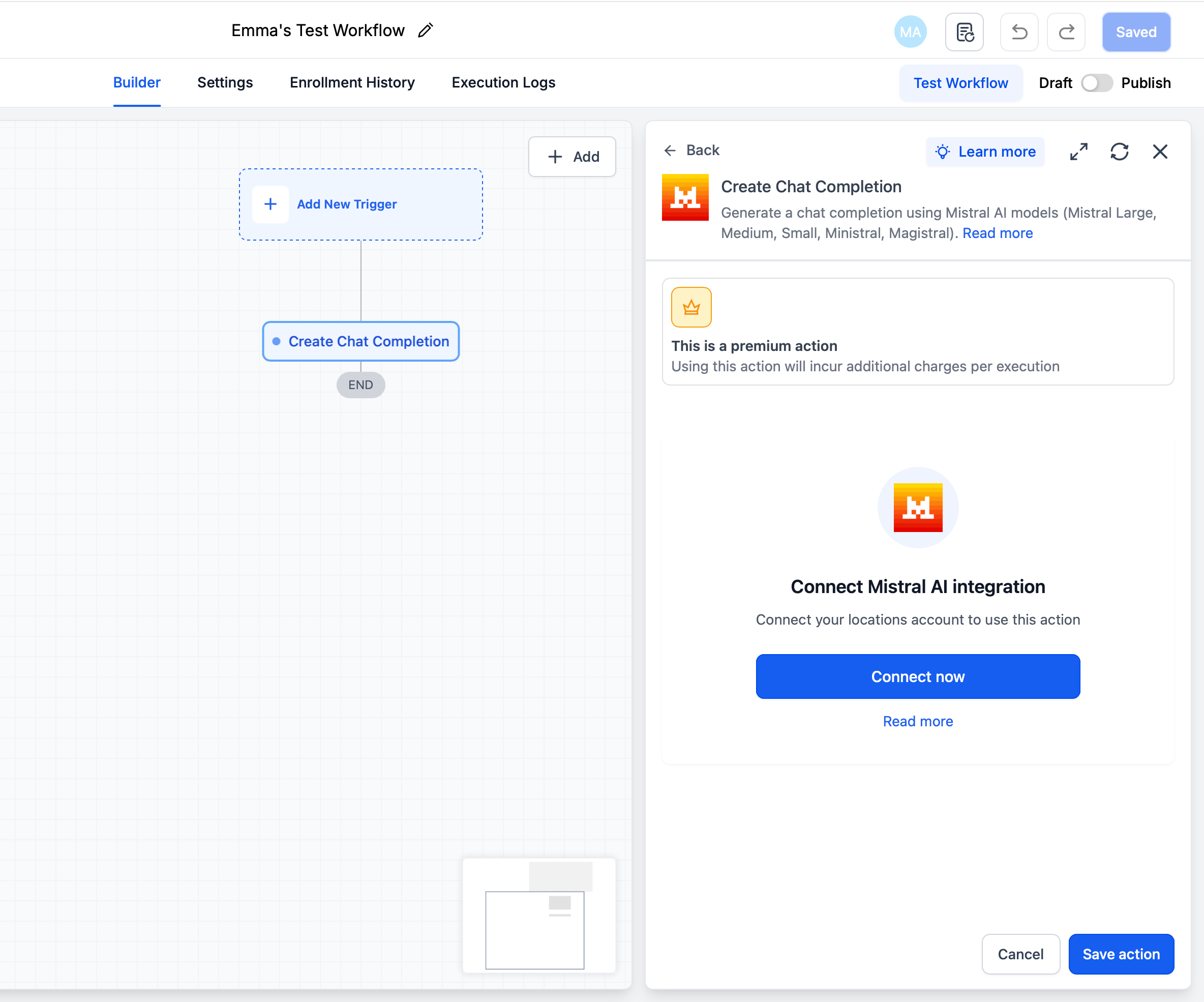
Before using Mistral AI actions, the integration must be connected to Patient Copilot with your Mistral API key. This connection allows workflows to securely send prompts, text, and image inputs to Mistral and return the response to Patient Copilot as workflow data. In Patient Copilot, open Automation → Workflows and add any Mistral AI action or trigger.
- If not connected, click Connect Now and sign in to Mistral AI to approve access.
- If already connected, fields load instantly in the step.
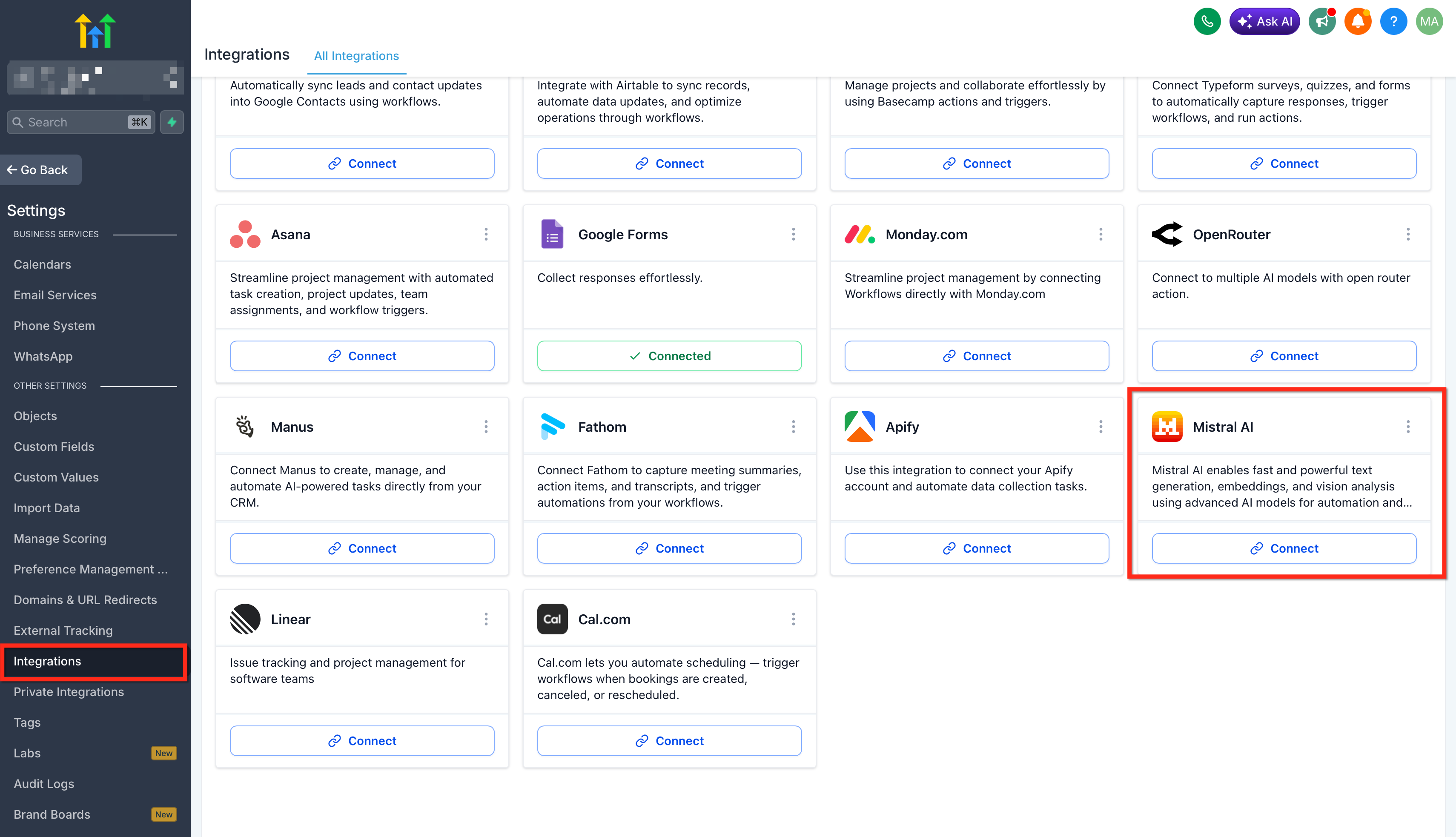
Alternate path: Sub-Account settings → Integrations → Mistral AI → Connect.
Available Mistral AI Actions
Mistral AI actions run inside workflows after a Patient Copilot trigger starts the automation. Each action is designed for a specific AI task, such as generating text, creating embeddings, or analyzing images, so selecting the right action helps ensure the workflow produces the expected output.
| Action | Description | Key Capabilities |
|---|---|---|
| Create Chat Completion | Generate chat-based responses using Mistral language models. | Supports prompt and system prompt configuration, model selection, and standard tuning parameters for output control. |
| Create Embeddings | Convert text into numerical vector representations using mistral-embed. | Ideal for semantic search, RAG, classification, and clustering. |
| Analyze Image (Vision) | Analyze one or more images using Mistral’s vision-capable models. | Supports models such as Pixtral Large, Pixtral 12B, and Mistral Large/Medium/Small. Returns structured natural language responses. |
Create Chat Completion
Create Chat Completion allows a workflow to generate chat-based responses using Mistral language models. This is useful when an automation needs to draft a customer reply, summarize a message, rewrite content, classify a request, or generate a structured response using workflow data. Key capabilities include:
- Supports both Prompt and System Prompt configuration.
- Allows users to choose from models such as Large, Medium, Small, and Ministral 8B/3B.
- Includes standard tuning parameters to help control the style, length, and behavior of the generated output. Common fields include:
- Action Name: Add a clear label, such as “Draft Customer Reply” or “Summarize Form Submission.”
- System Prompt: Define the AI’s role, tone, rules, or formatting expectations.
- Prompt: Provide the specific task the model should complete. Workflow variables can be inserted into the prompt.
- Model: Select the Mistral model that best fits the workflow.
- Tuning Parameters: Adjust available output controls based on the desired response style and length.
Create Embeddings
Create Embeddings converts text into numerical vector representations using mistral-embed. Embeddings help compare the meaning of text, making them useful for workflows that need to match questions, classify content, or support advanced search experiences. This action is ideal for:
- Semantic search: Match text based on meaning instead of exact keywords.
- RAG: Retrieve relevant information before generating a response.
- Classification: Group or label text based on its meaning.
- Clustering: Organize similar pieces of text together.
Analyze Image (Vision)
Analyze Image (Vision) allows a workflow to analyze one or more images using Mistral’s vision-capable models. This is useful when important information is stored in image-based inputs, such as receipts, IDs, screenshots, business cards, uploaded documents, or form attachments. Supported model examples include:
- Pixtral Large
- Pixtral 12B
- Mistral Large
- Mistral Medium
- Mistral Small
Using Mistral AI Outputs in Workflows
Mistral AI outputs become workflow variables after the action runs. These variables allow later workflow steps to use the generated response, embedding, or image-analysis result without manually copying data between tools. Common output patterns include:
- Insert a Chat Completion response into a Send SMS, Send Email, or Internal Notification step.
- Save generated text to a contact custom field or internal note.
- Use Analyze Image output to update records after extracting details from a receipt, ID, or uploaded document.
- Evaluate Mistral output in an If/Else step to route contacts based on the model’s response.
- Pass an embedding output to an external vector-search system using a webhook or custom integration.
Billing, Beta Status, and Limits
Understanding how billing and limits work helps teams test safely and avoid unexpected workflow behavior. Mistral usage and Patient Copilot workflow execution are handled separately, so both should be considered before using these actions at scale. Key points:
- Mistral bills API and model usage directly through your Mistral workspace.
- Mistral AI workflow actions are premium actions in Patient Copilot and may consume premium action credits when executed.
- Mistral rate limits and quotas are managed within your Mistral workspace.
- Free Mistral plans may have stricter usage limits than paid plans.
- API keys are tied to a Mistral workspace. If you switch workspaces, generate a new key and reconnect the integration.
- Mistral AI actions are available in Beta, so available models, fields, and behavior may change over time.
How To Setup Mistral AI in Workflows
A complete setup includes connecting the integration, selecting the correct Mistral action, mapping inputs, testing the action, and confirming the output is available for later workflow steps. Testing with sample data before publishing helps confirm that prompts, image URLs, and output variables behave as expected.
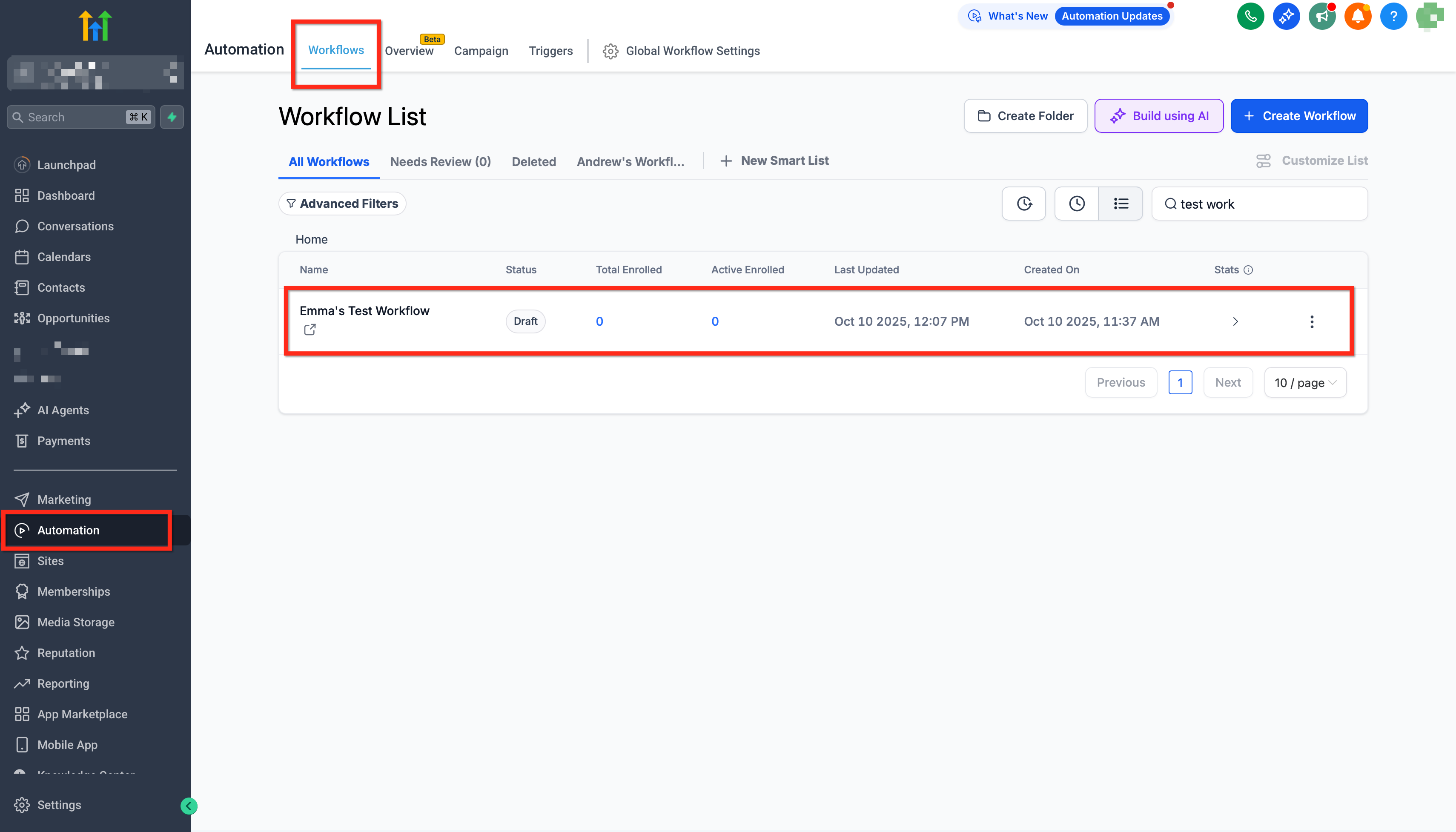
- Open a workflow Go to Automation → Workflows and click + New Workflow (or open an existing one).
- Connect Mistral AI Add any Mistral AI step in a workflow and click Connect Now, or go to Settings → Integrations → Mistral AI → Connect to authorize via OAuth.
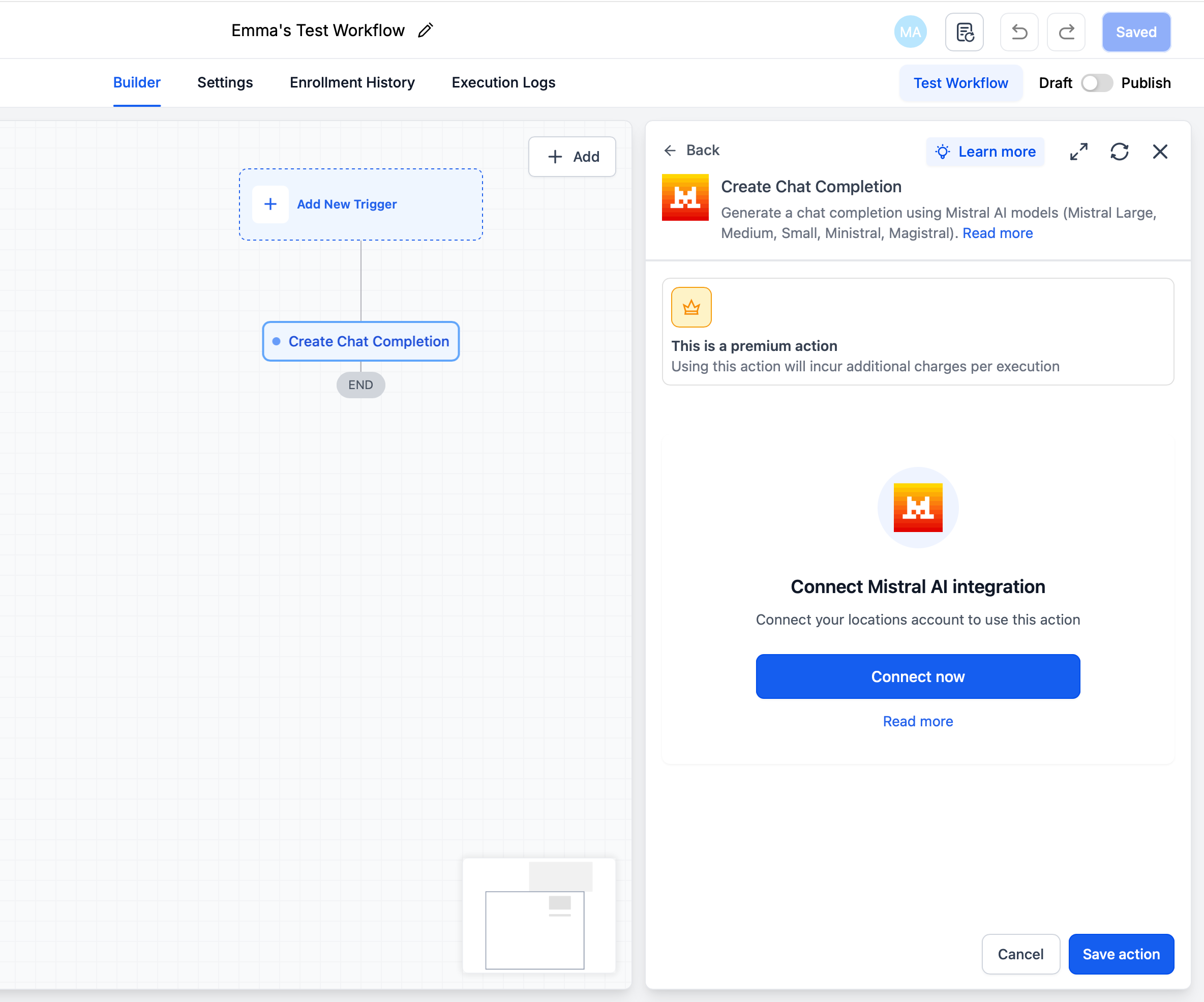
- Patient Copilot → Mistral AI (Actions): Perform work in Mistral AI from a Patient Copilot workflow. Select the action you want to use: Create Chat Completion for generated text. Create Embeddings for semantic matching or vector output. Analyze Image (Vision) for image analysis.
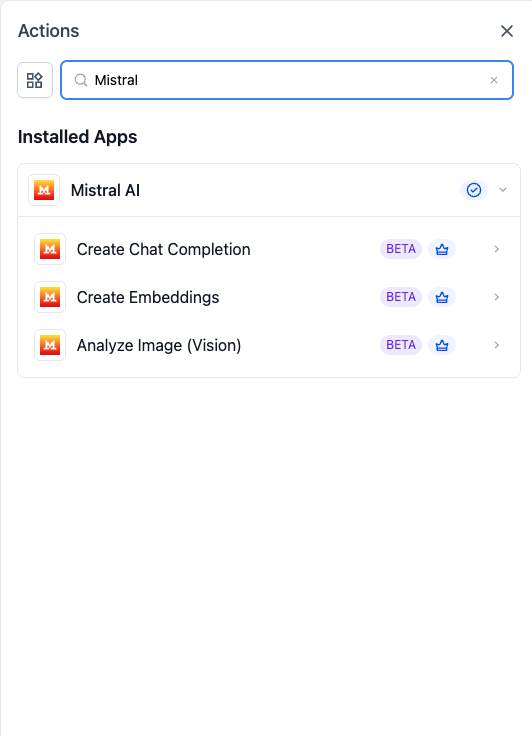
- Configure the action fields, including prompts, text input, image URL, model, and optional tuning settings where available. Insert workflow variables where needed to personalize the action.
- Add the next workflow step, such as Send SMS, Send Email, Update Contact Field, Custom Webhook, or If/Else. Insert the Mistral output variable into the later step.
- Test & validate - Trigger path: create a small test event in the scoped Mistral AI area.
- Action path: run the workflow on a test record.
- Review Run Logs / Enrollment History for inputs, outputs, and returned IDs; fix mapping/permissions issues. 7. Publish & monitor. Click Publish in the workflow.
Common Use Cases
Mistral AI actions can support both simple customer-facing automations and more advanced data-processing workflows. The examples below show how each action can fit into a practical Patient Copilot workflow. 1. Multilingual customer reply generation: Inbound message → Mistral AI Create Chat Completion → Send Email/SMS - Trigger when a contact replies in any supported language (native French, English, Spanish, German, Italian, Portuguese, with broad coverage of Dutch, Japanese, Korean, Chinese, Arabic, and more)
- Use Mistral Large for high-quality, native multilingual responses
- Maintain brand tone via the System Prompt and personalize using contact variables 2. Semantic FAQ matching for inbound questions: Inbound email/customer replied → Create Embeddings → Vector lookup → Send templated reply - Embed the inbound question and compare against pre-embedded FAQ entries to reply with the closest match
- Handles paraphrased questions out of the box without brittle keyword matching
- Use the same embedding action one time as a setup step to index your FAQ content 3. Receipt and document extraction from images: Inbound webhook -> Image upload (form / inbound MMS) → Analyze Image (Vision) → Update contact → Create opportunity - Send a receipt, ID, or photo to Pixtral Large with a structured prompt (e.g. “return JSON with vendor, date, total”)
- Auto-populate custom fields without manual data entry
- Works for damage photos, IDs, business cards, and any image-based intake flow
Frequently Asked Questions Q: What is Mistral AI?
Mistral AI is an AI lab that develops open-weight and frontier language and vision models. The integration gives Workflows direct, governed access to those models using your own API key. Q: Which Mistral models are available in the model dropdown? Models from the Mistral Large, Medium, Small, Ministral and Magistral families. The list is refreshed periodically as Mistral retires legacy versions and ships new ones. Q: Do I need a separate Mistral account? Yes. Bring your own API key from console.mistral.ai. Inference is billed by Mistral directly based on your account tier and chosen model. Q: Are Mistral AI actions premium workflow actions? Yes. All three actions consume premium action credits at the standard automation rate, in addition to Mistral usage charges. Q: Can I use workflow variables inside prompts? Yes. Both the System Prompt and the Prompt accept inline variables — contact fields, custom fields, trigger payload values, and the outputs of earlier workflow steps. Q: Where is the AI-generated response stored? It is exposed as a workflow output variable on the action. Use it in messages, write it to custom fields, or pass it to downstream steps. It is not persisted as a separate record by default. Q: Can the generated response be used in SMS or email messages? Yes. The output variable can be inserted into Send SMS, Send Email, internal notifications, and any other messaging action. Q: What is the embedding output dimension? 1024 dimensions. The vector is suitable for direct use with major vector databases. Pass it to a webhook action that writes to your vector store. Q: What image formats does Analyze Image accept? Standard PNG and JPEG via direct URL, including images stored in Media Storage that are referenced by file URL. Images are processed at native resolution by the underlying vision model. Q: Are these actions production-ready? All three actions are released as Beta. They are safe to use in live workflows; expect incremental UX changes — for example, additional models added to the dropdown — as the integration moves out of Beta.