
Tagging Courses in a Communities Post/Comment
Make community conversations actionable by tagging your Courses directly inside posts and comments. Members can discover and jump to the right course with a quick “#” tag, keeping discussions focused and learning momentum high.
What is Tagging Courses?
Tagging Courses lets anyone composing a post or comment in Communities quickly reference an existing course by typing “#” and selecting it from a searchable picker. The tag renders as a clickable label with a course icon, allowing readers to navigate to the course for more details or enrollment, depending on the course’s configuration.
Key Benefits of Tagging Courses
Understanding the practical advantages helps teams decide when to use course tags and how they improve discovery, navigation, and engagement inside discussions.
- In‑context discovery: Surface relevant courses at the exact point of conversation.
- Faster navigation: Clicking a course tag takes members straight to the course page.
- Cleaner posts: Replace long URLs with compact, readable course tags.
- Guided next steps: Recommend the right lesson or program without leaving the thread.
- Consistent UX: Use the same “#” pattern you already know for Channels and Events.
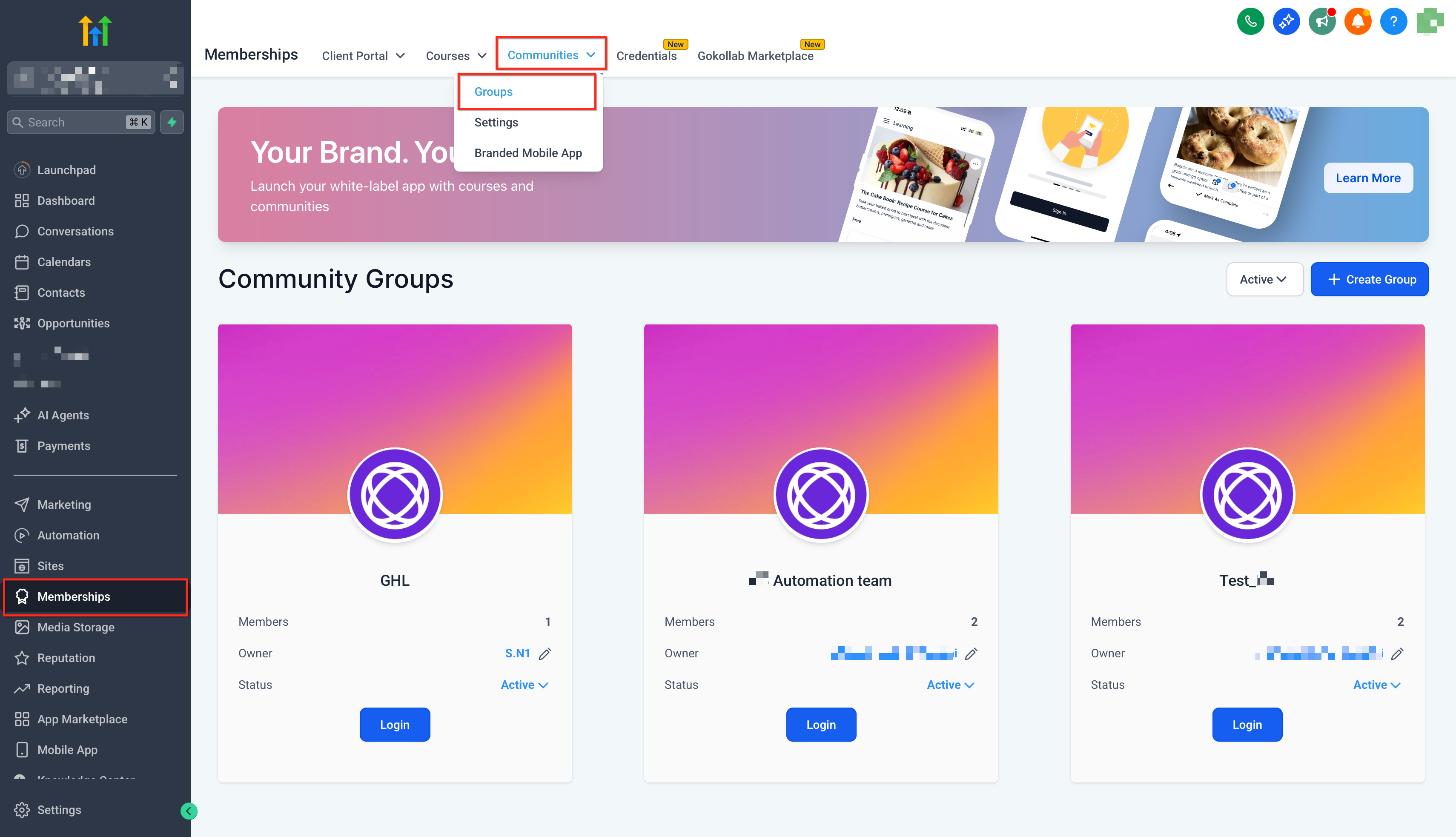
Course tags can be added in two places—the post editor or a reply—so you can guide learners at the exact moment questions arise or recommendations are made. Mastering both entry points keeps discovery consistent across new threads and ongoing conversations. Option A — While creating a post 1. From your Sub-Account, Go to Memberships > Communities and Login to the desired group.
- Click New Post. In the editor, type # to open the object picker.
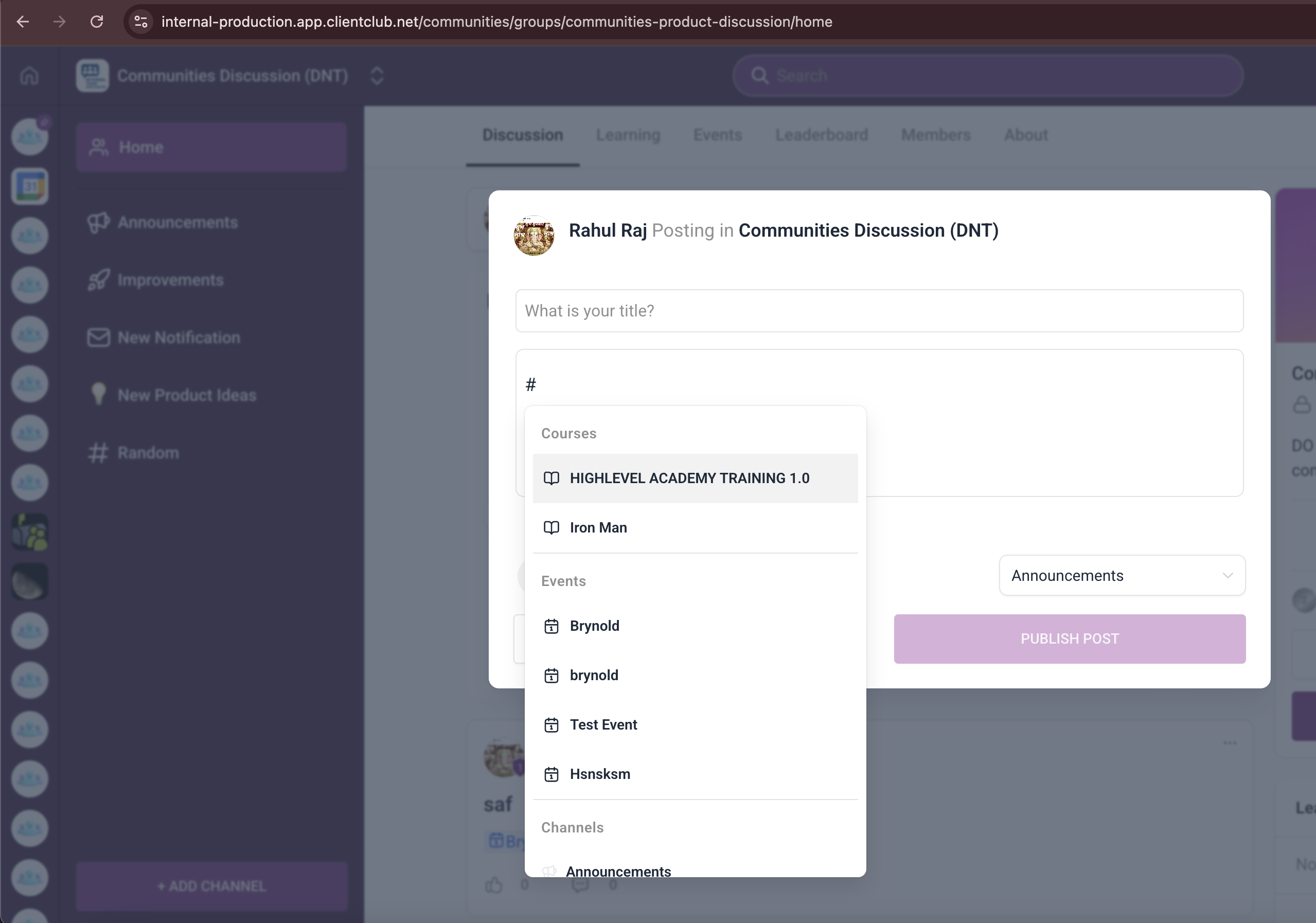
- Search or scroll to find the Course, then click to insert the tag (a course icon appears next to the label). 4. Finish your post and click Post.
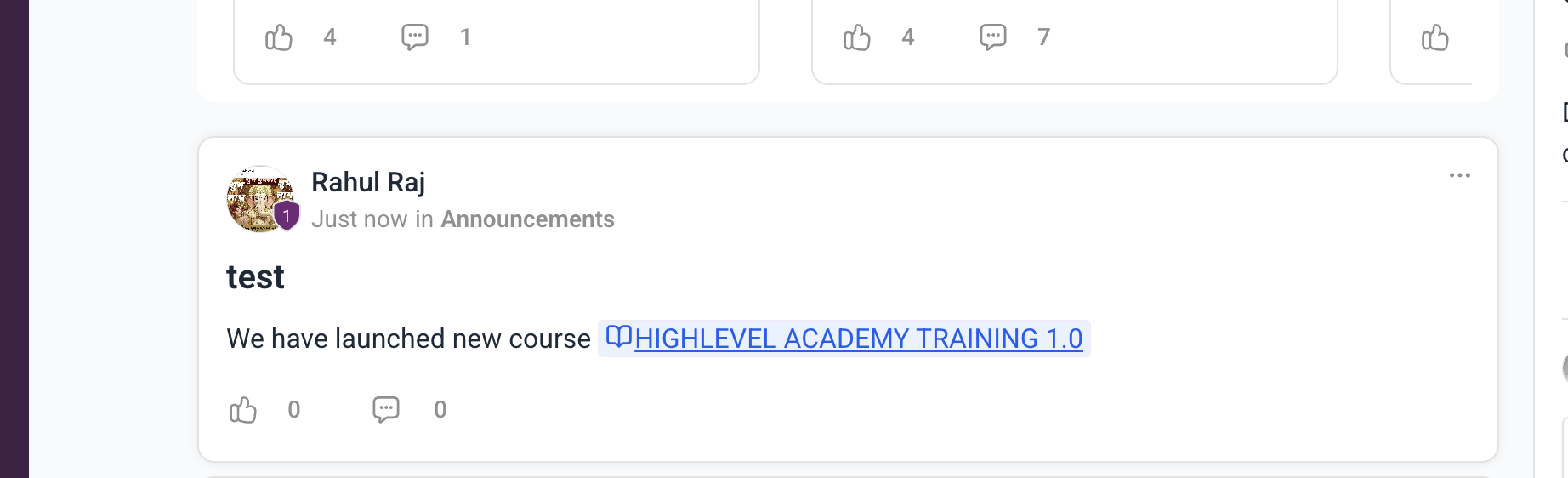
Option B — While writing a comment 1. Open the post you want to reply to and click Reply. 2. Type # to open the picker and select the Course. 3. Add your message and click Post.
Navigating with Tagged Courses
Know what readers can expect after clicking a course tag so you can set the right expectations for access and next steps.
- Clicking a tagged course navigates the user to the corresponding course page.
- What a member sees after clicking depends on how the course is configured (e.g., free, paid, or restricted).
- Members with access can view the course details or curriculum; others may be prompted to obtain access per your course settings.
Frequently Asked Questions Q: Who can tag a course?
Any member who can create a post or comment in the group can add course tags. Access to view the course after clicking depends on the course’s configuration. Q: Which courses appear in the “#” picker? Courses available to the member based on visibility and access settings. Naming clarity and search terms affect what’s easy to find. Q: Can I tag more than one course in a single post/comment? Yes. Insert as many course tags as needed to guide members through a learning path. Q: What happens if a member doesn’t have access to the tagged course? They’ll be guided by your access model (e.g., purchase required or request access). The exact experience depends on your course setup. Q: Does this work on mobile? Tagging is supported wherever the Communities post/comment editor supports the “#” picker.