
Company Object Feature: A Manual Way to Organize Contacts
The Company Object feature in Patient Copilot helps users group related contacts under a shared company profile. This enhances relationship management, contact organization, and activity tracking across teams working with the same client business.
What is the Company Object Feature?
The Company Object allows you to associate multiple contacts with a single company entity, making it easier to manage client relationships at the organizational level. This is particularly useful when your team interacts with various people from the same business. By grouping them under one record, you can view collective engagement, centralize data, and improve communication across touch points.
Key Benefits of the Company Object Feature
Using the Company Object provides practical advantages for managing contact relationships:
- Organized Contact Management: Easily group multiple contacts under one company.
- Consolidated Activity Tracking: Monitor interactions and activities related to a company.
- Enhanced Relationship Insights: Gain a complete view of how your team engages with an organization.
- Efficient Communication: Easily communicate with all contacts linked to a company.
- Improved Data Accuracy: Maintain consistent and updated information across company-associated contacts.
Follow these steps to set up a new company in Patient Copilot:
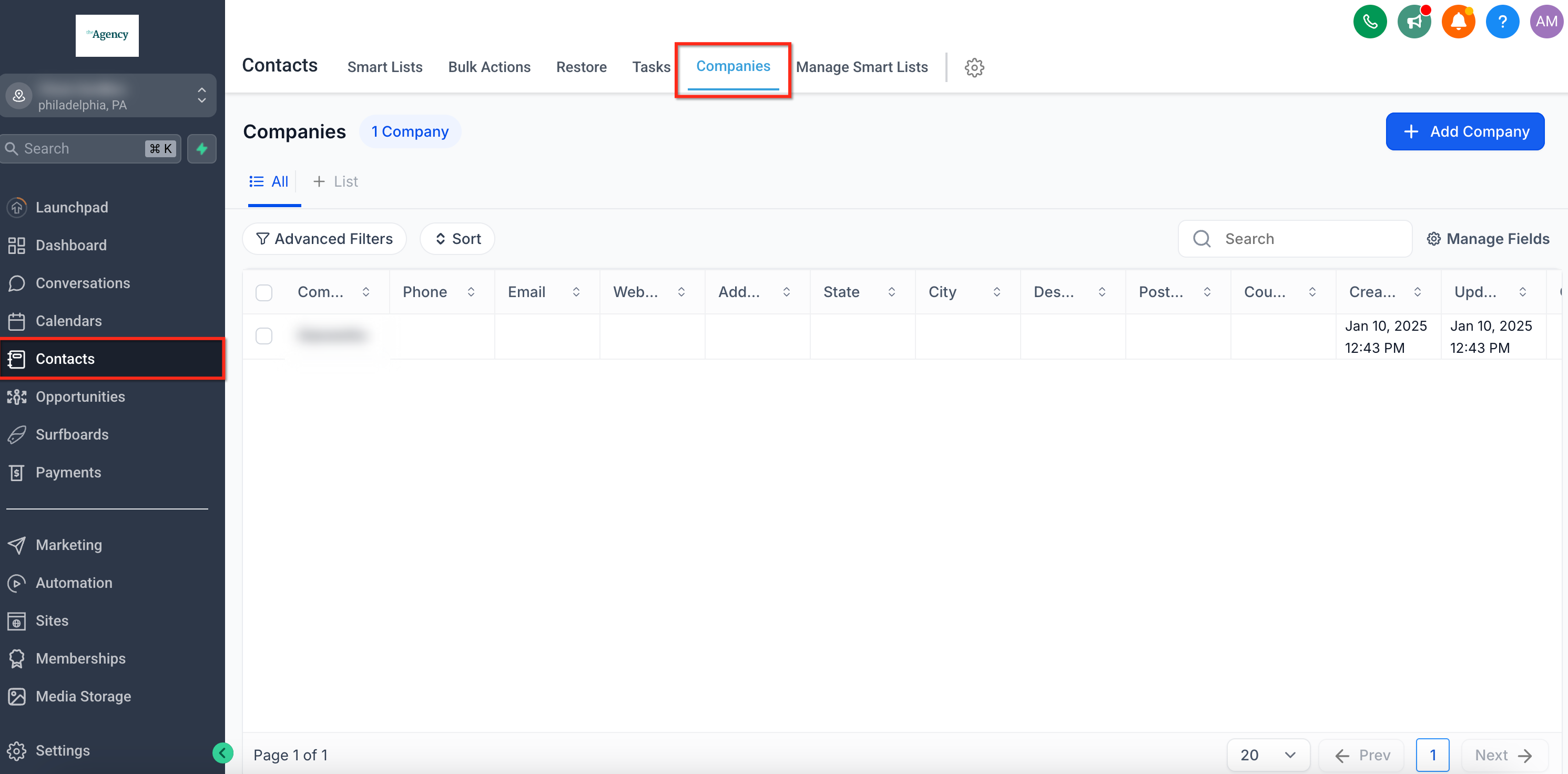
Step 1: Navigate to the Companies Section:
- Use the main navigation bar on the left to navigate to Contacts
- Navigate to the tab labeled Companies in the secondary navigation ribbon at the top of the page
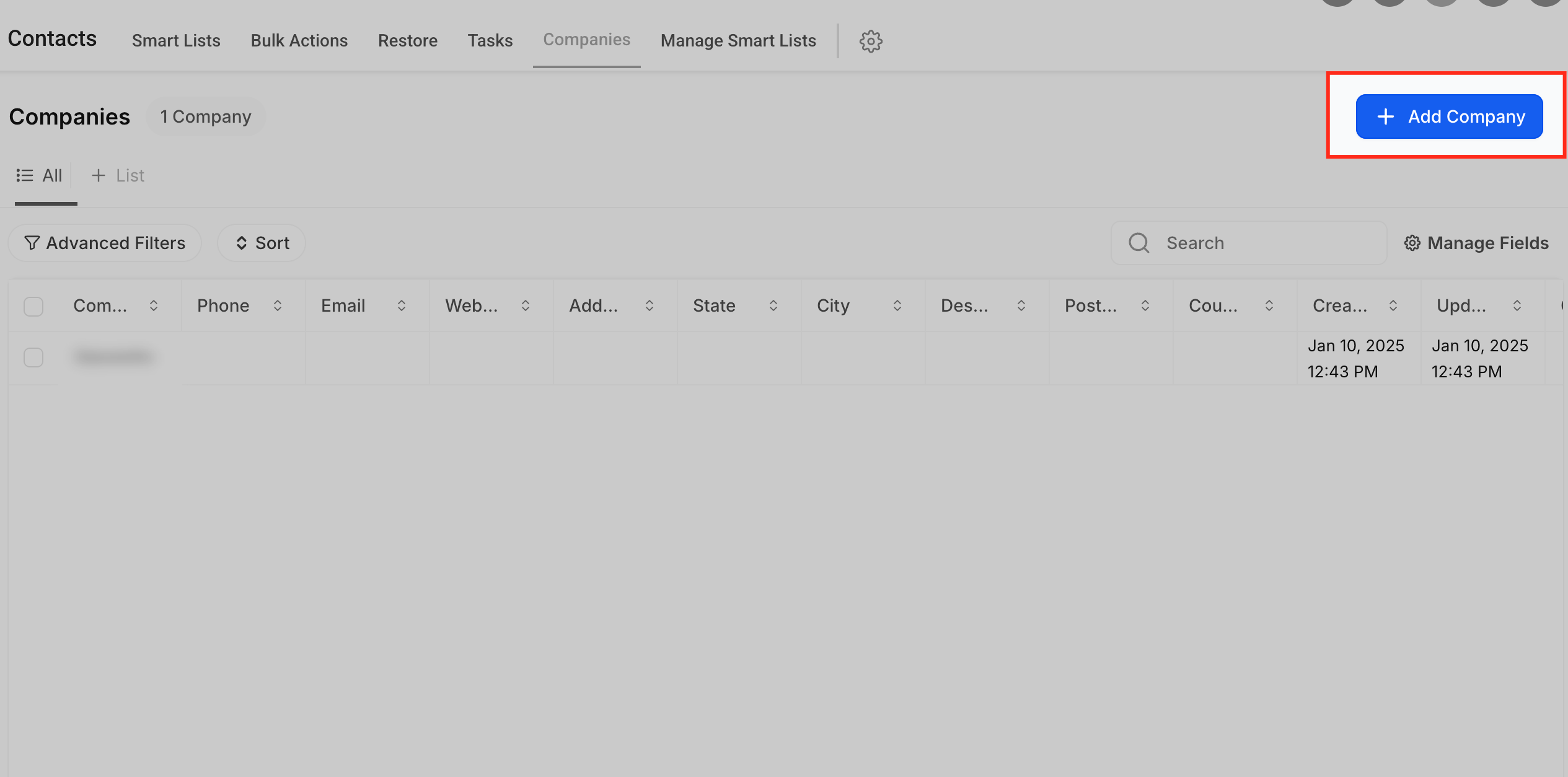
Step 2: Add a New Company - Click on the blue button at the top right labeled + New Company.
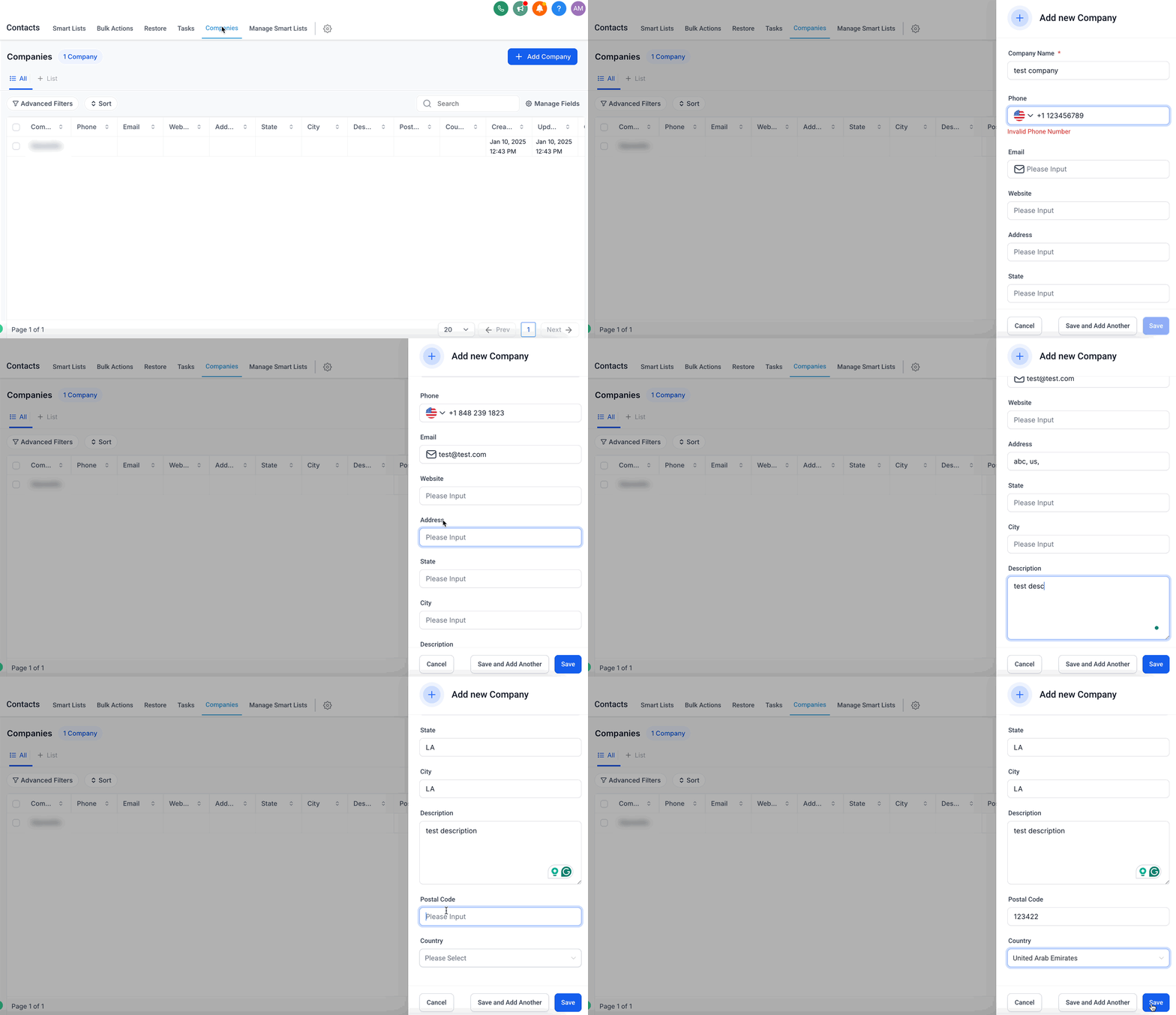
Step 3:
Enter Company Details Enter the company details in the box on the right of the screen. Below are the details you are able to add:
- Phone Number
- Website
- Description
- Address Details (Street, City, Postal Code, Country) Please Note: Only the company name is required, but adding more details enhances usability.
How to Edit or Update Company Details
- Go to the Company List - Use the main navigation bar to Navigate to
**Contacts**- Select the**Companies** tab in the top navigation bar- Click the three dots (...) next to the company you would like to edit and choose**Edit Company**2.
- Modify any necessary fields. 3. Save Changes - Click
**Save**to apply the updates.
How to Delete a Company
- Go to the Company List - Use the main navigation bar to Navigate to
**Contacts**- Select the**Companies** tab in the top navigation bar - Select the Company to Delete - Click the three dots (
...) next to the company you would like to edit and choose**Delete Company**3. Confirm Deletion - Click**Yes**to confirm. Note: Deleting a company clears the**_Company_**field in associated contacts but does not delete the contacts themselves.
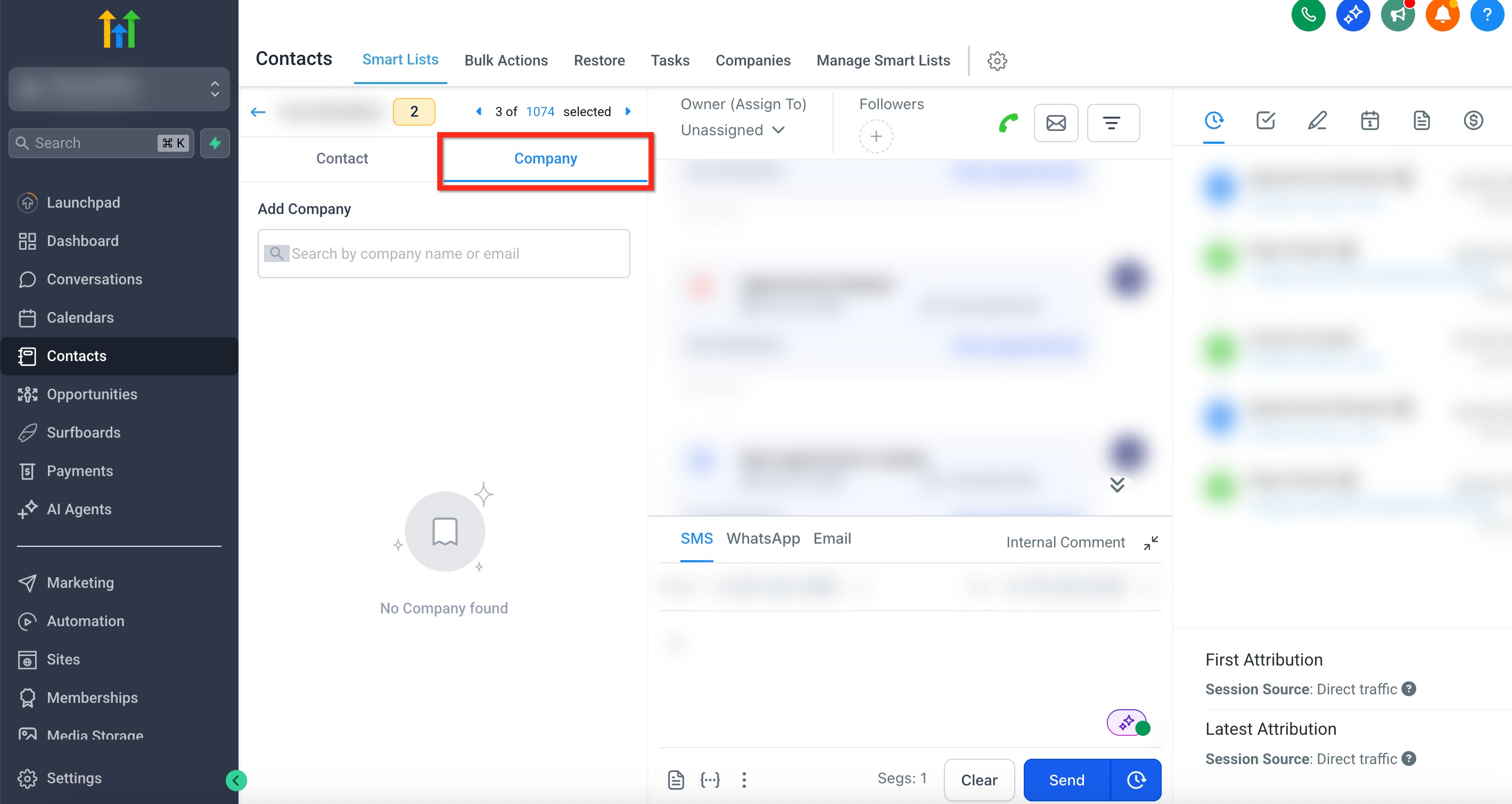
- Navigate to the Contact’s Profile - Use the main navigation bar to Navigate to
**Contacts**-Find the Contact you would like to add to the company and click on the contact's name2.
- Select the
**Company**tab in the secondary navigation bar on the left of the page - Search for and select the company. 3. Save Changes - Click**Save**to update the contact’s association. For bulk assignment, select multiple contacts and assign them to a company at once.
- Access the Company Profile - Use the main navigation bar to Navigate to
**Contacts**- Select the**Companies** tab in the top navigation bar- Select the company. - View Associated Contacts - Navigate to the
**Contacts**tab. 3.
- Click the Trash Bin icon next to the contact. Note: Removing a contact from a company does not delete the contact; it only removes the association. Automating Company Associations: Patient Copilot provides automation features to streamline company assignments. Please refer to Company Object Automation
You can automate this process based on the “Business Name” field in contacts. To enable:
- Go to Settings > Objects > Company - Toggle Automatically Create and Associate Companies from Contact Business Names Learn more in the article: Company Object Automation
Frequently Asked Questions
Q: Can I assign multiple companies to a single contact?
No, a contact can only be associated with one company at a time. Q: Will deleting a company removes all its contacts? No, it only removes the company association. Contacts remain in your database. Q: Can I bulk assign contacts to a company? Yes, select multiple contacts in the contact list and assign them to a company at once. Q: How do I find all contacts linked to a specific company? Navigate to Contacts > Companies, select the company, and view the Contacts tab. Q: Can I automate contact-company associations without manually assigning them? Yes, enable Automatically Create and Associate Companies from Contact Business Names in Settings > Objects > Company.