
Conversation AI - New Knowledge Sources & Quality Upgrades
This guide explains Patient Copilot’s new Knowledge Sources Support & Quality Upgrades for Conversation AI. Tables, rich-text, file uploads, and an ultra-smart retrieval pipeline, so you can serve crystal-clear, context-aware answers at scale.
What is the New Knowledge Sources Support?
Patient Copilot’s latest Conversation AI release expands the kinds of content your bot can learn from (tables, rich text, files) and layers in a new re-ranking engine that pulls the single most relevant snippet before it answers. Together, these upgrades boost response precision, shorten setup time, and show you exactly which source each answer used.
Key Benefits of Knowledge Sources Support & Quality Upgrades
- Higher answer accuracy: Automatic re-ranking ensures the most relevant information is retrieved before generating a response.
- Faster rollout: Add or replace data sources instantly without the need for retraining from scratch.
- Flexible training: Support for spreadsheets, rich-text documents, PDFs, and more expands what your AI can learn from.
- Total transparency: Every response includes clickable source links in the Response Info side drawer for full visibility.
Smarter Retrieval with Re-Ranking
A lightweight ranking layer now sits between search and answer generation. After the initial vector search returns potential matches, the re-ranker scores each chunk for semantic closeness to the user’s question and sends only the top-ranked passages to the LLM. The result is fewer hallucinations and tighter, on-topic replies.
Expanded Data Type Support
Your knowledge base no longer speaks “plain-text only.” You can now:
- Paste or upload Tables (CSV/TSV) so AI can reference structured values (e.g., pricing grids).
- Add Rich-Text blocks—including headings, bold, lists—directly in the editor.
- Upload Files (PDF, DOCX, PPT, TXT) and let the system auto-chunk the content for search.
Crystal-Clear Source Attribution
Every AI response inside Conversations shows a “Response Info” icon. Click it to open the side drawer and view:
- The exact knowledge chunk(s) used.
- File or URL name, FAQ label, and timestamp.
- Quick-edit options to correct or replace the source on the fly.
How To Setup & Use Knowledge Sources Support
Step 1: Create or Open a Knowledge Base 1. Sign in to your sub‑account.
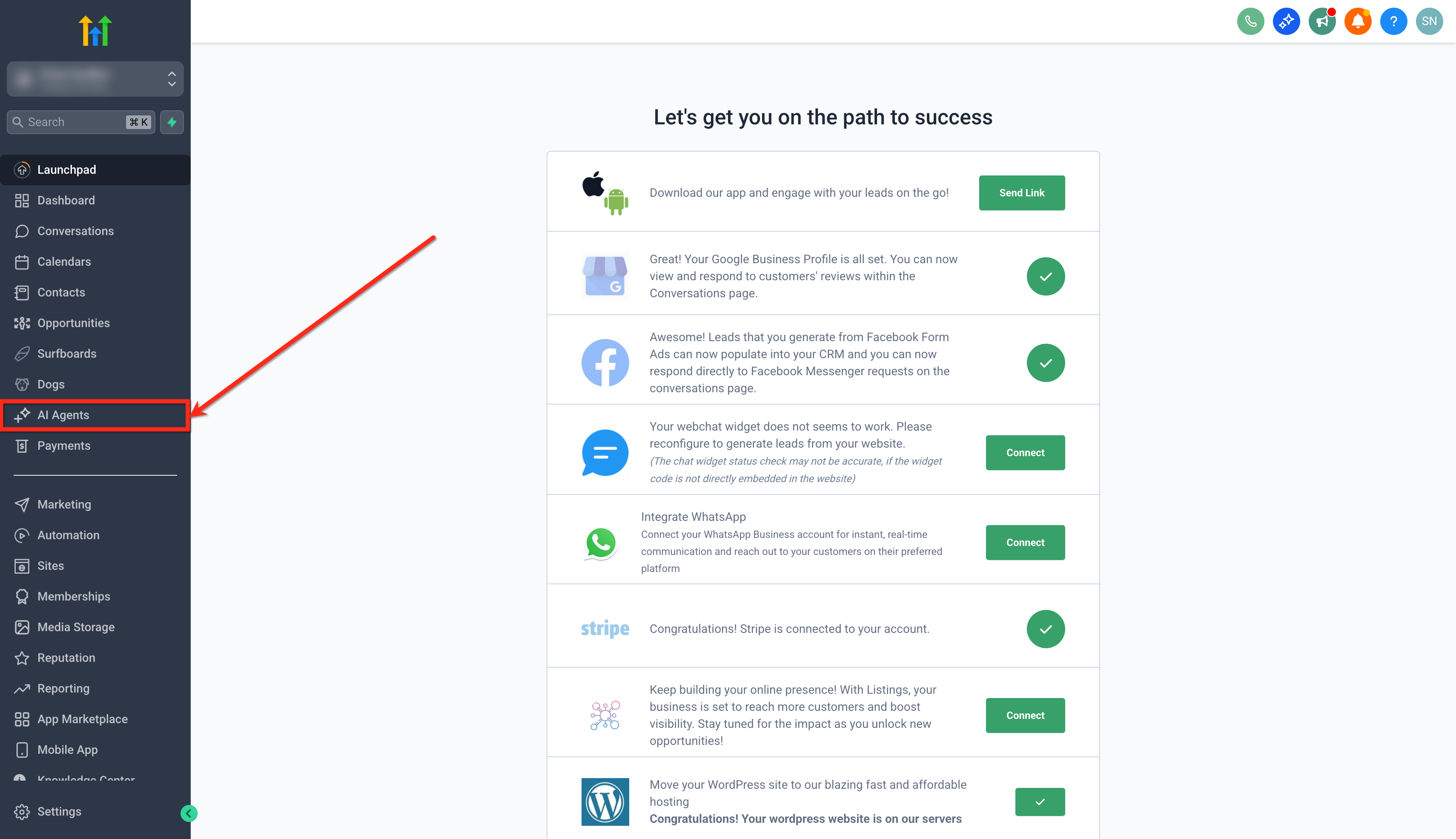
- From the left‑hand menu, click on the AI Agents tab.
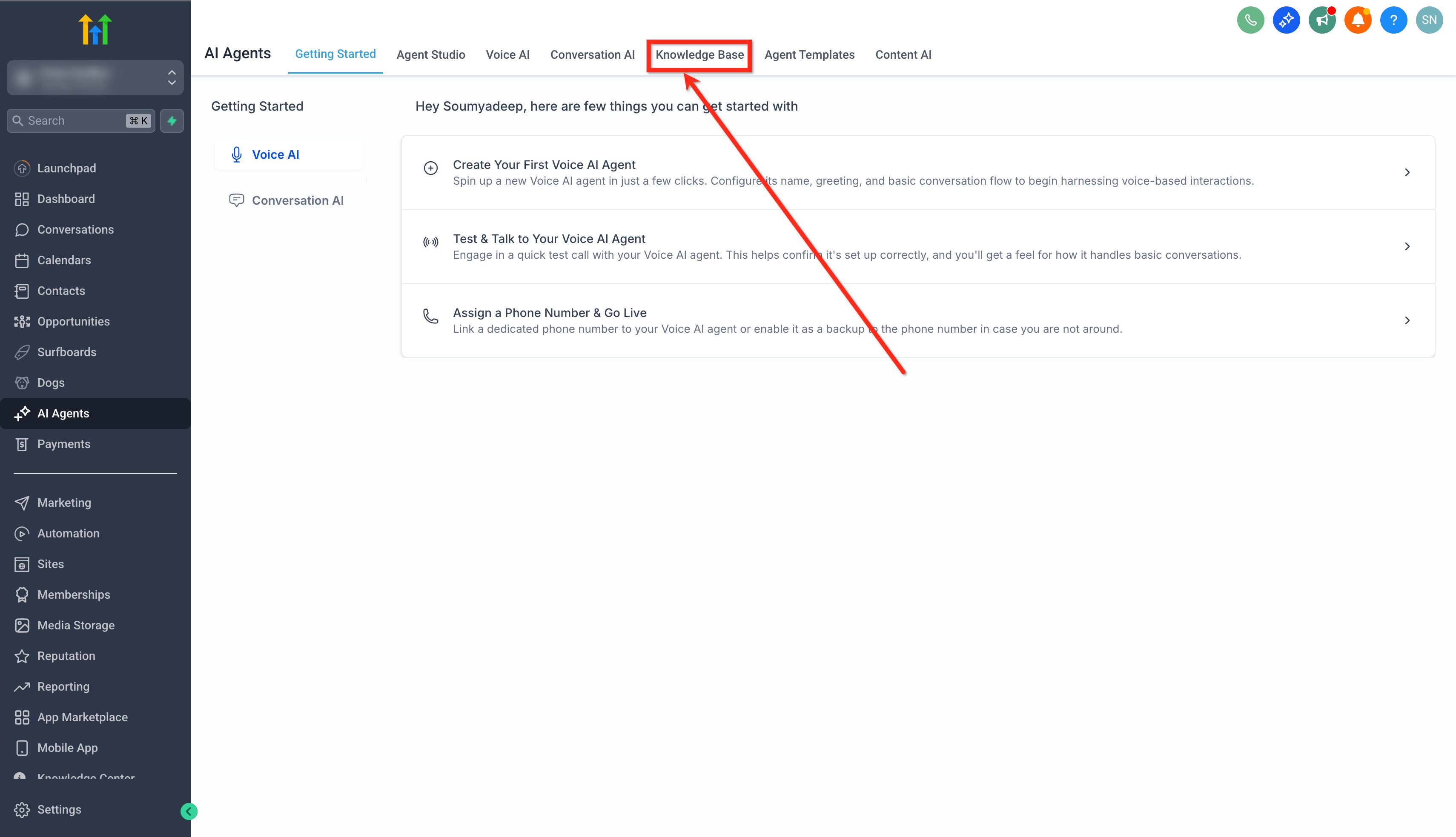
- Click on the Knowledge Base tab.
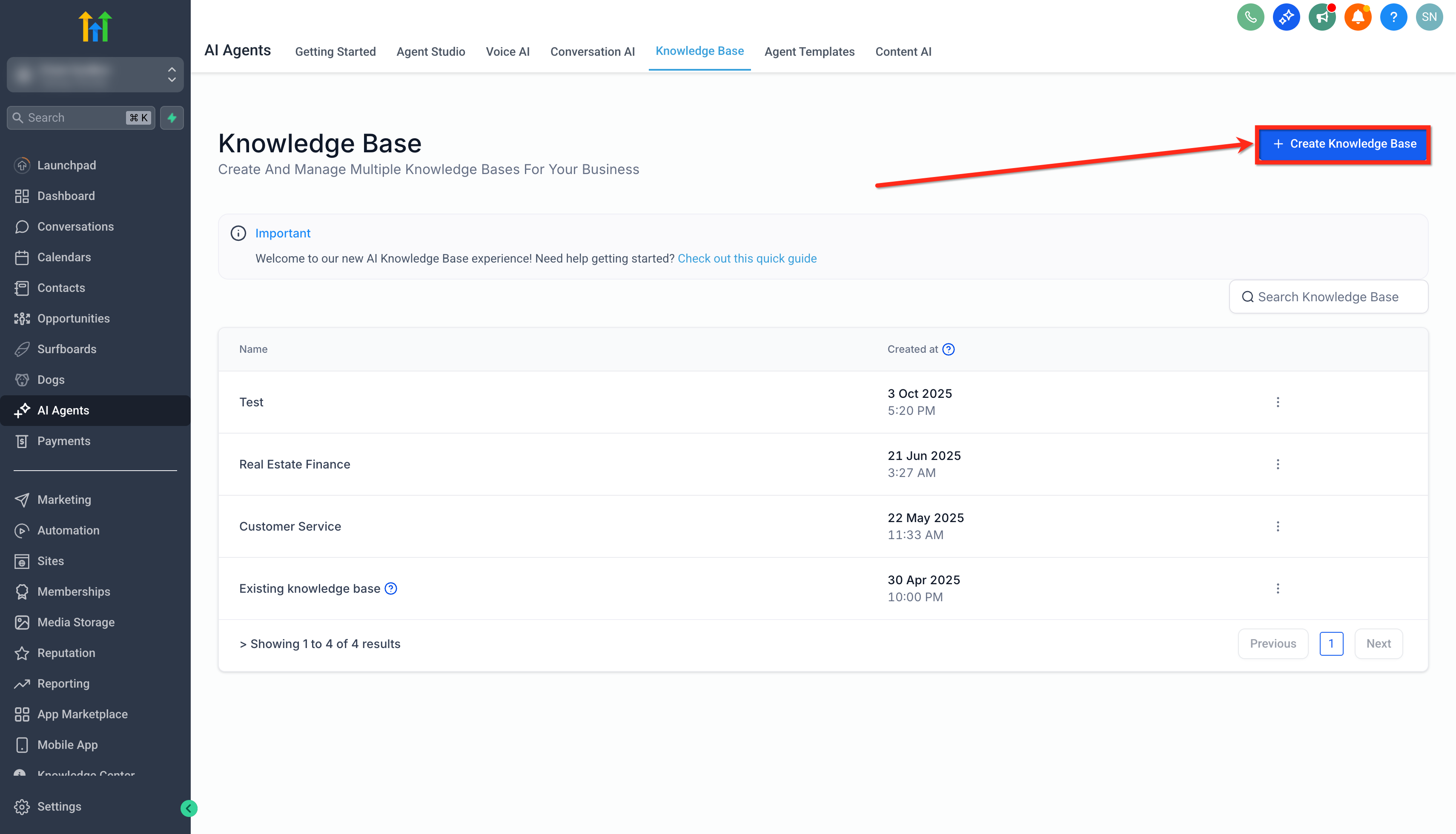
- Click + Create Knowledge Base button to create a new one**.** **
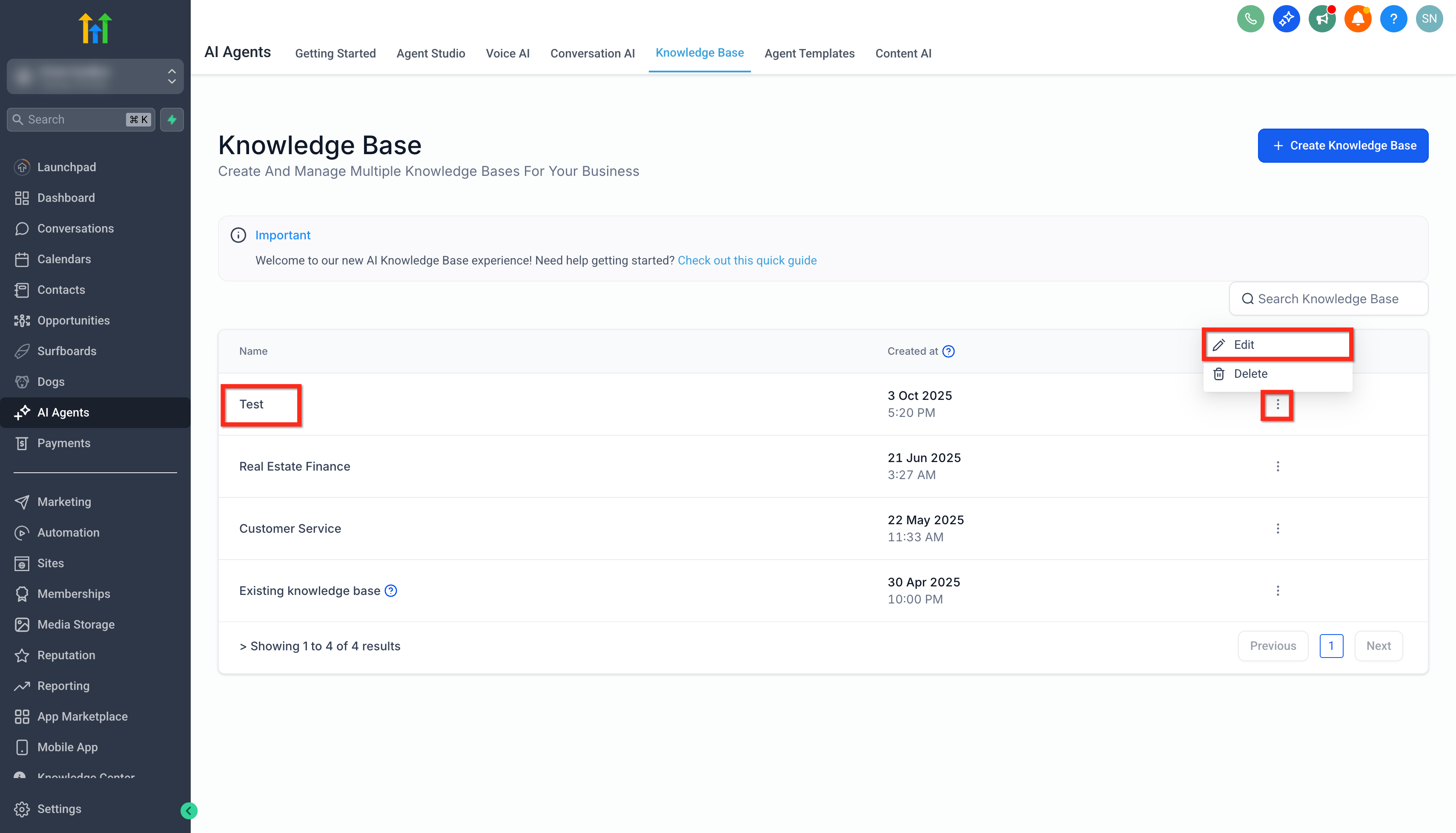
** 5. or Edit an existing Knowledge Base by clicking the Knowledge Base name, or click the three dots and choose Edit.
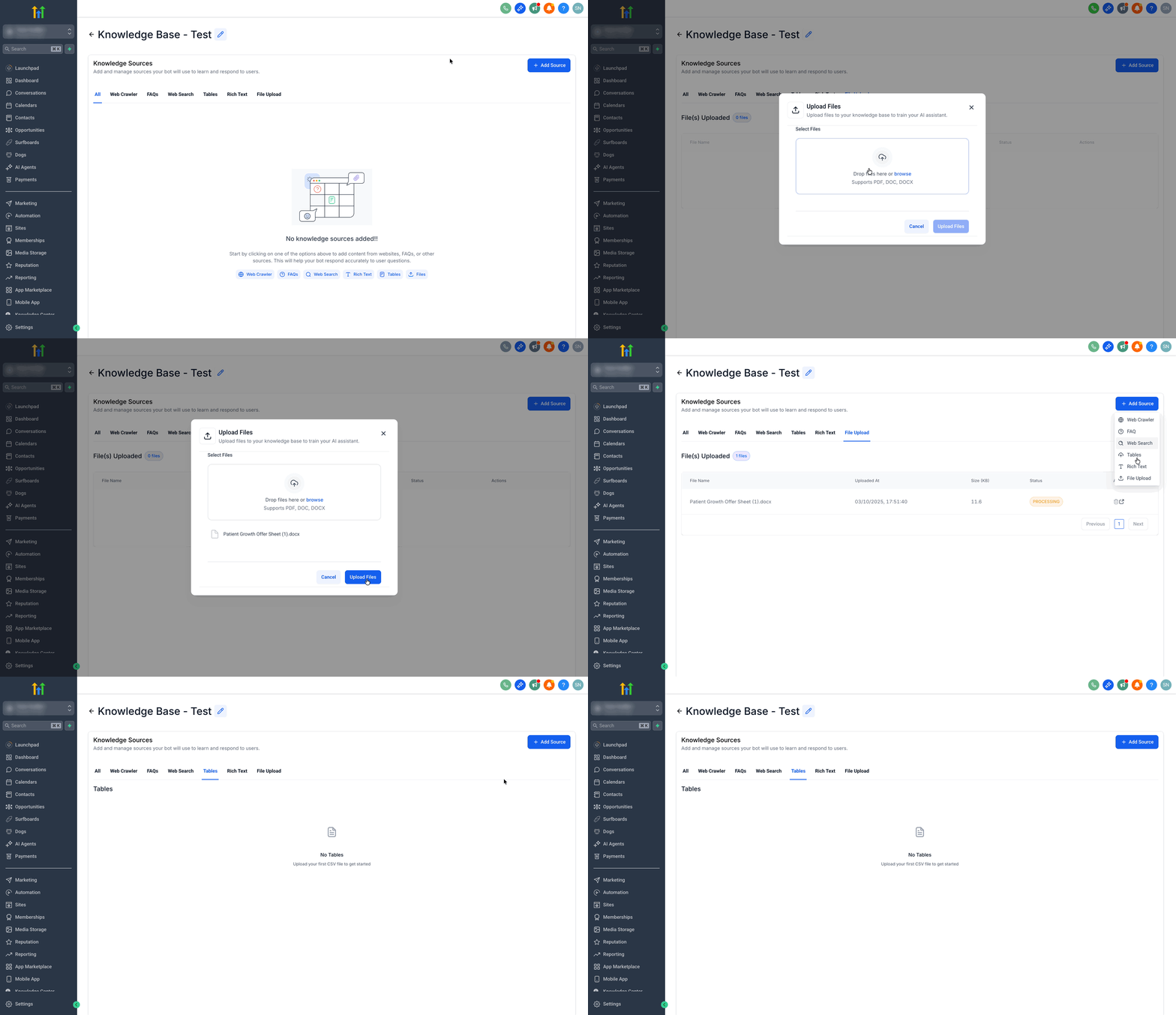
Step 2: Add Knowledge Sources 1. Click + Add Source button.
- Choose from available types: Tables, RichText, FileUpload. (New in this update) 3. Upload Tables, Files or add Rich Text.
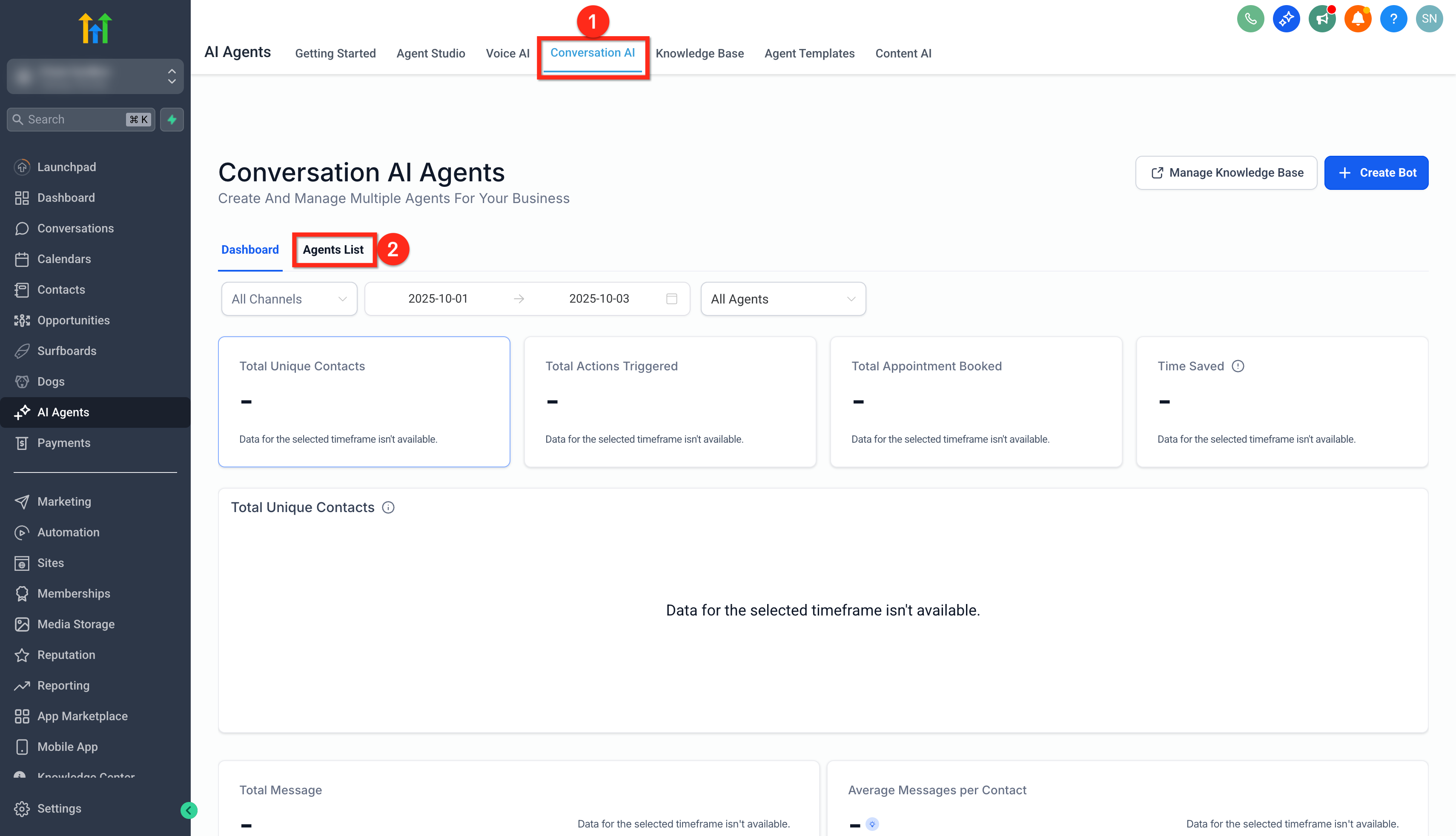
Step 3: Attach the Knowledge Base to a Conversation AI Bot 1. In AI Agents, click Conversation AI.
- Click on the Agent List tab.
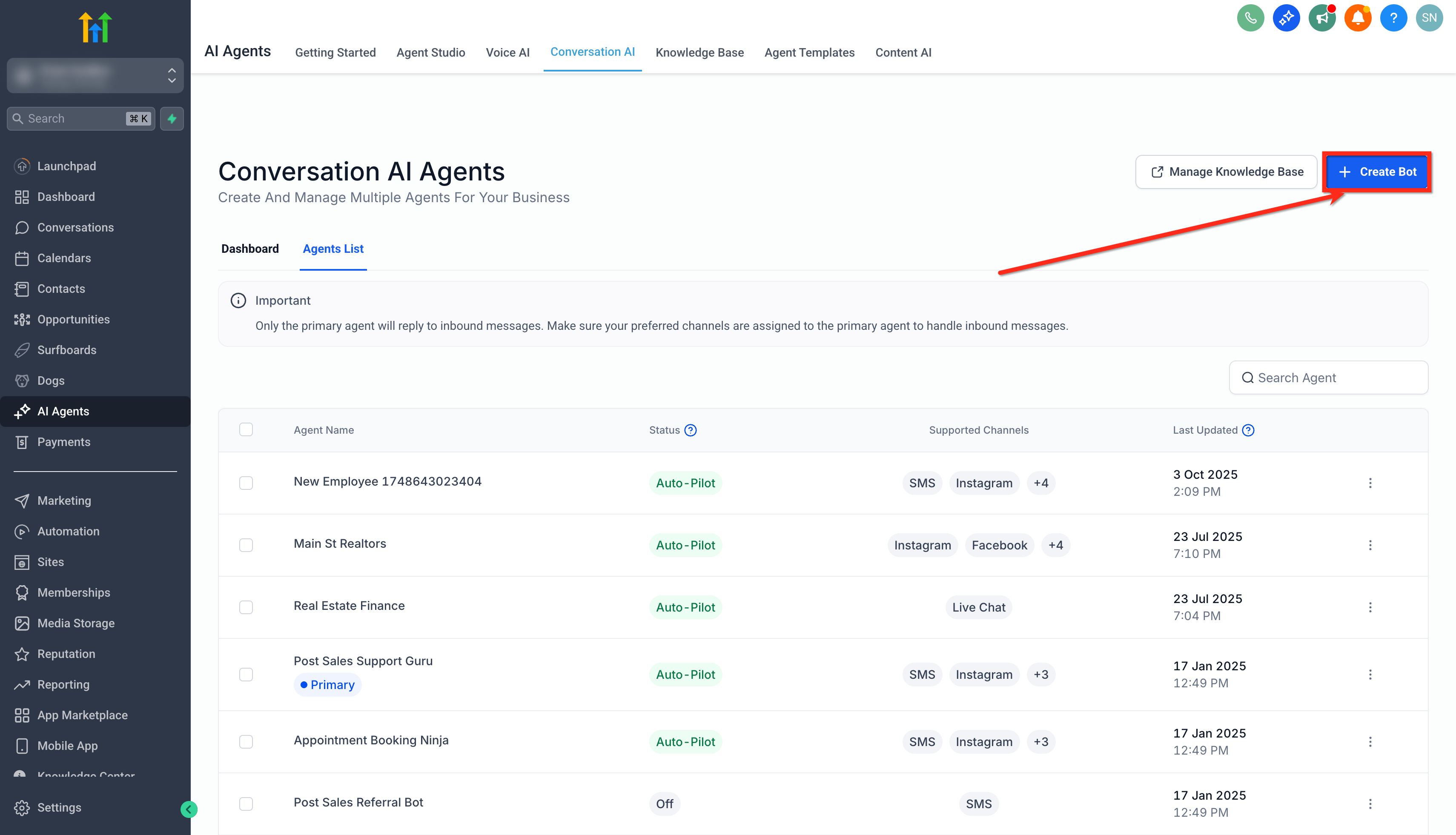
- To create a new bot, click + Create Bot. (Check out our detailed guide on Setting Up Conversation AI)
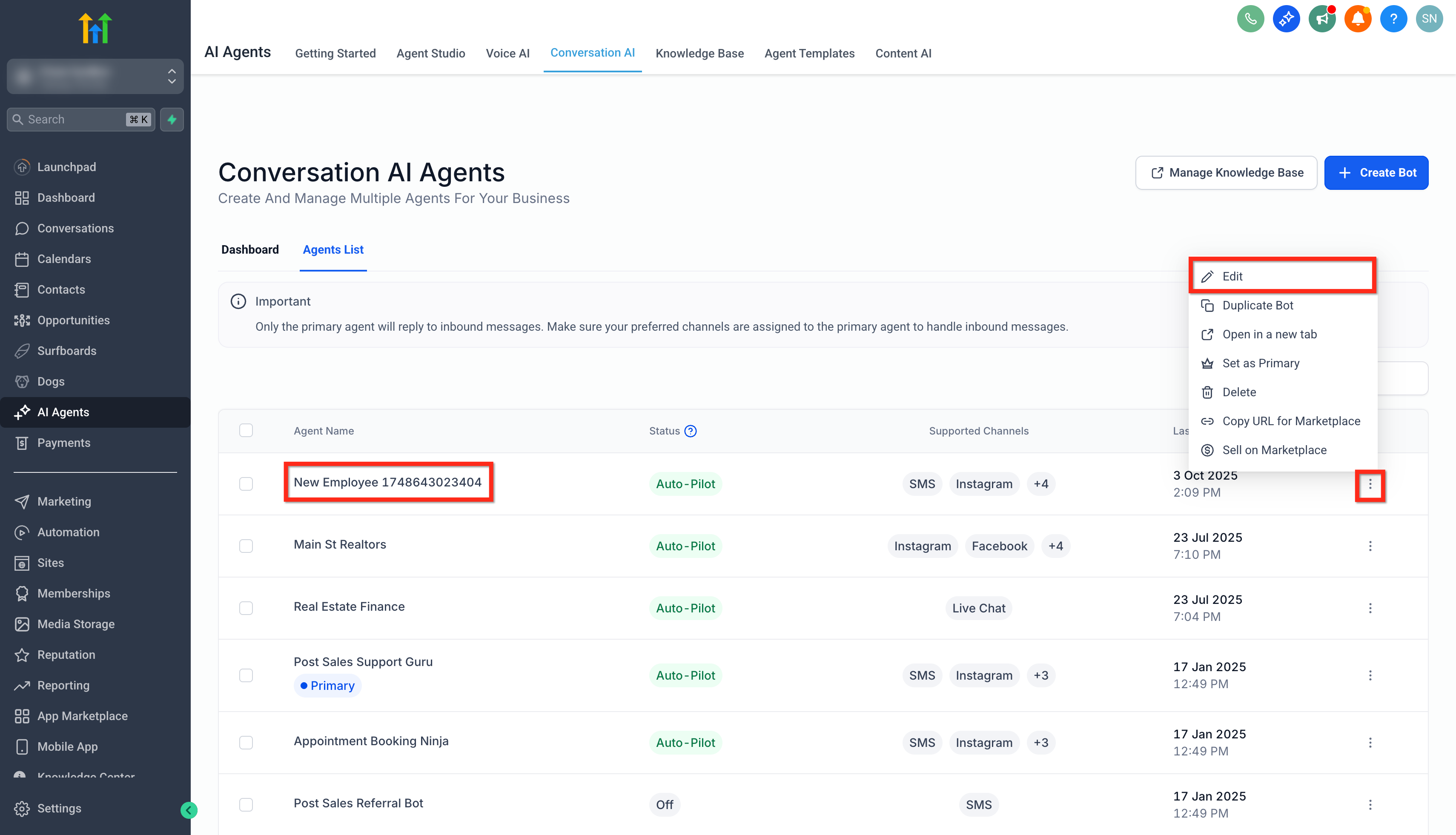
- To edit an existing bot, click the bot’s name, or click the three dots and choose Edit.
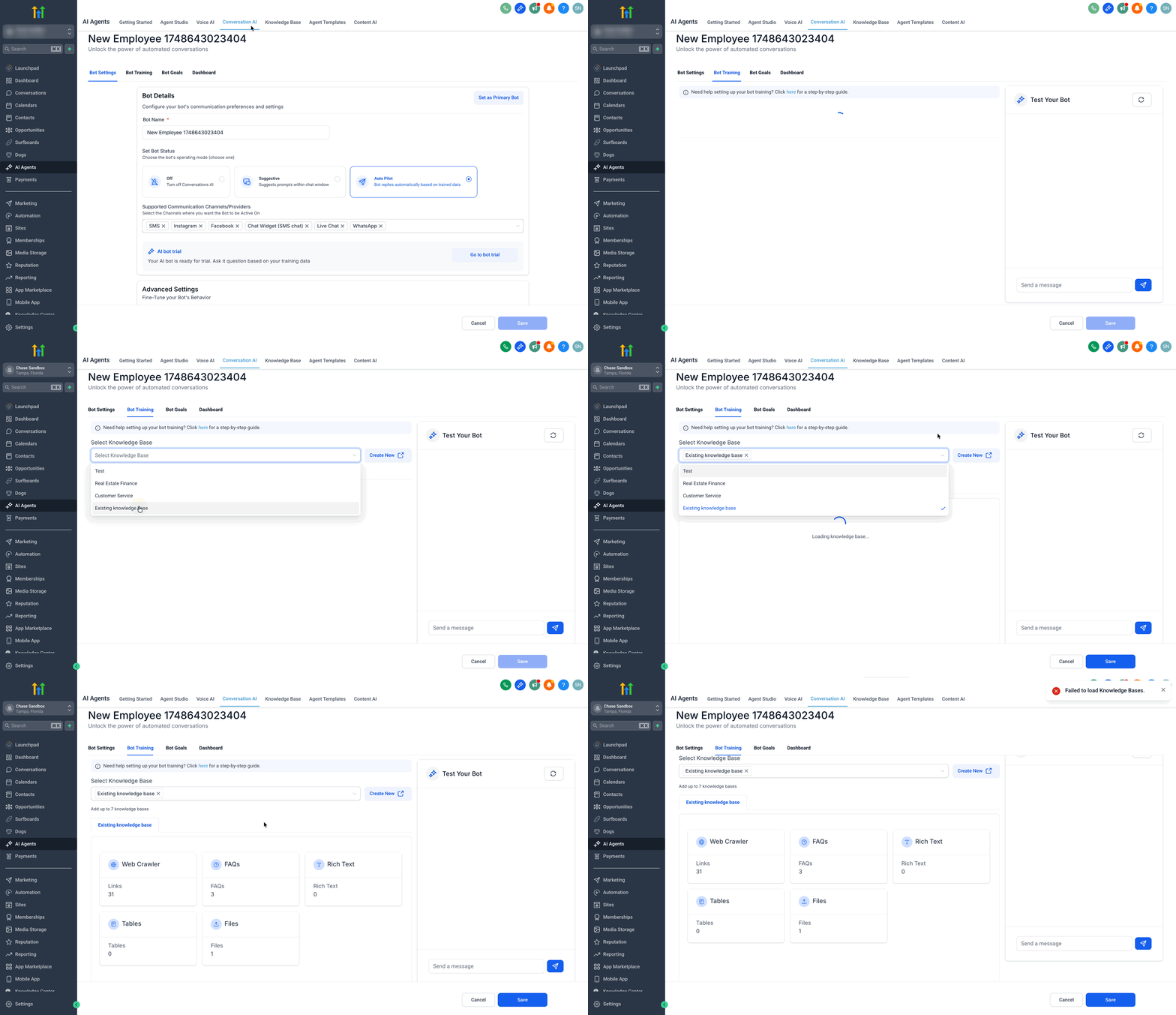
- Click on the Bot Training tab
- In Knowledge Base, select the Knowledge Base you just created or updated (including the new Rich Text, Tables, and Files sources).
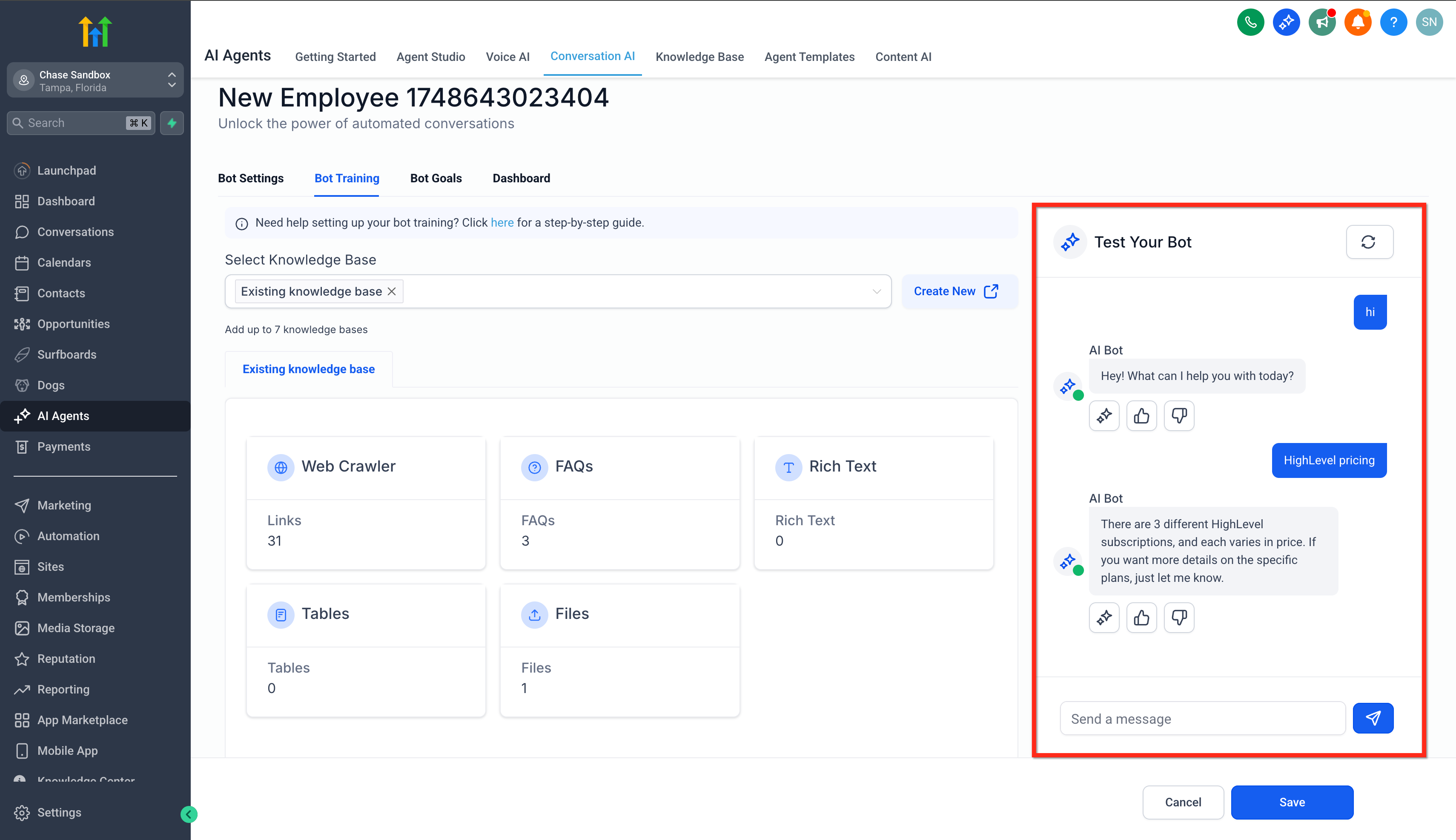
Step 4: Test the Bot with Your Knowledge Base 1. Type a prompt in the Test Your Bot window.
- Ask various questions to get a better idea of what needs to be improved in your knowledge base.
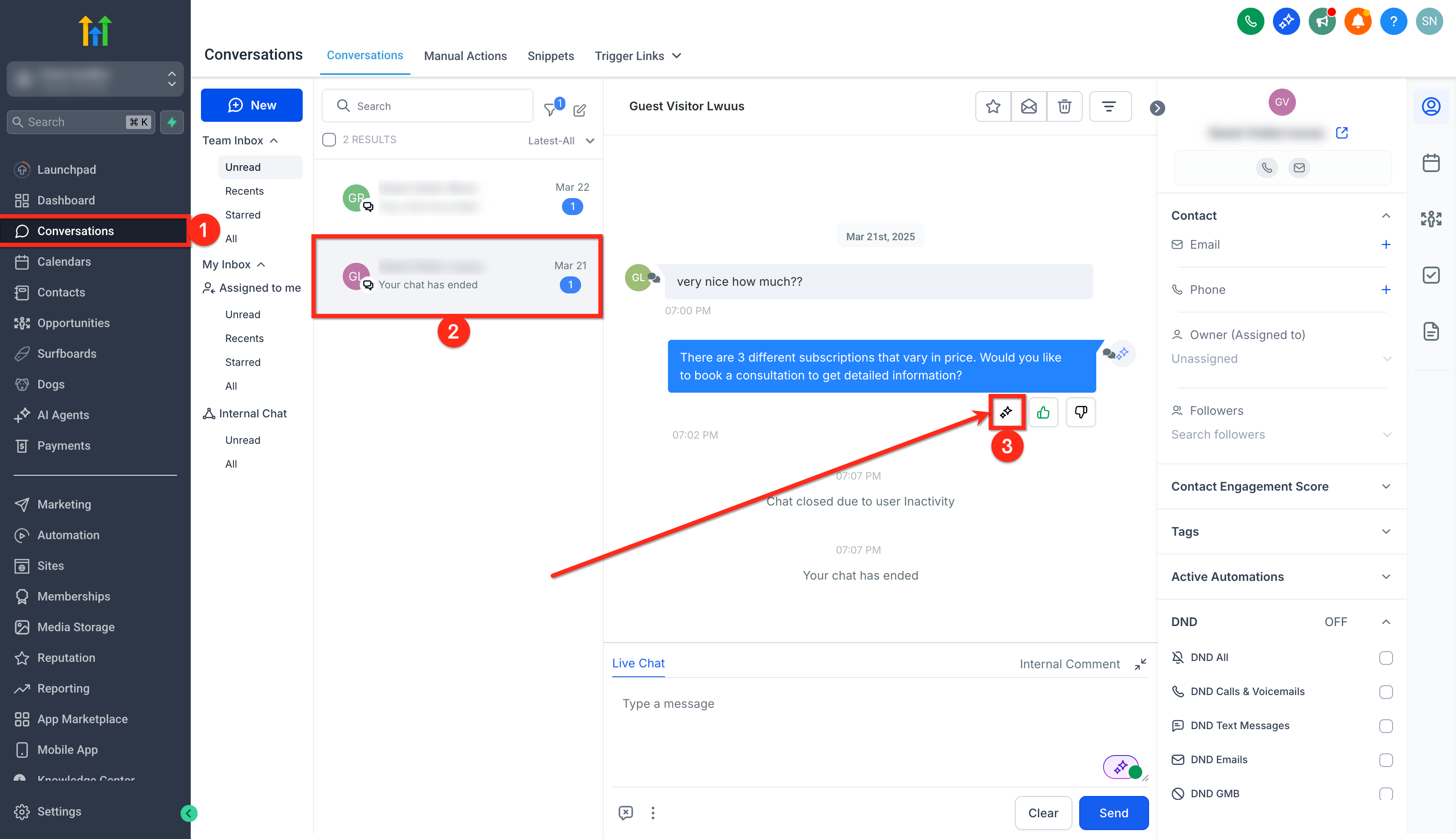
Step 5: Inspect Which Knowledge Chunks Powered the Reply 1. From your sub‑account dashboard, go to Conversations.
- Open a conversation where the Conversation AI bot posted a reply.
- Next to that AI message, click AI Response Info button.
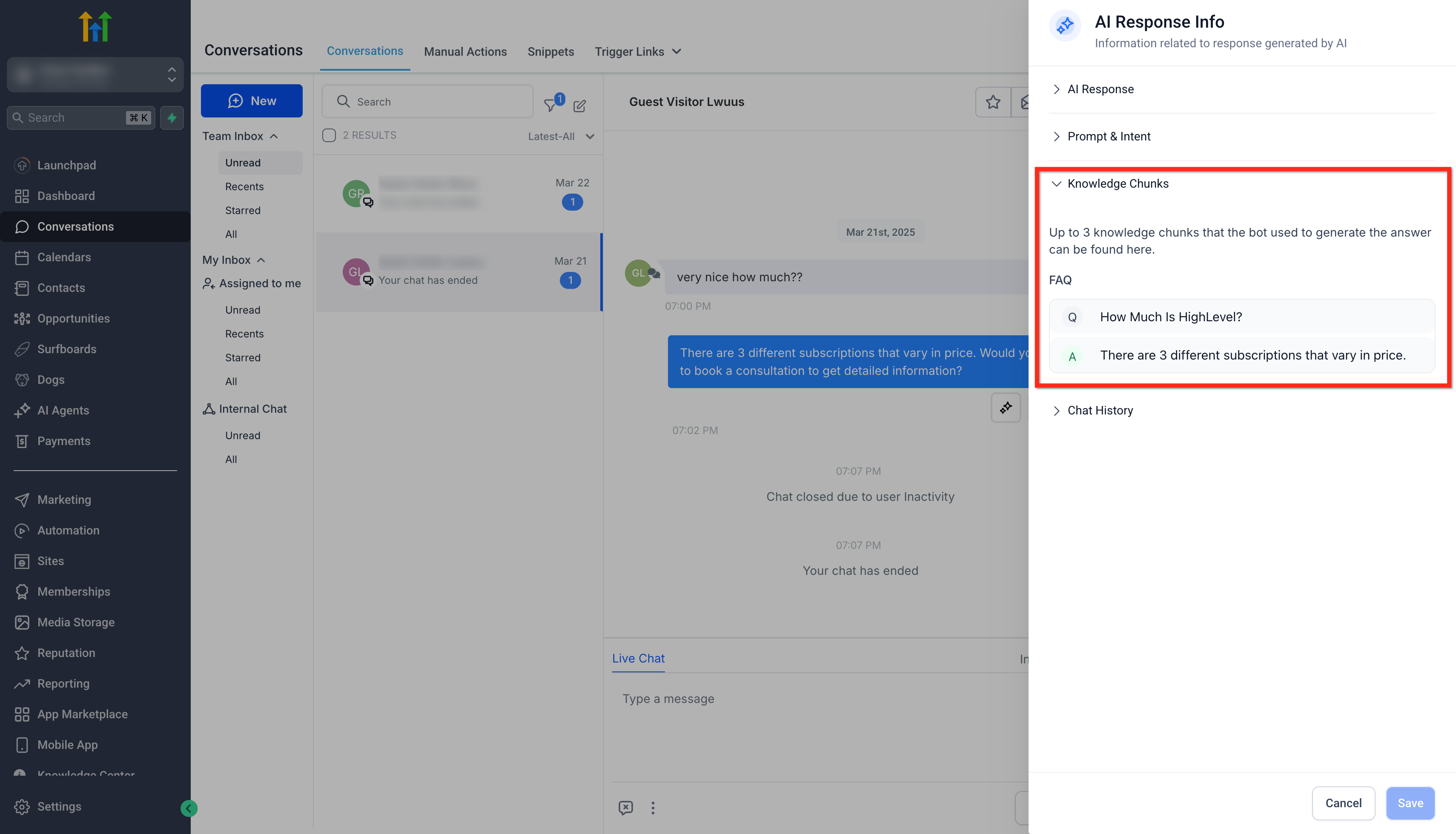
- Open Knowledge Chunks to see up to three chunks used for that answer.
Frequently Asked Questions
Q: Do I need to retrain the bot after adding a file or table?
No. Once saved, the new data is indexed instantly and the re-ranker uses it on the next query. Q: What file types are supported? PDF, DOC/DOCX, PPT/PPTX, TXT, and CSV (for tables). **Q: What is the maximum number of columns that can be parsed in a table? **Import CSV files with up to 500 columns and select the 20 most relevant columns Q: Can I combine tables, rich text, and URLs in one knowledge base? Absolutely. The retrieval pipeline treats every chunk equally, then re-ranks for best match.
Related Articles
- Conversation AI Bot - Explained
- Setting Up Conversation AI
- Training Your Conversation AI Bot
- Conversation AI Agents Dashboard
- How to Use Conversation AI to Book Appointments
- AI Agents Knowledge Base Tables Was this article helpful? That’s Great! Thank you for your feedback Sorry! We couldn’t be helpful Thank you for your feedback Feedback sent We appreciate your effort and will try to fix the article