
Default Headers for Dedicated Sending Domains
A “default header” provides a fallback From Name and From Email for outbound messages sent via a dedicated sending domain for all emails. This ensures deliverability and brand consistency.
Prerequisites
Before you can configure default headers, ensure that:
- You’re in a Sub-Account - Only sub-accounts can add and manage dedicated sending domains and set default headers. Agency-level domains do not support per-sub-account default headers.
- Dedicated Sending Domain Is Added and Validated - You have completed DNS setup (CNAME, DKIM, and SPF) for your custom sending domain (e.g.,
email.yourbrand.com).
- Patient Copilot displays a green checkmark indicating your domain is validated under Settings → Email Service → SMTP Service → Dedicated Domain and IP
You can set up default “From address and Email” for dedicated domains under your account only for the Sub-account created domains. Navigate to Sub-account Settings - Email Service -> SMTP Service -> Dedicated Domain and IP -> Set headers under dedicated domain. **
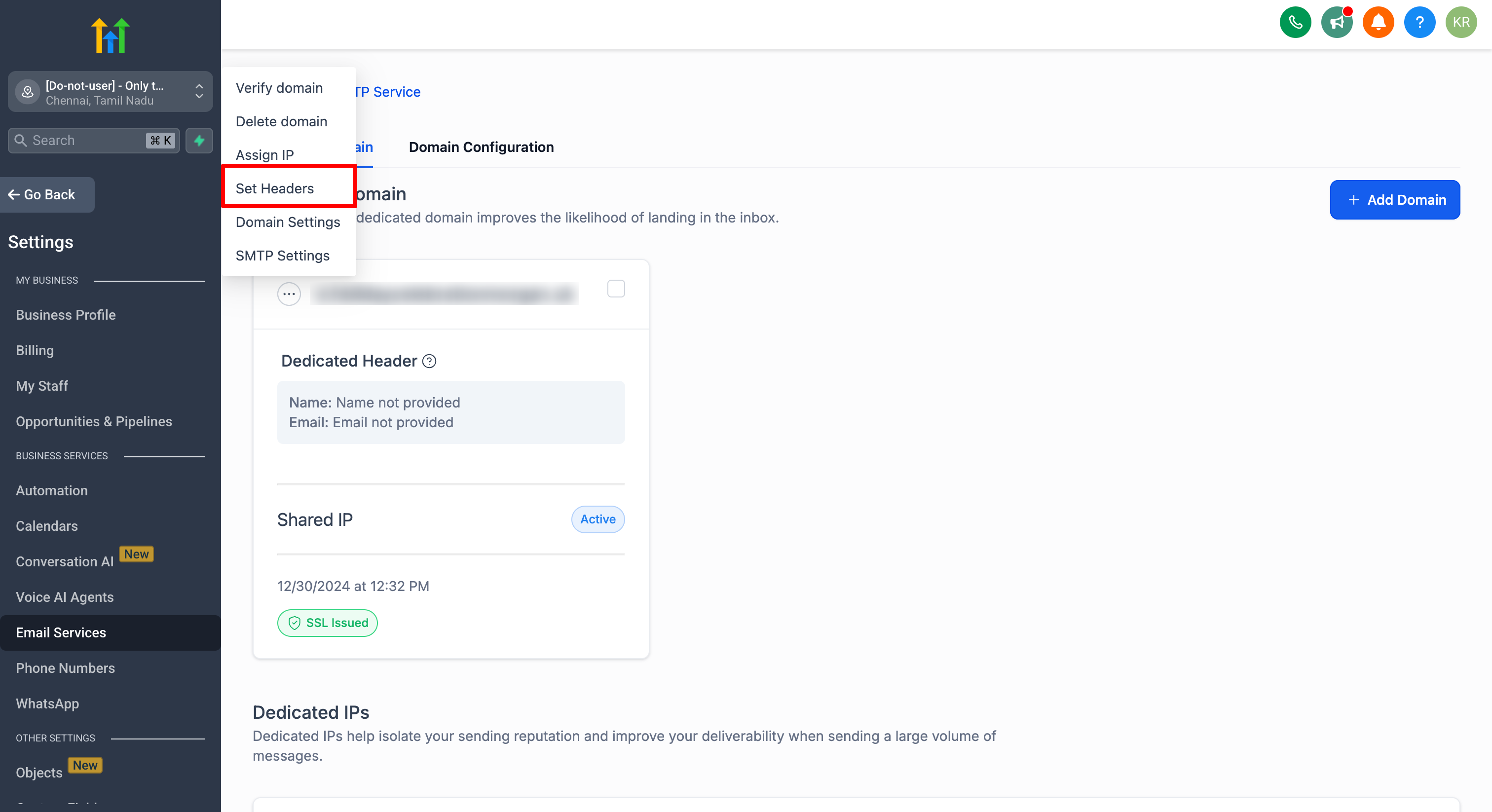
**
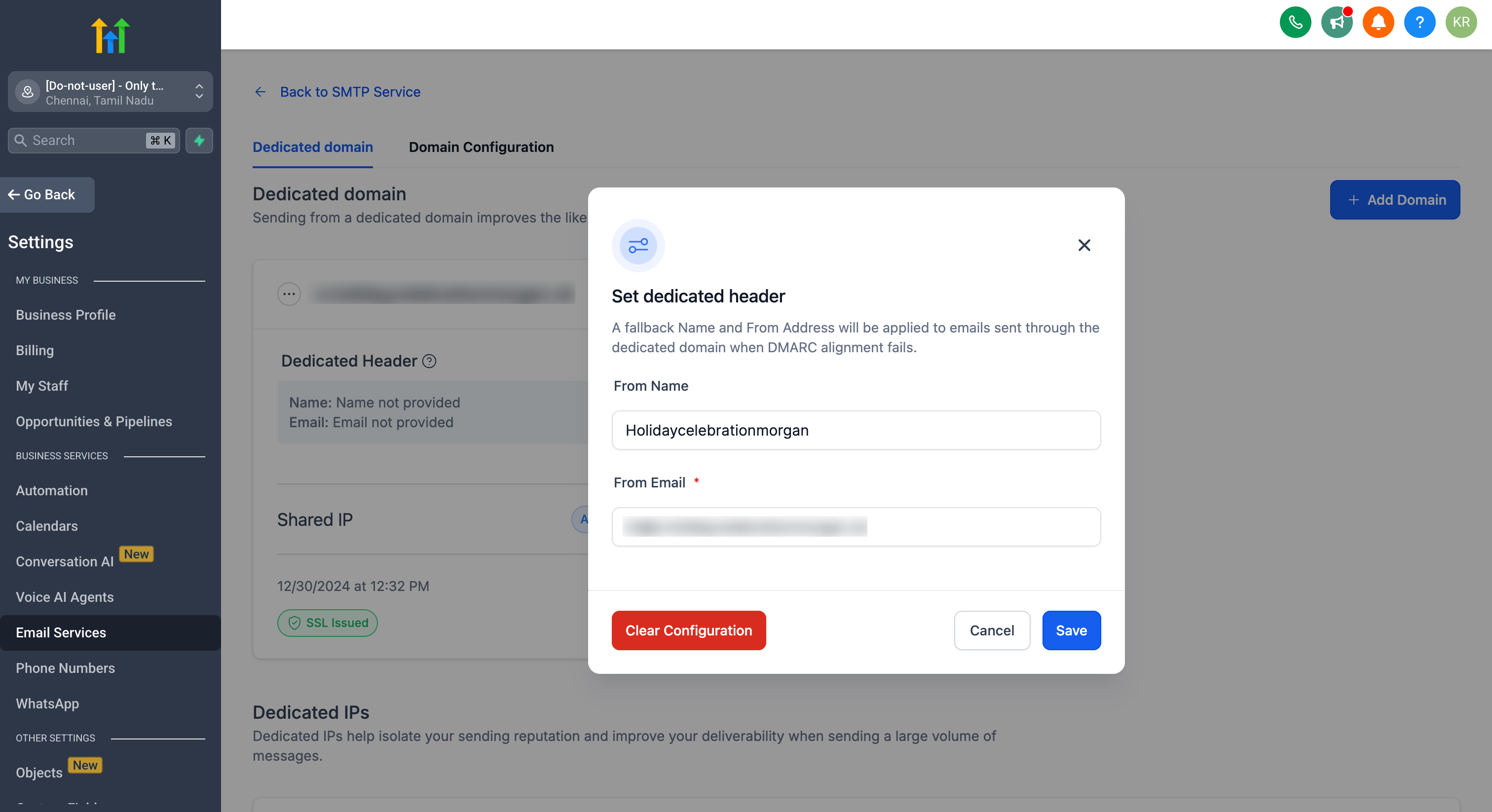
The designated header will be applied to emails sent through the dedicated domain when DMARC alignment fails.
- Campaign Configuration - When creating a broadcast or workflow email, you can set a campaign-level “From Name” and “From Email.
- If you intentionally use a different “From Email” (e.g.,
[email protected]) that does not align with your dedicated domain (email.yourbrand.com), DMARC will fail. 2. DMARC Check & Fallback - At send time, Patient Copilot checks DMARC alignment between the campaign’s “From” address and the sending domain’s DKIM/SPF records. - If alignment passes: The email goes out with the campaign’s chosen “From.
- If alignment fails: Patient Copilot use the default header you configured under that dedicated domain. 3. Recipient Experience - Recipients see a valid “From Name” and “From Email” that matches your authenticated sending domain.
- The email remains DMARC-compliant and is less likely to be rejected or flagged as spam.
Example scenario
- Dedicated sending domain:
email.yourbrand.com(validated) - Default Header From Name:YourBrand Support- Default Header From Email:[email protected]
Broadcast/workflow email configured by the user
- Campaign From Name:
Jane from YourBrand- Campaign From Email:[email protected](does not align withemail.yourbrand.com)
What Happens at Send Time
- If the campaign From Email aligns with the dedicated sending domain, recipients see:
- From:
Jane from YourBrand <[email protected]>(or whatever aligned address you selected) - If the campaign From Email does NOT align and DMARC alignment fails, Patient Copilot applies the Default Header and recipients see: - From:
YourBrand Support <[email protected]>
How to Confirm It Worked
- Send a test email using a non-aligned From Email (domain mismatch).
- Check the received email’s “From” address and confirm it matches the Default Header.
Best Practices & Considerations
- Configure Default Headers Before Sending: Always set up your fallback header prior to launching major campaigns. If DNS or DMARC misconfiguration occurs, your default header will kick in automatically. 2. Monitor Replies: The default “From Email” can be any address at your sending domain, but ensure mailboxes or aliases are monitored (e.g.,
[email protected]forwarding to the correct team). 3. Test Before Scaling: Send a small internal test using a non-aligned “From” address to confirm Patient Copilot defaults properly. Check both inbox placement and DMARC status. 4. Understand Propagation Delays: Changing DNS (especially DKIM/SPF/TXT records) can take up to 48 hours to fully propagate. Without default headers, messages sent during propagation may be rejected. 5. Segregate by Sub-Account: If you manage multiple brands or departments, create separate sub-accounts—each with its own dedicated domain and default headers—for isolated control.
Common Troubleshooting Scenarios
| Issue | Possible Cause | Resolution |
|---|---|---|
| “Set headers” option is not visible | You’re in an agency-level view or the domain is not validated under a sub-account. | Switch to the correct sub-account. Add/validate a dedicated domain in Settings → Email Service → SMTP Service → Dedicated Domain and IP. |
| Emails still failing to send after fallback | DNS records (DKIM/SPF) are incomplete or incorrectly formatted. | Double-check DNS entries for your sending domain. Use online DKIM/SPF validators. Wait for propagation. |
| Fallback header not applied when expected | Campaign “From” address aligns with the sending domain (even if unintended). | Verify the campaign’s “From Email” is genuinely non-aligned (e.g., domain mismatch). Check DMARC reports to confirm failures. |
| Recipients see the wrong “From Name” or “From Email” | The campaign or workflow may hard-code a display name that overrides expectations. | Edit the campaign/workflow “From Name” and “From Email.” Ensure fallback is correctly spelled and free of stray spaces. |
| SSL certificate not issued for the sending domain | Missing or incorrect CNAME/DNS records for domain validation. | In Settings → Dedicated Domain, click “Edit DNS Info” and follow the instructions exactly. Wait for propagation before retrying. |