
Ad Manager: Create Ad campaigns using templates
In this article, we will be discussing in detail about the template library integration with Ad Manager and ways to: 1. Create campaigns using templates from template library 2. Save an existing campaign as a template and upload to template library and briefly illustrate where an agency user or admin can find Ad Manager under Template Library.
How to create a campaign using templates?
Below mentioned are the steps to be followed in order to create a campaign using Ad Manager templates housed in template library. 1. In Ad Manager home screen, the existing “Create Campaign” button is made a dropdown with two options: ‘Start from Scratch’ and ‘Ad Manager Templates’.
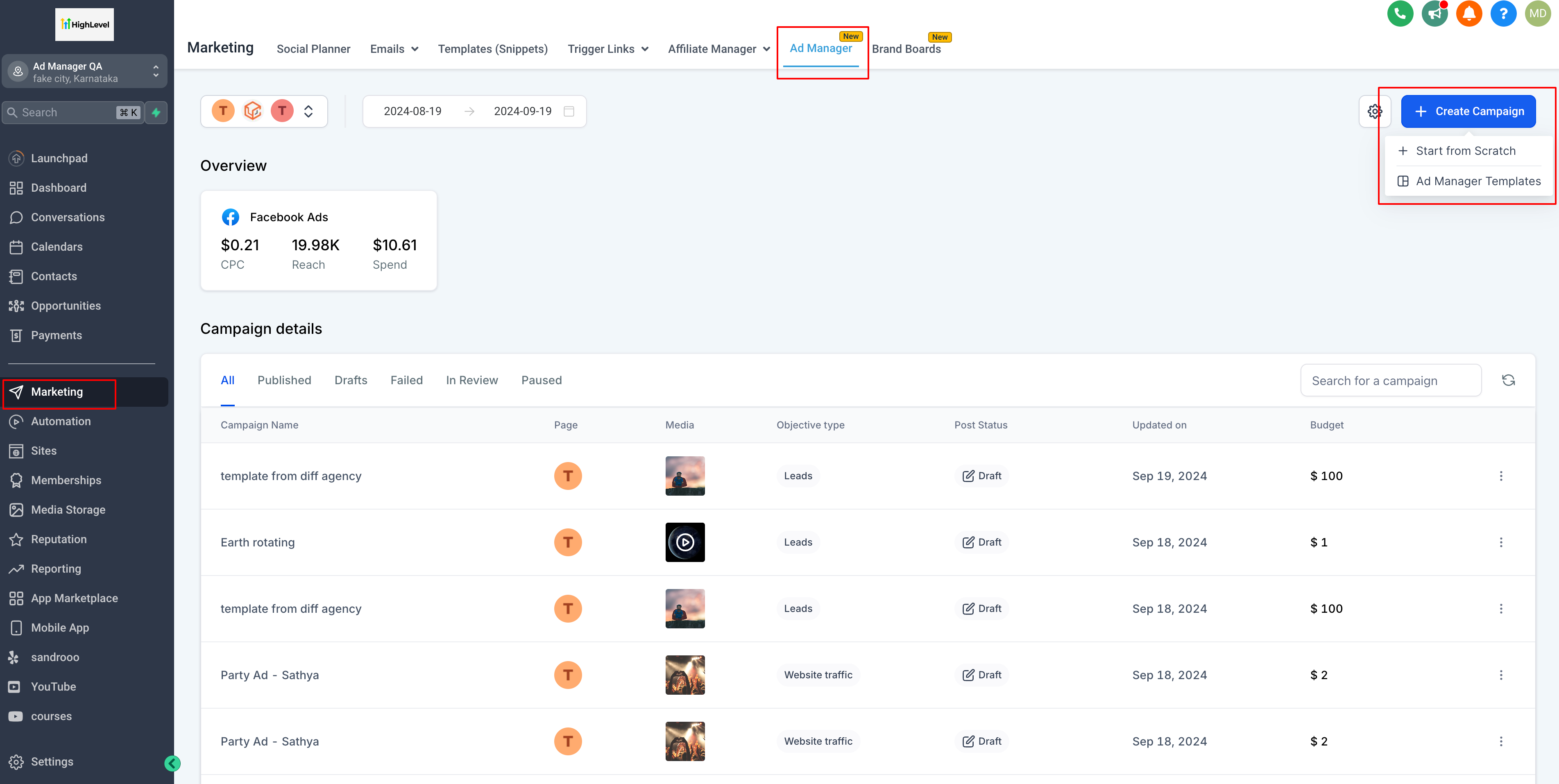
- Click on ‘Start from Scratch’ and the existing flow to create an ad campaign begins.
- Click on ‘Ad Manager Templates’ and a screen pops open to show all the templates.
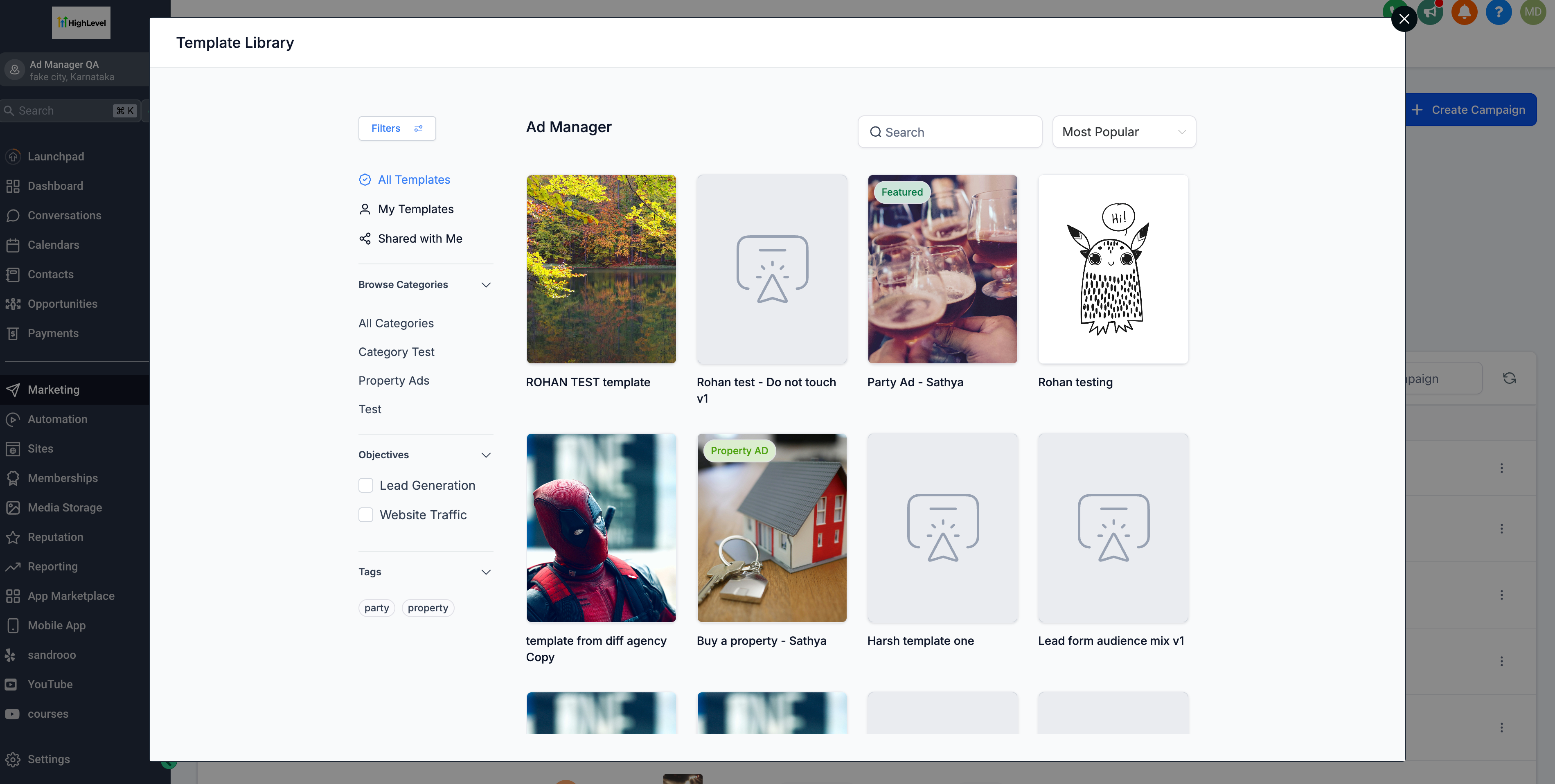
- User selects any one of the template to see a preview of the same and on click of ‘Continue’ the process of adding the template begins.
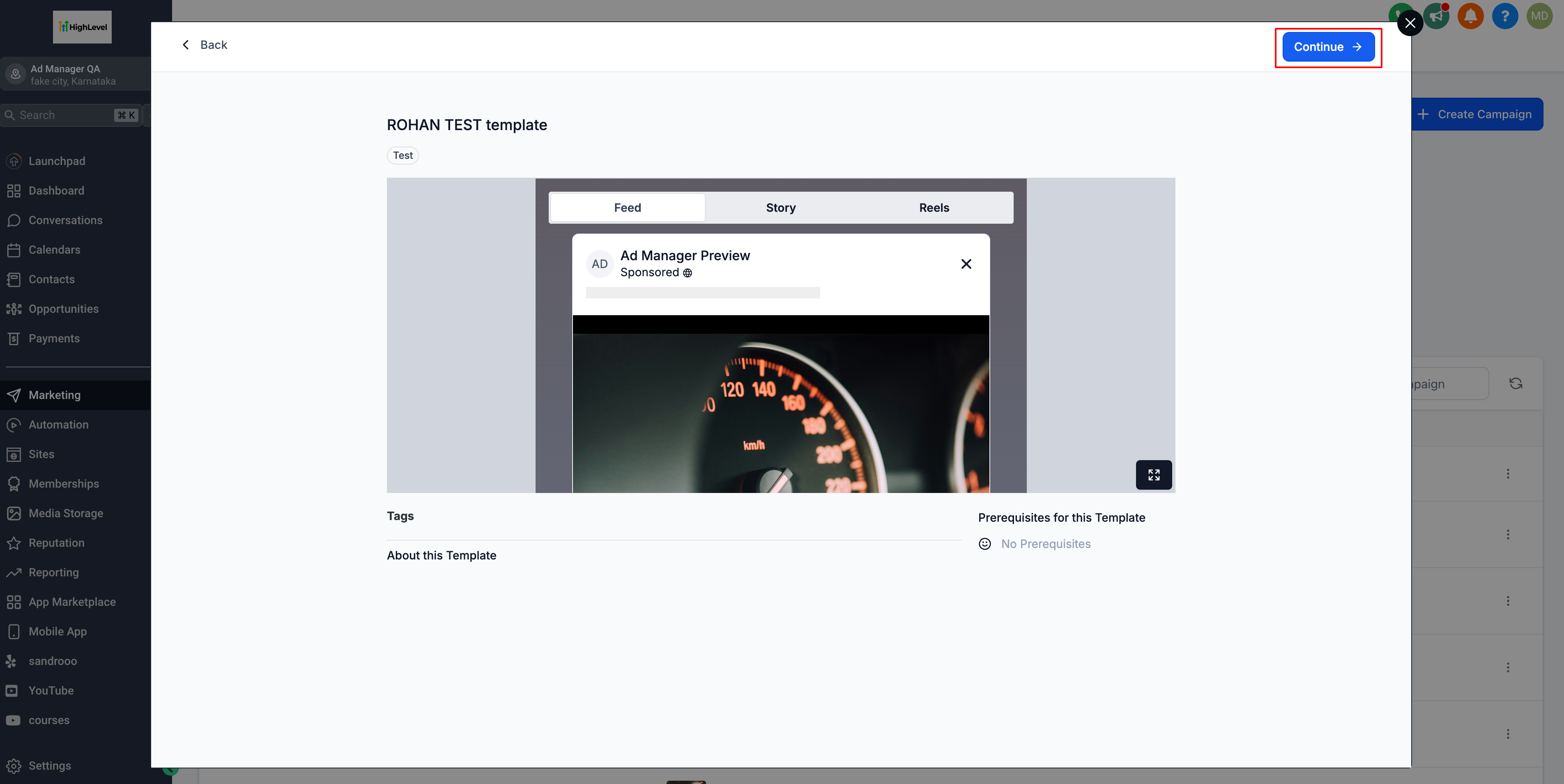
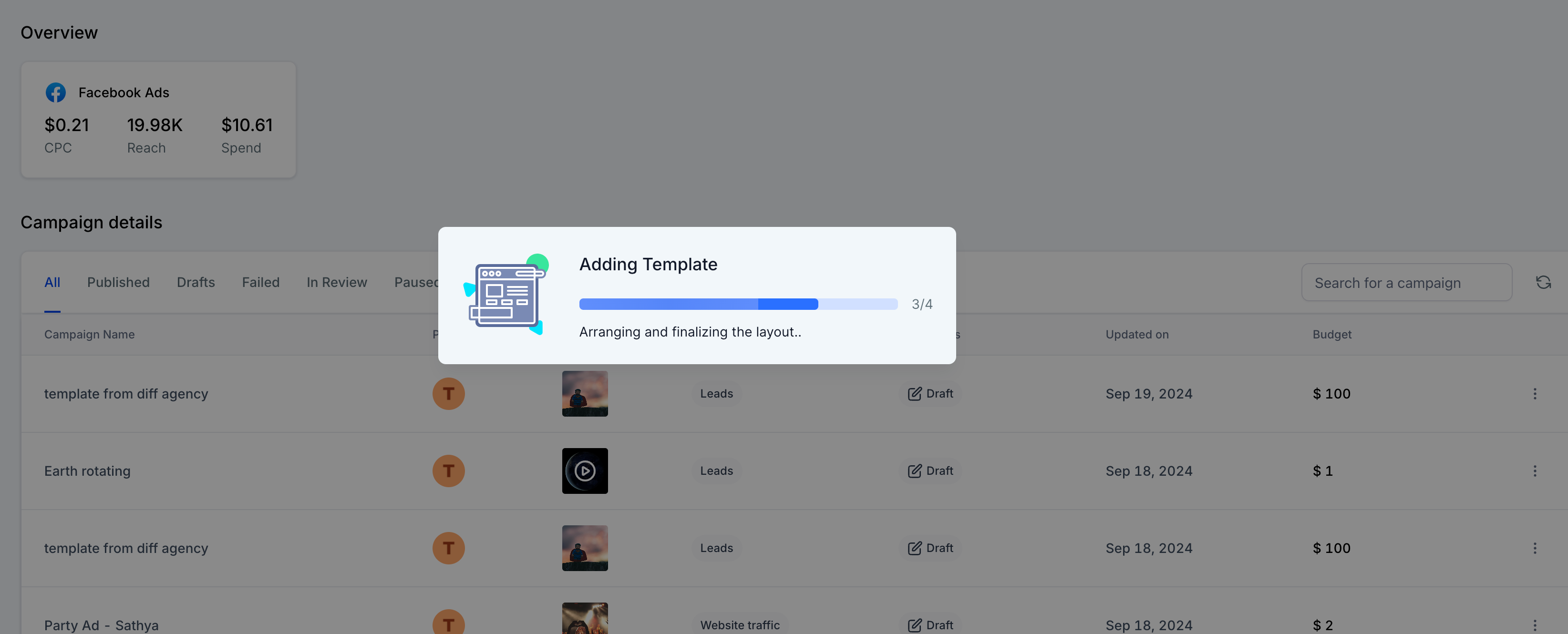
- An ad campaign gets created with all the details pre-filled giving user an option to check the details, assign a Facebook form to the campaign if the objective is lead generation and proceed to publish the ad campaign.
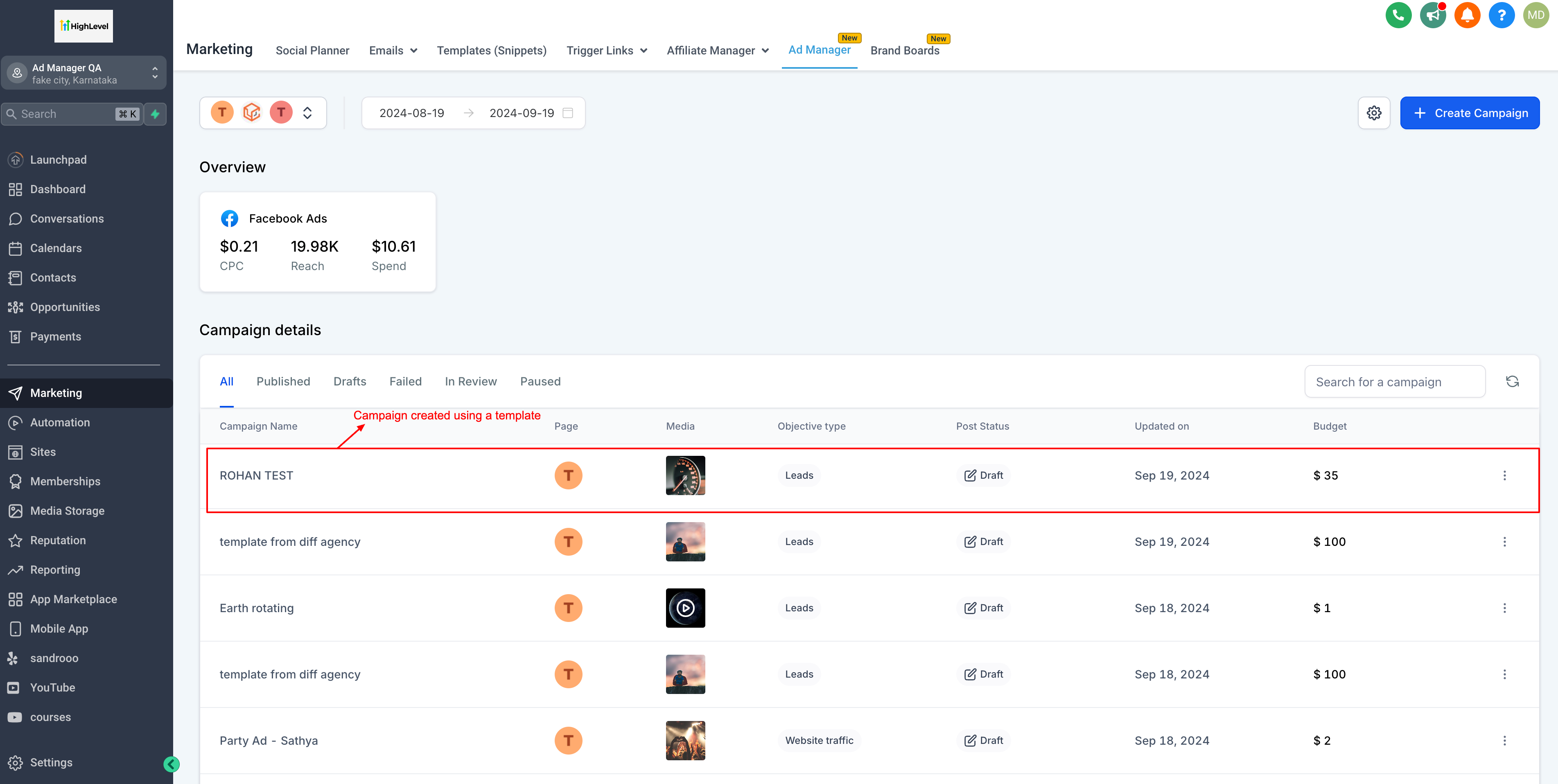
Please Note: Every time a campaign is created using templates, it will not have the following things associated with the campaign and user need to enter it manually before proceeding to publish a campaign: 1. There will be no page associated to the newly created campaign and once user click on edit campaign, the page which is set as the default page will be assigned to this campaign which can be changed by the user if desired. 2. As there will be no page designated to the campaign, it means that the form to be used for ‘Lead Generation’ objective needs to be selected by the user manually.