
Getting Started - Connect Stripe
Ready to simplify your transactions? Stripe integration makes accepting credit card payments, subscriptions, and more straightforward and secure. Let’s walk through setting it up together!
First, head over to your Payments section. This is where all the magic happens—integrating payment gateways to streamline your customer transactions. 1. Navigate to Payments > Integrations. Here, you’ll find popular options like Stripe, PayPal, Authorize.net, NMI, Manual Payment Methods (ex: cash on delivery, COD), and Square.
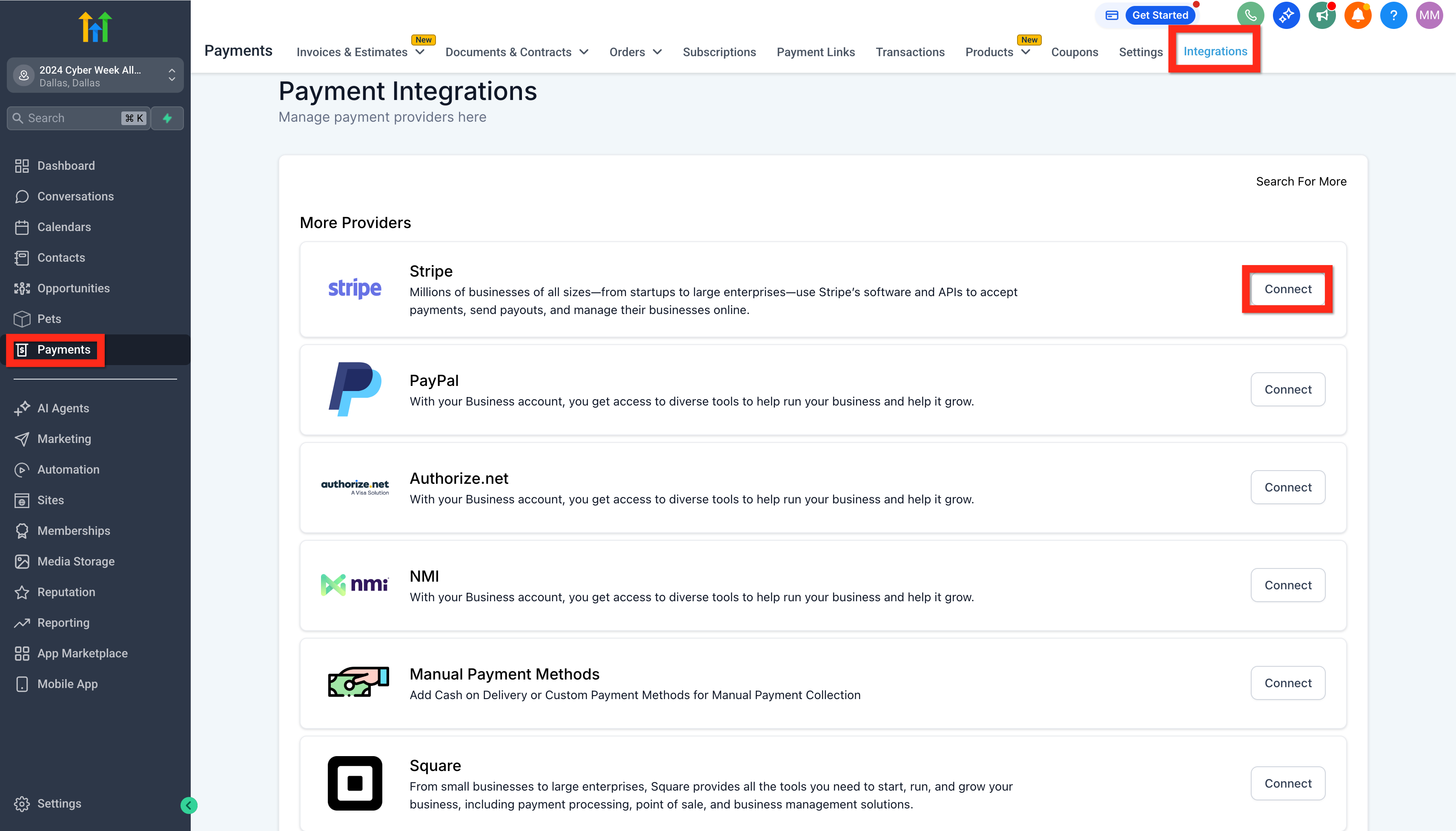
- Click Connect with Stripe. This will direct you to securely log in or create your Stripe account if you haven’t done so already.
- Finally, authorize your Stripe account. This step ensures everything syncs smoothly and securely. When the integration is finished you can click Manage to edit the connection.
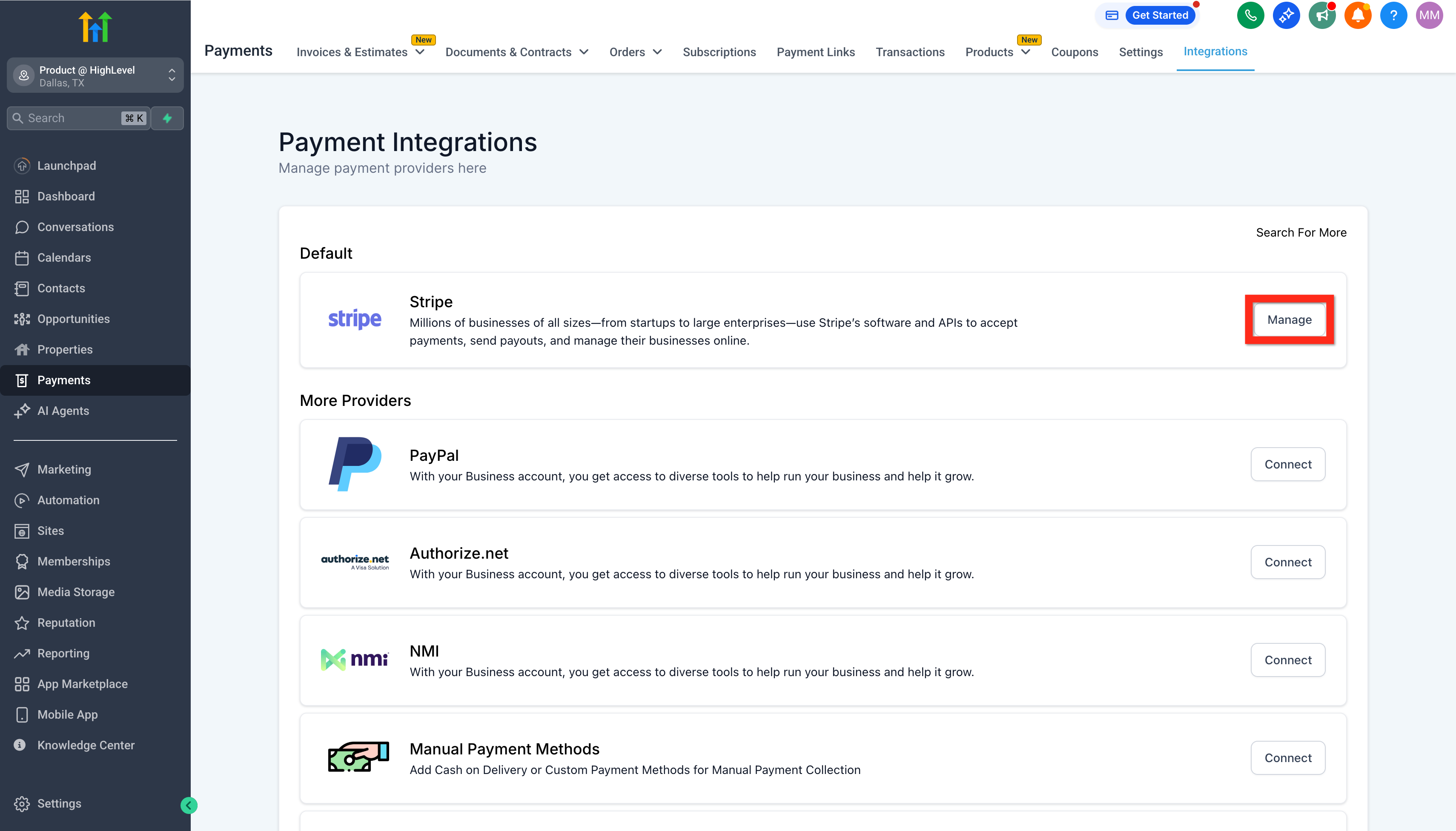
Awesome job! Now your payments are ready to roll. Not using Stripe? You can still sell with other supported gateways (e.g., Authorize.net, NMI, Square, Adyen, Razorpay) depending on the product area, or record one-time invoices without Stripe Connect (manual payment entry). For full parity with Payments reports/receipts, connect a supported gateway. See Supported Payment Providers by Product Area and Manual invoices without Stripe Connect. Next, you can:
- Explore how to connect Stripe at the sub-account level for more tailored control.
- Learn how to import products and pricing directly from Stripe to save you time. Need a deeper dive? Check these out:
- Supported Payment Providers & Methods by Product Area (What Works Where)
- Authorize.net Integration (example non-Stripe gateway)
- Using invoices without Stripe Connect (manual payments) (from “How to send your first invoice…”)
Frequently Asked Questions
Q: Can I connect more than one Stripe account?
Each Patient Copilot sub-account supports a connection to one Stripe account at a time. If you manage multiple brands or businesses, create separate sub-accounts and connect a different Stripe account to each one. **Q.Can I track Stripe payments in Patient Copilot without connecting Stripe via OAuth?**Not automatically. Payments created directly in Stripe won’t sync into Patient Copilot unless Stripe is connected. You can issue manual one-time invoices without Stripe Connect (you’ll record the payment yourself), but automated charge syncing and Payments reporting require a connected provider. **Q. Can a third-party (e.g., Easify) push purchase events into Patient Copilot via API or webhooks for attribution? **Yes, with limits. Third-party tools can POST events to Patient Copilot using the public API or send data via Webhooks/Zapier to update the contact, tags, and opportunity values for pipeline/revenue attribution. This approach helps marketing attribution and sales reporting but does not create Patient Copilot “Payments” records/receipts unless the sale runs through a connected payment provider or a custom payments integration. Q. Is there an API-based alternative to avoid a full Stripe login while still recording payments in the Payments area? Build or use a custom payments integration. Patient Copilot supports building a provider that plugs into checkouts, subscriptions, saved methods, and Payments reporting—no Stripe OAuth required. This is a developer path and is separate from manual invoices. Q. What are the recommended non-Stripe processors that integrate cleanly with Patient Copilot? Patient Copilot supports multiple gateways by product area (e.g., Authorize.net, NMI, Square, Adyen, Razorpay, PayPal buttons). Check the official “What Works Where” matrix and each provider’s setup guide to confirm support for order forms, invoices, subscriptions, etc. Q: What permissions do I need in Stripe to complete the connection? You must have admin-level access or the proper permissions in Stripe to authorize integrations. If you cannot approve the connection, ask the Stripe account owner to adjust your permission level. Q: Will existing payments in Stripe show up in Patient Copilot after I connect? No. Patient Copilot only tracks new transactions created through Patient Copilot after the integration. Payments made directly inside Stripe before connecting your account will not sync into Patient Copilot. Q: What currencies can I accept with Stripe in Patient Copilot? Supported currencies depend on your Stripe account’s country and the currencies enabled in that Stripe account. Patient Copilot sends the transaction data to Stripe, and Stripe processes it using the currencies you have enabled. Q: Can I test payments using Stripe’s test mode? Yes. Stripe’s test mode allows you to simulate payments without charging real cards. These test payments won’t appear in live reporting, so switch back to live mode when you’re ready to accept real payments. Q: How do I send product info to Stripe? Product details created inside Patient Copilot are automatically sent to Stripe when a customer completes a purchase. Patient Copilot transmits the product name, price, and transaction data during checkout.