
SIM-based calling with the Mobile App
Skip the copy-paste and dial leads straight from Patient Copilot or Patient Copilot using the mobile number already on your phone plan. SIM-based calling launches your device’s native dialer with the contact’s digits pre-filled, so you can act on opportunities the moment you see them—no business number or extra setup required.
What Is SIM-Based Calling?
SIM-based calling is a one-tap shortcut that hands a lead’s phone number from the Patient Copilot mobile app to your phone’s built-in dialer. Because the call routes through your personal or carrier-issued SIM, you can start conversations even if your workspace hasn’t purchased a dedicated business line. Important: This will work only when an Phone System is not purchased and active at the sub-account level. Once Phone System is setup, SIM-based calling is no longer available.
Key Benefits of SIM-Based Calling
Empower your team with friction-free outreach while you work toward a full Voice setup.
- Zero Setup: Works automatically before enabling Phone System
- Faster Outreach: One tap launches the dialer with the number pre‑filled, no copy & paste
- Carrier Billing: Uses your existing SIM phone billing plan
- Mobile First Experience: Perfect for users who live inside the app
- Bridges the Gap: Teams can start calling today and upgrade to built-in business numbers later
Prerequisites & Limitations
- No Phone System number must exist at the sub‑account level. Once a number is purchased, SIM calling is no longer available
- Standard carrier minutes/charges apply. Calls are not billed through Phone System or Patient Copilot
- No call recording, transfer, or analytics are available (these rely on Phone System)
- Manual logging is required to track SIM-based calls in Patient Copilot
Where You Can Place SIM‑based Calls
Find the Call icon wherever phone numbers surface in the mobile app. This includes:
- Contacts: Top-right of the profile header
- Opportunities: Inside the Kanban card and detail view
- Conversations: Quick-action toolbar above each thread
Manuel Call Logging
SIM calls are not auto-logged inside Patient Copilot. Track outcomes manually so your pipeline stays accurate. Here are three easy ways to capture every outcome:
- Tap Notes on the contact profile to record outcomes
- Workflow Action - Log External Call: Log External Call to attribute manual notes to reporting fields. To learn more, see: Workflow Action - Log External Call
- Workflow Action - Manual Call: Manual Call to schedule follow‑ups. To learn more, see: Workflow Action - Manual Call
How to Place a SIM-Based Call
Follow these three moves—no settings to toggle. 1. Open Contacts, Opportunities, or Conversations 2. Tap the phone icon next to the lead’s number
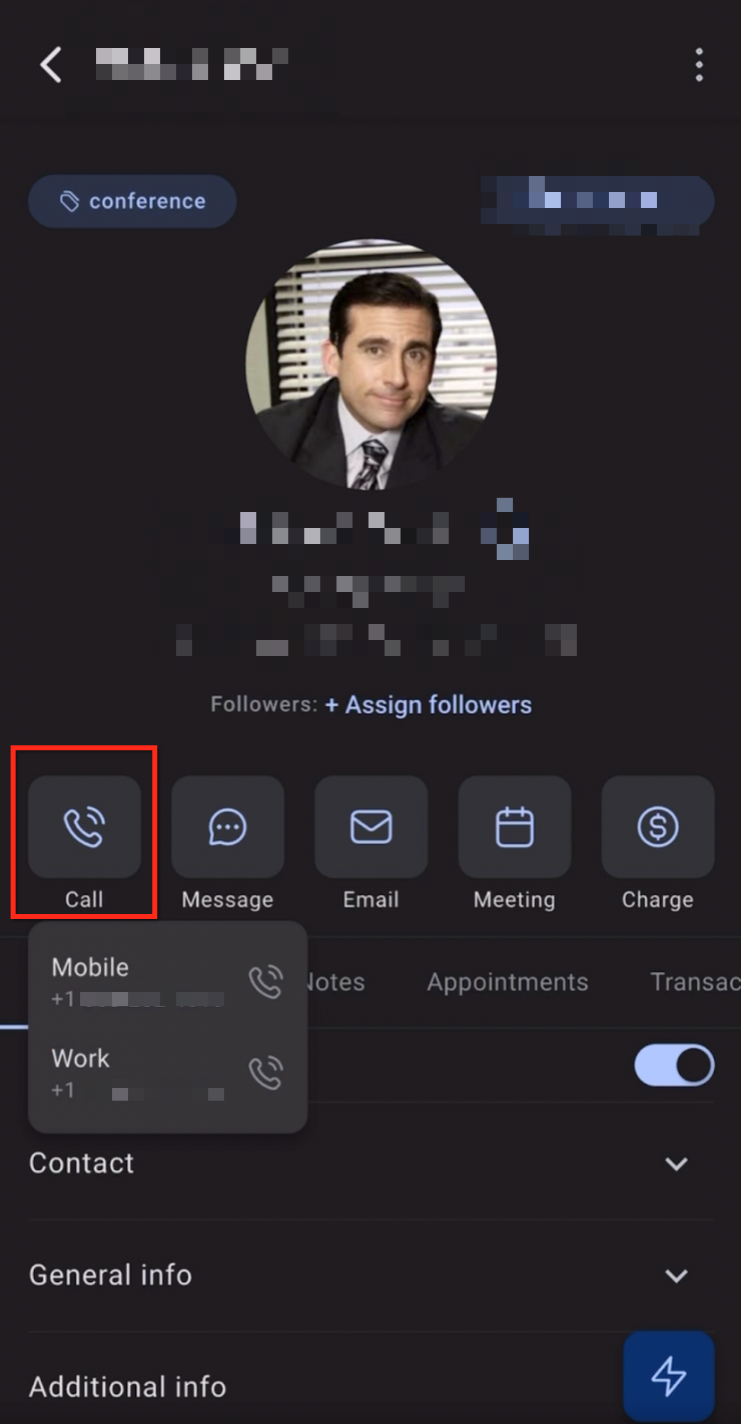
- Your device’s dialer pops up with the number pre-filled. Just press the Number to place the call
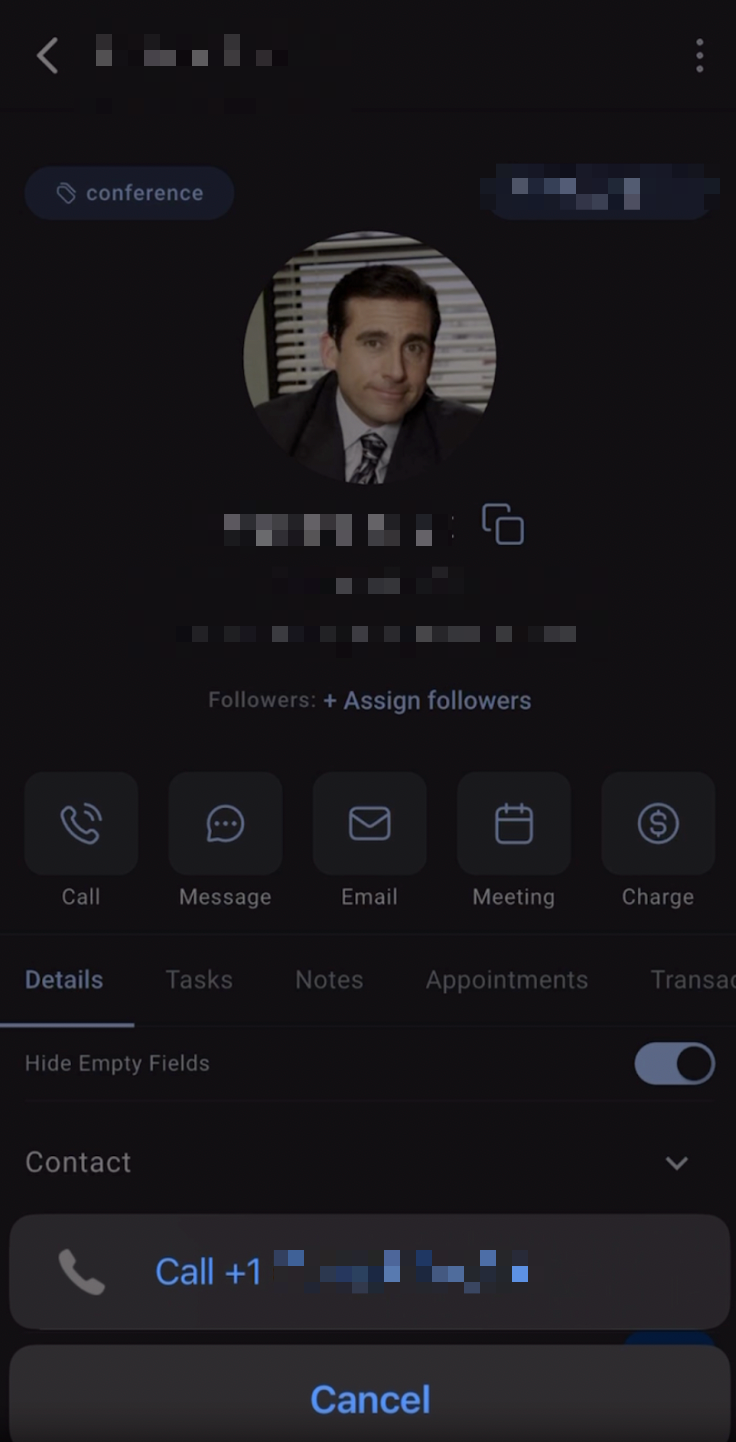
That’s it! The call uses your carrier minutes or unlimited plan just like any personal call.
Frequently Asked Questions
Q: Does this feature cost anything extra?
No. Calls use your existing mobile plan minutes or VoLTE data. Nothing is billed through Patient Copilot. Q: Will contacts see my personal caller ID? Yes. Because the call originates from your SIM, recipients will see the name or number attached to your carrier line. Q: Will Patient Copilot log my SIM‑based calls? A: Automatic logging is only available for Phone System (VoIP) calls. SIM calls use your carrier network and calls are not logged automatically through Patient Copilot. This must be done manually. Q: The option to place a SIM-based call disappeared after I bought a Phone System number—why? When an Phone System number is active in a sub‑account, the mobile app defaults to VoIP calling and SIM-based calling is no longer available. SIM-based calling is only meant to be a bridge to use while setting up Phone System.