
Live Rooms in Communities Events
Hosting events in Patient Copilot Communities now includes a built-in Live Room option, making it easier to schedule and run live sessions directly from Community Events. Admins and owners can use Live Room for a native Patient Copilot experience or continue using Zoom, Google Meet, or another custom meeting link. This article explains how Live Room works in Community Events, when to use each location type, and how to set up your next workshop, Q&A, coaching call, or launch event.
Live Room Experience
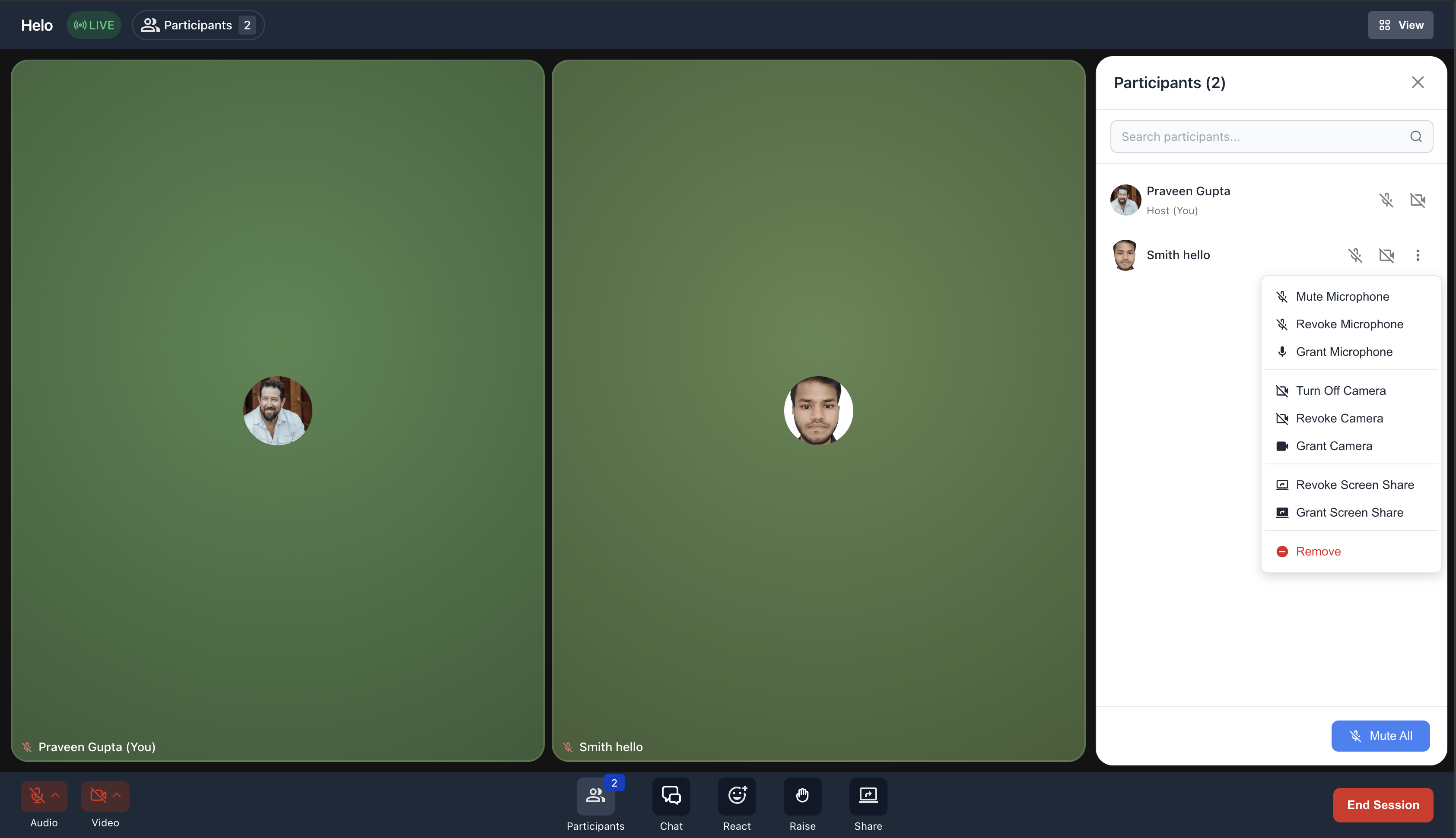
Live Room gives hosts and members an interactive meeting space connected to the Community Event. This helps keep the live conversation, event context, and follow-up activity close to the Community where members are already engaging. Live Room uses the Go Live meeting experience, which includes:
- Video and audio participation
- Speaker and Gallery-style layouts
- Screen sharing
- Real-time chat
- Emoji reactions
- Raise hand
- Host and attendee roles
- Host permissions to manage participant access and session controls
Attendee Join and Registration Experience
A clear attendee flow reduces confusion before the event starts. Community Events help members find upcoming events, register, add events to their calendar, receive reminders, and join from the same Community experience. Members can:
- Discover events from the group’s Events tab.
- Register for events they want to attend.
- Add events to Google Calendar or iCal.
- Receive in-app notifications and email reminders for upcoming events.
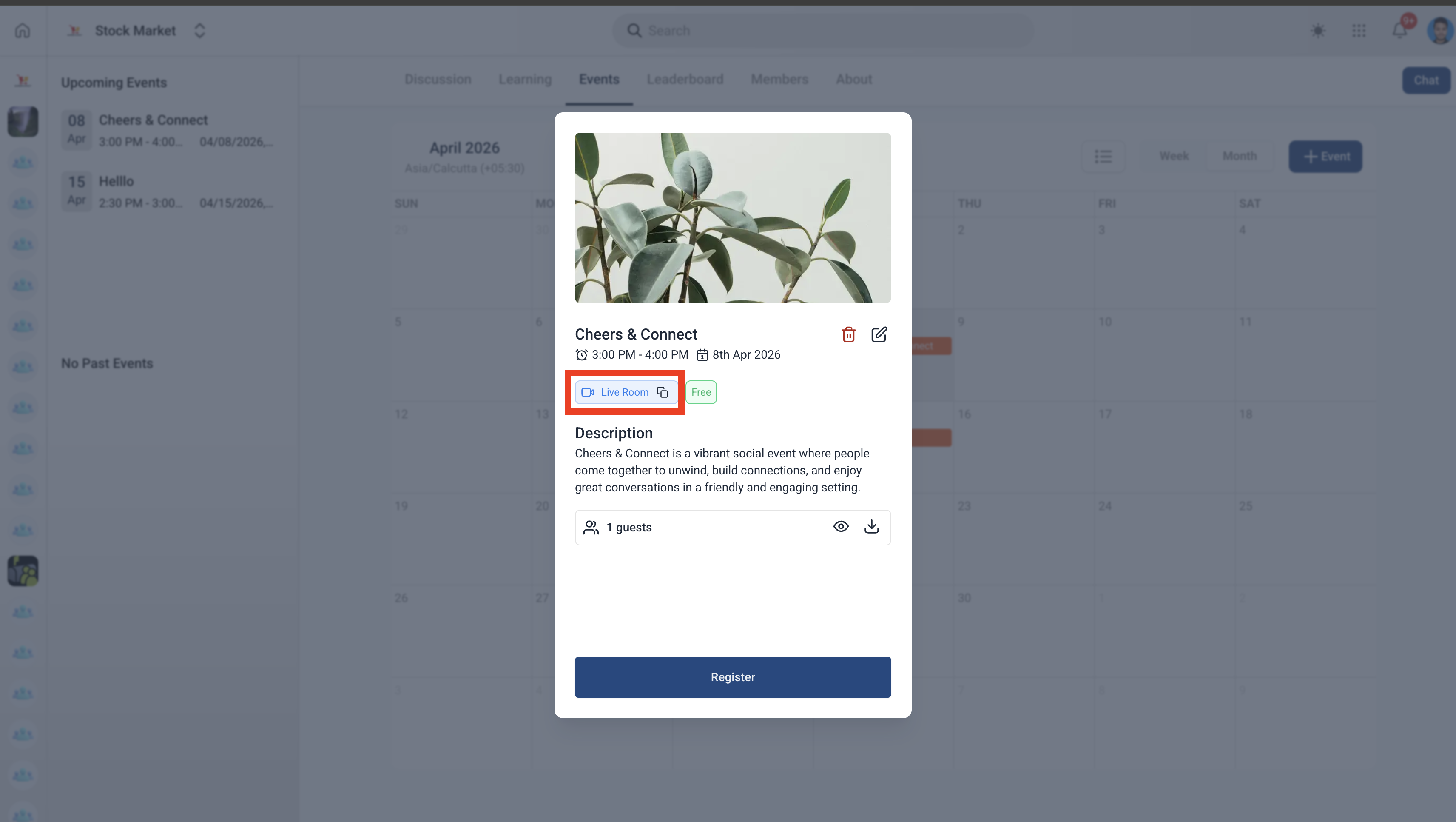
- Join Live Room events directly from the event page.
- Open the configured external link for Zoom, Meet, or Other events.
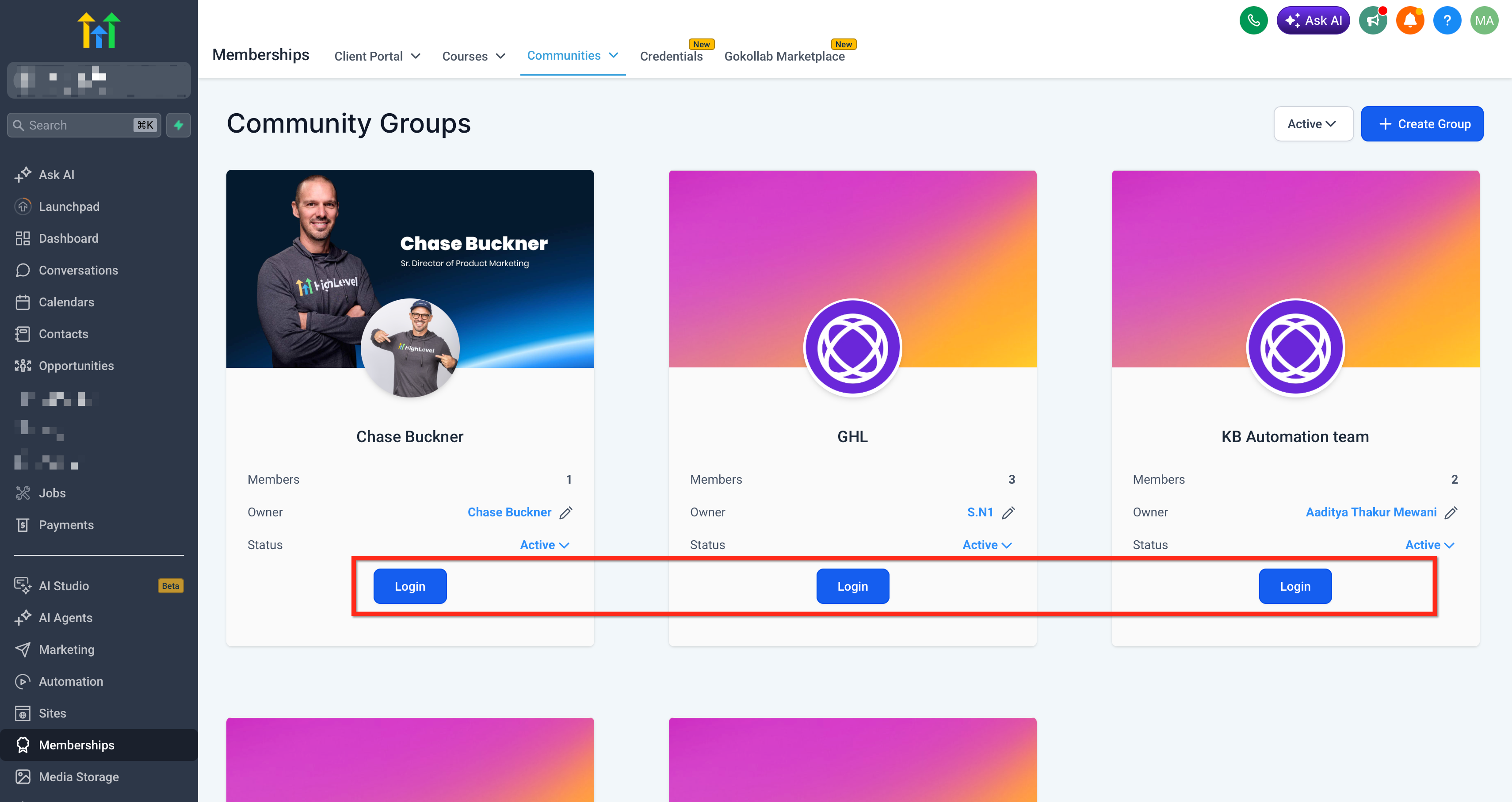
A proper setup helps members quickly understand the event, register, and join from the correct location when the session starts. Live Room uses the standard Community Event creation flow, while Zoom, Google Meet, and custom links remain available for events that need an external meeting platform. 1. Go to Memberships → Communities → Groups. Click Login on the group where you want to create the event.
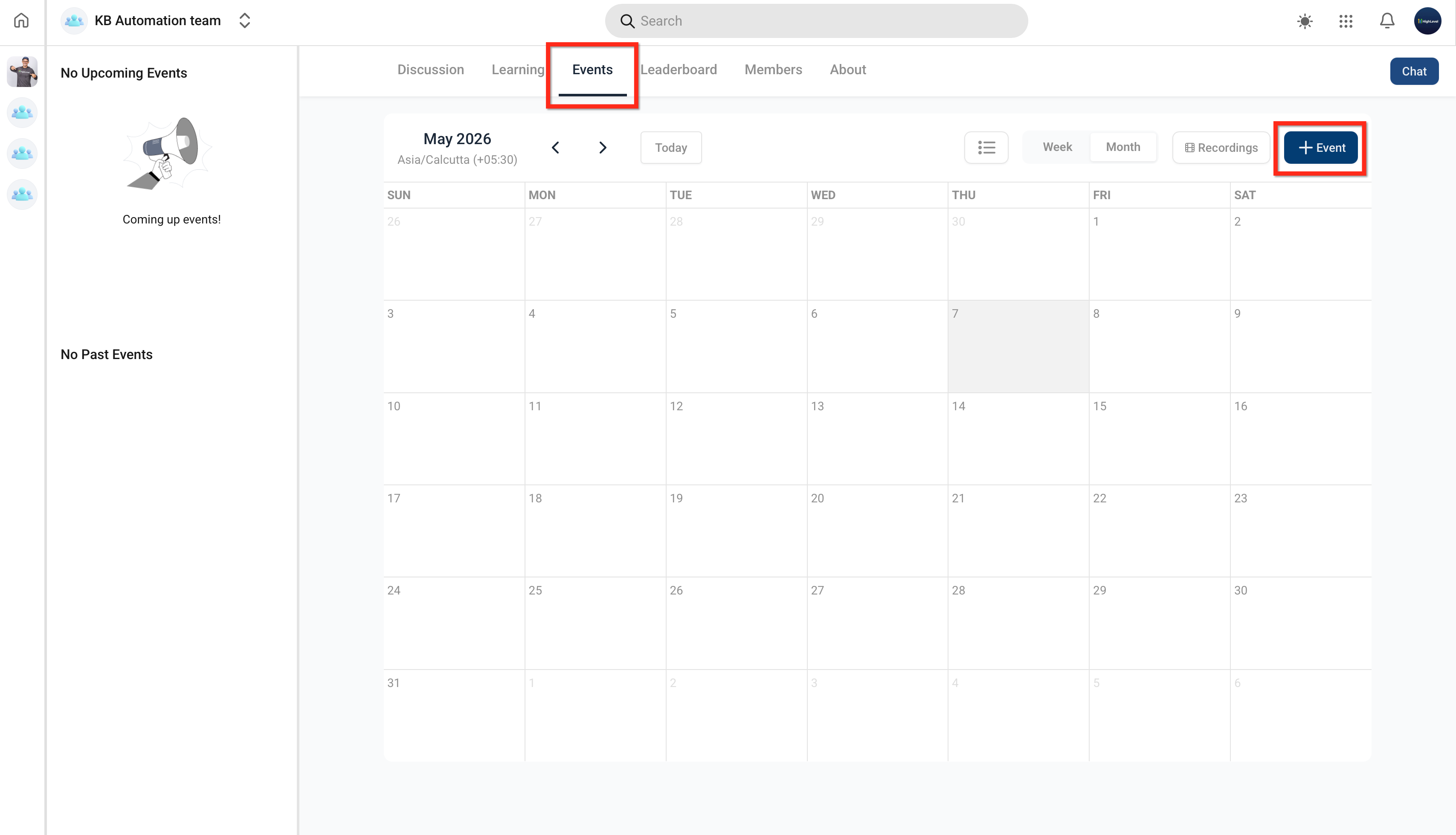
- Open the Events tab. Click Create Event.
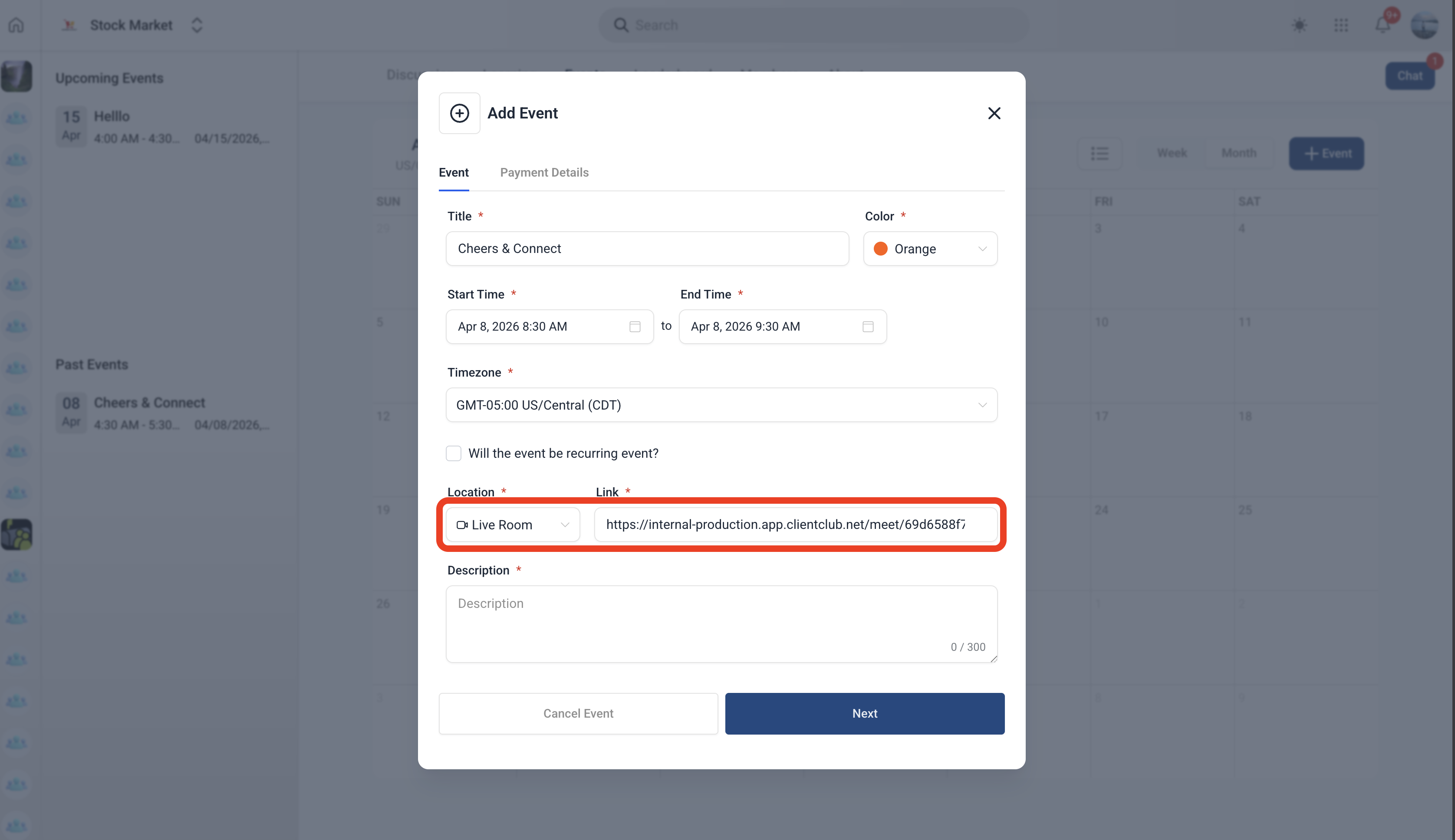
- Enter the event title, description, date, time, duration, and timezone. Add an event image or banner if needed. Find the Location type field and select Live Room to host the event directly inside Patient Copilot Communities.
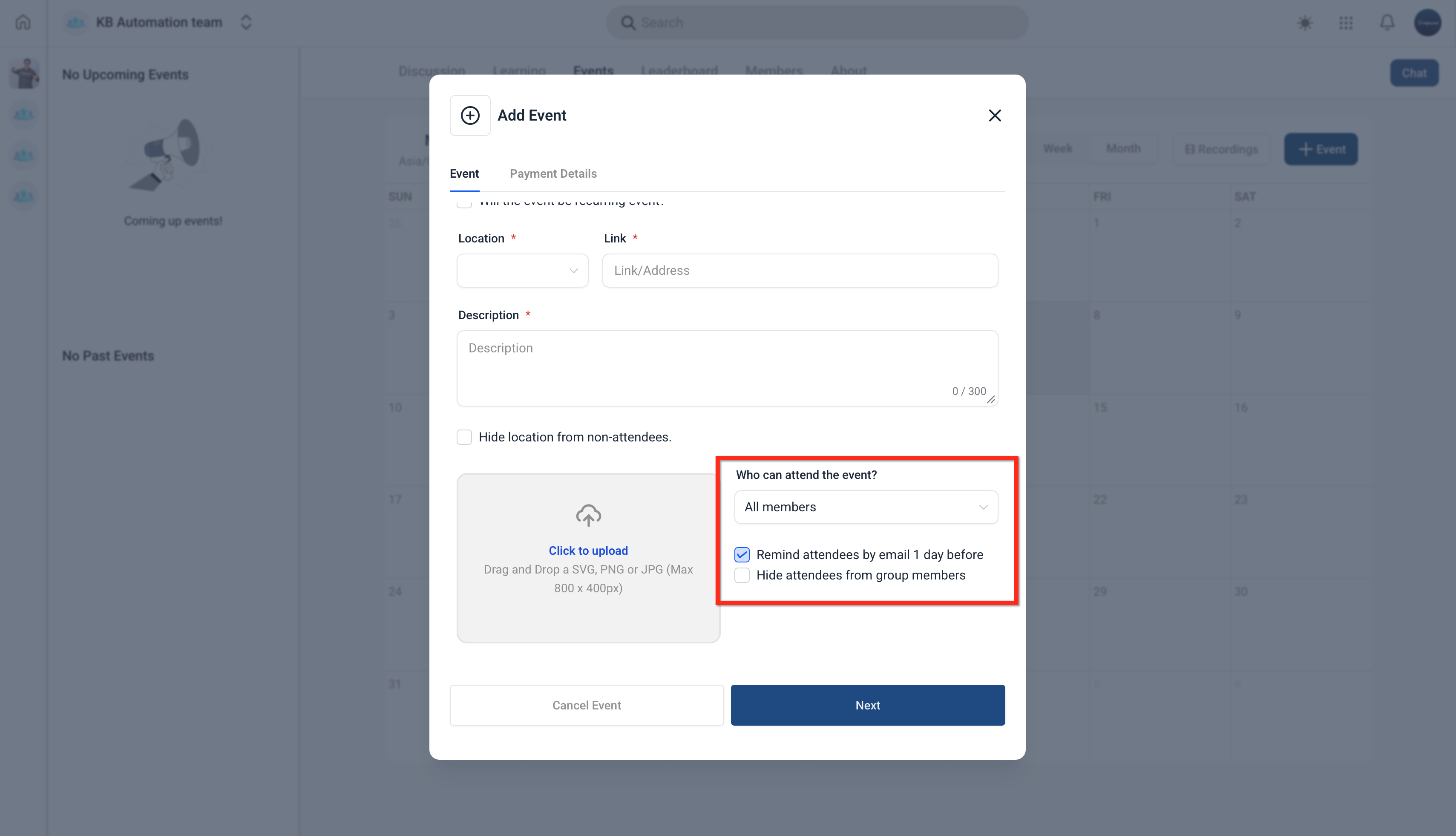
- Choose who can view or attend the event. Configure any course, group, private channel, or membership-level restrictions where available. Click Next to proceed.
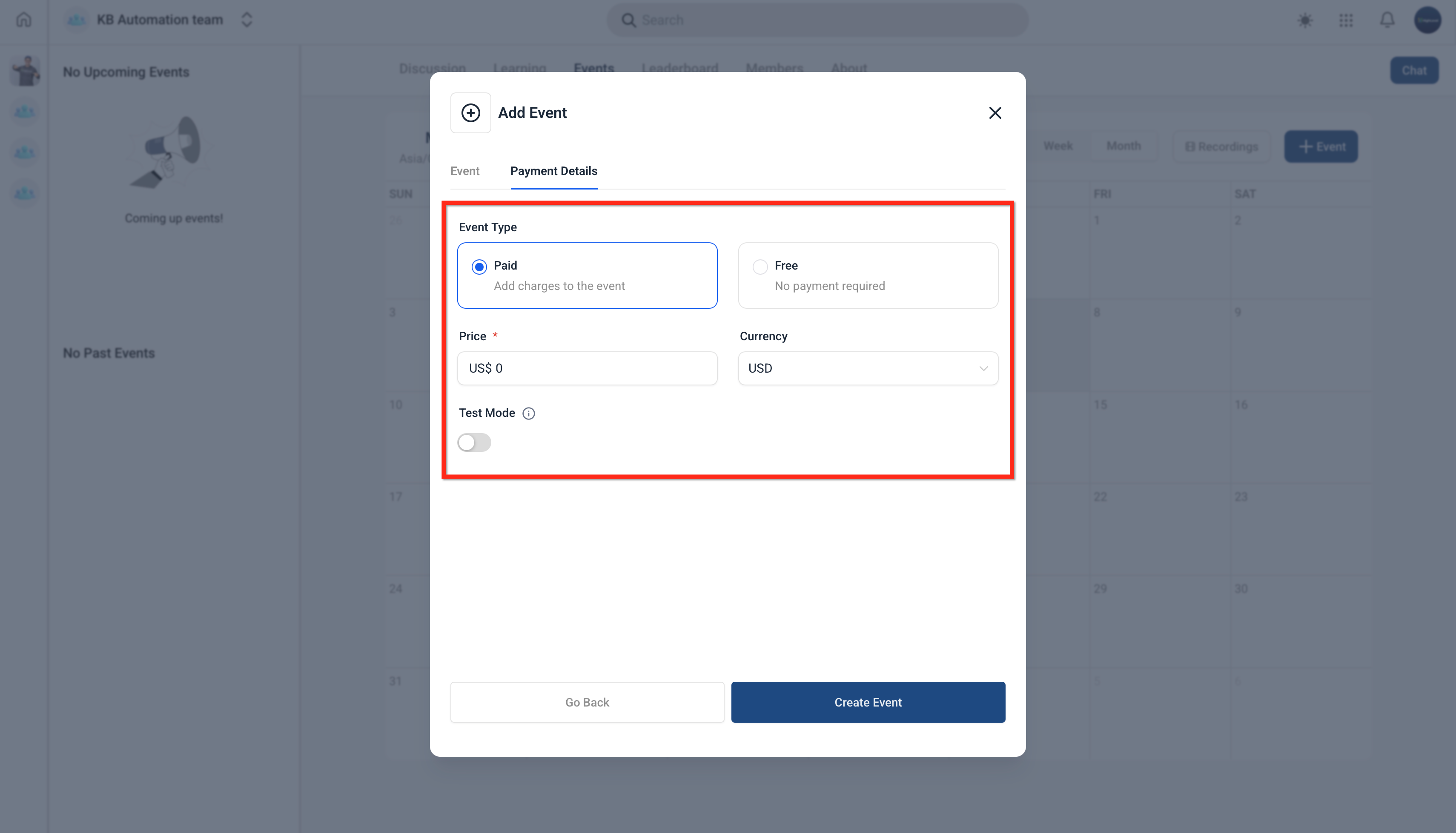
- Select whether the event is free or paid. If the event is paid, add the price and currency. Click Create Event. **
** 6. Share the event with members through a Community post, announcement, email, SMS, or other communication channel. 7. At the scheduled time, open the event from the Events tab and click Live Room.
Frequently Asked Questions
Q: Do attendees need to install anything to join a Live Room event?
No. Members can join from supported browsers or the Patient Copilot mobile app when they are signed in. Q: Can I still use Zoom or Google Meet for Community Events? Yes. Live Room is an additional location option. You can still choose Zoom, Meet, or Other and add the external meeting link. Q: Can I charge for a Community Event that uses Live Room? Yes. Community Events can be free or paid, and pricing is configured during event creation. Q: Can I restrict who can attend a Live Room event? Yes. Community Events can be restricted by options such as course, group, private channel, or membership level where available. Q: Does Live Room replace Go Live posts in Communities? No. Live Room adds a scheduled event-based way to use a native live experience. Go Live can still be used directly in Communities for meetings or broadcasts outside of a scheduled Community Event.
Related Articles
- Community Events
- Communities - Use Go Live to Host Meetings & Broadcasts
- How to Setup, Customize, and Manage Your Communities
- Communities - Private Channels and Channel Emojis
- How to Schedule Post for Your Communities from Social Planner Was this article helpful? That’s Great! Thank you for your feedback Sorry! We couldn’t be helpful Thank you for your feedback Feedback sent We appreciate your effort and will try to fix the article