
Reputation - Breaking Down the Reputation Overview Dashboard
In this article, we’ll go through the reputation overview dashboard and explain each section and what it achieves. This can be found within a sub-account’s Reputation > Overview tab
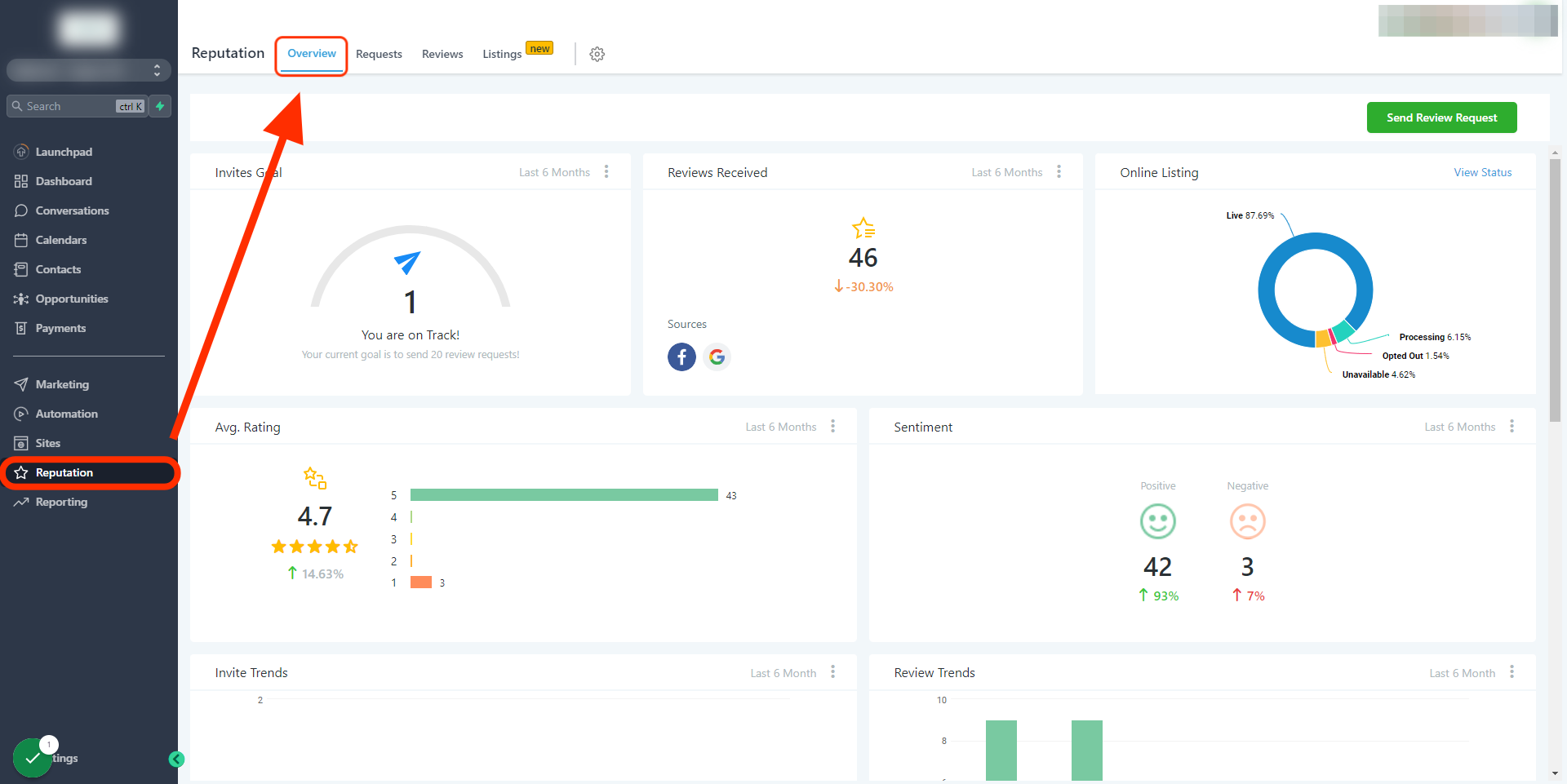
Covered in this article:
What you need to know before continuing with this article:
- Invite Goals:
- Reviews Received:
- Online Listings (when applicable):
- Avg Rating:
- Sentiment:
- Invite Trends:
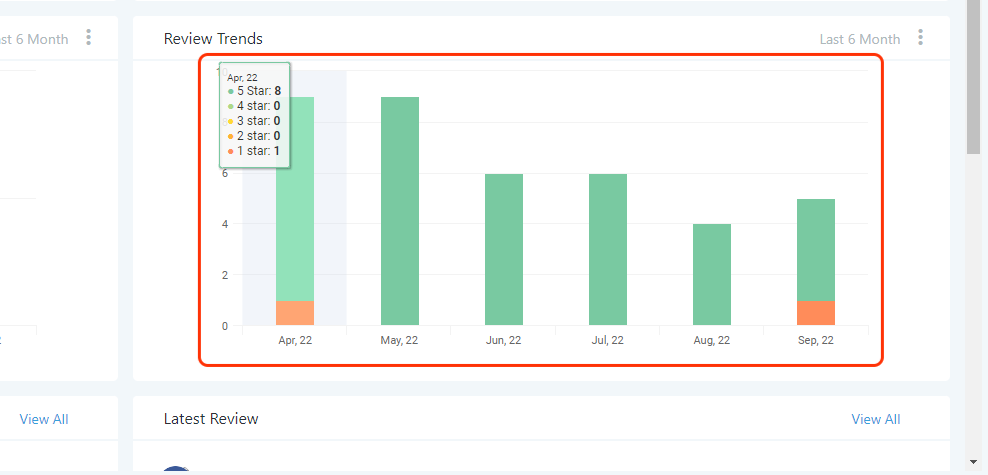
- Review Trends:
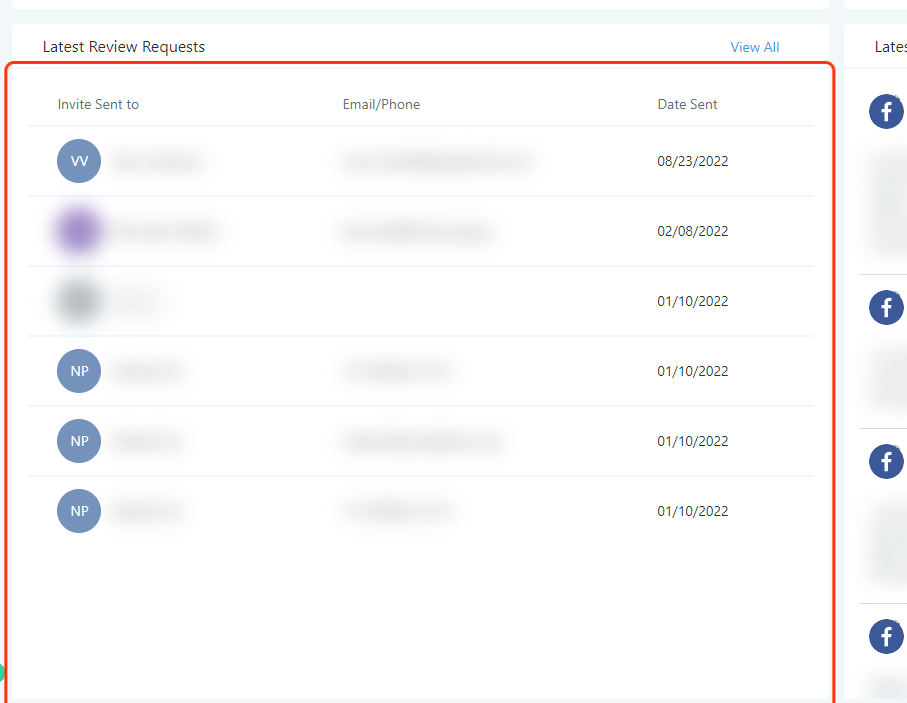
- Latest Review Requests:
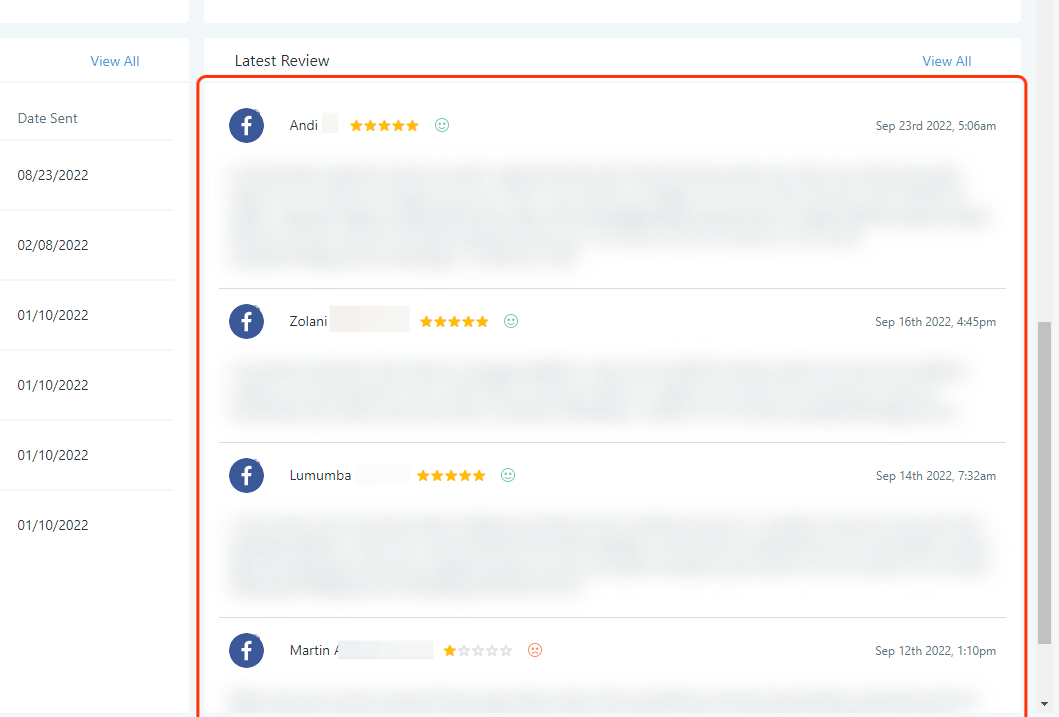
- Latest Review:
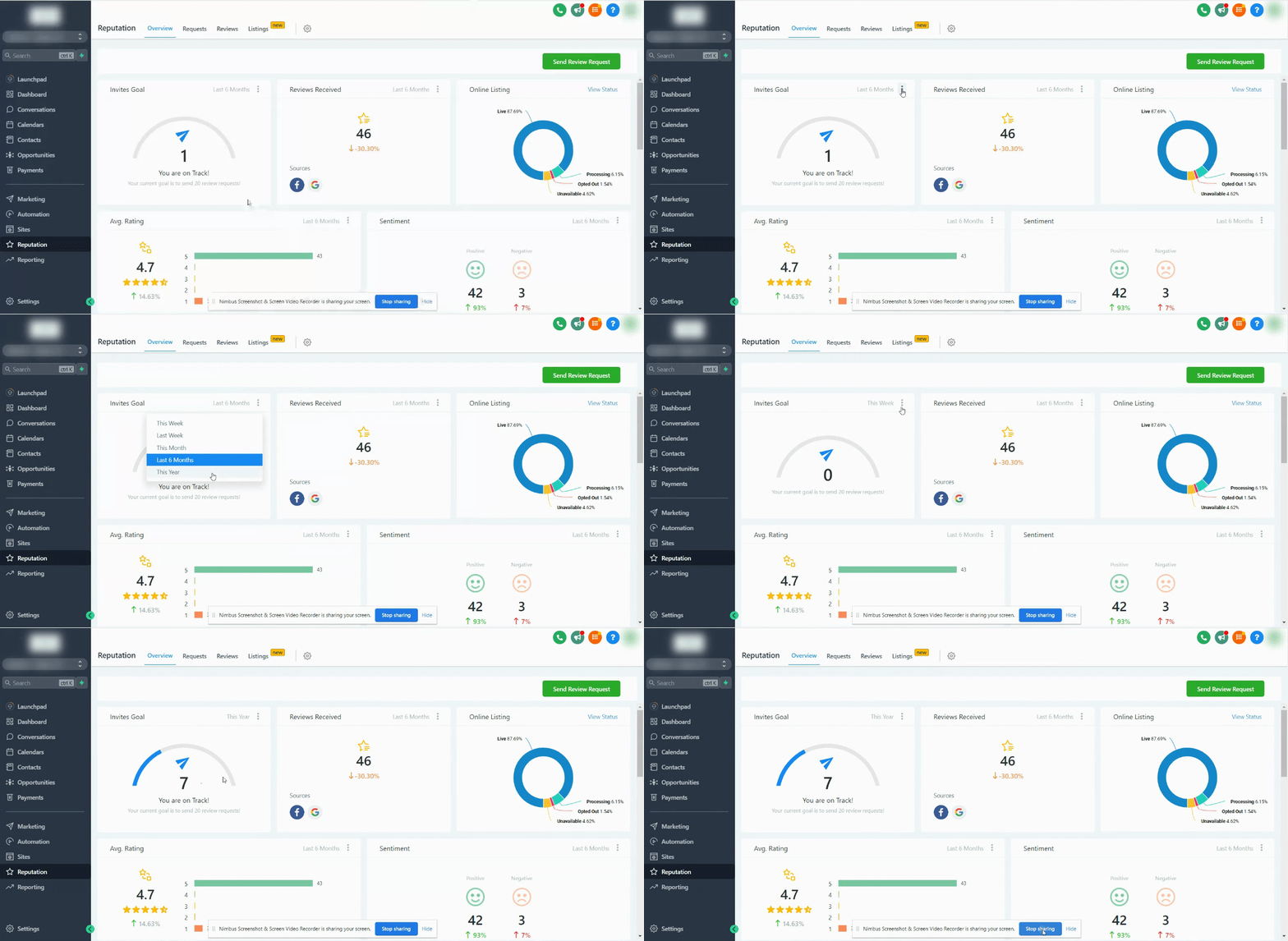
What you need to know before continuing with this article: You can filter a given time period by clicking on the 3 dots within each section**
**
Invite Goals: The ‘Invite Goals’ are predetermined incremental amounts (not editable) and will increase as each goal is achieved.
Reviews Received:
The number of reviews received is based on the time filter selected. The system pulls in new and old reviews from Google and Facebook. The sources are listed at the bottom left of this tile.
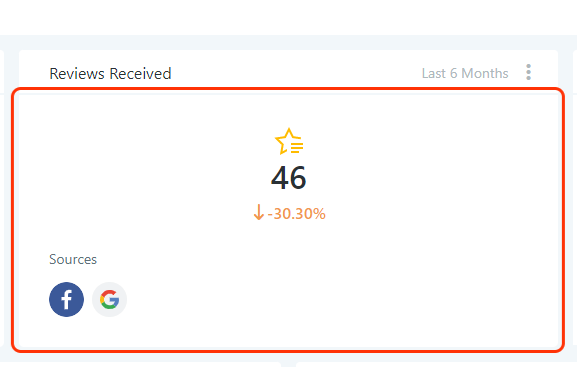
In order to retrieve reviews for Google or Facebook make sure you have integrated each channel within the sub-account settings > integrations
Online Listings (when applicable):
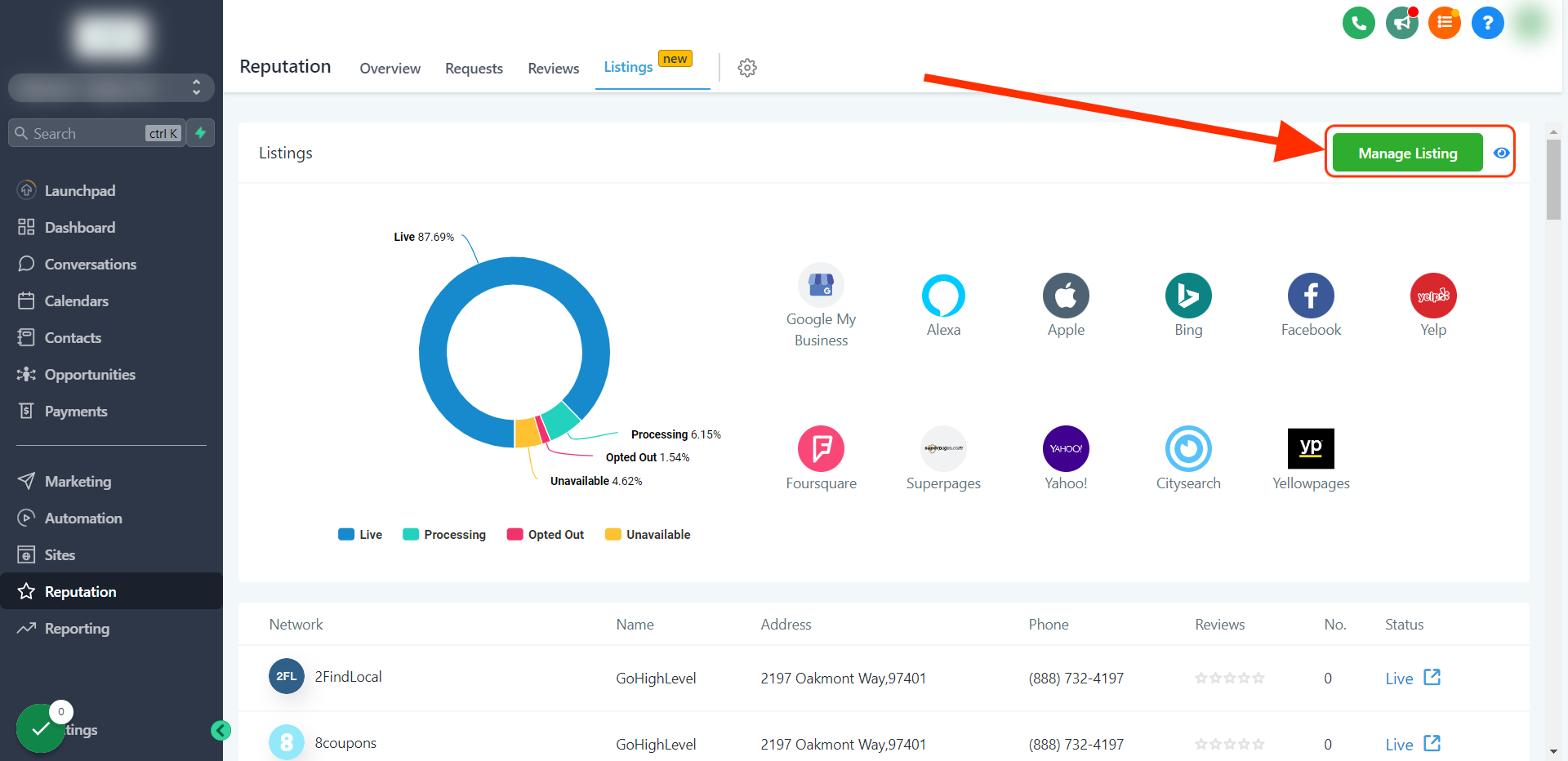
If Yext is enabled and the location is subscribed the ‘Online Listings” section will show an overview of your listings here. For more info, click on the “View Status” text located in the top right-hand corner
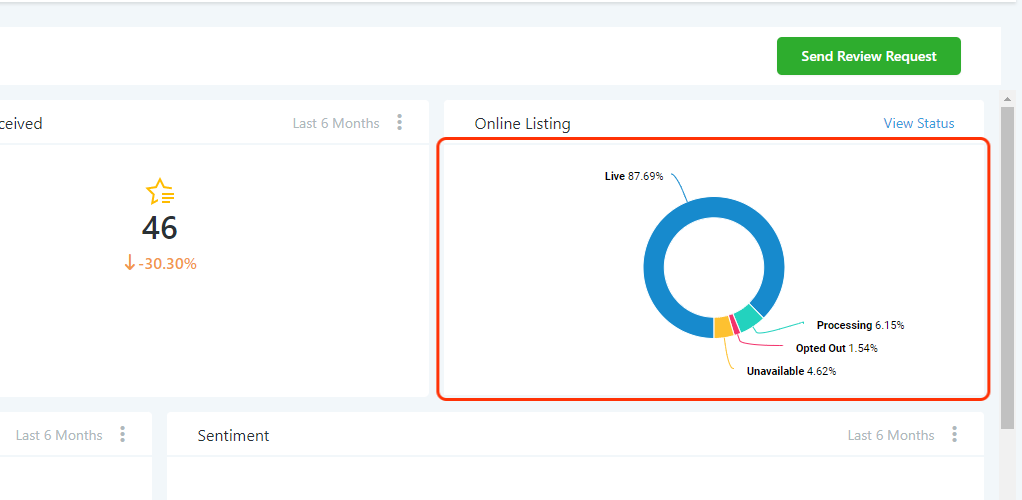
To manage your subaccount listings please click the “manage listings” button (The Manage Listing option is only visible to Agency users!)
Related articles: Online Listing Overview & Setup Doc How to deploy Yext directly without charging the client?
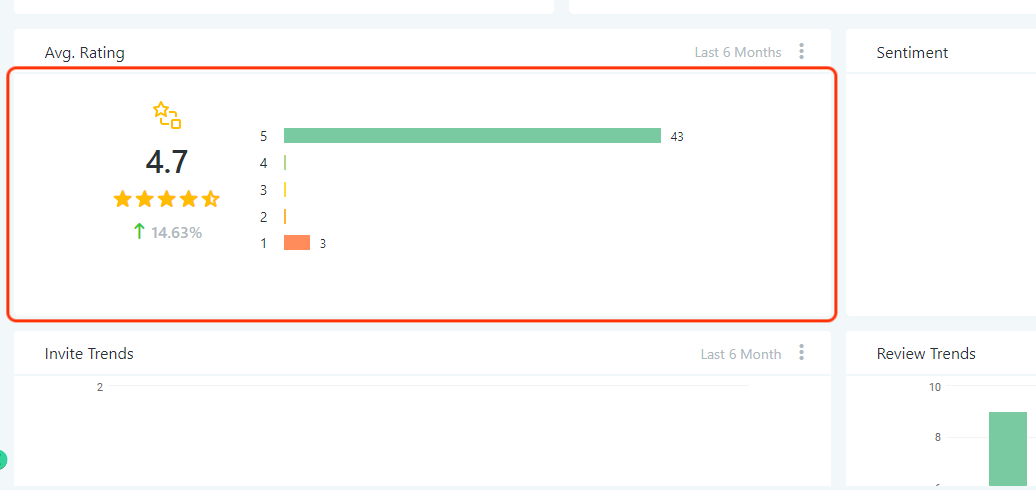
Avg Rating: This is the total amount of reviews divided but the total amount of stars given within the given time filter.
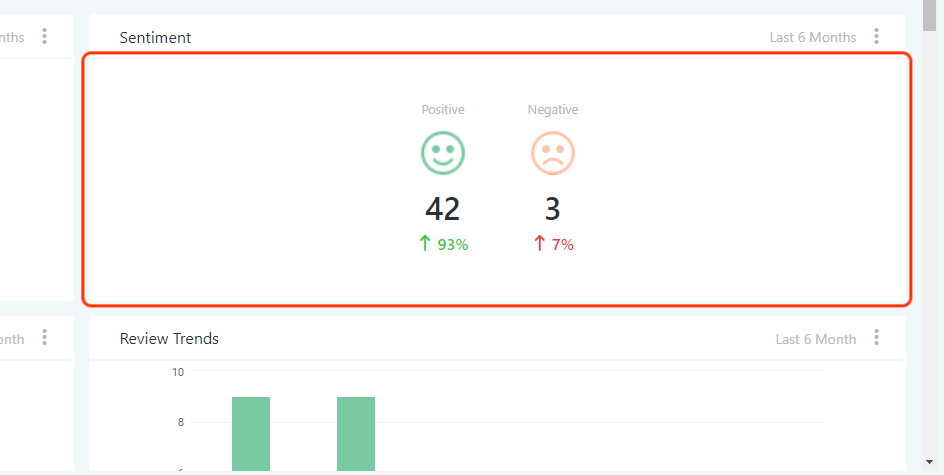
Sentiment:
This is a great way to understand how people feel about your business or service. The sentiment is derived using Google’s AI to determine either positive or negative based on reviews on Facebook and Google.
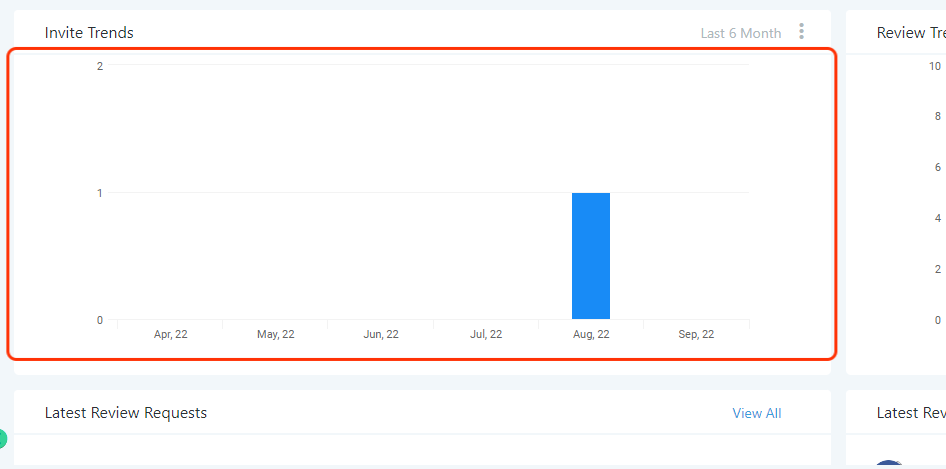
Invite Trends: The total outbound reviews requested by the sub-account across SMS and email channels, within the given time frame.
Review Trends: Visual bar graph of reviews received by the system month over month.
Latest Review Requests: This includes who the invite was sent to, which channel was used (SMS/Email) and the date it was sent.
Latest Review: This section lists the business’s most recent reviews, the contact that left Facebook and Google
Related articles: How to Dispute a Google Review and Check on the Dispute Status How to Send Review Requests Reputation
- Breaking Down the Reviews Tab Reputation Management - Customizing & Displaying the Review Widget Getting Started with Reviews AI Agents