
Workflow Action: OpenRouter Generate Response
AI-powered responses allow workflows to generate dynamic messages, summaries, and contextual outputs automatically. The Generate Response action enables Patient Copilot users to connect workflows with advanced AI models through OpenRouter, allowing automated responses based on prompts, workflow data, and contact information. This makes it possible to automate personalized messaging, summarize conversations, or generate intelligent responses without manual input.
What is Generate Response Workflow Action?
The Generate Response workflow action allows workflows in Patient Copilot to generate AI-powered responses using models accessed through OpenRouter. By sending prompts to a selected AI model, workflows can automatically produce dynamic responses based on instructions, context, and workflow variables. OpenRouter acts as a gateway that provides access to multiple AI models. This allows Patient Copilot users to select the model that best fits their automation needs, whether generating conversational replies, summarizing data, or producing personalized marketing content. When the workflow reaches this action, the prompt is sent to the selected model, the model generates a response, and the result becomes available as an output variable that can be used in later workflow steps such as sending messages or updating records.
Key Benefits of OpenRouter: Generate Response
AI response generation unlocks powerful automation capabilities inside workflows by enabling dynamic and context-aware messaging. Using OpenRouter expands this capability by providing access to multiple AI models through a single integration.
- Multi-Model Access: Connect to multiple AI providers through OpenRouter and choose the best model for each automation task.
- Dynamic AI Responses: Automatically generate responses using prompts and workflow variables for highly personalized outputs.
- Flexible Automation: Use AI-generated responses in SMS, email, internal notifications, or CRM updates.
- Custom Prompt Control: Define system prompts and instructions to control tone, behavior, and formatting of AI responses.
- Scalable Automation: Generate intelligent responses across large workflows without manual intervention.
Connect Your OpenRouter Account
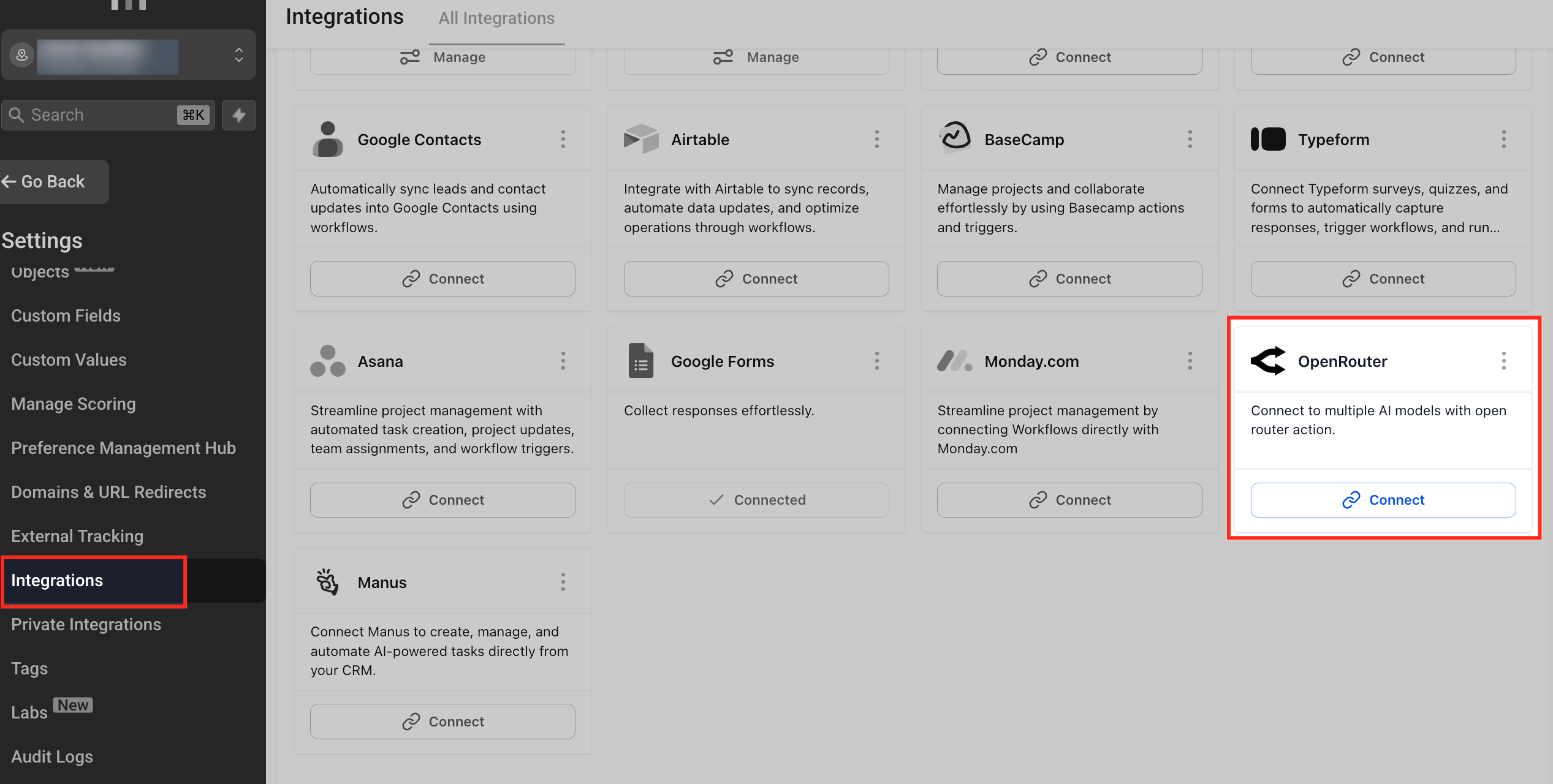
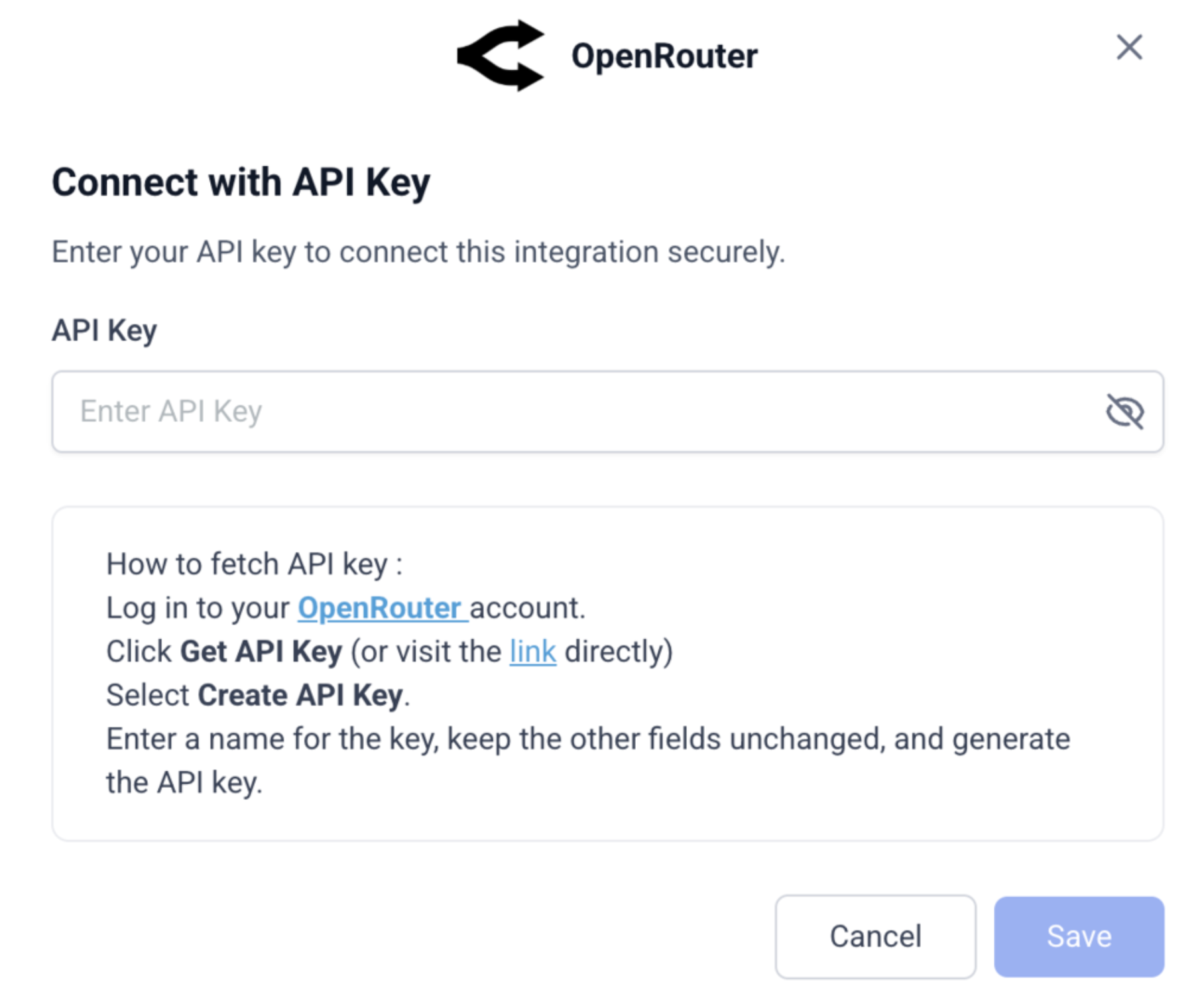
Before using the Generate Response action in workflows, the OpenRouter integration must be connected. This connection allows Patient Copilot to securely communicate with OpenRouter’s AI models using your API key. Connecting the integration ensures that workflows can send prompts to AI models and receive generated responses.
Steps to Connect OpenRouter
- Navigate to Settings. 2. Select Integrations. 3. Locate OpenRouter from the integrations list. 4. Click Connect. 5. Enter your OpenRouter API Key. 6. Click Save to complete the integration.
Using System Prompt vs Prompt
Understanding the difference between the System Prompt and the Prompt is important for creating effective AI-generated responses. The System Prompt defines the AI’s personality, behavior, or rules. It remains consistent across requests and helps control how the AI behaves. The Prompt defines the specific task or question the AI should complete. Example configuration: System Prompt: You are a friendly sales assistant that writes short and persuasive messages. Prompt: ```
Create a follow-up message for {{contact.first_name}} who downloaded our pricing guide.
---
## **How To Setup OpenRouter: Generate Response Action**
After connecting the OpenRouter integration, the **Generate Response** workflow action can be added to a workflow to generate AI-powered responses automatically. This action sends a prompt to the selected AI model through OpenRouter and returns the generated response, which can then be used in later workflow steps such as sending messages or updating CRM records.
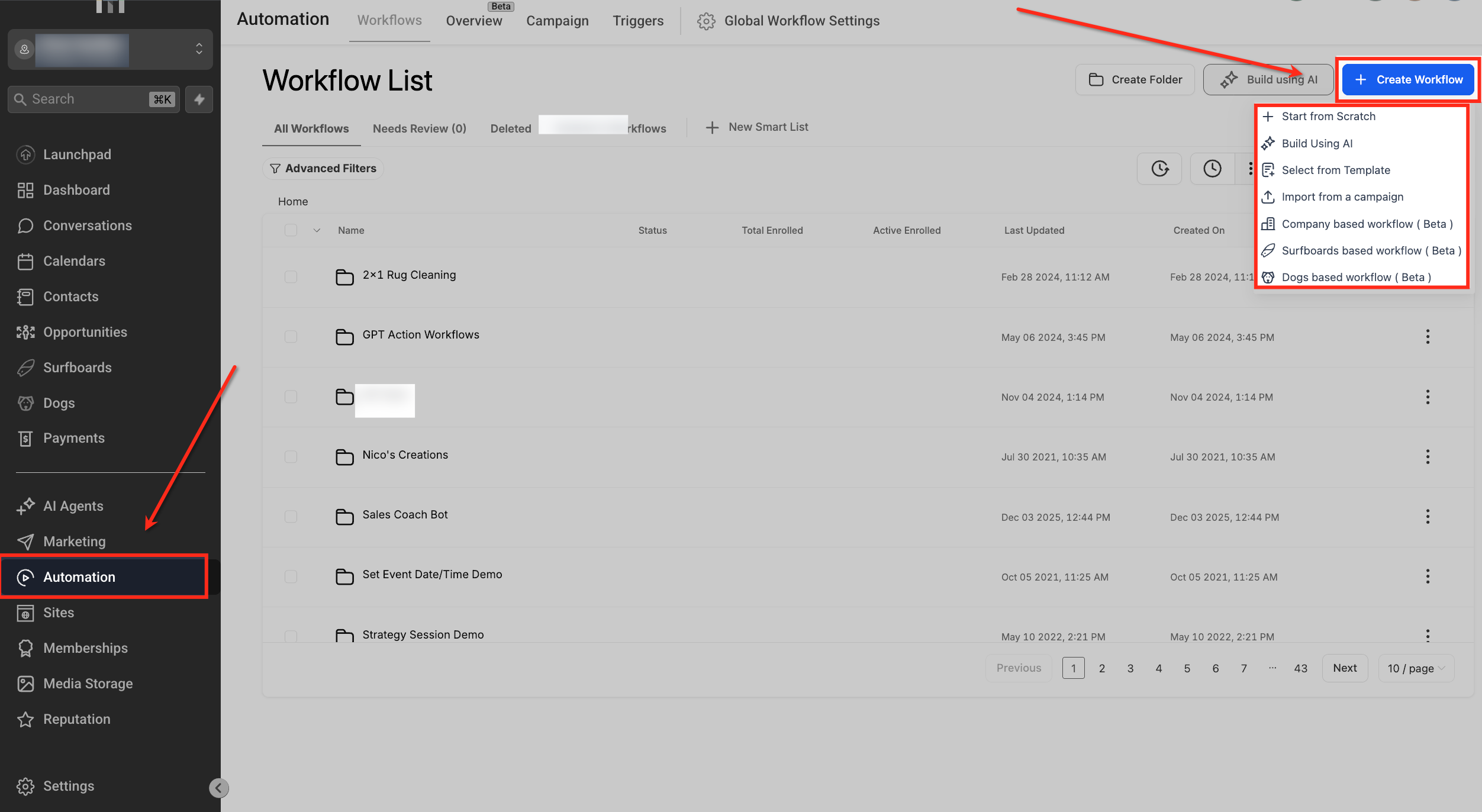
### **Step 1: Add a New Action to the Workflow** 1.
### Navigate to **Automation → Workflows**. 2. Open an existing workflow or create a new workflow. 3. In the workflow builder, click **Add** to insert a new step. 4. The **Actions panel** will appear on the right side of the screen.
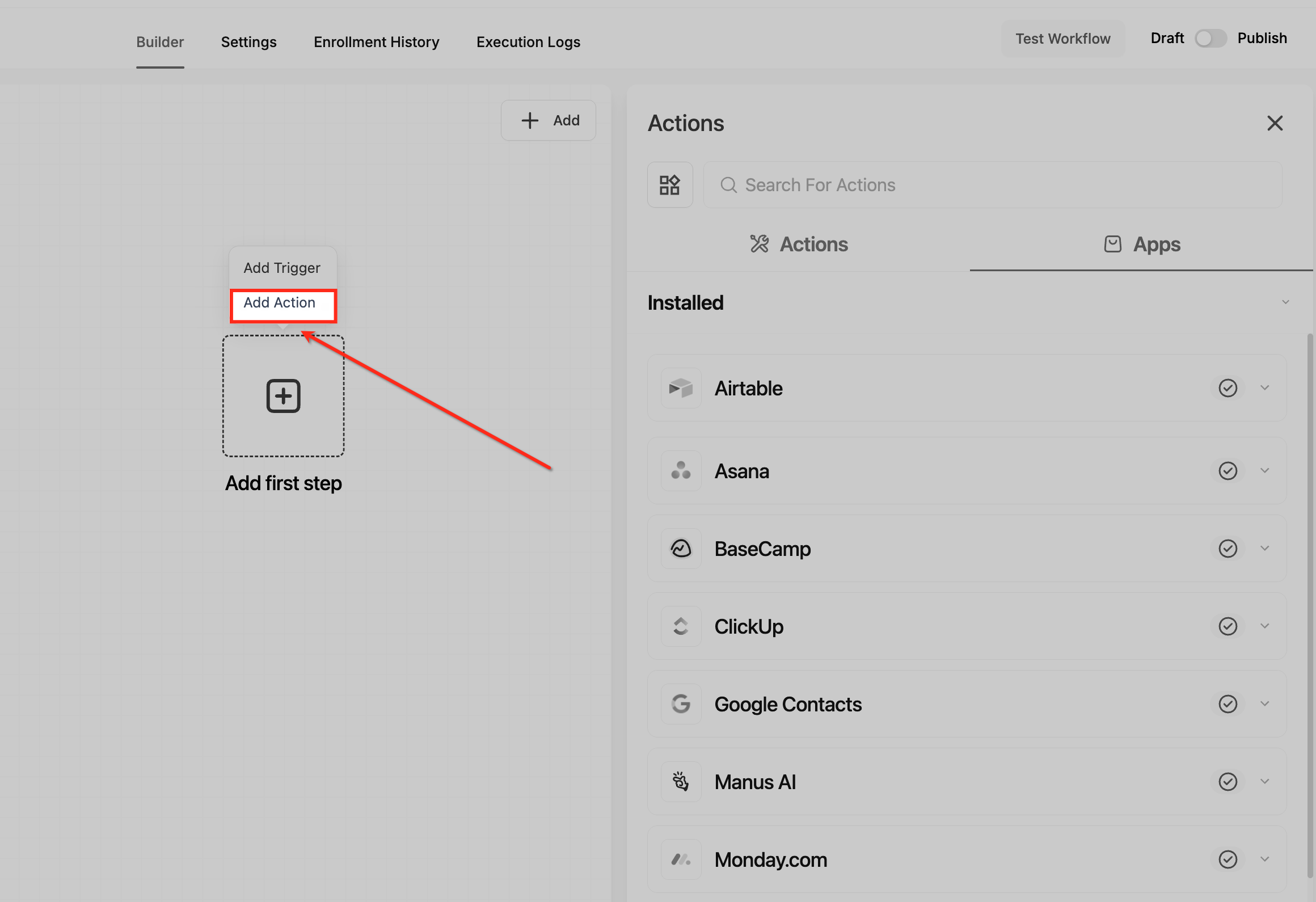
### **Step 2: Select the OpenRouter App** 1.
### Inside the Actions panel, select the **Apps** tab. 2. Scroll through the installed applications list. 3. Locate **OpenRouter**.
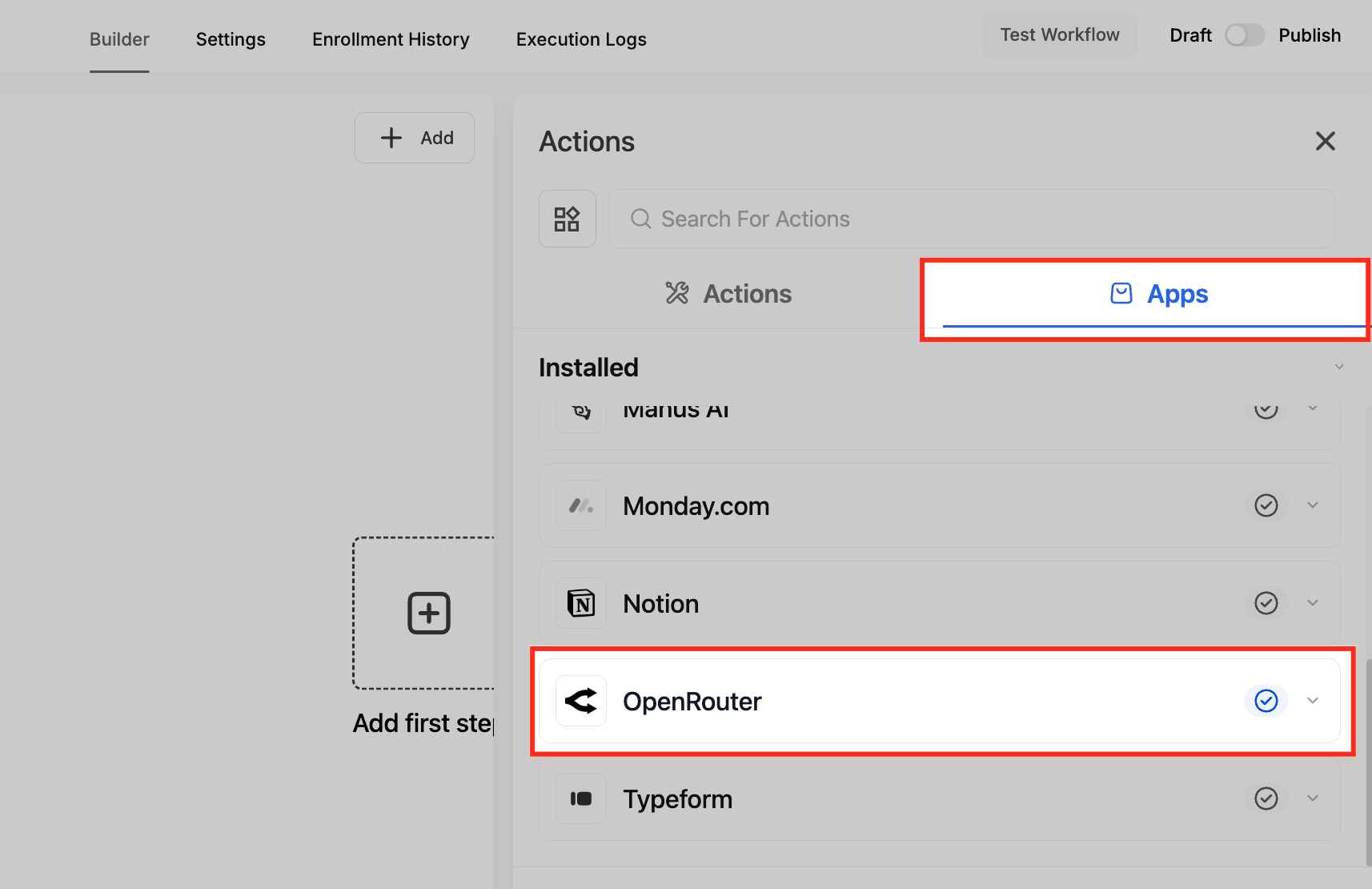
### **Step 3: Choose the Generate Response Action** 1.
### Click **OpenRouter** to expand the available actions. 2. Select **Generate Response**. This action runs a prompt through the selected AI model and returns the generated response to the workflow.
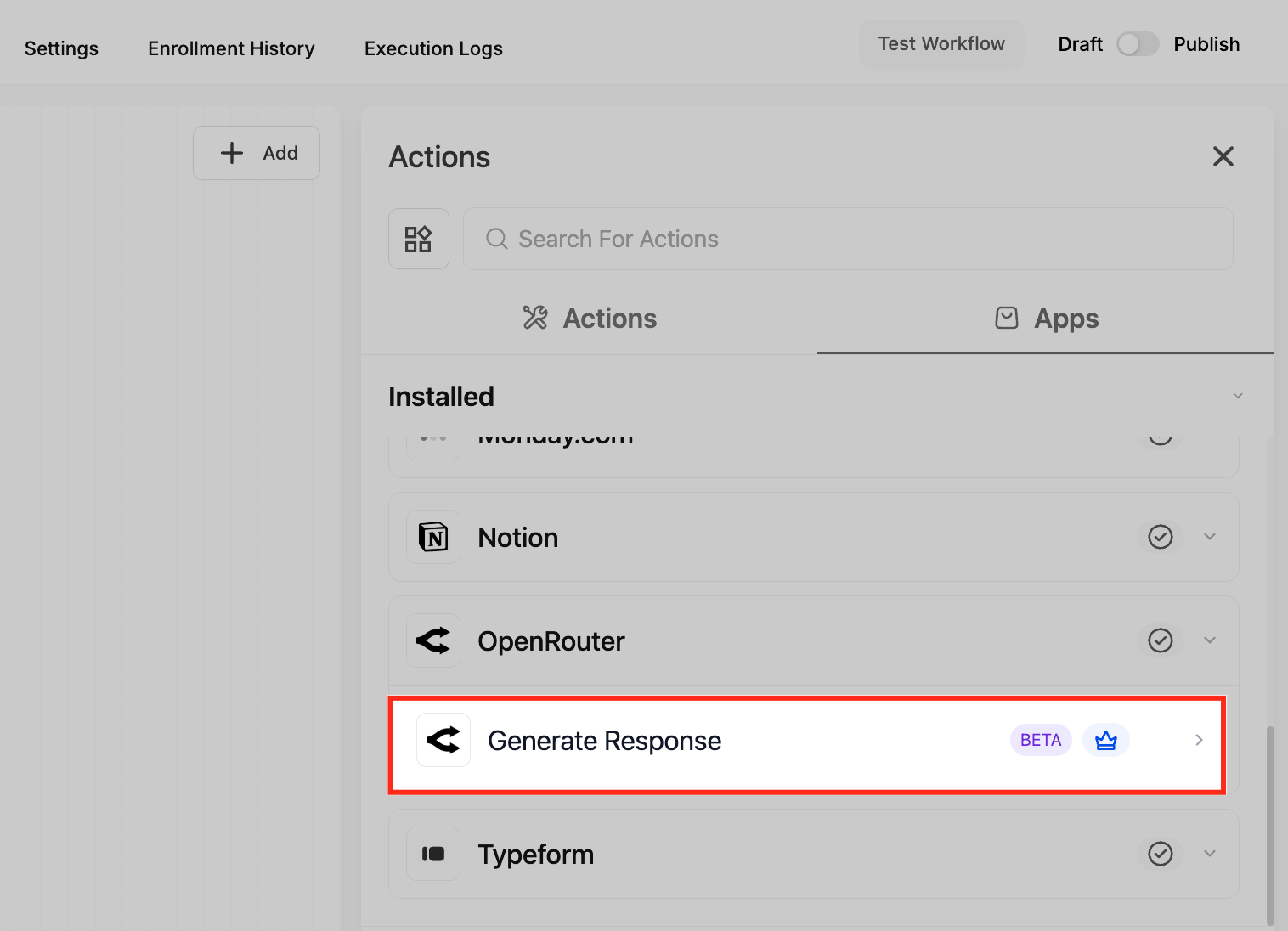
### **Step 4: Configure the Generate Response Action**
After selecting the action, the **Generate Response configuration panel** will open. This panel contains the fields used to define how the AI should behave and what response it should generate.
### **Action Name**
The **Action Name** field allows you to give the workflow action a custom name. This is useful when workflows contain multiple AI actions and you want to easily identify their purpose. Example: ```Generate Lead Follow-Up Email``` ### **System Prompt** The **System Prompt** defines the role, tone, and behavior the AI model should follow when generating responses. This instruction helps guide how the AI interprets prompts and structures its replies. Use this field to establish the AI’s role or personality. Example: ```You are a helpful front office assistant that provides clear, professional responses to customer inquiries.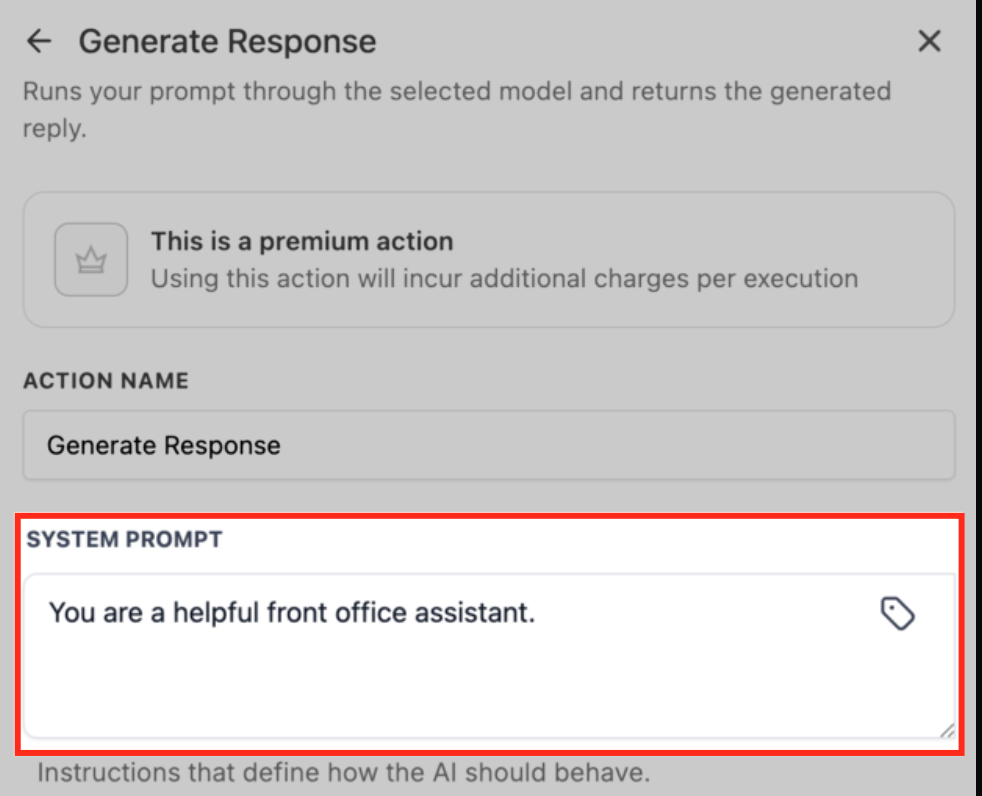
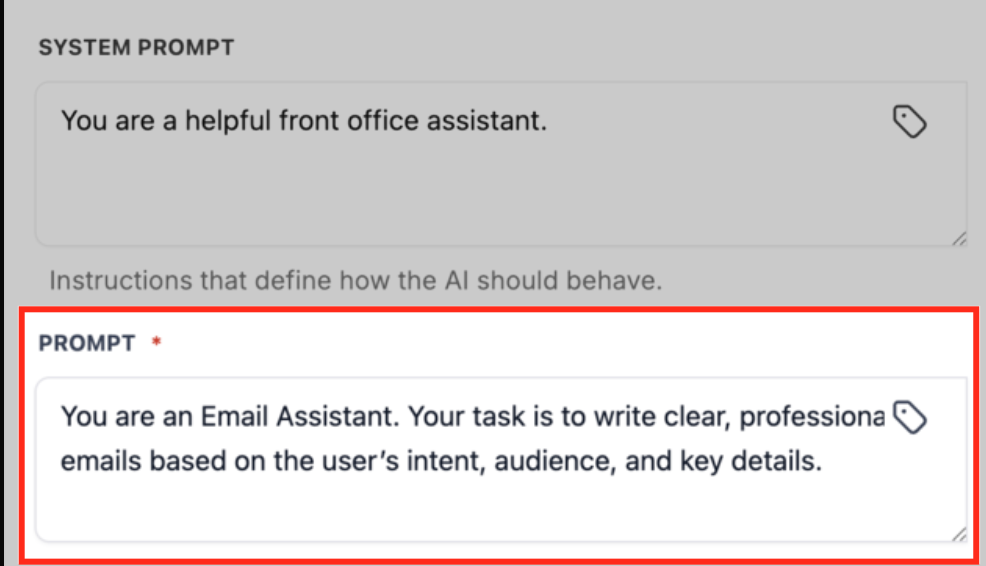
Prompt
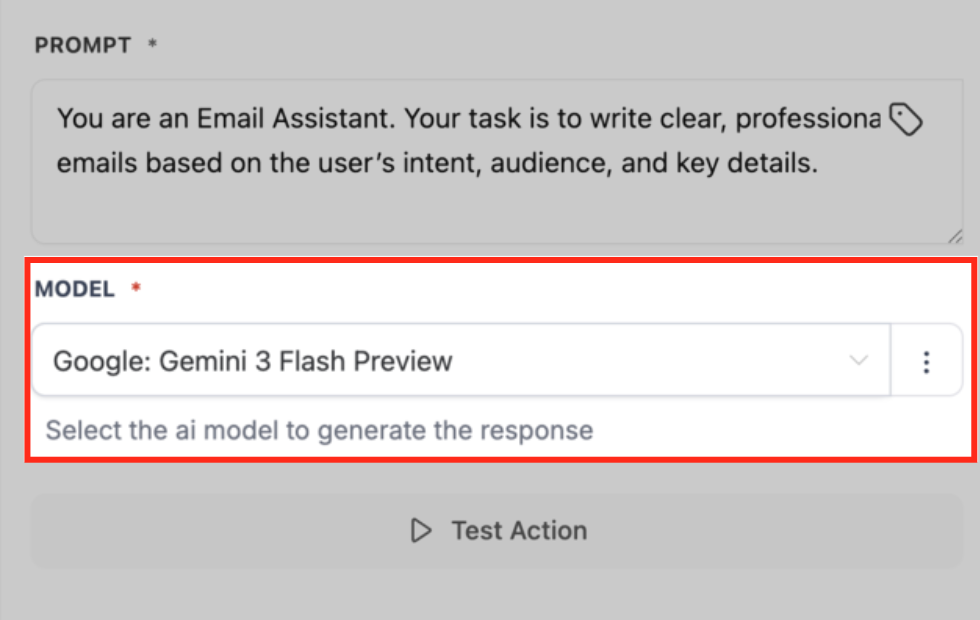
The Prompt defines the specific task the AI should perform. This is the instruction sent to the selected AI model. Prompts can include workflow variables to dynamically generate responses based on contact data or workflow context. Example prompt: ``` You are an Email Assistant. Your task is to write clear, professional emails based on the user’s intent, audience, and key details.
### **Model Selection**
The **Model** dropdown allows you to select which AI model OpenRouter should use to generate the response. Different models provide different capabilities such as:- Faster response generation - More advanced reasoning - Improved creative writing - Lower cost per request Select the model that best fits the needs of your workflow automation.
### **Step 5: Test the Action**
Before saving the workflow step, it is recommended to test the action to confirm the AI model generates the expected output. 1. Click **Test Action**. 2. The system will execute the prompt using the selected model. 3. The generated response will appear in the **Test Action results panel**. Testing allows you to adjust prompts and refine results before activating the workflow.
### **Step 6: Save the Action**
Once the configuration is complete: 1. Click **Save Action**. 2. The AI response generation step will now be part of the workflow. The output generated by this action can be used in later workflow steps such as:- Sending SMS messages - Sending emails - Creating internal notes - Updating CRM fields - Triggering conditional logic This allows workflows to automatically generate intelligent responses without requiring manual input.
---
## **Frequently Asked Questions** **Q: What is OpenRouter?**
OpenRouter is a platform that provides access to multiple AI models through a single API, allowing users to choose the best model for different tasks. **Q: Can I use workflow variables inside prompts?** Yes. Workflow variables such as contact fields, custom fields, or previous action outputs can be included inside prompts to generate personalized responses. **Q: Where is the AI-generated response stored?** The generated response is saved as a workflow output variable that can be used in later workflow actions. **Q: What happens if the AI model fails to generate a response?** If the AI model fails or returns an error, the workflow will proceed based on the configured automation logic. Testing workflows before activation is recommended. **Q: Can I use the generated response in SMS or email messages?** Yes. The AI-generated output can be inserted into **Send SMS**, **Send Email**, or other messaging actions inside the workflow. **Q: Can OpenRouter responses be used with conditional workflow logic?** Yes. Generated responses can be evaluated in later workflow steps to determine conditional paths.
---
### **Related Articles**
- [Getting Started with Workflows](http://help.patientcopilot.ai/a/solutions/articles/155000002288?portalId=48000045315)- [GPT Powered by OpenAI Workflow Action](https://help.patientcopilot.ai/a/solutions/articles/155000000209?portalId=48000045315)