
Courses: Pick a Video Frame as Lesson Thumbnail
Make your Patient Copilot course content stand out by setting a compelling thumbnail for each lesson. You can either capture an exact frame from your uploaded video or upload a custom image. Clear thumbnails improve navigation, boost click-through rates, and keep your branding consistent across lessons.
Key Benefits of Video Frame Thumbnails
Choosing a thumbnail strategically helps learners recognize content quickly, improves perceived production value, and supports a consistent brand experience across your course library.
- Brand consistency: Keep lesson visuals aligned with your brand style and course theme.
- Higher engagement: Use dynamic, relevant frames to attract more plays and reduce bounce.
- Faster workflow: Set a thumbnail in a click without leaving Patient Copilot or using external editors.
- Improved navigation: Distinct thumbnails make it easier for learners to find the right lesson.
Where Thumbnails Display (Lesson vs. Video)
Understanding where your chosen image appears helps you set expectations for the learner experience and maintain consistency.
- After saving, the selected image appears as the Lesson thumbnail and the Video thumbnail inside that lesson.
- Want a different image for the lesson tile than the video player? Upload a separate lesson thumbnail image to override it.
Requirements & Limitations
Ensure you’re working within supported scenarios so the thumbnail you select behaves as expected.
- Works with videos uploaded directly to the lesson in Patient Copilot.
- For lessons using embedded third‑party players, select Upload custom thumbnail to control the lesson tile image.
- Always click Save to confirm your thumbnail selection.
Best Practices for Effective Thumbnails
Thoughtful thumbnail design improves learner clarity and course professionalism, especially for longer programs.
- Use clear subject matter (speaker face, key graphic, or product) centered in frame.
- Add minimal, readable text if needed (3–5 words max) to communicate the lesson’s focus.
- Ensure good contrast and sharpness; avoid dark, blurry, or busy frames.
- Keep visual style consistent across lessons (colors, typography, framing).
How To Setup a Lesson Thumbnail
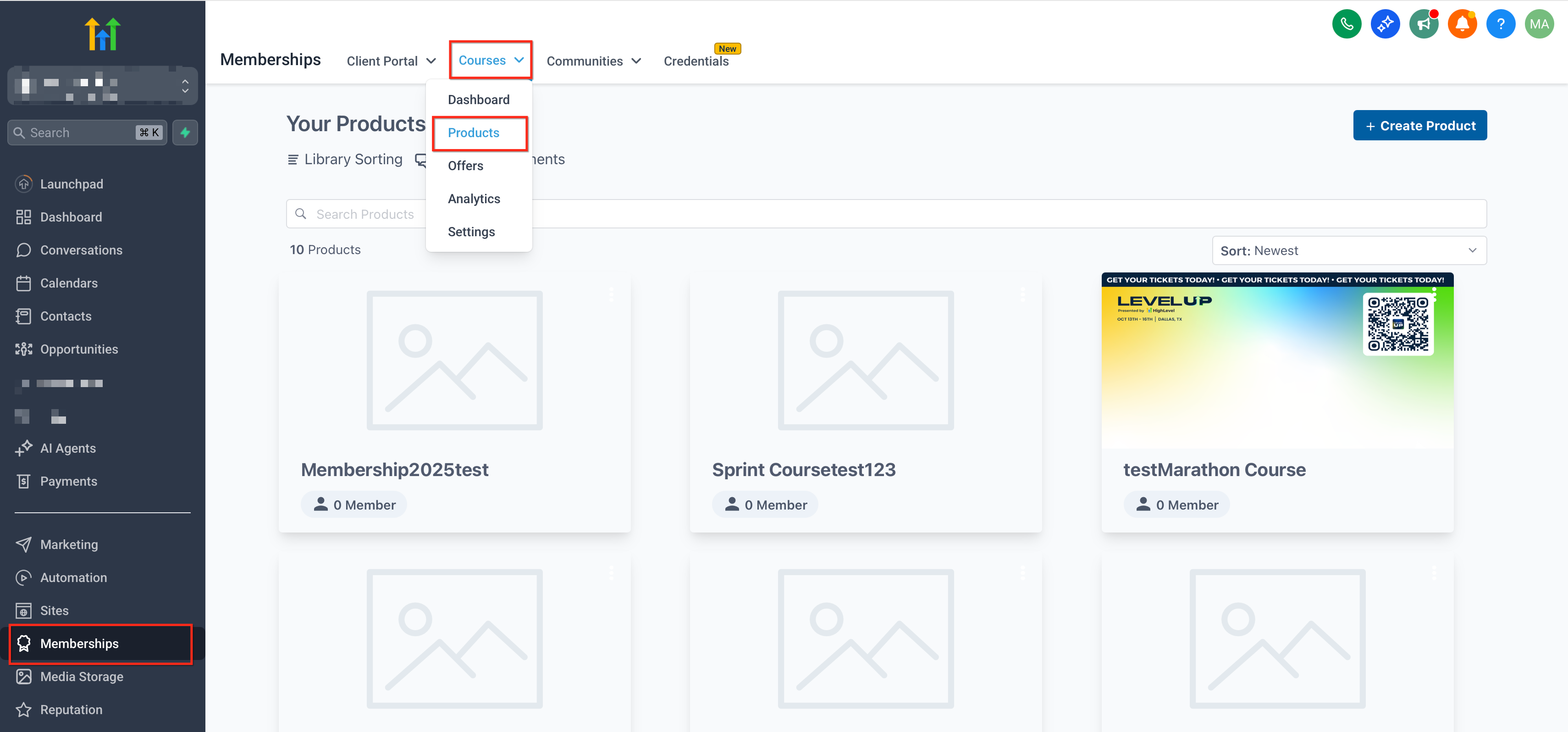
Following a simple, repeatable process ensures your thumbnail updates consistently and displays correctly in both the lesson and video contexts. 1. Go to Sites > Memberships > Courses and open your course.
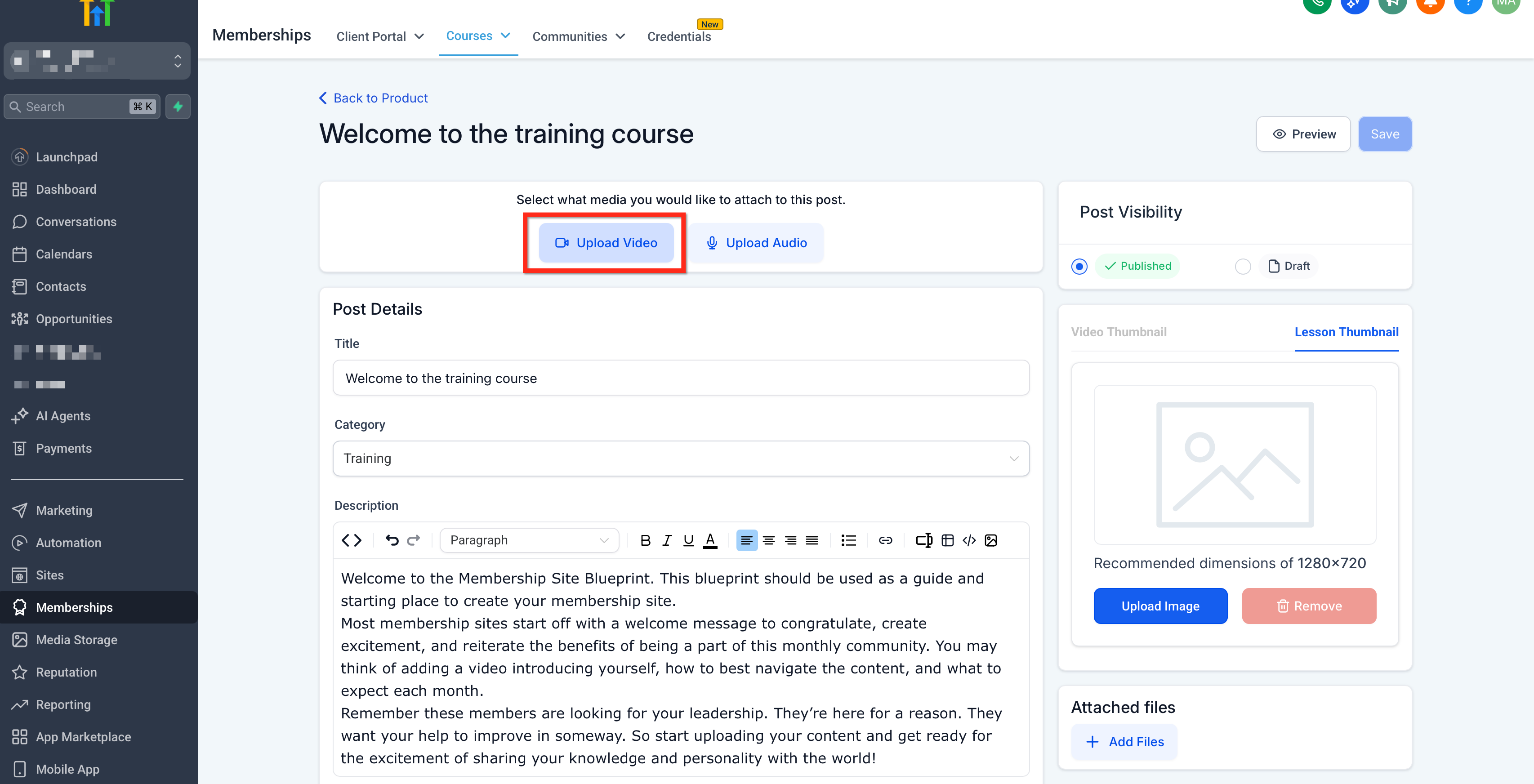
- Select the Lesson you want to edit and upload the video.
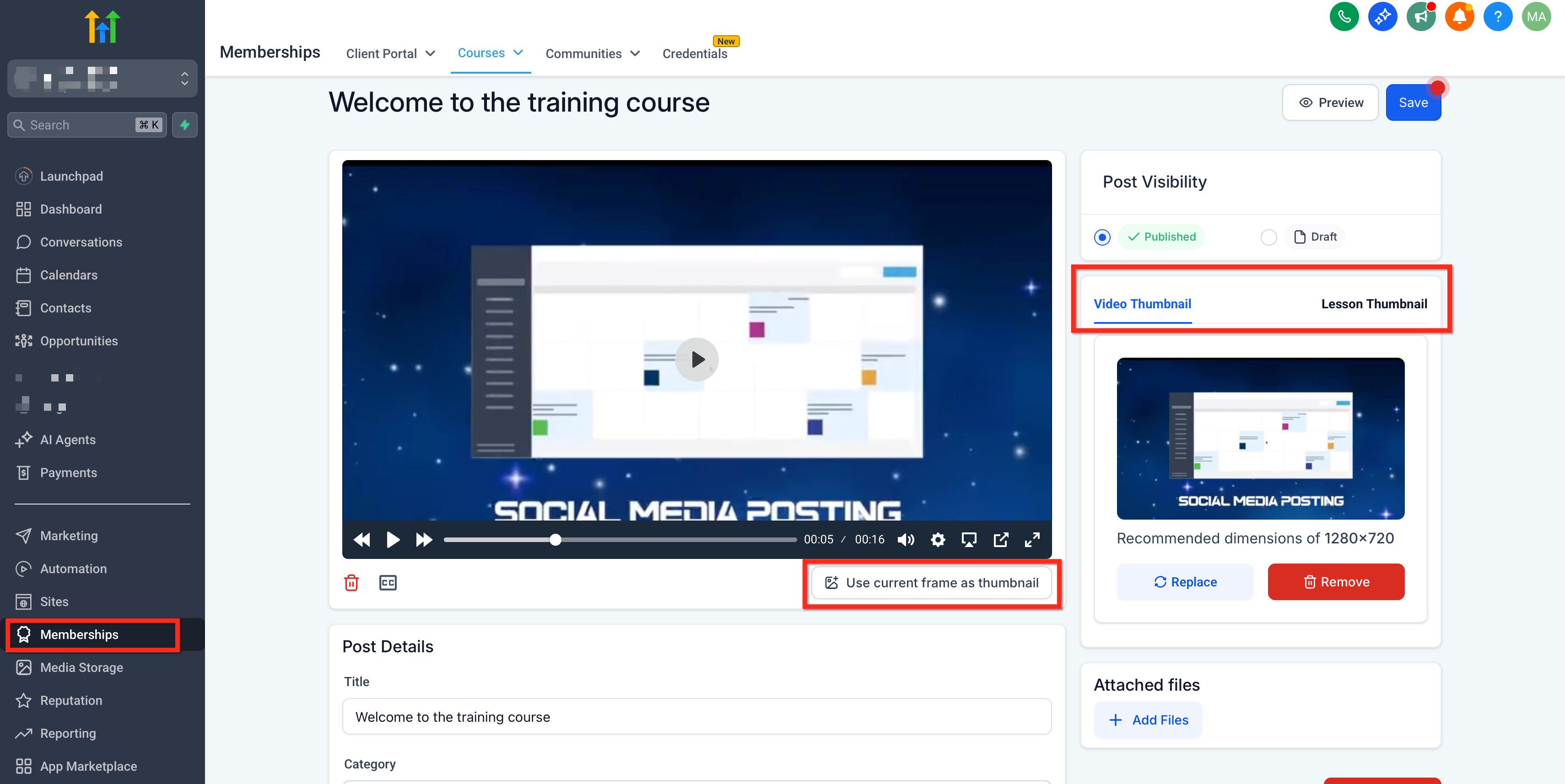
- Choose a frame: Play to the desired moment, pause, then click Use current frame as thumbnail.
- Confirm the preview updates.
- Click Save in the lesson editor.
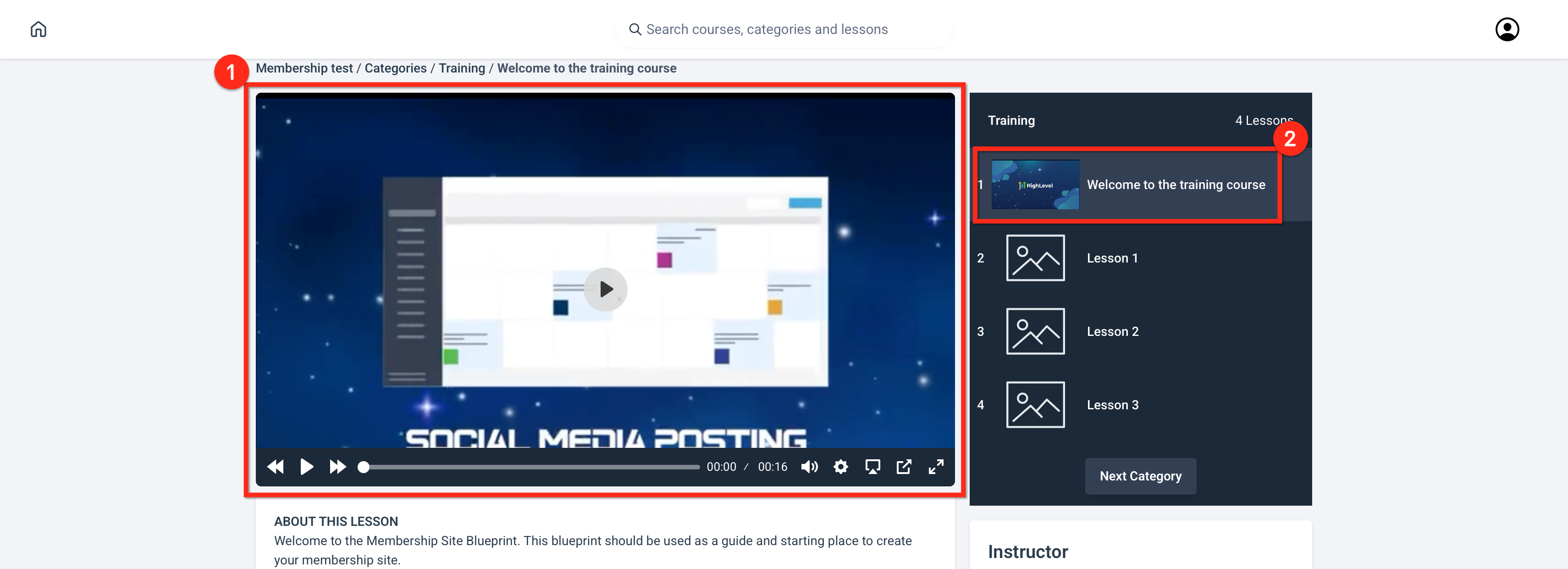
- Important - Lesson vs. Video Thumbnail - Selecting Use current frame as thumbnail sets both the Video thumbnail (1) (the image shown before playback) and Lesson thumbnail (2) (the image on the course/lesson tile)
-
- Keep your chosen frame for the Video thumbnail inside the lesson. 2. For the Lesson thumbnail (course/lesson tile), either: Switch to Lesson thumbnail and choose a different video frame (pause on the moment and click Use current frame as thumbnail again), or Upload a separate image in the lesson details/thumbnail settings. 5. Return to your course list to confirm the Lesson and Video thumbnails match your selection.
Frequently Asked Questions
Q: Does selecting a video frame also set the thumbnail inside the video player?
A: Yes. After you save, the image is used as both the Lesson and Video thumbnail for that lesson. Q: Can I upload a different image for the lesson tile than the video player? A: Yes. Upload a dedicated lesson thumbnail to override the shared image, while keeping a different video thumbnail if needed. Q: Does this work with embedded videos like YouTube or Vimeo? A: The “Use current frame as thumbnail” option applies to videos uploaded to Patient Copilot. For embedded players, upload a custom lesson thumbnail image to control the lesson tile. Q: What image size should I use for best results? A: Use a 16:9 image (1280×720 or larger), optimized for clarity and contrast. Q: Will changing the thumbnail affect existing students? A: Yes, once saved, new and returning learners will see the updated thumbnail anywhere it appears. Q: Can I change the thumbnail later? A: Absolutely. Repeat the selection or upload process and Save to apply the new image.