
Using Course Assessment Emails to Streamline Course Communication
Boost learner engagement and keep instructors in the loop with automated Course Assessment Emails for quizzes, assignments, and course comments. This article explains what the emails do, why they matter, and how to customize or disable them for any course.
Key Benefits of Course Assessment Emails
Course Assessment Emails provide timely updates that strengthen communication and reduce manual follow-up throughout the learning experience. Understanding the benefits helps course creators leverage automated notifications to streamline grading workflows and support learner engagement. These advantages ensure both students and instructors maintain visibility into submissions, grading progress, and course activity.
- Real-time learner feedback: Students immediately receive confirmation of submissions and grades.
- Instructor visibility: Admins and graders are notified the moment new work is submitted or graded.
- Brand-consistent messaging: Emails are fully customizable inside Email Settings → Courses.
- Improved workflow efficiency: Automated updates reduce manual communication and delays.
- Course-level control: Each notification can be individually toggled on or off based on course needs.
Quiz Assessment Emails
Quiz Assessment Emails notify both learners and instructors when quizzes are submitted, ensuring prompt visibility into quiz activity. These notifications help learners confirm their quiz submission and allow instructors to stay informed without constant manual checking. This maintains transparency in the learning workflow and improves response time for evaluation.
- Quiz Submitted (User): Sent to learners as confirmation after submitting a quiz.
- Quiz Submitted (Admin): Sent to instructors or course admins when a quiz is submitted.
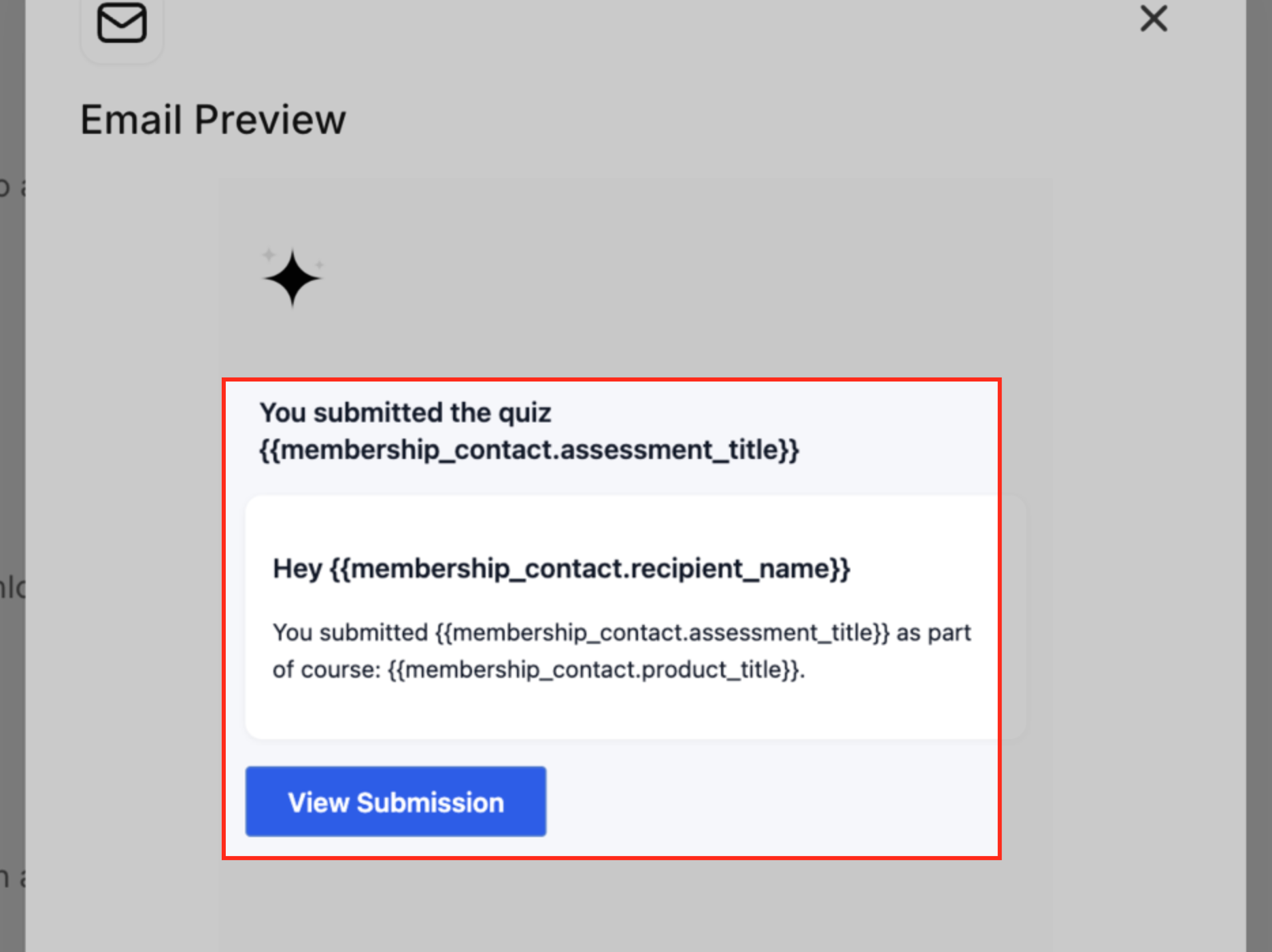
**
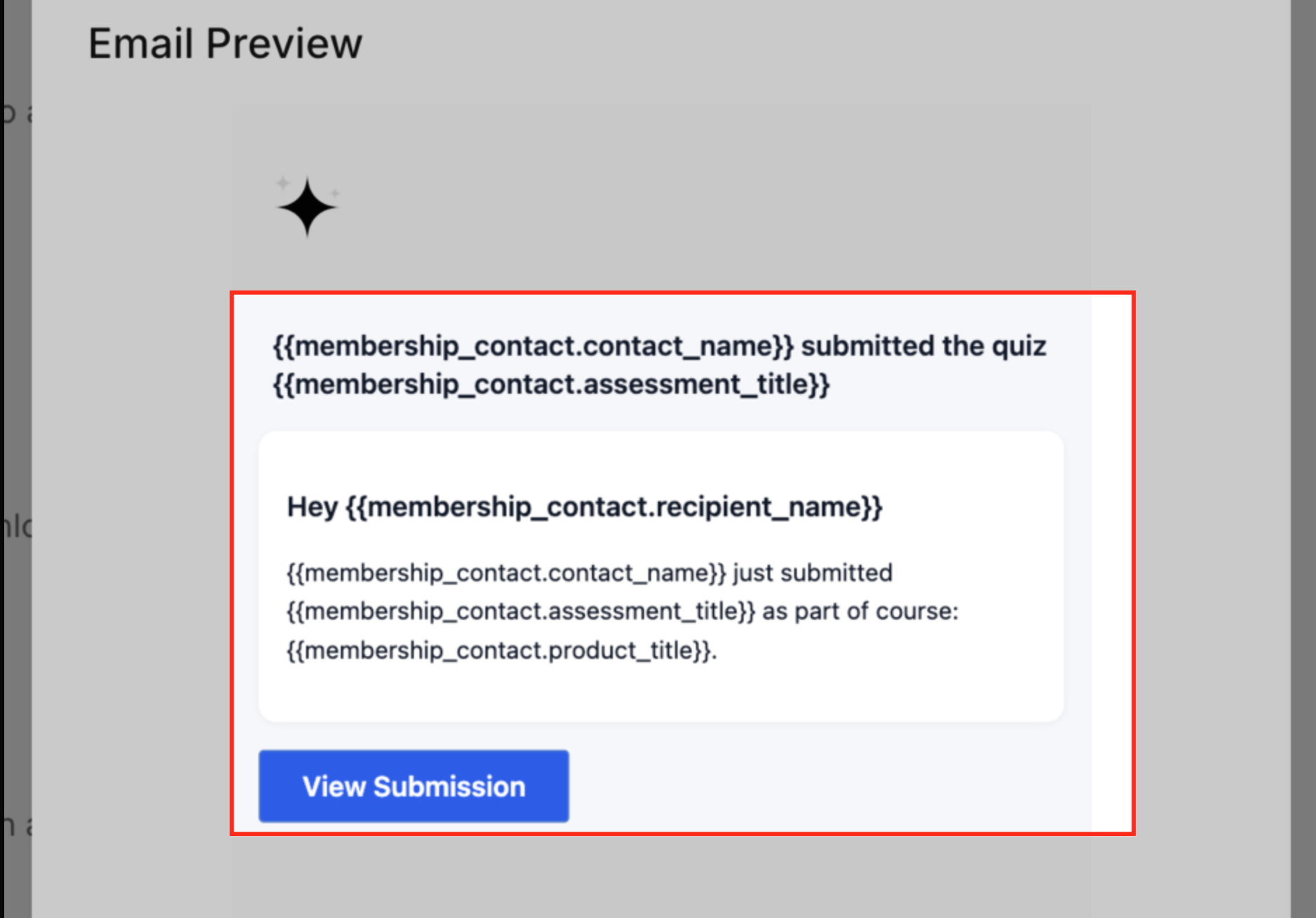
**
Assignment Assessment Emails
Assignment Assessment Emails notify learners and admins when assignments are submitted or graded, ensuring timely updates throughout the evaluation process. These emails support accountability and clarity during assignment review cycles. Learners receive assurance their work was received, while instructors stay informed of what requires grading. Once graded, both parties receive updates that complete the feedback loop.
- Assignment Submitted (User): Confirms that the learner’s assignment upload was successful.
- Assignment Submitted (Admin): Alerts instructors that a new assignment is ready to review.
- Assignment Graded (User): Provides grading details, including scores or pass/fail results.
- Assignment Graded (Admin): Notifies admins that grading is complete. **
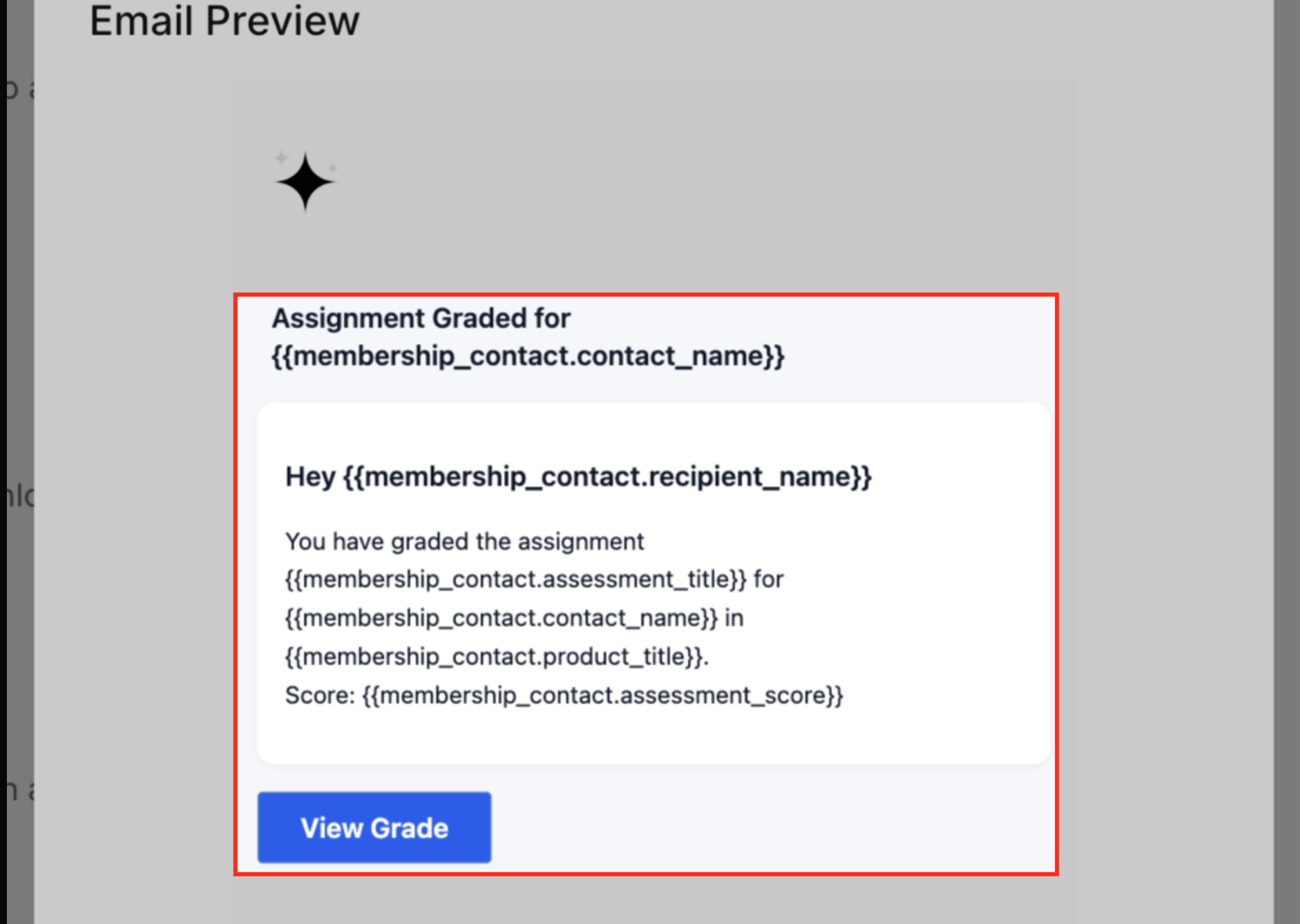
**
Course Comments Emails notify instructors whenever learners leave comments on courses, encouraging timely responses and improved engagement. Course comments are key to fostering communication and community within courses. By receiving instant notifications, instructors can quickly respond to learner questions or feedback and maintain meaningful interaction.
- Course Comments (Admin): Sent to instructors when a learner posts a comment on course content.
How to Set Up and Customize Assessment Emails
Setting up Course Assessment Emails ensures the right notifications are enabled so learners and instructors receive timely updates when quizzes or assignments are submitted or graded. Proper configuration helps maintain smooth communication and reduces confusion, ensuring important course activity is always visible. Customizing these email templates allows you to adjust subject lines, messaging, and branding to match your organization’s style and create a consistent learner experience. Personalizing templates improves clarity and reinforces your brand, ensuring each notification feels professional and aligned with your communication standards.
Open Client Portal Settings
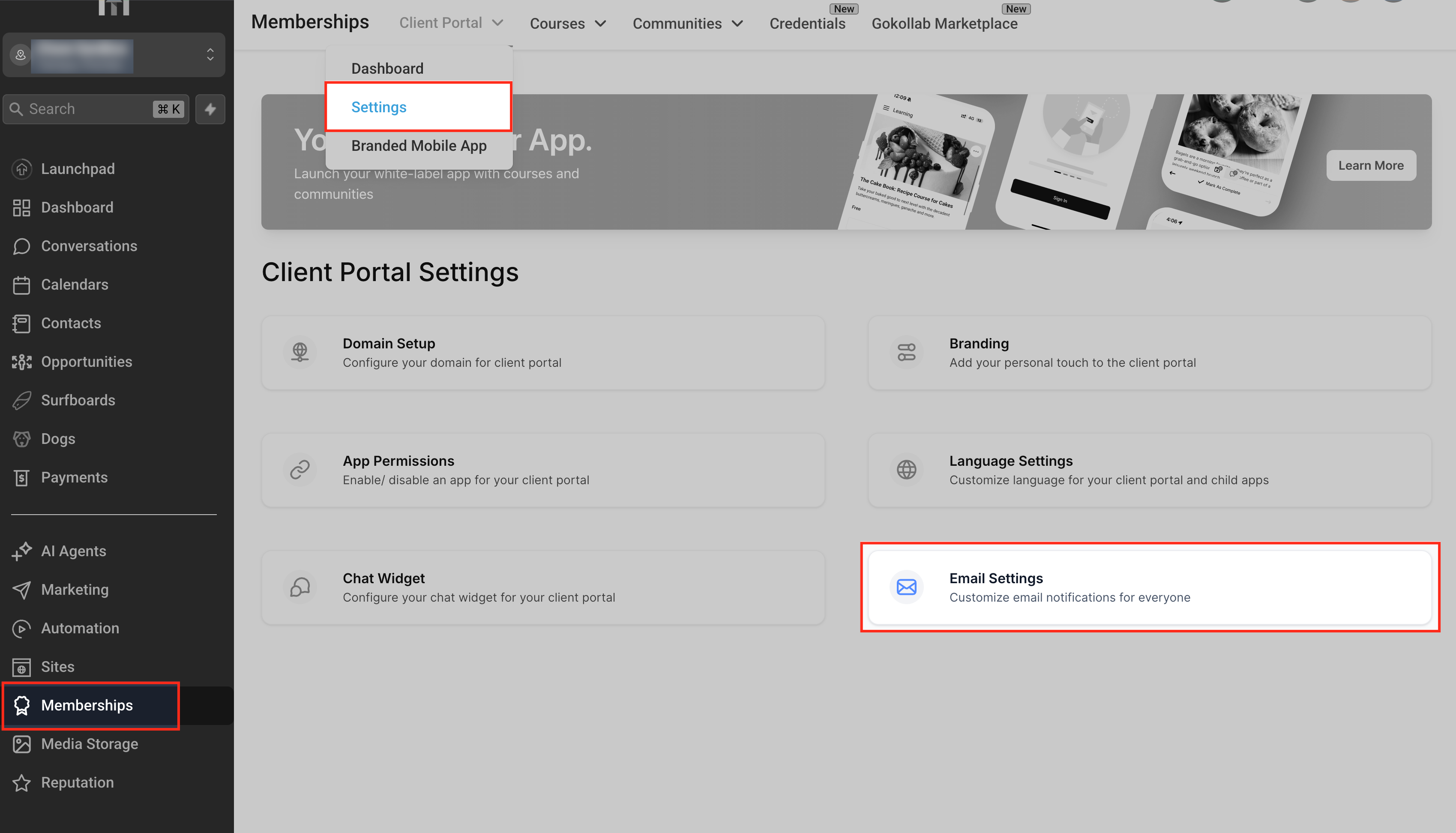
To begin customizing a Course Assessment Email, navigate to Memberships → Client Portal → Settings from the top menu. The Settings page displays all configuration options for your client portal, including branding, permissions, and email settings.
Access Email Settings
From the Client Portal Settings page, select Email Settings to open all email notification options for your client portal. This area allows you to manage system-generated messages for courses, communities, certificates, and more.
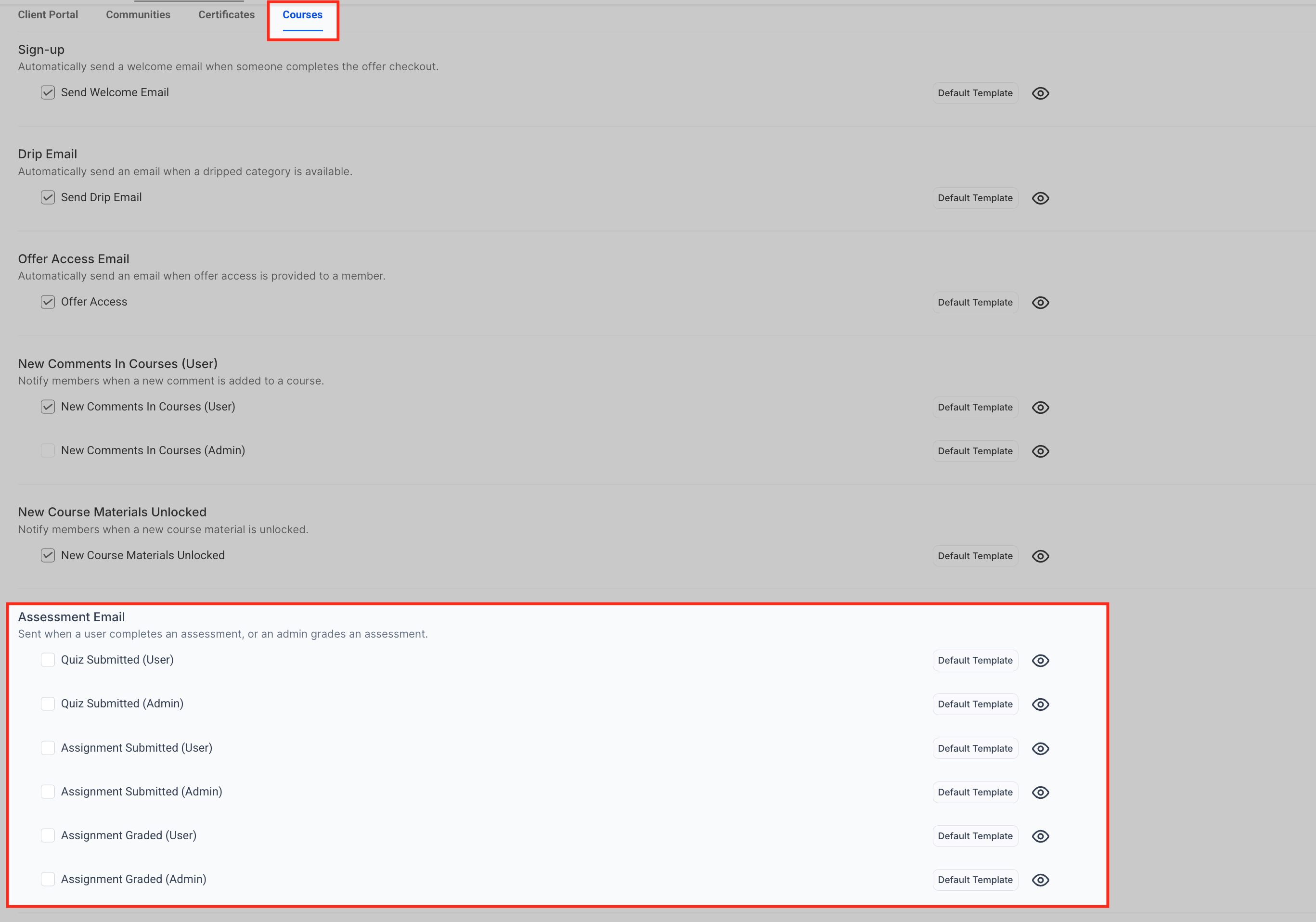
Open the Courses Tab
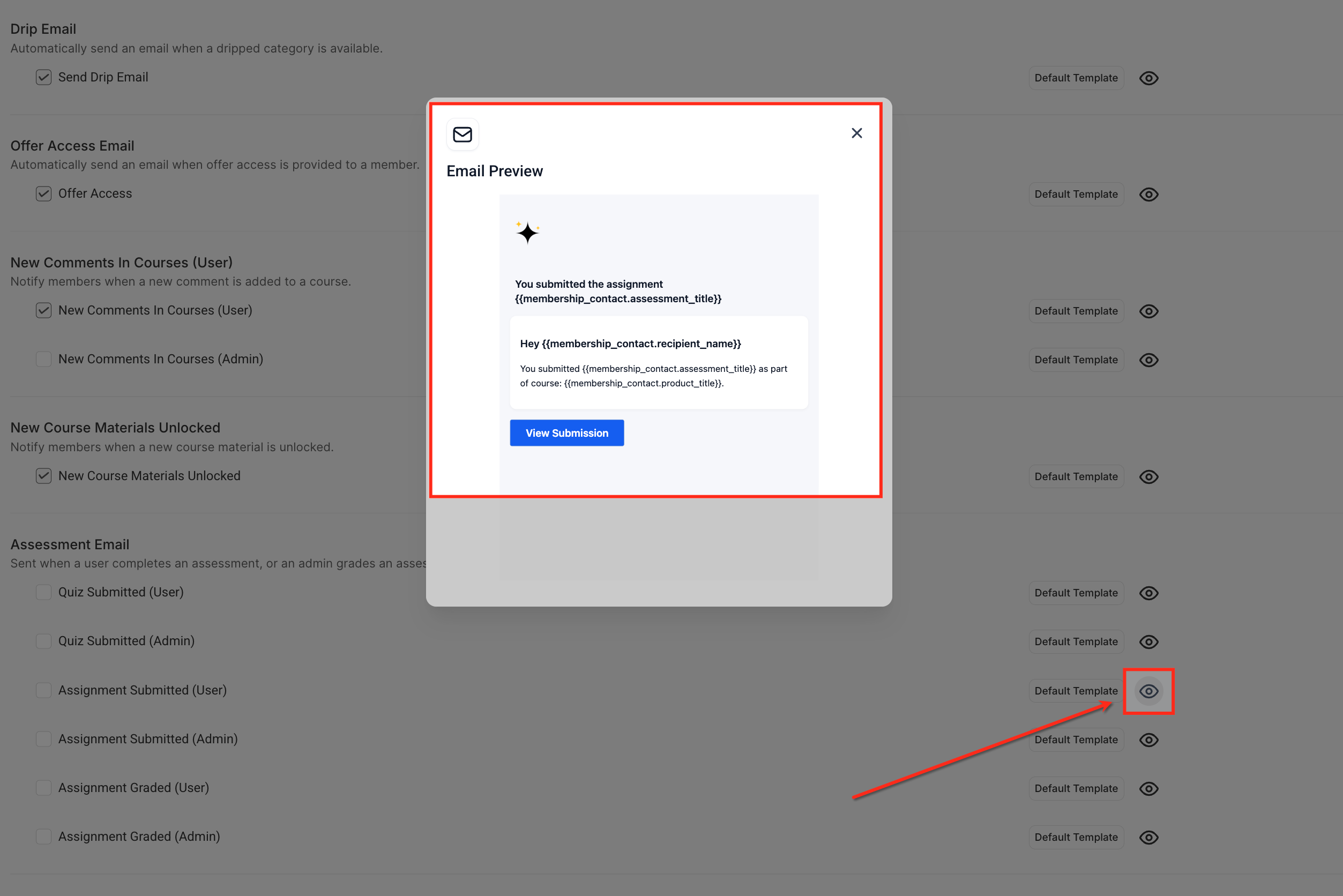
In the Email Settings section, click the Courses tab to view all course-related notification types. This includes sign-up emails, drip notifications, course comments, material unlocks, and the full set of Assessment Emails. Scroll down to the Assessment Email section and locate the email you want to customize. Click the Preview (eye icon) next to the Default Template to view the current version of the email before editing.
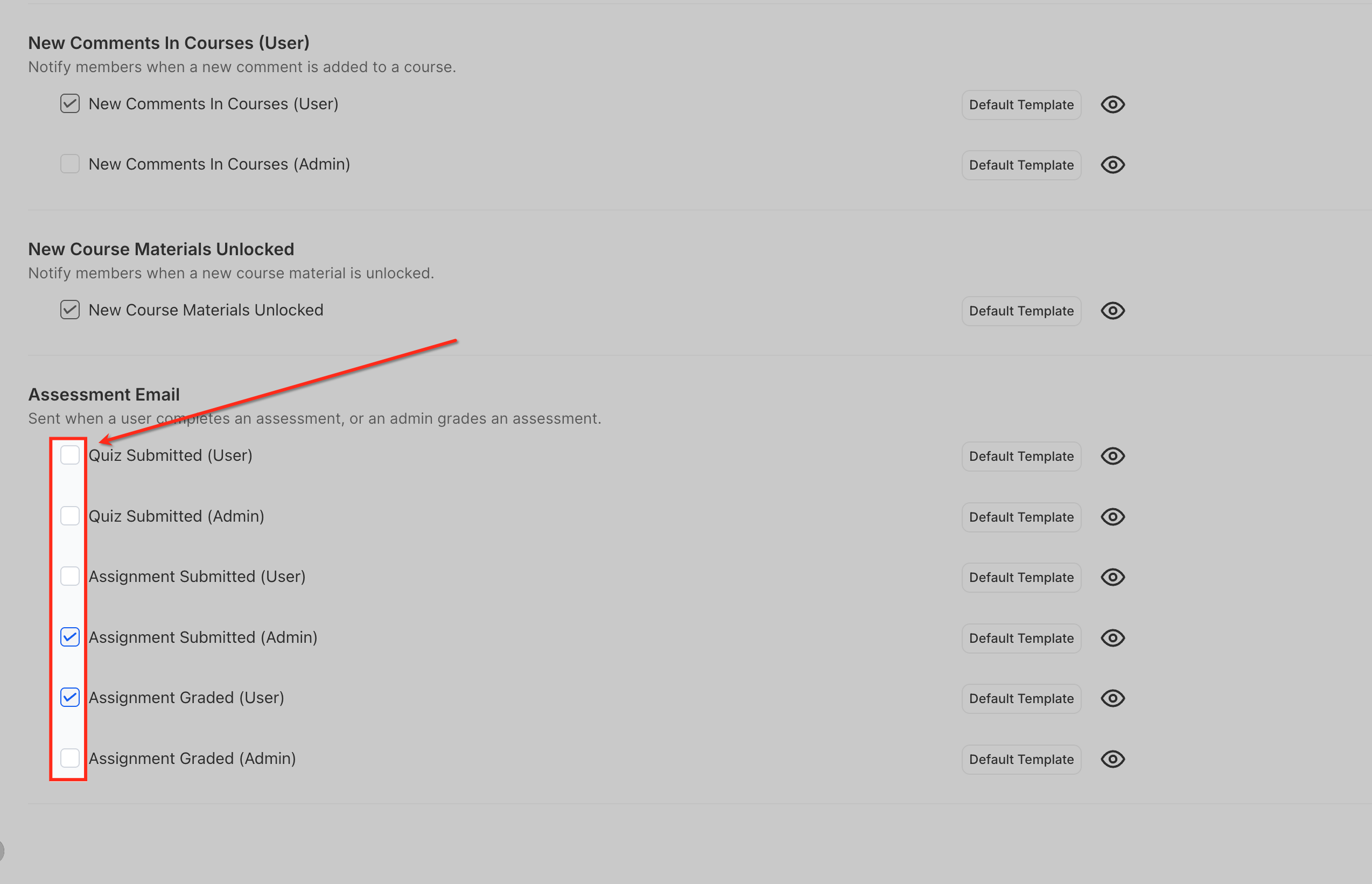
Enable or Disable Assessment Emails
Use the checkboxes in the Assessment Email section to toggle each notification on or off based on your course’s needs. Turning a notification on ensures that learners or admins receive updates for quiz submissions, assignment submissions, and grading events at the appropriate time.
Preview the Email Template
A preview window will appear showing the default message, layout, and merge fields used in the Assessment Email. This helps you confirm whether you want to modify the existing design or keep it as-is.
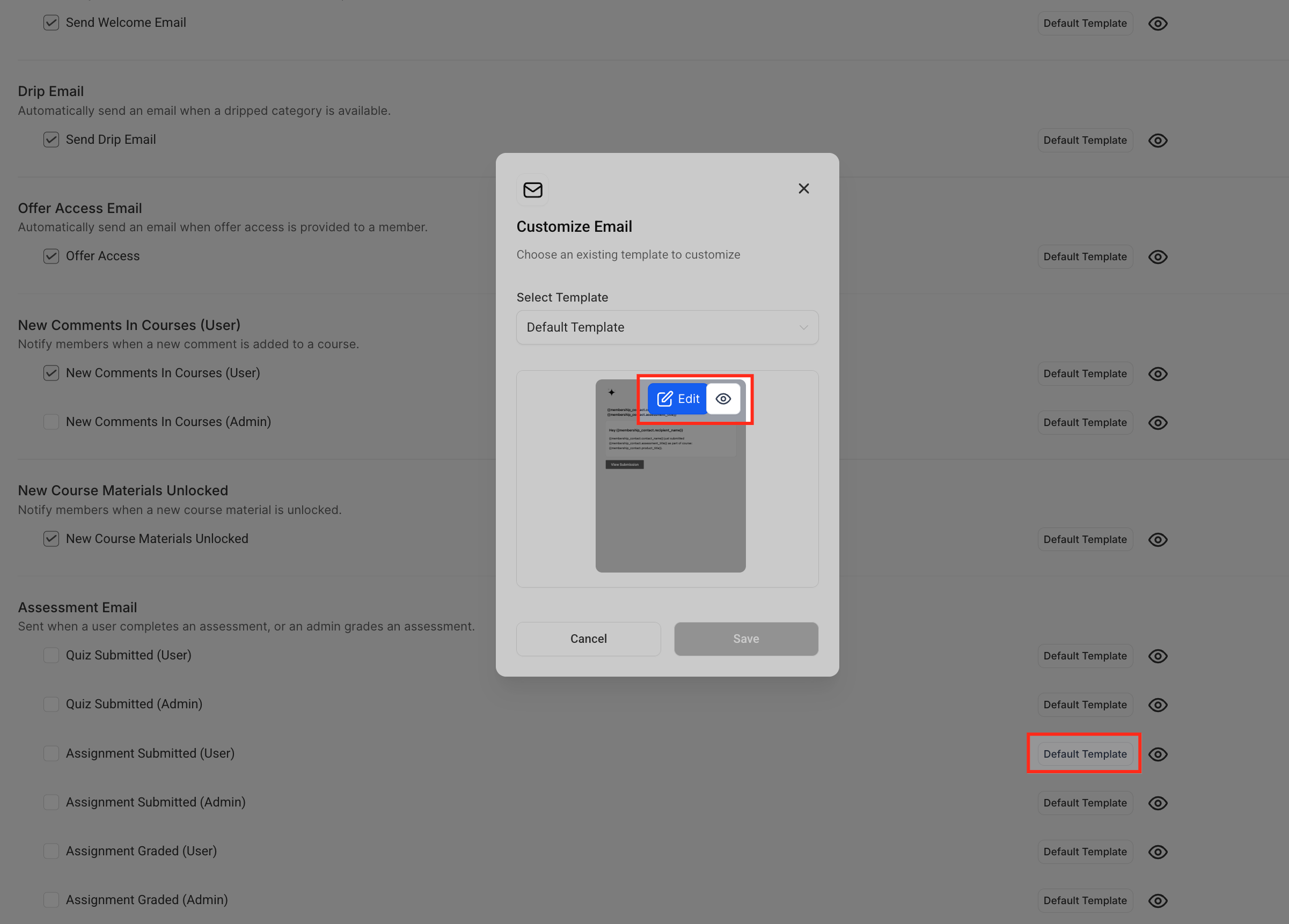
Open Template Customization
Click the Default Template button next to the selected assessment email and choose Edit from the customization menu. This prepares the system to create a customizable version of the default template.
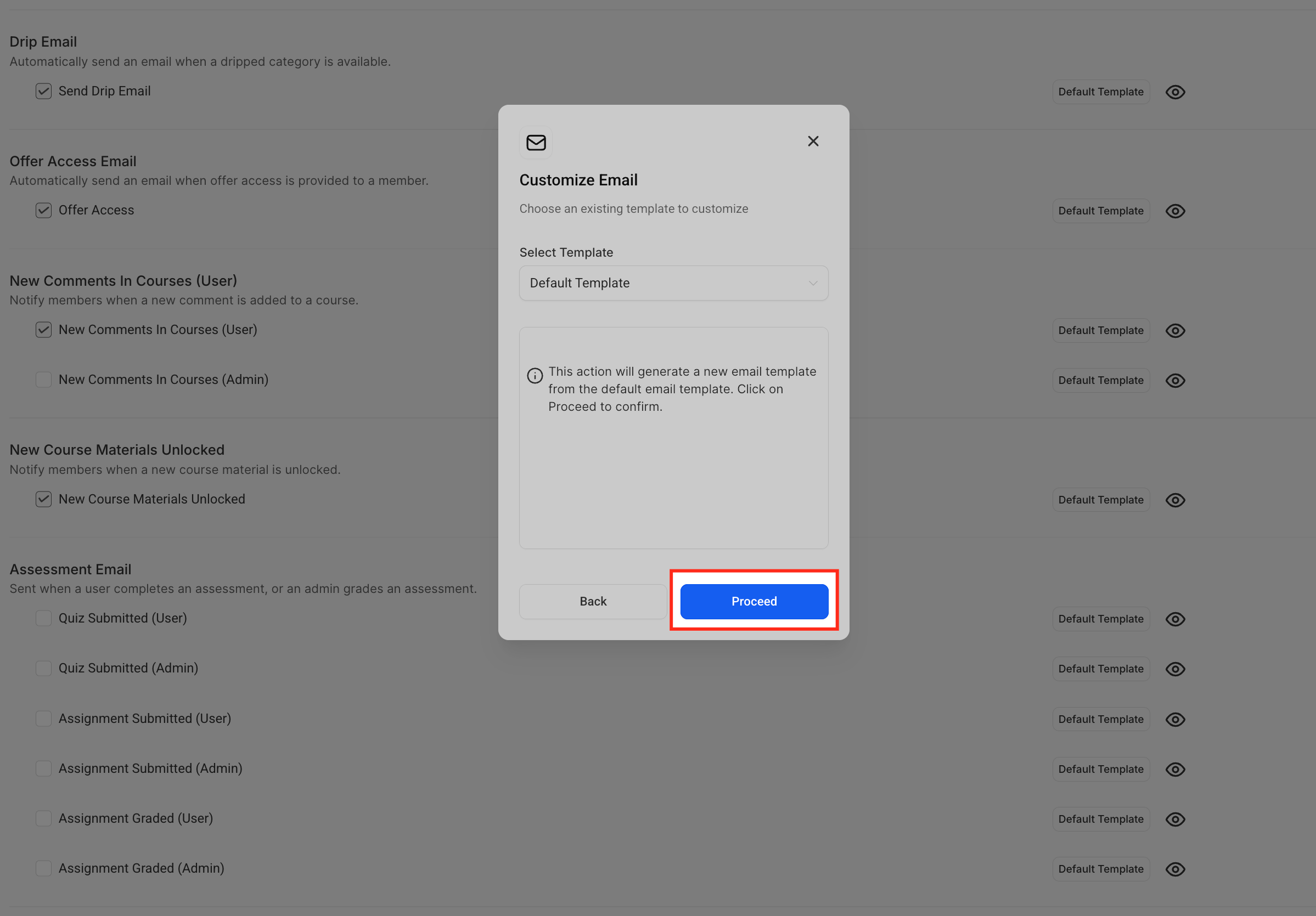
Proceed to Edit Template
A confirmation screen will appear, indicating that Patient Copilot will generate a new editable email template based on the default layout. Click Proceed to open the template in the Email Builder, where you can begin making your design and content changes. Update text, colors, branding, and custom values as needed. Click Save & Publish to apply changes to future emails.
Frequently Asked Questions
Q: Can I disable Assessment Emails for a specific course without affecting others?
Yes. Each course has independent email toggles, so changes apply only to that specific course. Q: Do Course Assessment Emails use email credits? Yes. They count as transactional emails and use standard email credits. Q: Who receives the admin versions of these emails? Any user assigned as an instructor or admin within Course → Settings → Instructors. Q: Can I add additional buttons or links to the admin email templates? Yes. Use the Email Builder to insert buttons and link them to course or grading URLs. Q: Can these templates be translated? Absolutely. Replace the default English text with your translated content; UTF-8 is fully supported. Q: Will learners receive duplicate emails if I also use workflows? No. However, it’s recommended to disable one of the triggers if you want to avoid overlapping notifications.