
Workflows - Undo/Redo & Change History
Introducing Undo, Redo, and Recent Changes in Patient Copilot’s Workflow Builder—a safer, faster way to experiment without losing progress. Use keyboard shortcuts or toolbar controls to step backward or forward, and jump to a previous state using the Recent Changes list. This article covers how to use Undo, Redo, and the Recent Changes (session history) features.
Key Benefits of Undo, Redo & Recent Changes
- Safety: Quickly recover from accidental deletions or edits without losing your overall progress.
- Speed: Move backward or forward through edits instantly using keyboard shortcuts for rapid iteration.
- Precision: Jump to an exact edit from the Recent Changes list to compare states or roll back multiple steps at once.
- Confidence: Make bold changes knowing you can revert or replay them within your current session.
- Focus: Keep your attention on building; most canvas edits are auto saved and tracked for quick retrieval in-session.
Undo and Redo Controls
Learn where to find Undo/Redo in the Workflow Builder and how to use shortcuts for faster editing.
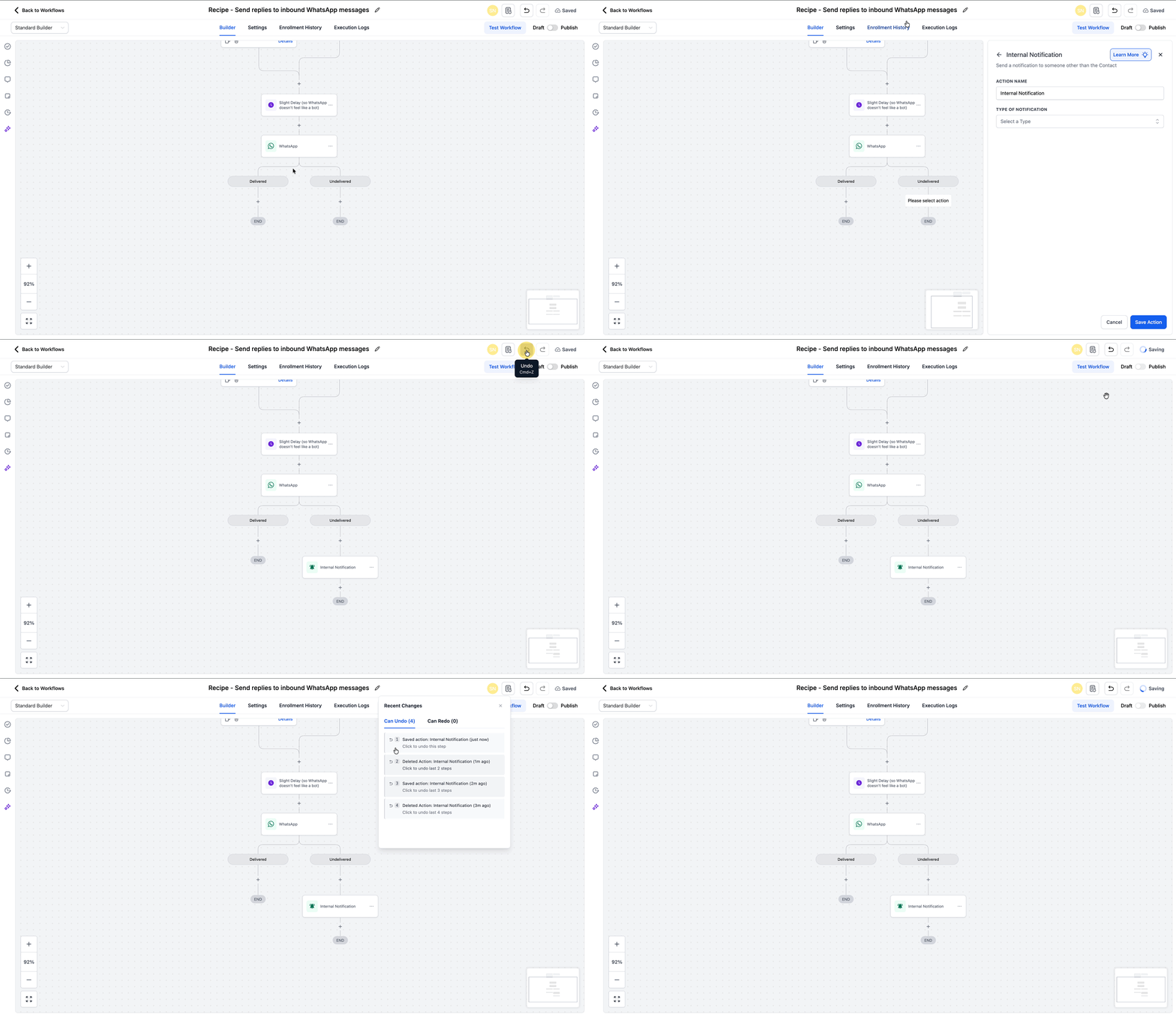
- Toolbar buttons for Undo and Redo are available on the workflow canvas.
- Keyboard shortcuts:
- Windows: Ctrl + Z (Undo), Ctrl + Y (Redo)
- macOS: Cmd + Z (Undo), Cmd + Y or Cmd + Shift + Z (Redo) - Undo reverses the most recent tracked canvas action; Redo reapplies it if you change your mind.
Session Behavior & Limits
Knowing how sessions work prevents surprises. These rules help you understand when history resets and what persists while you edit.
- Session-based: Change history exists only for your current editing session and resets on exit or browser refresh.
- Restoring versions: If you restore an older workflow version via Version History, Undo/Redo resets and starts fresh from the restored state.
- Local scope: History is local to your session; it won’t include other users’ edits.
Multi-Editor Behavior
When multiple users are editing, understand who can undo what and how to collaborate safely.
- Undo/Redo and Recent Changes track only your edits in your session.
- Other editors’ changes are not included in your session history.
- For team-wide or time-spanning rollbacks, rely on Version History for consistent, shared checkpoints.
How To Use Undo, Redo & Recent Changes Feature
Follow these steps to use Undo/Redo and Recent Changes effectively in the Workflow Builder. 1. Go to Automations > Workflows.
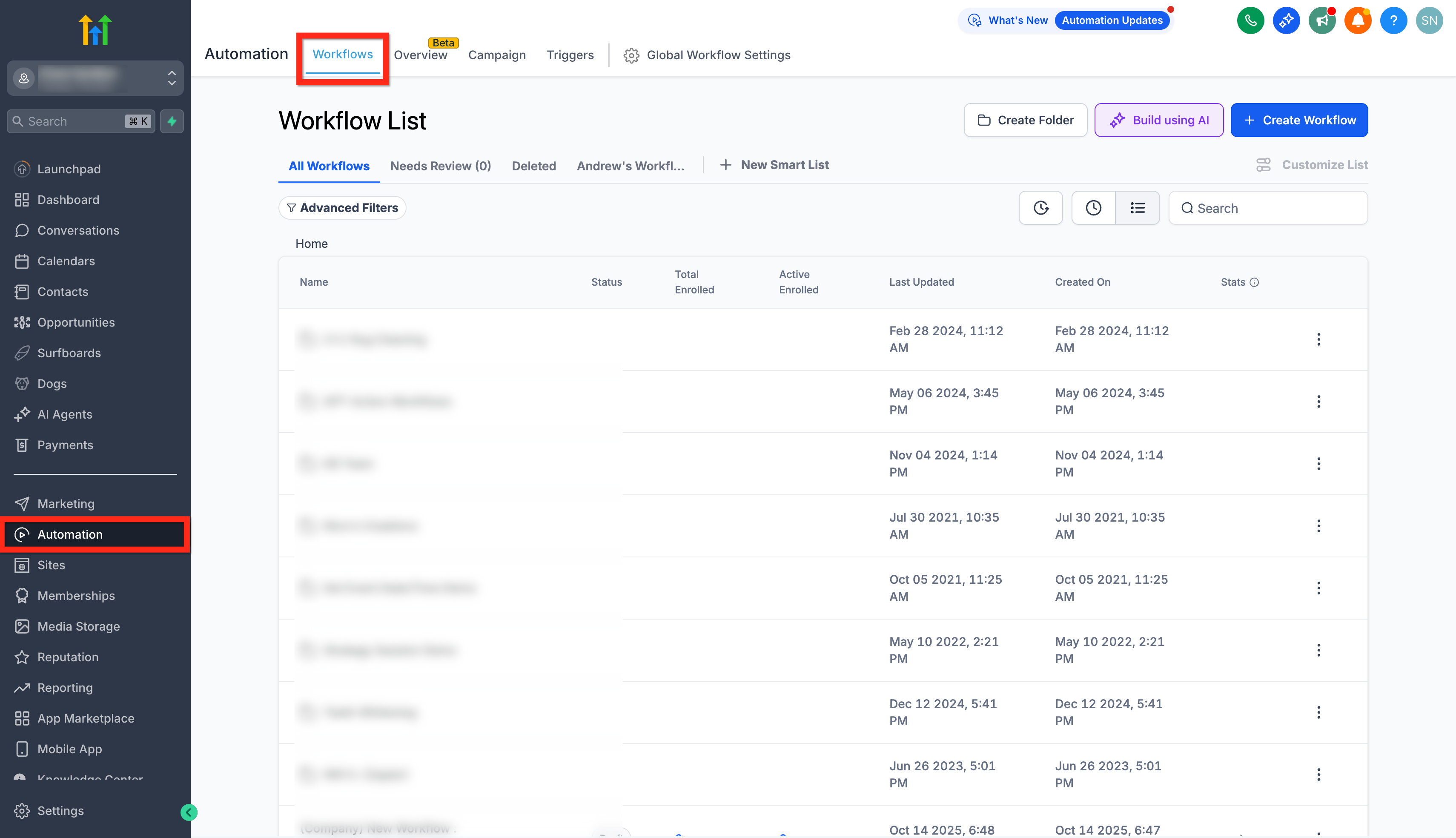
- Create a new workflow or open an existing workflow to edit on the canvas. 3. Add or modify steps/settings directly in the canvas. 4. Use Undo/Redo buttons in the builder. 5. Or use Ctrl/Cmd + Z to Undo the last edit; use Ctrl/Cmd + Y (or Cmd + Shift + Z on macOS) to Redo. 6. Click Recent Changes on the canvas to view your latest edits; select any entry to jump to that point in time.
Frequently Asked Questions
Q: Is there a limit to how many actions I can undo?
Undo/Redo is session-based. While the list shows your latest edits, history resets when the session ends (for example, on refresh/exit) or when you restore a version. Q: Does history persist after I refresh or close the tab? No. Change history exists only within your current editing session. Q: What’s the difference between Recent Changes and Version History? Recent Changes lists your latest session edits for quick rollbacks. Version History stores persistent workflow versions for long-term, collaborative rollbacks. Q: Can I undo another user’s edits? No. Undo/Redo is local to your session and tracks only your edits. Use Version History for collaborative rollbacks. Q: Will undo/redo affect live, running workflows? Undo/Redo affects the canvas in your editor. Publishing/versioning controls how changes affect live executions. Use Version History and publishing to manage live changes safely. Q: What happens after I restore an older version? The Undo/Redo history resets, starting fresh from the restored state.