
How to Add Custom CSS to Forms, Surveys, and Quizzes!
You can easily change how your forms, surveys, and quizzes look using Custom CSS. Follow these simple steps.
1. Where to Add Custom CSS
Option 1:
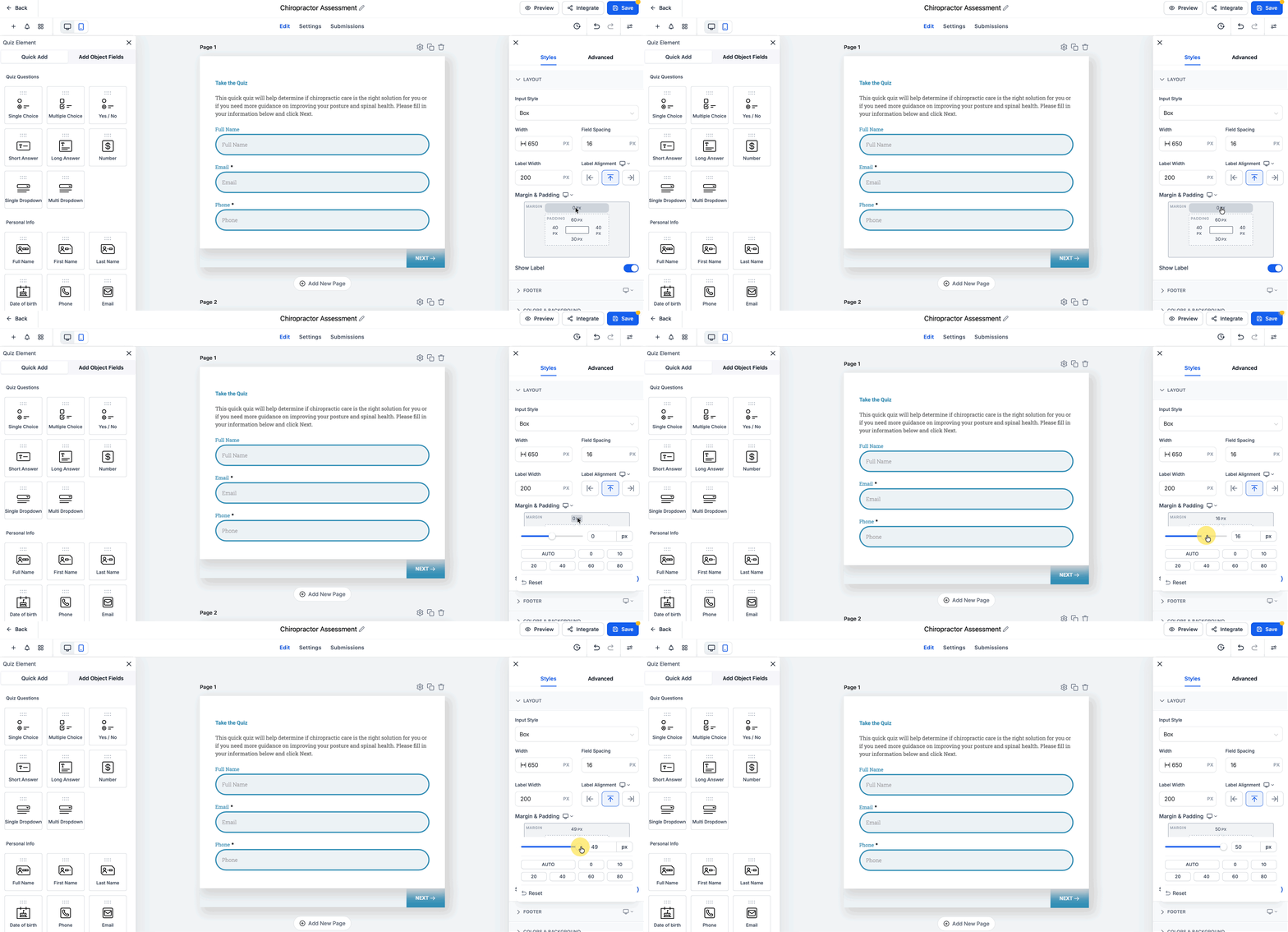
Inside the Form, Survey, or Quiz (recommended) 1. Go to Sites → Form Builder (or Survey Builder / Quiz Builder). 2. Open your form. 3. Click on the Styles tab → Advanced Section → Custom CSS section. 4. Paste your CSS code. 5. Click Save, then Publish. This method updates how the form looks inside the form or survey itself. Tip: For basic top spacing above your form, survey, or quiz, use the built-in top-margin controls in the Styles → Layout section of the builder before adding Custom CSS. Reserve CSS for advanced visual tweaks that aren’t available in the Layout panel.
Option 2: On the Funnel or Website Page
If your form is embedded on a page: 1. Open your Funnel or Website in the Builder. 2. Go to Settings → Custom CSS. 3. Add CSS here to style the container around the form (like margins, padding, or background color). ⚠ You cannot style fields or buttons here because the form is loaded inside an iframe.
Option 3: On External Sites (like WordPress) You can still style the iframe container, but not the form fields inside.
2. Basic CSS Examples
A. Input Fields input, textarea, select { border: 1px solid #ccc; border-radius: 8px; padding: 10px; font-size: 16px; } input:focus, textarea:focus { border-color: #7C3AED; box-shadow: 0 0 4px rgba(124, 58, 237, 0.3); }
B. Submit Button button[type="submit"] { background-color: #7C3AED; color: white; padding: 12px 20px; border: none; border-radius: 8px; font-size: 16px; cursor: pointer; } button[type="submit"]:hover { background-color: #6931d4; }
C. Labels and Errors label { font-weight: 600; color: #111827; }.hl-error,.error-message { color: #DC2626; font-size: 14px; }
D. Survey/Quiz Progress Bar .hl-progress.fill { background-color: #7C3AED; transition: width 0.3s ease; }
E. Mobile-Friendly Styling @media (max-width: 480px) { form { padding: 0 10px; } button[type="submit"] { width: 100%; } }
3. Styling Survey Navigation Buttons
You can also style the Previous, Next, and Submit buttons in surveys using these CSS snippets. .ghl-footer-preview.ghl-submit-btn { background-color: #28A745!important; color: #FFFFFF!important; }.ghl-footer-preview.ghl-footer-next { background-color: #28A745!important; color: #FFFFFF!important; }.ghl-footer-preview.ghl-footer-back { background-color: #28A745!important; color: #FFFFFF!important; }? You can change #28A745 to your brand color to match your theme.
4. Troubleshooting CSS not working?
- Make sure it’s added in the Custom CSS area inside the Form/Survey/Quiz.
- Click Publish, then refresh your browser or open in Incognito.
- If embedded, remember: page CSS won’t affect the inside of the form (because of the iframe).
5. Quick Tips
- Always Save and Publish after edits.
- Use Inspect (right-click → Inspect) to find element class names.
- Avoid overusing
!important. - Check how it looks on desktop and mobile.
6. Example Template (Copy & Paste) Paste this into your Form’s Custom CSS box: input, textarea, select { width: 100%; border: 1px solid #D0D5DD; border-radius: 8px; padding: 10px; } label { font-weight: 600; color: #111827; } button[type="submit"] { background: #7C3AED; color: #fff; padding: 12px 18px; border: none; border-radius: 8px; cursor: pointer; } button[type="submit"]:hover { background: #6931d4; }
You’re done! Your form, survey, or quiz will now have your custom styles applied, including buttons styled to match your brand.