
Setting up webhooks to receive incoming calls, messages and status updates for calls (for Twilio users)
Step 1: Login to your Twilio account and click on the URL to view phone numbers:
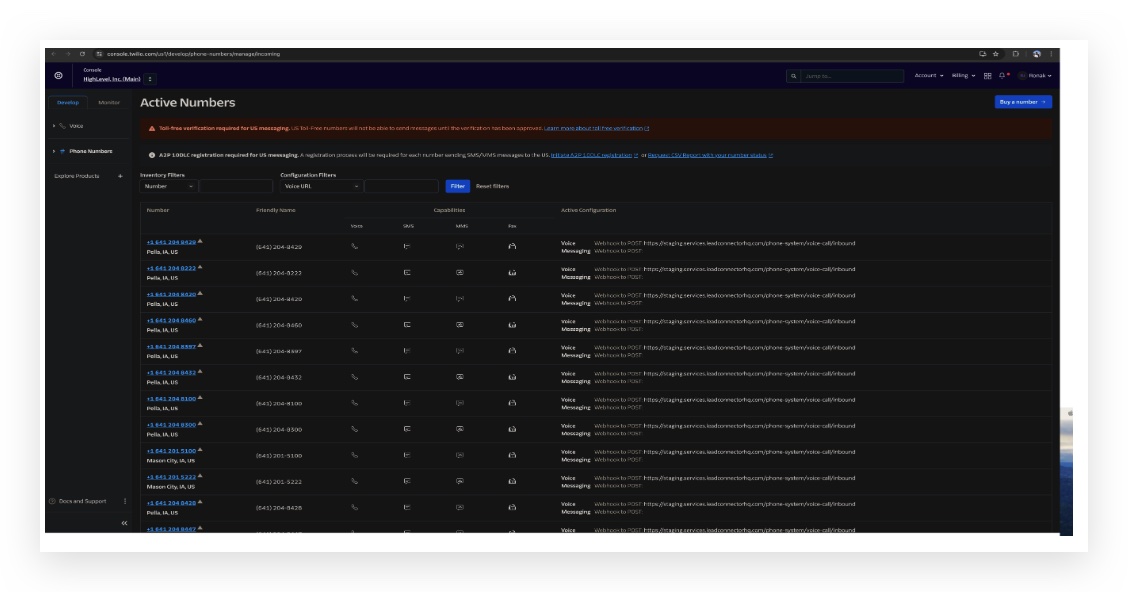
Step 2: Click on a phone number to edit the configuration
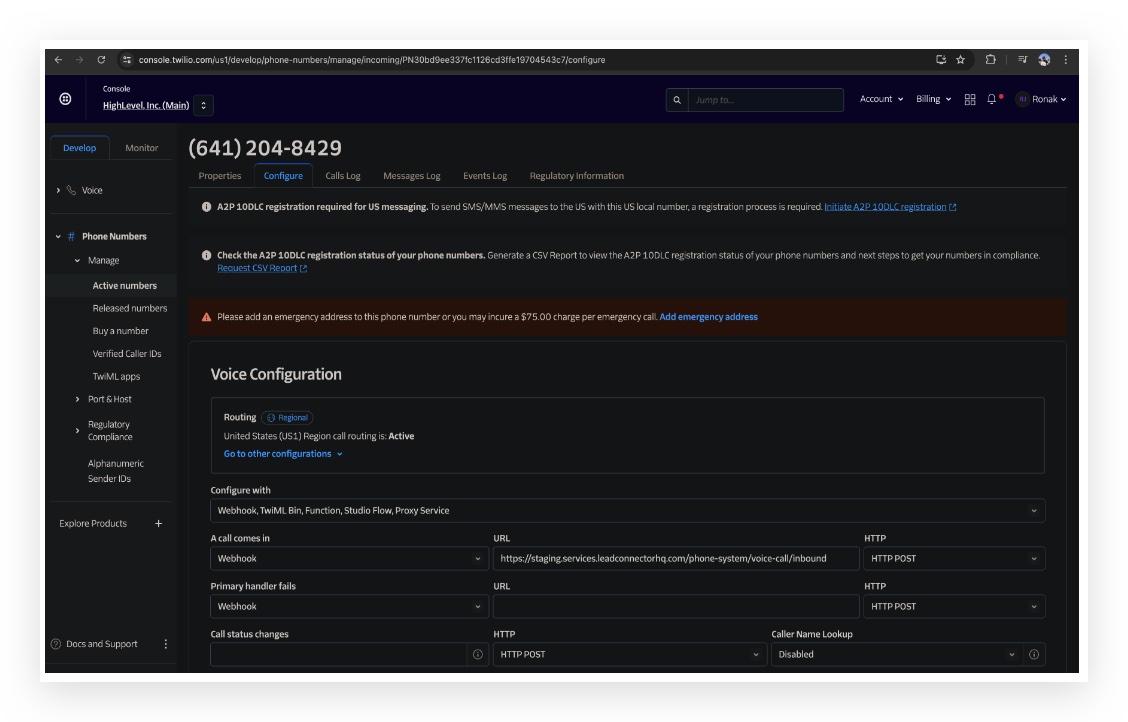
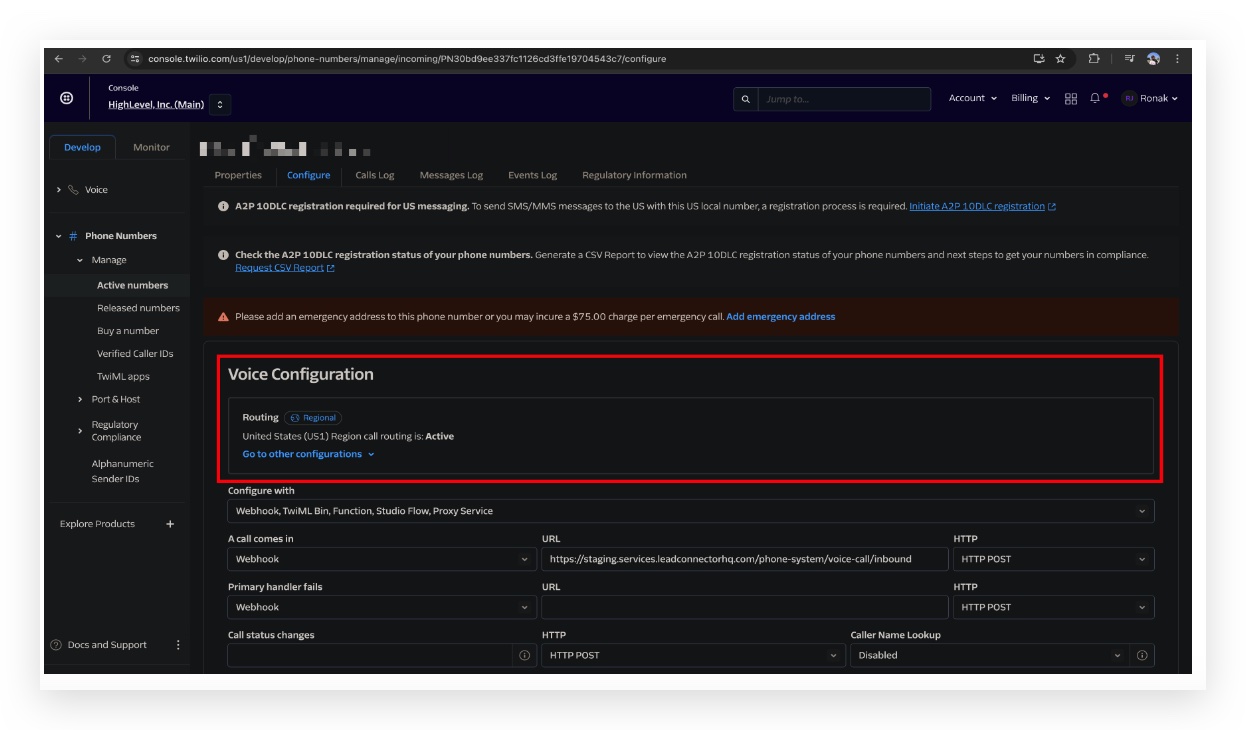
Step 3: Set the Routing region to ‘US1’ if not done already.
Step 4: Under ‘Voice Configuration’ set it to:
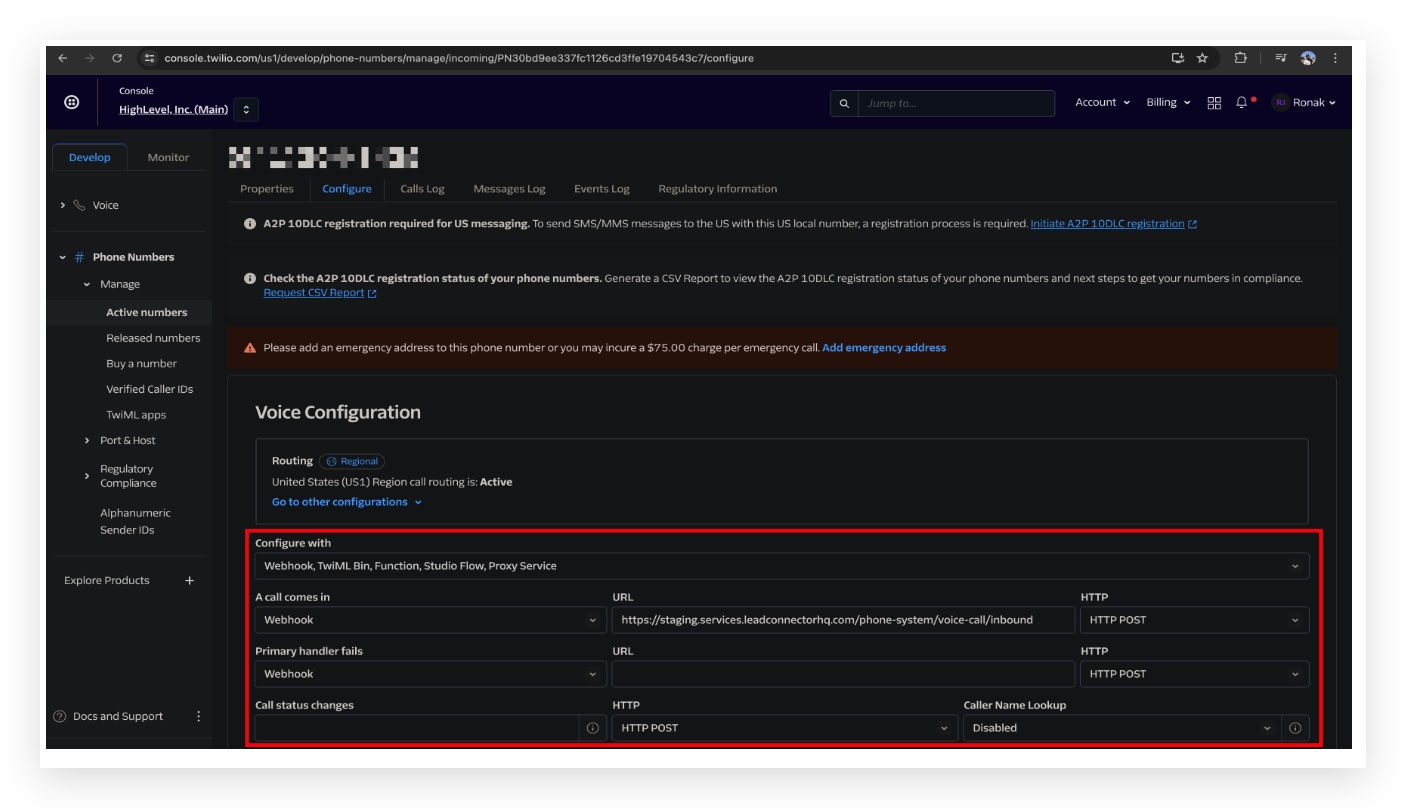
- Configure with: Webhook, TwiML Bin, Function, Studio Flow, Proxy Service
- A call comes in: Webhook
- Use the following URL(https://staging.services.leadconnectorhq.com/phone-system/voice-call/inbound) https://services.leadconnectorhq.com/phone-system/voice-call/inbound
- HTTP: HTTP POST
- Primary handler fails: No changes needed
- Call status changes > URL:https://services.leadconnectorhq.com/appengine/twilio/incoming_call_status
- HTTP: HTTP POST
- Caller Name Lookup: Your choice, we recommend keeping this ‘Enabled’ to use lookup
- Click on the save configuration button
Step 5: Under ‘Messaging Service’ set it to Routing region to ‘US1’ if not done already.
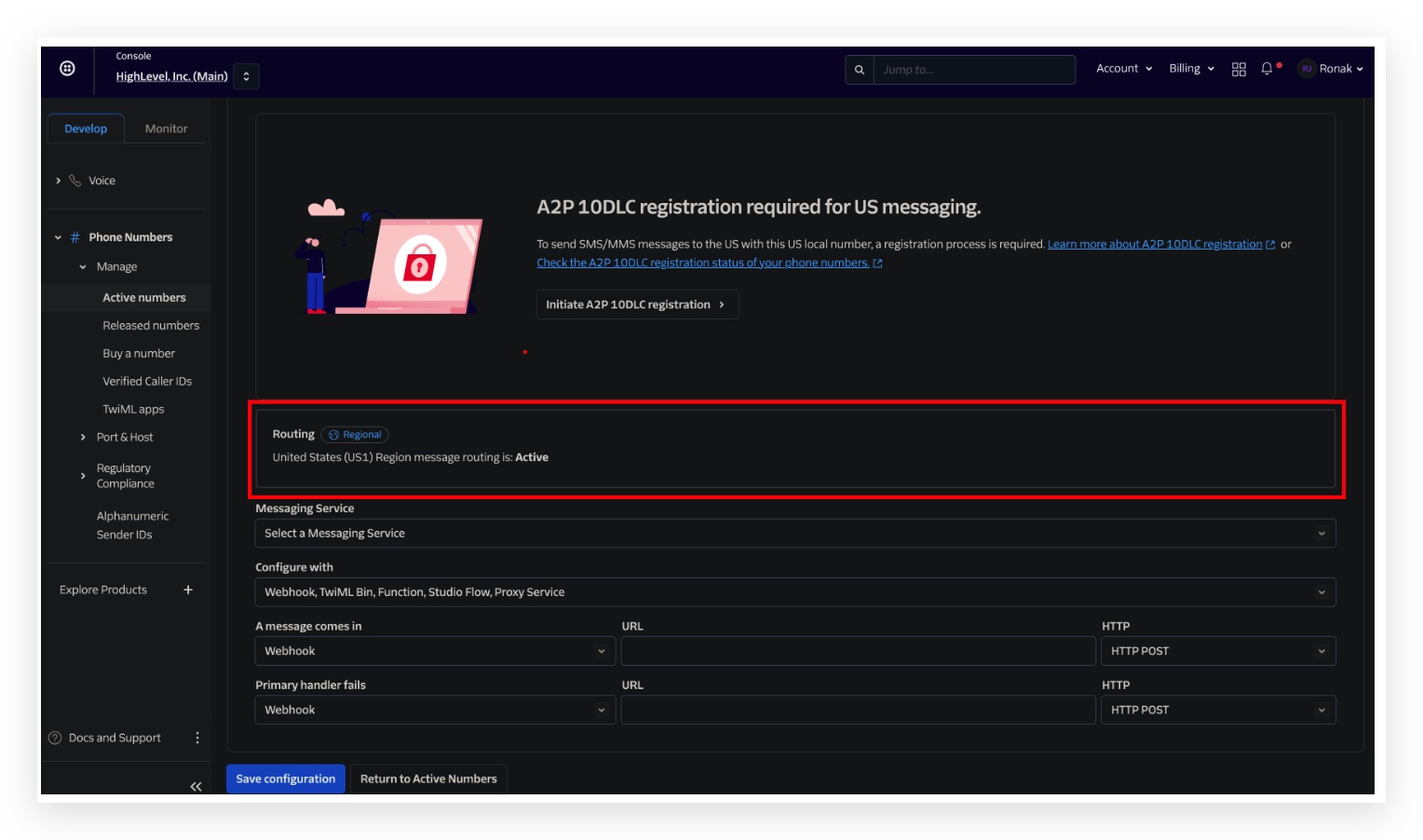
Step 6: Messaging service: No input/change needed
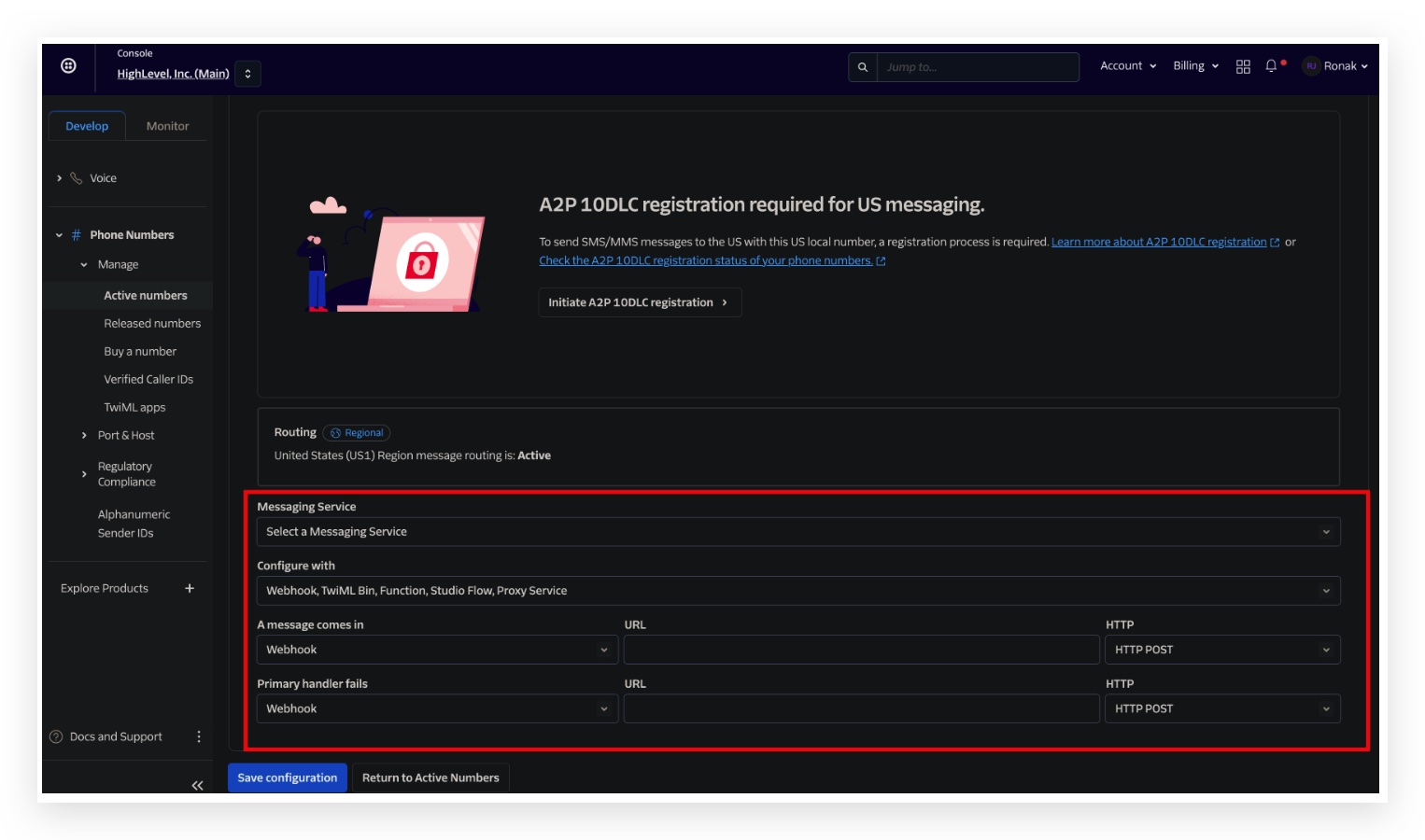
- Configure with: Webhook, TwiML Bin, Function, Studio Flow, Proxy Service
- A message comes in: Webhook
- Use the following URL https://services.leadconnectorhq.com/appengine/twilio/incoming_message
- HTTP: HTTP POST
- Primary handler fails: No input/change needed
- Click on the save configuration button
If your number is connected to a Messaging Service
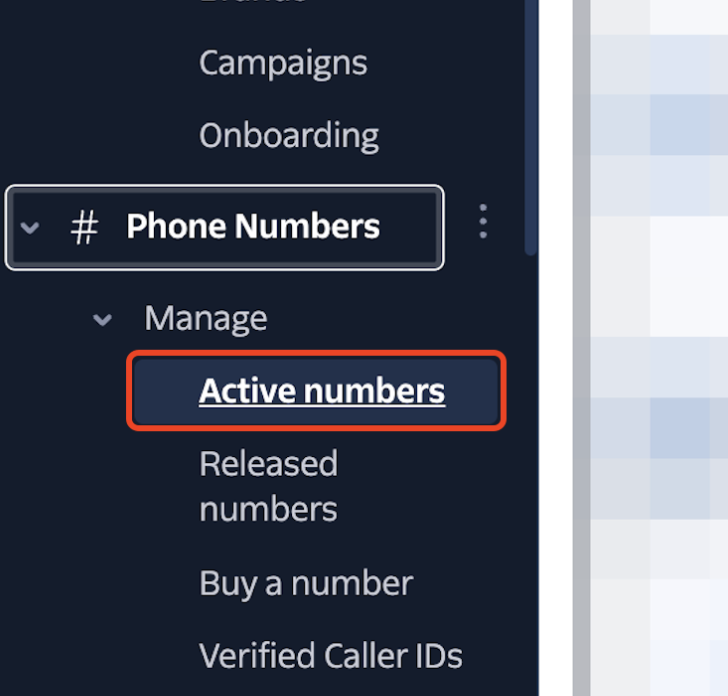
1. Click on Active numbers
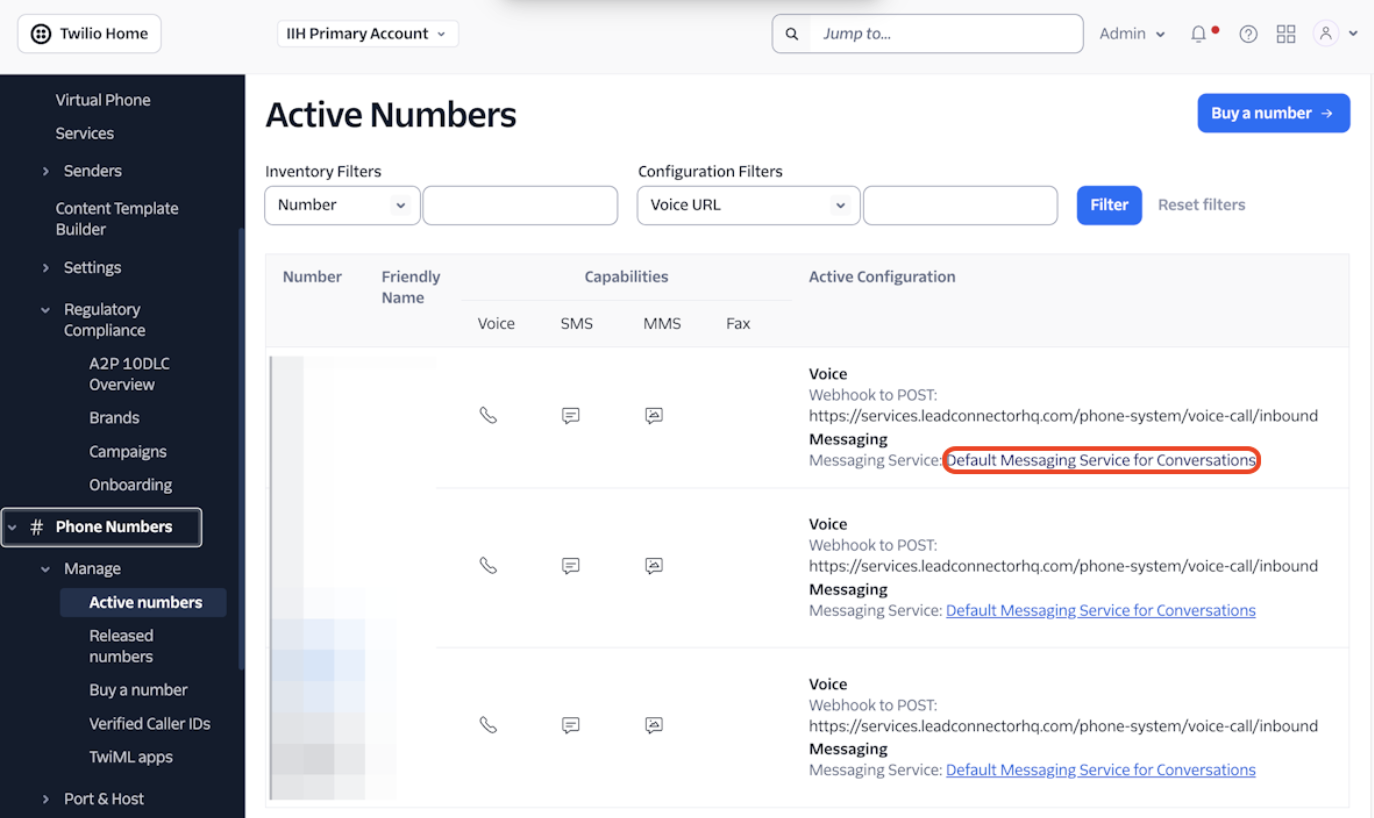
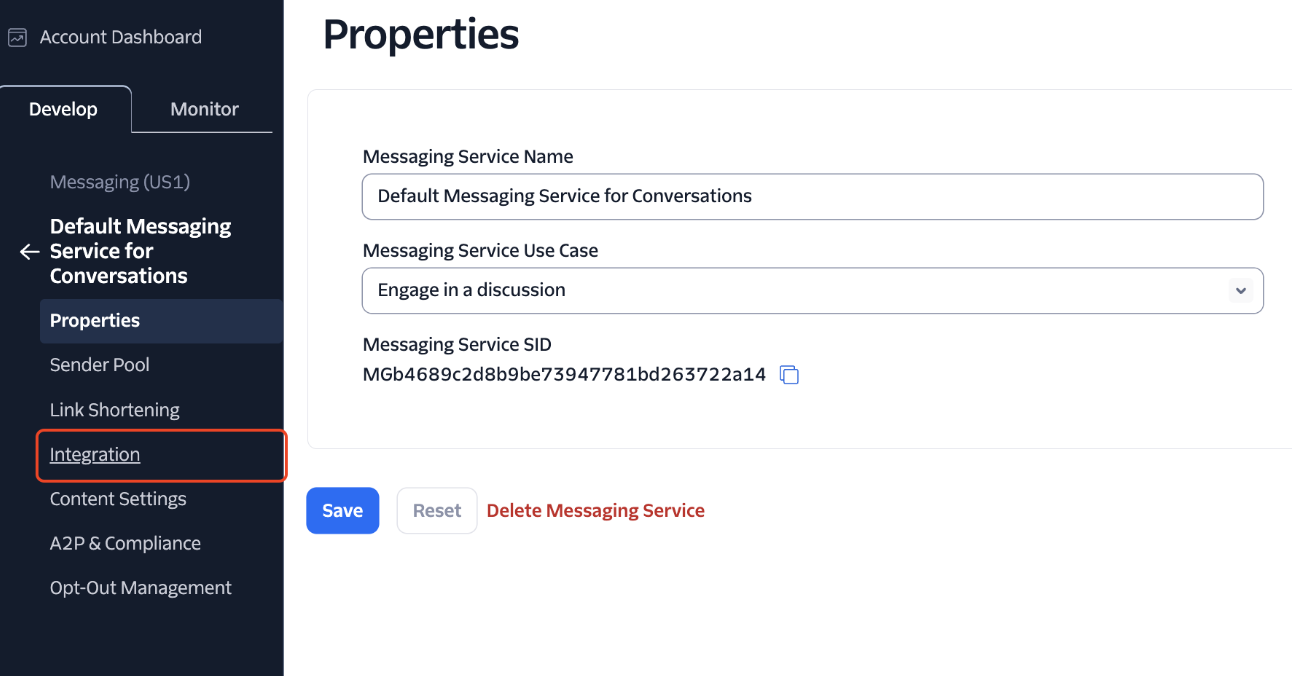
2. Click on the linked Messaging Service
3. Click on Integration
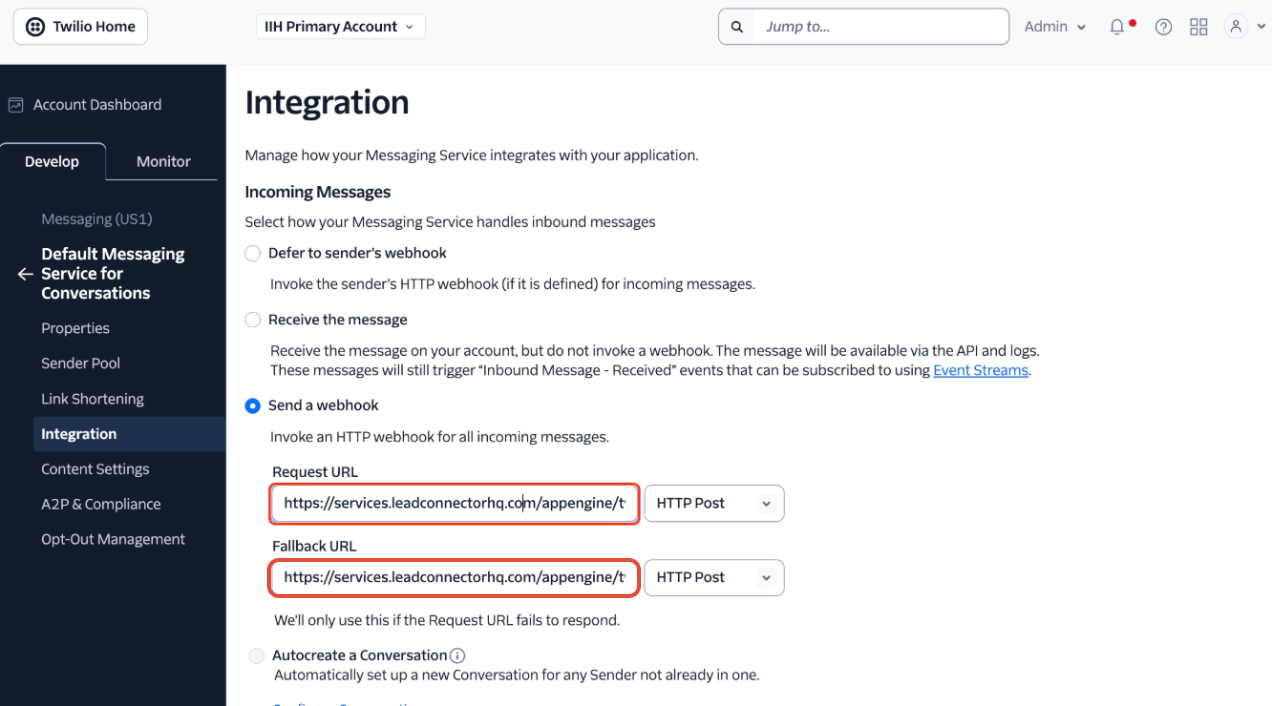
4. Select “Send a webhook” Make sure to use the following webhooks Request URL: https://services.leadconnectorhq.com/appengine/twilio/incoming_message Fallback URL: https://services.leadconnectorhq.com/appengine/twilio/incoming_message
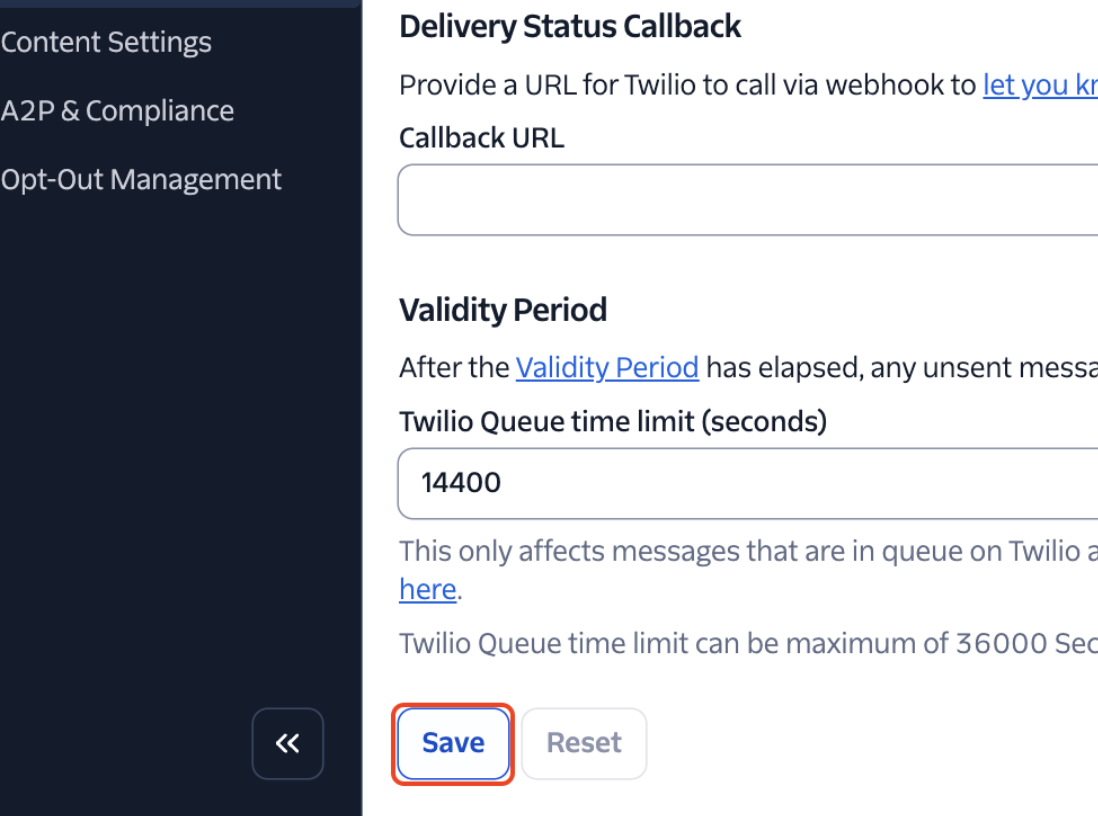
5. Click on Save
Frequently Asked Questions
Currently no frequently asked questions. Submit feedback on this article to help is add questions to this section! Was this article helpful? That’s Great! Thank you for your feedback Sorry! We couldn’t be helpful Thank you for your feedback Feedback sent We appreciate your effort and will try to fix the article