
How to create a Facebook form in Ad Manager
In this article we will discuss in detail about the steps to be taken to create a new Facebook lead form, used for the Lead Generation objective of Meta ads.
How to review, map and duplicate existing Facebook lead forms?
As part of enhancing the lead form management experience in Ad Manager, we’ve introduced the ability to review, map, and duplicate existing Facebook Lead Forms directly from the campaign setup interface.
Accessing Form Review & Mapping details
- When selecting a lead form inside the Lead Generation campaign setup, click the pencil/edit icon beside the form name (hover text: Map Fields / Duplicate Form).
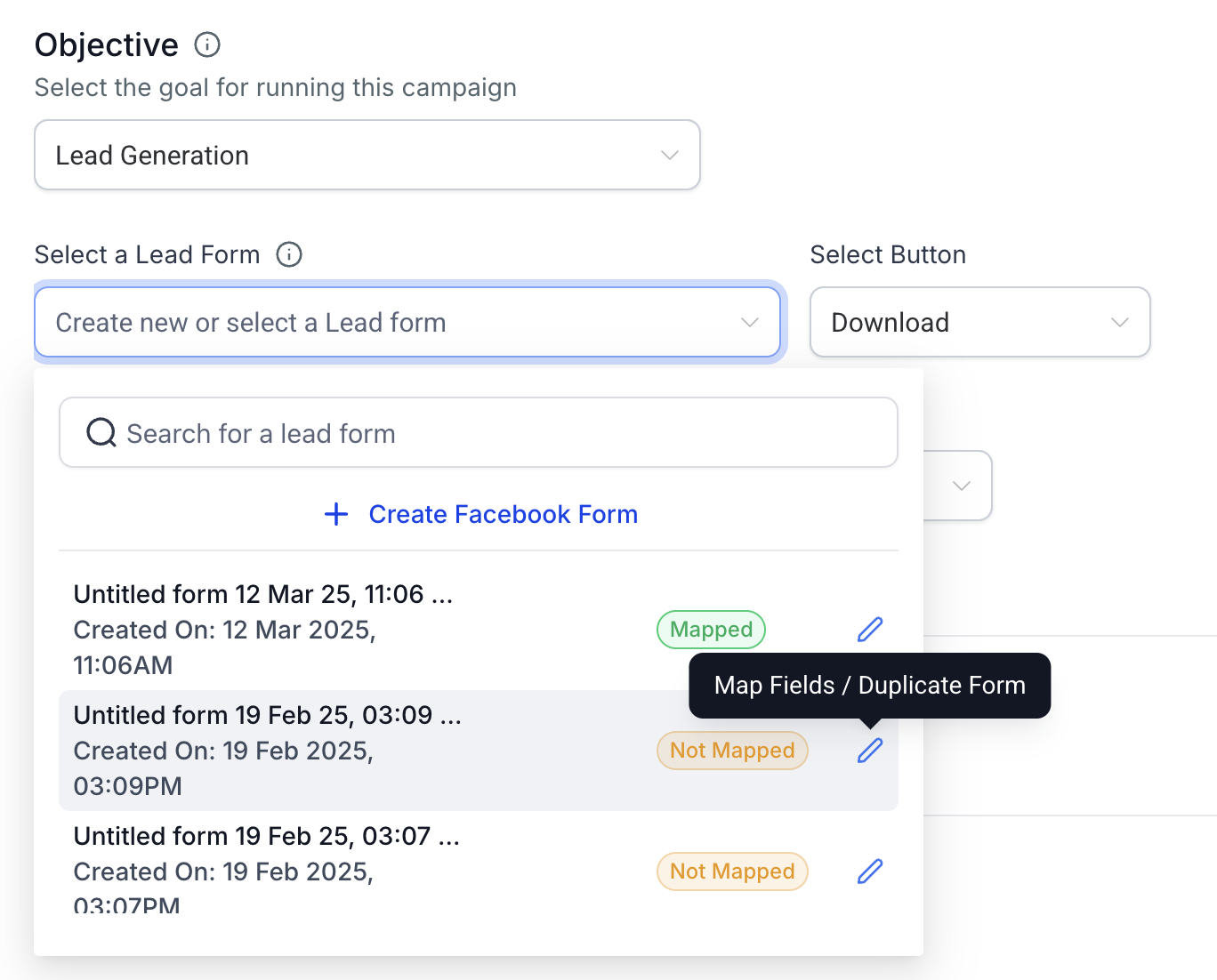
- A modal opens allowing you to:
- Preview the form content
- Map or update form fields to CRM fields
- Ensure lead syncing is accurate and complete
Duplicating a Facebook Form
From the same modal, you’ll now see a “Duplicate Form” button at the bottom left. Clicking it opens a new view with all the fields pre-filled based on the original form.
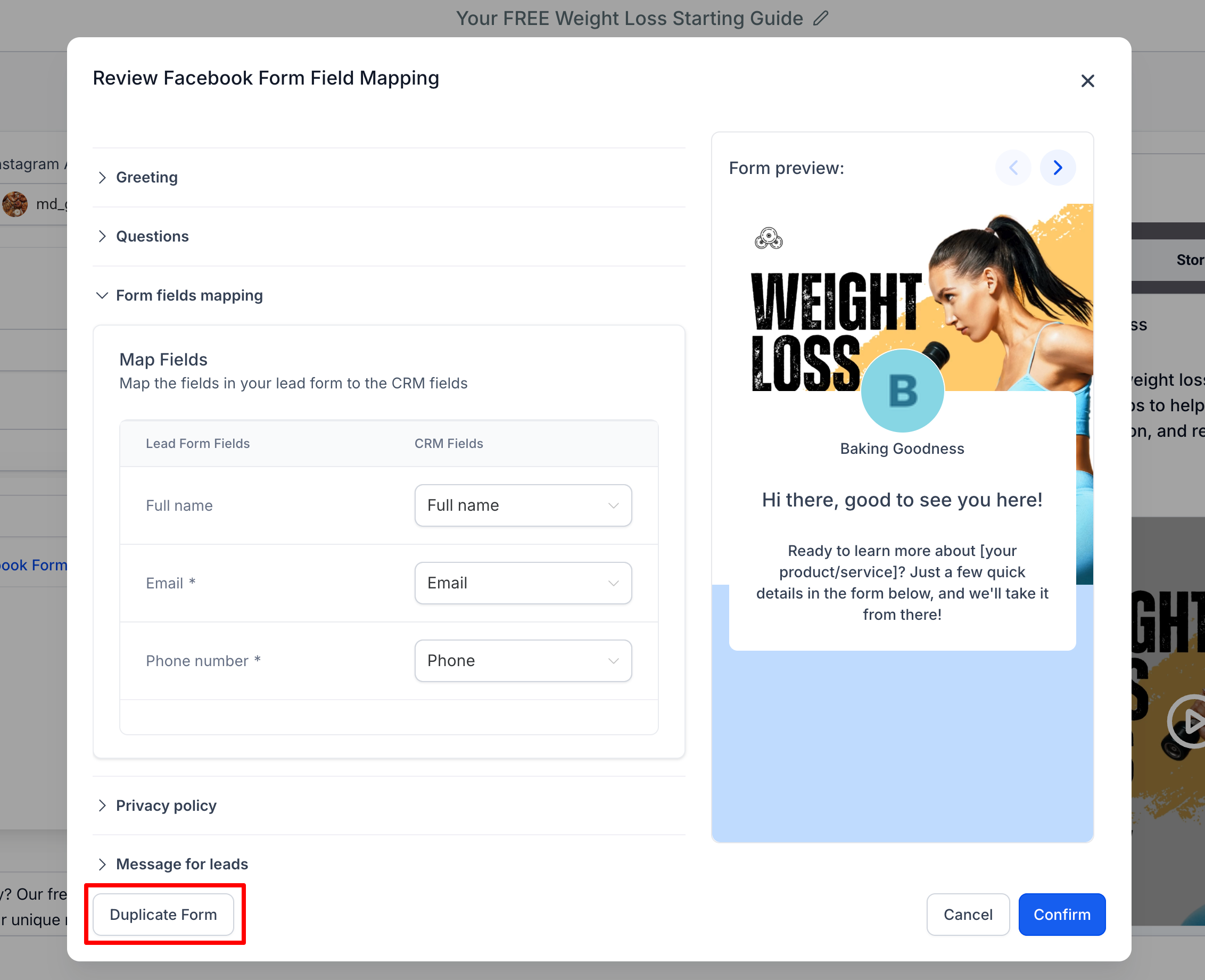
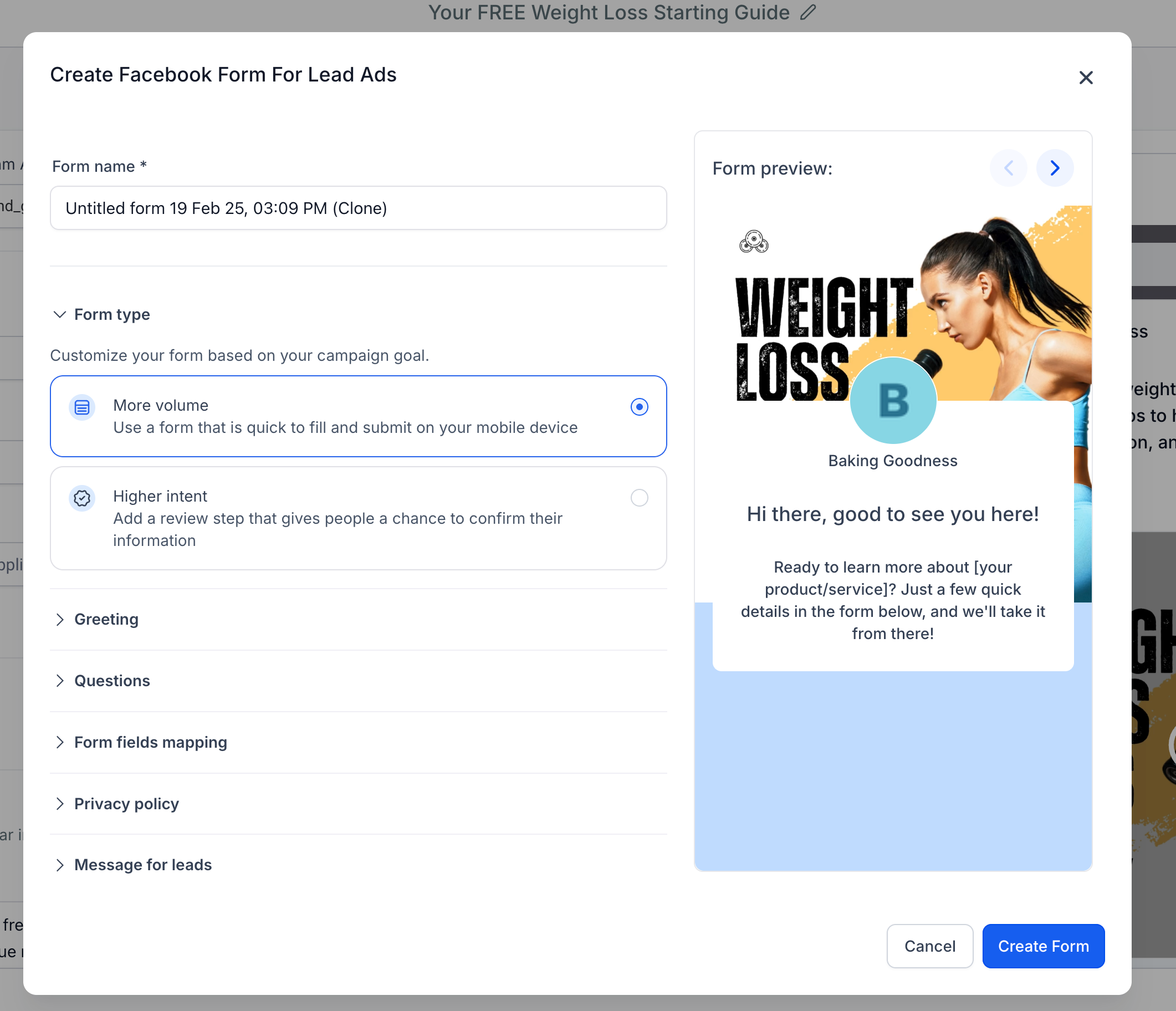
- You can make any edits to the cloned version.
- Once satisfied, click Create Form to save it as a new Lead Form.
Field Mapping Prompt
To prevent missed data syncing, if the selected form hasn’t been mapped yet, a message will now appear just below the form selector: “Form fields of the selected form are not mapped, map now.”
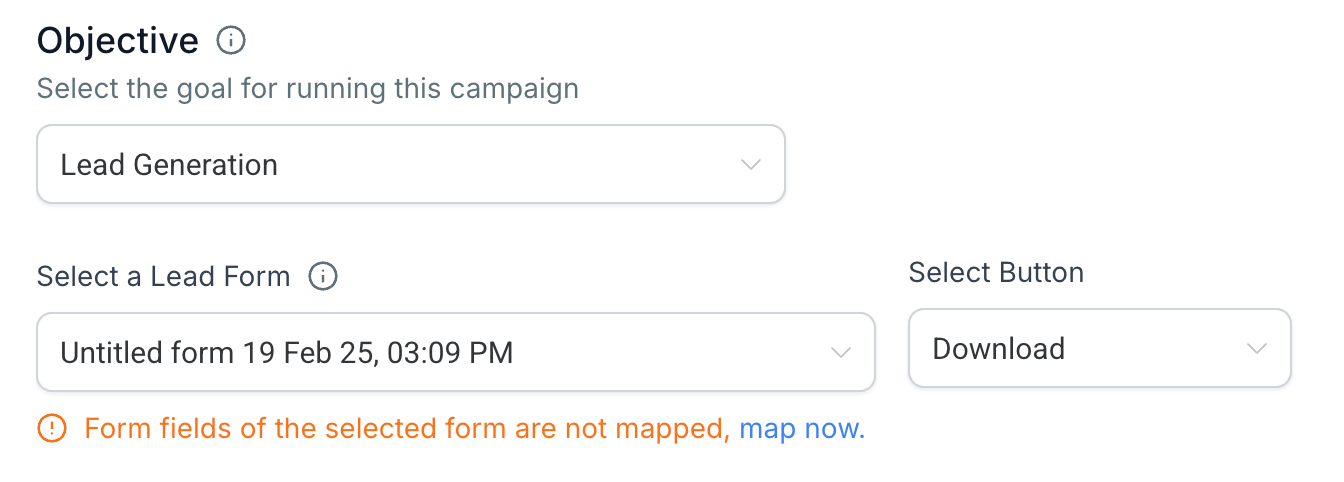
Clicking “map now” will directly open the review modal to complete the field mapping process with your CRM fields.