
Social Planner: In-App Notification Banner for Disconnected Accounts
Stay on top of your social media scheduling with Patient Copilot’s new in-app notification banners for disconnected accounts. This feature helps you avoid missed posts by alerting you in real time whenever a connected social account loses authentication, so you can reconnect and keep your content calendar running smoothly.
How to Find and Act on Disconnected Account Alerts
Tracking and responding to in-app notification banners is straightforward, ensuring you can act quickly to restore any disconnected accounts and keep your social content on track.
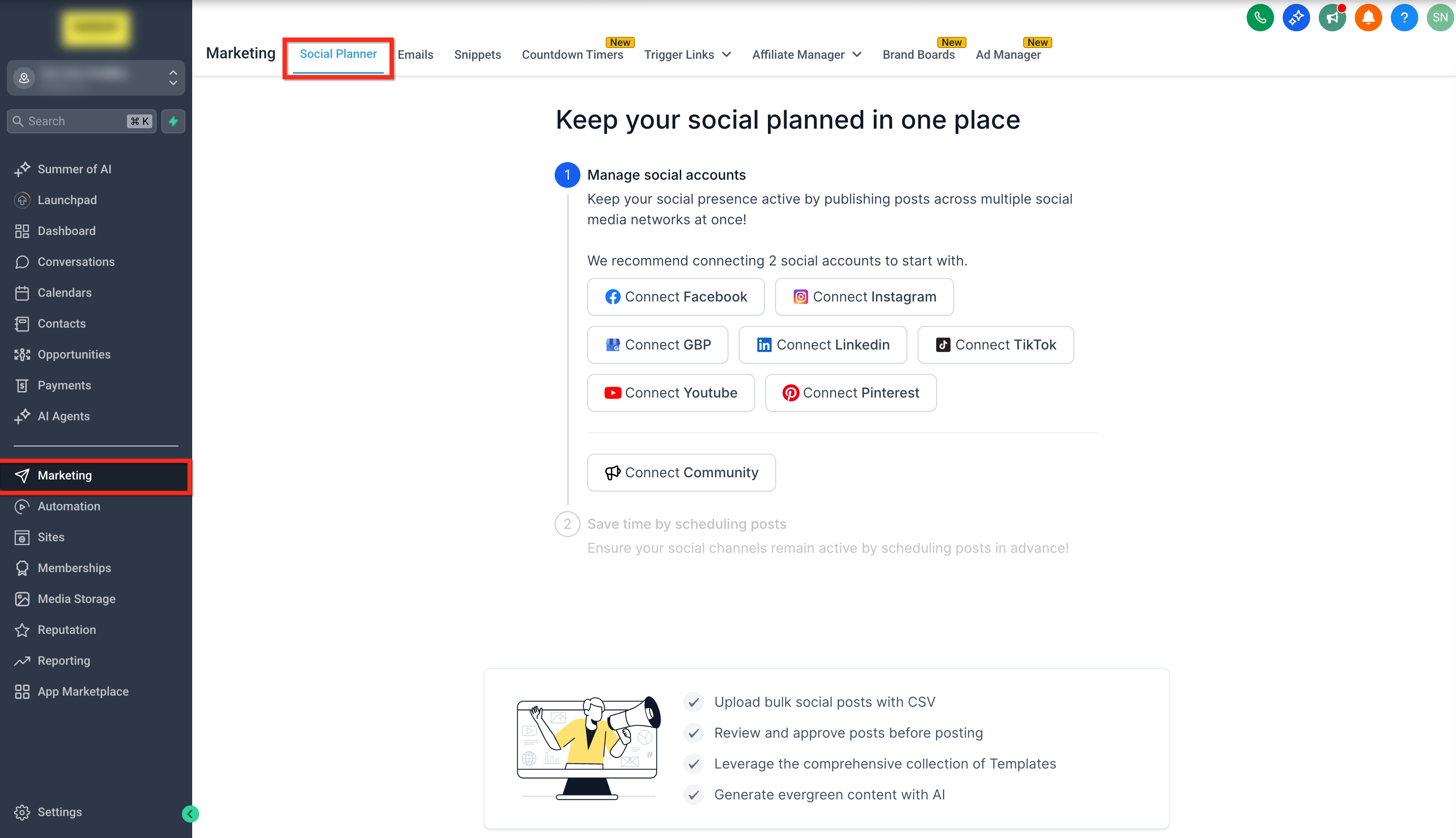
- Click on Marketing from your account.
- Click on the Social Planner tab.
- Connect your desired social media accounts (Facebook, Instagram, Google Business Profile, LinkedIn, TikTok, Pinterest, YouTube).
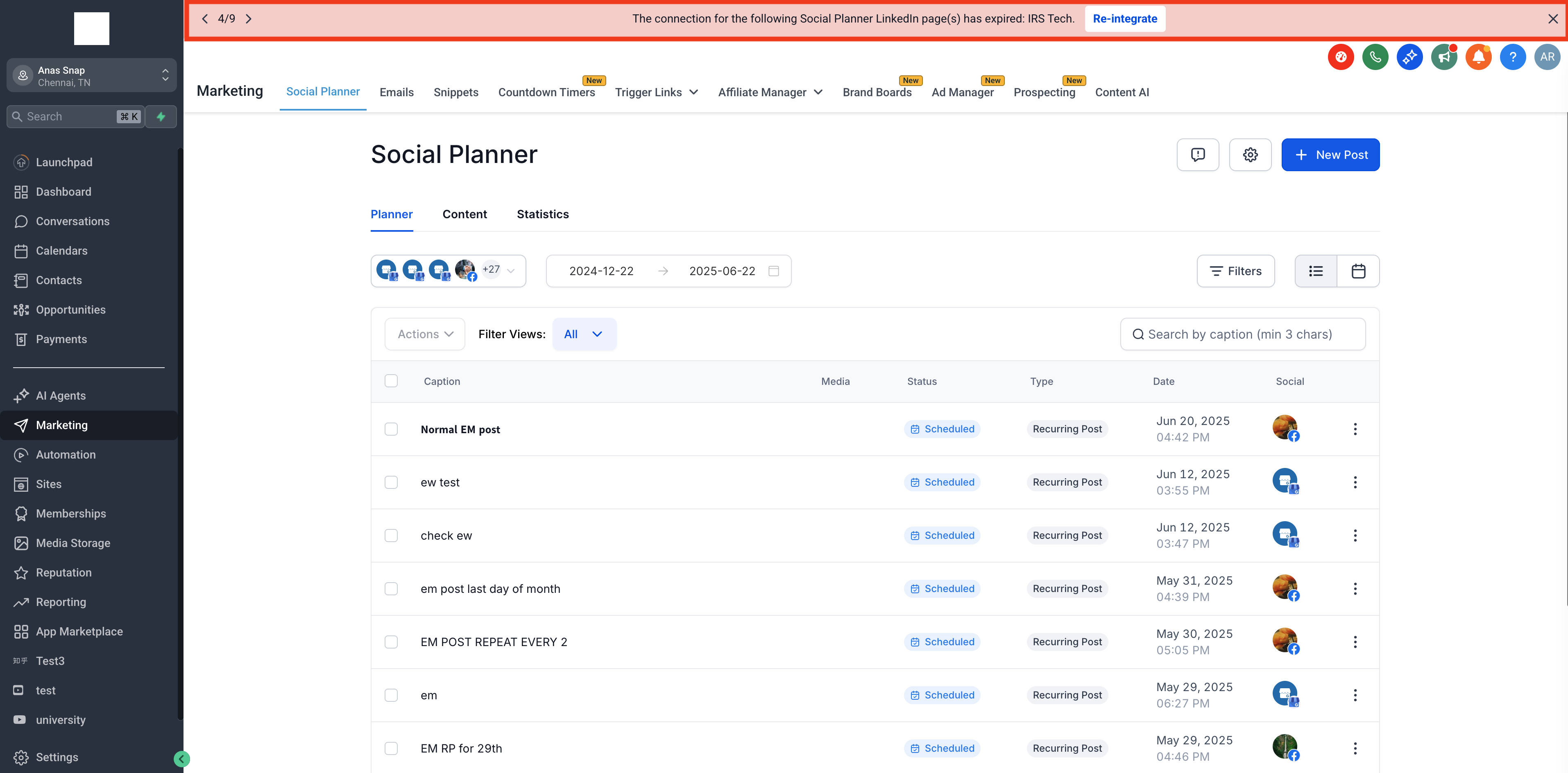
- If any account becomes disconnected, a banner will appear at the top of Social Planner, Launchpad, or Dashboard.
- The banner will specify which account and platform require your attention.
- Each banner provides a platform-specific message, such as: - “The connection for the following Social Planner Facebook page(s) has expired: [Account Name].” - “The connection for the following Social Planner Instagram account(s) has expired: [Account Name].”
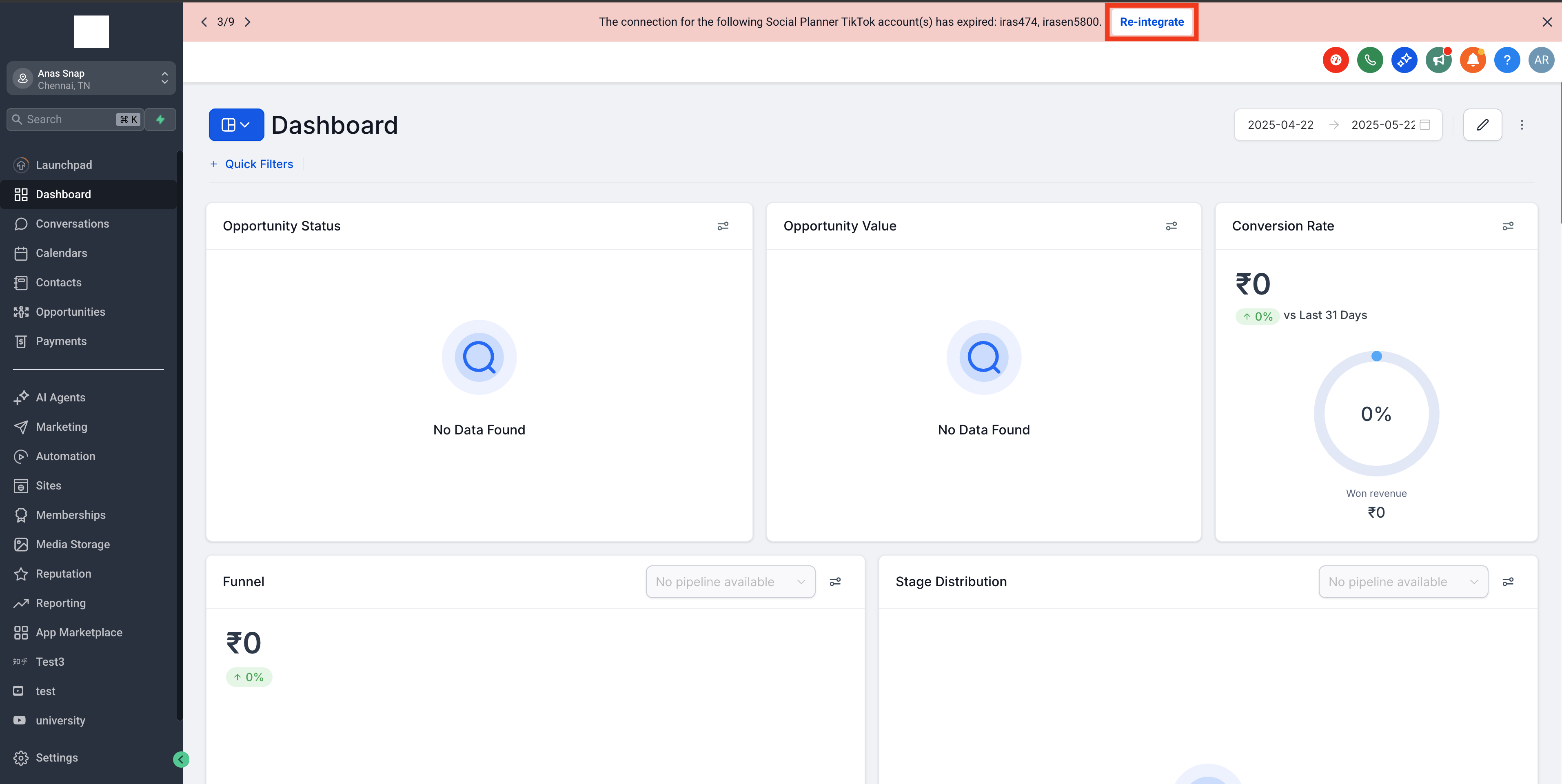
Step 3: Take Action to Reconnect - Click on the Re-integrate button of the banner.
- Complete the authentication process for the relevant social platform.
- You will also receive an email notification about the disconnection, providing another prompt to take action.
Multi-Channel Alert System
Patient Copilot’s notification system ensures you’re alerted through both in-app banners and email, maximizing the chances you’ll see and act on account disconnections before they impact your posting schedule.
- In-app banners provide immediate, visible alerts within your workflow.
- Email notifications serve as a backup, ensuring you’re informed even when not logged into Patient Copilot.
Account Health Monitoring
Proactively monitoring your account connections helps ensure your scheduled posts are published without interruption and maintains the integrity of your social media strategy.
- Regularly check for banners.
- Reconnect accounts promptly to avoid missed posts.
- Review your email for additional alerts.
Frequently Asked Questions
Q: What causes a social account to become disconnected in Social Planner?
Disconnections typically occur due to expired authentication tokens, password changes, revoked permissions, or platform security updates. Q: Will I lose scheduled posts if my account disconnects? Scheduled posts will not be published while an account is disconnected. Once you reconnect, posting resumes as normal. Q: Do I get notified for all types of social accounts? Yes, the system supports notifications for Facebook, Instagram, Google Business Profile, LinkedIn, TikTok, Pinterest, and YouTube. Q: How quickly will I be notified after a disconnection? Notifications are sent in real time, both via in-app banners and email, as soon as a disconnection is detected. Q: Will other team members see the notification banner? Yes, all users with access to Social Planner will see the banner for disconnected accounts.