
How to Use FTP to Access Your WordPress Website
FTP (File Transfer Protocol) is a secure and fast way to access your website’s files. You can upload, download, or edit files directly, just like managing files on your computer. ###? Why You Might Use FTP:
- Upload custom plugins or themes - Edit wp-config or.htaccess files - Troubleshoot white screen or plugin issues - Download backups or specific files
✅ What You’ll Need
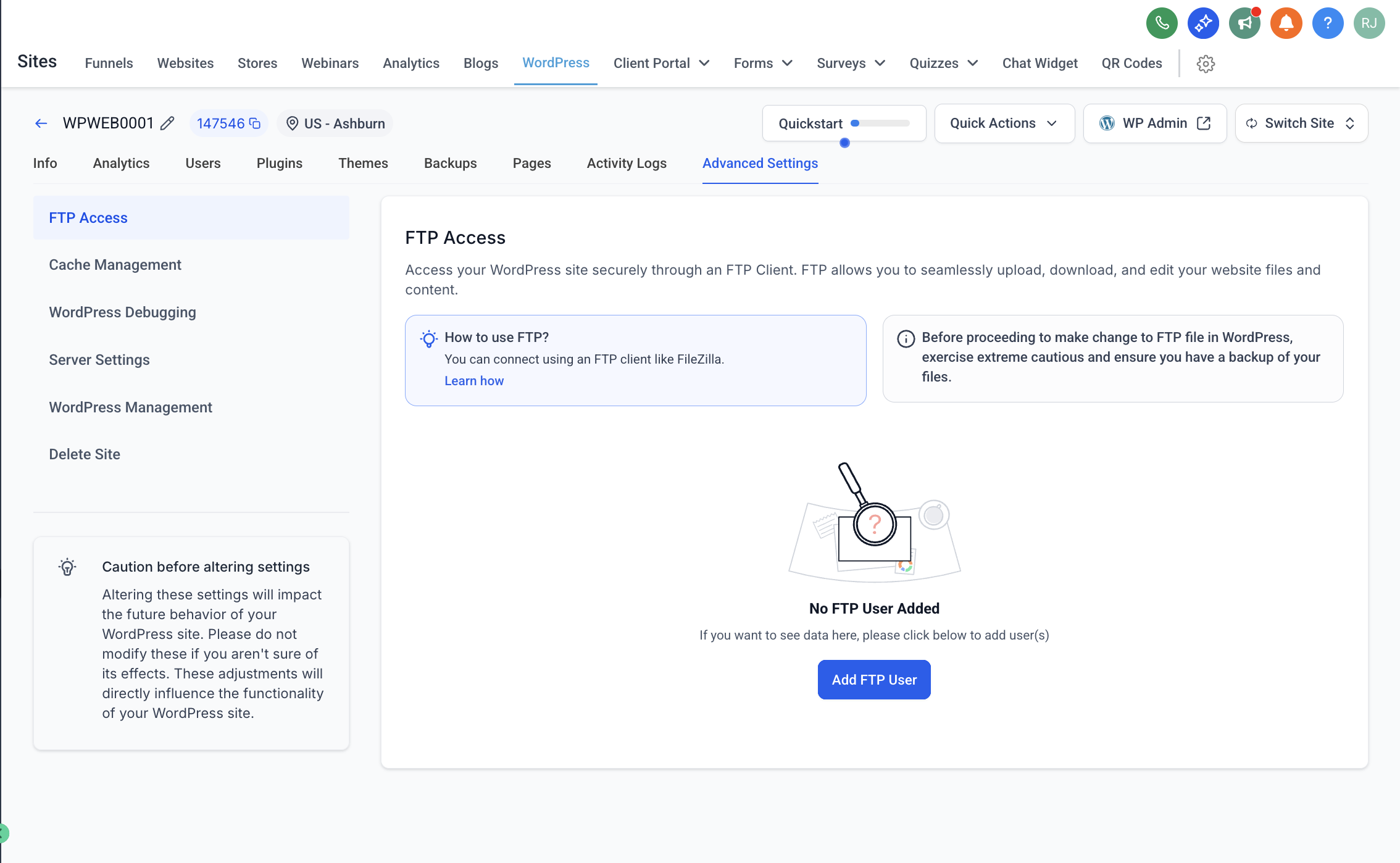
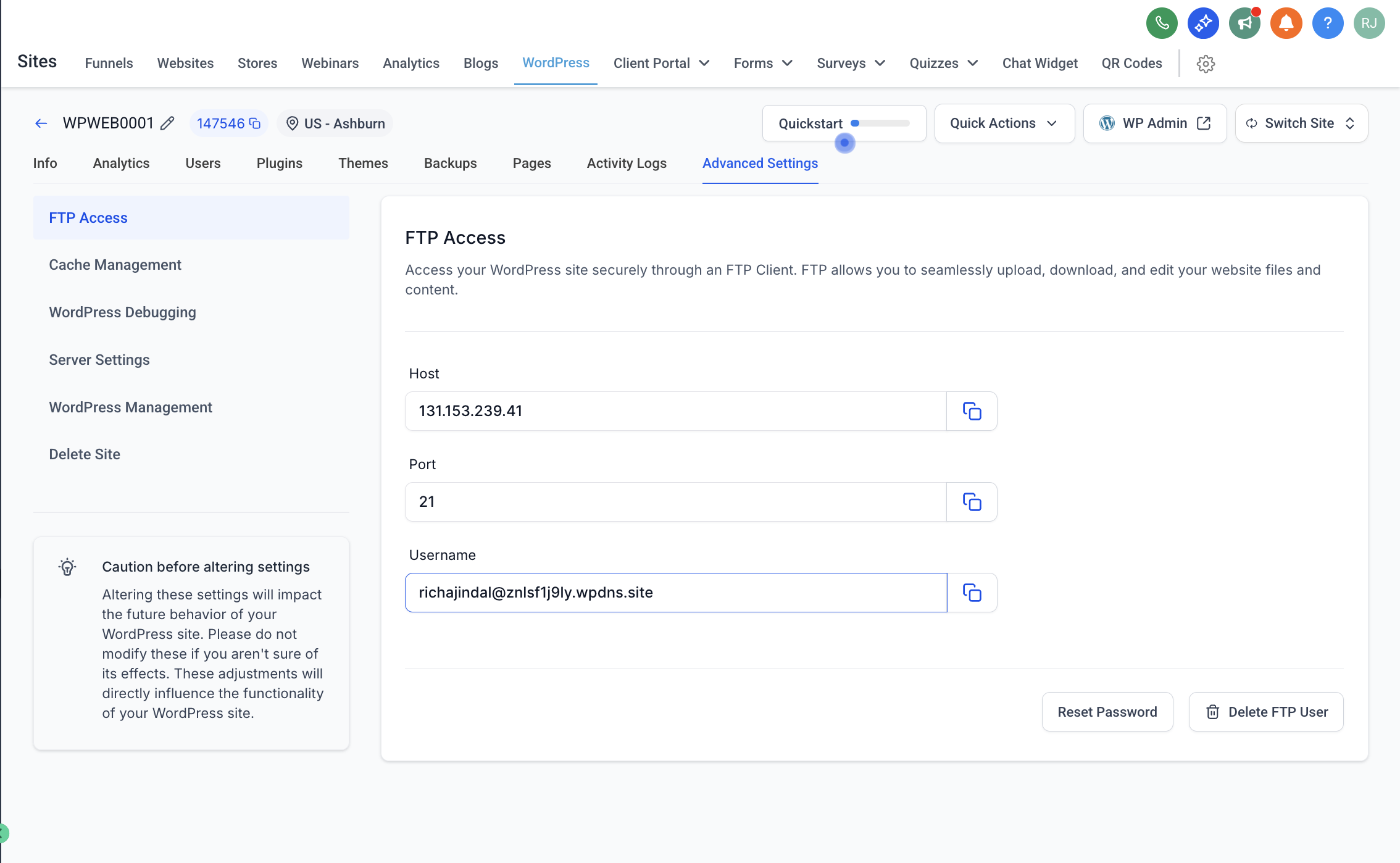
Before connecting via FTP, grab these details from your WordPress Hosting dashboard (under Sites → WordPress → Advanced Settings → FTP Access):
- Host (e.g.,
103.67.202.37) - Port (usually
21) - Username (e.g.,
[email protected]) - Password (click “Reset Password” if not available)
###? Step-by-Step: Connect to FTP Using FileZilla We recommend FileZilla, a free and trusted FTP client.
1. Download and Install FileZilla
- Visit: https://filezilla-project.org/download.php - Choose the version for your OS (Windows, Mac, or Linux) - FileZilla Client Downloads
2. Open FileZilla and Enter Your Credentials At the top of the FileZilla window:
| Field | Value |
|---|---|
| Host | Your FTP Host (e.g., 103.67.202.37) |
| Username | Provided in the dashboard |
| Password | The one you generated/reset |
| Port | 21 |
3. Navigate Your Website Files
- Right side = Your website files on the server
- Left side = Your local computer files - You can drag & drop files between both sides.
###? Pro Tips - Don’t delete files unless you know what they do.
- To edit a file, right-click and select View/Edit.
- Always download a backup before making changes.
❓Common Issues
| Issue | Solution |
|---|---|
| Can’t connect | Double-check password, port, and host IP |
| Timeout error | Try passive mode in FileZilla → Settings |
| Permission denied | Contact your admin or reset FTP password |
###? Helpful Resources
###? Still need help? If you’re stuck, reach out to your admin with the following:
- Site name - Username - Screenshot of your FileZilla settings Was this article helpful? That’s Great! Thank you for your feedback Sorry! We couldn’t be helpful Thank you for your feedback Feedback sent We appreciate your effort and will try to fix the article