
Calendar View - Services
Overview
The Calendar View is your central hub for managing appointments and bookings. It’s designed to adapt based on the type of scheduling you use — giving you a focused experience whether you’re handling meetings or service bookings.
Scheduling Types in Calendar View Currently, there are two scheduling types available:
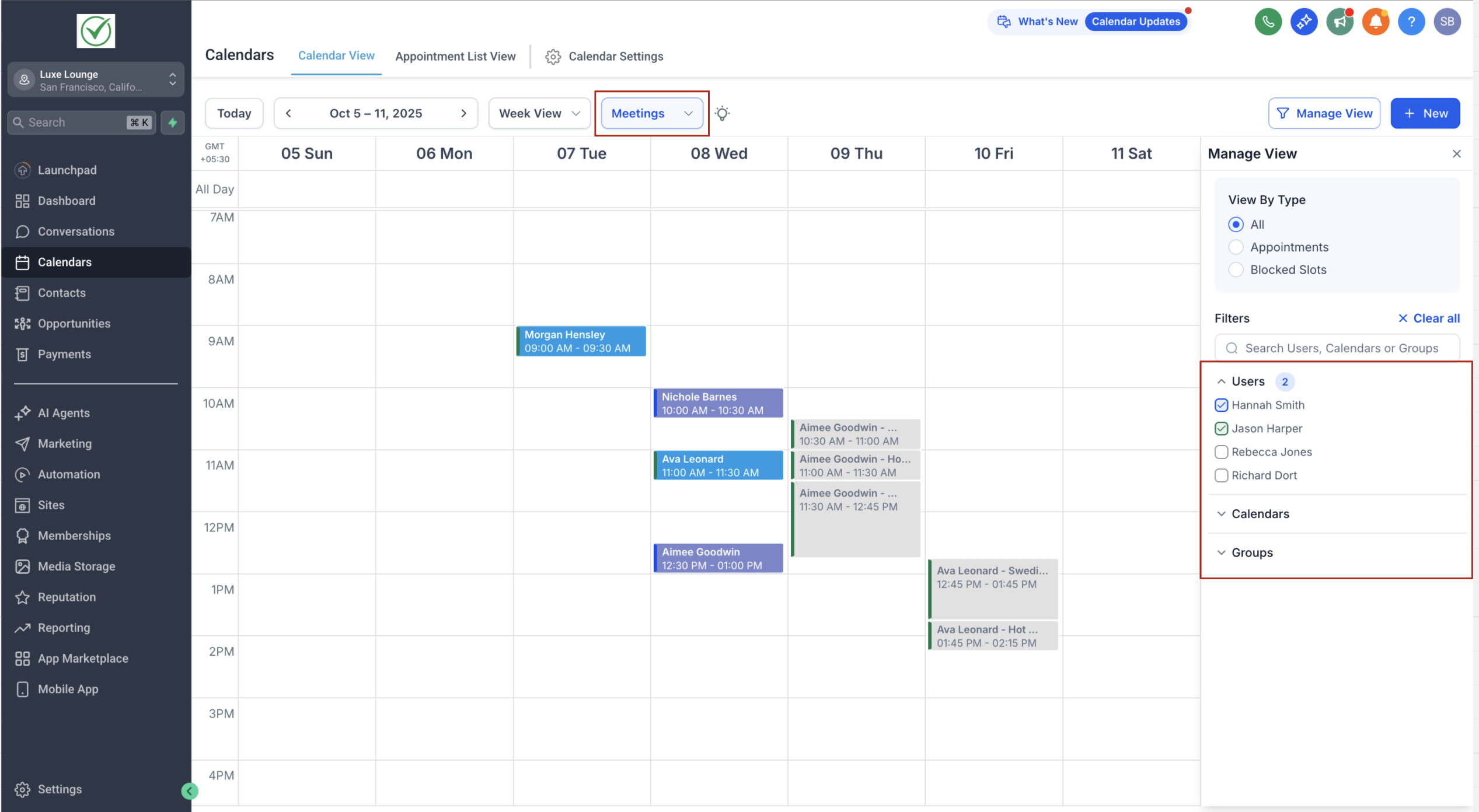
Meetings
- Best for sales calendars, personal booking, collective calendars, classes, or round robin scheduling.
- Includes all existing calendar types (personal, round robin, collective, class, service calendars v1, and service menu).
- Designed for anyone managing internal or client-facing meetings.
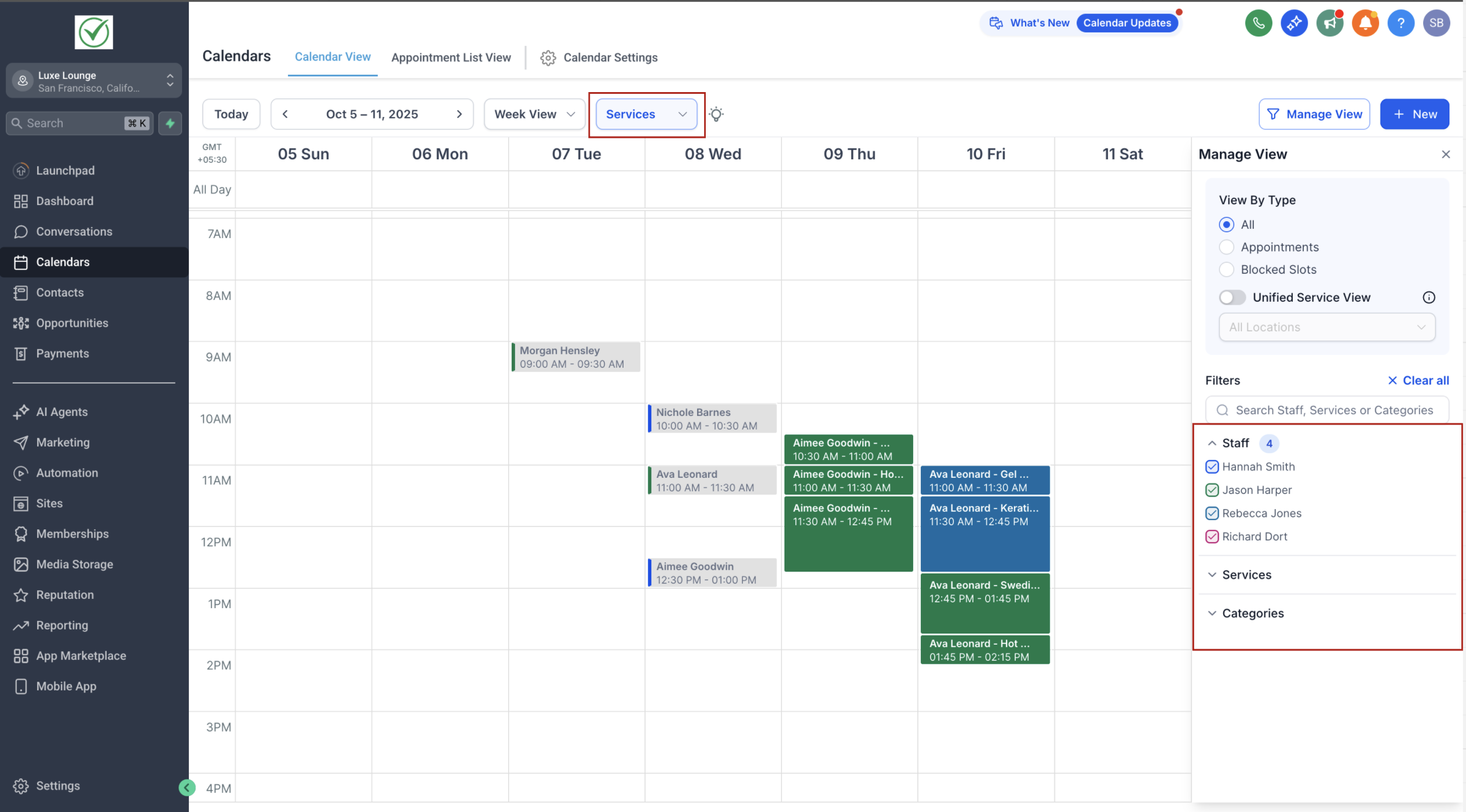
Services
- Purpose-built for service-based businesses.
- Supports advanced options such as variations, add-ons, multiple services and staff specific pricing.
- Helps manage bookings that involve staff, different service types, or multiple locations.
Enabling or Disabling Scheduling Types
- Scheduling types can be enabled or disabled from Agency Settings.
- If only one type is enabled, the Calendar View will automatically load that type, and the top dropdown will remain hidden.
- If both Meetings and Services are enabled, a dropdown menu appears at the top of Calendar View, allowing you to switch between them.
How the View Changes When you select a scheduling type from the dropdown at the top of Calendar View:
- The layout and filters on the right panel automatically adjust to match the selected type.
- The events and blocked slots shown in the calendar are specific to that scheduling type only.
- This ensures you always see relevant information without cross-type clutter.
Filters by Scheduling Type
Meetings View Filters
- Users → Show calendars linked to specific users.
- Calendars → Toggle specific calendars (personal, round robin, collective, class, etc.).
- Groups → Filter events by calendar groups.
Services View Filters
- Staff → Show events by assigned staff members.
- Services → Display bookings tied to specific services.
- Categories → Narrow down results by service categories.
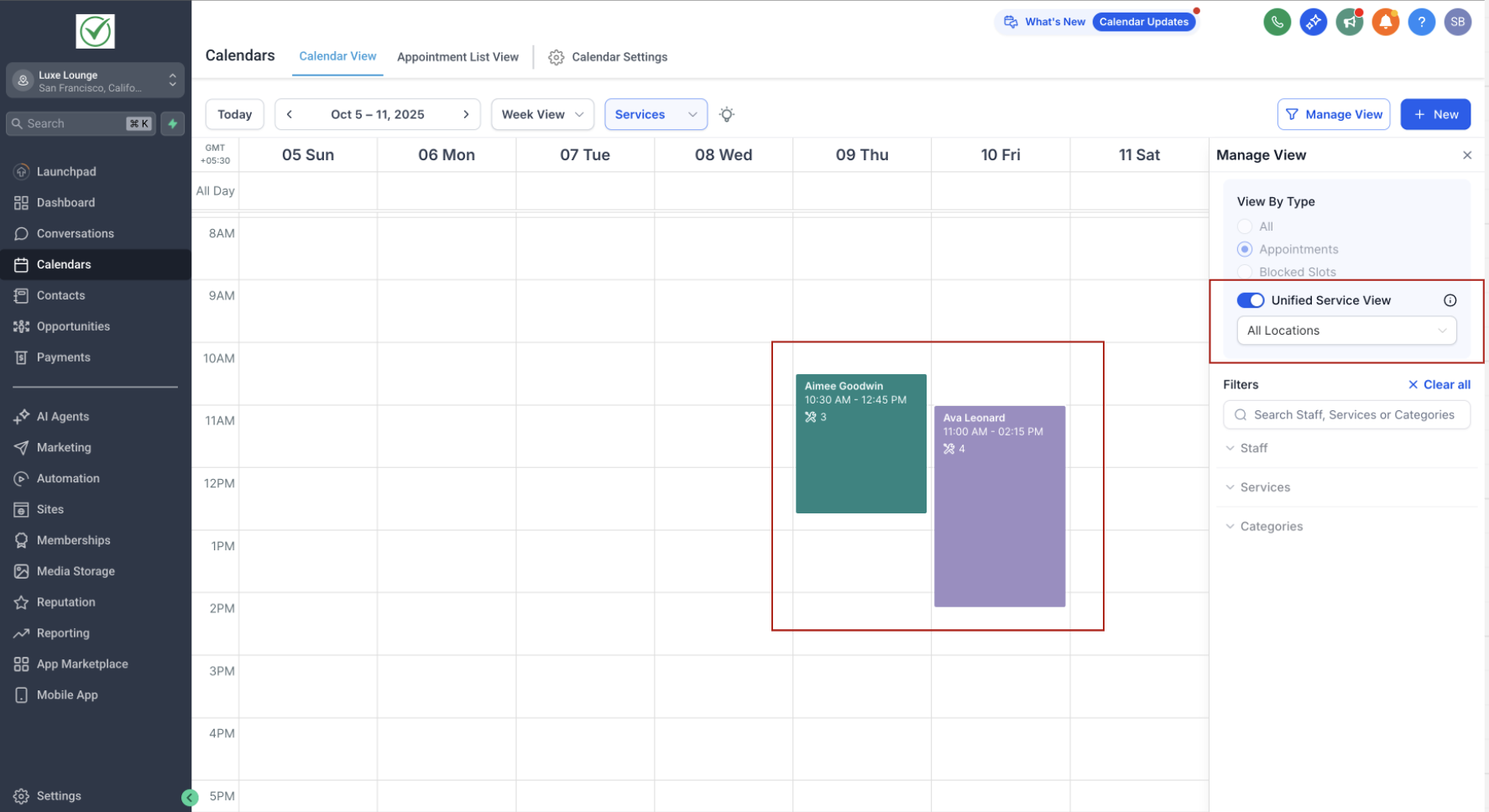
- Unified Service Booking View → - When enabled, each Service Booking appears as a single block on the calendar, with all its appointments grouped inside.
- Note: Staff, Service, and Category filters won’t be available in this view since it displays all appointments together.
- Location Filter becomes available — you can filter appointments based on the location where they were booked.
Additional Calendar Controls
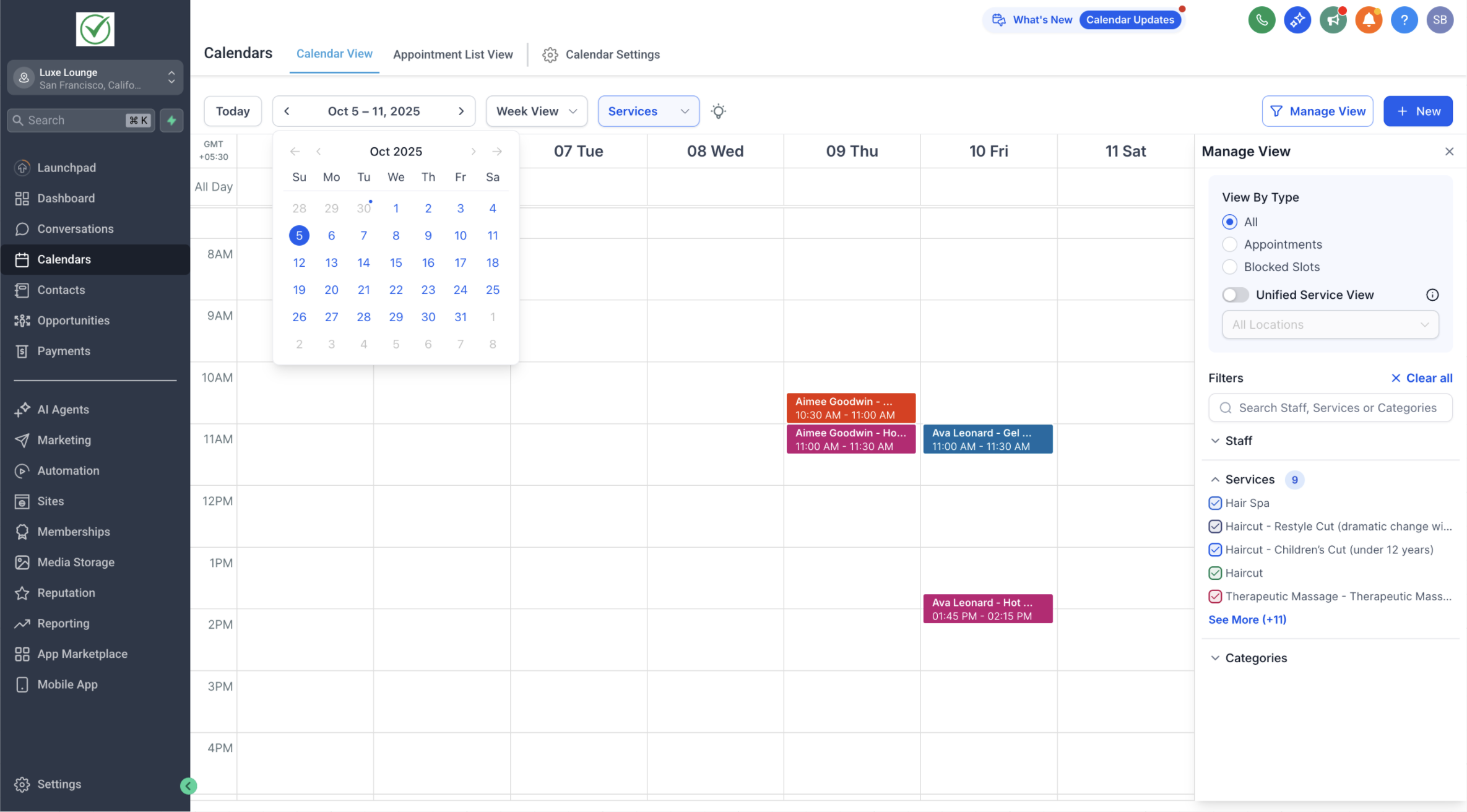
- Month View Access: The mini month-view calendar is located under the main date. Click the date to expand it.
- Hide/Show Filters: Use the Manage View button (top-right) to hide the right filter panel for more space, or bring it back when needed.
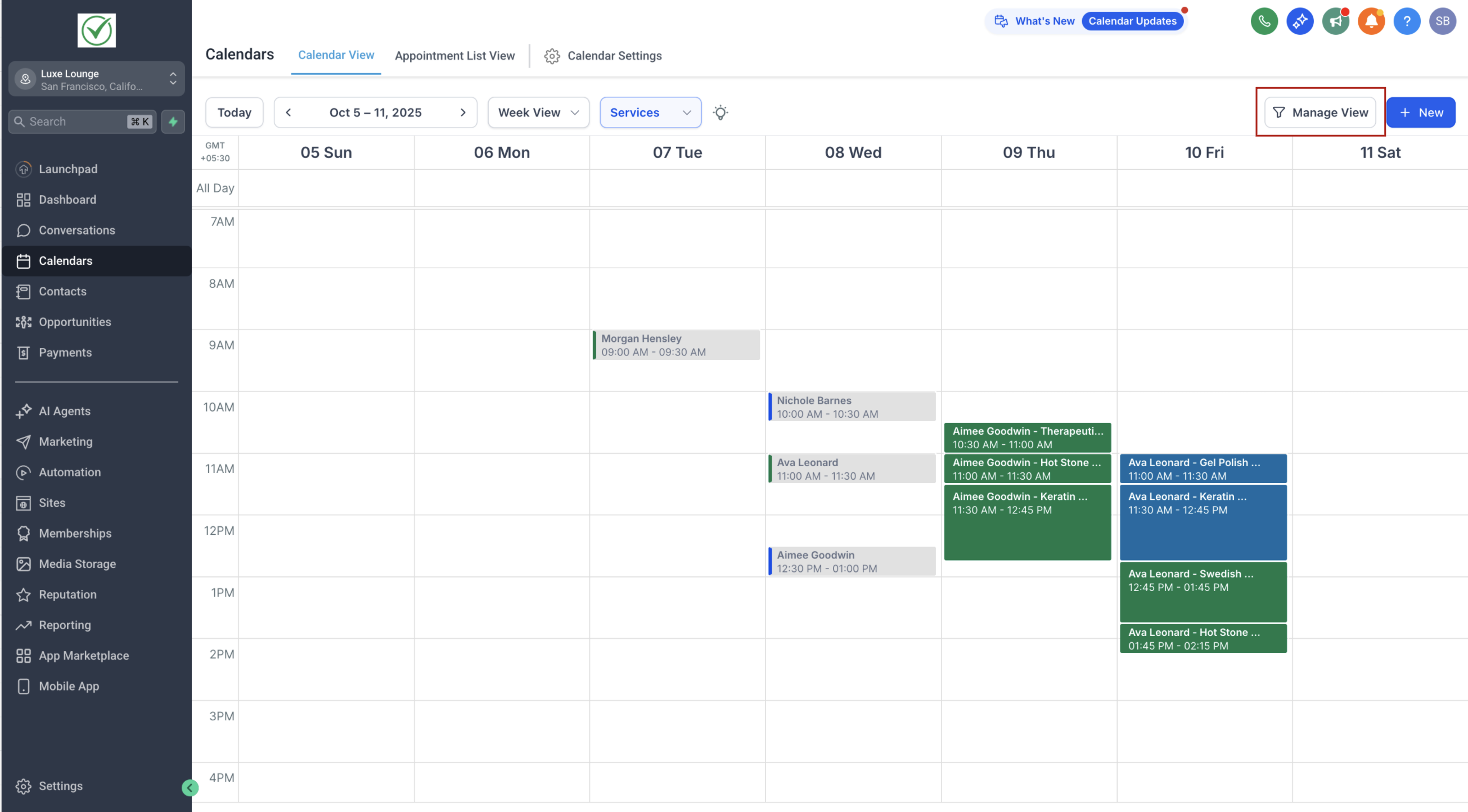
Tips - Enable Unified Service Booking View for a simpler overview of service bookings across staff and categories.
- Use location filtering in Services View to focus on bookings in a specific branch.
- Hide the right panel when presenting or reviewing busy calendars.
- Use the mini month-view to quickly navigate across dates.
Limitation: Third-Party Calendar Updates
In Services View, any changes made directly on third-party calendars (such as Google Calendar, Outlook, or iCal) will not be reflected inside Patient Copilot.
- To ensure your calendar stays accurate, all updates (rescheduling, cancellations, or edits) must be made within Patient Copilot. Was this article helpful? That’s Great! Thank you for your feedback Sorry! We couldn’t be helpful Thank you for your feedback Feedback sent We appreciate your effort and will try to fix the article