
How do I find my Client's Location ID?
When you interact with our support teams, they may request you to provide a location ID where you face a problem. Location ID is a unique ID given to every sub-account in your agency account. This helps us identify your client’s account and narrow down our trouble shooting efforts. Important: Please do not share the location ID outside of your organization.
**Option 1: From Business Profile **
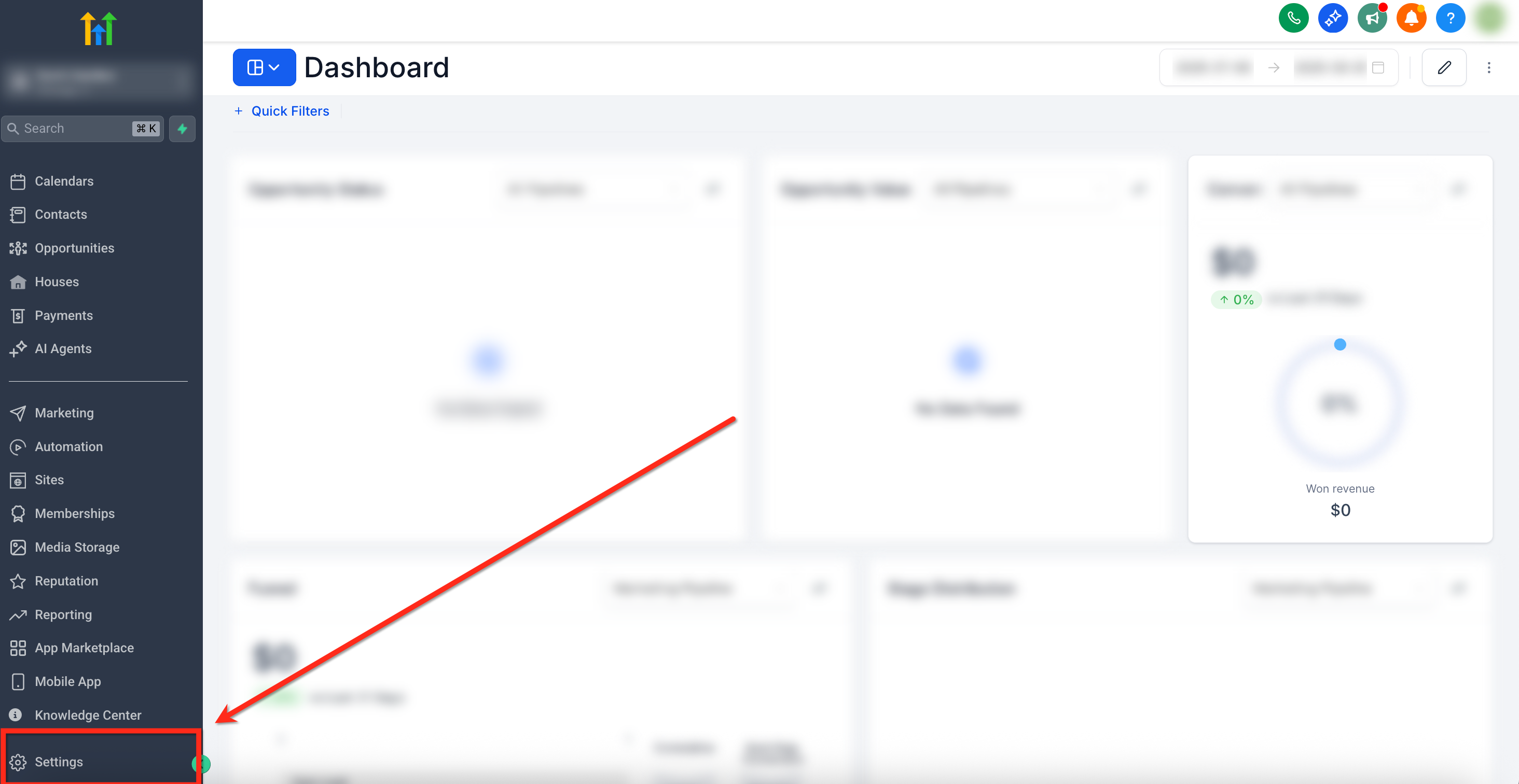
To locate the location ID, follow these steps: 1. From the Sub-Account Dashboard, go to Settings in lower right-hand corner
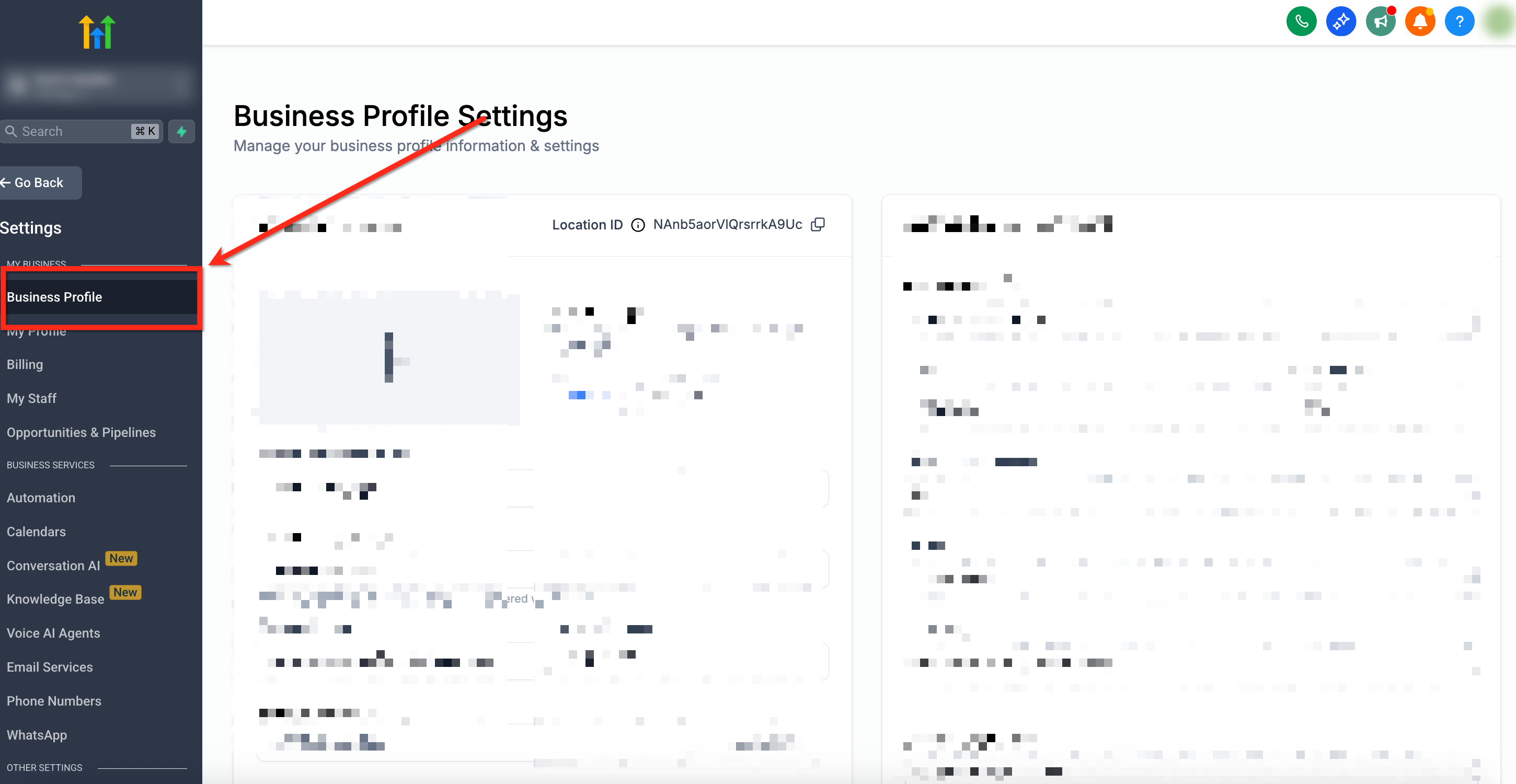
- Select Business Profile on the left-side navigation bar
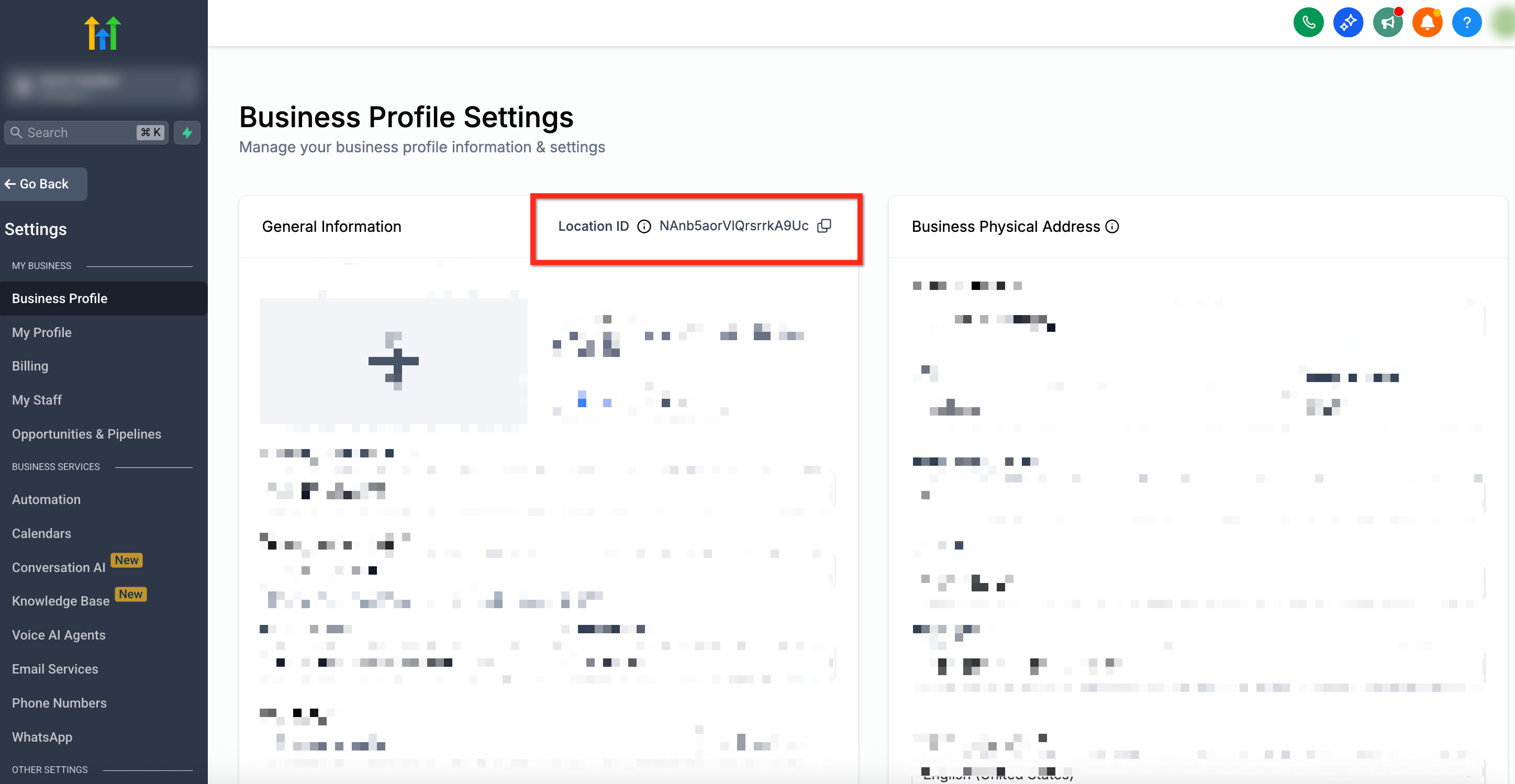
- The Location ID will be visible as shown below
Option 2: From the URL
If you are already inside the client’s sub-account, you can quickly find the Location ID in your browser’s address bar. 1. Open the client’s sub-account. 2. Look at the URL in your browser.
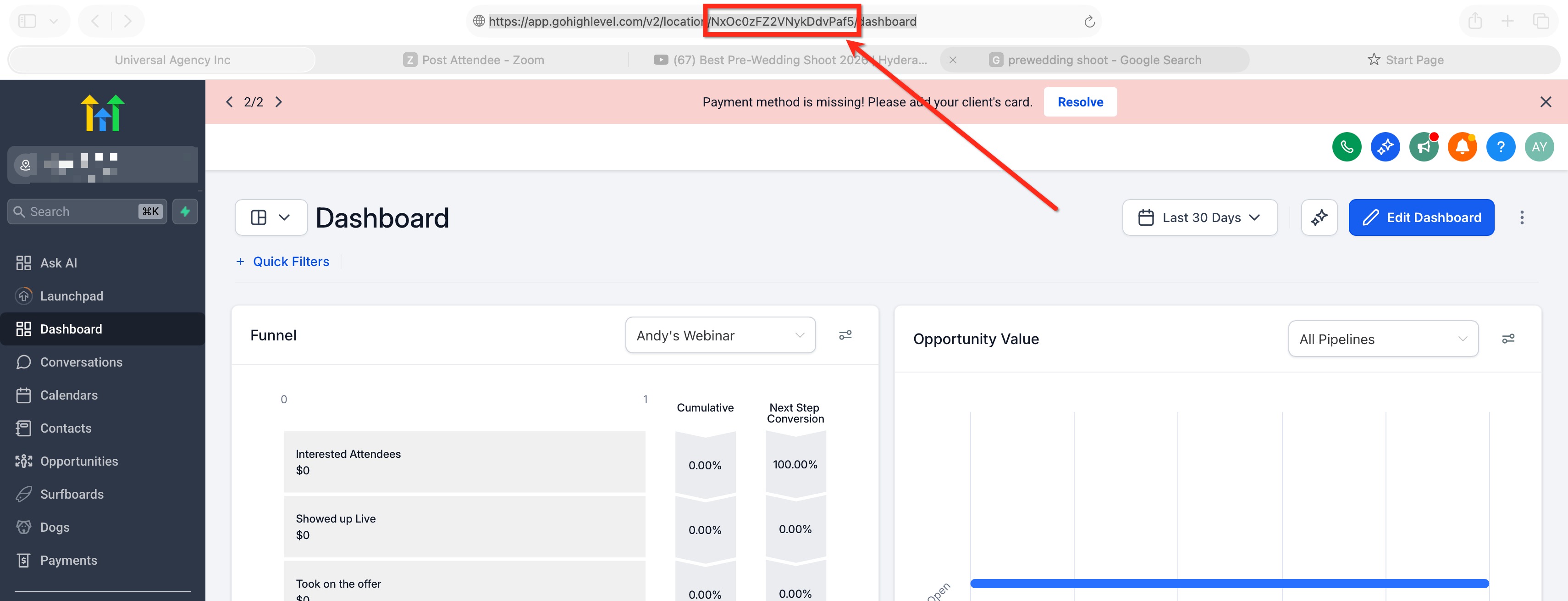
- Find the value that appears after
/location/or in the**locationId**=parameter. 4. That value is the Location ID. Example:https://app.../v2/location/abc123XYZ/dashboardIn this example,**abc123XYZ**is the Location ID. Tip: Finding the Location ID from the URL is often the fastest method since you do not need to navigate to Settings > Business Profile. Was this article helpful? That’s Great! Thank you for your feedback Sorry! We couldn’t be helpful Thank you for your feedback Feedback sent We appreciate your effort and will try to fix the article