
Understand Customer Sentiment with AI-Powered Review Summaries
AI-Powered Review Summaries transform raw customer feedback into clear, actionable insights. Instantly grasp sentiment, spot recurring themes, and drill down by source or timeframe. This article walks you through how to access, filter, refresh, and use the AI-Powered Review Summaries.
Key Benefits of AI-Powered Review Summaries
Understanding precisely what customers love, or dislike, helps you refine products, coach teams, and protect your brand. These benefits ensure that feedback translates into measurable improvements.
- Rapid Insights: At‑a‑glance grasp of overall customer sentiment
- Time Savings: Eliminate manual review analysis and tagging
- Auto‑Tagged Themes: Quickly spot patterns like “great support” or “long wait”
- Targeted Filters: Slice data by source and date for precise insights
Where to Find AI-Powered Review Summaries
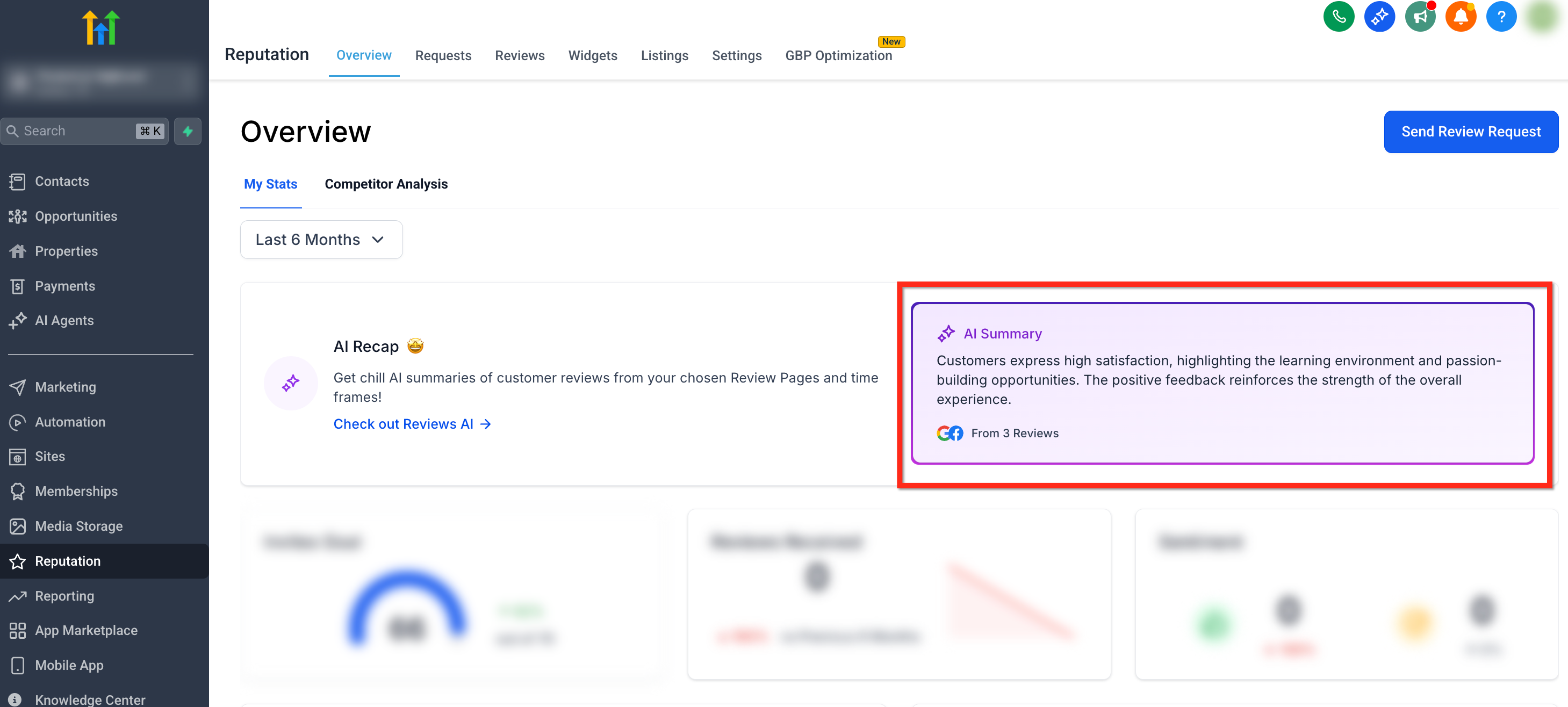
You can access AI‑generated insights in two places inside Reputation: the Reviews tab and the Overview tab Overview Tab: The purple AI Summary card appears on the right side of the page **
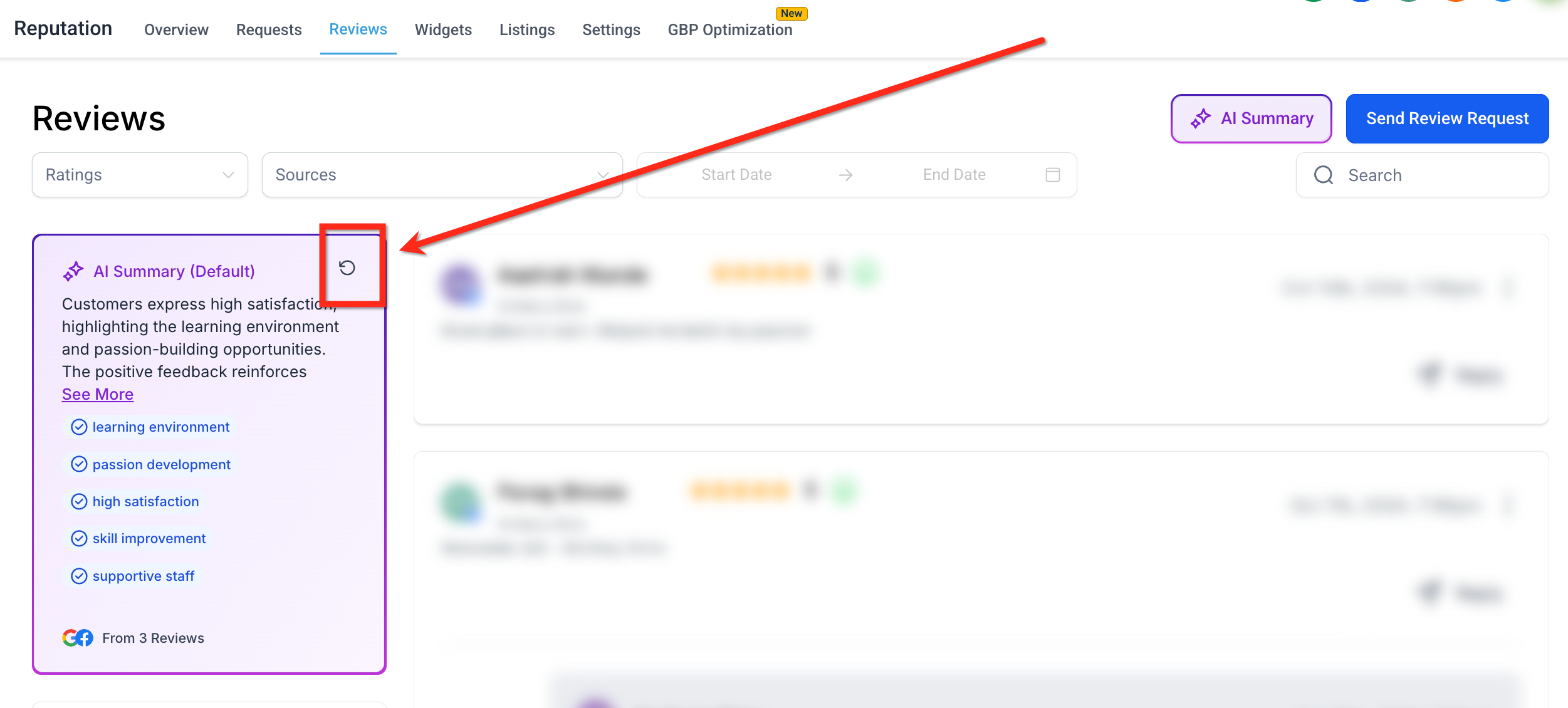
** Reviews Tab**:** The purple AI Summary card appears on the left side of the page
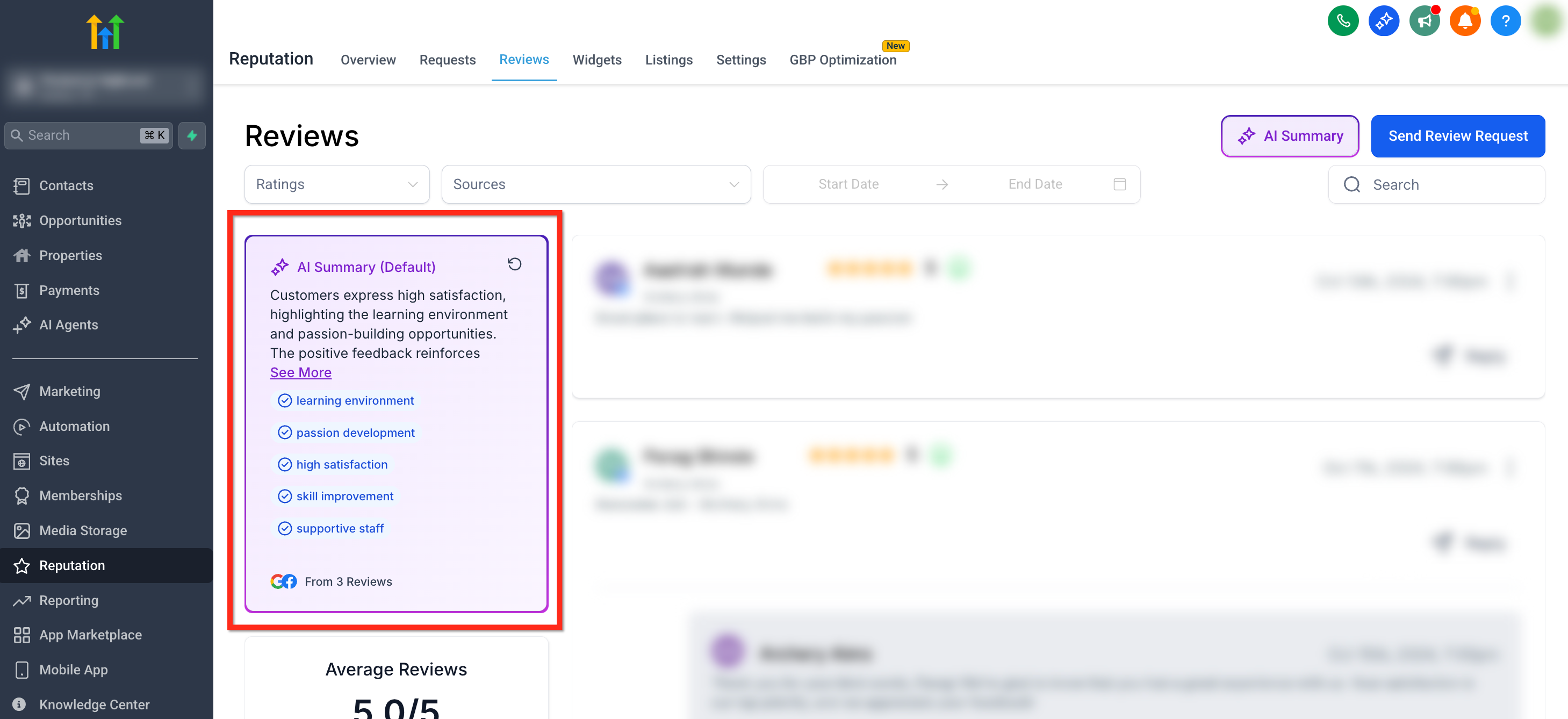
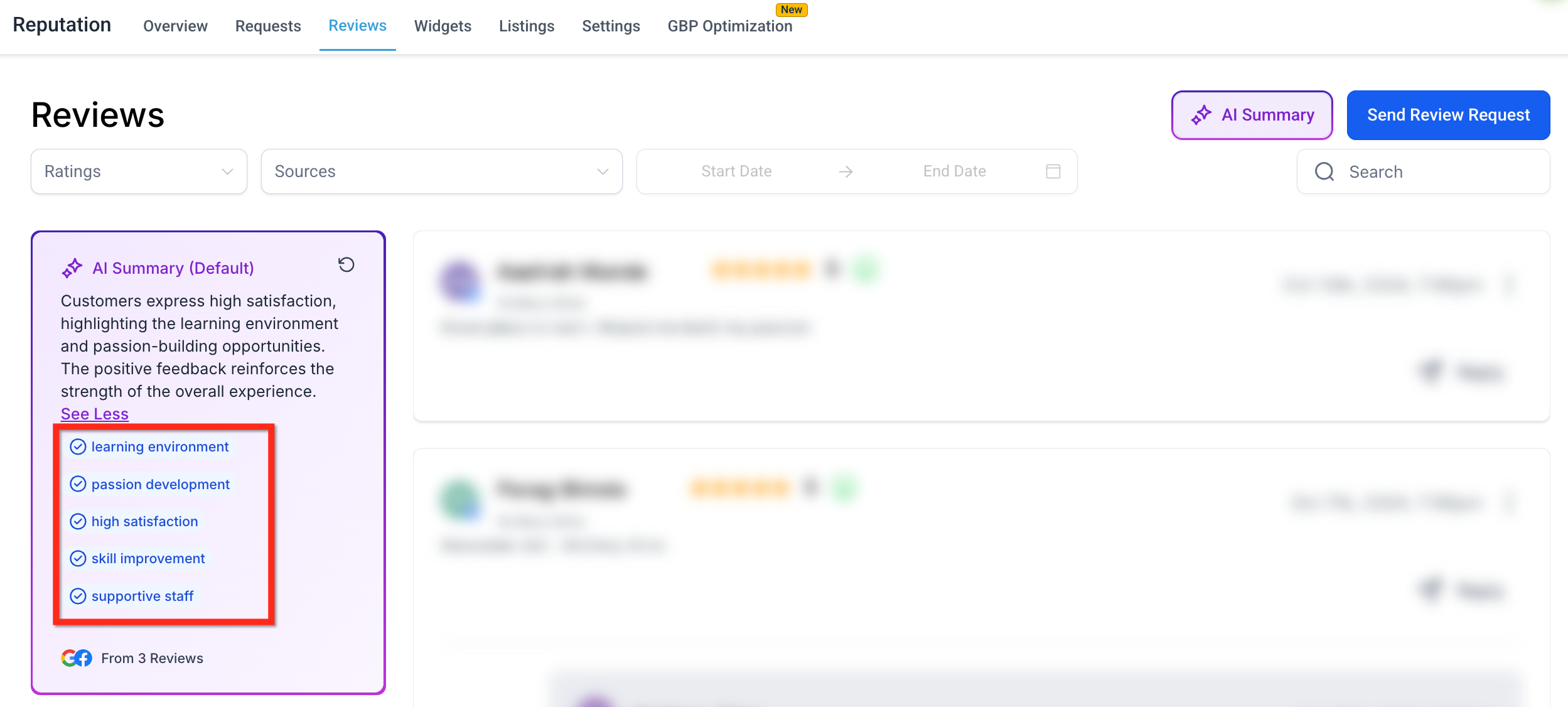
Each summary is accompanied by highlight tags, which are AI-generated keywords or short phrases that represent recurring themes in your reviews.
- Sentiment tags: “Great service,” “Rude staff,” “Fast response” - Topic tags: “Booking system,” “Parking,” “Cleanliness” These tags update dynamically based on your selected filters.
Filtering by Location & Time
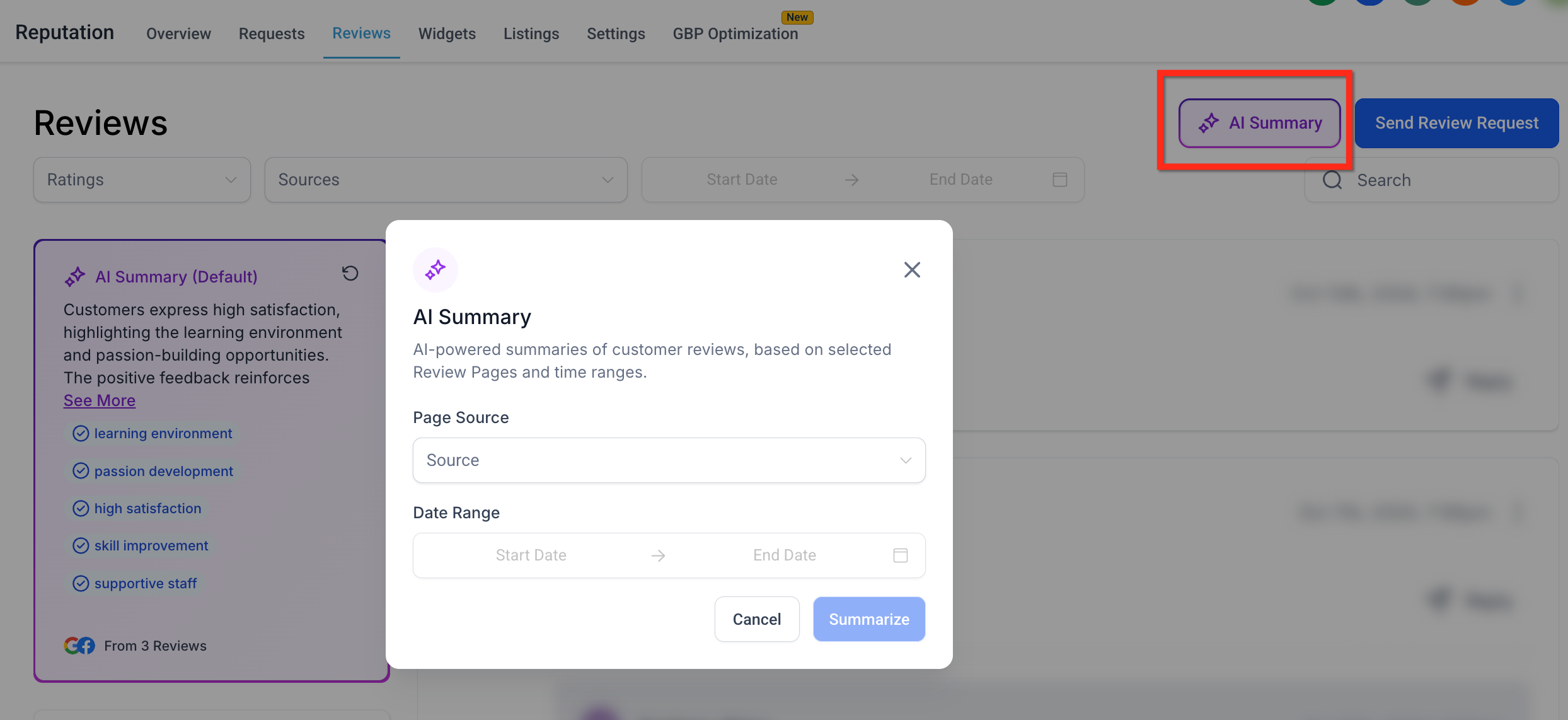
Filtering by page source and date range lets you isolate specific branches, campaigns, or timeframes, ensuring summaries reflect only the data you care about.
- Location Filter: Select one or more pages (locations) to narrow the summary
- Date Filter: Set a custom timeframe to view reviews and summaries from a specific period To set filters, click the purple AI Summary button in the upper right corner of the Reviews tab.
Refreshing the Summary
If you’ve added new reviews or changed filters, you can refresh the AI summary at any time: 1. Click the Refresh icon next to the summary title 2. The AI will regenerate the summary using the most current data and filters 3. Updated highlight tags and sentiment will appear automatically
Frequently Asked Questions
Q: How often are summaries refreshed?
Summaries update in real time whenever new reviews matching your filters arrive or you click the refresh button. Q: Is AI Summary the same as Reviews AI auto‑replies? No. Reviews AI generates replies, while AI Summary analyzes sentiment and themes. Q: Which review platforms are included in the summary? The AI analyzes every connected review page unless you filter the summary to specific sources. To check what pages are being included, go to the AI Summary filter.