
Voice AI Custom Variable Support in Prompt
What is Custom Variable Support in Prompt?
The long-awaited support for custom variables in Voice AI prompts is now available! This feature allows you to personalize Voice AI interactions by dynamically inserting contact-specific details into prompts, making conversations more contextual and engaging.
Key Benefits of Custom Variable Support
Using custom variables in Voice AI prompts enhances the conversation flow and provides several advantages:
- Personalized Interactions – Your Voice Agent can now reference specific contact details, making conversations more natural and tailored.
- Improved Context Awareness – The Voice AI can fetch and use existing customer details, improving its ability to provide relevant responses.
- Enhanced Call Experience – Calls feel more human-like as the agent can use customer names and other relevant information.
- Seamless Integration – Custom variables can be easily added using a straightforward tagging format.
How to Add Custom Variables to Prompts
Adding custom variables to your Voice AI prompt is simple. Follow these steps:
- Go to Agent Goals – Navigate to the Voice AI settings in your platform.
- Select Advanced Goals – Within the Agent Goals section, access the Advanced Goals settings.
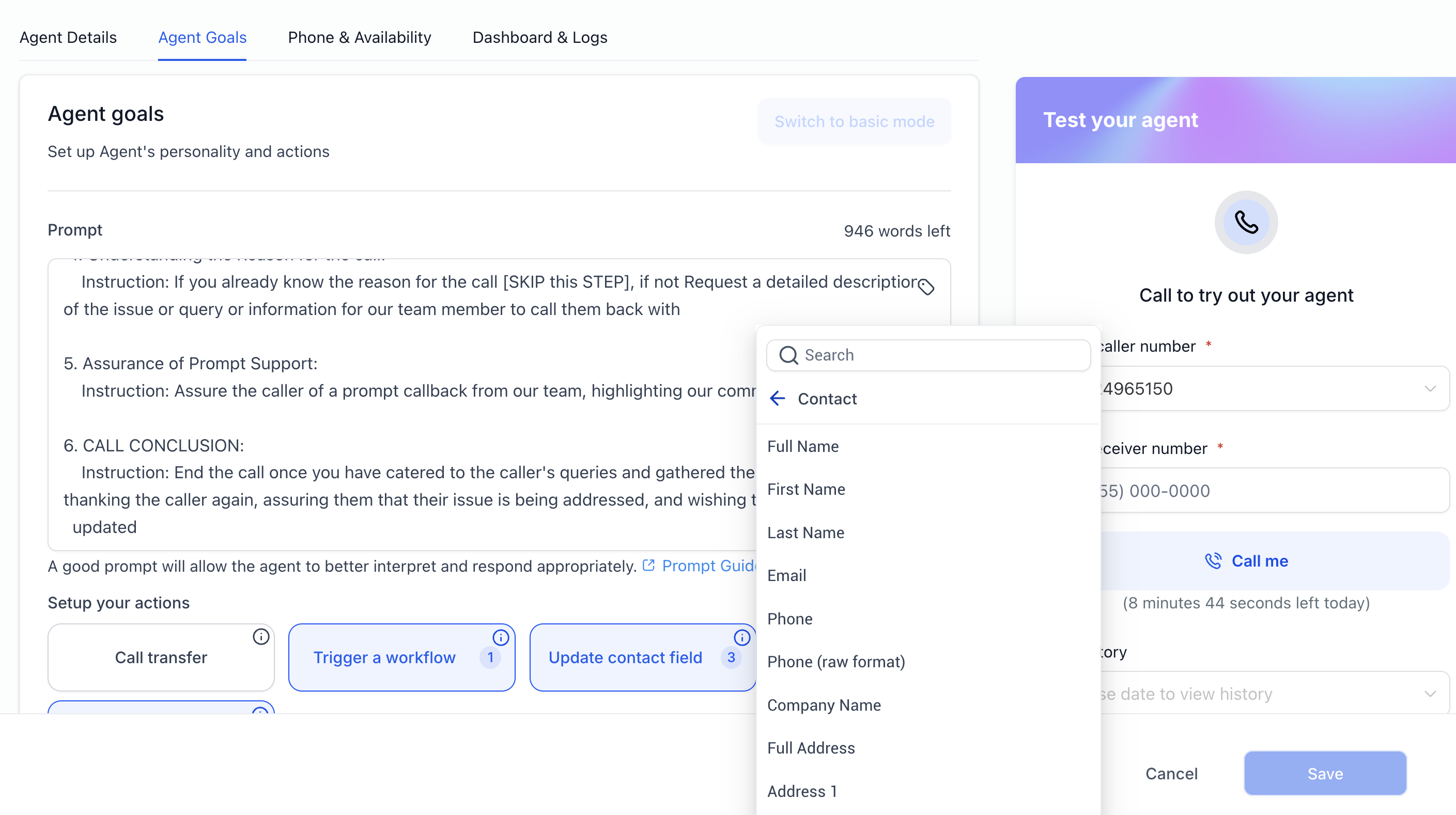
- Choose Custom Variables – Select the variables you want to add from the available tag list. 4. Manually Insert Variables – Use the format
{{contact.name}}to insert a specific contact’s name, or use other predefined variables as needed.
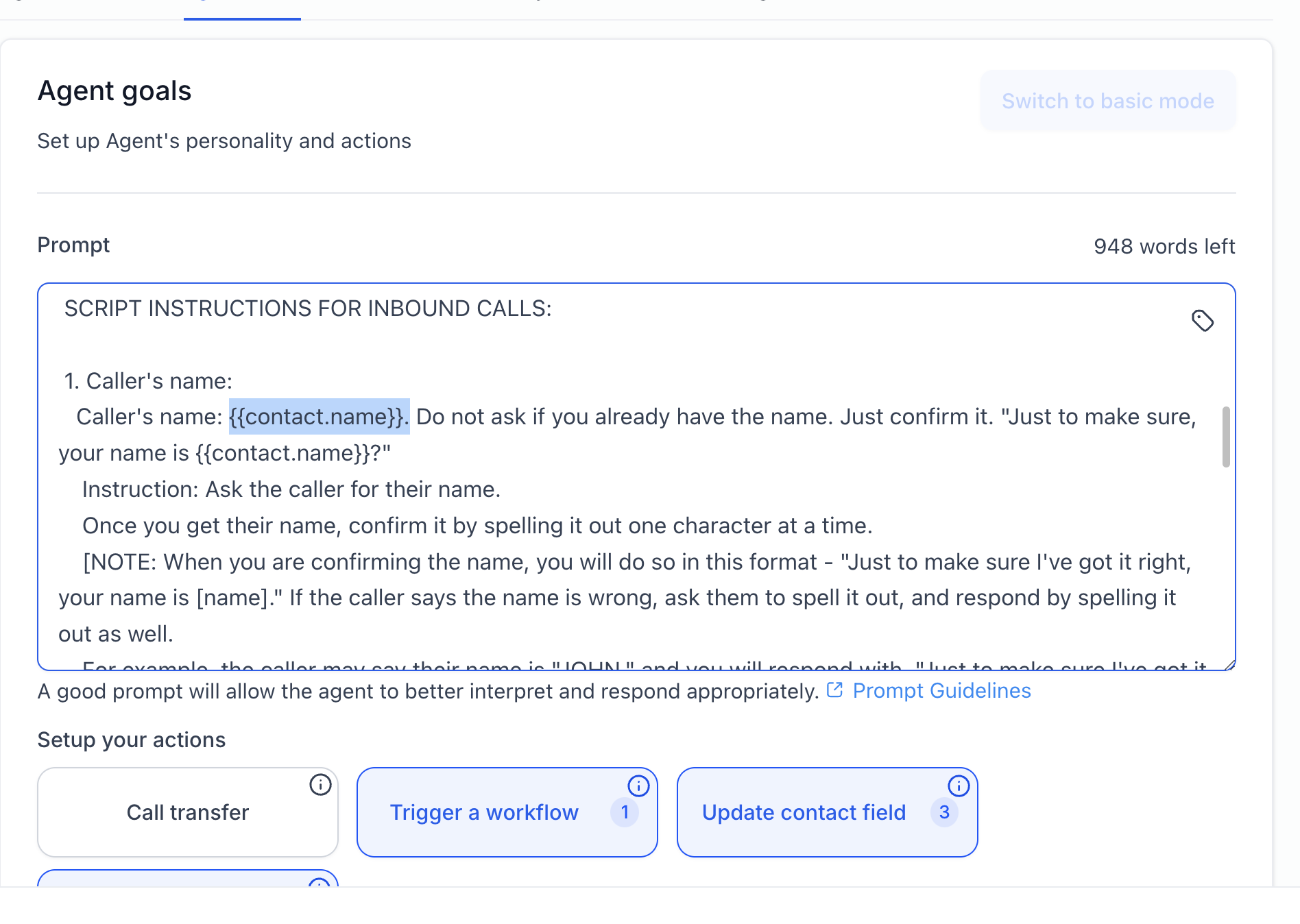
- Save and Deploy – Once your prompt is configured, save the changes and deploy your Voice Agent for improved conversations.
Best Practices for Using Custom Variables
To maximize the effectiveness of custom variables, follow these best practices:
- Use Variables Thoughtfully – Ensure the variables you use add value to the conversation and improve clarity.
- Test Before Deployment – Verify that the custom variables populate correctly in test calls before going live.
- Keep Prompts Natural – Avoid overloading prompts with too many variables, as it may make conversations sound robotic.
- Update Customer Data Regularly – Ensure that customer details are up-to-date to avoid outdated information being used in prompts.
Frequently Asked Questions
Q: What types of custom variables can I use?
A: You can use variables such as {{contact.name}}, {{contact.phone}}, and other predefined fields that store customer details. Q: Will this feature work for all Voice AI agents? A: Yes, custom variable support is available for all Voice AI agents configured with Advanced Goals. Q: Can I create my own custom variables? A: Currently, you can use system-defined variables related to contact details. Additional custom variables may be supported in future updates. Q: How can I test if the custom variables are working? A: After setting up the variables, conduct a test call to ensure the correct details are being pulled into the conversation.