
How to Create Multiple Chat Widgets in a Single Sub-Account
Use multiple Chat Widgets in Patient Copilot to tailor conversations. This article explains how to create several widgets in a single sub-account and how to place widgets onto your sites.
Assign Page-Specific Chat Widgets
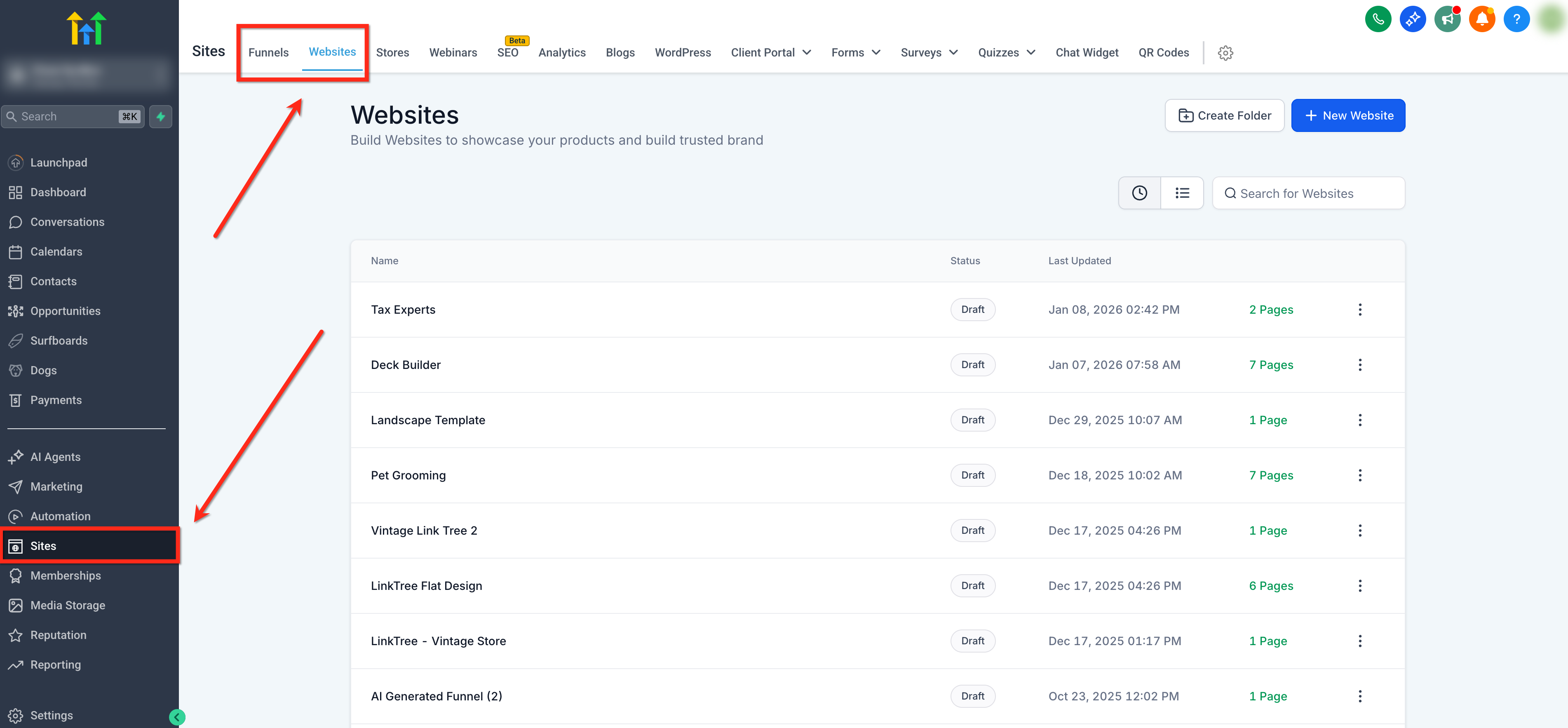
Use a per‑page code embed to show a Chat Widget only on specific pages or funnel steps within your website or funnel! This method gives fine‑grained control over the user’s experience. To assign a chat widget to a single page, follow these steps: 1. Navigate to Sites → Websites or Funnels, then select the website you would like to edit.
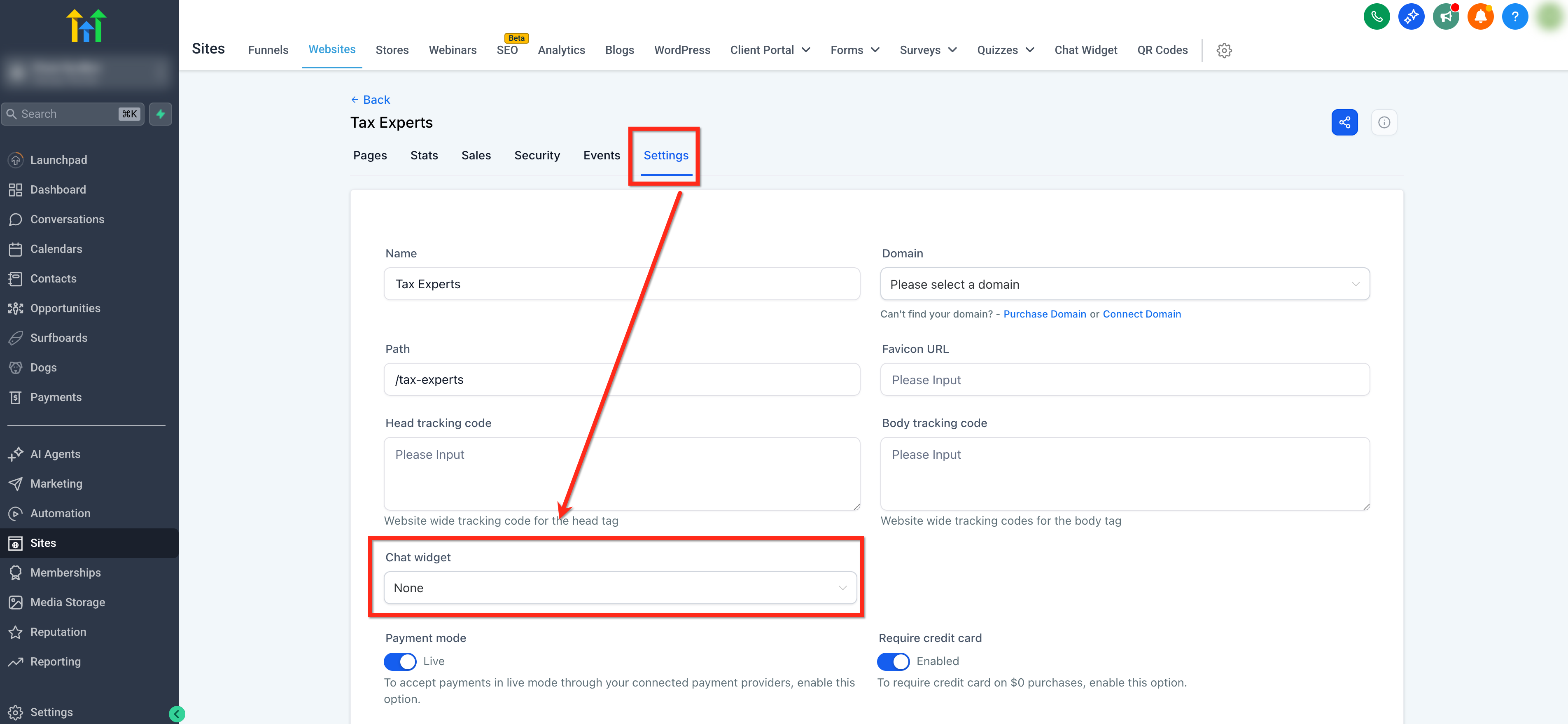
- Go to the Settings tab. Ensure the Chat Widget dropdown is set to “None” then Save.
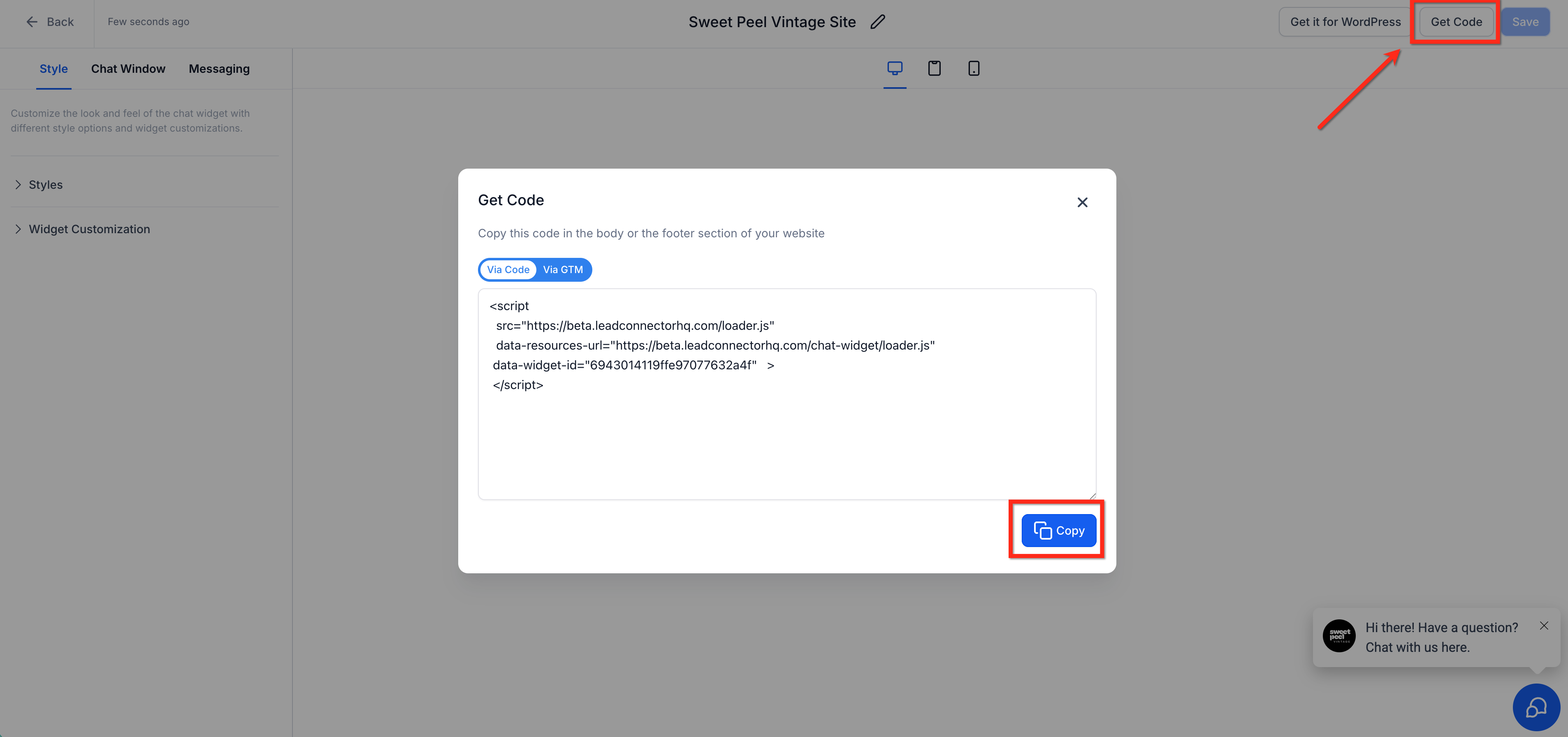
- Navigate to Sites→ Chat Widgets, open the chat widget you want, click Get Code and copy the code snippet.
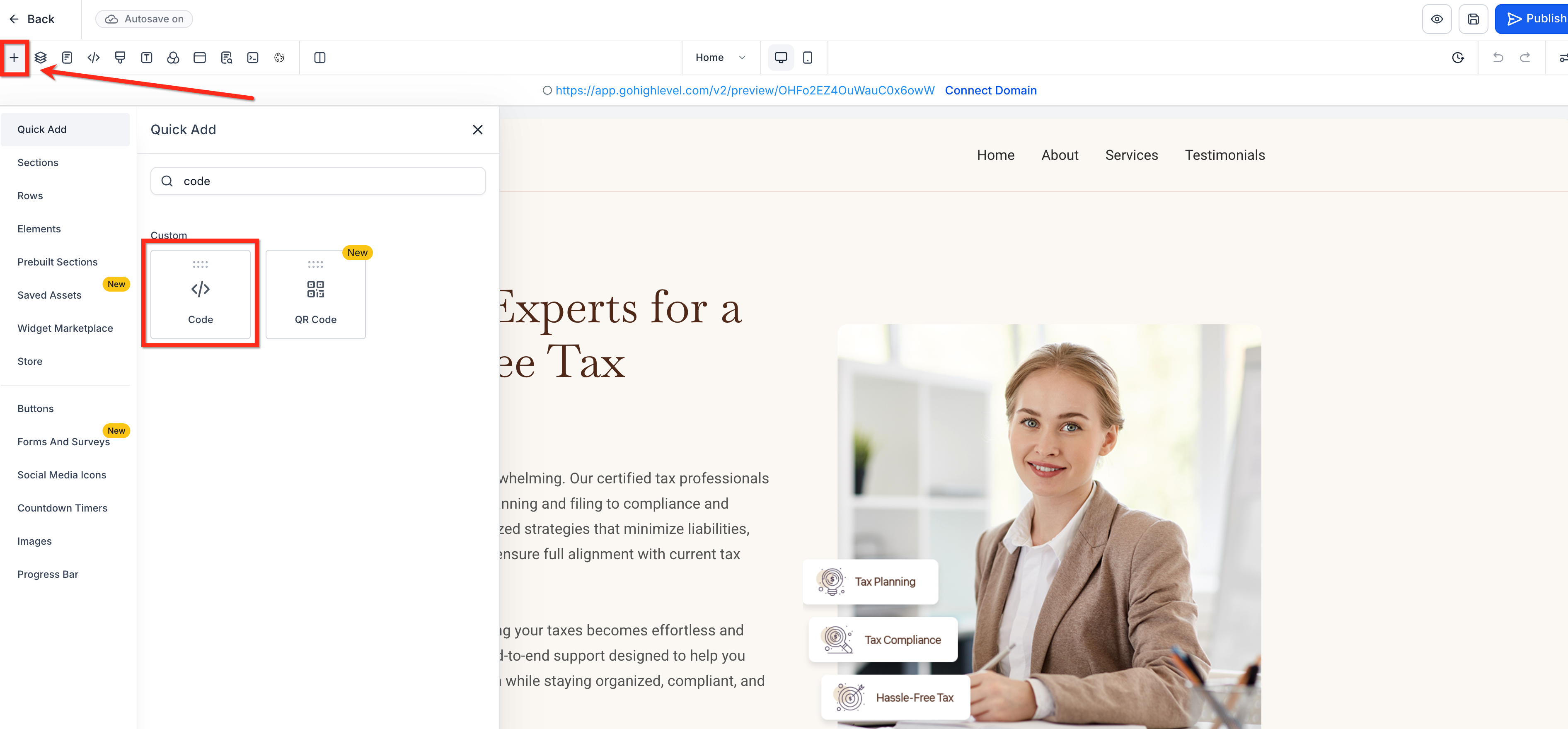
- Open the Page Editor for the target page/step. Click Add Element (+), find Code, and drag it onto the canvas.
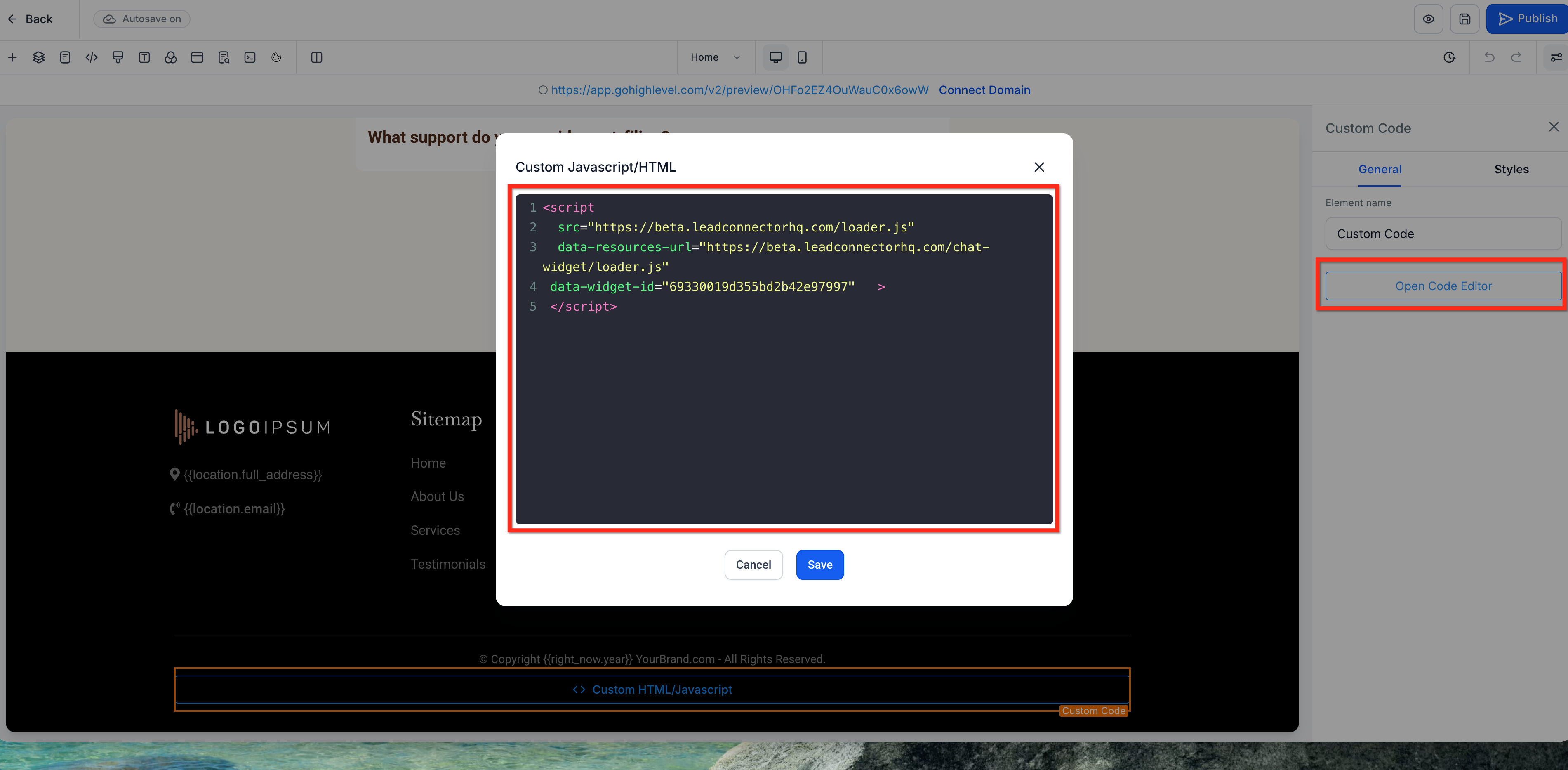
- Select the Code element. In the right settings panel, click Open Code Editor, paste the code snippet and click Save.
Frequently Asked Questions
Q: Do I need to reinstall code after changing widget styles or settings?
No, the Chat Widget will update automatically to match your changes. Q: Which widget shows if I configure the chat Widget under Settings and using a code element? If both are configured, the Settings selection takes precedence. Only the widget selected under Settings will show. Q: Will All-in-One Chat Widget replace multiple widgets? The All-in-One option centralizes channels in a single widget. You can still run multiple widgets when you want different designs or CTAs per page or site. Q: How do I verify the correct widget is active on a page? You can use the Preview feature within the editor to view what widget is active on the page.
Related Articles
- Getting Started with Chat Widget
- How to Use the All-in-One Chat Widget
- Facebook and Instagram Chat Widgets
- Voice AI Chat Widget
- How to Use the ‘Live Chat’ Chat Widget Was this article helpful? That’s Great! Thank you for your feedback Sorry! We couldn’t be helpful Thank you for your feedback Feedback sent We appreciate your effort and will try to fix the article