
Complete Guide to Media Storage!
This guide provides comprehensive instructions on how to navigate and utilize the upgraded Media Storage feature across Patient Copilot. From uploading and organizing files to enhanced previews and security-aware integrations, every update is designed to make your workflow smoother and more intuitive.
Uploading Files
Upload files effortlessly via drag-and-drop. Just drag media from your computer into the Media Storage interface no buttons required. The improved functionality ensures a faster, more intuitive upload experience. You can also upload font files (such as .ttf, .otf, .woff, .woff2) up to 100MB in size. These can be used to customize branding in websites or funnels using Custom CSS.
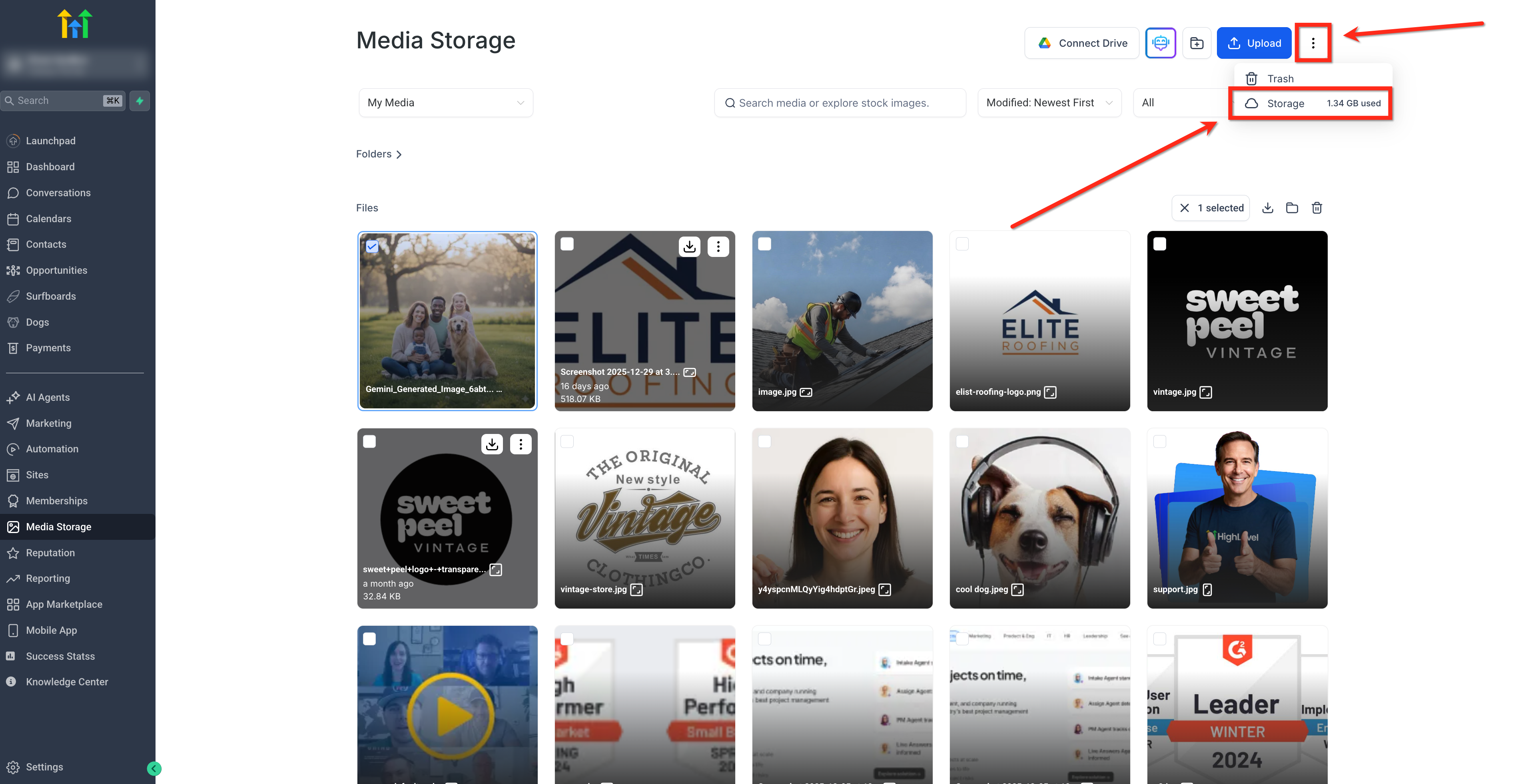
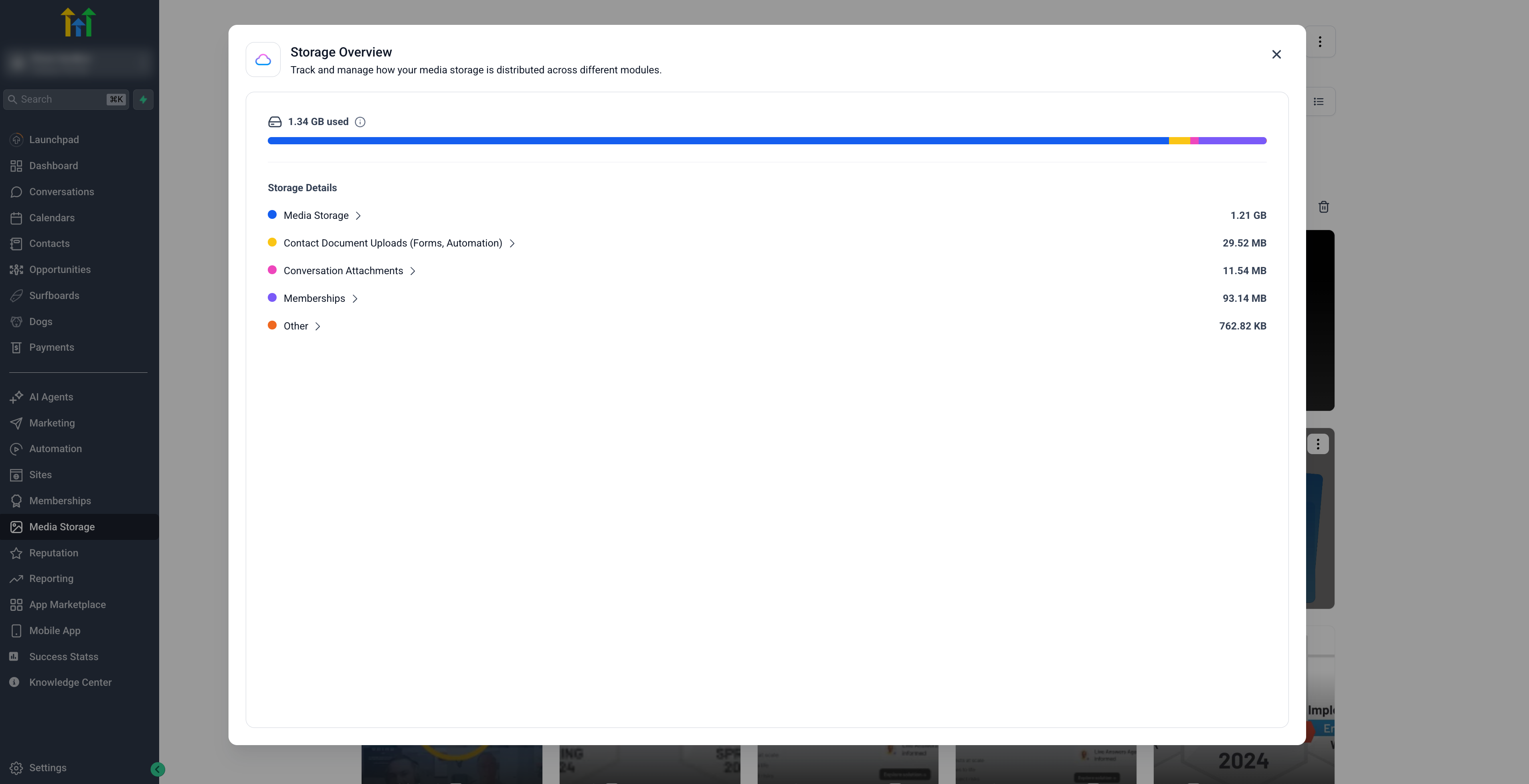
Get a breakdown of how much storage your account is using and where that usage comes from. The modal visualizes total storage with a color-coded bar, shows a per-module breakdown (e.g., Media Library, Conversations, Memberships, Contacts, Calendar), and lets you expand each module to see usage by file type (Images, Videos, Documents, Audio). To view storage usage with the media usage modal, follow these steps: 1. Click the three-dot (⋮) and select Storage.
- Click on any module to see usage by file type.
Easily organize your media library using powerful sorting options:
- Sort by Name: A to Z / Z to A
- Sort by Size: Smallest First / Largest First
- Sort by Modified Date: Newest First / Oldest First
Grid and List View
You can toggle between Grid View and List View based on your preference. Both views offer enhanced metadata visibility.
- Orientation Badge (Grid View): Each image now displays a badge showing Landscape, Portrait, or Square format.
- Pixel Dimensions (List View): Width × Height values are shown next to each image name, so you can quickly assess suitability for your design. Note: Older uploaded images may not immediately display dimensions due to background processing delays.
Quick Actions via Right-Click and Hover Menus
Access file options faster using the right-click dropdown menu or hover-over quick action buttons. This removes the need to rely solely on the top navigation bar. Available actions include:
- Rename - Delete - Move to Folder - Preview - Insert
Insert & Preview Features
In Media Storage used within products (e.g., website/funnel builder), you’ll now see:
- “Insert Media” button for single file selection – instantly insert without navigating away.
- Preview Option - accessible from the three-dot menu for quick viewing.
- Insert directly from Preview Screen - eliminates the back-and-forth between views.
Folder Management
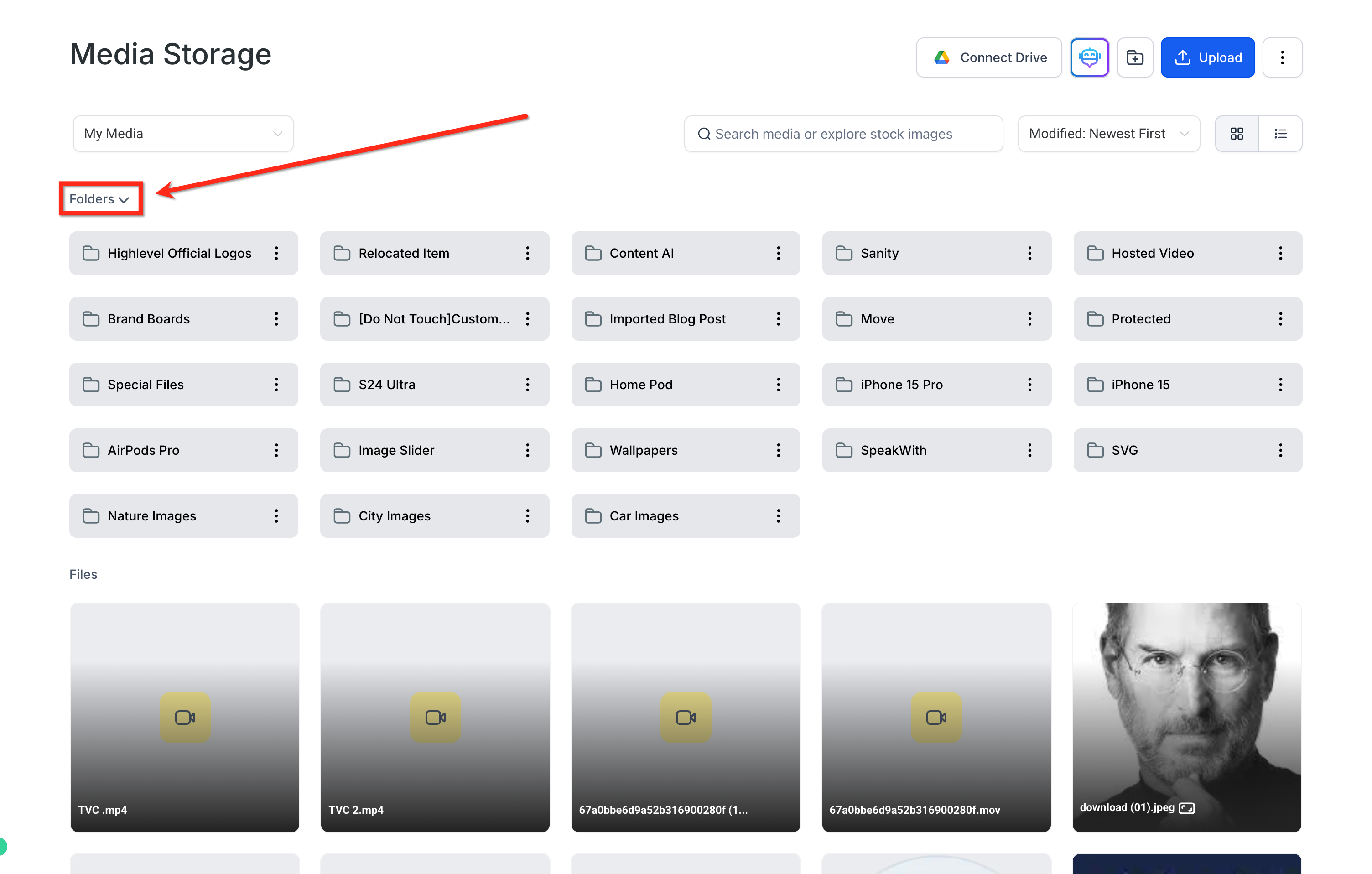
Collapse or Expand the Folders Section
If you have a large folder structure, you can collapse the Folders section to reduce clutter and focus on your files. In Media Storage, click the arrow next to Folders to collapse the folder list. Click it again to expand the folder list.
Move Entire Folders
You can move entire folders with their contents (including nested files and subfolders). Here’s how: 1. Click the three-dot (⋮) menu next to any folder and select Move to Folder.
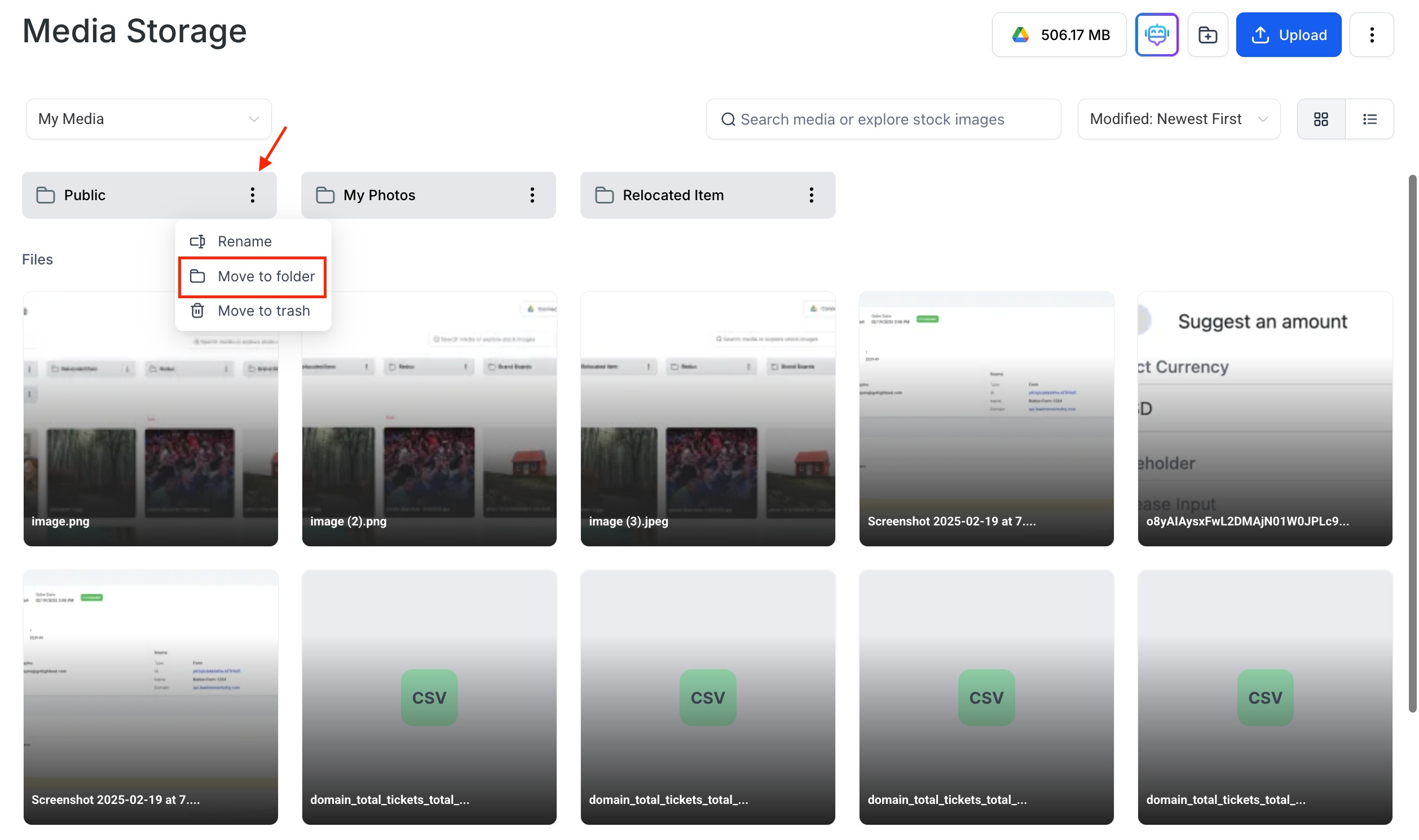
- Choose an existing folder or create a new one. 3. Confirm the move and that everything is relocated together. Note: This process keeps subfolders intact.
Trash Functionality for Safer Deletions
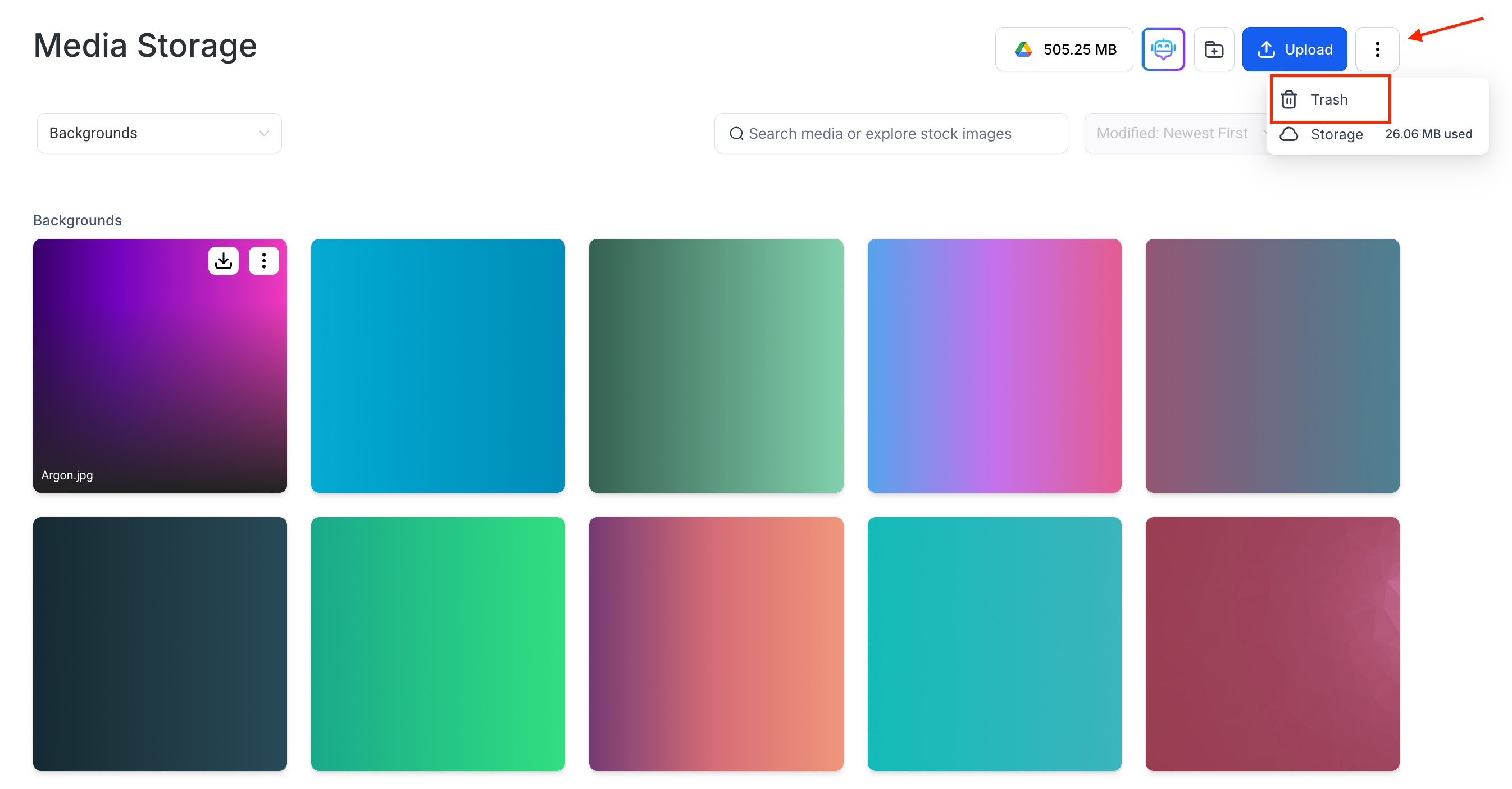
Deleted media files are moved to Trash where they remain for 30 days before permanent removal. 1. Click the three-dot menu on the top right and select Trash.
- Choose a file to Restore or Delete Permanently. **
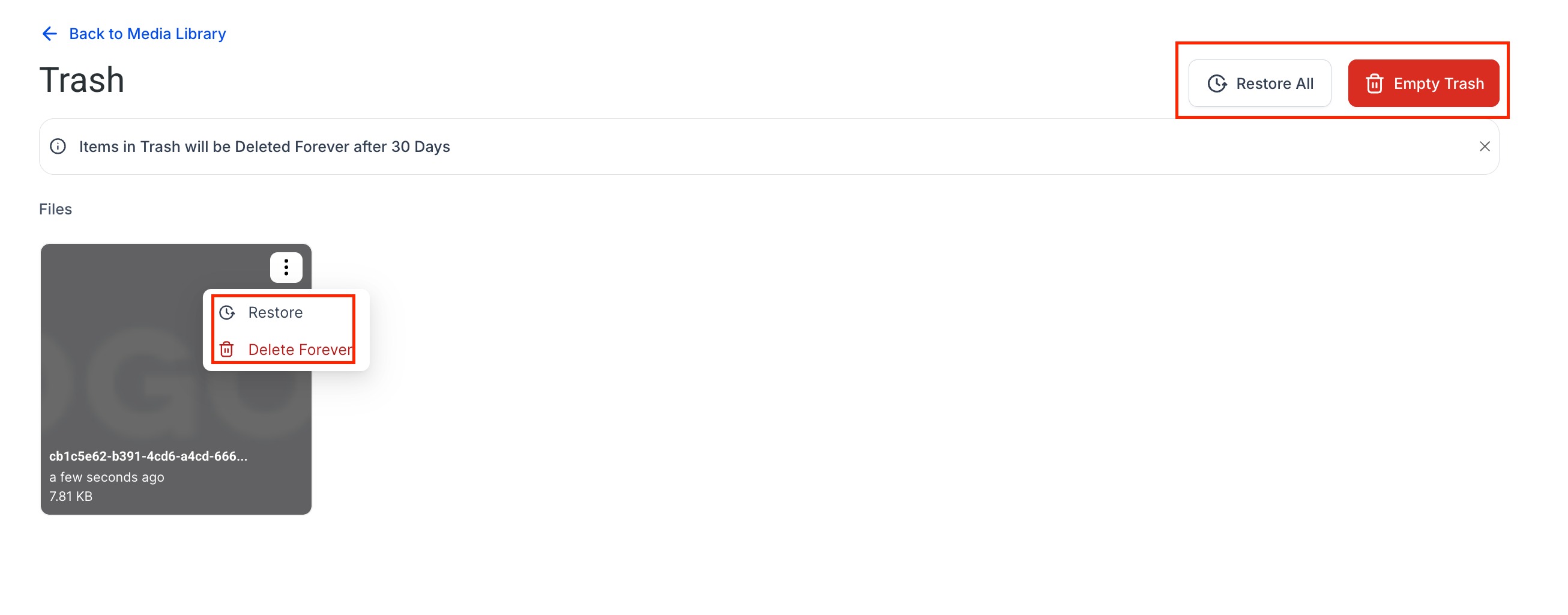
** Important: Files are non-recoverable after 30 days. Trash access is location-wide. Any user logged into the same location can view and restore items in Trash, regardless of who moved them there. This helps prevent file loss if the original user is deleted or no longer has access.
Google Drive Integration Enhancements
Connect Drive enables importing from Google Drive (owned files only). Important: We’re unable to display shared files or shortcuts to shared files, as these are restricted by access and permission settings. At the moment, we can only show files that are owned by you. This limitation is due to how Google Drive handles visibility and ownership. Workaround: We recommend creating a copy of the shared file instead of a shortcut this will ensure it appears and functions as expected. Privacy Note: When using the “Login As” feature (e.g., for admin access): - The Connect Drive button is disabled and grayed out.
- Google Drive data of the original user will not display ensuring strict privacy protection.

Seamless Integration Across Products
Media Storage is deeply integrated with other modules. Whether you’re editing a funnel or designing a website, media opens via a modal window not full screen for a more pleasant, non-intrusive user experience. Note: Drag-and-drop uploads also work when the Media Library opens inside a Funnel modal—drop files anywhere in the modal drop zone to upload before inserting.
Per-Product File Limits
Files can be uploaded through Forms by creating a Custom Value of type File Upload.
| File Type | Media Library | Social Planner | Sites & Funnels | Courses | CV File Upload |
|---|---|---|---|---|---|
| Images | |||||
| PNG (.png) | 100MB | 10MB | 100MB | 50MB | 50MB |
| JPEG (.jpg,.jpeg,.jfif,.pjpeg,.pjp) | 100MB | 10MB | 100MB | 50MB | 50MB |
| GIF (.gif) | 100MB | 10MB | 100MB | 50MB | 50MB |
| TIFF (.tif,.tiff, x-tiff) | 100MB | 10MB | 100MB | 50MB | 50MB |
| WEBP (.webp) | 100MB | 10MB | 100MB | 50MB | 50MB |
| SVG (.svg) | 100MB | 10MB | 100MB | 50MB | 50MB |
| ICON (.ico,.cur, x-icon) | 100MB | 10MB | 100MB | 50MB | 50MB |
| Videos | |||||
| AVI (.avi, x-troff-msvideo) | 4GB | 1GB | 4GB | 5GB | 50MB |
| QuickTime (.qt,.qtc,.mov,.moov,.moov) | 4GB | 1GB | 4GB | 5GB | 50MB |
| MP4 (.mp4) | 4GB | 1GB | 4GB | 5GB | 50MB |
| MPEG (.mpg) | 4GB | 1GB | 4GB | 5GB | 50MB |
| Ogg Video (.ogv) | 4GB | 1GB | 4GB | 5GB | 50MB |
| Windows Media (.wmv,.asf) | 4GB | 1GB | 4GB | 5GB | 50MB |
| WebM (.webm) | 4GB | 1GB | 4GB | 5GB | 50MB |
| Audio | |||||
| AIF (.aif,.aiff,.aifc) | 100MB | 100MB | 100MB | 50MB | 50MB |
| MIDI (.midi,.mid) | 100MB | 100MB | 100MB | 50MB | 50MB |
| Windows Audio (.wav) | 100MB | 100MB | 100MB | 50MB | 50MB |
| Ogg Audio (.oga) | 100MB | 100MB | 100MB | 50MB | 50MB |
| WebM Audio (.weba) | 100MB | 100MB | 100MB | 50MB | 50MB |
| MPEG (.mpeg) | 100MB | 100MB | 100MB | 50MB | 50MB |
| m4a (.m4a) | 100MB | 100MB | 100MB | 50MB | 50MB |
| Application | |||||
| PDF (.pdf) | 100MB | 100MB | 100MB | 50MB | 50MB |
| Word (.doc,.docx, ms-doc, msword, vnd.openxmlformats-officedocument.wordprocessingml.document) | 100MB | 100MB | 100MB | 50MB | 50MB |
| Excel (excel,.xls, xlsx,.xlsm, vnd.ms-excel, x-excel, x-msexcel, vnd.openxmlformats-officedocument.spreadsheetml.sheet) | 100MB | 100MB | 100MB | 50MB | 50MB |
| PowerPoint (.ppt,.pptx..pptm, mspowerpoint, powerpoint, vnd.ms-powerpoint, x-mspowerpoint, vnd.ms-powerpoint, vnd.openxmlformats-officedocument.presentationml.presentation) | 100MB | 100MB | 100MB | 50MB | 50MB |
| Apple Numbers (x-iwork-numbers-sffnumbers, | 100MB | 100MB | 100MB | 50MB | 50MB |
| Google Sheet (vnd.google-apps.spreadsheet) | 100MB | 100MB | 100MB | 50MB | 50MB |
| Google Doc (vnd.google-apps.document) | 100MB | 100MB | 100MB | 50MB | 50MB |
| Google Slides (vnd.google-apps.presentation) | 100MB | 100MB | 100MB | 50MB | 50MB |
| Text (.rtf,.txt) | 100MB | 100MB | 100MB | 50MB | 50MB |
| ZIP (.zip, x-zip, z-zip-compressed, x-compress, x-compressed | 100MB | 100MB | 100MB | 50MB | 50MB |
| CSV (.csv) | 100MB | 100MB | 100MB | 50MB | 50MB |
| Font | |||||
| TrueType TTF (.ttf) | 100MB | 100MB | 100MB | 50MB | 50MB |
| OpenType OTF (.otf) | 100MB | 100MB | 100MB | 50MB | 50MB |
| Web Open Font Format WOFF, WOFF2 (.woff) | 100MB | 100MB | 100MB | 50MB | 50MB |
| Contact | |||||
| vCard (.vcf) | 100MB | 100MB | 100MB | 50MB | 50MB |
Cross-Browser Compatibility (Chrome, Firefox, Safari)
Standardized validation, upload, listing, and preview behavior now applies across Chrome, Firefox, and Safari for all supported formats. This reduces browser-specific issues and makes previews more predictable. See the Supported Formats & Browser Compatibility matrix in the Media Library specs for the canonical list, including JSON, CSS, OGG/OGA, M4V, HEIC, and consistent ZIP handling.
Preview Notes
Inline thumbnails/previews render when supported by the browser/OS; otherwise, files are available as downloads. Keep asset sizes reasonable for faster previews. (Needs Confirmation: any format-specific caveats, e.g., HEIC thumbnail generation on older OS versions.)
Frequently Asked Questions
Q: Can I use both grid and list views?
Yes! And now with extra image orientation and pixel dimension indicators. Q: What sorting options are available? Name, size, and modified date all with ascending and descending orders. Q: What file types can I upload? Images, documents, and now font files (.ttf, .otf, .woff, .woff2). Q: What happens to deleted files? Deleted files move to Trash for 30 days. Any user logged into the same location can view and restore trashed items, or permanently delete them. After 30 days, files are automatically removed and can’t be recovered. Q: Can I integrate Media Storage with Google Drive? Yes, but only for owned files. Shared file shortcuts won’t display. Q: How does “Login As” affect media access? When active, the Connect Drive button is disabled and original user Drive content is hidden.