
How to Create vCards in the QR Code Builder
This article explains how to create a vCard QR Code using the Patient Copilot QR Code Builder. Share your contact details with a single scan—ideal for networking, events, and lead generation.
What is vCard Support in QR Code Builder? vCard Support in QR Code Builder allows users to create QR codes that, when scanned, instantly display a digital contact card. This functionality simplifies sharing professional and personal contact details by leveraging dynamic QR codes to open a full contact card on any mobile device. Users can now input vital contact information like names, phone numbers, email addresses, physical addresses, websites, and even a profile image, ensuring a seamless networking experience.
Key Benefits of vCard Support in QR Code Builder
This feature enhances your networking abilities by offering several key advantages:
- Instant sharing of comprehensive contact details, reducing manual data entry.
- Customizable contact fields for tailored professional branding.
- Dynamic QR codes that enable updates and re-use without generating new codes.
- Ideal for digital networking, contactless information sharing, and efficient lead generation.
Setting up vCard Support in the QR Code Builder is a straightforward process that ensures your contact information is shared instantly and efficiently. Follow these steps to get started:
Step 1: Navigate to the QR Code Builder 1. Log in to your Patient Copilot sub-account.
- Click on the Sites tab in the left-hand menu.
- Click on the QR Codes tab.
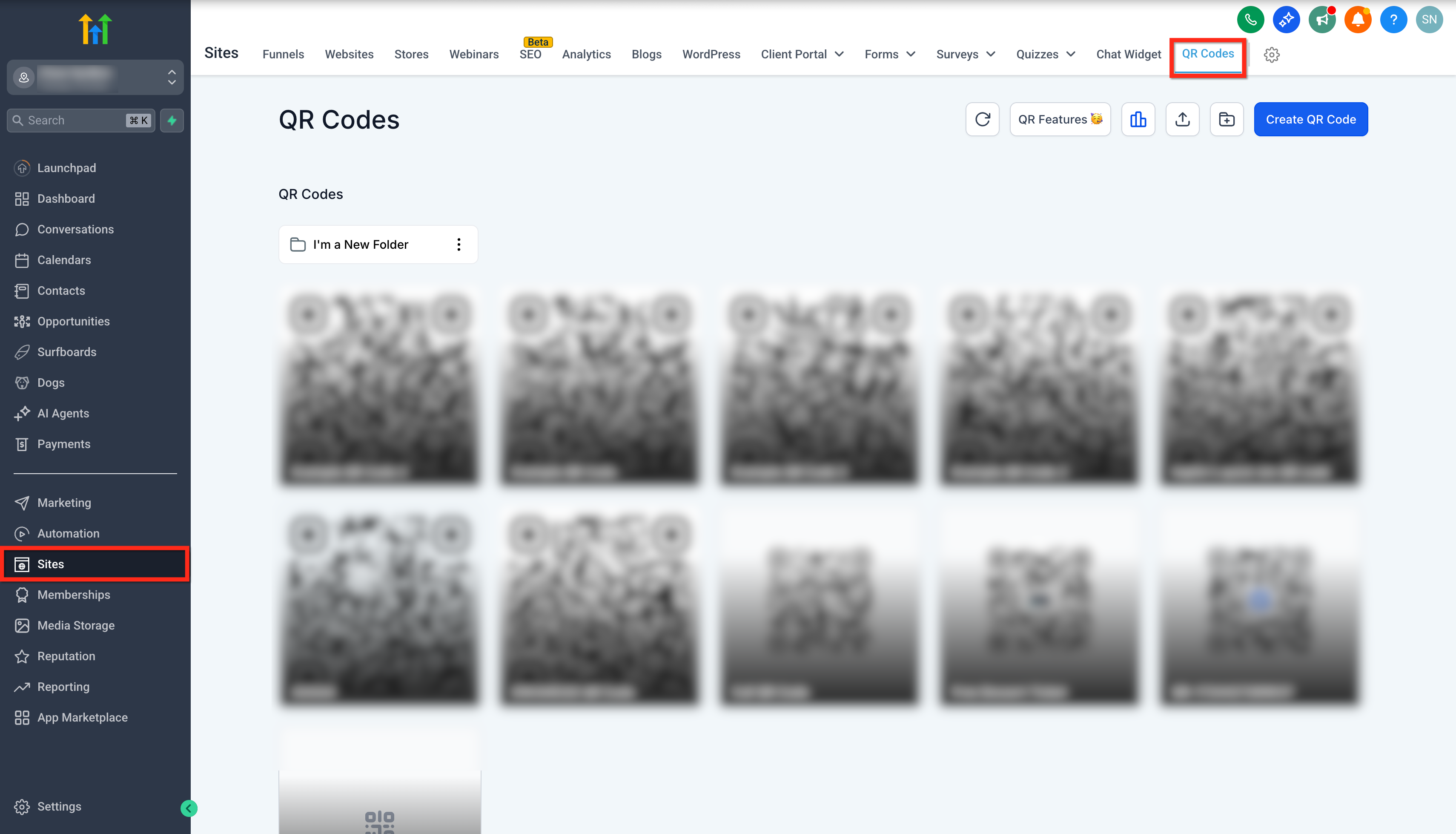
Step 2: Select QR Code Type 1. Click the Create QR Code button.
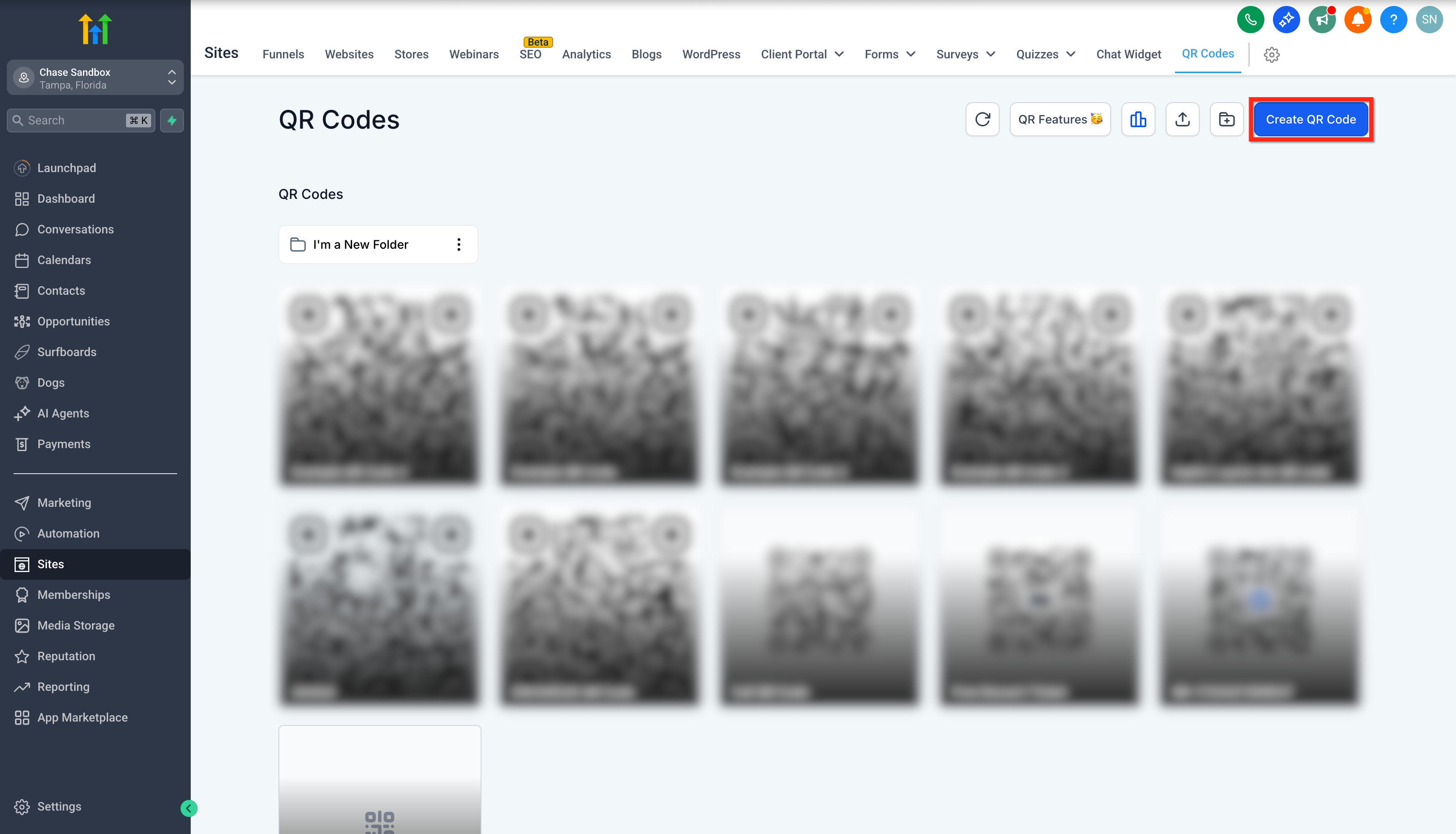
- In the QR Code Name field, enter a descriptive name for your reference.
- From the Select QR Code Type section, choose vCard.
- Click Next.
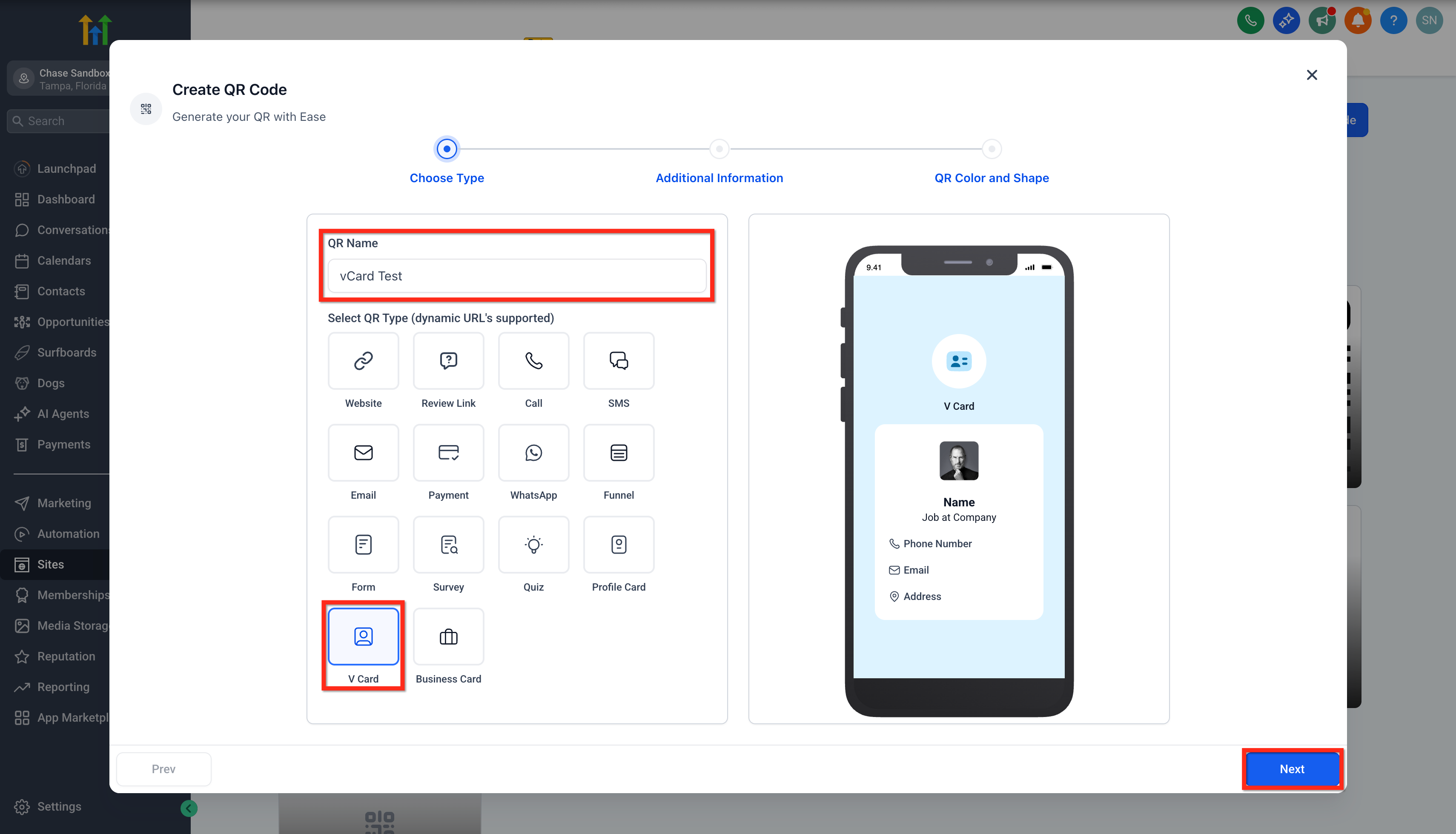
Step 3: Fill in Contact Information Enter the following contact fields: 1. First Name
- Last Name
- Phone Number (Required)
- Mobile Number
- Website 7. Upload your profile image or company logo.
- Street Address, City, State, Country, Postal Code
- Company Name and Job Title 8. Once all necessary fields are filled, click Next.
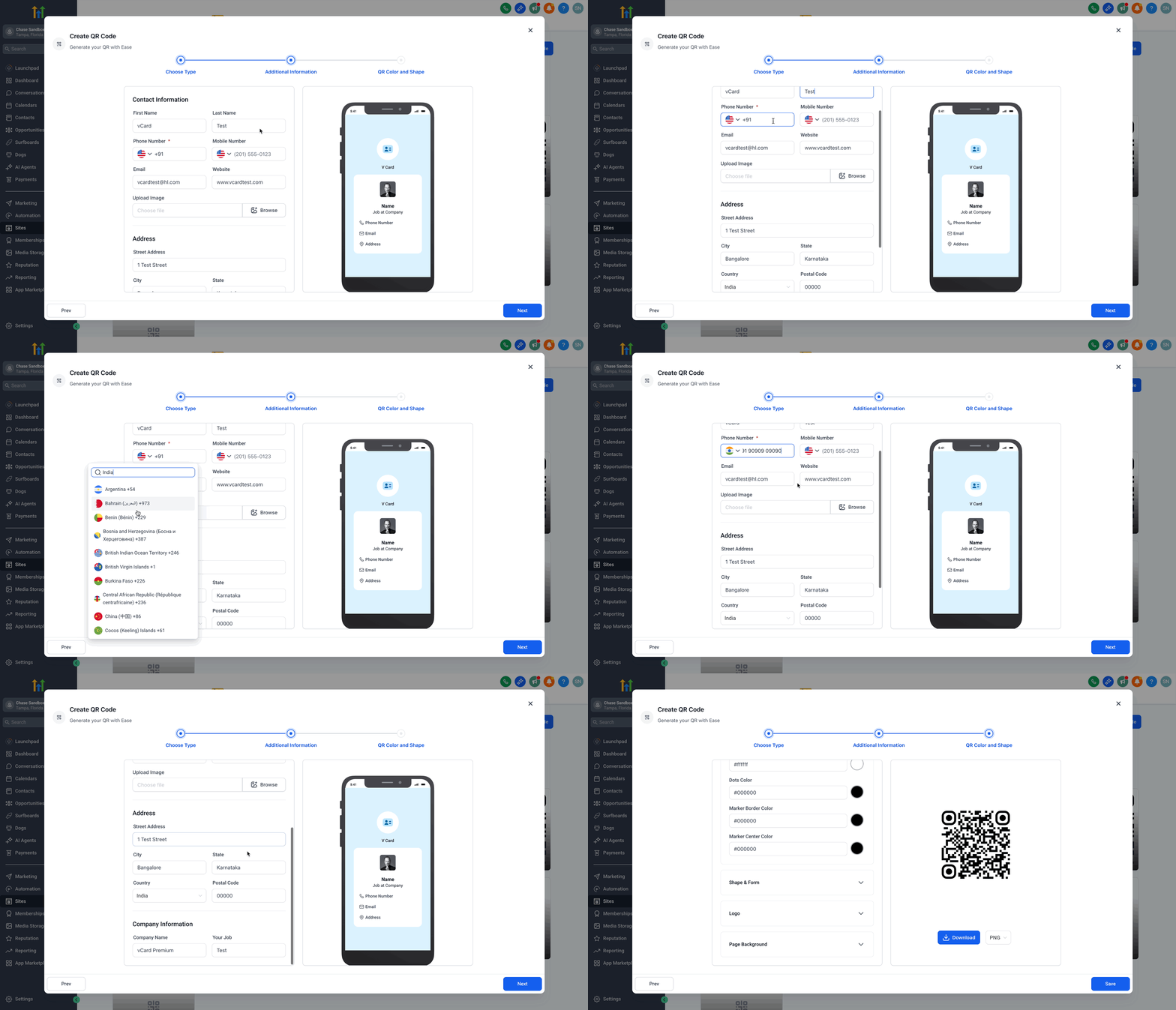
Step 4: Choose your desired QR Code colors 1. Background Color
- Dots Color
- Marker Border Color
- Marker Center Color
- Use a color picker or enter hex codes.
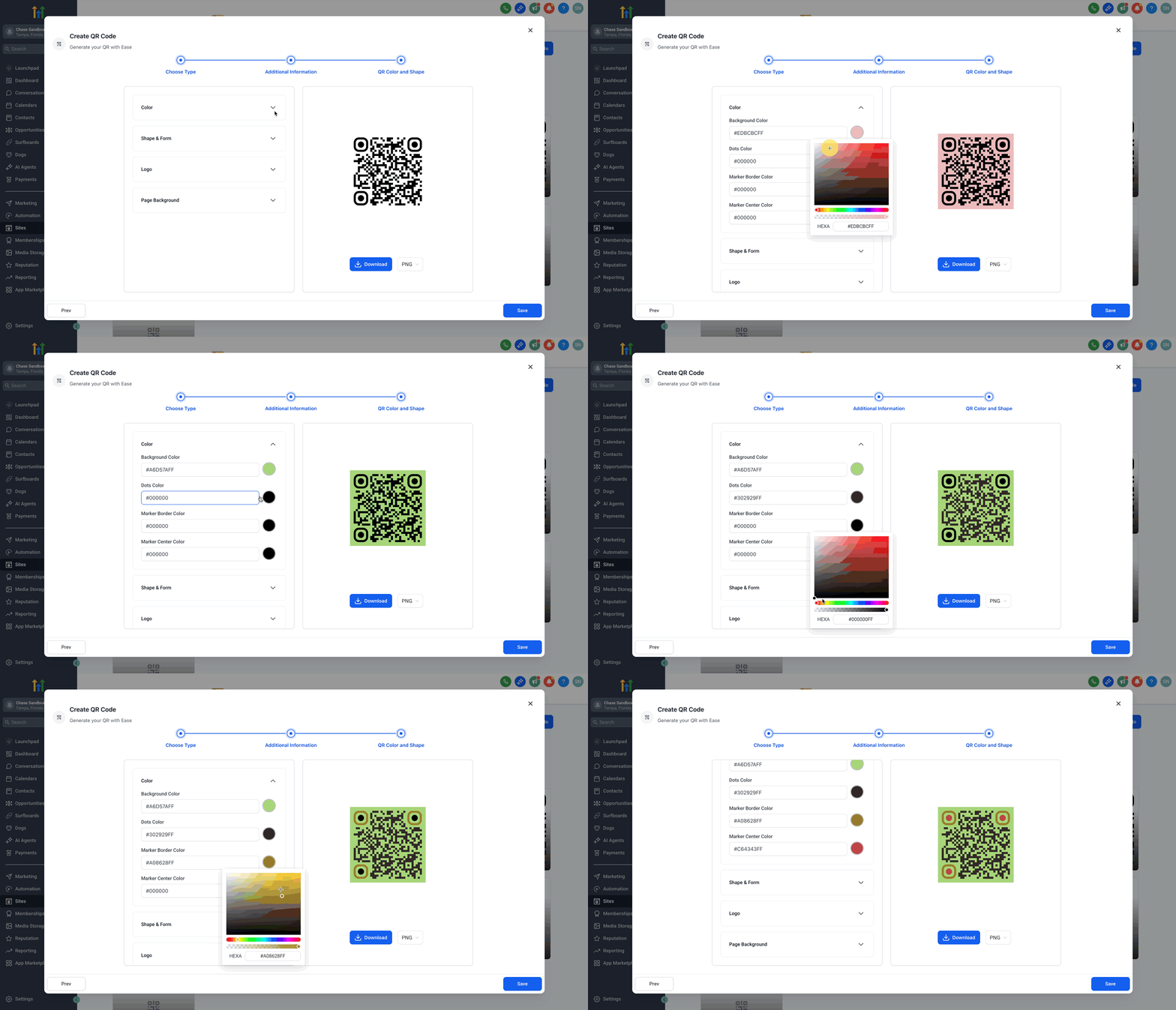
Step 5: Select your QR shape and Form 1. Choose from different styles of:
- Dots.
- Marker borders.
- Marker centers.
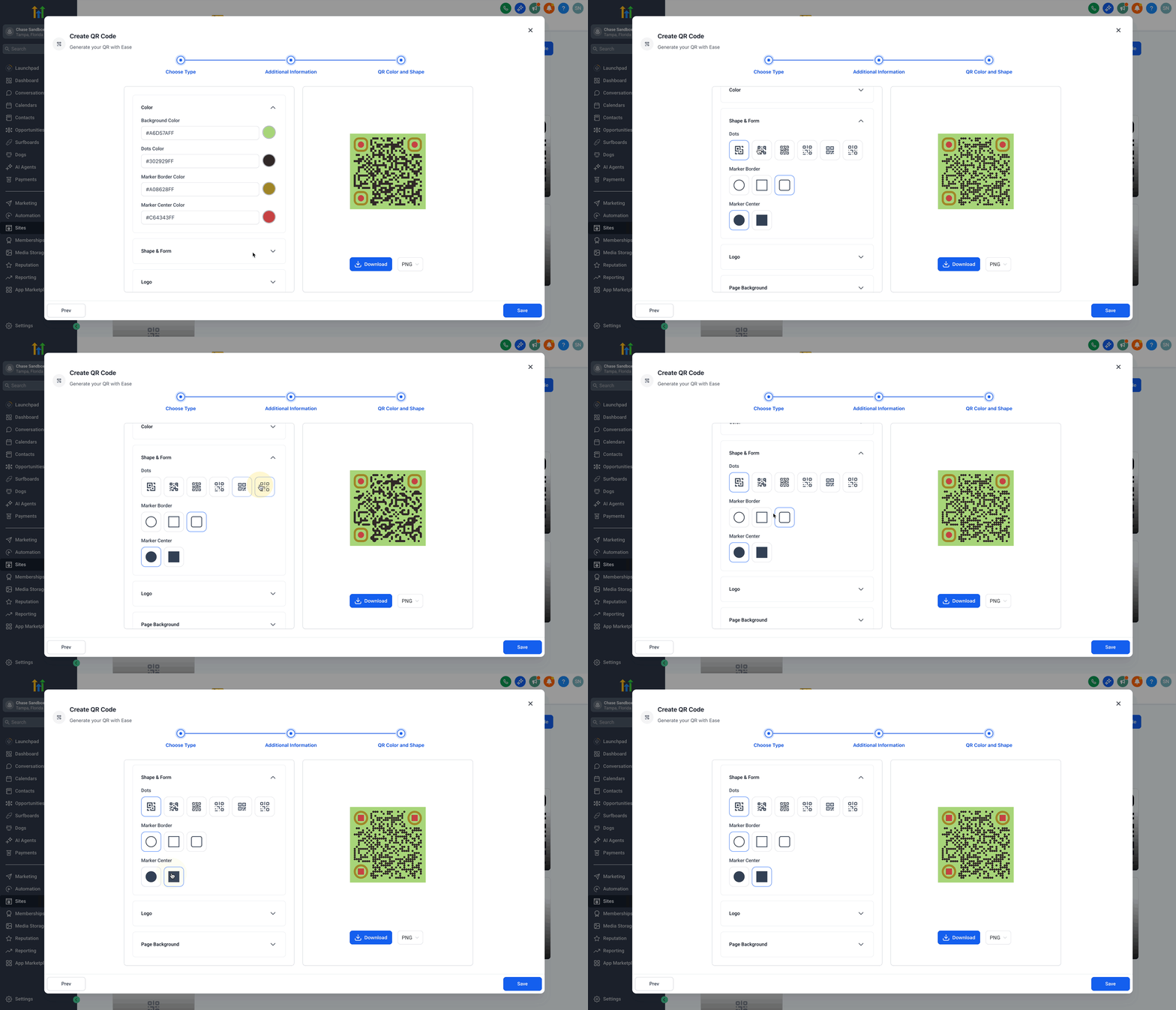
Step 6: Add a Logo 1. Upload your logo or choose from built-in options.
- Toggle Remove background behind logo ON or OFF based on preference.
- ON: Makes the background around the logo clear.
- OFF: Places the logo as-is on top of the QR code.
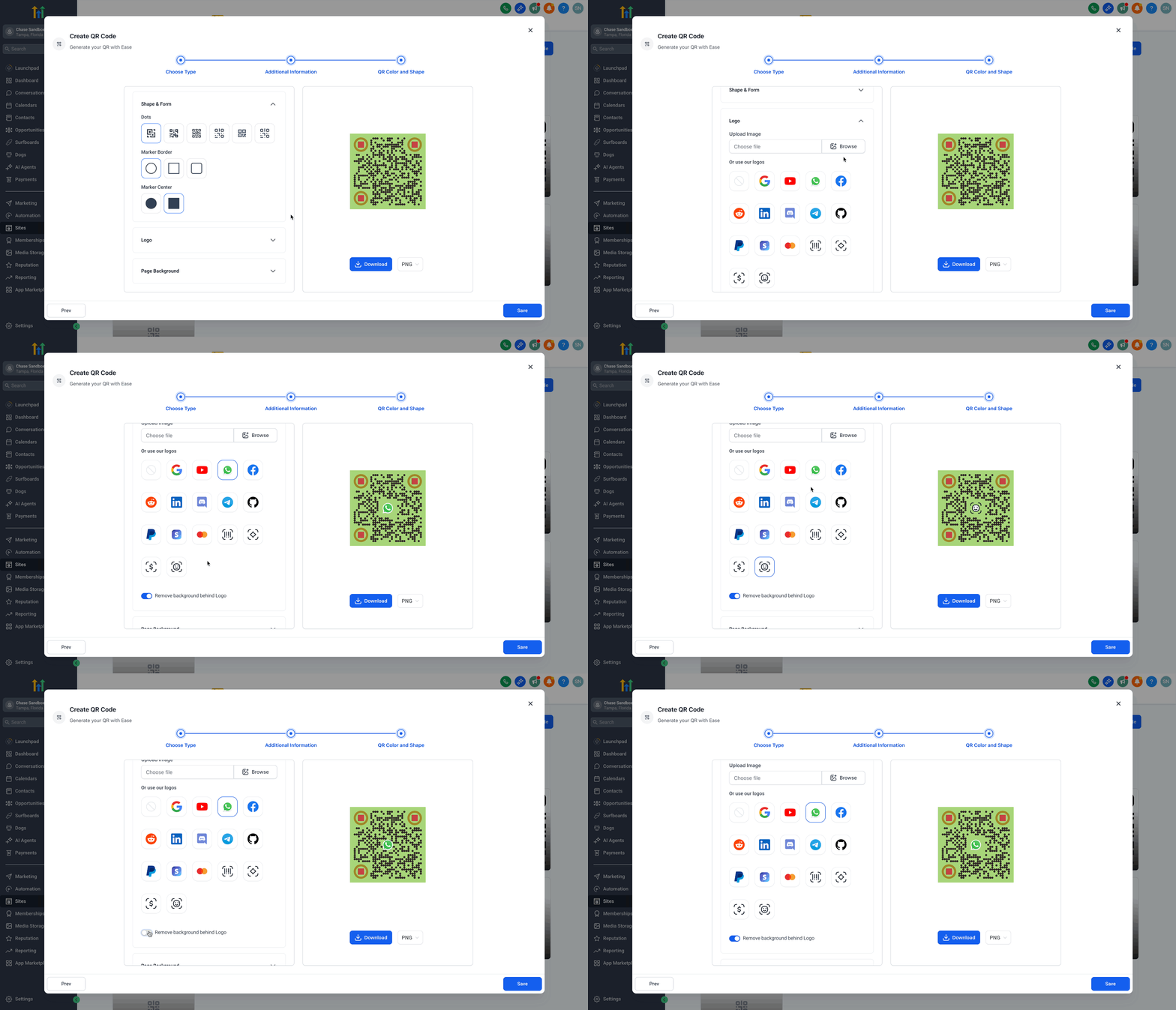
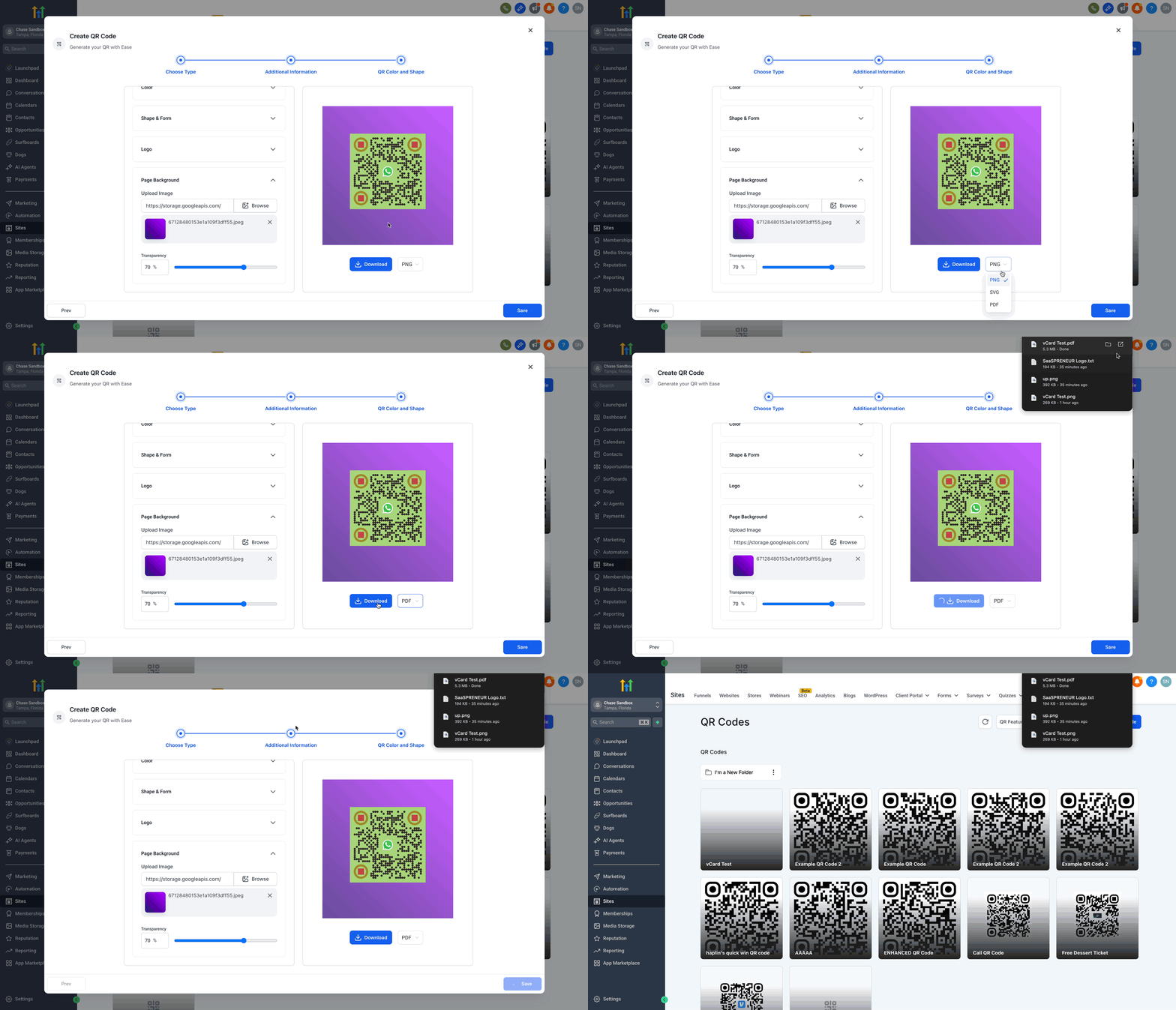
Step 7: Page Background Image 1. Upload a Background Image of your choice.
- Adjust the transparency level for the background as needed.
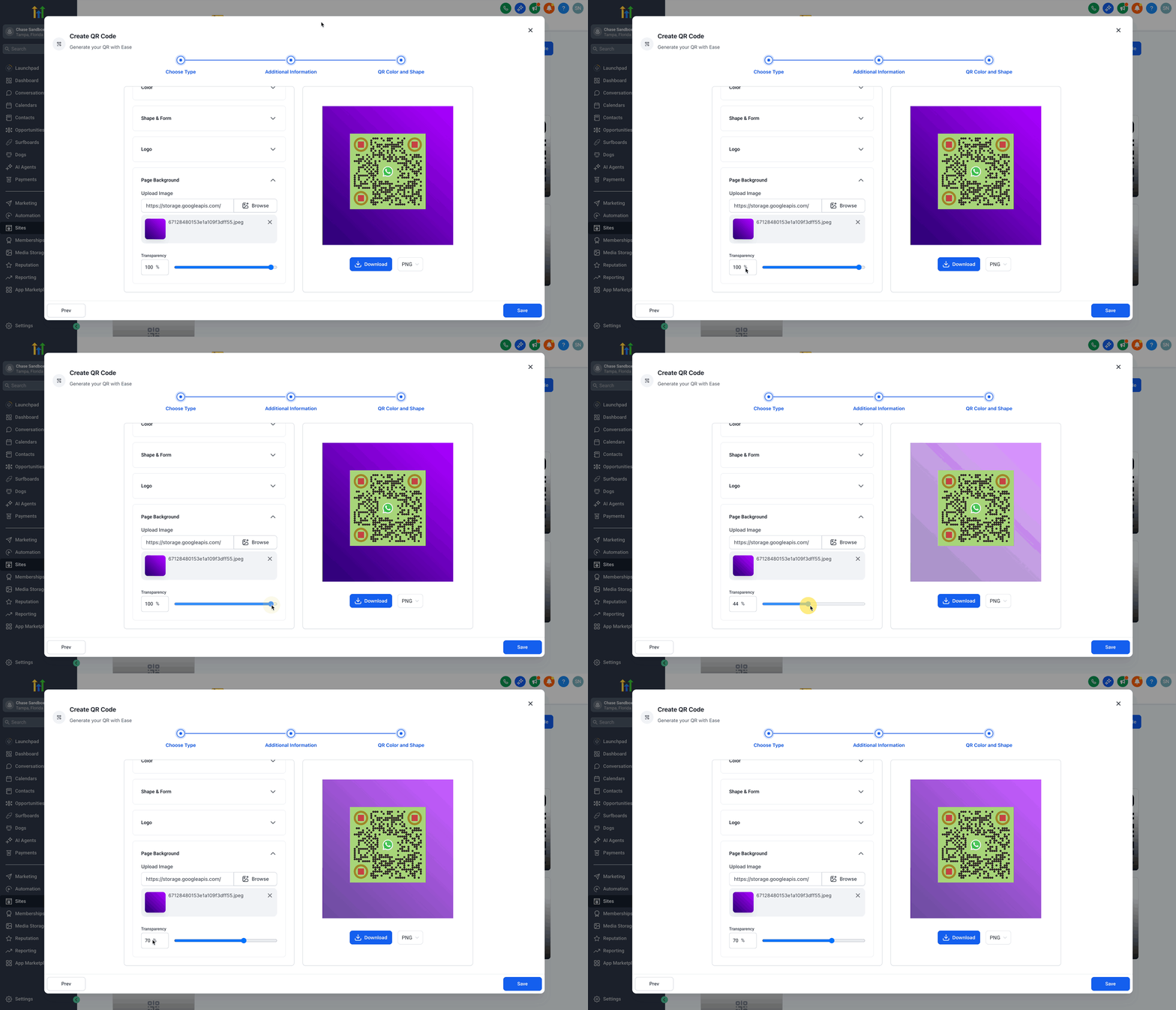
Step 8: Download and Save Your QR Code
- Click on the file type (PNG by default), from the dropdown, choose one of the available formats:
- PNG
- SVG
- Click Download to store the QR code file in your device.
- Click Save to store it in Patient Copilot.
Dynamic & Ready-to-Scan
The dynamic nature of the vCard QR codes means that the links remain update-able and reusable. This sub-feature is tailored for efficiency and ongoing adaptability.
- Supports dynamic URLs, allowing for real-time updates.
- Ensures that the QR code remains effective for multiple contact sharing events.
- Ideal for scenarios where contact information might change over time.
Frequently Asked Questions Q: Do vCard QR Codes work offline?
Once the QR code is scanned, the contact details are saved directly to the device, even if offline. Q: Can I include social media links? Currently, only basic contact info is supported. For social links, consider using a Profile Card. Q: What devices are compatible with scanning vCard QR codes? All standard smartphones with a QR code scanner app can easily scan and view the vCard. Q: Can I update my contact information after generating the QR code? Yes, the dynamic URL feature allows updates without needing to create a new QR code.