
WhatsApp Schedule Send
The WhatsApp schedule send feature enables users to easily schedule messages for their customers. With this functionality, businesses can schedule both WhatsApp templates and free-form messages, ensuring timely and efficient communication. Check out the release notes here
How to Schedule Send WhatsApp templates Step 1: Go Conversations > Select the contact > Select WhatsApp > Select the template**
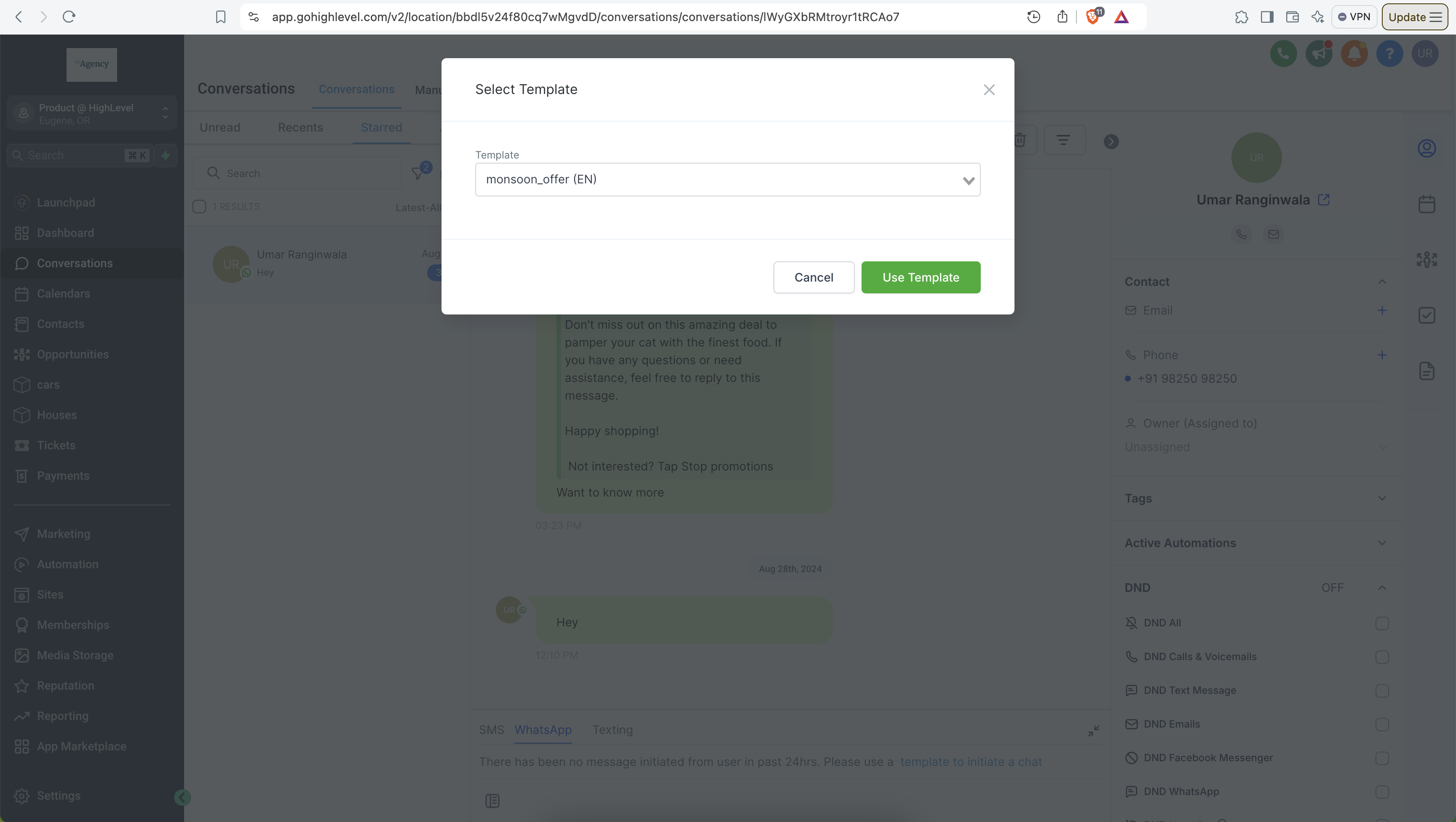
** Step 2: Click on the button next to send
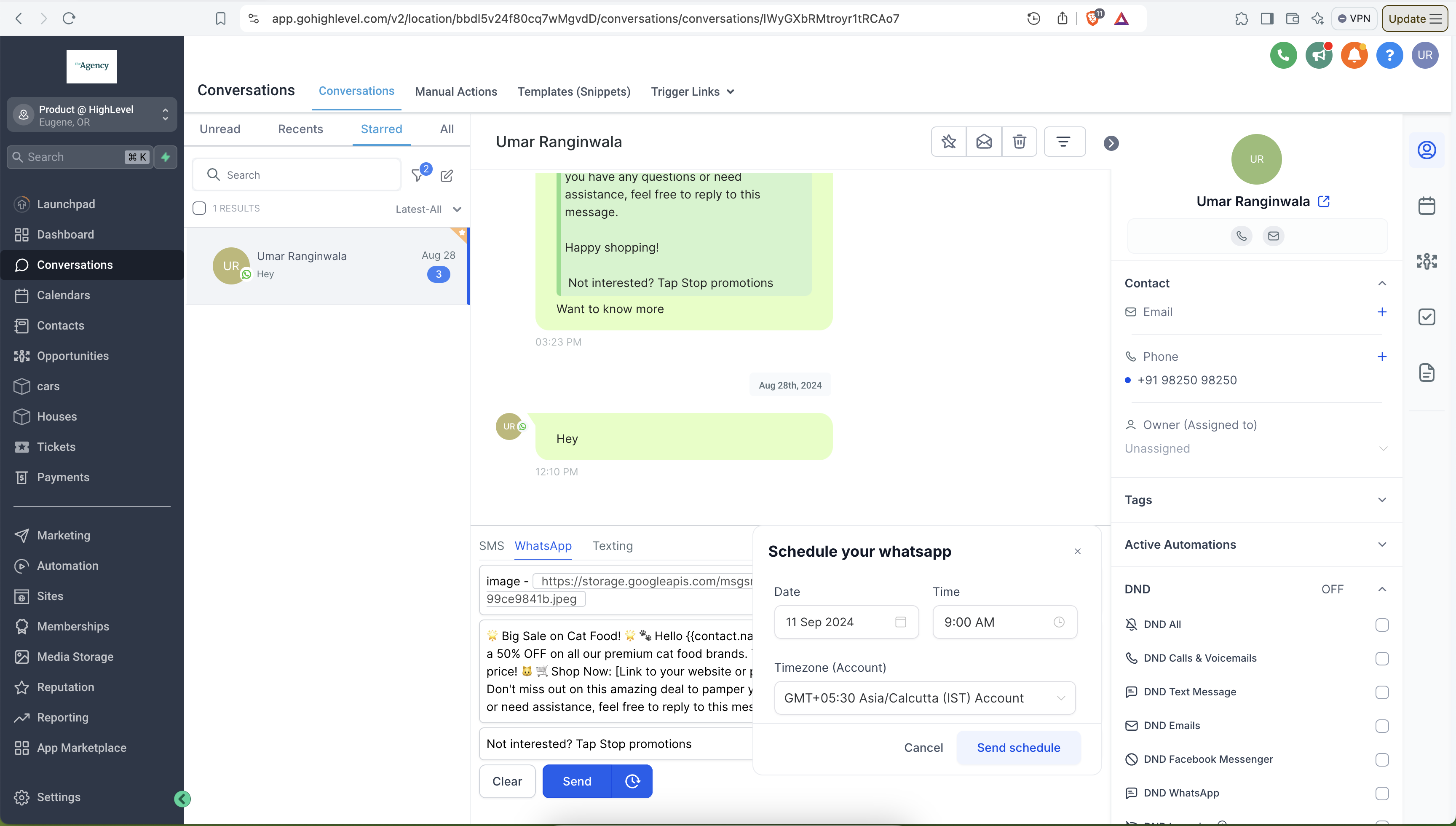
Step 3: Select date and time to send the WhatsApp template > Send Schedule
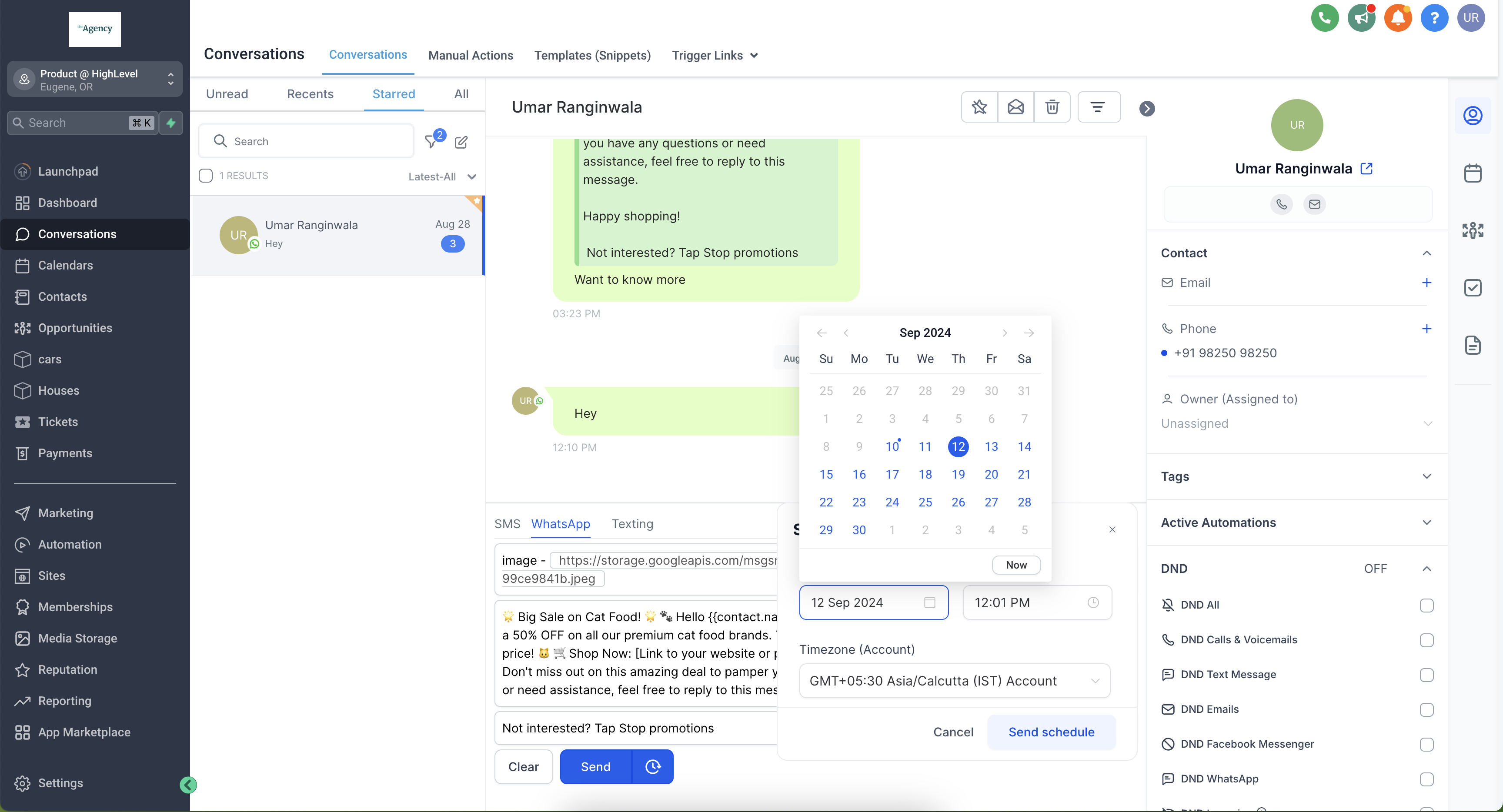
Note: Date and time should be in the future
How to Schedule Send free form WhatsApp message
In order to send a free form WhatsApp message, an open Customer Service Window needs to be there with the customer Step 1: Go Conversations > Select the contact > Select WhatsApp > Type the free form message
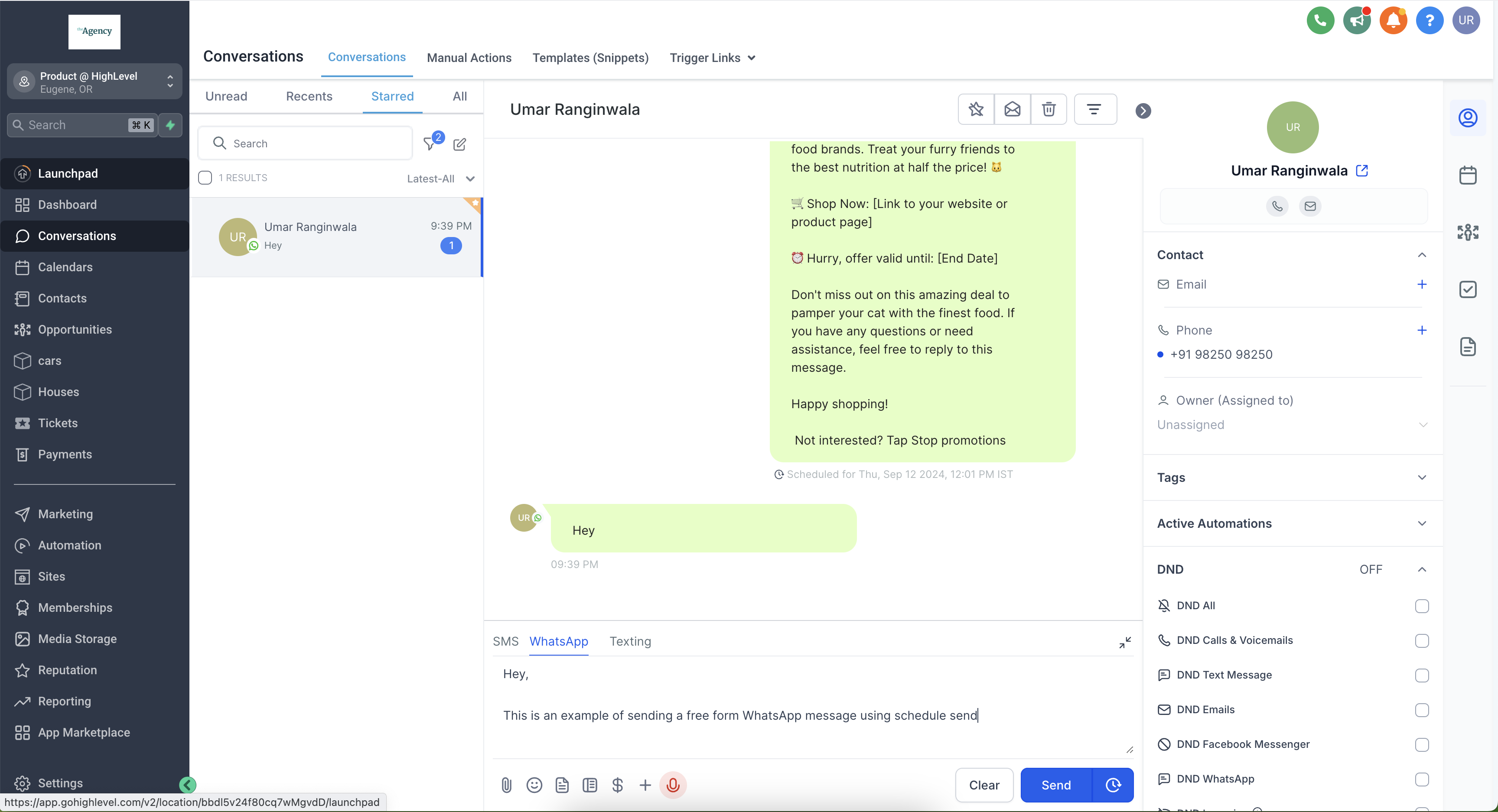
Step 2: Click on the button next to send > Select date and time You can schedule messages upto 24 hours from the last inbound message received from the customer
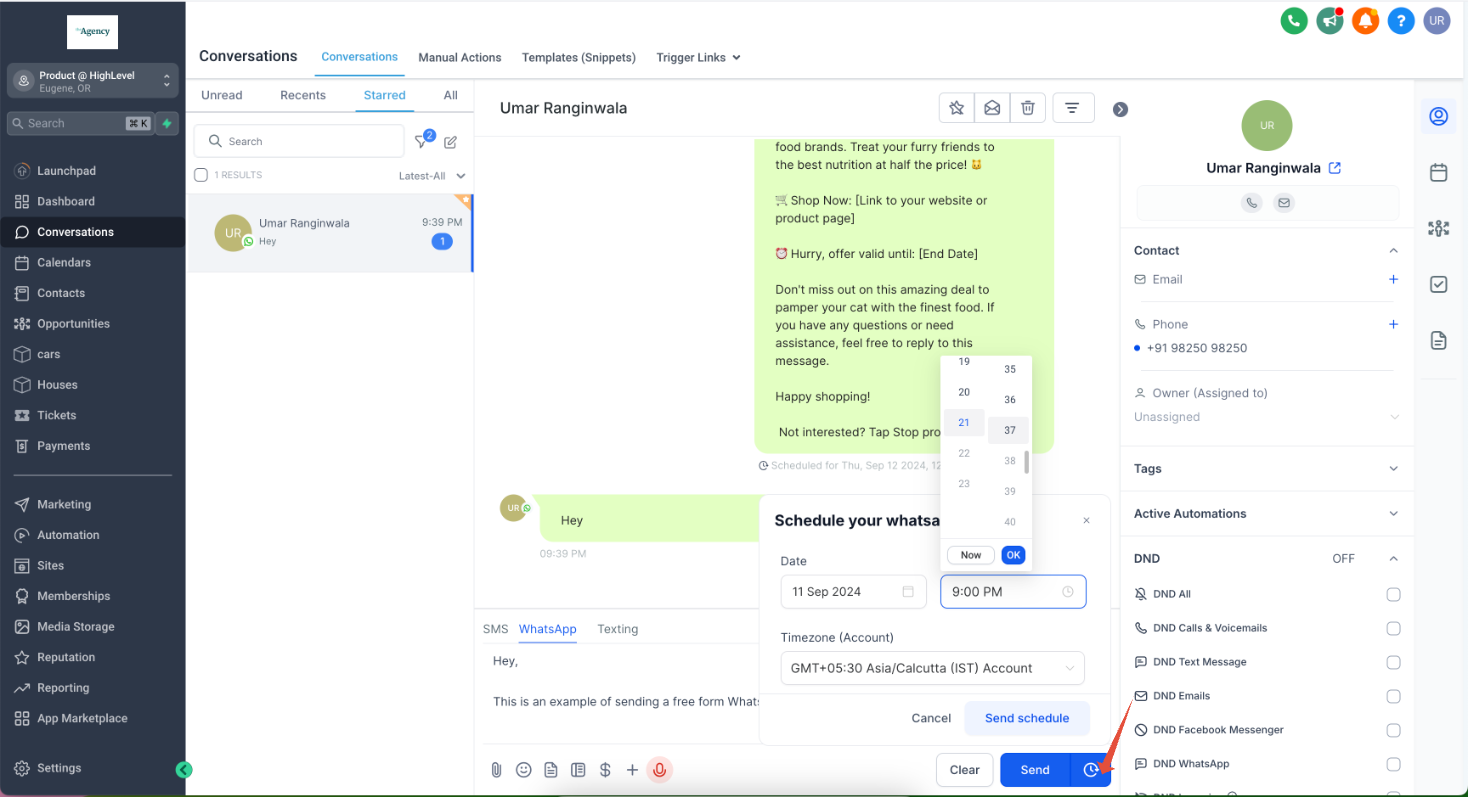
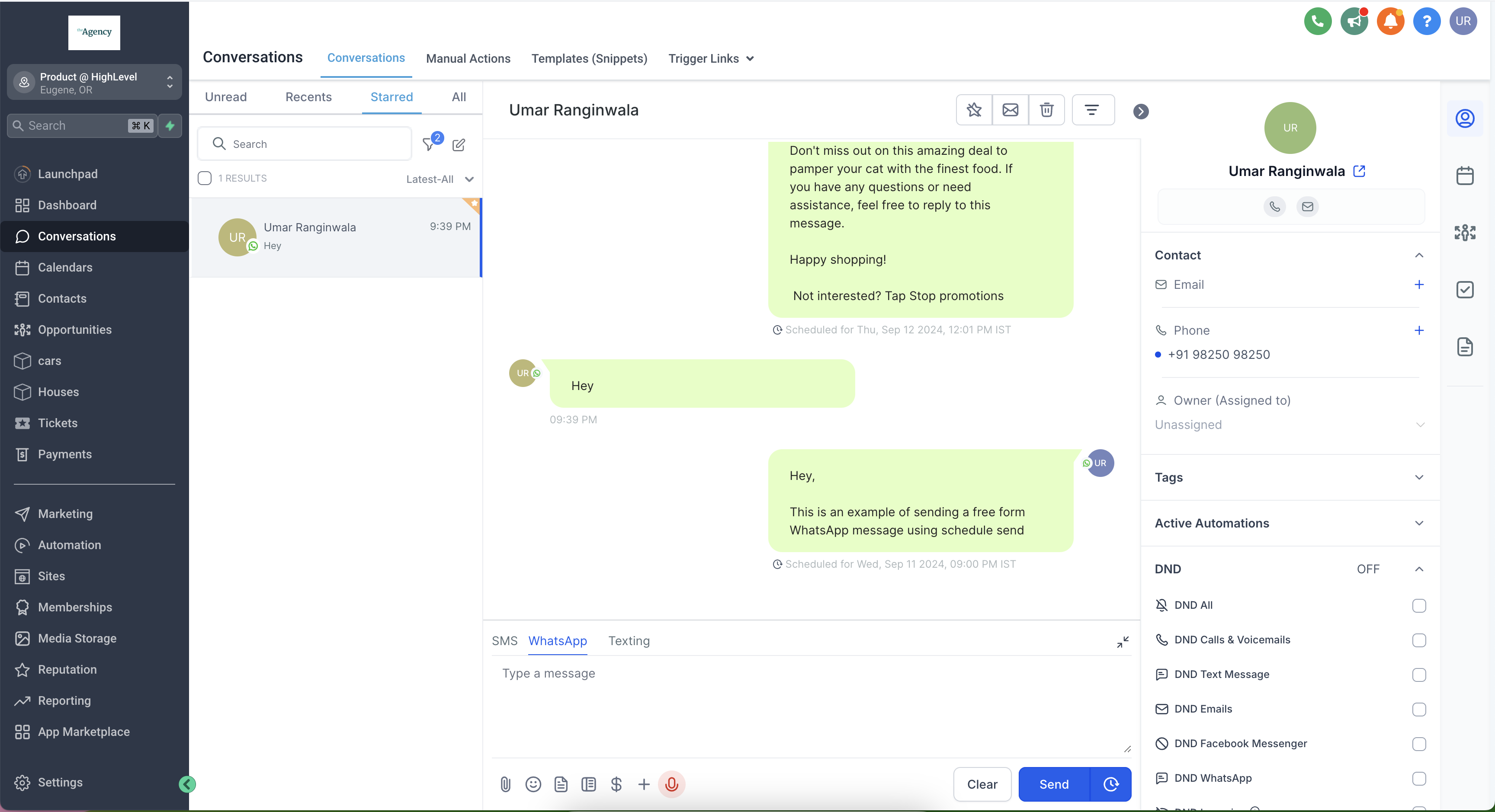
Step 3: Click on schedule send
Frequently Asked Questions (FAQ)
Q1: Can I schedule a WhatsApp template message for later? A: Yes. You can schedule a WhatsApp template message by selecting the template inside the Conversations tab, clicking the calendar icon next to Send, and choosing the desired future date and time.
Q2: Can I schedule free-form WhatsApp messages too? A: Yes, but only within an active Customer Service Window. Free-form messages can be scheduled up to 24 hours from the customer’s last inbound message.
Q3: What is a Customer Service Window? A: It’s a 24-hour period that begins when a customer sends you a message. During this window, you can send free-form replies without using pre-approved templates.
Q4: What happens if I try to schedule a free-form message outside the 24-hour window? A: The system will not allow scheduling outside the open window. In this case, you’ll need to use a WhatsApp template instead.
Q5: How do I know if my message has been successfully scheduled? A: After selecting the send date and time, click “Schedule Send”. A confirmation will appear in the chat showing the scheduled message with its timestamp.
Q6: Can I edit or cancel a scheduled message? A: Currently, scheduled messages cannot be edited. To make changes, delete the scheduled message and create a new one.