
Workflow Action - GMB
Overview The Google My Business (GMB) action allows you to send messages to contacts via Google My Business messaging, providing a direct way to engage with your customers. This action can be configured to send personalized messages using custom values and trigger links.
Action Name GMB (Google My Business)
Action Description
This action sends a message to a contact through Google My Business, enabling you to communicate directly via GMB’s messaging platform. It supports custom values and clickable trigger links, making your messages interactive and personalized.
Action Details
| Field | Description | Mandatory |
| Action Name | The name of the action. Default is “GMB”. | Yes |
| Message | The body of the message to be sent. Supports text, custom values, and trigger links. | Yes |
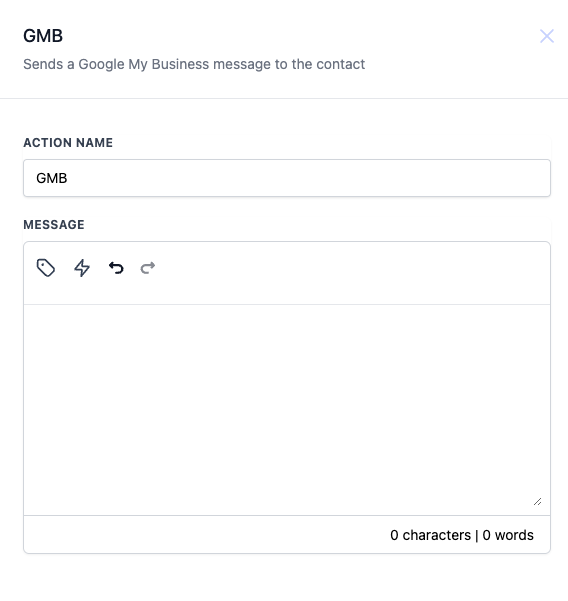
How to configure
- Action Name: Enter a name for the action. By default, it’s set to “GMB”.
- Message: Write your message in the text box. You can use:
- Custom Values: Click on the
{}icon to insert custom values such as contact details, appointment information, or other dynamic data points. - Trigger Links: Use the link icon to add predefined links, which can be selected from the list. These links will be clickable in the GMB message.
Example To use the GMB action effectively, consider the following workflow configuration:
- Trigger: Choose a relevant trigger such as “Appointment Reminder”.
- Action: Set the GMB action with a message like:
- Message: “Hello {{contact.name}}, this is a reminder for your upcoming appointment on {{appointment.date}}. If you have any questions, please let us know!” - Use the
{}icon to insert custom values like contact name and appointment date. By setting up the action this way, you ensure that each contact receives a personalized reminder through Google My Business, making your interactions more meaningful and engaging. Was this article helpful? That’s Great! Thank you for your feedback Sorry! We couldn’t be helpful Thank you for your feedback Feedback sent We appreciate your effort and will try to fix the article