
How to Add Your Own Email Service (SMTP)
Email Infrastructure Setting Up a Custom SMTP Service Connect your own third-party email sending service — Gmail, SendGrid, Mailgun, Amazon SES, and more — directly inside your sub-account. Overview The platform allows you to connect your own third-party email sending service (SMTP) instead of using the default Patient Copilot Email System. This is useful if you already have an established sending reputation, need higher volume limits, or prefer to manage your own email infrastructure. This guide walks you through adding, configuring, and activating a custom SMTP service inside your sub-account. 1
Where to Find Email Services Navigate to the Email Services settings using the steps below: 1. Log in to your sub-account
- Click Settings in the left sidebar
- Select Email Services
- Go to the SMTP Service tab (or Advanced Settings depending on your interface version) Tip Your interface may show tabs labeled ‘SMTP Service’ or ‘Advanced Settings’ — both lead to the same SMTP configuration area. 2
Default vs. Custom Email Service A side-by-side comparison to help you decide which option fits your business:
| Patient Copilot (Default) | Custom SMTP (Third-Party) |
|---|---|
| Managed by the platform | Managed by you / your provider |
| Full access to all built-in deliverability tools | Some built-in tools are unavailable (see limitations) |
| No extra setup required | Requires SMTP credentials from your provider |
| Recommended for most users | Best for users with existing sending infrastructure |
Supported SMTP Providers
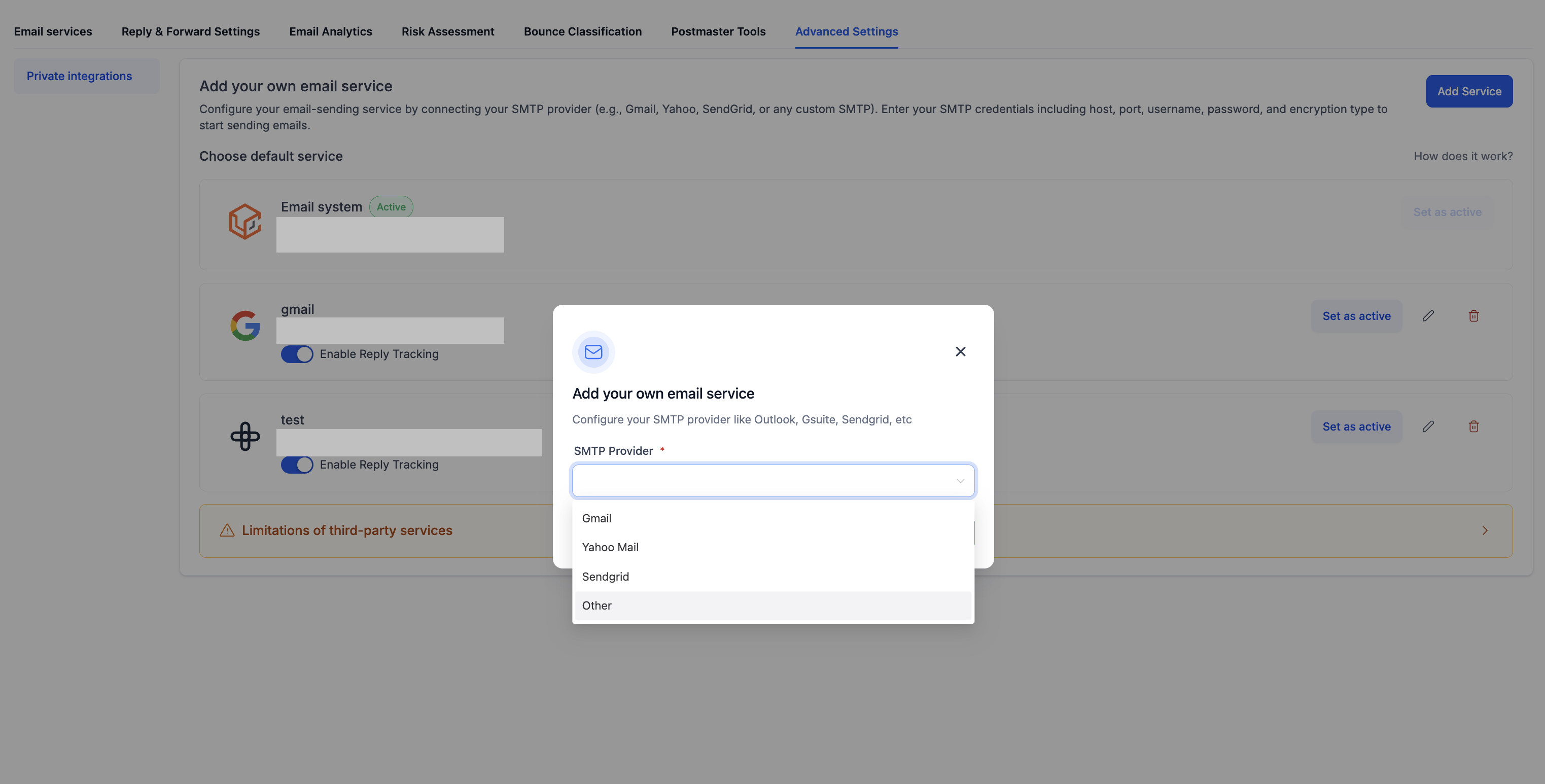
When you click + Add Service, you can choose from the following providers: Gmail — Google Workspace or personal Gmail Yahoo Mail SendGrid Other — covers Mailgun, Amazon SES, Postmark, Zoho, and any SMTP-compatible service Setup Guide Adding a Custom SMTP Service Follow these five steps to connect your third-party email service. 4
Step-by-Step: Adding a Custom SMTP Service Step 1 Open Email Services Go to Settings → Email Services → SMTP Service tab. Step 2 Click + Add Service In the top-right corner of the page, click the + Add Service button. A popup will appear titled ‘Add your own email service’.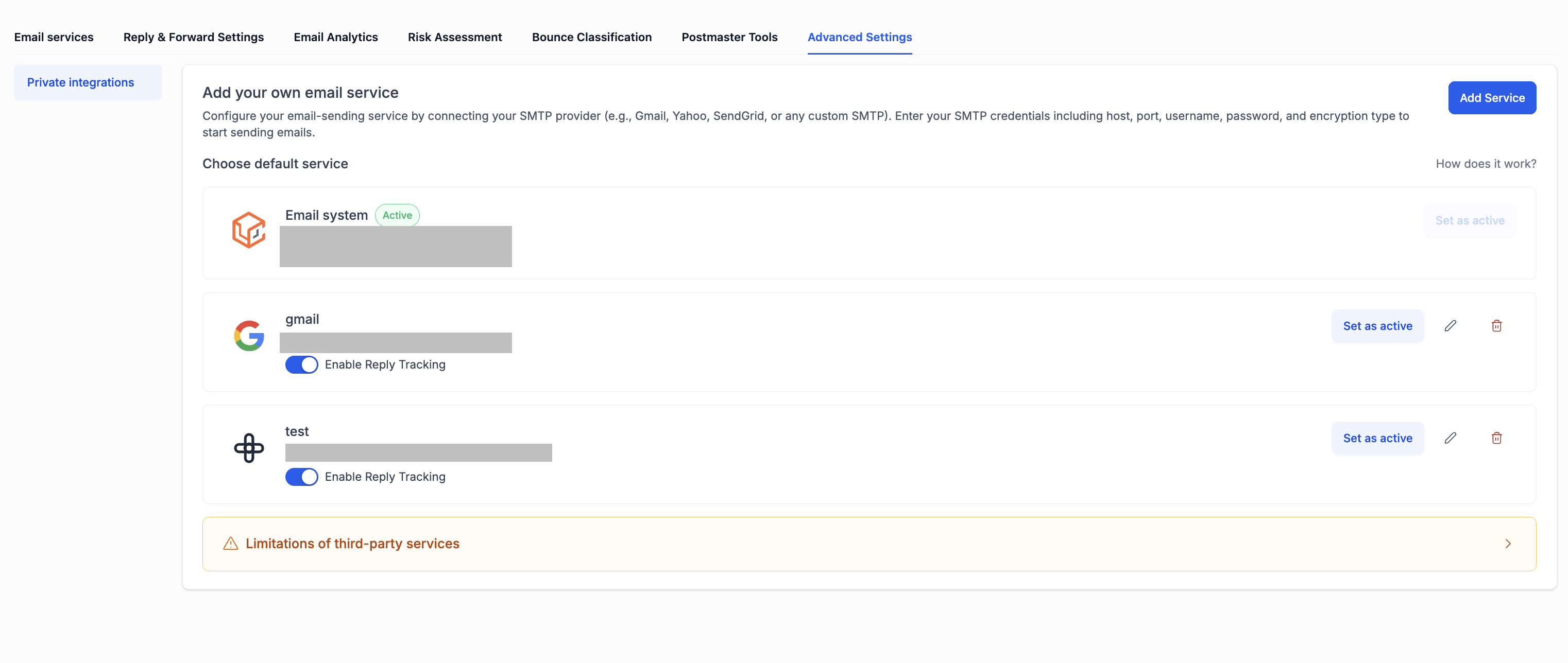 Step 3 Select Your SMTP Provider From the SMTP Provider dropdown, select your provider:
- Gmail
- Yahoo Mail
- SendGrid
- Other (for Mailgun, Amazon SES, Postmark, etc.)
 Step 4 Enter Your SMTP Credentials Fill in the required fields. These details come from your email provider’s dashboard:
| Field | Description |
|---|---|
| SMTP Host | The outgoing mail server address (e.g., smtp.sendgrid.net) |
| Port | Usually 587 (TLS) or 465 (SSL) |
| Username | Your SMTP login username or API key identifier |
| Password / API Key | Your SMTP password or API key from the provider |
| From Name | The display name that recipients will see |
| From Email | The email address emails will be sent from |
- Click Set as active
- Confirm the selection Tip You can have multiple SMTP services saved and switch between them at any time. Only one can be active at a time. 5
Common SMTP Settings Reference Quick reference for popular providers — verify values in your provider’s dashboard before pasting.
| Provider | SMTP Host | Port | Notes |
|---|---|---|---|
| Gmail | smtp.gmail.com | 587 / 465 | Requires App Password if 2FA is on |
| SendGrid | smtp.sendgrid.net | 587 | Use ‘apikey’ as username |
| Mailgun | smtp.mailgun.org | 587 | Use your Mailgun SMTP credentials |
| Amazon SES | email-smtp.[region].amazonaws.com | 587 | Requires IAM SMTP credentials |
| Postmark | smtp.postmarkapp.com | 587 | Use server API token as credentials |
| Yahoo Mail | smtp.mail.yahoo.com | 587 | Requires app password |
| Zoho Mail | smtp.zoho.com | 587 | Use your Zoho account credentials |
Important: Limitations of Third-Party SMTP
When you use a custom SMTP service instead of Patient Copilot, some platform features become unavailable. Please review these limitations before switching: Features NOT available with third-party SMTP
- Create dedicated sending domain from the app
- Google Postmaster tools integration
- Microsoft Postmaster tools integration
- Risk Assessment
- Bounce Classification
- Inbox Placement Testing
- Spam Score Checker
- Blacklist Monitor
- Managed Domains & IPs Important If these features are important to your email strategy, consider staying on the Patient Copilot Email System, which gives you full access to all built-in deliverability tools. 7
Enable Reply for SMTP
When viewing your active SMTP service, you will see an Enable reply checkbox. Enabling this allows inbound replies to emails sent through your SMTP to be received and tracked inside platform conversations. Tip If you need two-way email communication with your contacts, make sure Enable reply is checked for your active SMTP service. 8
Switching Back to Patient Copilot
You can switch back to the default Patient Copilot Email System at any time: 1. Go to Settings → Email Services → SMTP Service 2. Click on Patient Copilot Email System 3. Click Set as active (or select it as the default) Good to Know All your custom SMTP services will remain saved and can be reactivated later. 9
Frequently Asked Questions
Q: Can I have multiple SMTP services saved? Yes. You can save as many SMTP services as you like. However, only one can be active at a time for outgoing emails. Q: Will my contacts see the SMTP provider details? No. Contacts only see the From Name and From Email you configure — not the underlying SMTP provider details. Q: What happens to emails already sent if I switch providers? Switching providers only affects future emails. Previously sent emails are not affected. Q: My SMTP connection is failing — what should I check?
- Verify that the SMTP host, port, username, and password are correct
- Make sure port 587 or 465 is not blocked by your email provider
- For Gmail, ensure you are using an App Password (not your regular login password) if 2-Step Verification is enabled
- For SendGrid, ensure your sending domain is verified in your SendGrid account
- Check that your sending email address is authorized within your SMTP provider’s account Q: Does using custom SMTP affect my built-in email deliverability tools? Yes. Several built-in deliverability tools (Postmaster integrations, Risk Assessment, Bounce Classification, Inbox Placement, Spam Score Checker, Blacklist Monitor, and Managed Domains/IPs) become unavailable when you switch to a third-party SMTP. Refer to the limitations section above. Q: Which SMTP port should I use — 587 or 465? Use 587 with TLS (recommended by most modern providers) and 465 with SSL. If one port is blocked by your network, try the other. Q: Will replies to my emails come back into the platform? Only if you check the Enable reply option on your active SMTP service. With this enabled, inbound replies are received and tracked inside platform conversations. Was this article helpful? That’s Great! Thank you for your feedback Sorry! We couldn’t be helpful Thank you for your feedback Feedback sent We appreciate your effort and will try to fix the article