
Getting Started with Chat Widget
Chat Widget is one of ways to convert visitors to potential leads. Chat Widget helps you to enhance customer experience to provide immediate support when and where customers need it.
Chat Type Options
Chat Widgets are provided in multiple options:
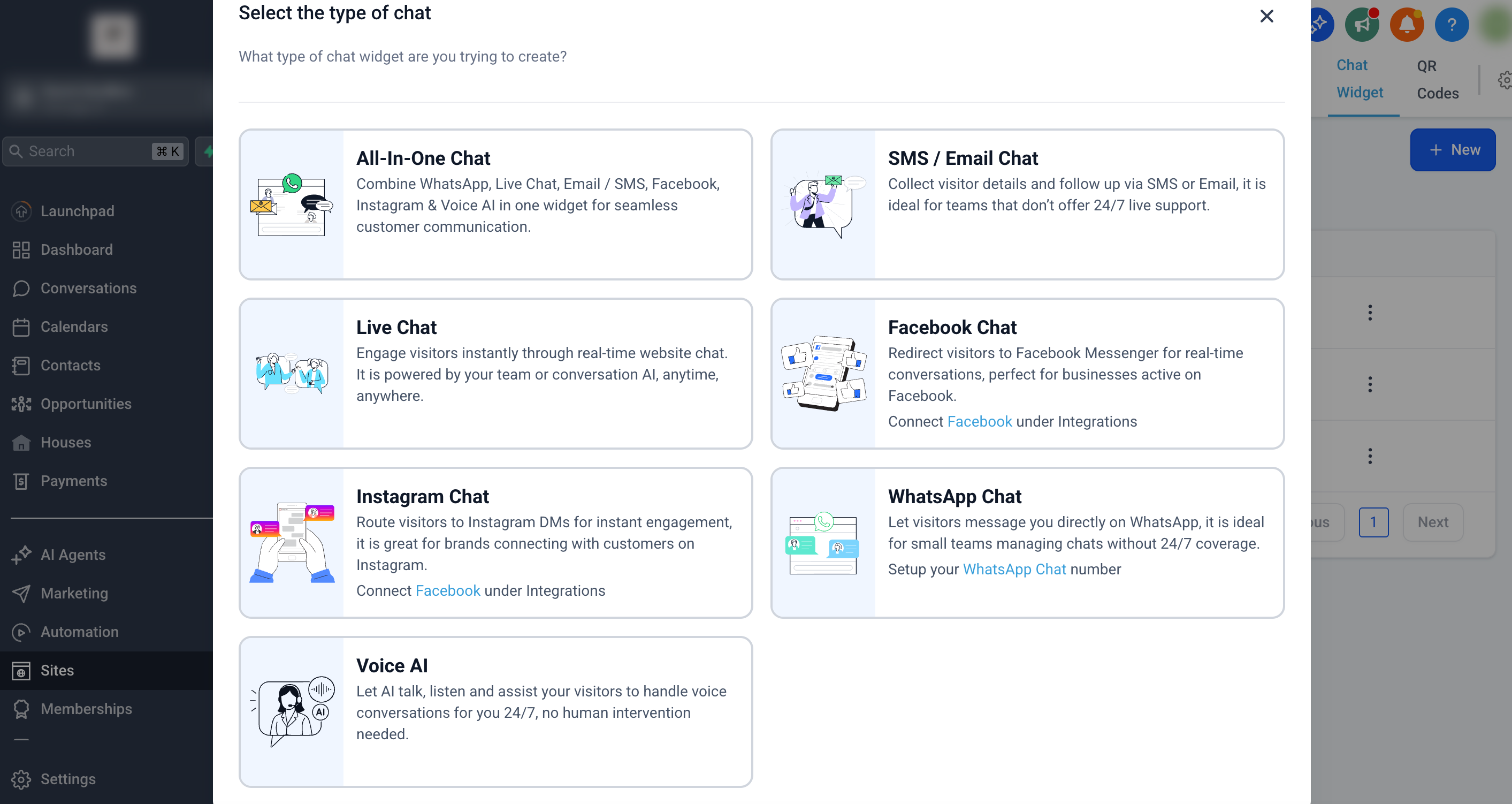
1. All-In-One Chat
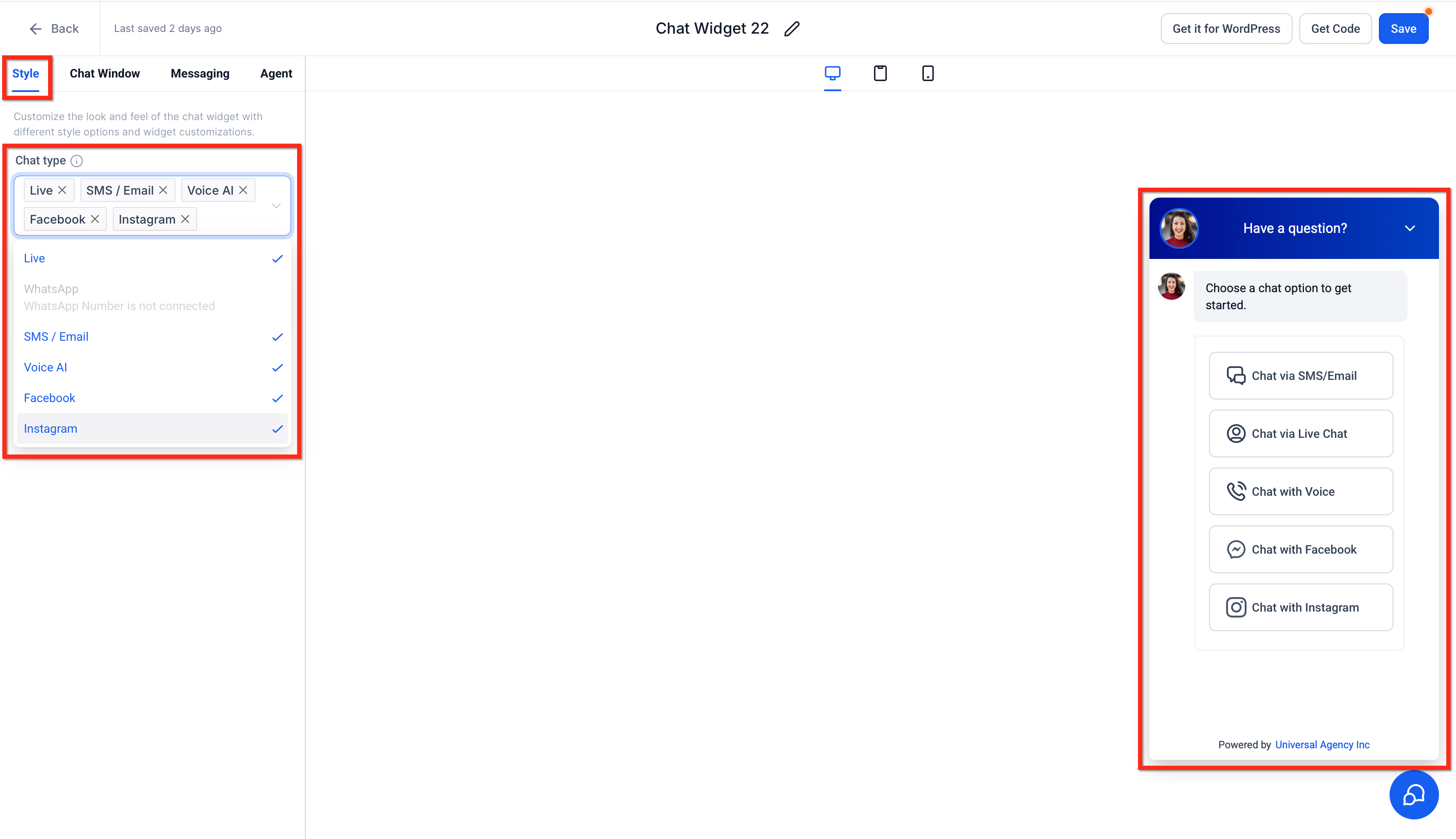
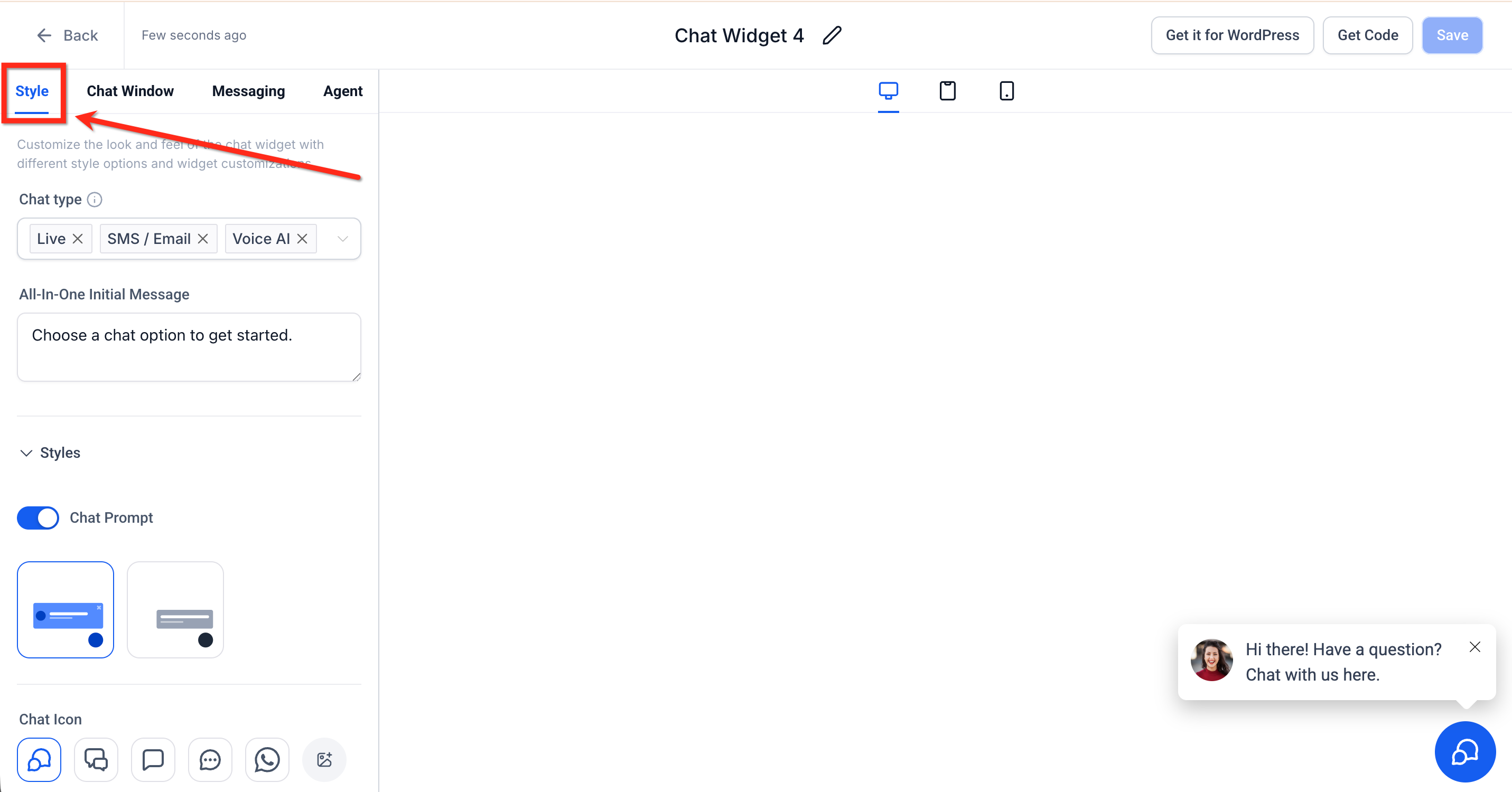
The All-In-One Chat widget combines multiple channels—Live Chat, Email/SMS, WhatsApp, Facebook, Instagram, and Voice AI—into a single chat experience. Within the Style tab’s Chat Type multi-select to choose which of these connected channels appear in the widget. **
**
2. Email and SMS Chat
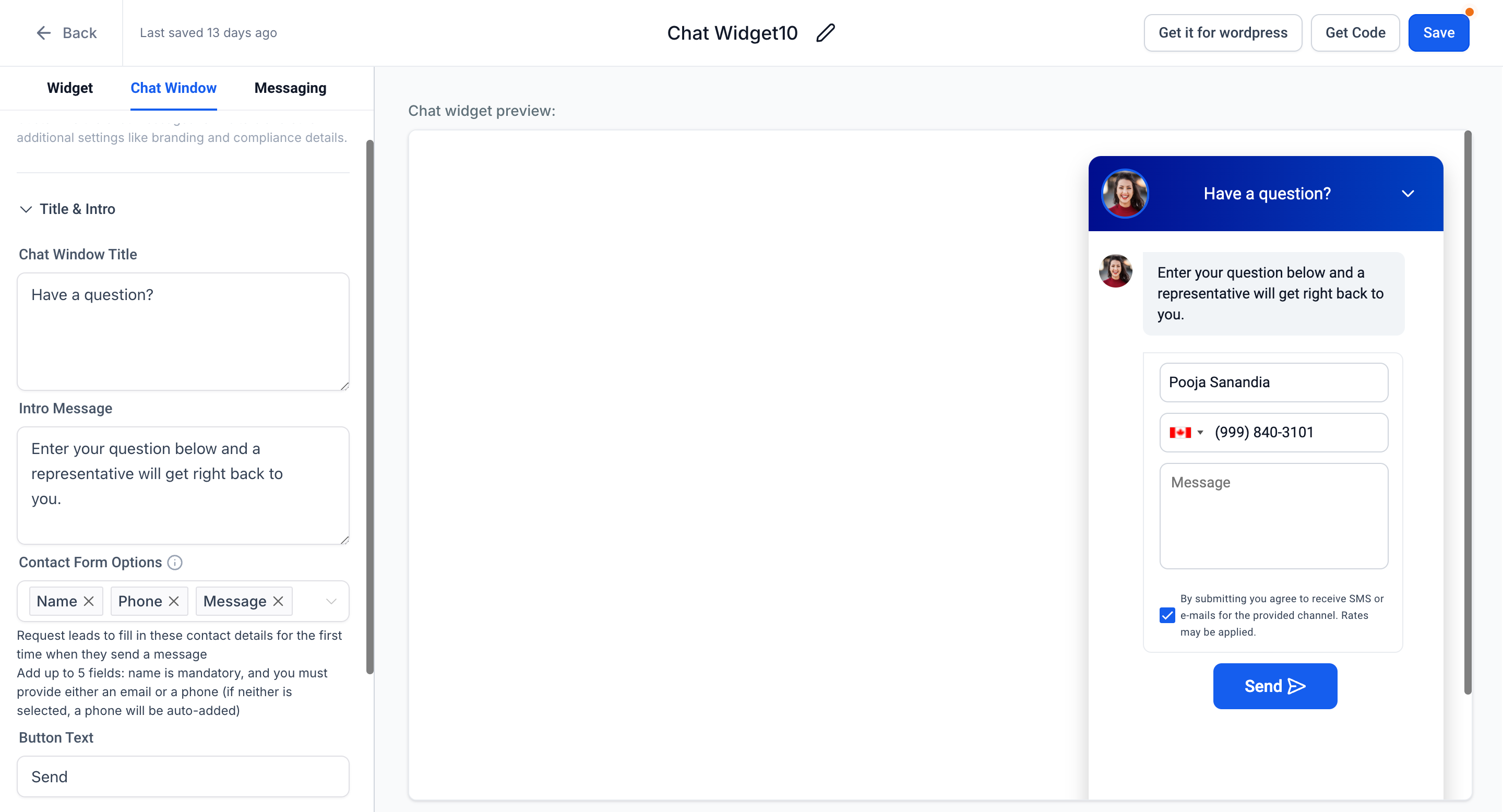
This chat will collect the visitor’s information so that you can respond to them via SMS or email later. It is great for small teams that are not staffed 24x7 [ What is Email System and What is Phone System ]
3. Live Chat
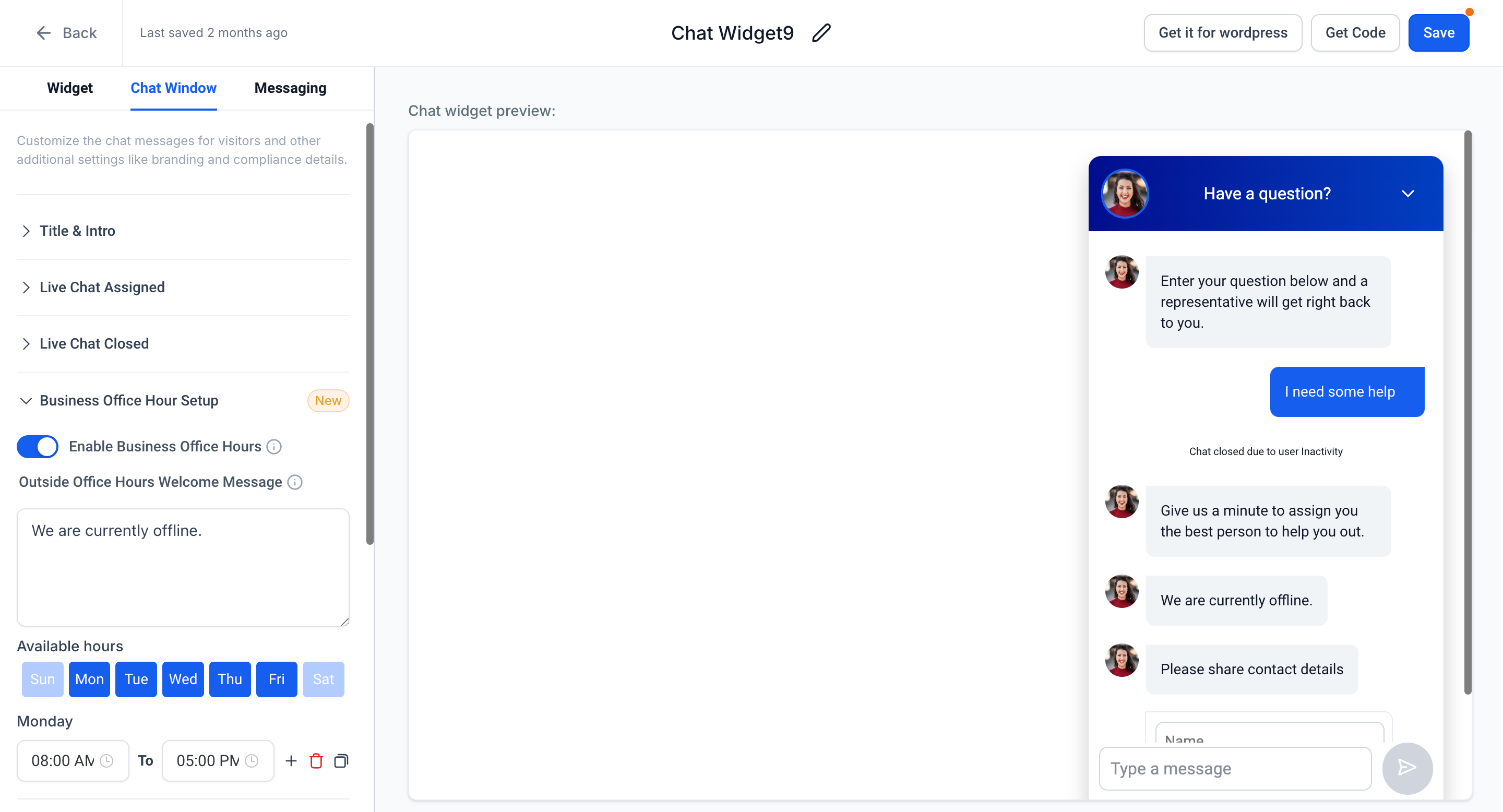
Live chat is a real-time, 2 way conversation within the chat widget. Great for teams with 24x7 coverage.
4. Facebook Chat
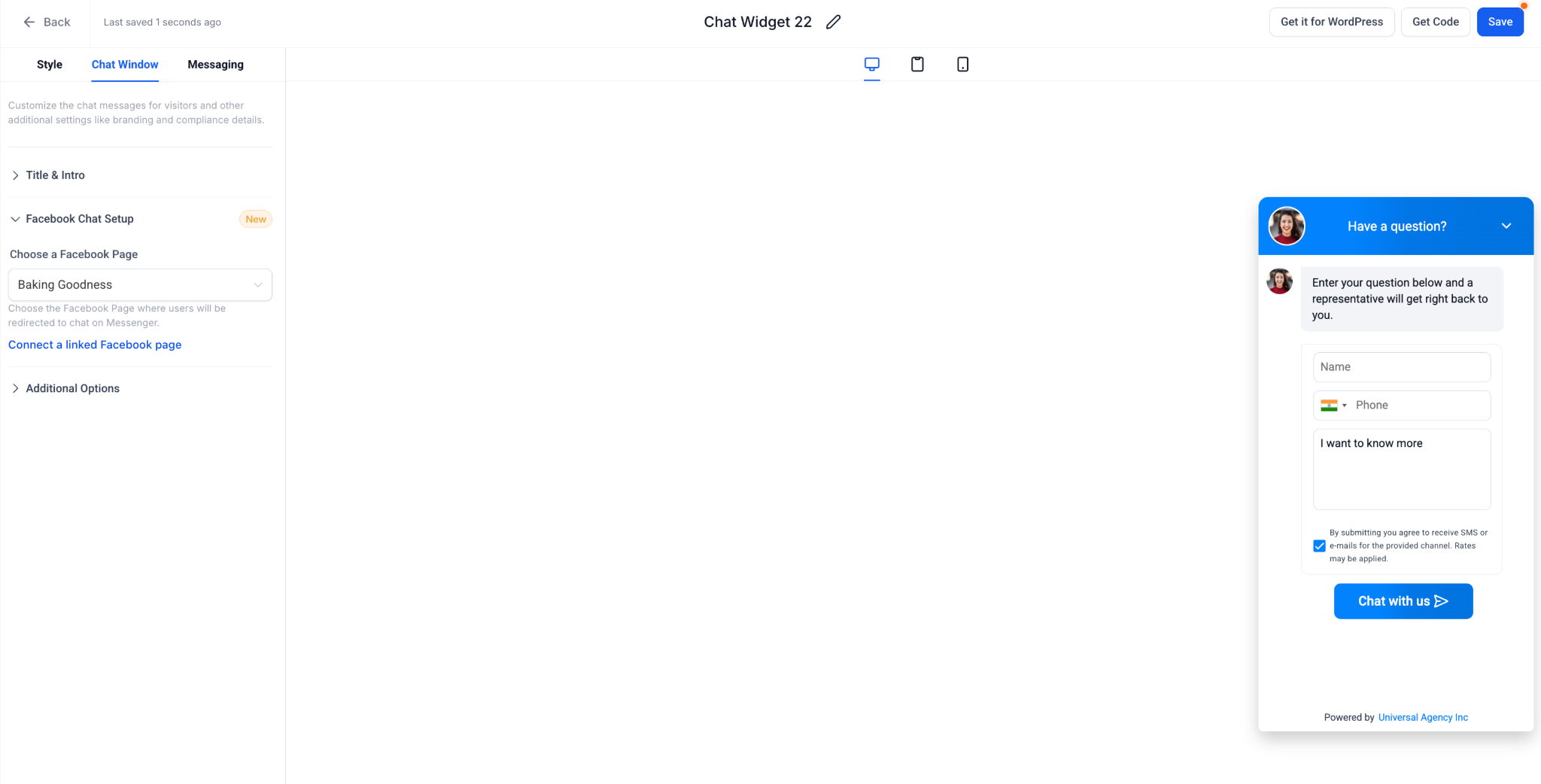
Facebook Chat allows visitors to start a Messenger conversation with your connected Facebook Page directly from your website. Great for brands that get a lot of leads and DMs through Facebook. Click here to learn more about the Facebook Chat Widget.
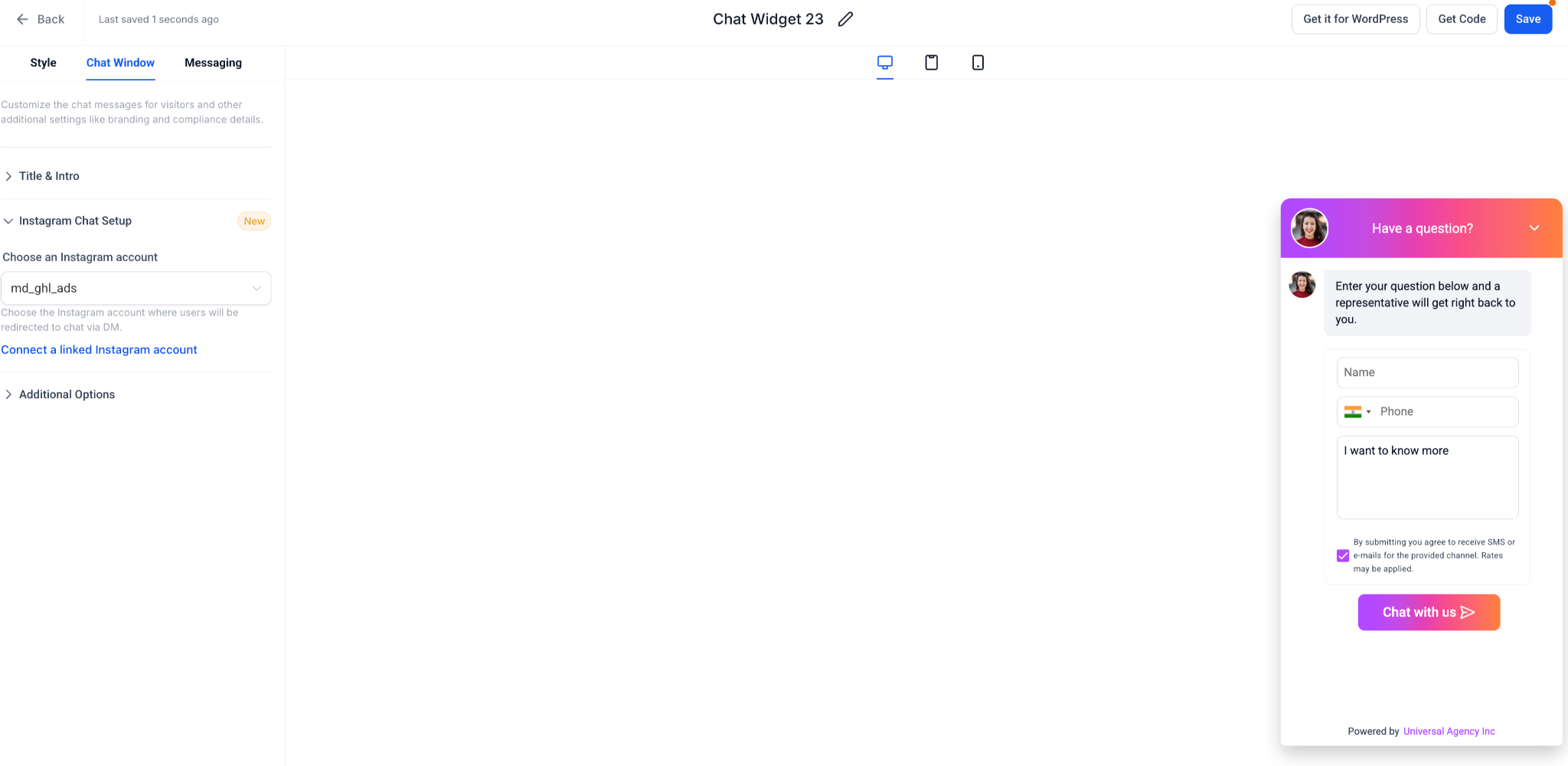
5. Instagram Chat
Instagram Chat lets website visitors start an Instagram DM thread with your connected Instagram Business account. After the first message, the conversation lives in Instagram and Patient Copilot. This is ideal if most of your audience engages with you on Instagram. Click here to learn more about the Instagram Chat Widget.
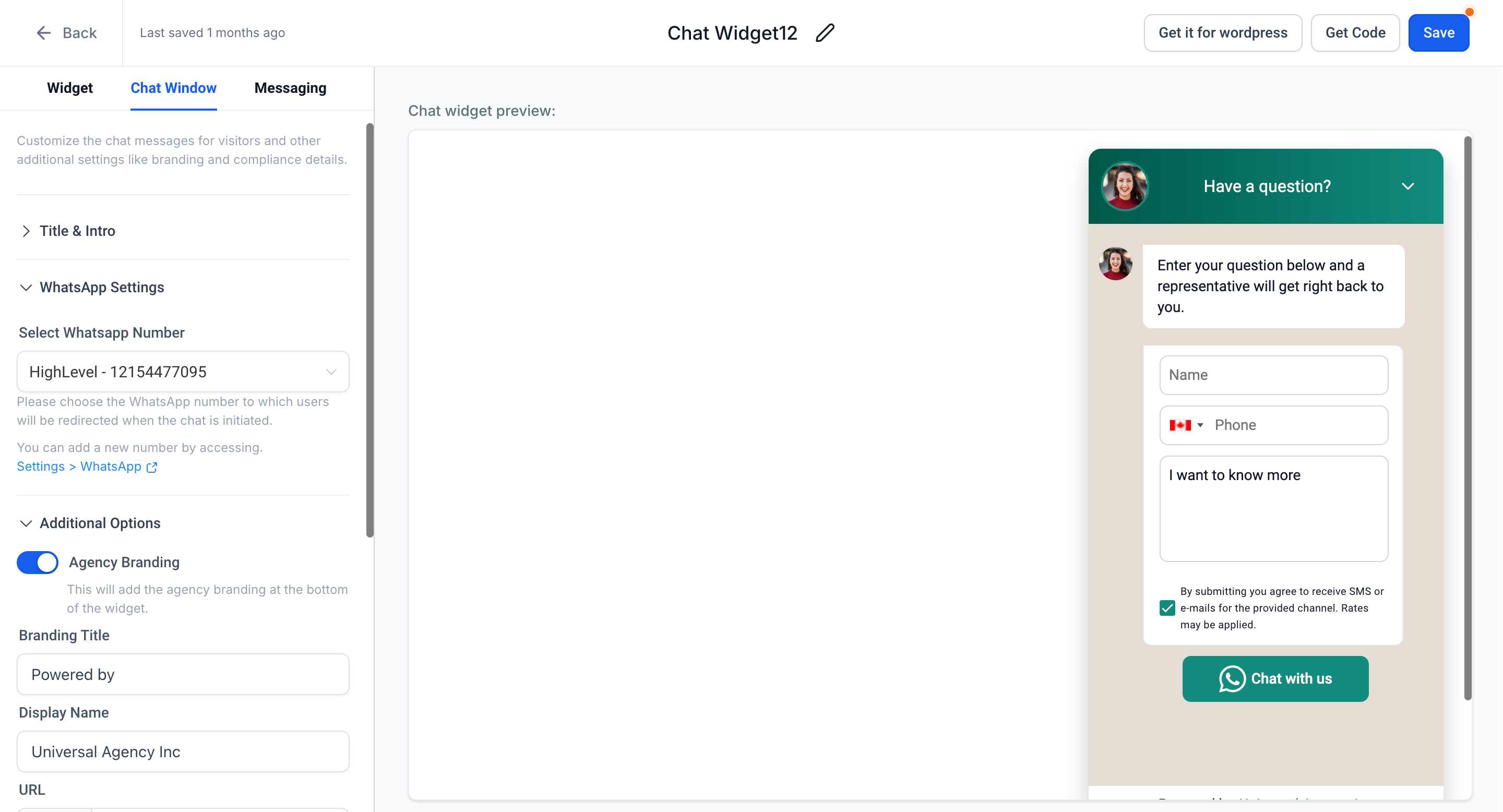
6. WhatsApp Chat
A WhatsApp integrated 2 way conversation on chat widget. The user needs a WhatsApp approved number. It is also great for small teams that are not staffed 24x7
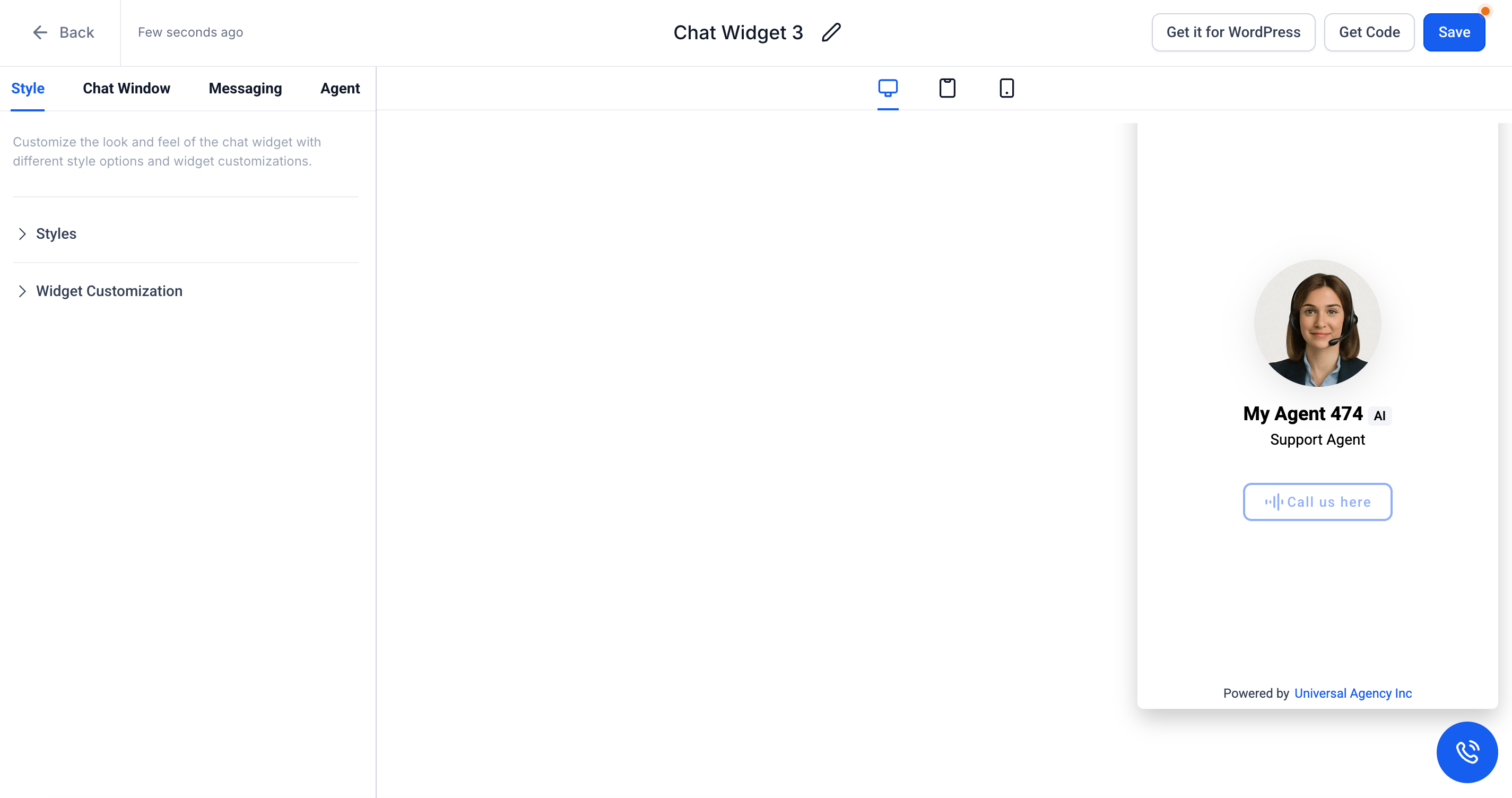
7. Voice AI Chat
Voice AI Chat is a voice-first chat type that lets visitors talk to an AI agent through their browser. It’s designed for 24×7, human-like voice conversations that can capture, qualify, and route leads automatically. This is great for businesses that want “phone call” style interactions without needing a live receptionist or call center. Click here to learn more about the Voice AI Chat Widget.
Use Conversational AI directly inside the chat widget to greet visitors and deliver instant answers around the clock, so every inquiry receives a response even when your team is away. For setup and advanced options, see Conversational AI Bot Explained.
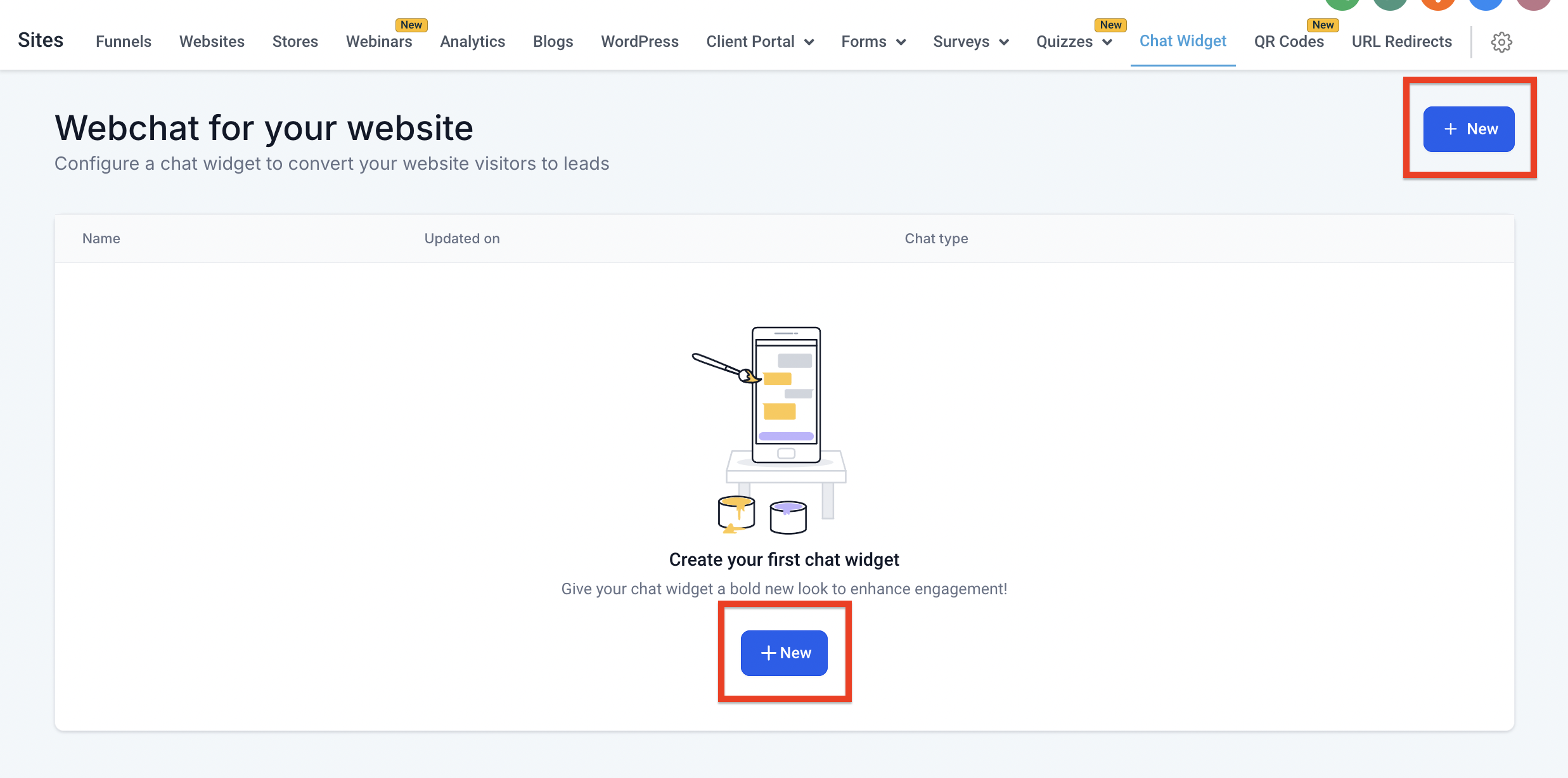
Step 1: Navigate to Chat Widgets Go to Sites > Chat Widget
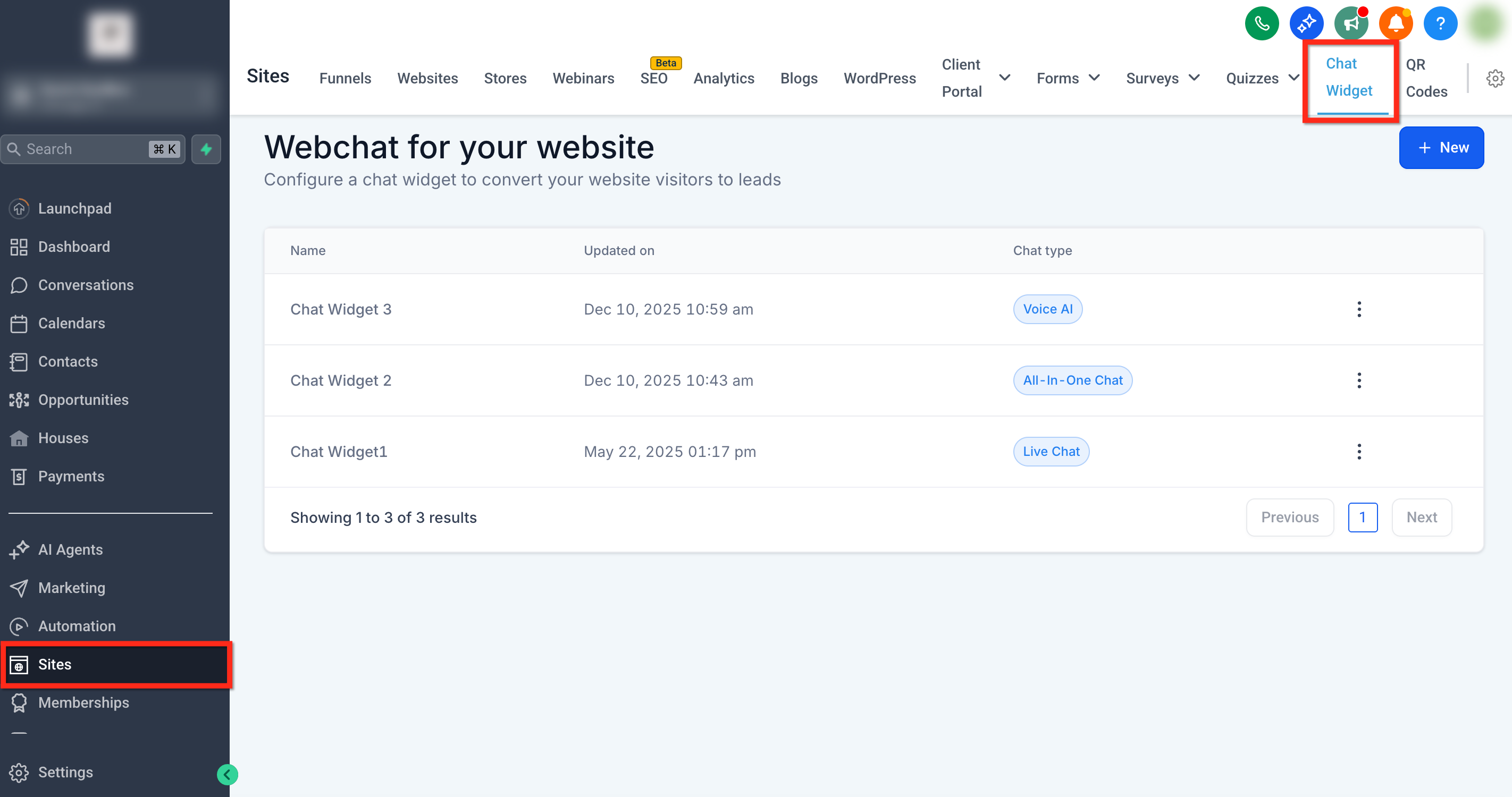
Step 2: Create New Widget Click on the New button to start the chat widget.
Step 3: Select Chat Type
Select the type of the chat widget, the user wants to add on landing page. Chat Widget types include; All-In-One Chat, SMS/Email Chat, Live Chat, Faebook Chat, Instagram Chat, WhatsApp Chat and Voice AI.
Step 4: Customize the Widget
Once you select the chat widget type, there will 3 pages (4 if the chat type supports AI) to customize the chat widget before it is deployed: Note: Based on the type of chat widget the options get added in the configuration.
- Style: User selects the themes, icons and welcome messages. User can also select the avatar and placement of chat widget. User can configure different sizes of chat widget.
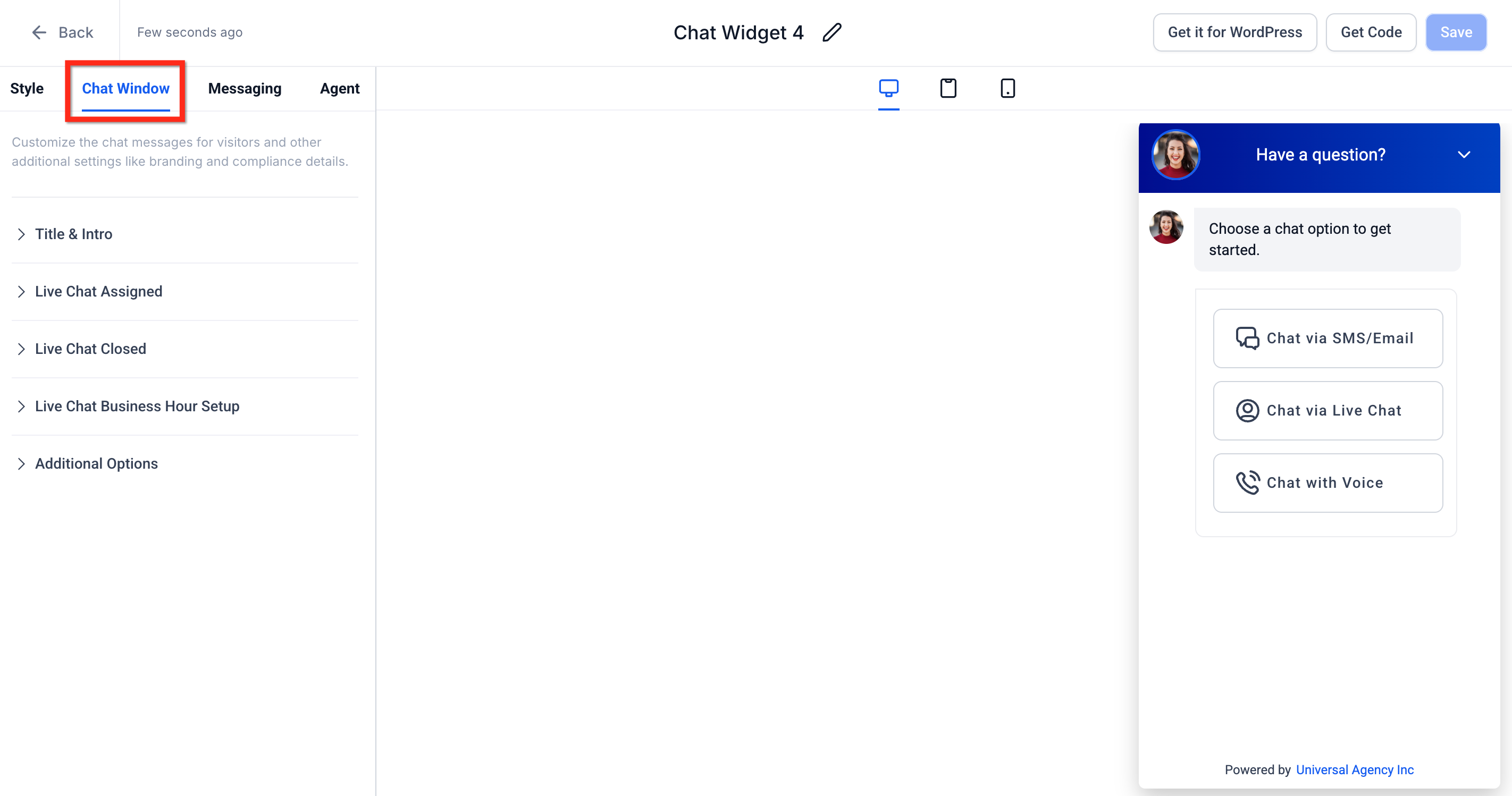
- Chat Window: Chat window allows user to customise the title, intro message and contact form customisations. It also allows business to add their own brand url in the chat widget for more visibility and meet any compliance regulations with checkboxes. **
**
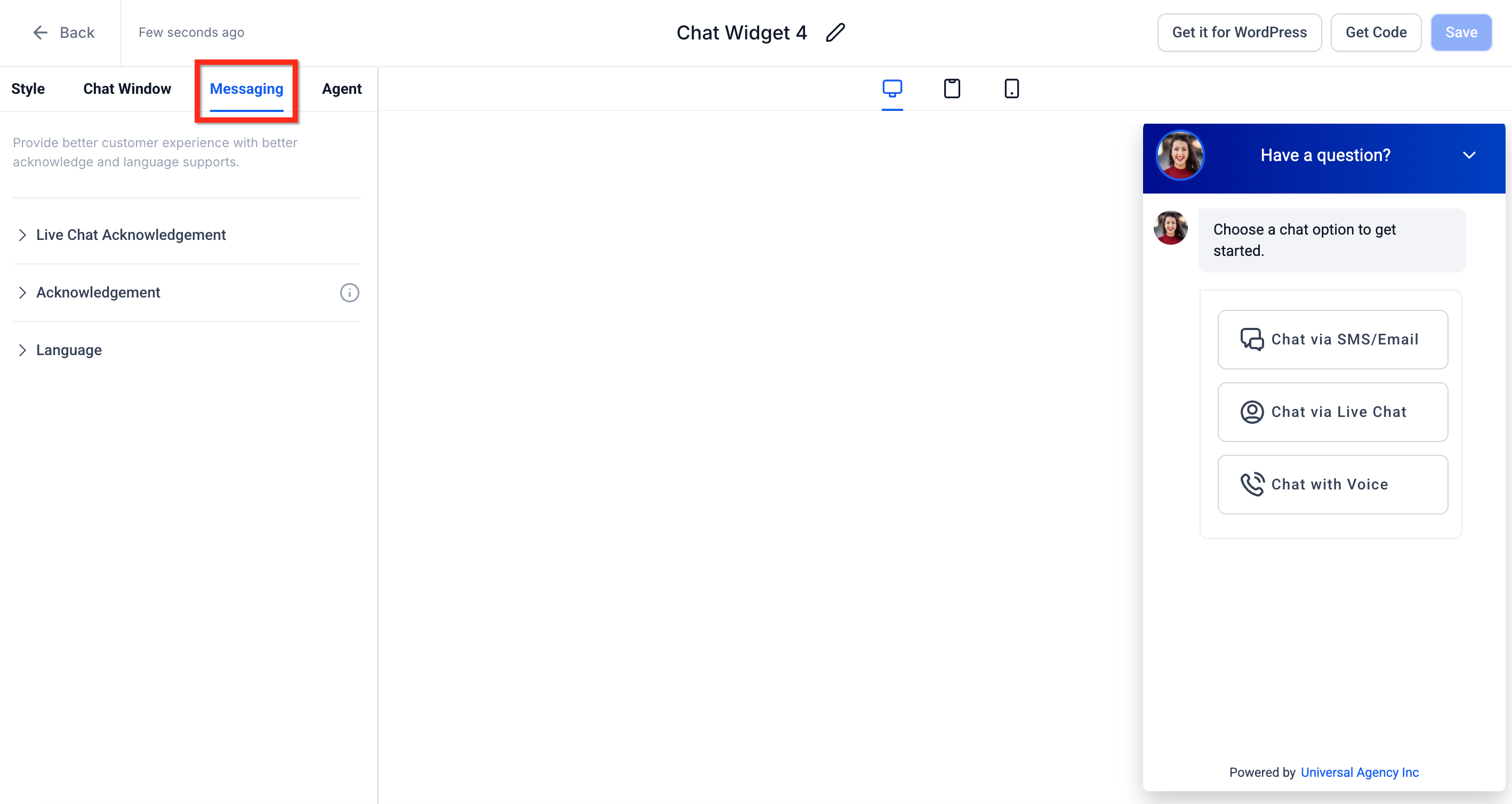
- Messaging: Here the user configure the acknowledgement of message and icons. They can also configure the language of chat widget.
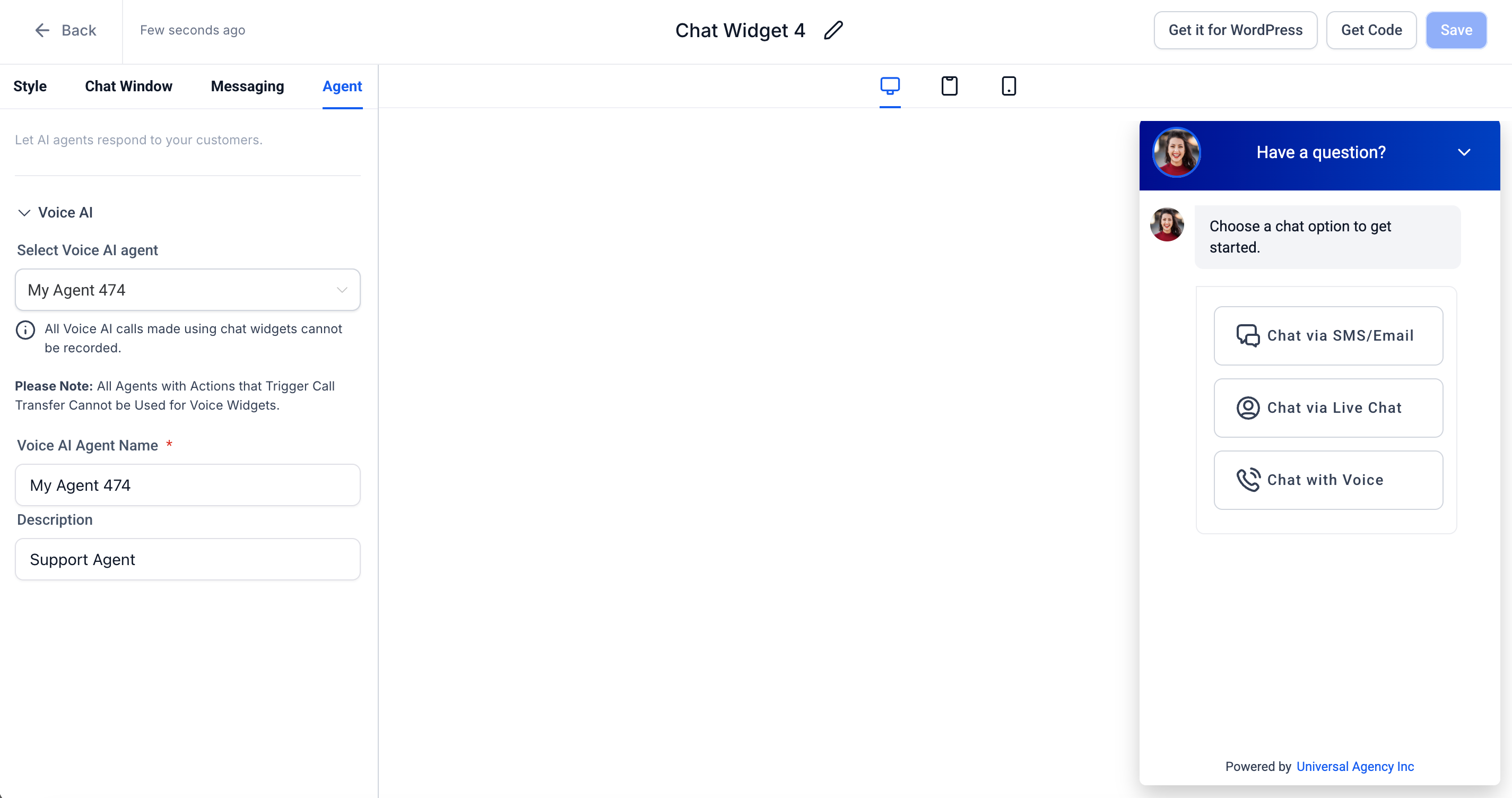
- Agent: Choose the voice agent you would like custoemrs to speak to. You can also set the agents name and description here. Please note that this page will only show up in chat types that support AI.
Step 5: Install the Chat Widget
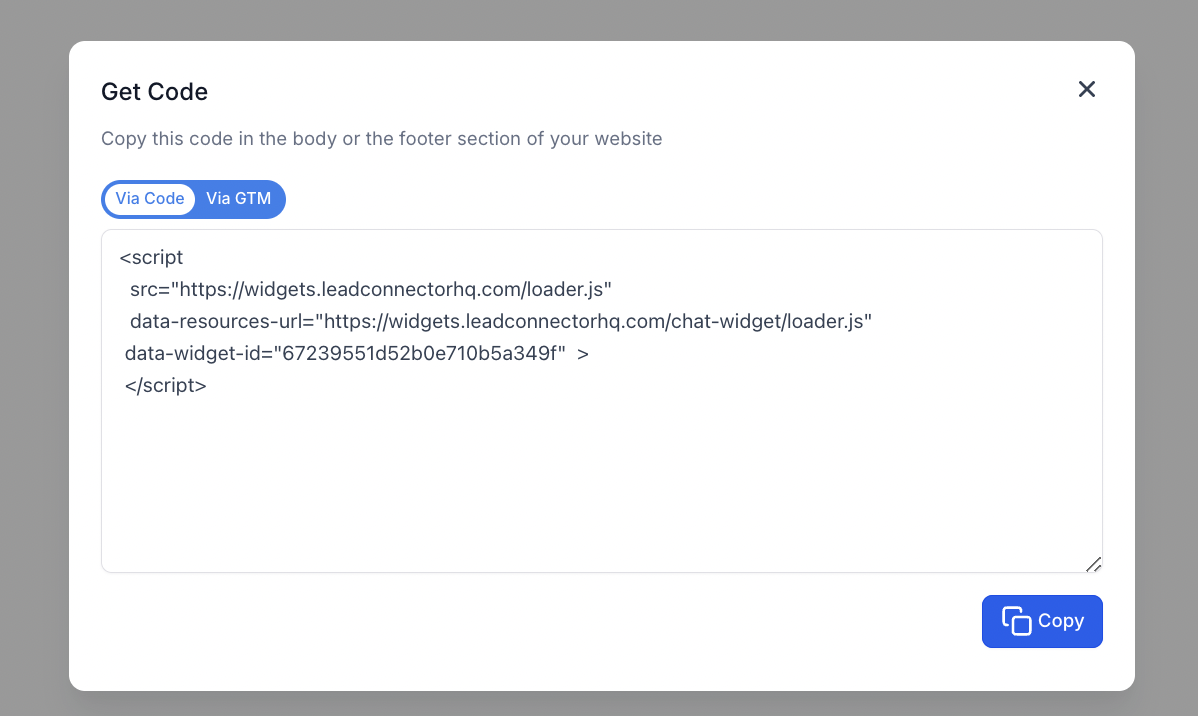
Once the Chat widget is configured, the user can copy the code for landing page or Google tag manager and add it in Wordpress. User can go to Funnels, Websites, Blogs to select the chat widget type to directly get added

Frequently Asked Questions
Q: Can I customize my chat widget messaging per page?
The current configuration of the webchat widget does not allow for dynamic messaging. Although the widget can be used on multiple pages, the messaging will remain consistent with the initial setup. Q: Can I create multiple chat widgets in a sub-account? Yes. To learn more on how to add multiple chat widgets, see: How to Add Multiple Chat Widgets to the Same Website