
Workflow Trigger - Order Placed
Overview
The “Order Placed” trigger is designed to automate tasks and actions when a customer places an order. It can be used to initiate follow-up communications, update records, or perform any other action that should occur immediately after an order is confirmed.
Trigger Name Order Placed
Trigger Description
This trigger activates when a customer places an order. It helps automate actions such as sending order confirmation emails, updating CRM records, and managing inventory. You can configure filters to target specific conditions related to the order, such as cart value or product type.
How to Configure
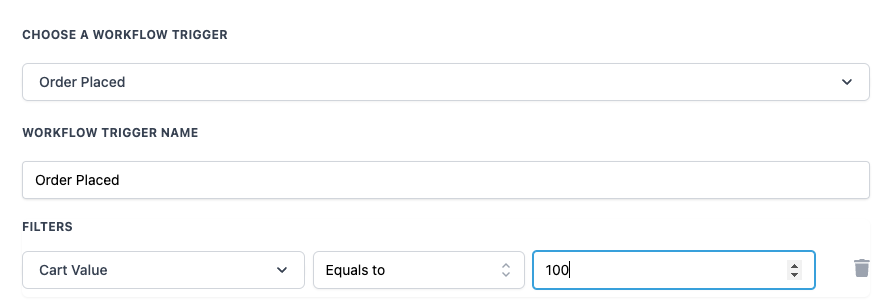
- Choose a Workflow Trigger: Select “Order Placed” from the list of available triggers.
- Workflow Trigger Name: Enter a meaningful name for your trigger, such as “Order Placed.”
- Filters: Use filters to specify the conditions under which the workflow will be activated. For example, filtering based on cart value allows you to set different actions depending on the total order amount.
Value Description Mandatory Cart Value The total value of items in the customer’s cart. Optional Operator Comparison operators like Equals to, Greater than, Greater than or Equal to, Less than, etc. Optional
Example
A business wants to send a thank-you email and apply a discount coupon for the next purchase to customers who place orders with a cart value of or more.
- Configuration:
- Trigger: Order Placed
- Filters:
- Cart Value: Greater than or Equal to
- Value:
- **Actions:**When the trigger is activated: 1. Send an automated thank-you email to the customer, expressing appreciation for their purchase. 2. Include a discount coupon for the next purchase in the thank-you email. 3. Update the customer profile in the CRM system to indicate they are eligible for loyalty benefits. This setup ensures high-value customers receive personalized attention, fostering customer loyalty and encouraging repeat purchases. Was this article helpful? That’s Great! Thank you for your feedback Sorry! We couldn’t be helpful Thank you for your feedback Feedback sent We appreciate your effort and will try to fix the article