Snapshots - WordPress Support
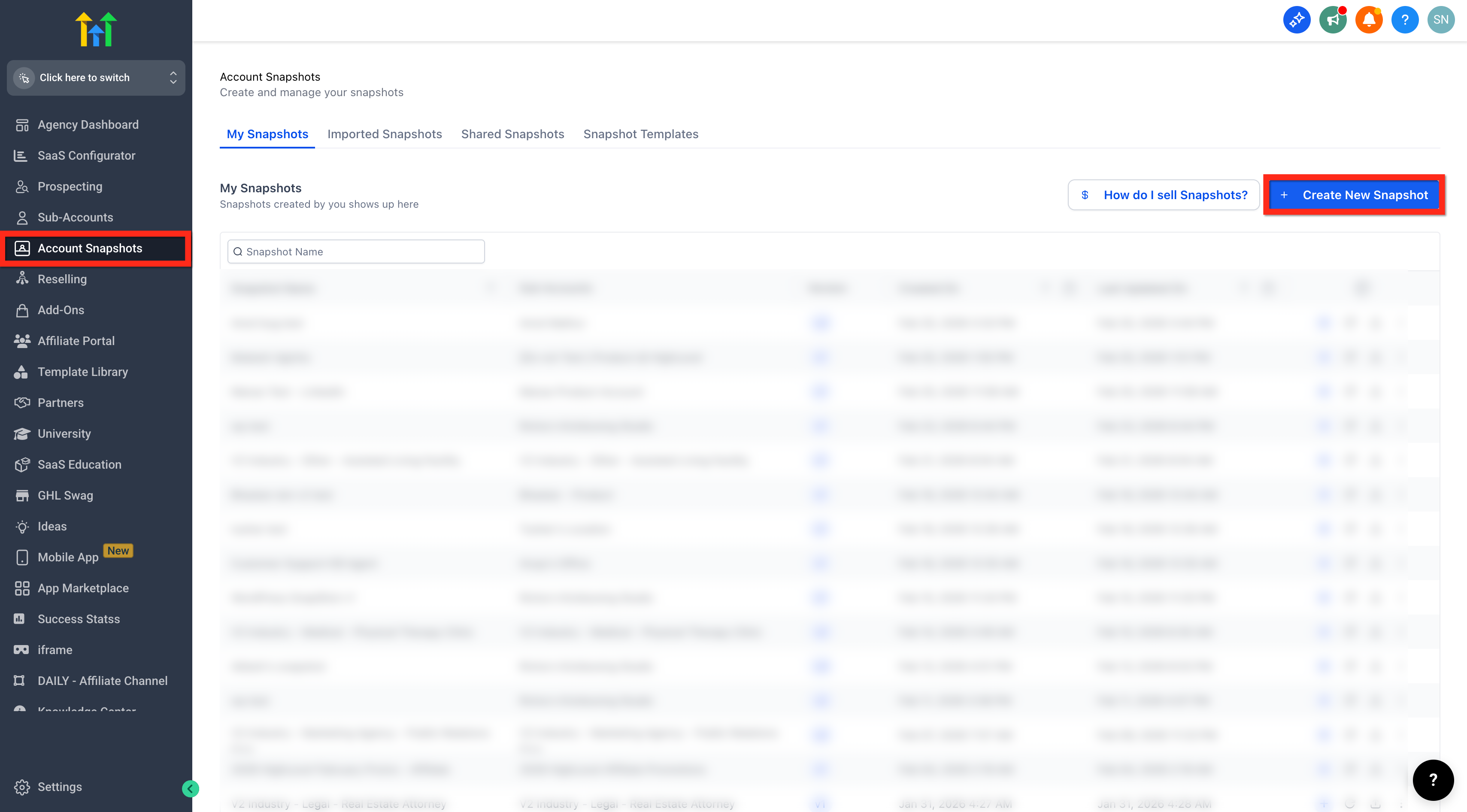
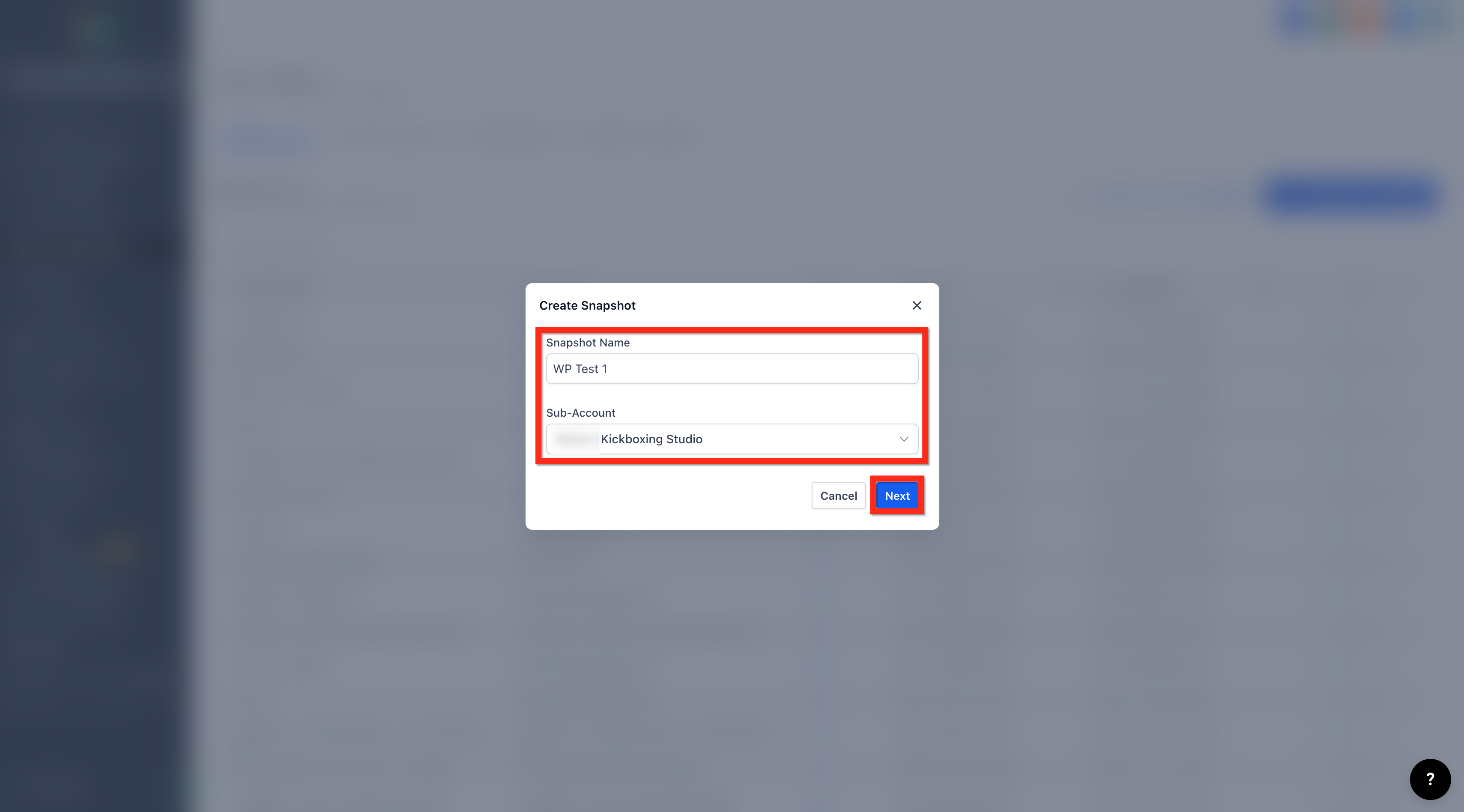
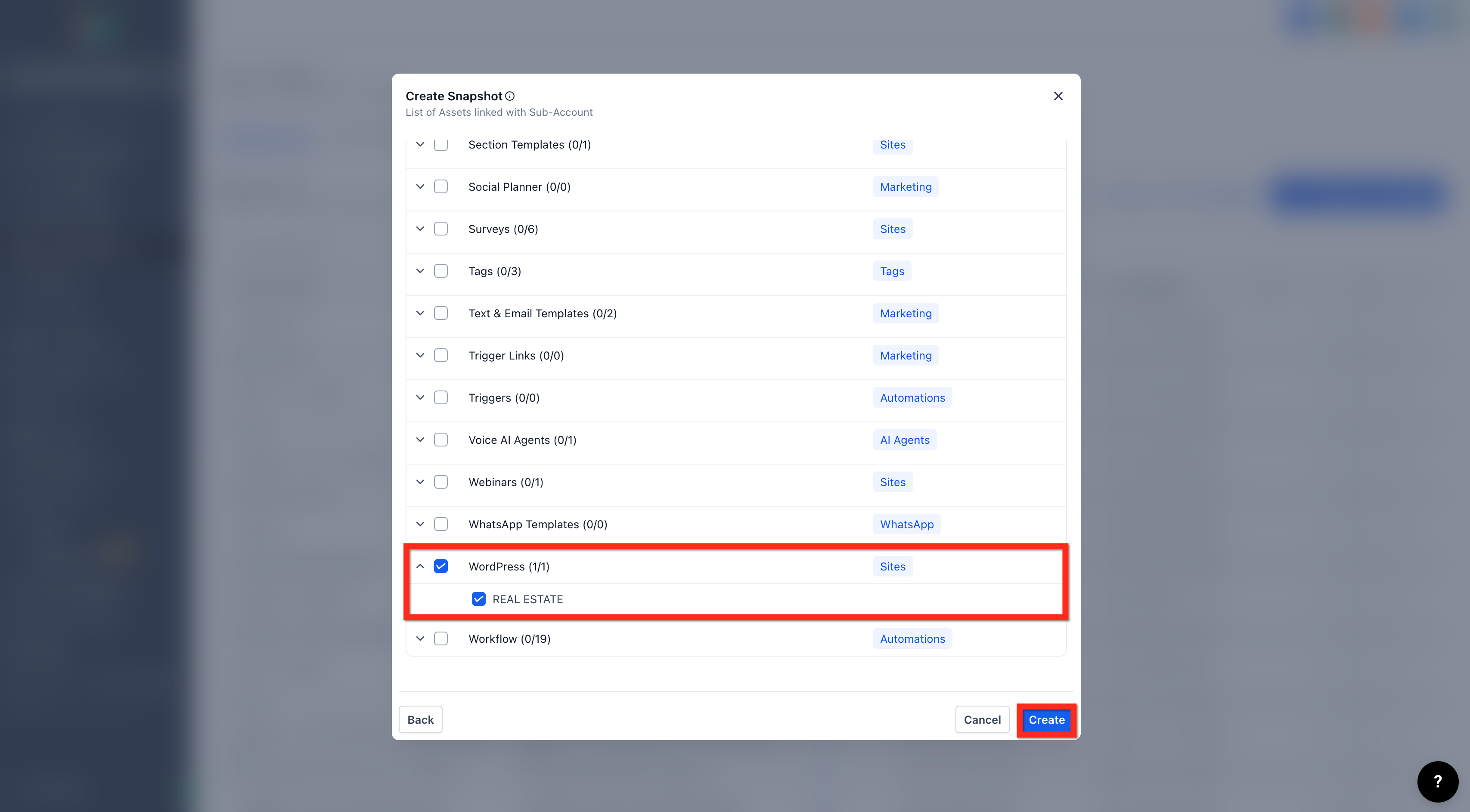
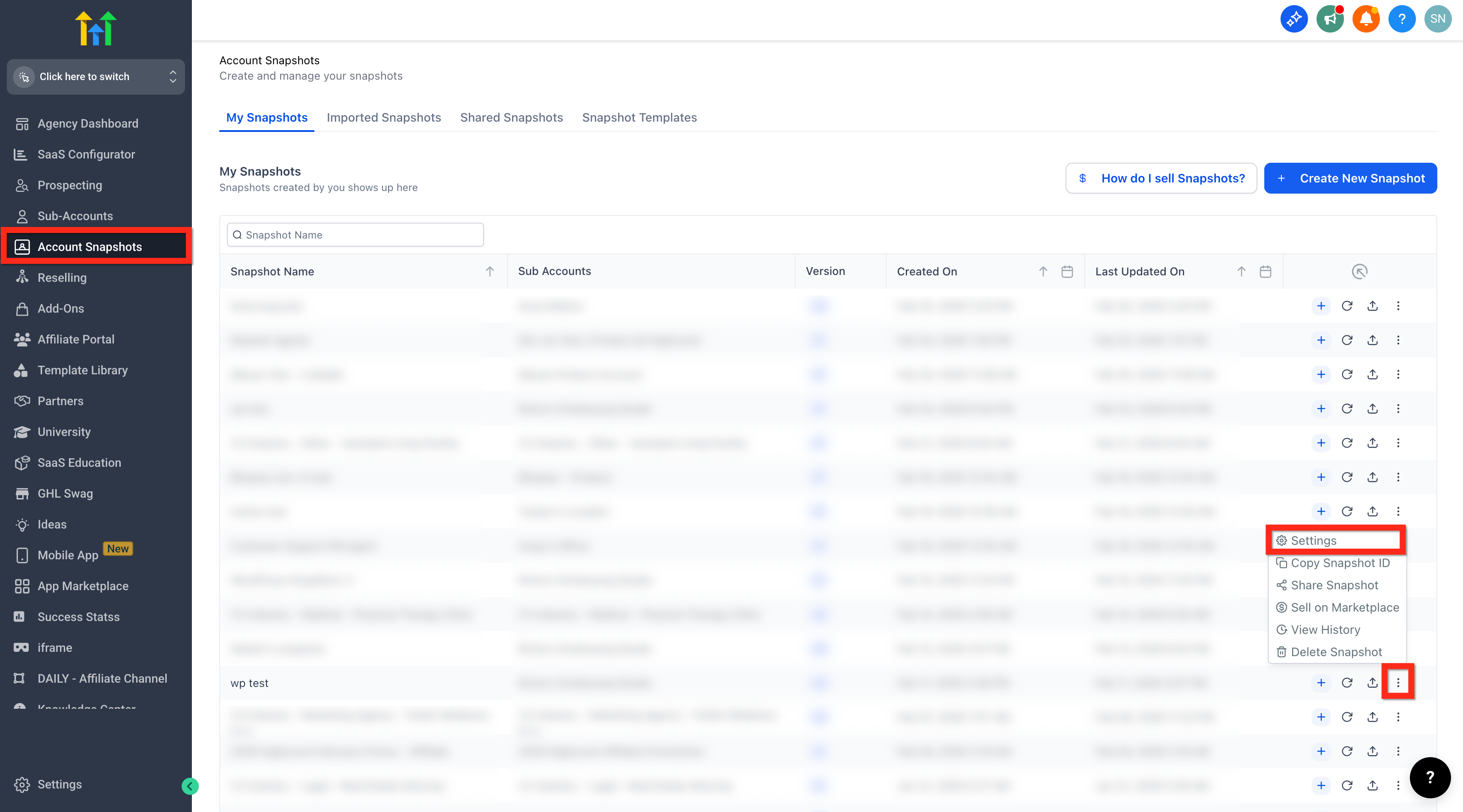
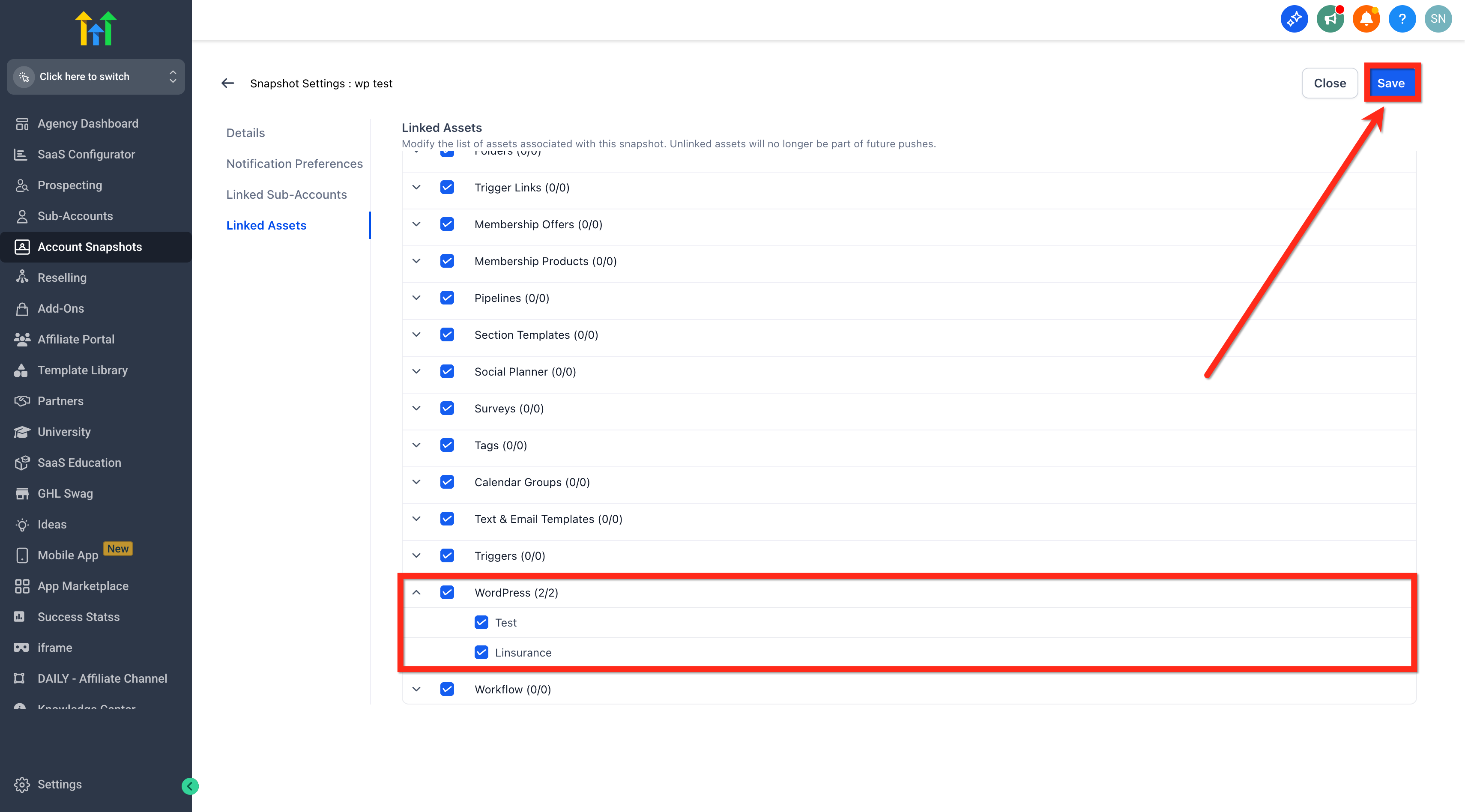
WordPress Support in Snapshot lets you include complete WordPress sites (pages, themes, plugins, and settings) in Snapshots. This article explains how to select WordPress as a Snapshot asset and what to expect when you deploy the Snapshot to another sub-account. * * * ## What is WordPress Support in Snapshot? WordPress Support in Snapshot allows you to include one or more WordPress sites from a selected sub-account as part of a Snapshot. When that Snapshot is deployed to another sub-account, Patient Copilot restores the WordPress site automatically along with your other selected Snapshot assets. * * * ## Key Benefits of WordPress Support in Snapshot - Faster client launches: Deploy a full WordPress environment without rebuilding from scratch. - Consistent delivery: Reuse the same themes, plugins, and configuration across accounts. - Fewer setup mistakes: Reduce missed steps by restoring the site as part of your standard Snapshot. - Repeatable processes: Build once and roll out the same setup to new or existing sub-accounts. * * * ## How To Setup WordPress Support in a Snapshot Correctly selecting WordPress assets ensures the Snapshot restores the intended site and keeps your deployments consistent across sub-accounts. ### Option A: Create a new Snapshot with WordPress 1. Log in to your agency account. 3. Click Create Snapshot.!(https://assets.patientcopilot.ai/3506ebbedc9090f5.png) 5. Choose the sub-account you want to capture data from. 6. Click Next to open the Select Assets modal.!(https://assets.patientcopilot.ai/a028465d0e4e8bc9.png) 7. Enable the WordPress checkbox. 8. Expand WordPress and select the specific site(s) you want to include. 9. Click on Create. !(https://assets.patientcopilot.ai/3cf637775b68b2cb.png) ### Option B: Add WordPress to an existing Snapshot 1. Log in to your agency account. 3. Find the Snapshot you want to update. 4. Click the three dots (⋮) next to the Snapshot > Settings.!(https://assets.patientcopilot.ai/786c3eb4109fb683.png) 5. Scroll to the Linked Assets section. 6. Enable WordPress, then expand it and choose the site(s). 7. Save your changes.!(https://assets.patientcopilot.ai/c2e85323174708fa.png) * * * ## Frequently Asked Questions Q: Can I include more than one WordPress site in a Snapshot? If multiple WordPress sites are available in the WordPress selection list, you can select the specific site(s) you want to bundle. Q: What happens to the WordPress site when I deploy the Snapshot? The WordPress site is restored automatically as part of the Snapshot deployment, along with your other selected assets. Q: Will this stop me from having to rebuild WordPress pages and plugins for every client? Yes. Including WordPress in your Snapshot allows you to reuse your WordPress environment across sub-accounts instead of starting from scratch. Q: What WordPress elements are included in a Snapshot? A WordPress Snapshot can include: Pages, Themes, Plugins, Site, Settings This ensures your site structure and configuration are preserved when applied to another location. Q: Does the Snapshot include plugin and theme licenses? No. If your WordPress setup relies on third-party licenses or external services, you may need to re-authenticate or re-activate those items after deployment, depending on the provider. Q: Can I add WordPress to an existing Snapshot later? Yes. Edit the Snapshot settings and update the Linked Assets to include WordPress. * * * ### Related Articles - Load Snapshots Into Existing Sub-Account