
View Calendar & Appointments in User Timezone
You can now choose any timezone to view appointments across the platform. This user-specific setting controls how appointment times appear in Calendar View, Appointment List, Contacts, and Conversations without affecting availability, booking behavior, or scheduling logic.
Overview
The View Appointments In setting allows each user to select their preferred timezone for displaying appointments.
- Applies only to the logged-in user - Controls how appointment times are displayed - Does not affect availability settings - Does not impact booking links or confirmations - Does not change scheduling logic You are no longer limited to viewing appointments in only the User Timezone or Business Timezone. You can now select any timezone.
Where This Setting Applies
The selected timezone affects appointment display in:
- Contacts (Appointments section) - Conversations
How to Change Your Appointment Viewing Timezone
To adjust your viewing timezone: 1. Navigate to Calendar Settings. 3. Locate View Appointments In. 4. Select your preferred timezone. 5. Click Save Preferences. You can update this setting at any time.
Timezone Indicators in the Platform Calendar View **
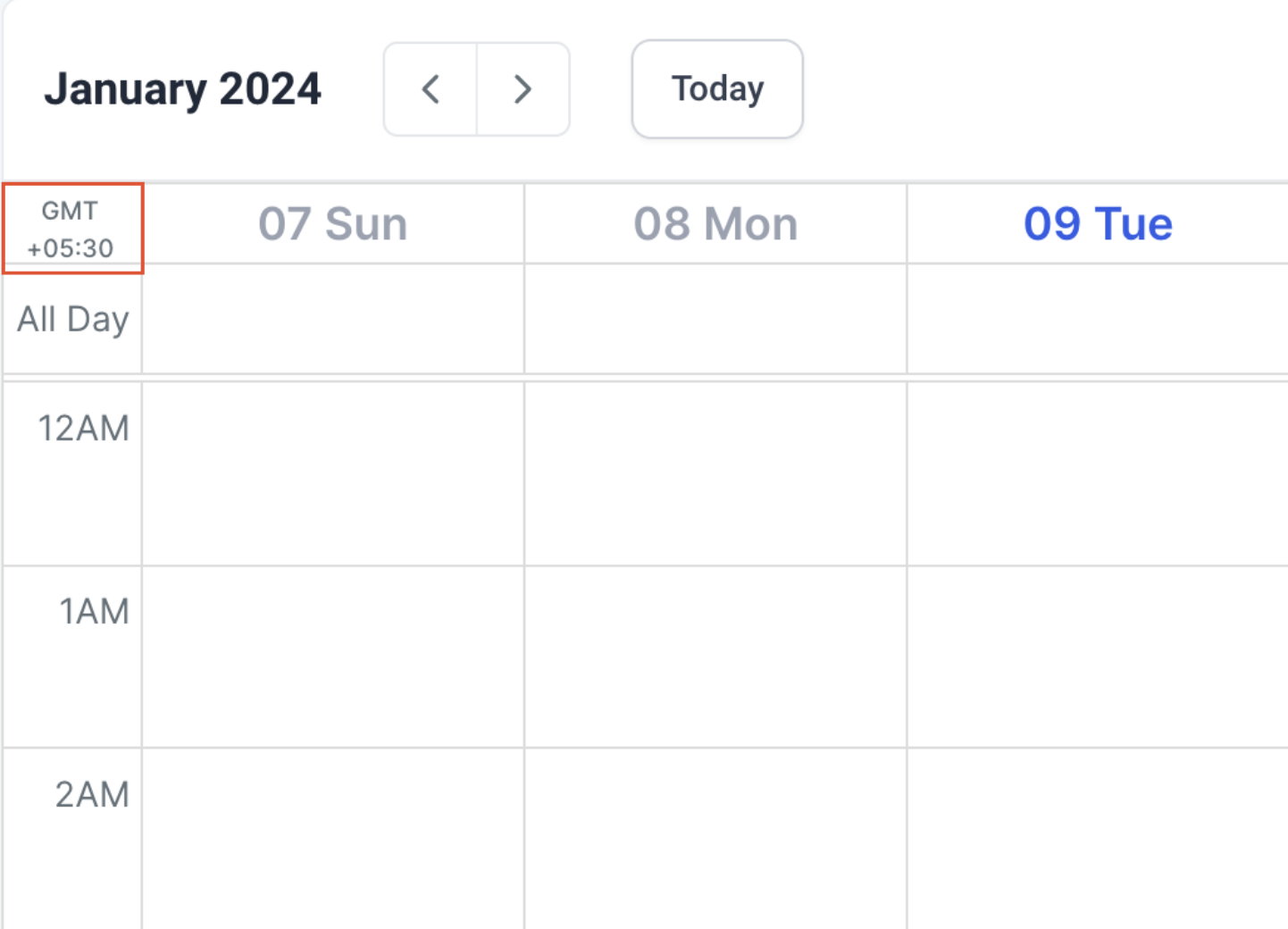
** The currently selected timezone appears within the calendar interface so you can confirm which timezone is active.
Appointment List **
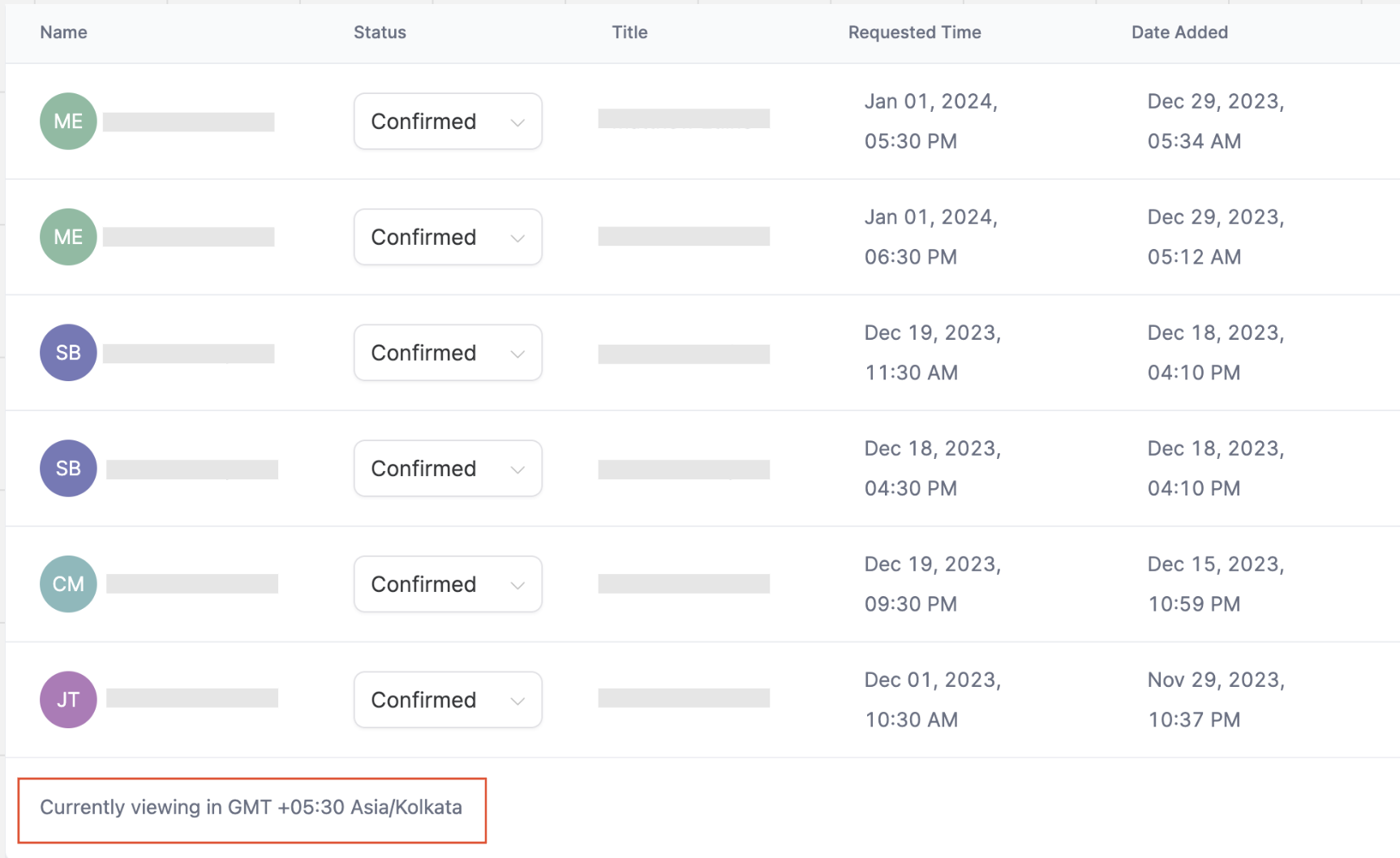
** The Appointment List displays the active timezone at the bottom of the page.
Backward Compatibility
Previously, a Labs flag controlled how appointments were displayed:
- If the flag was ON, appointments displayed in User Timezone - If the flag was OFF, appointments displayed in Business Timezone This Labs flag has been removed and replaced with the View Appointments In setting. For backward compatibility:
- If the flag was previously ON, your setting is now set to User Timezone.
- If the flag was previously OFF, your setting is now set to your Business Timezone. You may change this preference at any time.
Availability and Timezone Settings
This feature only changes how appointments are displayed.
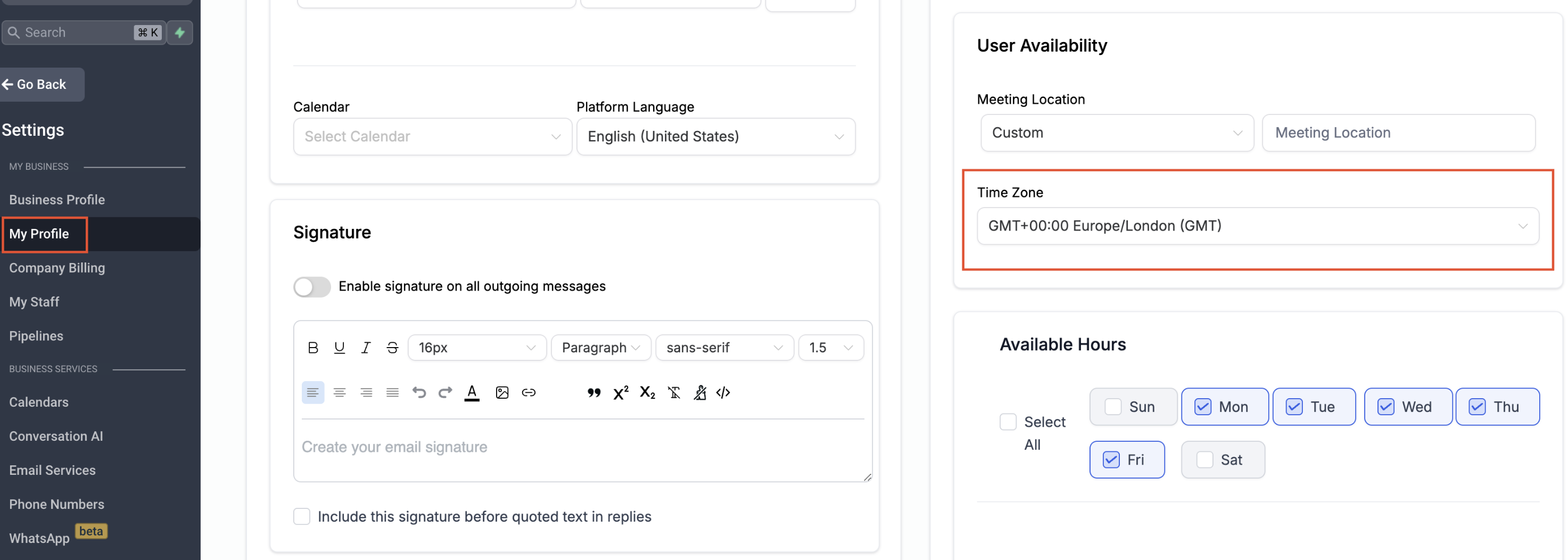
- Confirmation or reminder logic Availability continues to be configured under: Settings → My Profile → User Availability
Example Scenario
If your business operates in New York (EST) and you are located in London (GMT):
- You may choose to view appointments in GMT for local clarity.
- Another user may choose EST to align with business operations.
- Appointment times are displayed according to each user’s selected timezone. No manual conversion is required.
Frequently Asked Questions
Q: Does changing the viewing timezone affect my availability?
No. It only changes how appointment times are displayed to you. Q: Will other users see appointments in my selected timezone? No. The setting is user-specific. Q: Can I select any timezone? Yes. You can select any available timezone. Q: I want to view appointments in the business timezone. What should I do? Go to Calendar Settings → Preferences → View Appointments In and select the business timezone configured in your sub-account.