
Voice AI - Agent Logs
Understanding how your AI handles conversations is essential for improving performance and fixing issues quickly. Agent Logs give you a clear, step-by-step view of every interaction so you can review conversations, track execution, and troubleshoot with confidence.Agent Logs provide full visibility into AI interactions, helping you understand what happened during a call, where delays occurred, and how decisions were made. This makes it easier to debug issues, optimize performance, and improve overall experience.
What is Voice AI Agent Logs?
Agent Logs is a centralized view of AI interactions that shows conversation history, execution steps, timestamps, and system-level details. It allows you to analyze interactions from start to finish without guesswork.
Key Benefits of Voice AI Agent Logs
Agent Logs help you better understand and optimize AI behavior by providing:
- Conversation visibility: See full interactions between users and the AI
- Execution tracking: Follow each step with precise timestamps
- Transfer insights: Identify how and when agent handoffs occur
- Latency analysis: Detect slow steps in conversations
- Data inspection: View raw and formatted input/output data
- Failure detection: Quickly identify where issues occurred
How To Navigate and Use Agent Logs
Access Agent Logs **
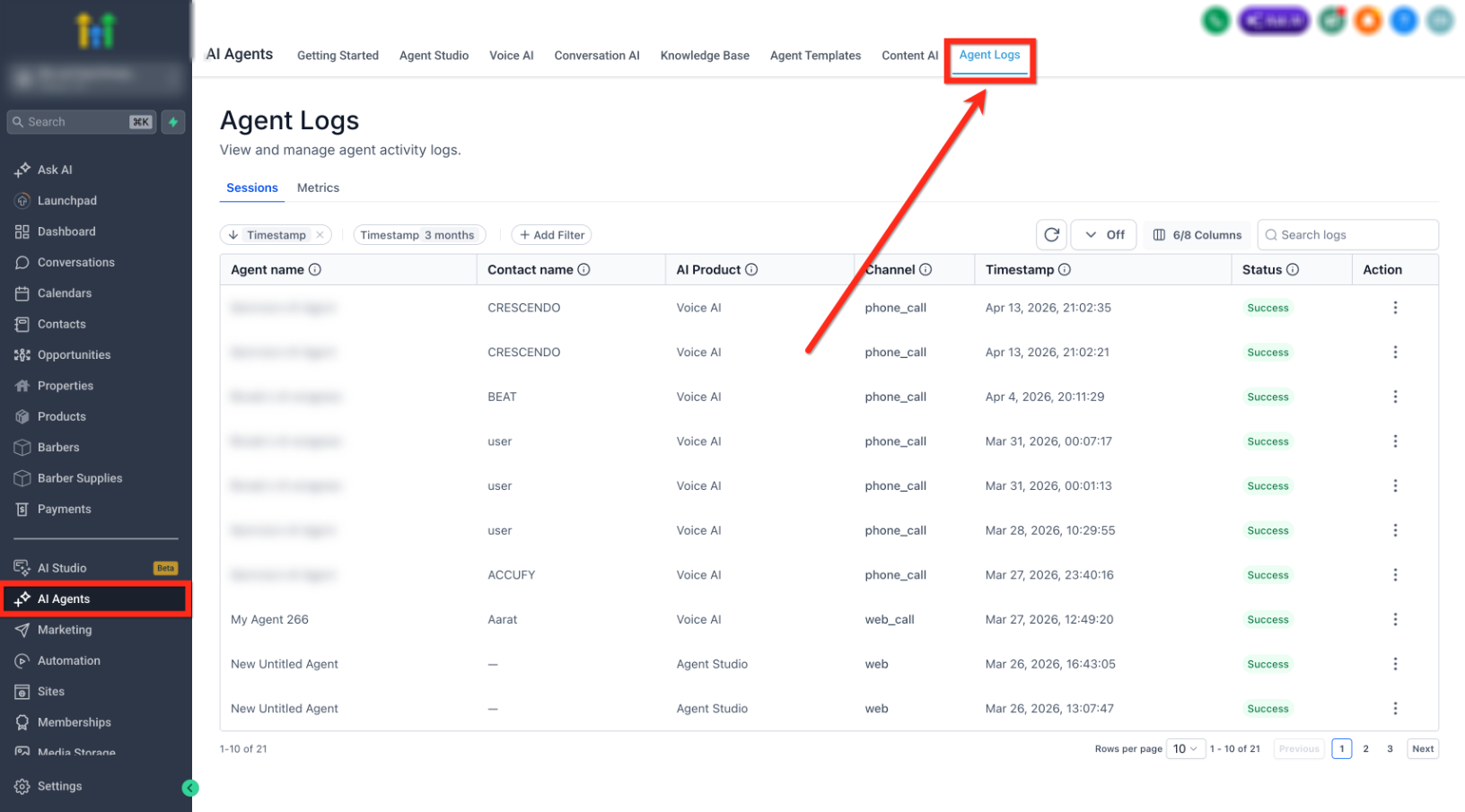
** This image shows where to access Agent Logs from the main navigation.
- Navigate to AI Agents - Click on Agent Logs in the top menu
Review the Logs Table **
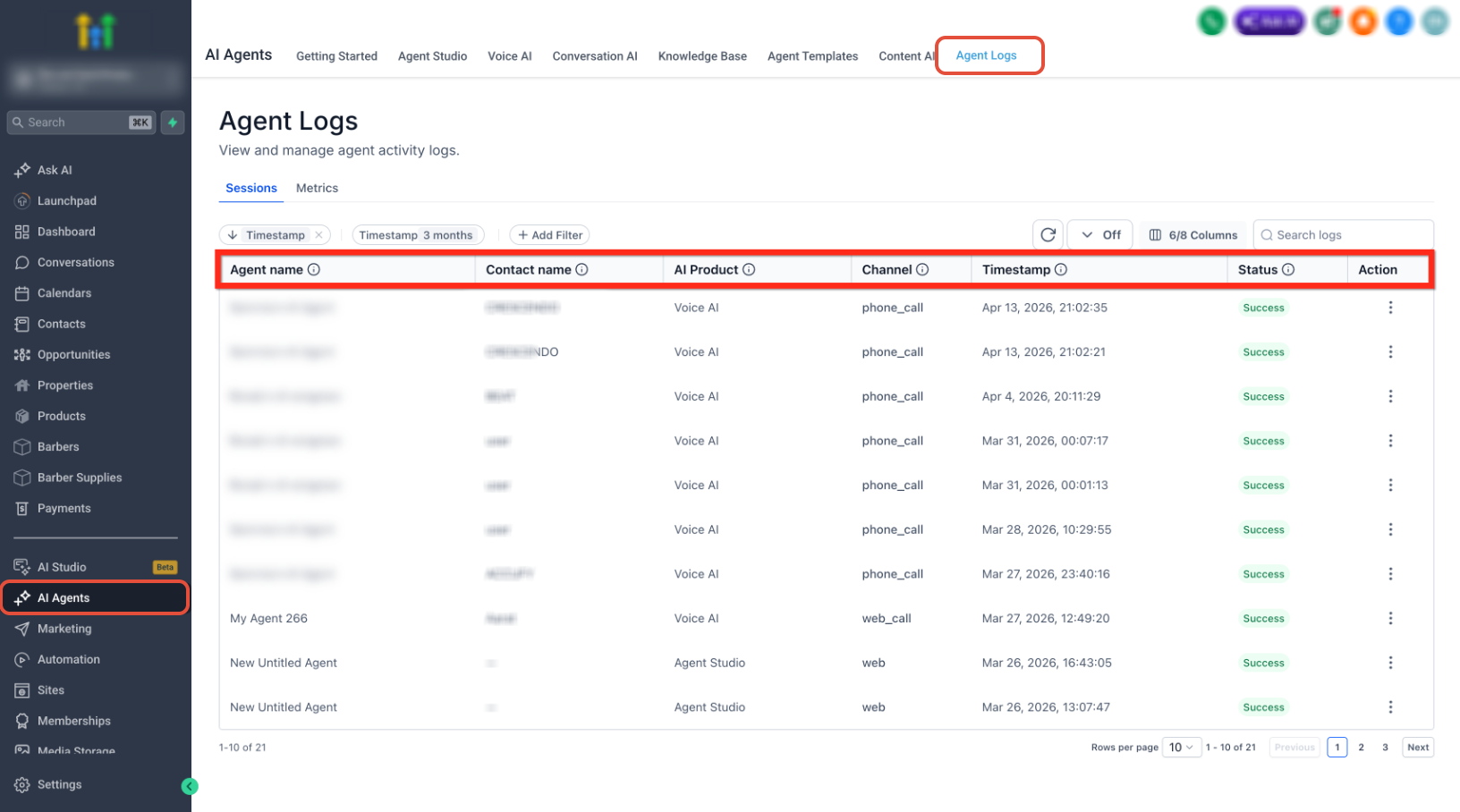
** This image highlights the columns available in the logs table.
- Use the table to review interactions based on:
- Use filters at the top to narrow down results
Locate and Select a Log **
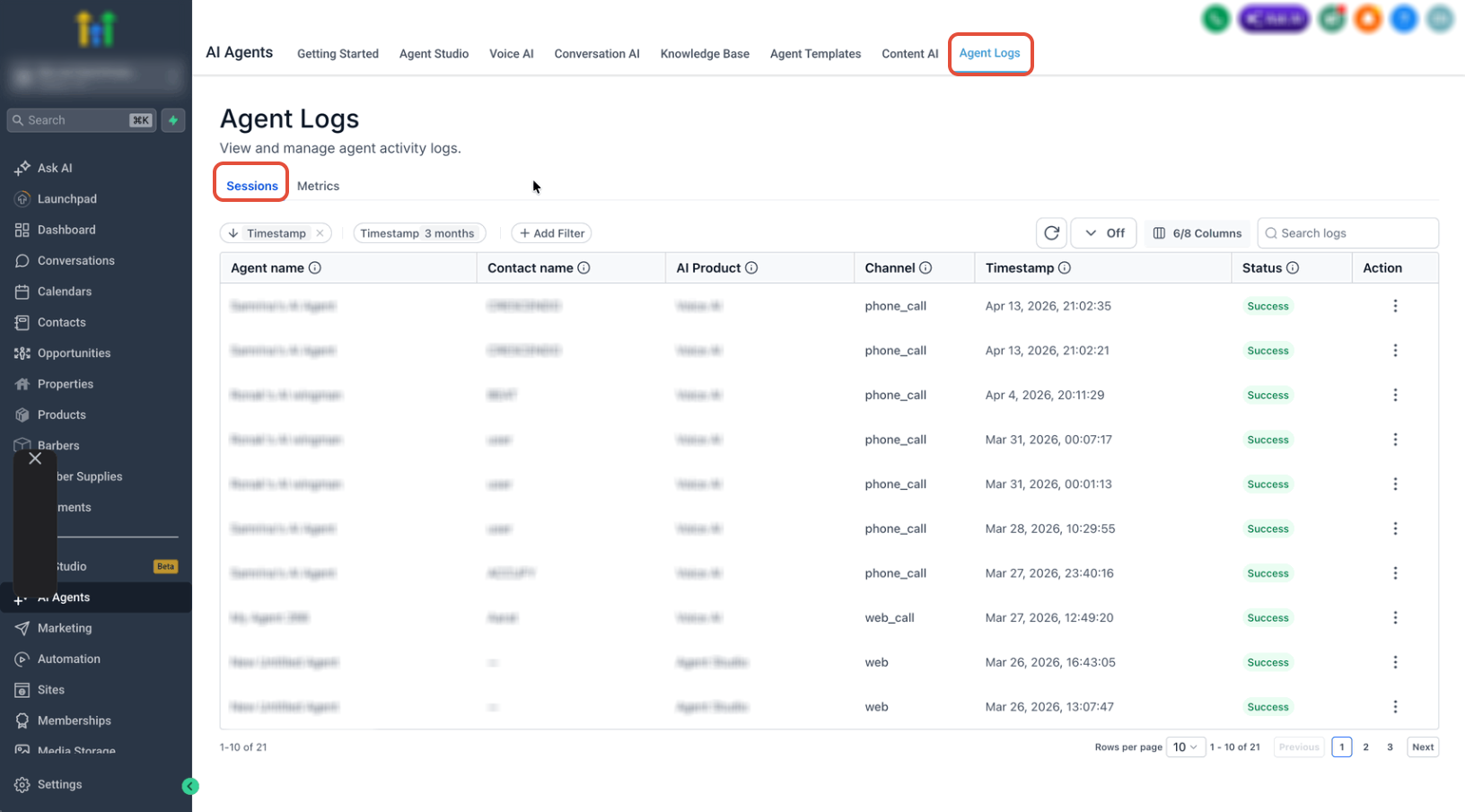
** This view shows multiple interactions listed for review.
- Scroll through logs to find the interaction you want - Look at timestamps and status to identify relevant sessions
Open Detailed Log View **
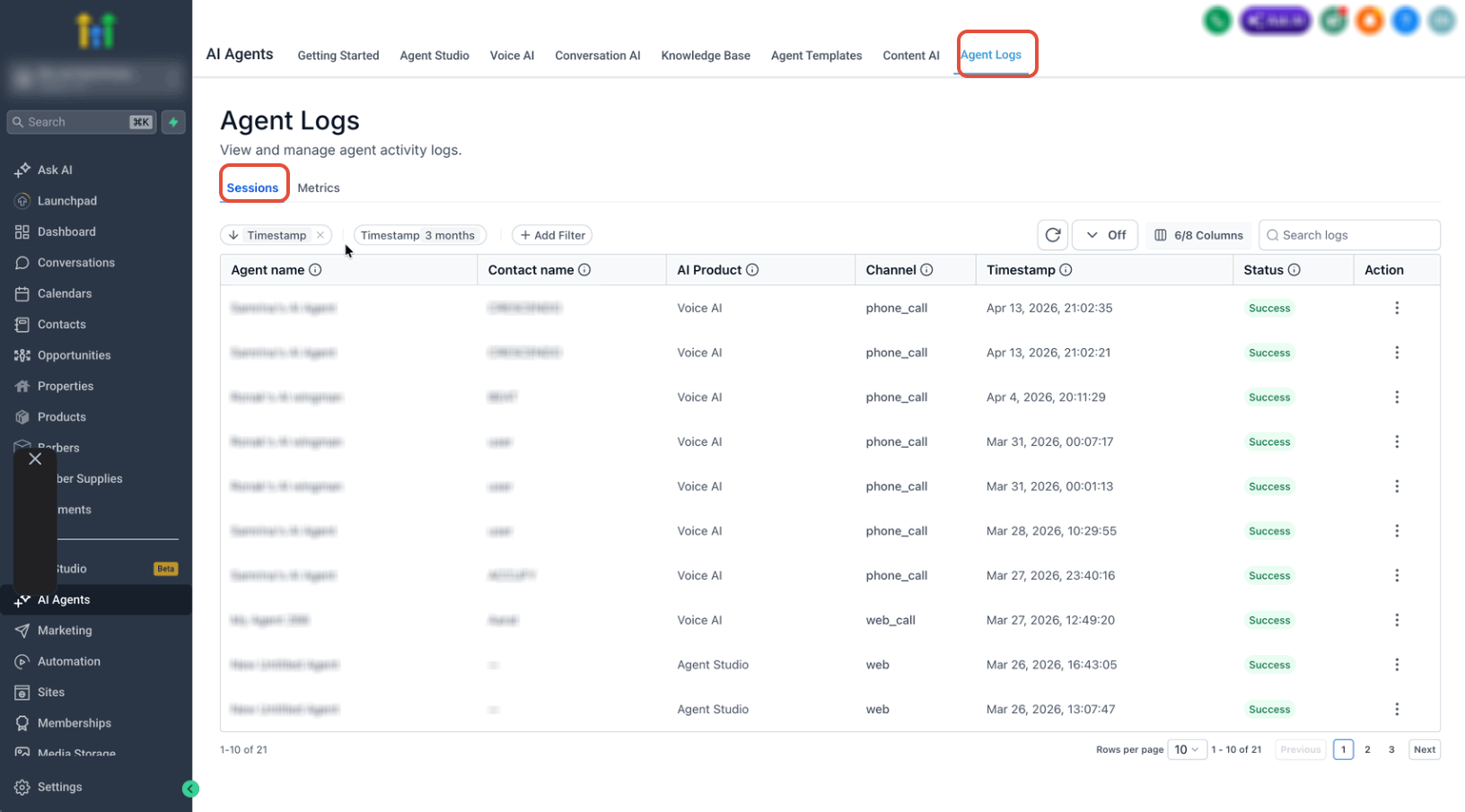
** This screen shows how to open a specific interaction.
- Click on an Agent name OR - Use the action menu (three dots) → View Details
Analyze the Conversation **
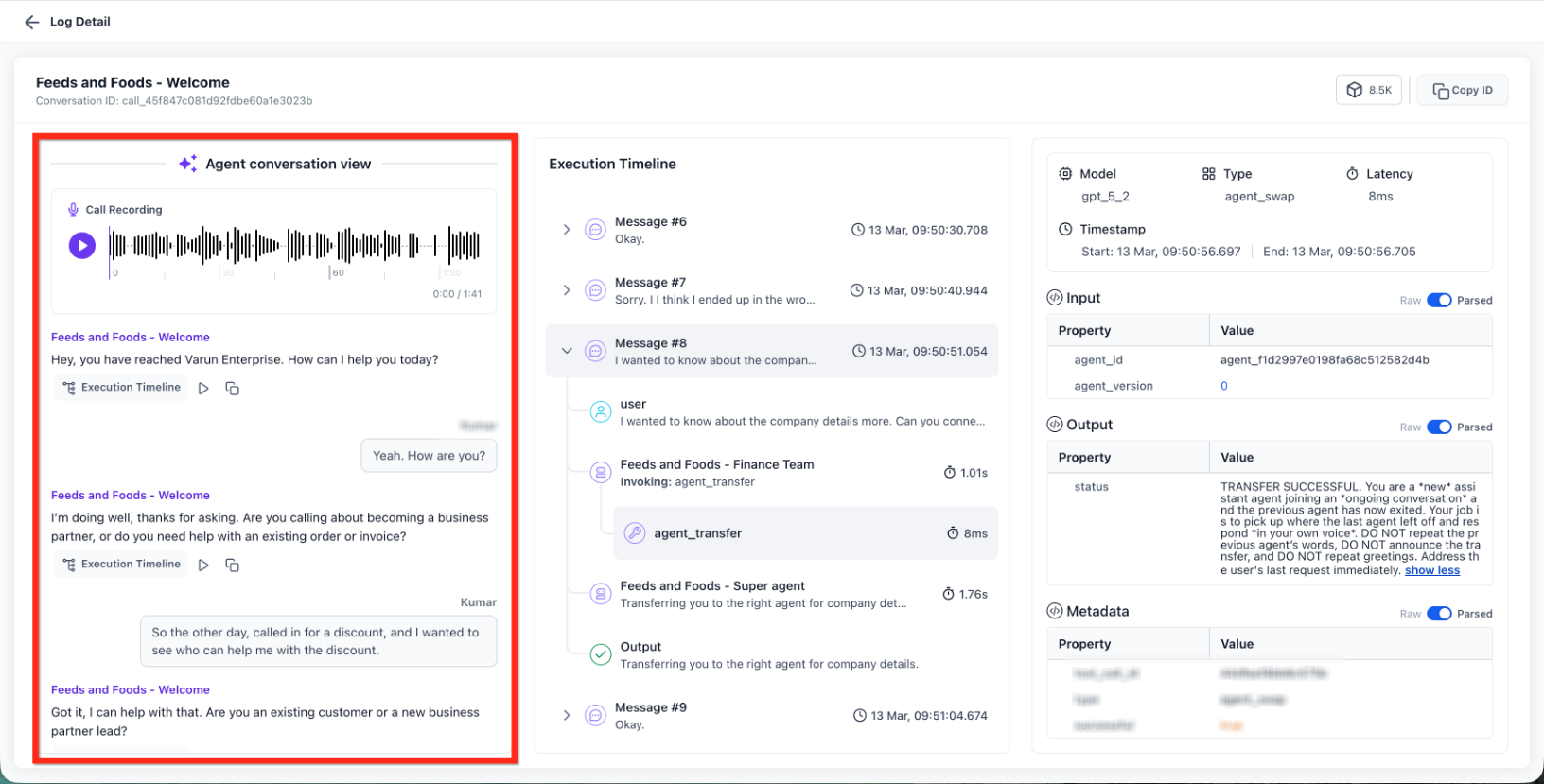
** This section shows the full interaction between the AI and the user. - - Call recording playback (if enabled) - Context of the interaction
Trace Execution Timeline **
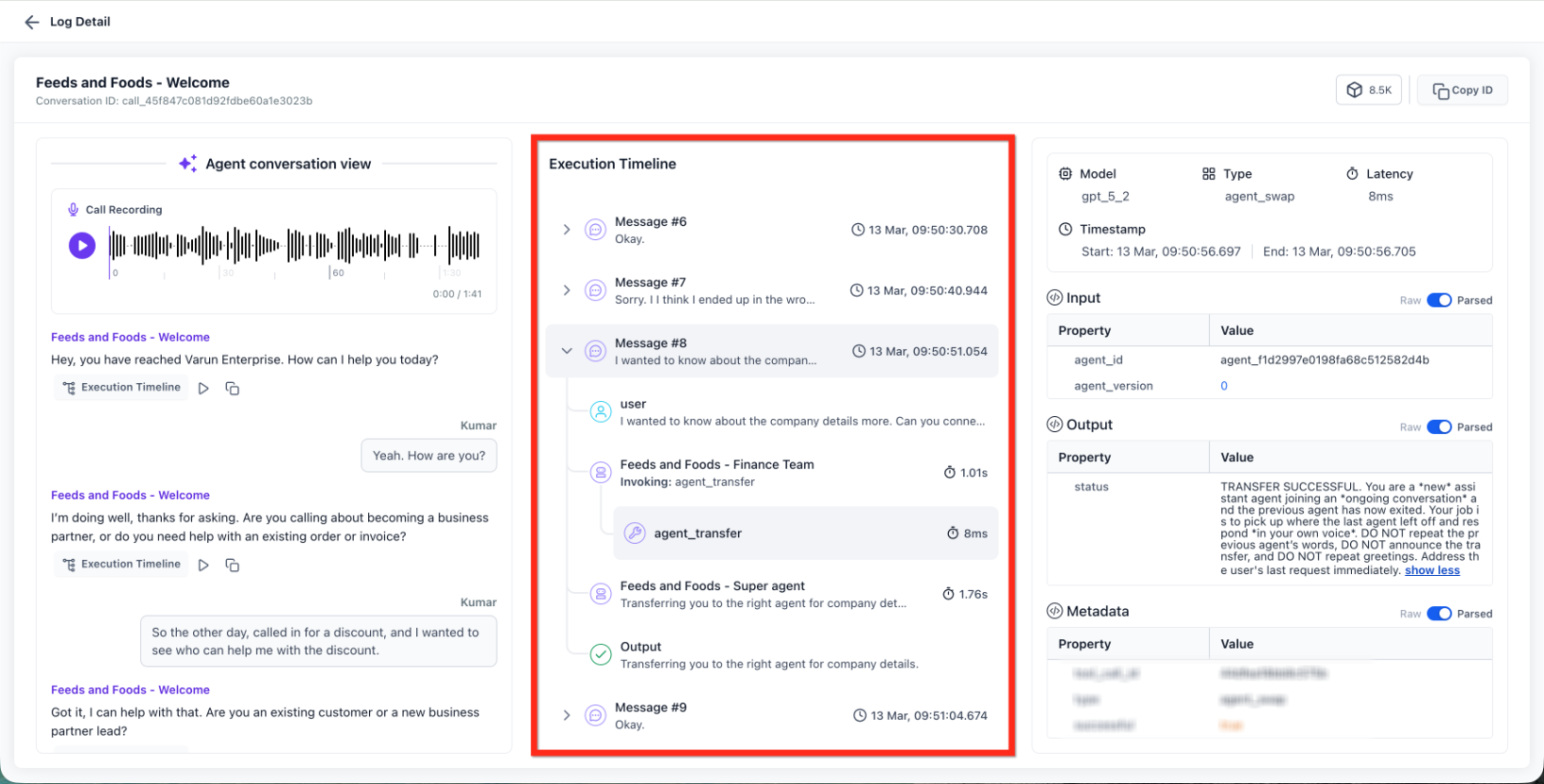
** This panel shows step-by-step execution of the interaction.
- Follow events in chronological order - - Failures - Use timestamps to pinpoint issues
Inspect Input & Output Data **
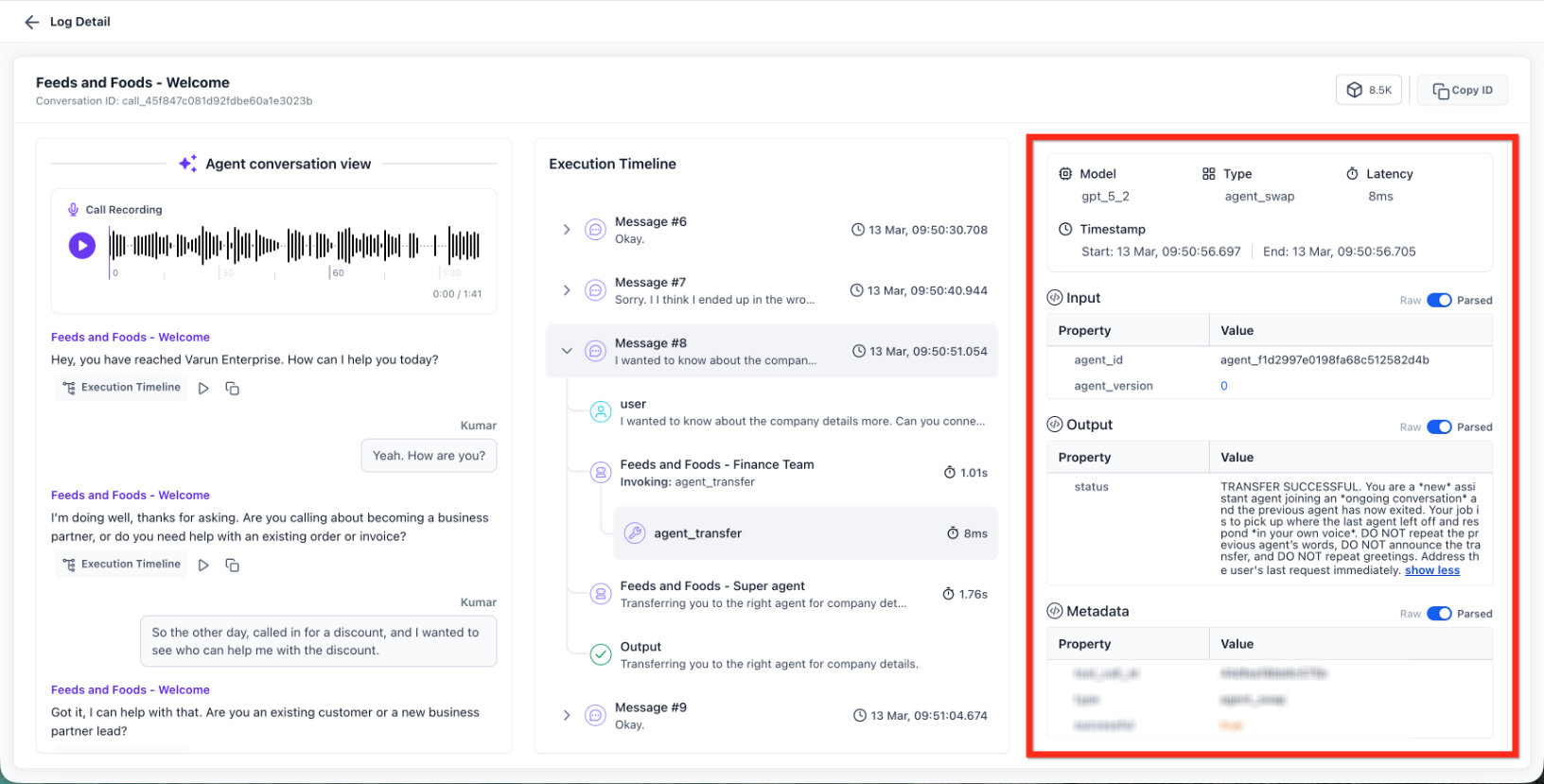
** This image shows how to switch between raw and parsed data views. -
- Raw: Original system data
- Parsed: Human-readable format - Review what was sent and received at each step
Review Technical Details **
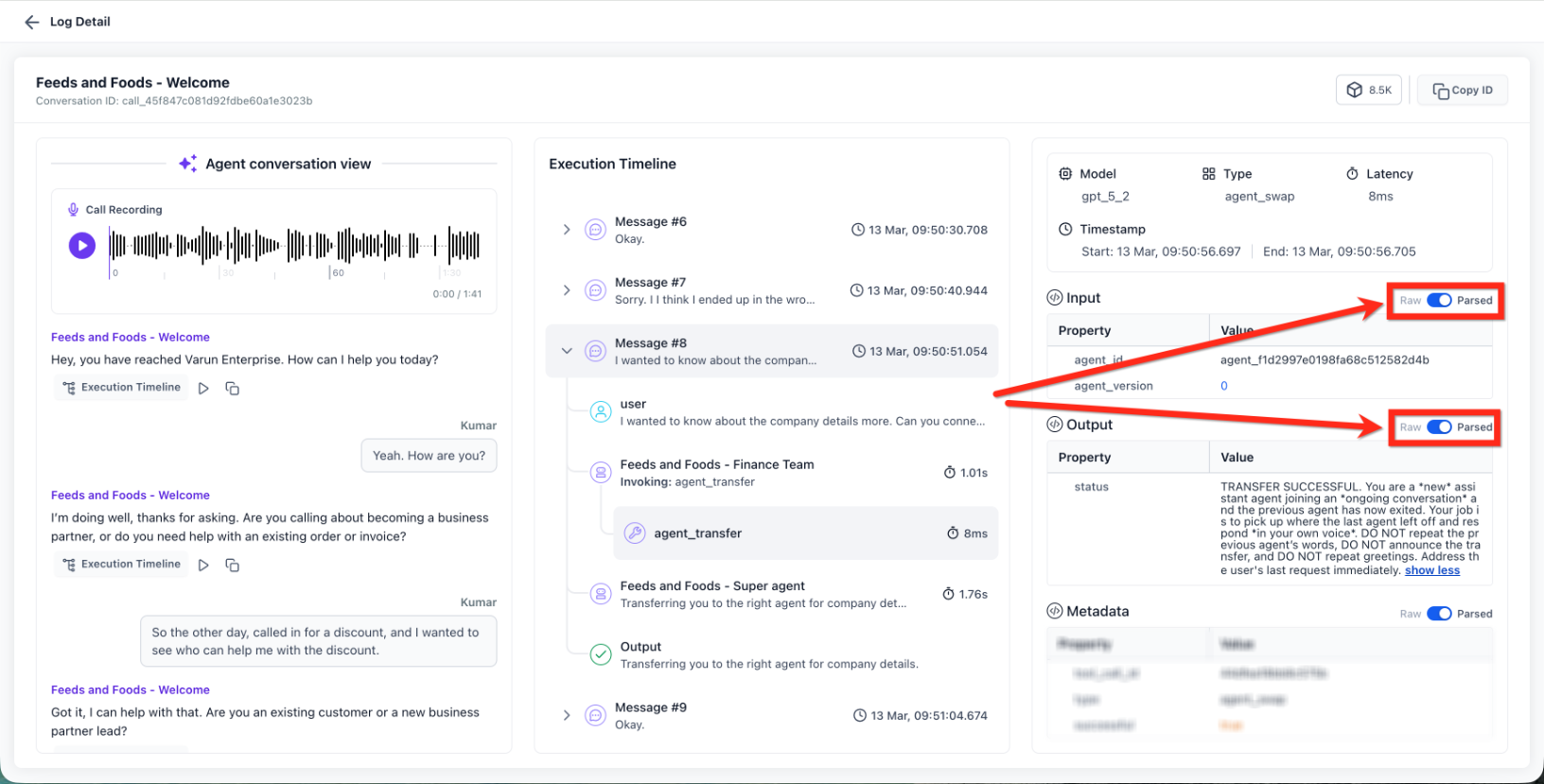
** This panel provides deeper insights into execution.
- Use this information to audit performance and debug issues
Frequently Asked Questions
Q: Why is call recording not visible?
Call recording appears only if it is enabled for the phone number used in the interaction. Q: What can I use Agent Logs for? You can review conversations, trace execution steps, debug issues, analyze performance, and identify failures. Q: What is the difference between conversation view and execution timeline? The conversation view shows the interaction as it happened, while the execution timeline shows the technical steps behind it. Q: What does Raw vs Parsed mean? Raw shows the original system data, while Parsed displays a cleaner, readable version. Q: Can I track agent transfers? Yes, you can see which agent initiated a transfer, which agent took over, and whether it was successful. Q: How do I troubleshoot a failed interaction? Open the log details, review the execution timeline, and inspect the step where the failure occurred.