Locations in Services (v2)
What is a Location?
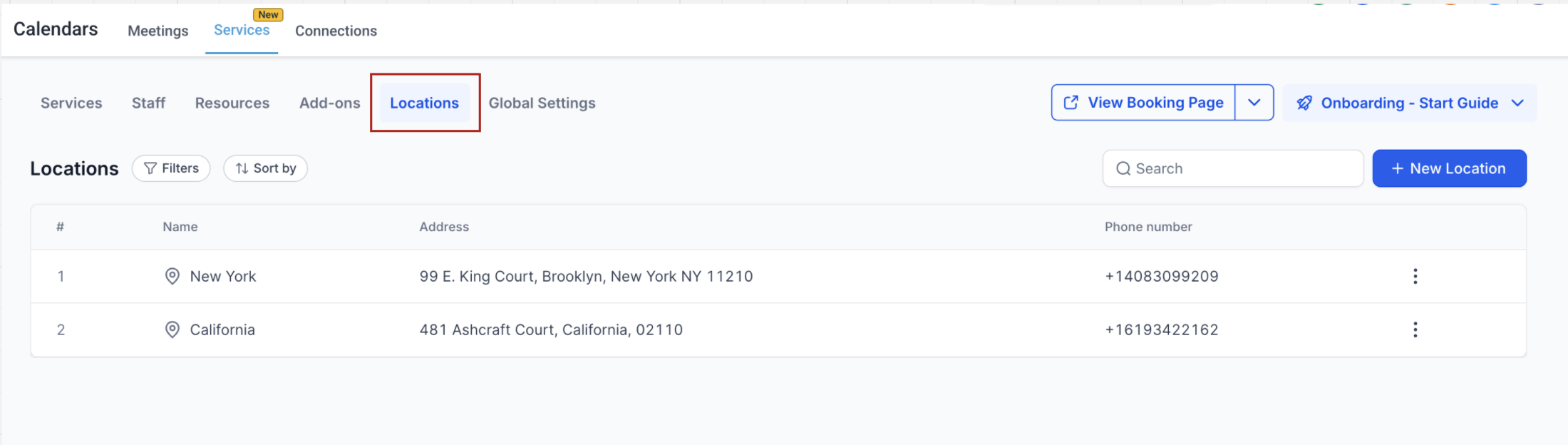
A location is the place where your service takes place — essentially, the meeting point between you and your customer. This could be your office, a store, or any physical address. When you first set up your account, a default location is automatically created using the business address entered in Settings > Business Profile.
- This is ideal for businesses operating from a single location.
- You can update these details anytime in Calendar Settings > Services > Locations tab by clicking Edit and making the necessary changes.
Managing Multiple Locations
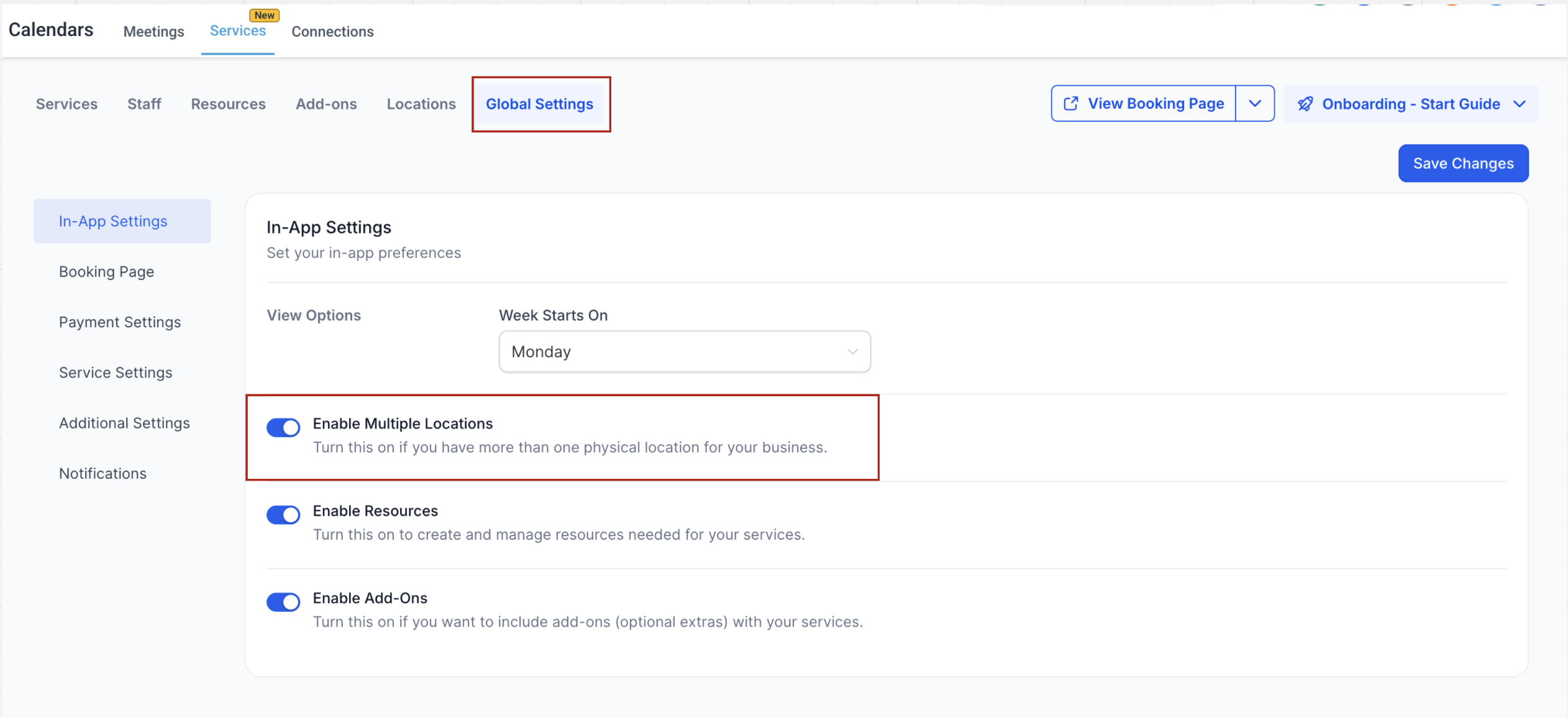
If your business operates from more than one physical location, you can activate the Multiple Locations option. This feature is designed for businesses with multiple branches or offices. To enable this: 1. Go to Calendar Settings > Services. 2. Under Global Settings, toggle on Enable Multiple Locations. 3. Once activated, you can add more locations under the Locations tab.
How to Add New Locations
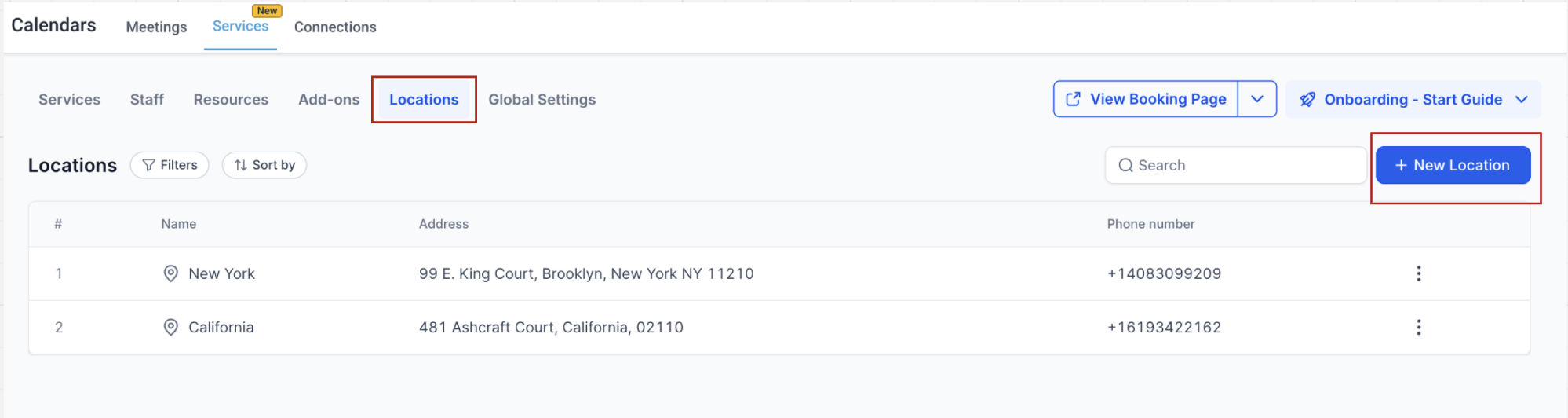
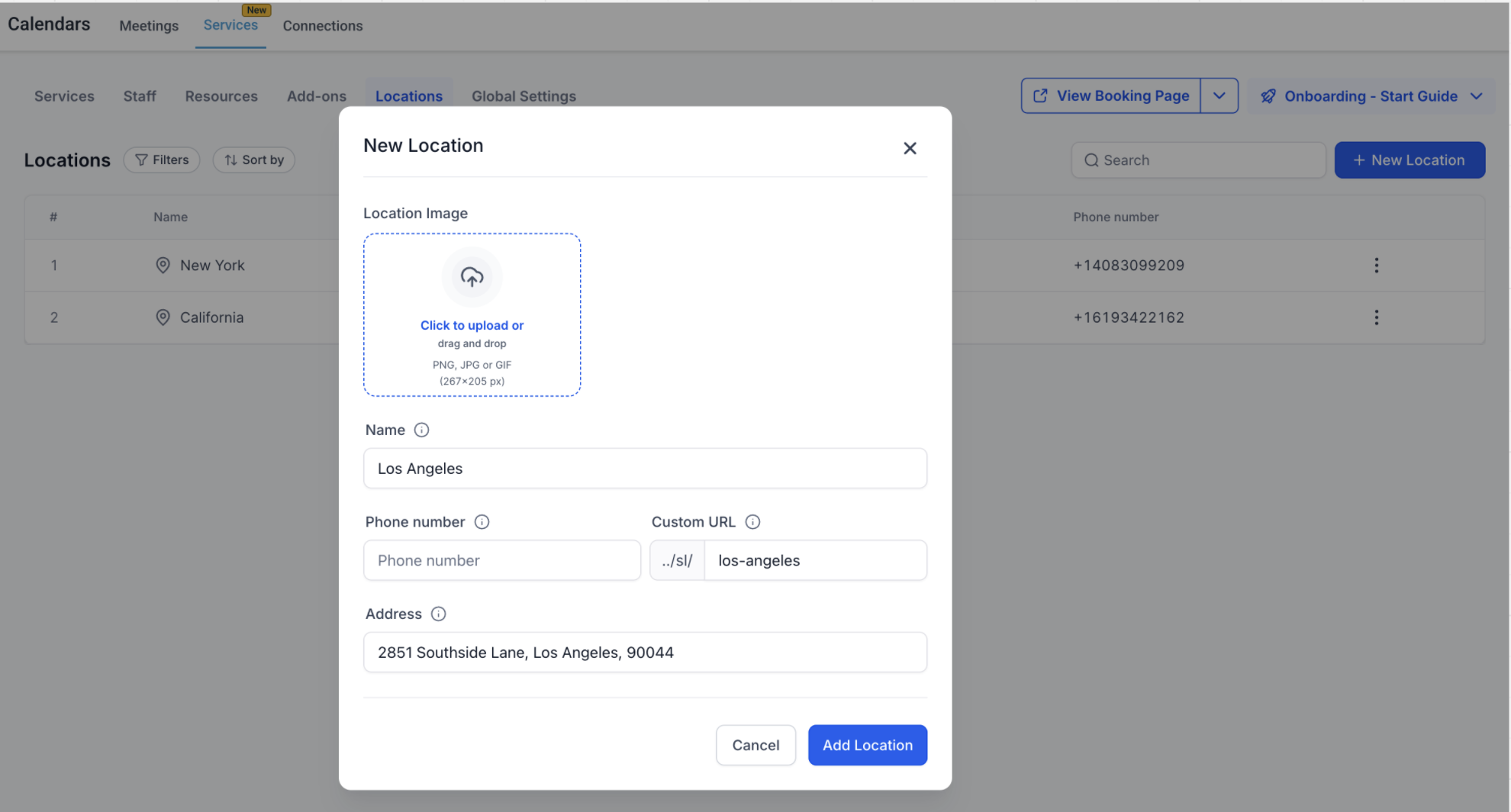
After enabling multiple locations, you can add new ones by following these steps: 1. Navigate to the Locations tab. 2. Click Add New. 3. Upload a location image (this will appear on the booking page). 4. Enter the location name, phone number, and address. 5. Click Save Location. Note: Online locations (e.g., Zoom, Google Meet) are not yet directly supported. As a workaround, you can generate a static video conferencing link and enter it in the Address field.
Setting Staff Availability for Locations
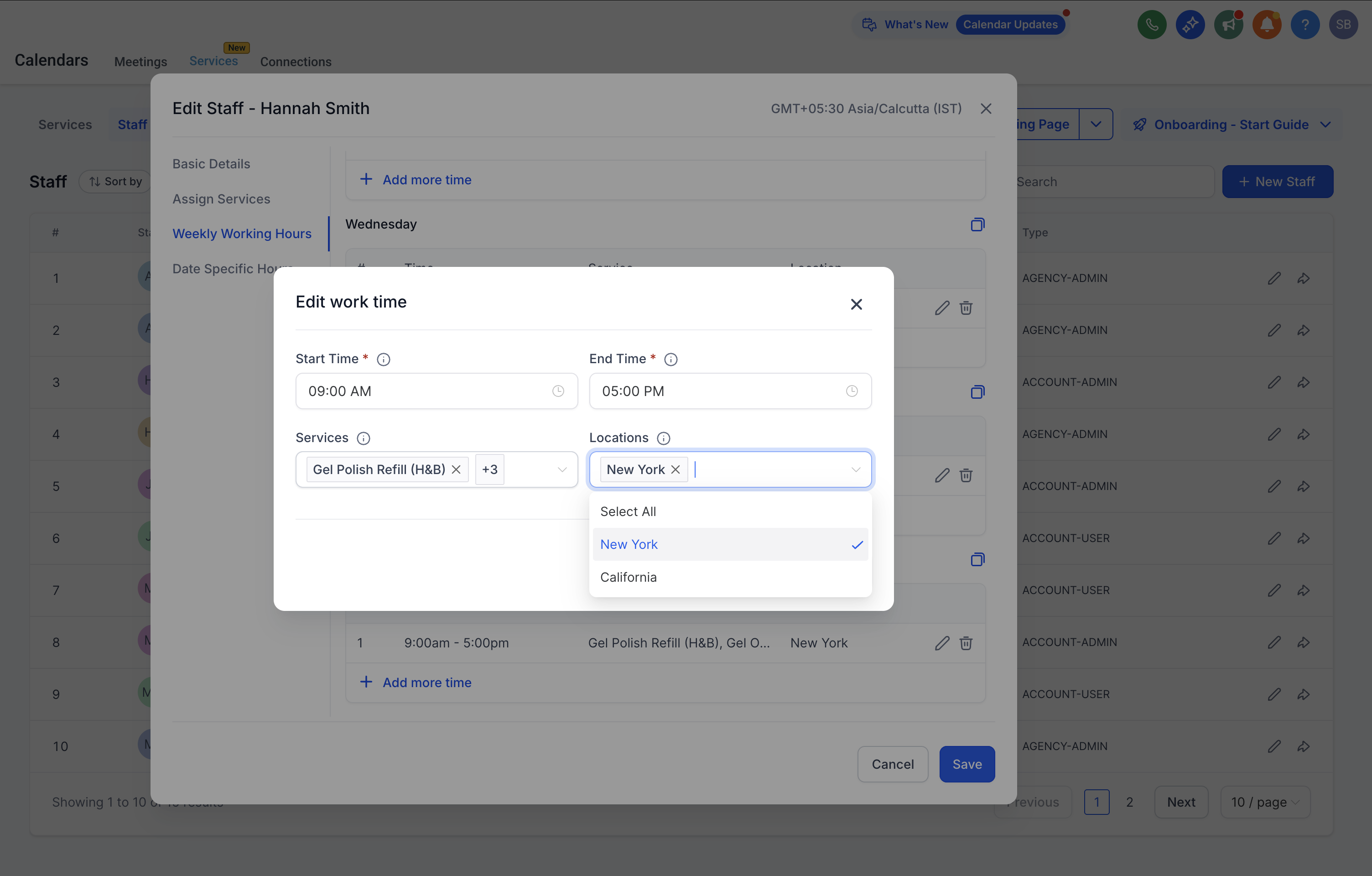
Once locations are created, you need to configure staff availability so that services are properly assigned to the correct locations. To set this up: 1. Go to Calendar Settings > Services > Staff > Edit a staff member. 2. Navigate to the Assign Services tab and assign the required services. 3. Then, navigate to the Weekly Working Hours tab. 4. Add the staff member’s working hours based on their availability for a particular service at a specific location. Staff members can be assigned to multiple locations with different schedules, giving flexibility in how services are offered. ⚠️ Important: For locations to appear during the booking process, they must be linked to staff availability in the Staff Settings.