
How to Filter Contacts by Email Statistics
Email Analytics
Filter Contacts by Email Statistics Quickly segment contacts by real engagement signals inside Patient Copilot. Use Email Analytics to filter by metrics like Opened, Clicked, Bounced, and more — then drill down to the exact contacts driving your results. Email System Sub-Accounts Only Contact-level Email Analytics filtering is available only for Email System sub-accounts. Non-LC providers do not support this feature. Table of Contents 1. 1 What is Filtering Contacts by Email Stats?
- 2 Key Benefits of Filtering Contacts by Email Stats
- 3 How To Filter Contacts by Email Statistics
- 4 Frequently Asked Questions
- 5 Related Articles
What is Filtering Contacts by Email Stats?
Email Stat Filtering focuses on contact-level analytics in Patient Copilot. Sub-accounts can filter contacts by email performance metrics (e.g., Opened, Clicked, Bounced) to understand engagement and take action at the individual contact level. Instead of sifting through campaign summaries, you jump straight to the people who opened, clicked, bounced, or complained — making segmentation, re-engagement, and list cleanup dramatically faster.
Key Benefits of Filtering Contacts by Email Stats Targeted Engagement Build segments from real metrics (Opened/Clicked) to tailor follow-ups and lift conversions. List Hygiene Identify Bounced, Complained, or Failed contacts quickly to protect sender reputation. Flexible Time Windows Date filters reveal performance within precise campaign or testing periods. Sending Type Control Filter by Bulk, Campaign, or Workflow to isolate the source of results.
How To Filter Contacts by Email Statistics
Follow the steps below to ensure your filters return precise results so you can confidently analyze contact-level engagement. 1
Log In to Your Sub-Account Sign in to the sub-account where you want to analyze contact-level email performance.
2
Open Email Analytics Navigate to Settings → Email Services → Email Analytics.
3
Review Email Metrics Review the available Email Metrics at the top of the page: Note: Email Analytics will only fetch data for Patient Copilot Sent Delivered Opened Clicked Complained Bounced Unsubscribed Failed
4
Set a Date Range
Use the Date Range picker to define your analysis window so metrics reflect the exact period you care about.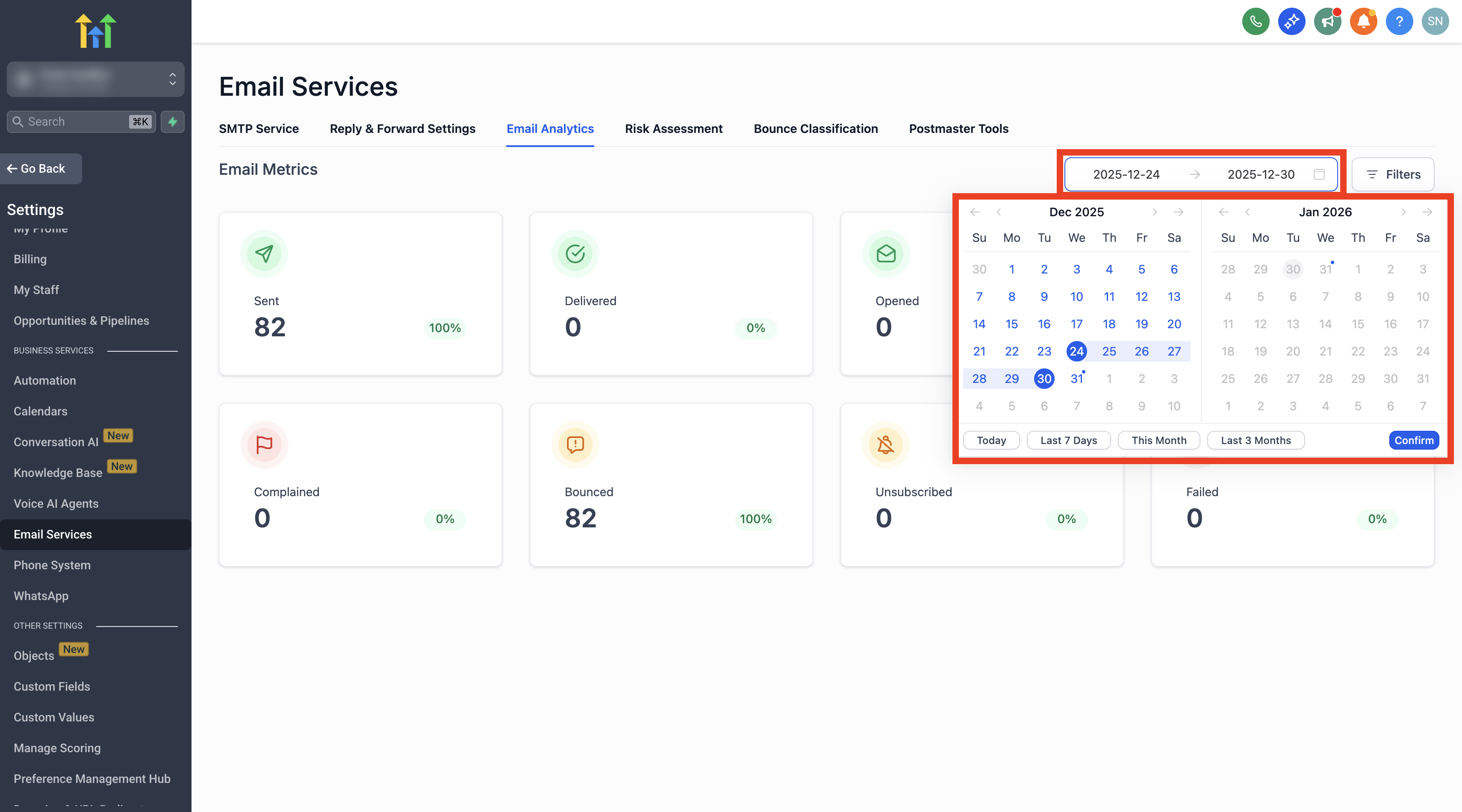
5
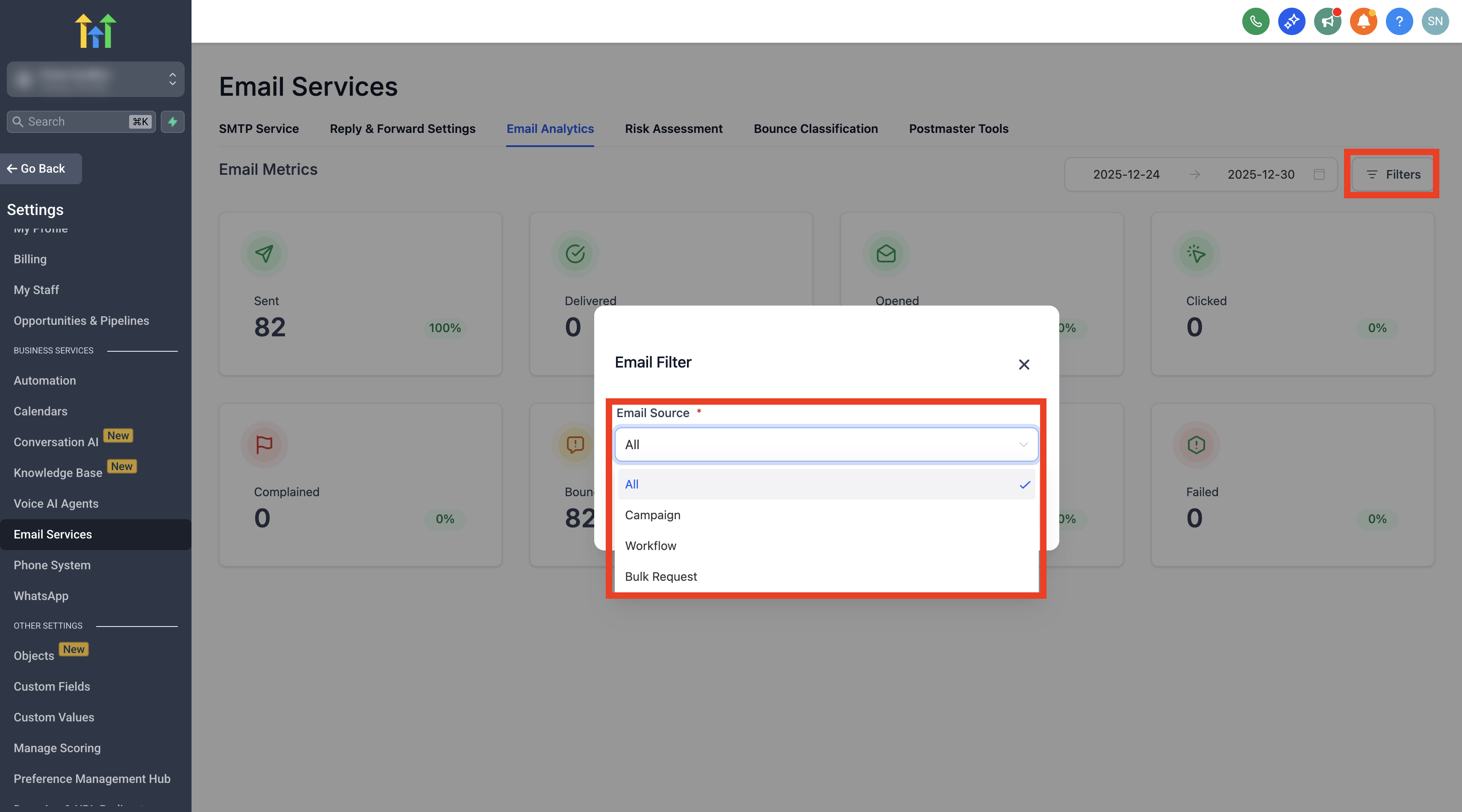
Choose an Email Source Click Filters and select Email Source, then pick one of the following sending types:
- Campaign — marketing sends dispatched from Campaigns
- Workflow — automated emails triggered by a workflow step
- Bulk Request — one-off bulk sends to a contact list
6
Select an Email Source Name Pick the Email Source Name — the specific campaign, workflow, or bulk send you want to analyze.? Source Name is required. If you skip this step, no results will return even after selecting an Email Source type.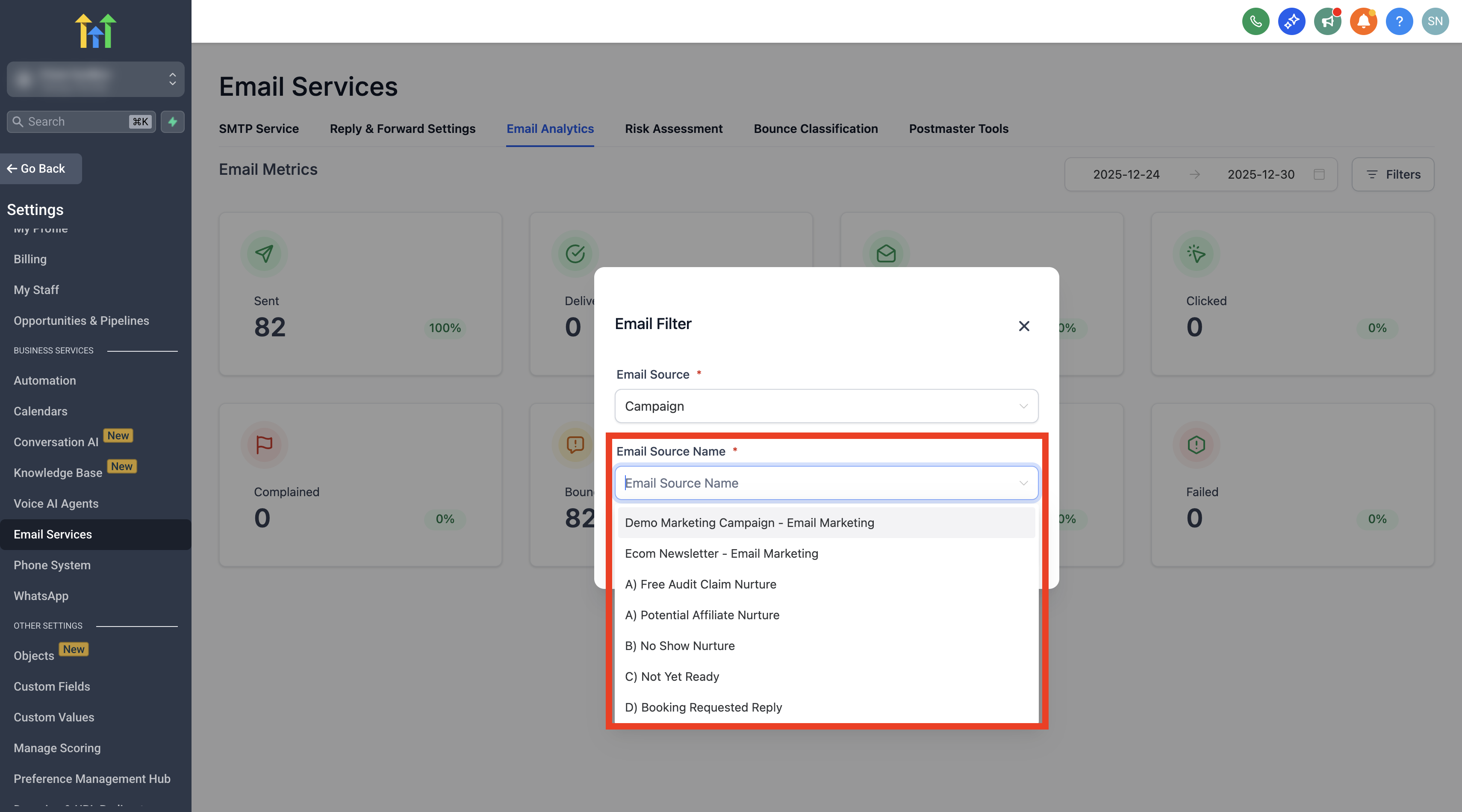
7
Click a Metric to View Matching Contacts
Click any metric box (e.g., Delivered) to open the contact list that matches that metric for the selected source and date range.
8
Paginate, Adjust & Refresh
Use Pagination (20/50/100 per page), tweak the Date Range, and hit Refresh to re-pull the list whenever you change filters.
9
Drill Into a Contact Record
Click any contact to open the full Contact record for deeper context, notes, or follow-up actions.
Frequently Asked Questions
Q: Why don’t I see results after choosing a Campaign in Filters? You must also select a Source Name (the specific campaign) and verify that the campaign was actually executed. Without a Source Name, the filter returns no results. Q: Can I filter multiple campaigns or workflows at once? You can select all or one source type, but multiple source names within that selected type are supported. Q: Do opens and clicks require tracking? Yes. If link tracking or open tracking is disabled, the Opened and Clicked metrics may be incomplete or missing. Q: What’s the difference between Bounced, Failed, and Complained?
- Bounced — rejected by the recipient’s mail server.
- Failed — send error occurred before any delivery attempt.
- Complained — recipient marked the email as spam. Q: Where do I change the date window? Use the Date Range picker at the top of Email Analytics, then click Refresh to apply the updated window. Q: Can non-LC providers use contact-level Email Analytics filtering? No. Contact-level Email Analytics filtering is available only for Email System sub-accounts. Was this article helpful? That’s Great! Thank you for your feedback Sorry! We couldn’t be helpful Thank you for your feedback Feedback sent We appreciate your effort and will try to fix the article