
Associations Between Opportunities, Companies & Custom Objects
With this feature, you can represent real-world relationships—for example, linking an Opportunity (deal) to Companies, Properties, or other Custom Objects—and also connecting Companies directly to Custom Objects. This creates a unified, contextual view across your business records, helping your team work faster and make more informed decisions.
- Key Highlights
- How to Create an Association
- Step 1: Open the Associations Tab(#Step-2%3A%C2%A0Configure-the-Association)
- Step 2: Configure the Association
- Managing Associations from Opportunities
- Viewing Associations in the CRM(#Opportunity-Details%E2%80%8B)
- Opportunity Details(#Kanban-View)
- Kanban View(#List-View)
- List View
- Tips
- Example Use Cases
- Frequently Asked Questions
- Related Articles
Why This Matters
Associations make your CRM more powerful and connected. Here’s why they matter:
- Gain a 360° view across Opportunities, Companies, and Custom Objects - Mirror real business relationships (e.g., deals ↔ companies ↔ assets like properties or policies) - Reduce time spent navigating across records by managing related information from one place - Use association data in workflows, reports, and exports for better tracking and personalization
Key Highlights
- Supports associations between:
- Opportunities ↔ Custom Objects - Companies ↔ Custom Objects - Companies ↔ Opportunities - Supports one-to-one, one-to-many, many-to-one, and many-to-many relationships - Create and manage associations directly from record panels - Search and link existing records instantly without leaving your workflow - View associated records across record details, Kanban cards, and List Views - Add association fields via Manage Fields → Association Label (Object Types)
How to Create an Association
Step 1: Open the Associations Tab 1.
Step 1: Open the Associations Tab
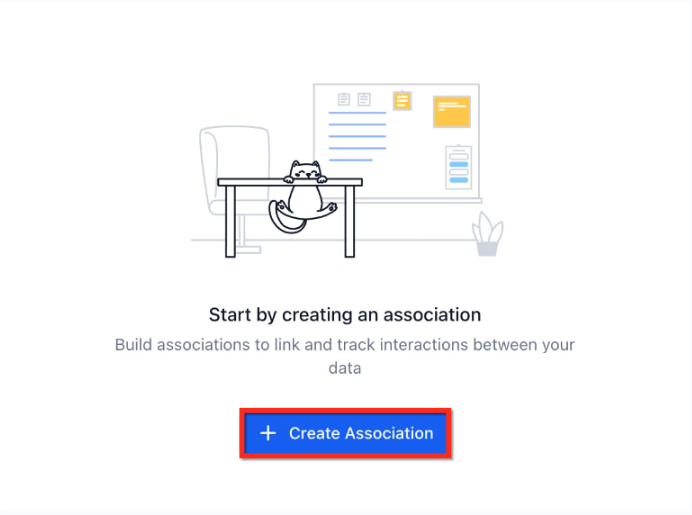
- Go to Settings → Custom Objects → [Your Object] - Click on the Associations tab - Click Create Association _
_
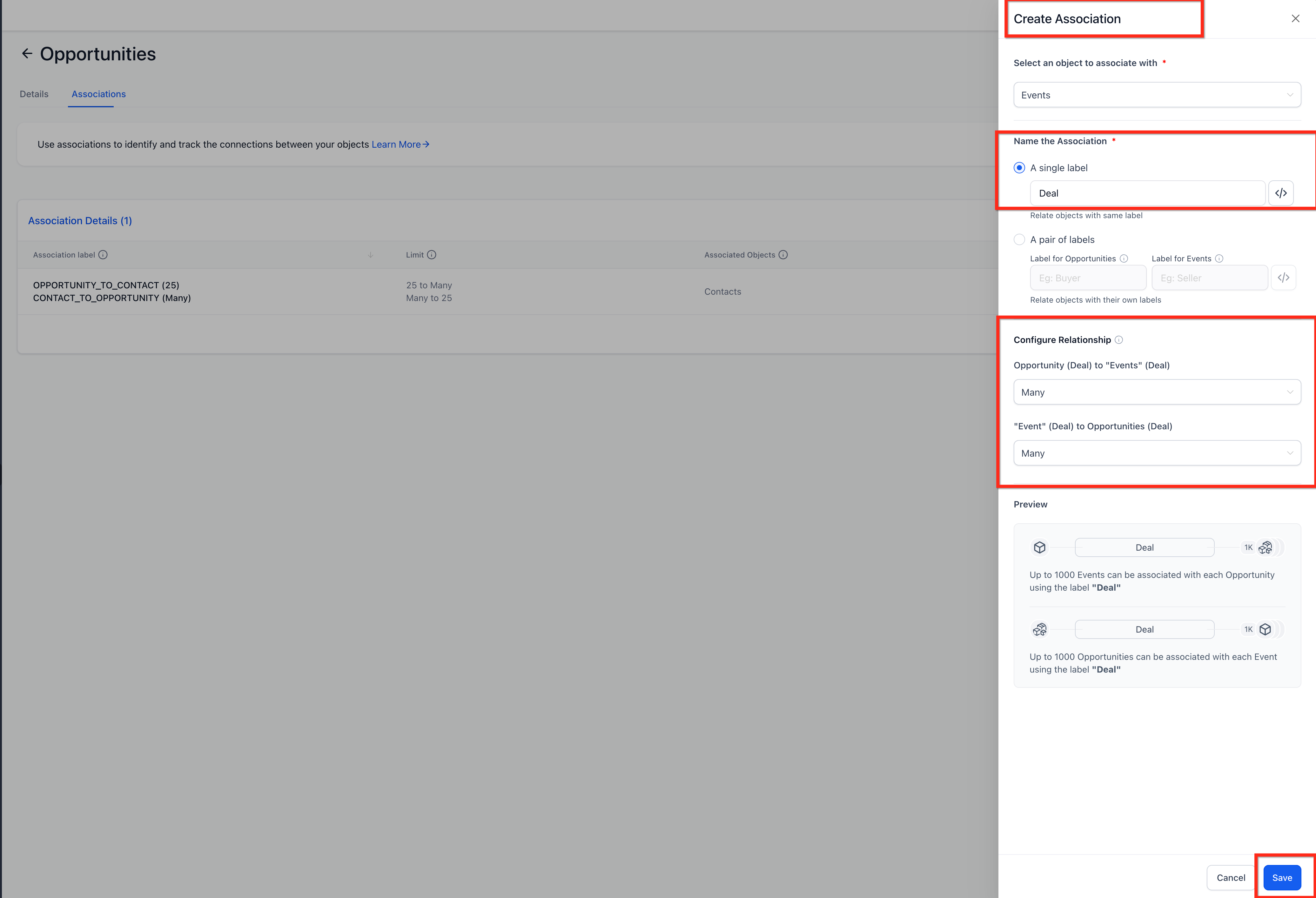
Step 2: Configure the Association
- Select the object to associate with (Opportunities or Companies) - Name your association:
- Single Label (e.g., “Deal”)
- Pair of Labels (e.g., “Buyer ↔ Seller”) - Configure the relationship type:
- One-to-One - One-to-Many / Many-to-One - Many-to-Many - (Optional) Set record limits (up to 1,000) - Review preview → Click Save _
_
Managing Associations from Records
You can manage associations from any supported record type:
From Opportunities
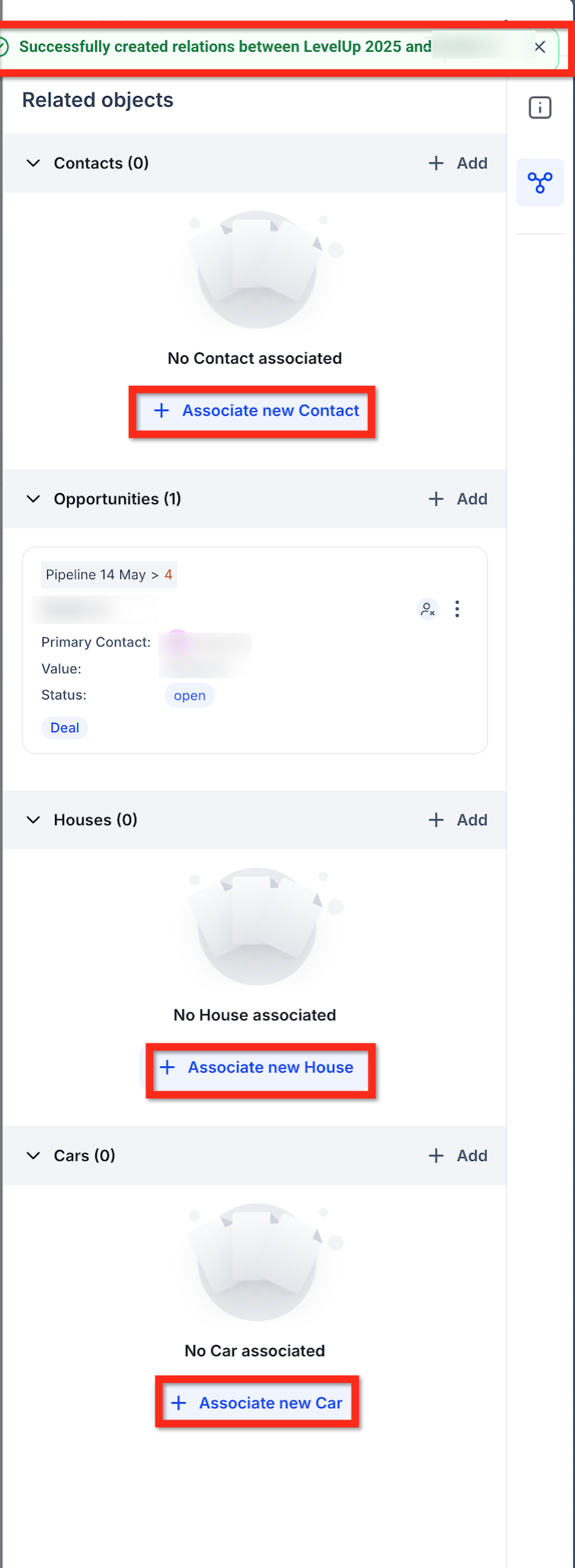
- Open an Opportunity - Go to Associated Objects - Click + Associate - Select Company or Custom Object
From Companies
- Open a Company - Go to Associations / Related Objects - Link Opportunities or Custom Objects
From Custom Objects
- Open a Custom Object record - Add associated Opportunities or Companies All associations appear instantly and can be edited anytime. _
_
Viewing Associations in the CRM
Record Details
- All linked records (Opportunities, Companies, Custom Objects) appear in the Associated Objects panel - Open any linked record in a side panel without leaving your current screen
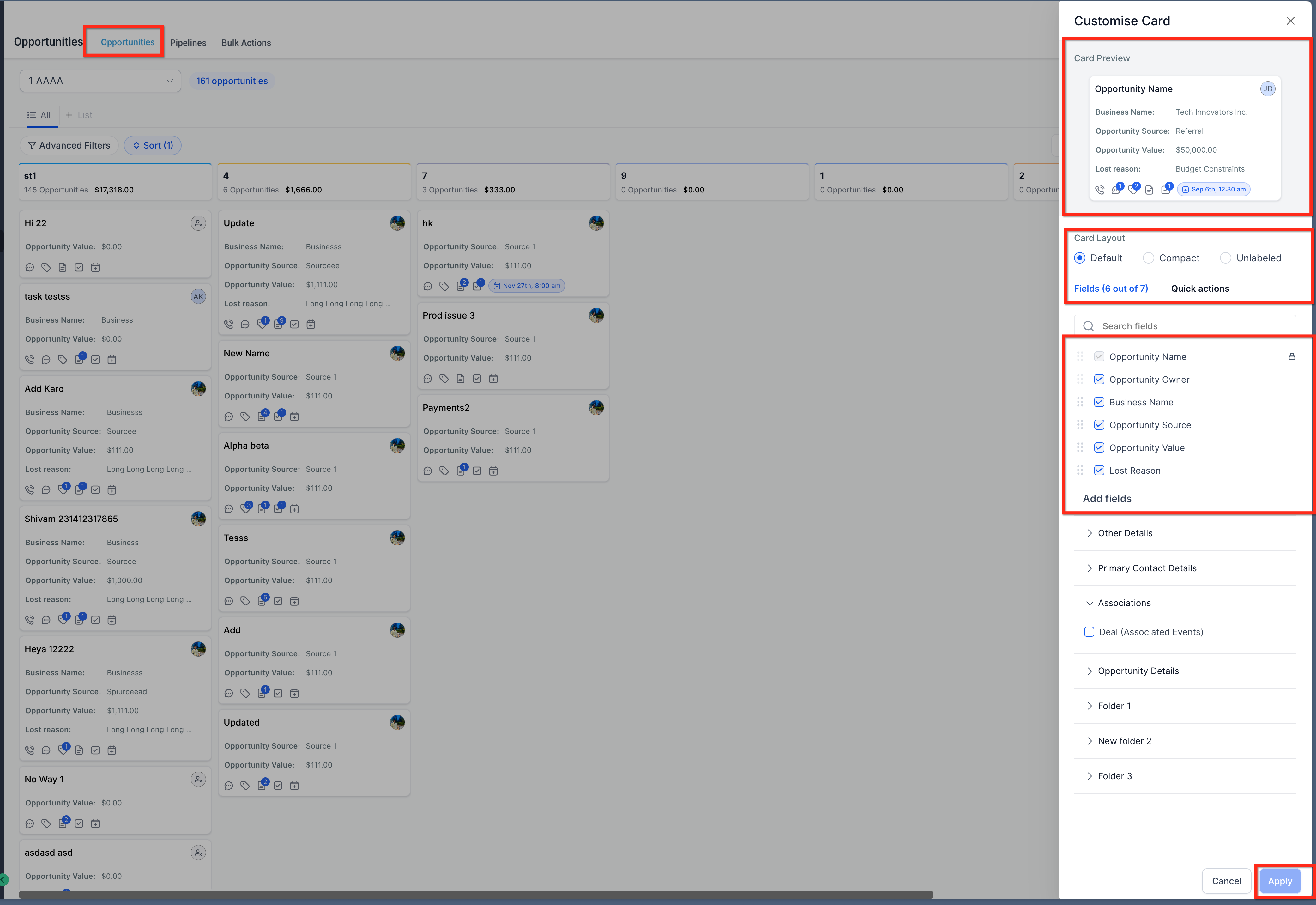
Kanban View (Opportunities)
- Go to Opportunities → Manage Fields - Add Association Label (Object Type) to cards - View linked Companies or Custom Objects directly on cards _
_
List View
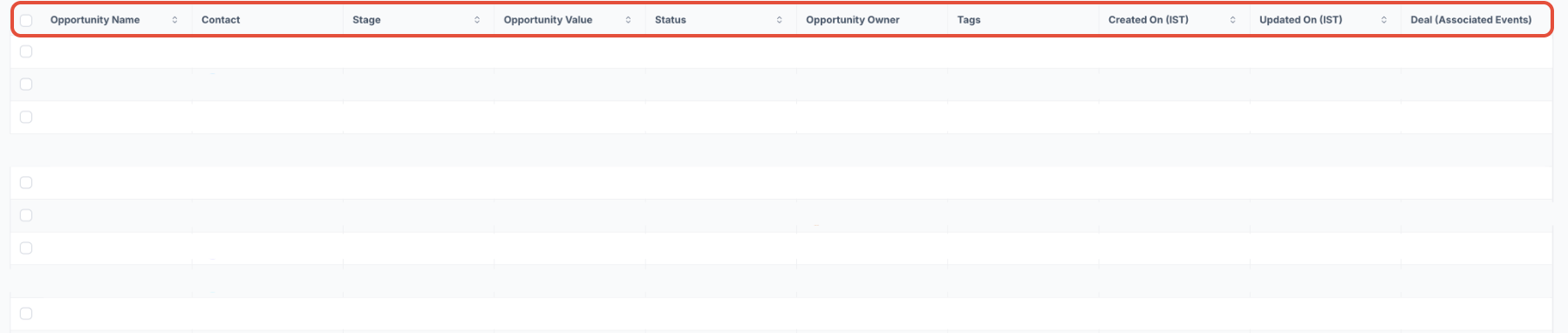
- Add Association fields as columns - View all linked records in one place - Useful for filtering, bulk actions, and exports _
_
Tips
- Create up to 10 labels per object pair - Each label supports up to 1,000 linked records per side - Associations are automatically removed if a record is deleted - Add association fields to reports and exports via Manage Fields - API and automation support is coming soon
Example Use Cases Real Estate
Link Properties (Custom Objects) ↔ Opportunities ↔ Companies to track buyers, listings, and agencies in one place Events Connect Events (Custom Objects) ↔ Companies ↔ Sponsorship Opportunities Insurance Associate Policies/Quotes (Custom Objects) ↔ Opportunities ↔ Companies for full lifecycle tracking
Frequently Asked Questions Q: Can I limit relationships?
Yes — use One-to-One or set limits in configuration Q: Will renaming labels break associations? No — only the display label changes Q: Can I bulk import associations? Not yet Q: Can I use this in reporting? Yes — via association fields Q: What happens on delete? Associations are automatically removed
Related Articles
- Associations for Custom Objects
- Customize Opportunity Cards in Board View - Using Custom Fields for Opportunities