
How to Add a Countdown Timer in WhatsApp Templates
What are Countdown Timers in WhatsApp Templates?
Countdown Timers in WhatsApp Messages let you place the same Patient Copilot timers you already use in emails, funnels, and websites inside a WhatsApp template button. When a recipient taps the button, they are routed to your “active” or “expired” link based on the timer’s live status, giving every message a built-in deadline that boosts click-through and conversions. The feature supports fixed-date timers, recurring timers, and fully personalized dynamic timers that start for each contact the moment the WhatsApp is sent or delivered.
Key Benefits of Countdown Timers in WhatsApp
- Urgency & Conversions: Real‑time countdowns motivate immediate action and purchases.
- Multiple Timer Types: Choose Fixed, Recurring, or Dynamic timers to match your promotion model.
- Active/Expired Routing: Automatically send visitors to the correct page before and after expiry.
- Workflow Branching: Branch automations based on timer button clicks.
Supported Countdown Timer Types
Selecting the right timer type ensures your message, page, and automation stay in sync across time zones and send times.
- Fixed: ends at a specific date/time (for events like Black Friday). Best for one‑time campaigns with a hard deadline.
- Recurring: repeats on a schedule (daily/weekly). Ideal for evergreen or “weekly special” offers.
- Dynamic: personal, per‑contact duration that starts on a trigger (e.g., message sent or delivered). Great for personalized, time-limited offers like “Redeem within 12 hours of receiving this message.”
How to Add a Timer in a WhatsApp Template
Follow these steps to attach a timer to your template, configure Dynamic behavior, and guarantee proper routing before and after expiry.
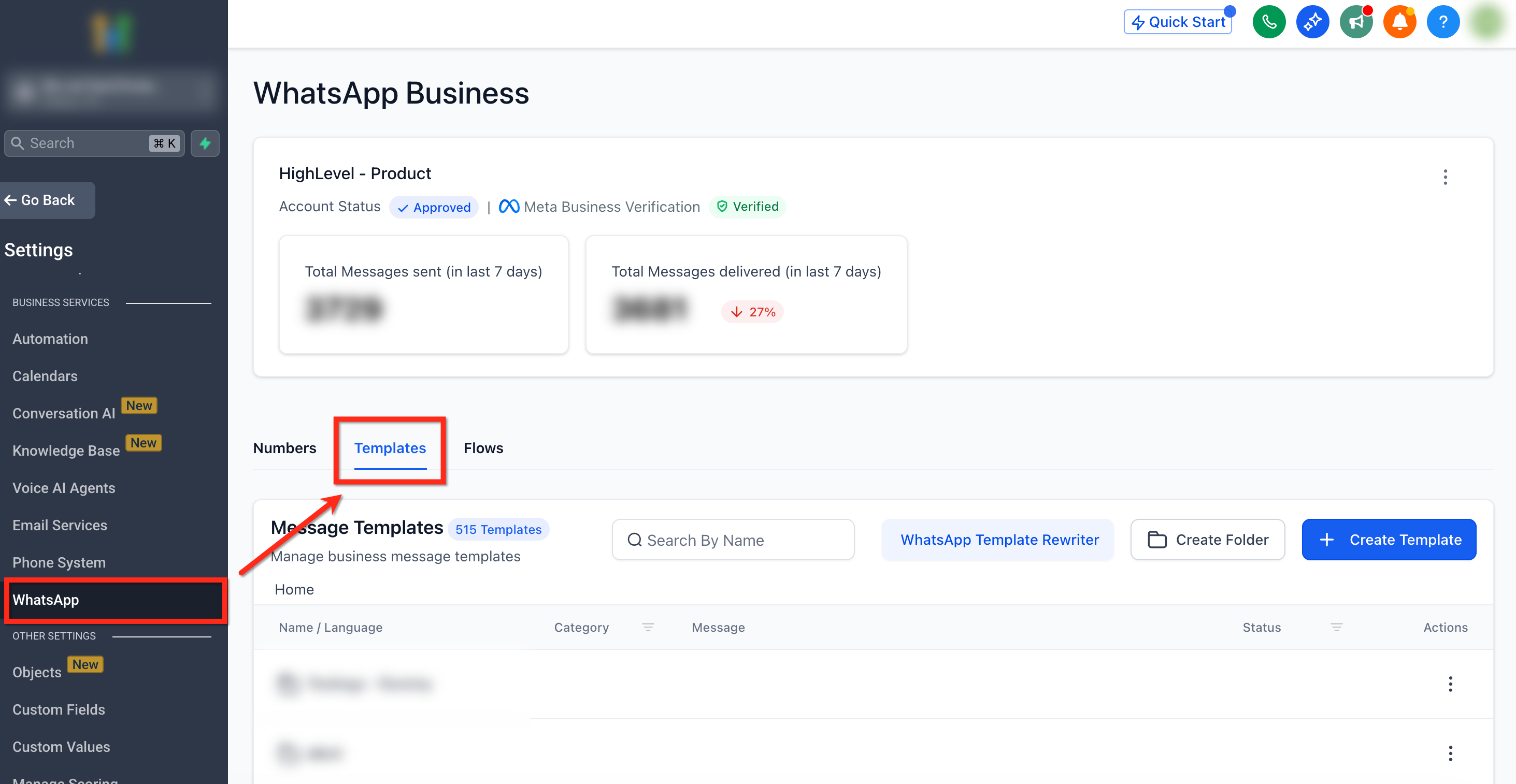
Step 1: Navigate to WhatsApp Templates
- Navigate to Settings → WhatsApp - In the secondary navigation ribbon, select the Templates tab
Step 2: Open a Template
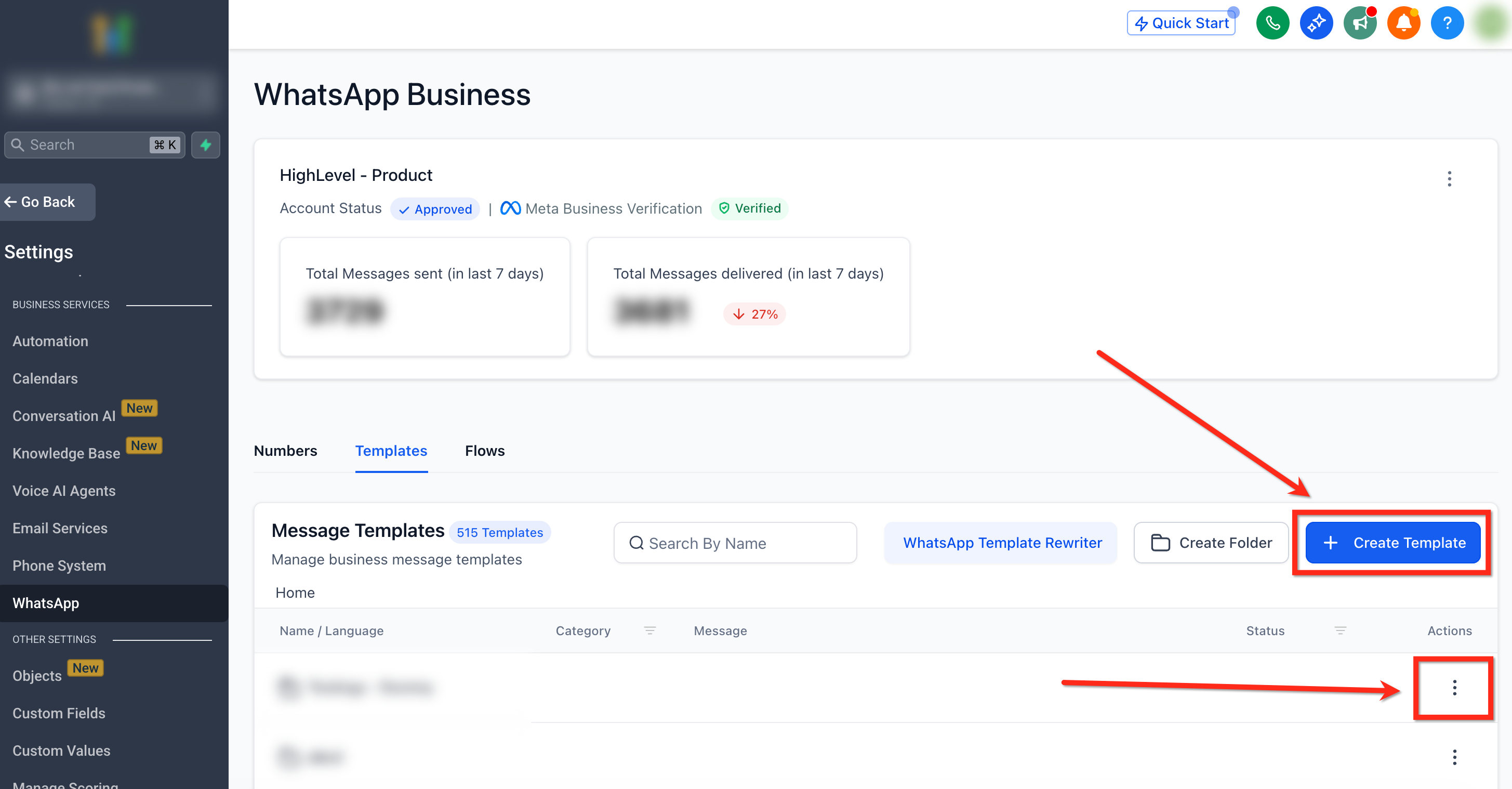
- Click the blue + Create Template button to create a new template or select an existing one to edit
- Fill in Template Details including Name, Category, Language, Header, Body and Footer.
Step 3:
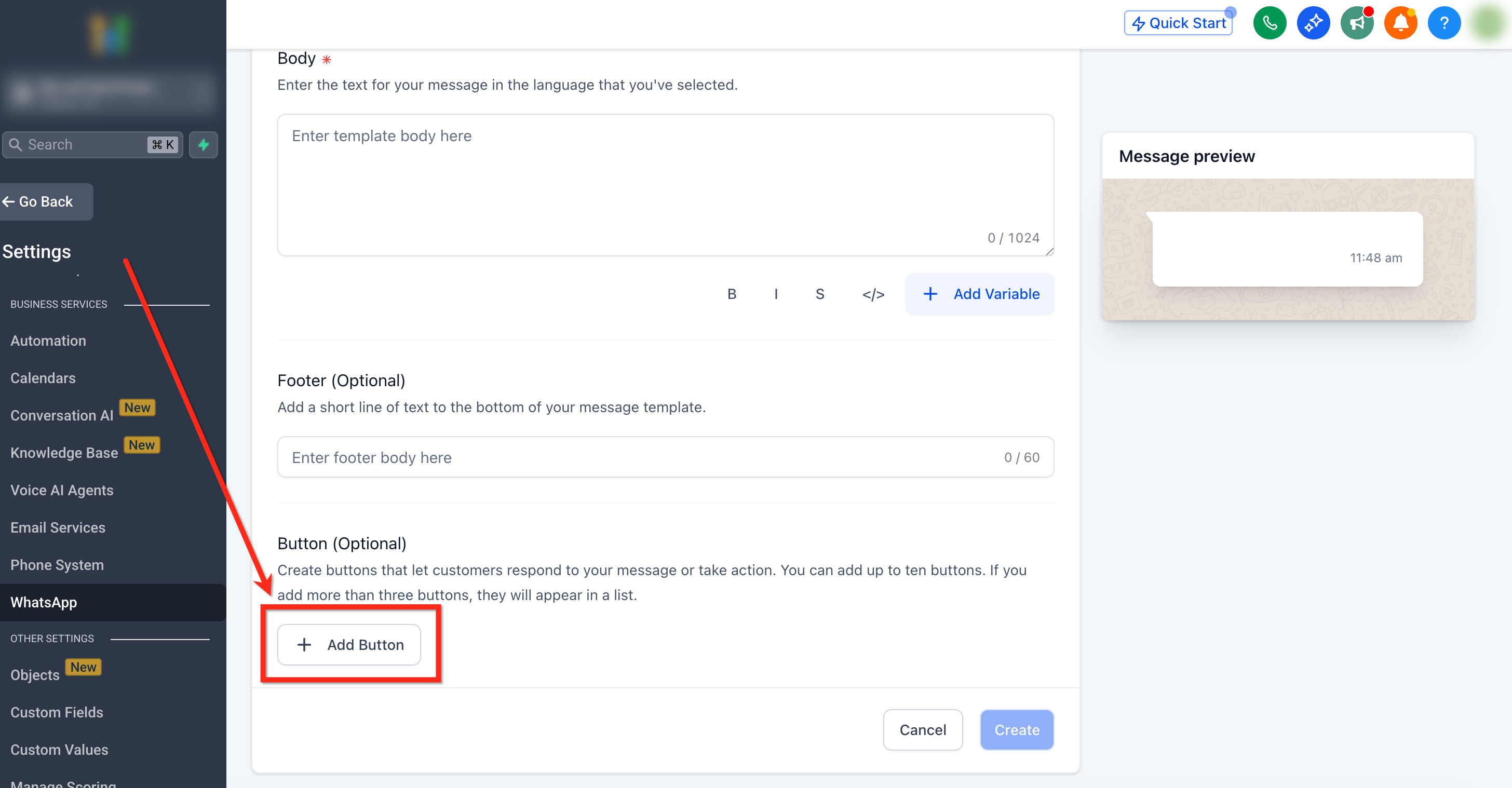
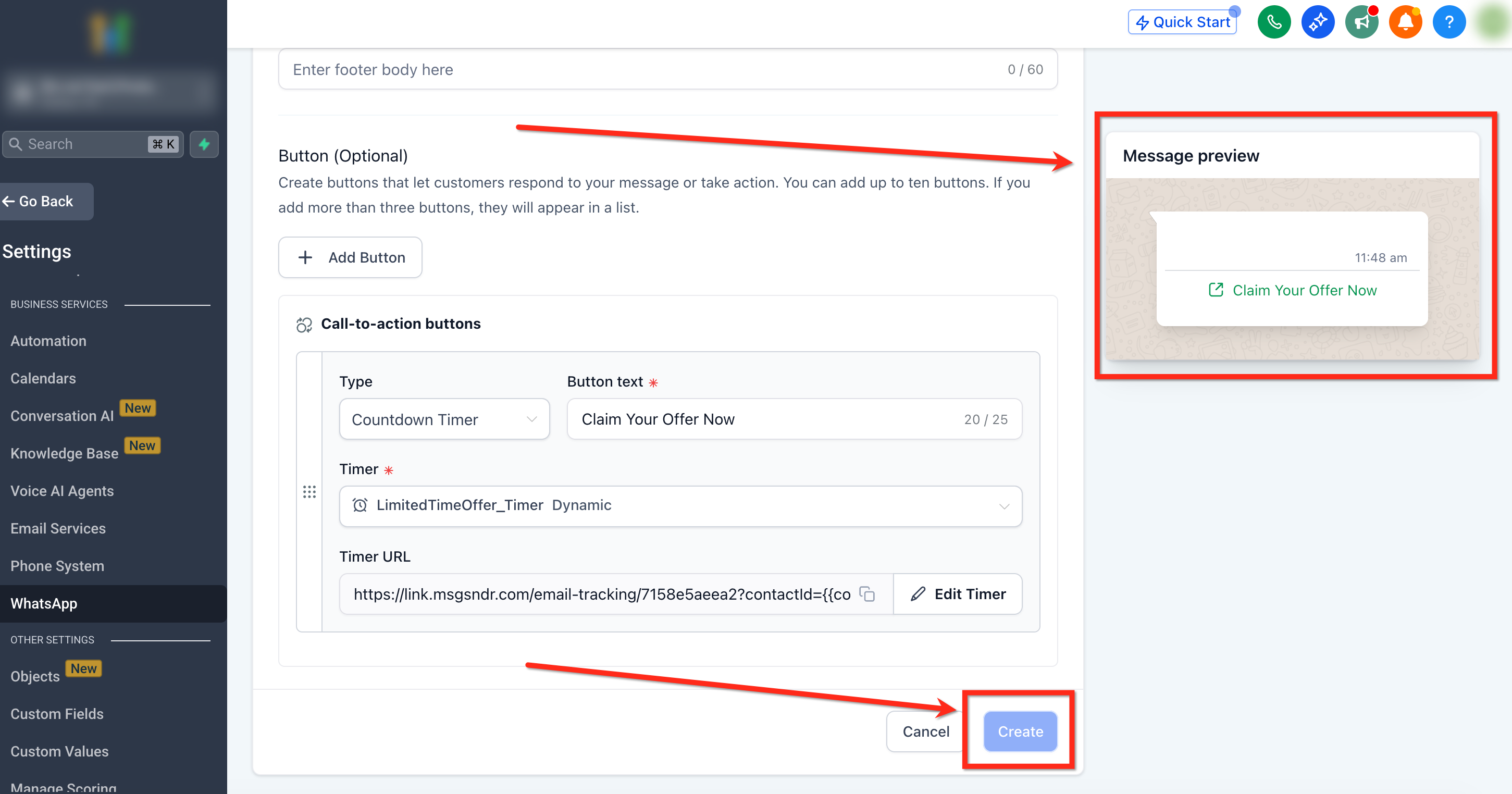
Add the Countdown Timer Button Under the Button section, click the + Add Button button then select Countdown Timer from the dropdown
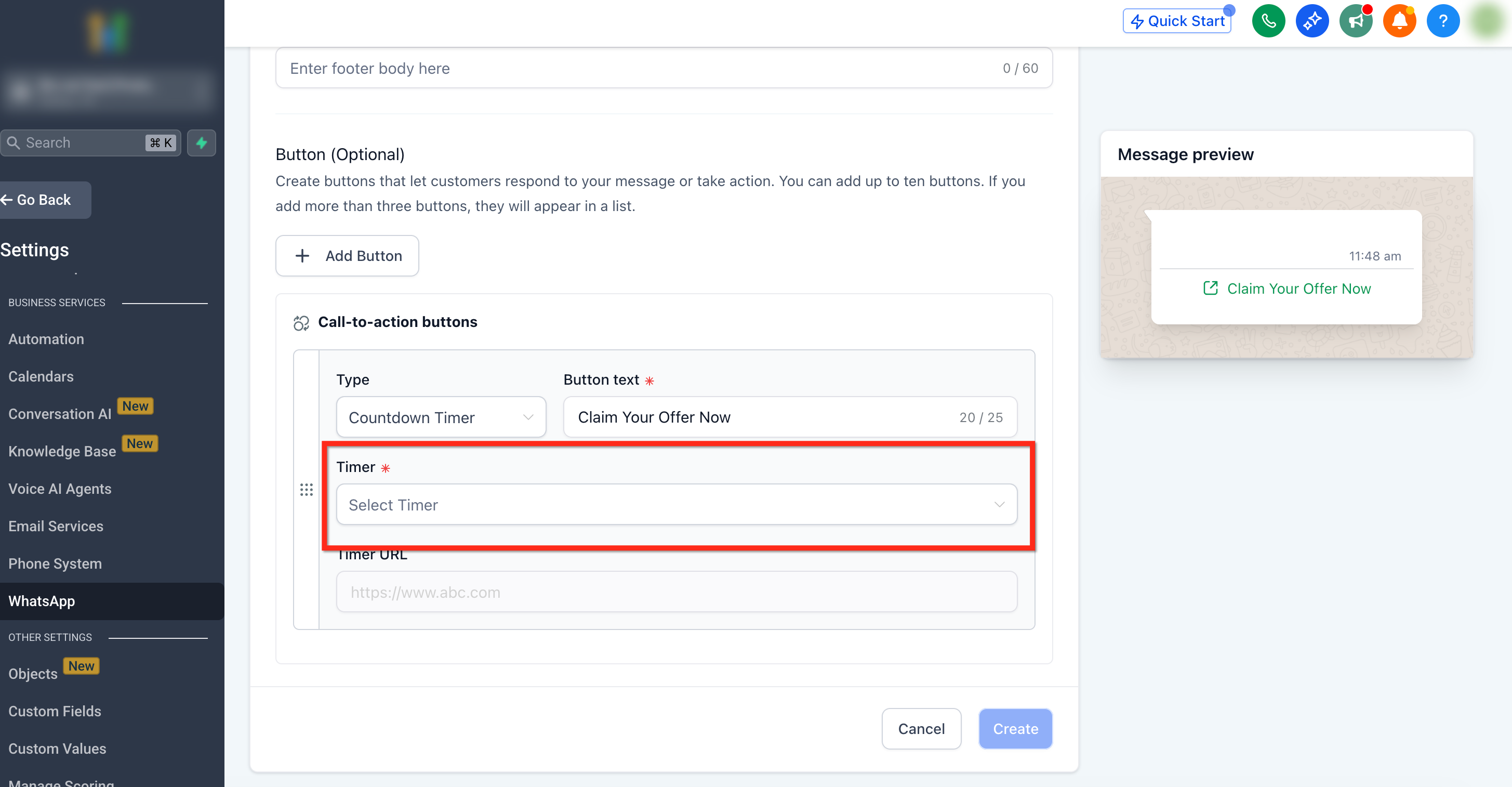
Step 4: Choose or Create a Timer Open the Timer dropdown and either select an existing timer or click + Create New.
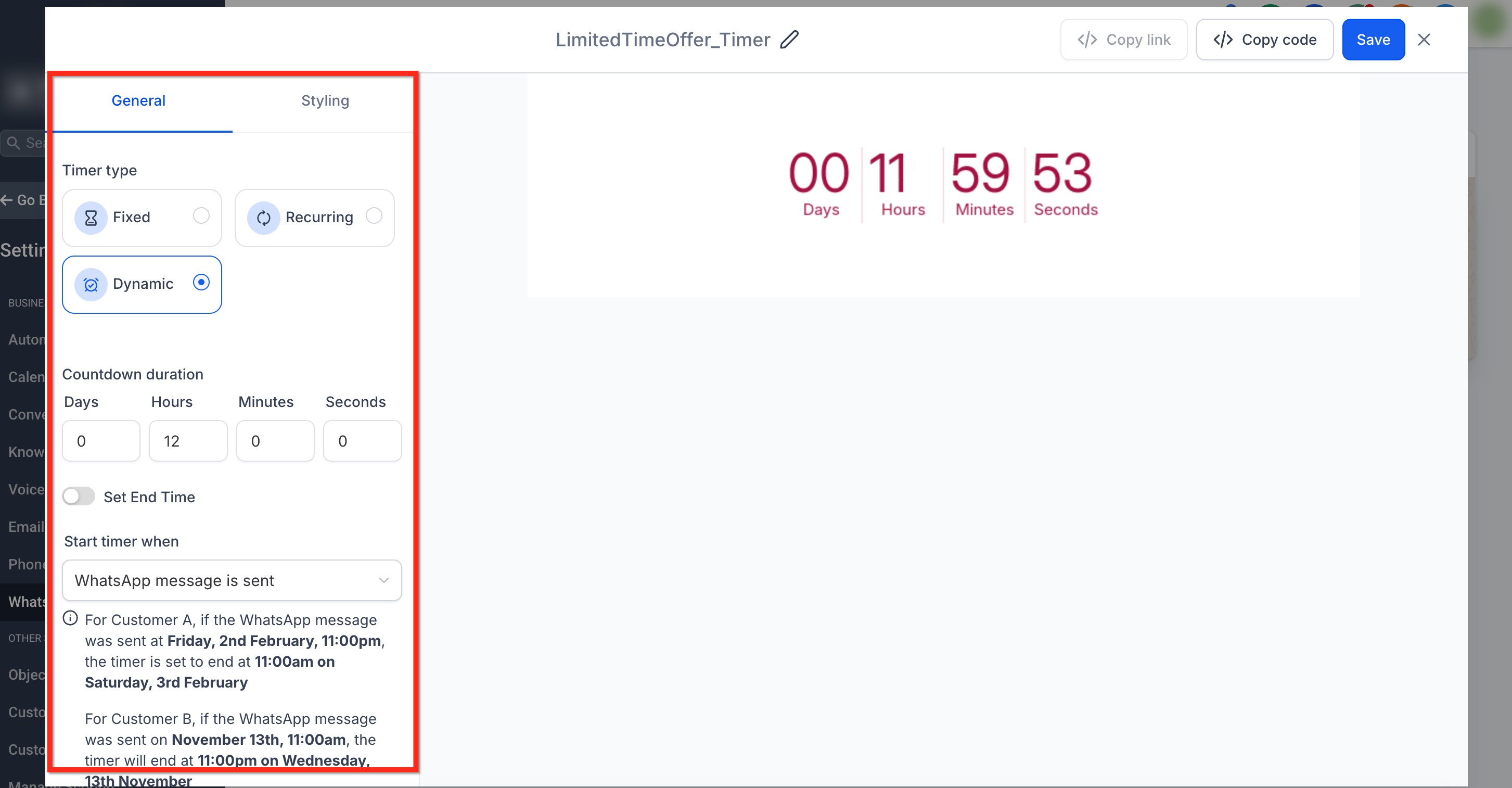
Step 5: Configure the Timer
After selecting the timer, click Edit Timer under Timer URL. This opens the timer settings where you can adjust:
- Timer Type: Fixed, Recurring, or Dynamic.
- Countdown duration: set the duration or specific end time.
- Start timer when: For Dynamic Timers, choose a trigger such as: - WhatsApp message is delivered
- Active link: the live offer/checkout/booking page used before expiry.
- Expired link: a fallback page shown after expiry (e.g., waitlist or alternative offer). _
_
Step 6: Save and Preview
- Review the message preview to see a preview of your template.
- Click the blue Create button to finalize your WhatsApp template.
Frequently Asked Questions
Q: Can I use more than one timer in a single WhatsApp message?
You can add up to two Countdown Timer buttons, combined with “Visit Website” or “Trackable Website.” Q: What happens when the timer expires? Once expired, the user will be redirected to the expired offer page (based on your timer settings). Q: Can I edit a timer after creating it? Yes — click Edit Timer to change duration, style, or triggers anytime. Q: Do dynamic timers show different countdowns per user? Yes — each contact gets a unique countdown based on their trigger event (e.g., when the WhatsApp message was sent). Q: Why do I see “No link found” under Timer URL? It means your timer doesn’t yet have a redirect link. Click Edit Timer and add a dynamic link or URL. Q: What are active and expired links? The active link is the link of the page that has the offer page (The page with discounts, offers, free registration etc.) and the expired page is where you want the user to land when the offer expires. Make sure your offer page also has the same timer so that it expires automatically with the timer and redirects to expiry page. Q: Can I branch workflows based on a Countdown Timer button click? Yes. Use a Trigger Link as the Timer URL so clicks are tracked and can power branches in workflows.