Messaging setup & troubleshoot
This guide will help you connect your Facebook Page and Instagram Business Account so that you can manage conversations directly from the CRM.
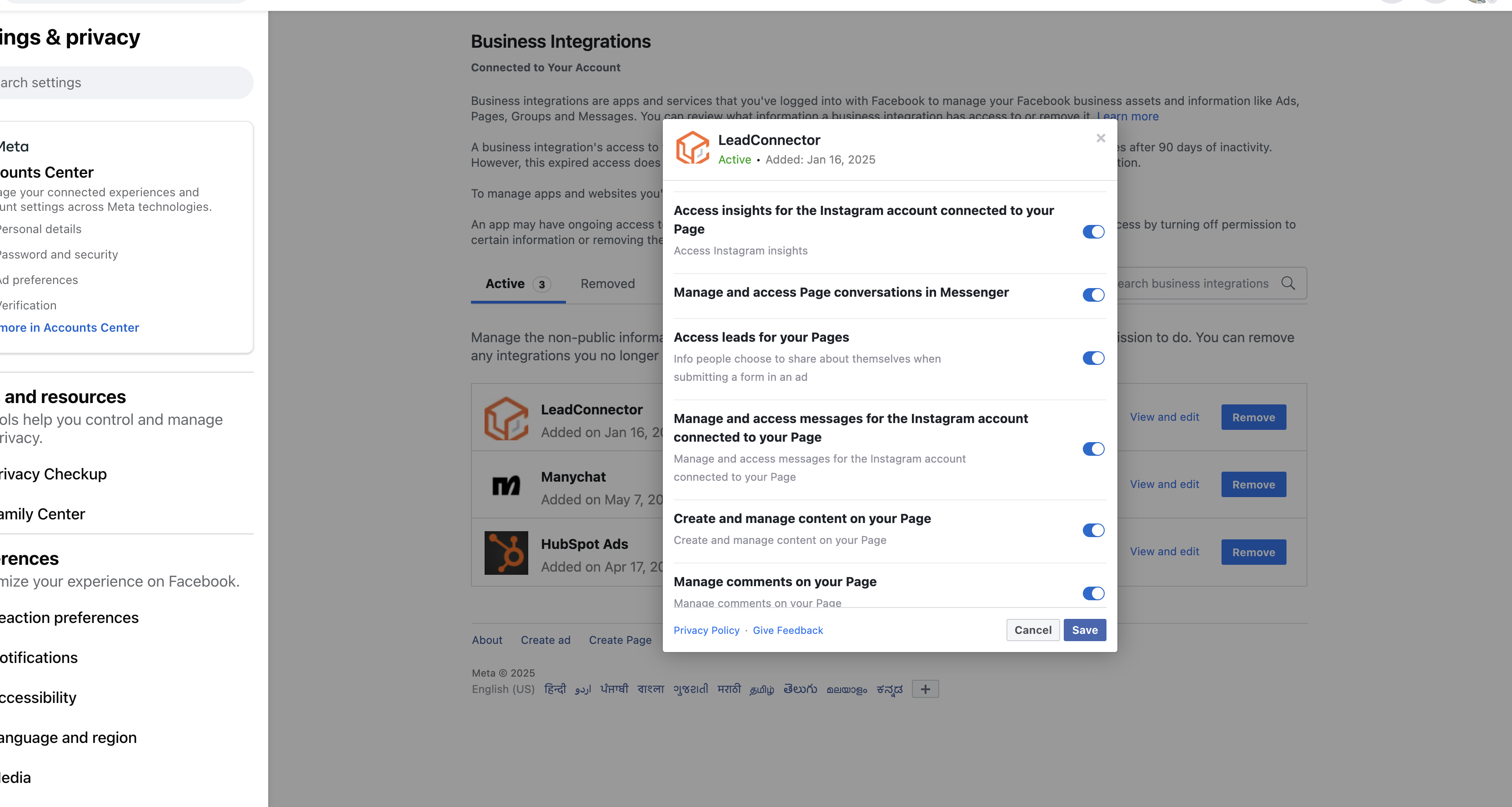
FB page messaging setup: 1. Patient Copilot should have access to send message and access message for the page (https://www.facebook.com/settings?tab=business_tools&ref=settings)
[
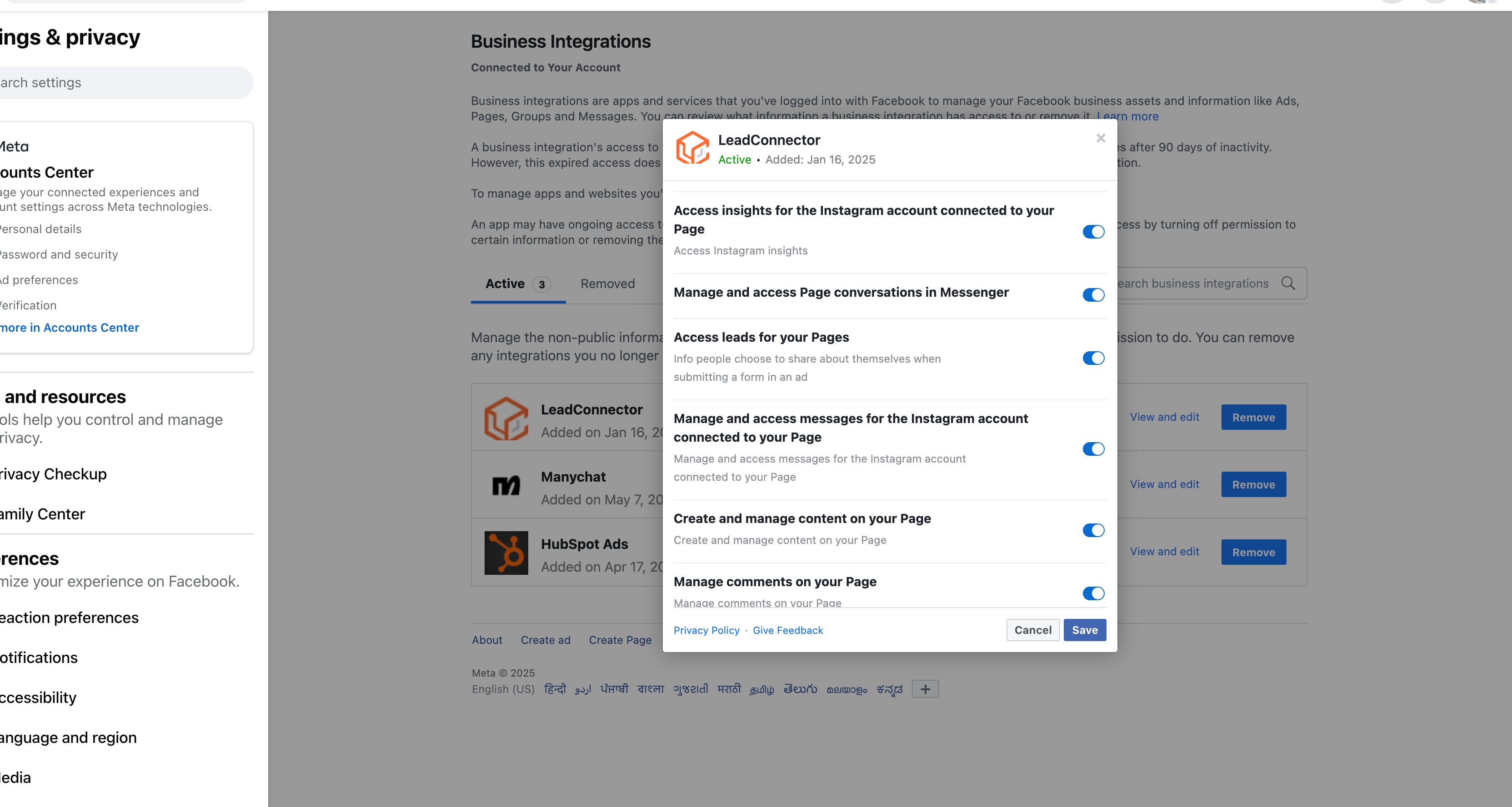
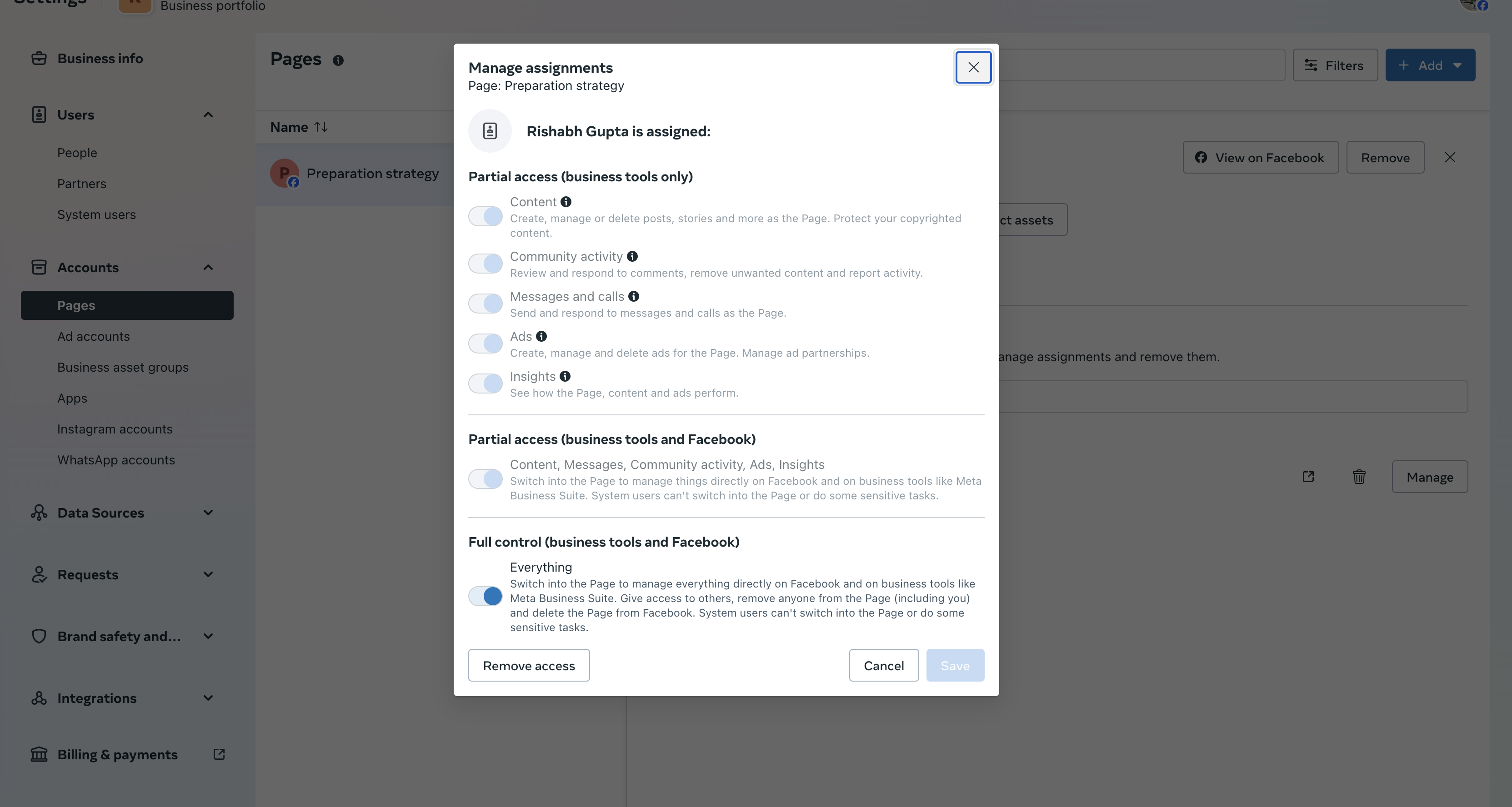
](https://s3.amazonaws.com/cdn.freshdesk.com/data/helpdesk/attachments/production/155046611201/original/560dNU3lKrXB3ADHgcxA9uUfY8O2B6oMvw.png?1747220054) 2. User account should have full access to page and should have message access. ( Link: https://business.facebook.com/latest/settings) [
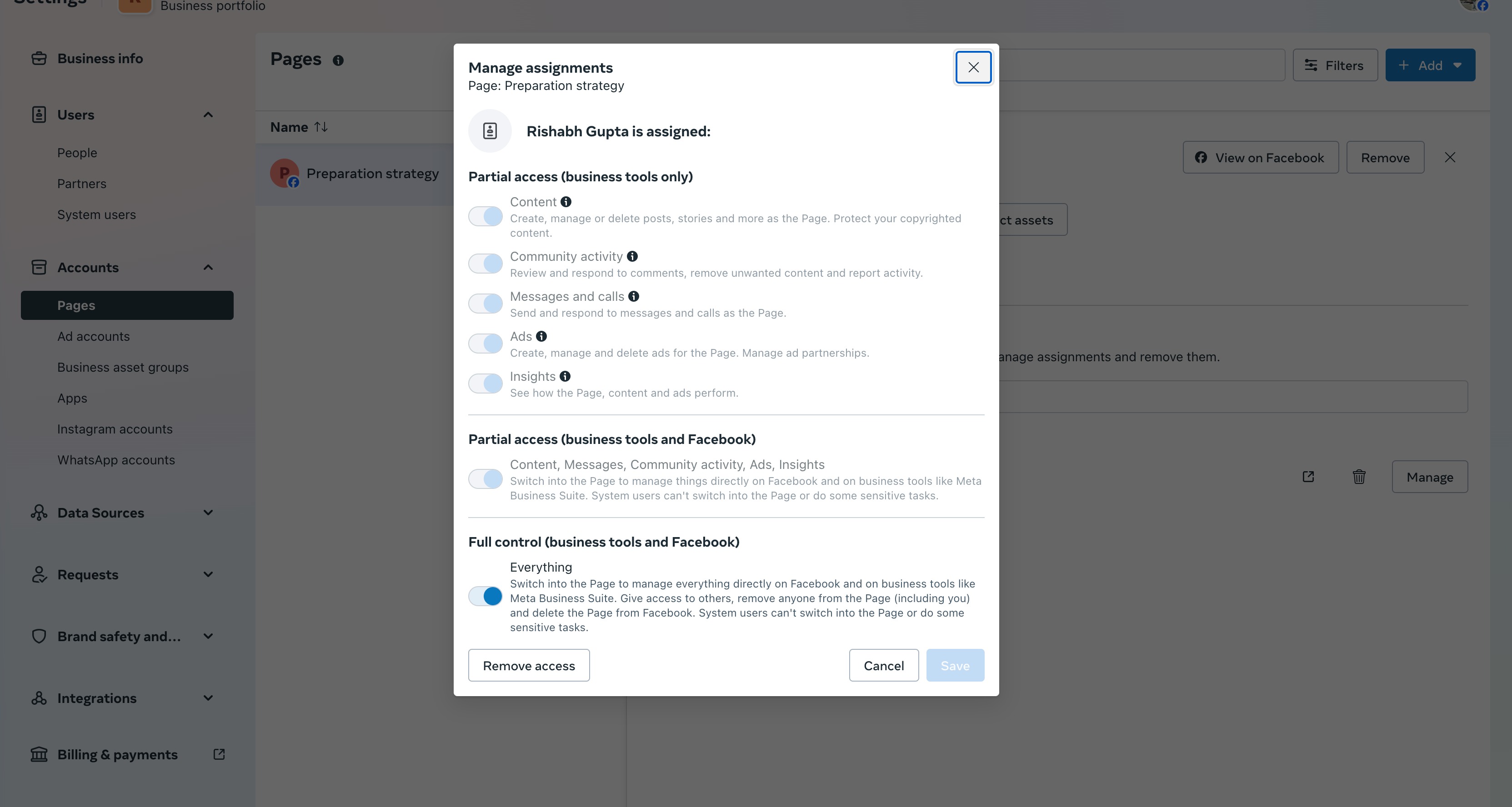
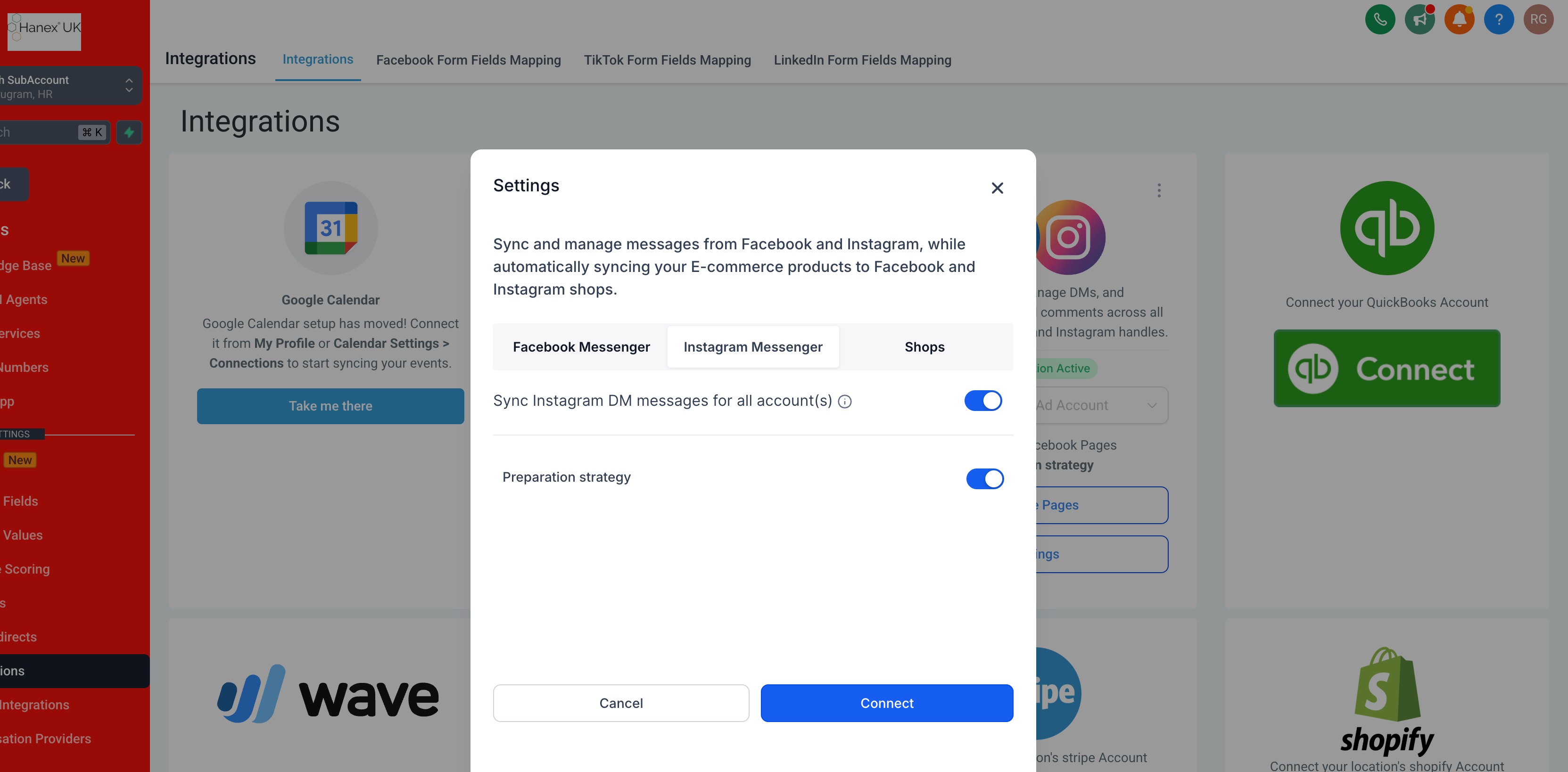
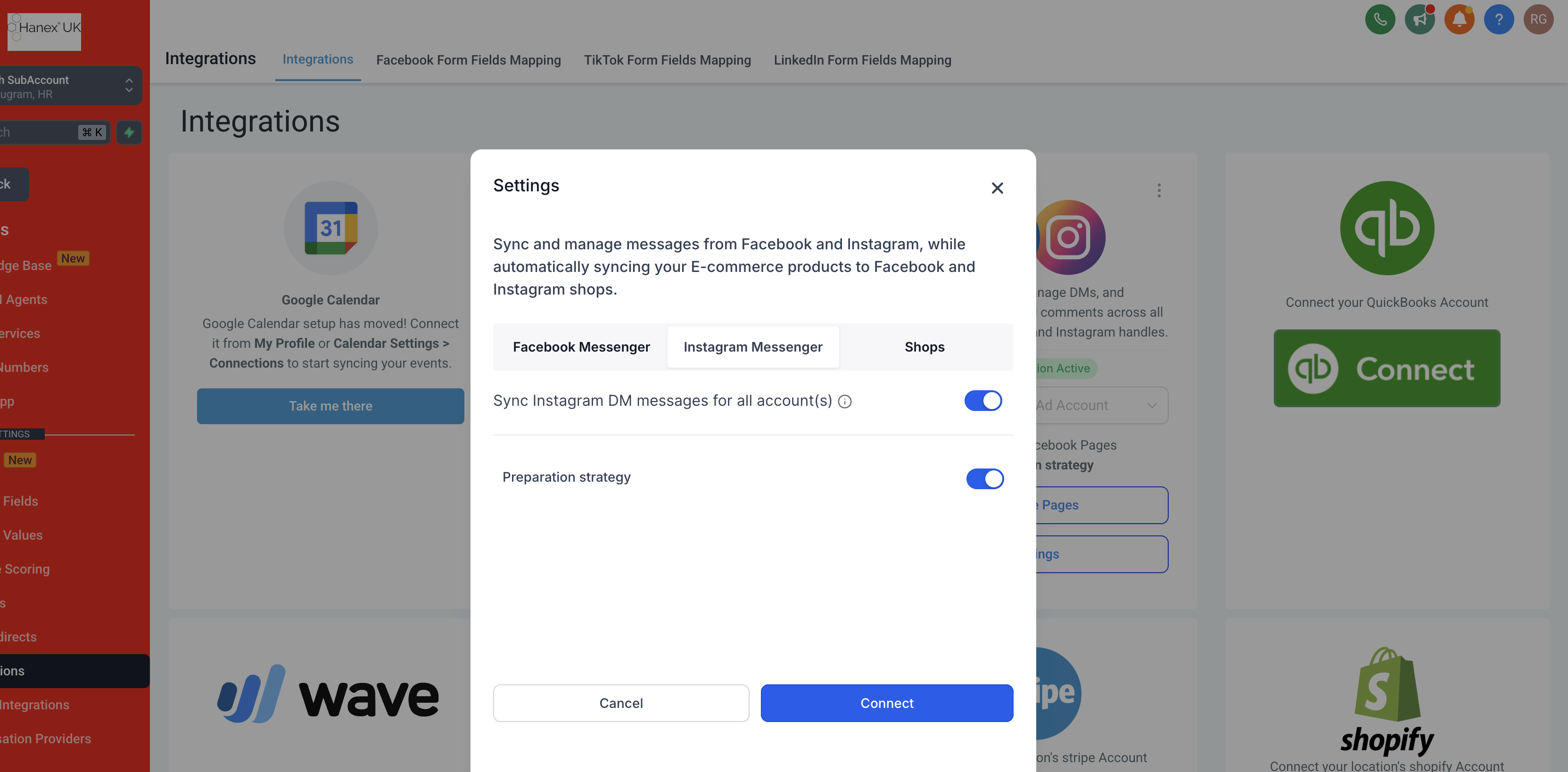
](https://s3.amazonaws.com/cdn.freshdesk.com/data/helpdesk/attachments/production/155046618449/original/jD5YyOakvOAc3JTp5SfO-NdLt6qeSc-1vQ.png?1747225602) 3. FB messenger should be enabled in Settings >> Integration >> Facebook card >> Settings [
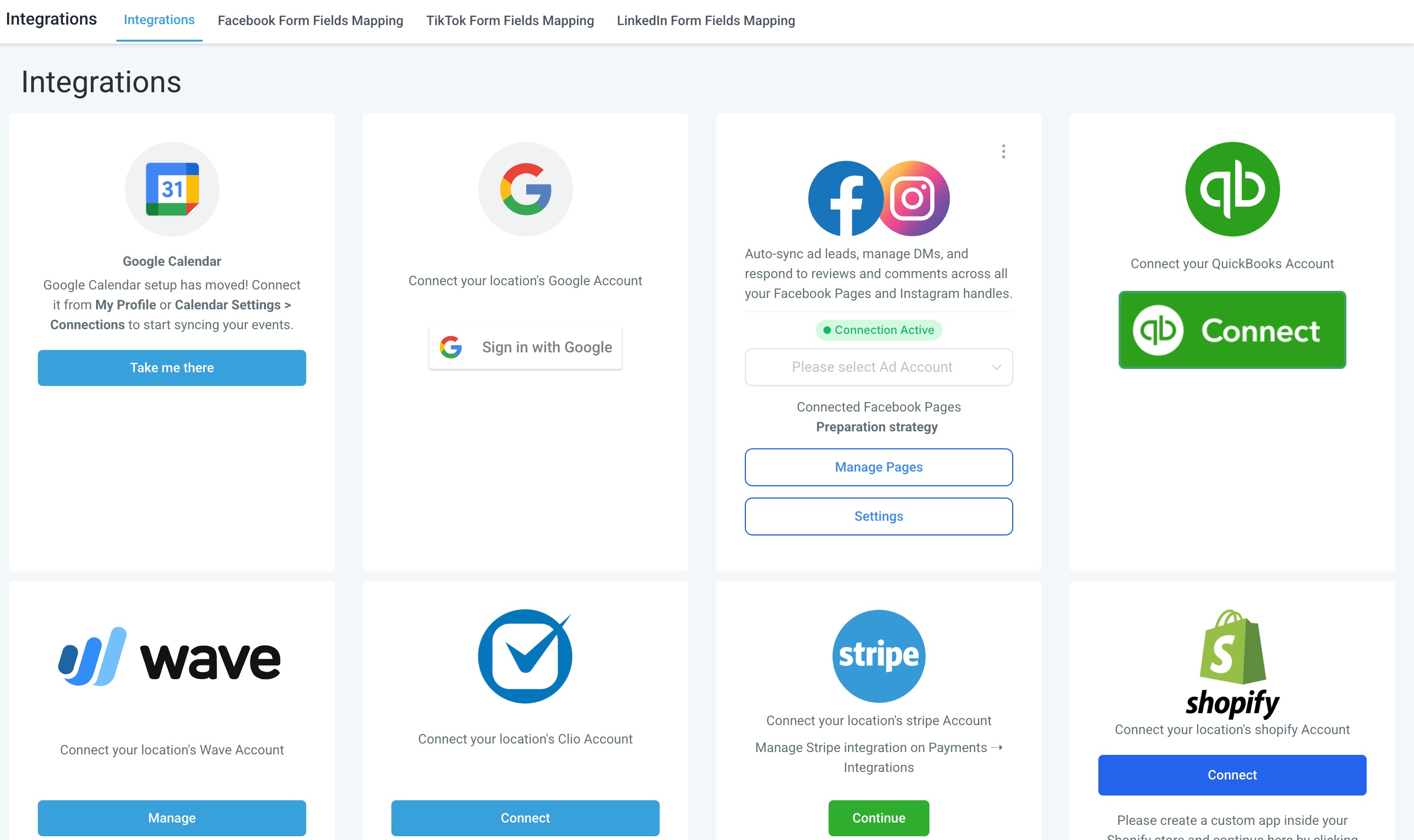
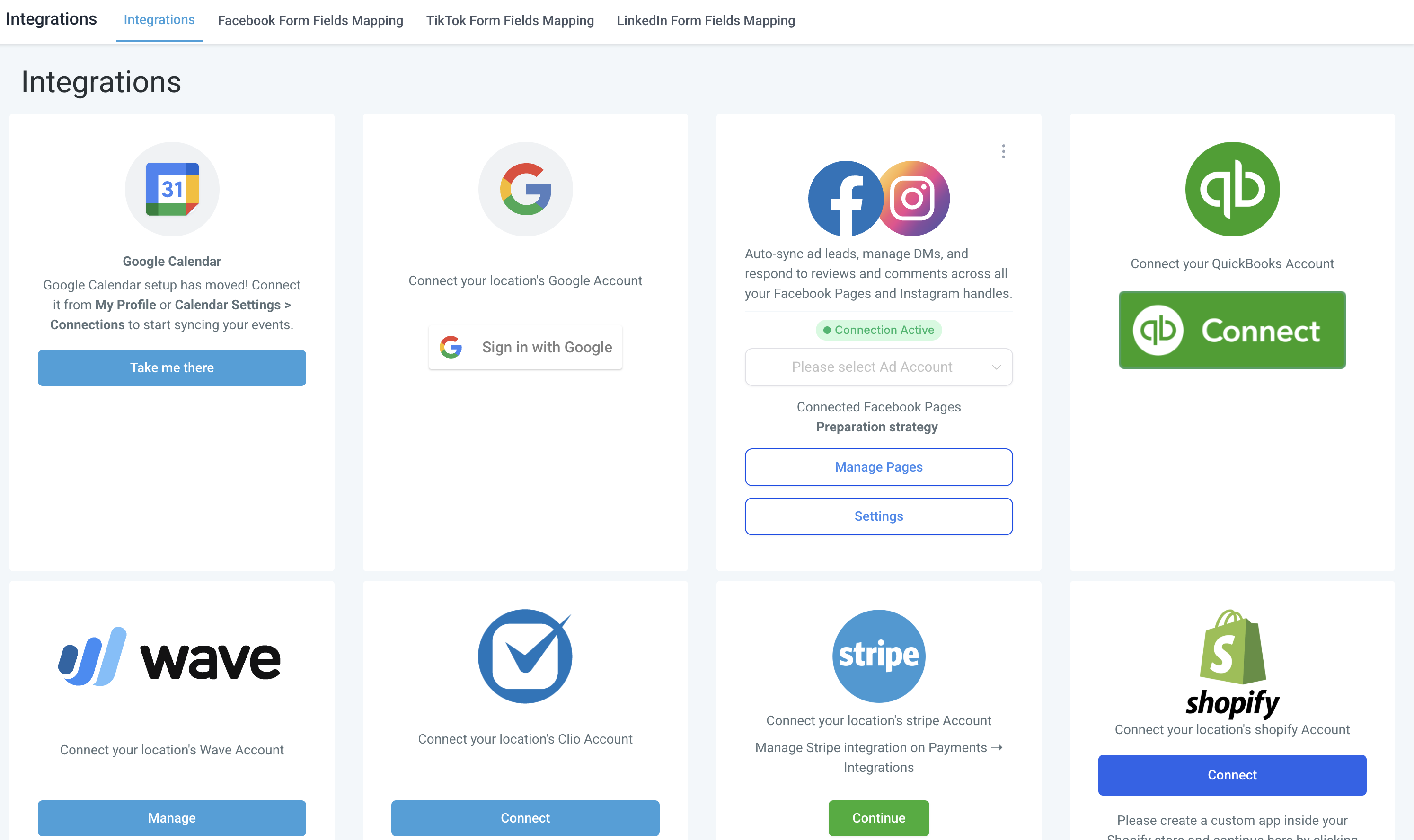
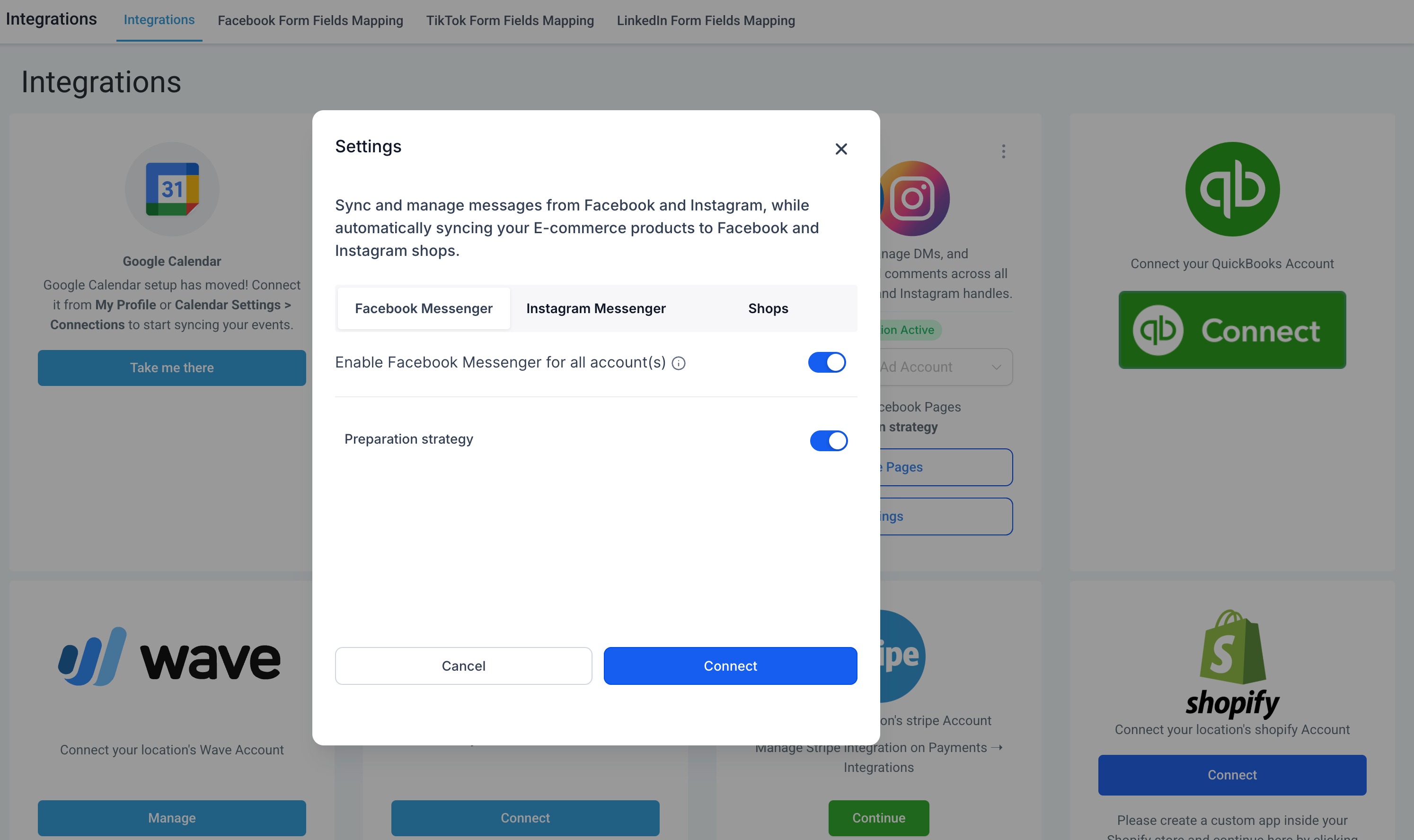
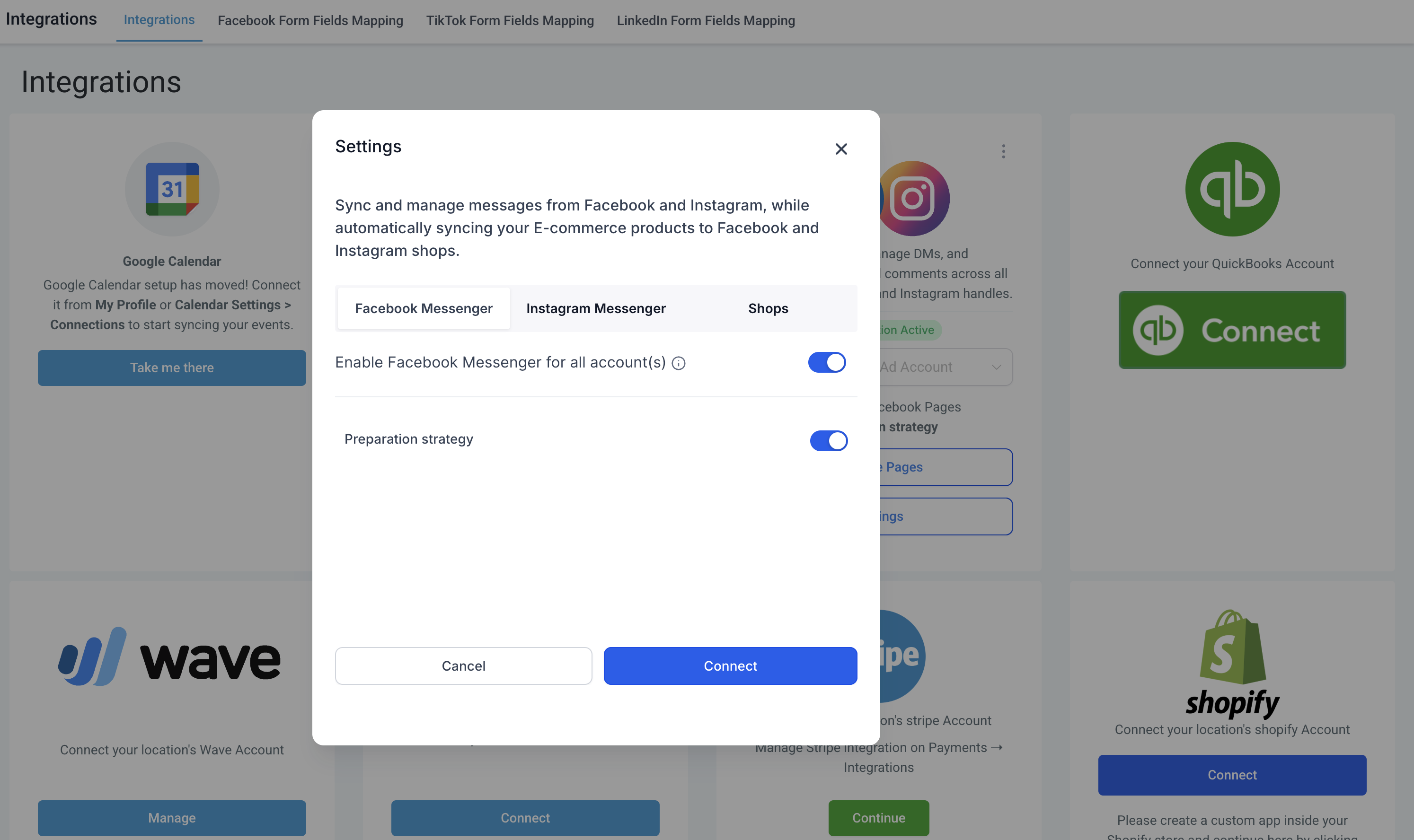
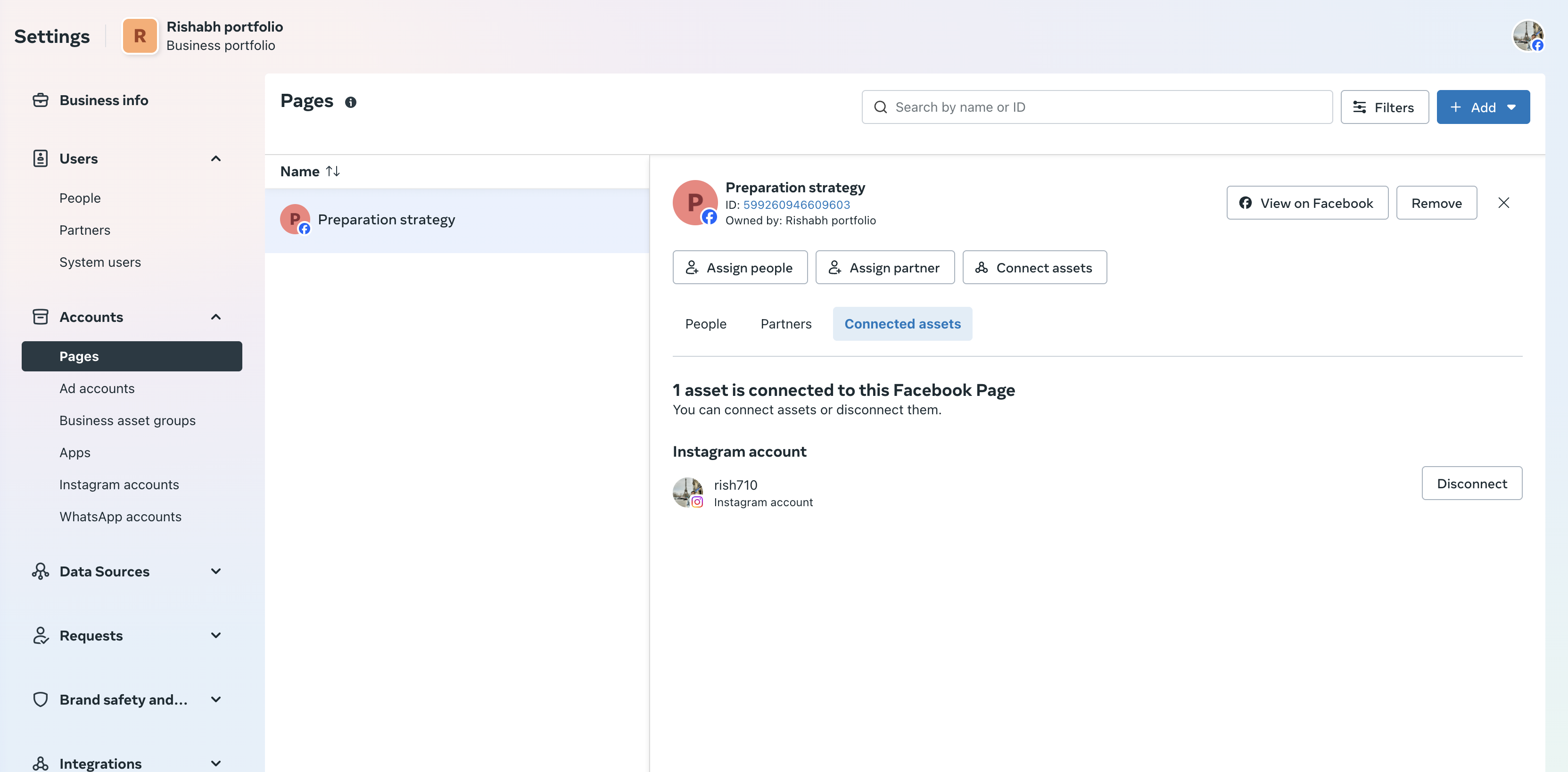
Instagram Messaging setup: 1. Patient Copilot should have access to send message and access message for the page (https://www.facebook.com/settings?tab=business_tools&ref=settings)
[
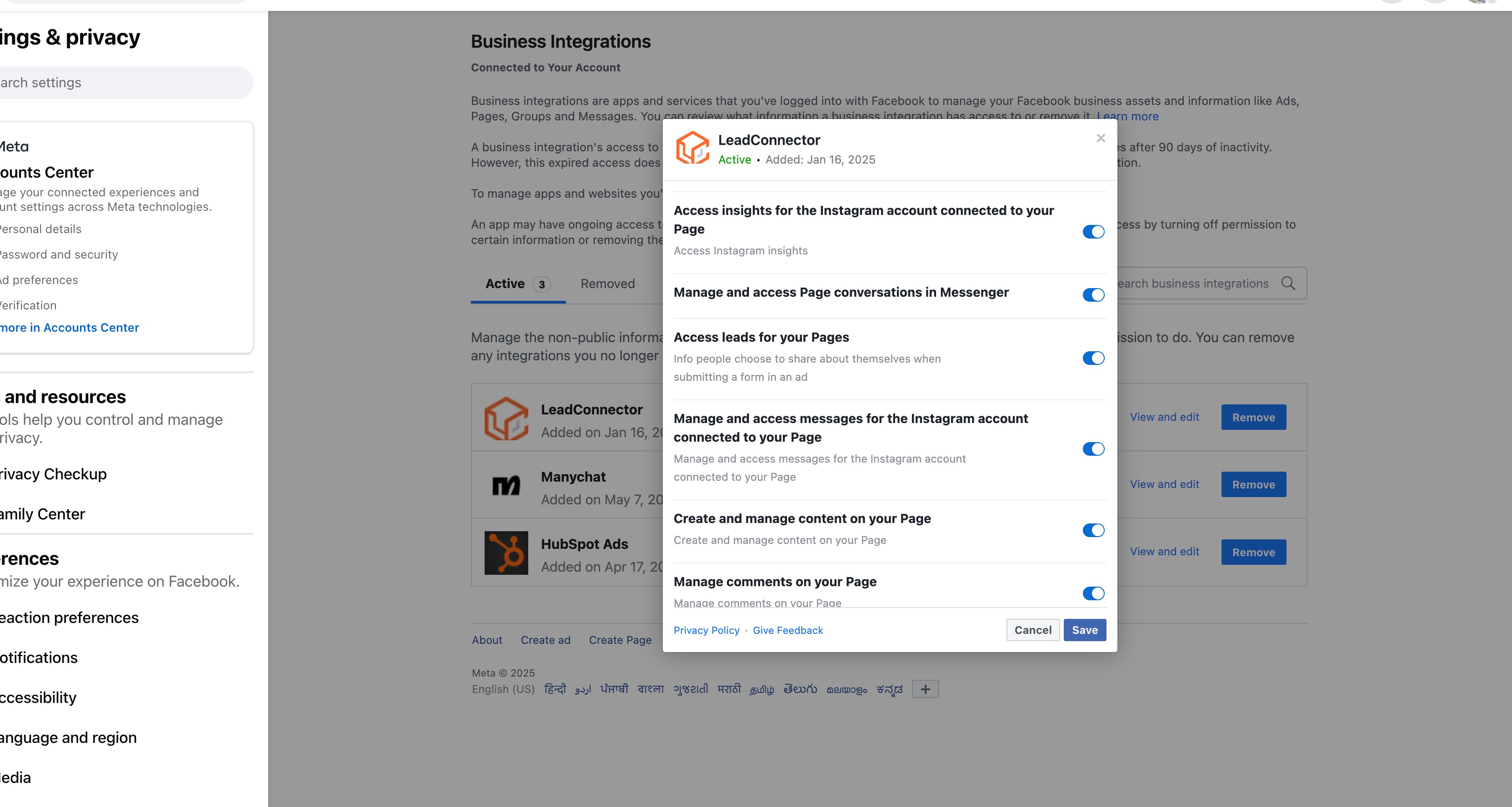
](https://s3.amazonaws.com/cdn.freshdesk.com/data/helpdesk/attachments/production/155046611201/original/560dNU3lKrXB3ADHgcxA9uUfY8O2B6oMvw.png?1747220054) 2. Verify that you have access to send and receive message on instagram under instagram accounts ( https://business.facebook.com/latest/settings) [
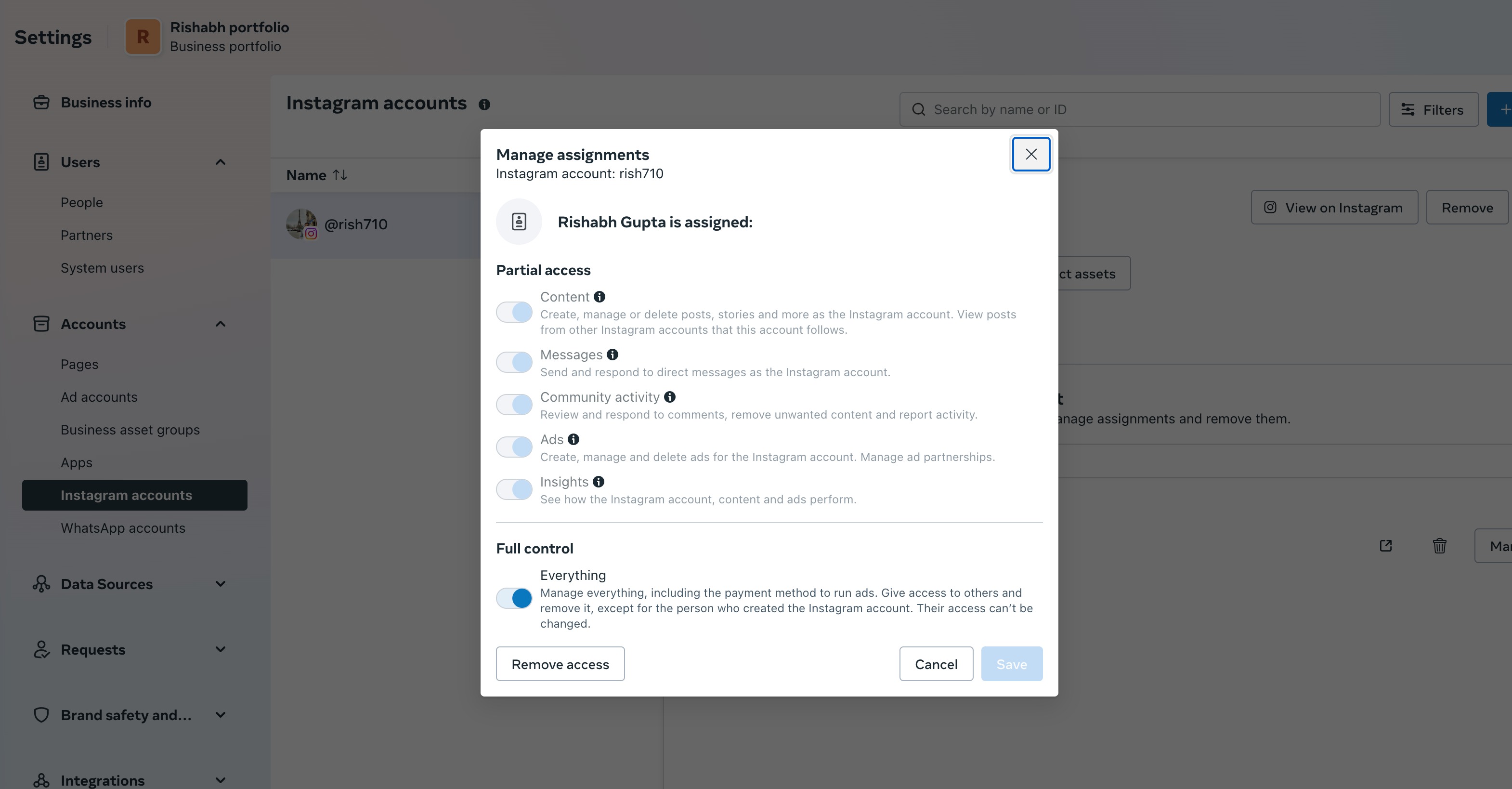
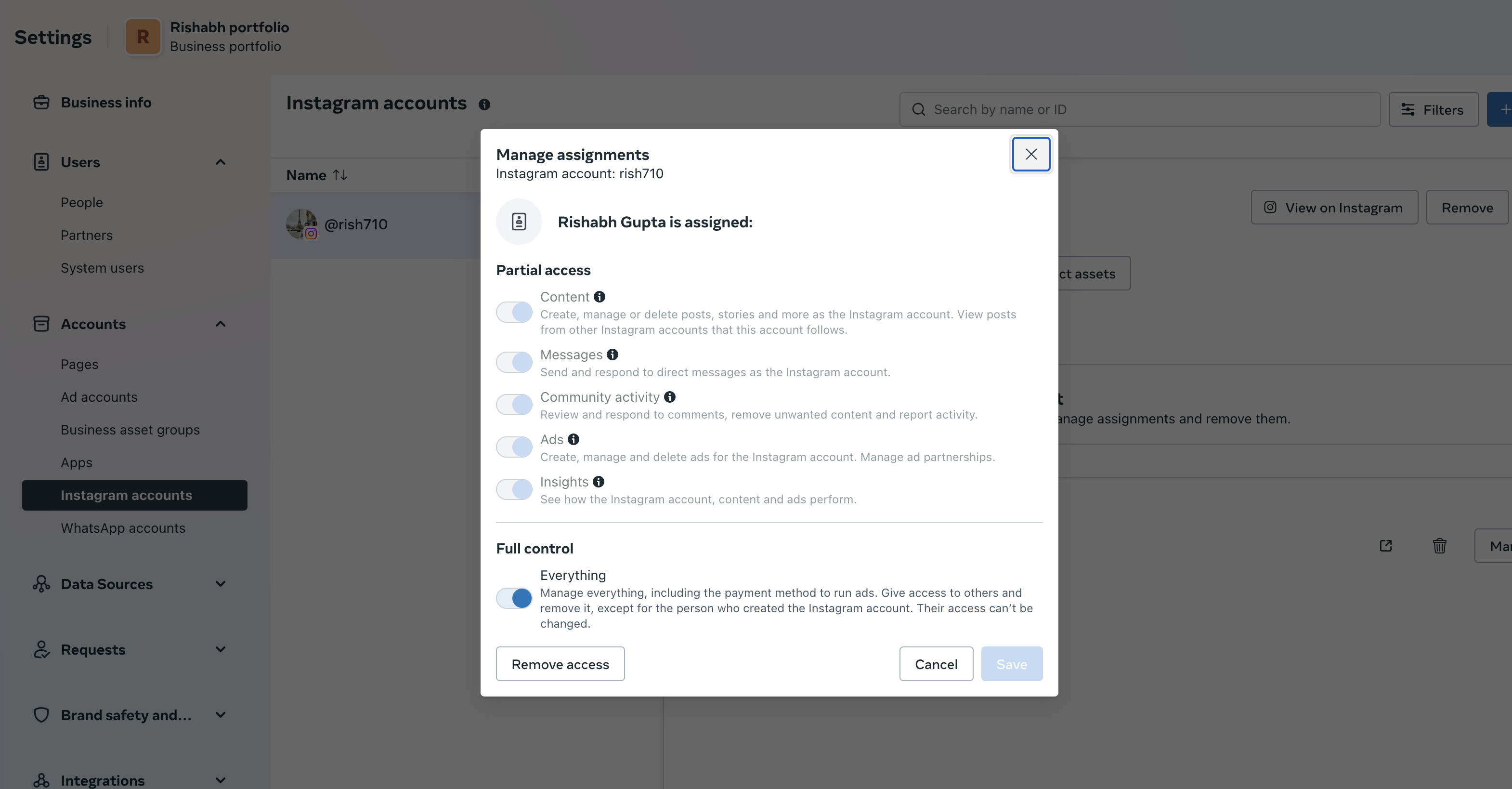
](https://s3.amazonaws.com/cdn.freshdesk.com/data/helpdesk/attachments/production/155046820921/original/tLINkNzirrxoXfTSJdGxULjH4cx8k9f3Ug.png?1747628845) 3. Verify instagram account is present in connected assets list in the page connected. [
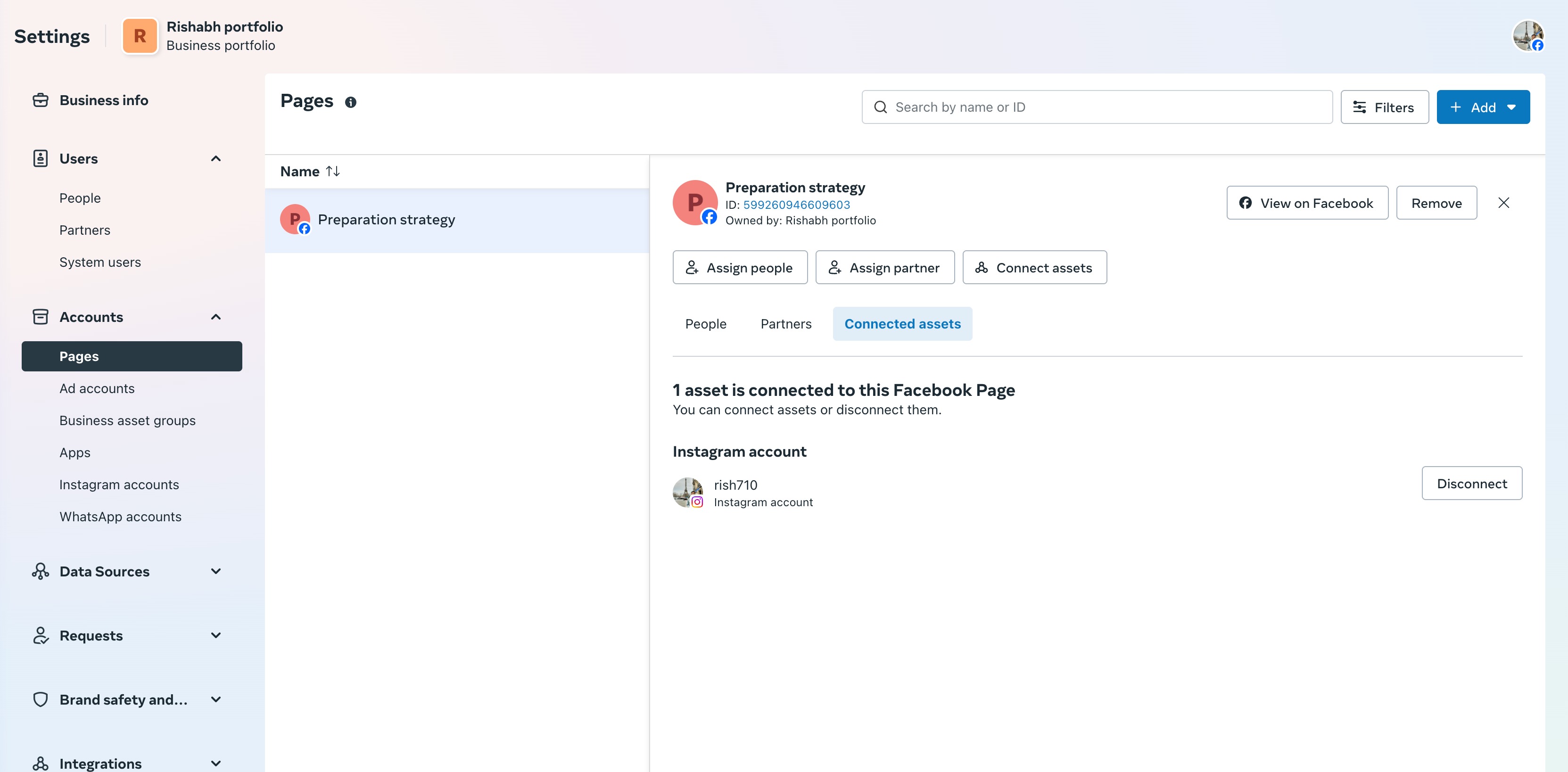
](https://s3.amazonaws.com/cdn.freshdesk.com/data/helpdesk/attachments/production/155046820913/original/rThbgLELyFW3QsFfS1WTuVteuNKAyl2-ag.png?1747628832) 4. Instagram messaging is enabled in Settings >> Integration >> Facebook card >> Settings [